

A protected invoice arriving without warning can feel routine enough to open. The familiar security language suggests that someone merely chose a cautious way to share billing information.
That appearance deserves a pause. A genuine invoice should connect naturally with a recognizable purchase, sender, and payment conversation before any password request appears.
Overview
What the unexpected notification says
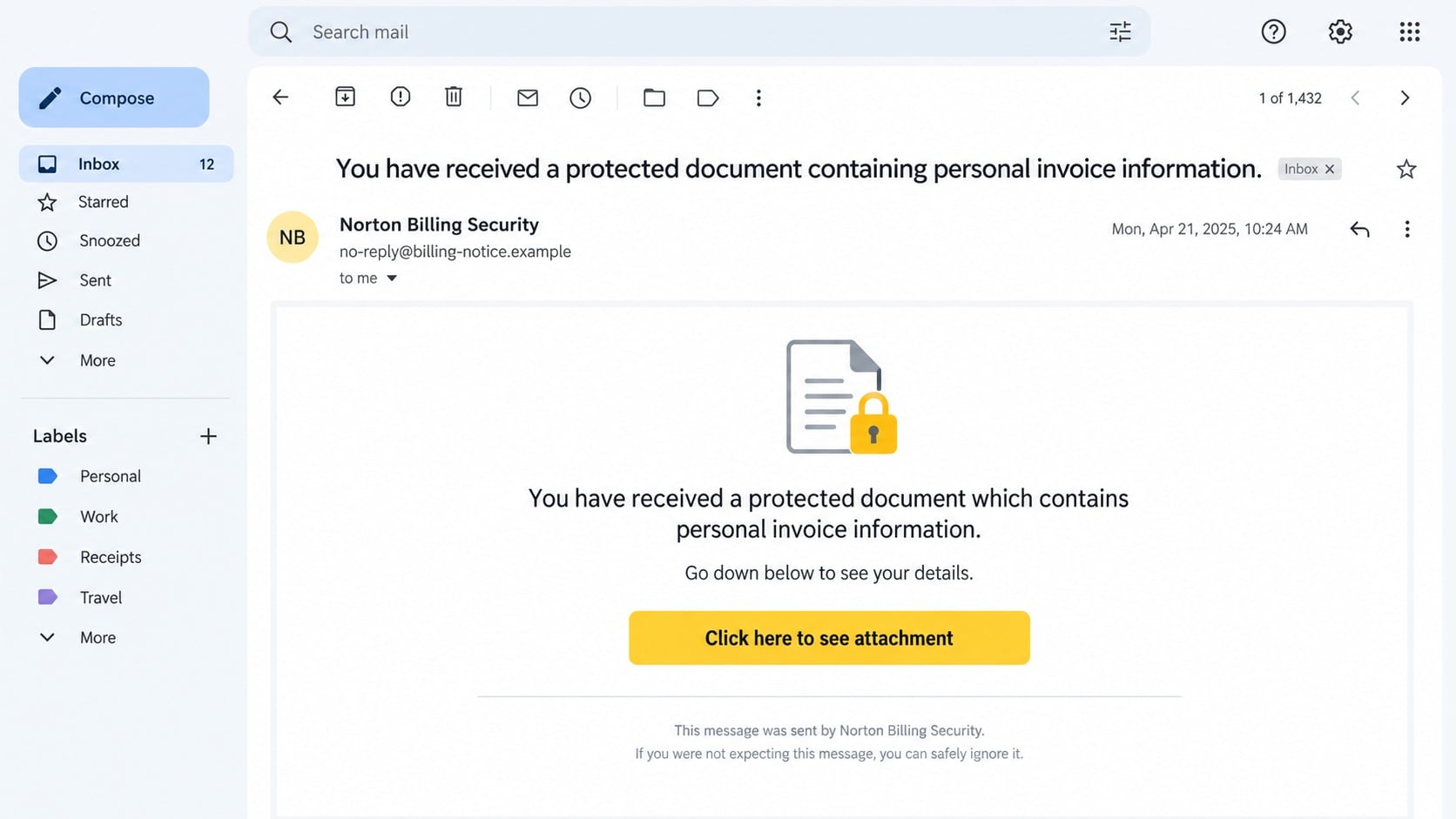
The email announces that a protected document contains personal invoice information. Its subject repeats that privacy theme and encourages the recipient to review details below.
A large attachment button appears to offer the invoice. Branding associated with a familiar security company may frame the message as a safe document delivery.
The wording stays deliberately broad. There may be no merchant, purchase date, product, invoice number, amount, or employee who supposedly initiated the transaction.
That missing context can provoke curiosity. Recipients want to learn whether an unfamiliar charge exists, especially when the message suggests sensitive financial information.
What the document link actually opens
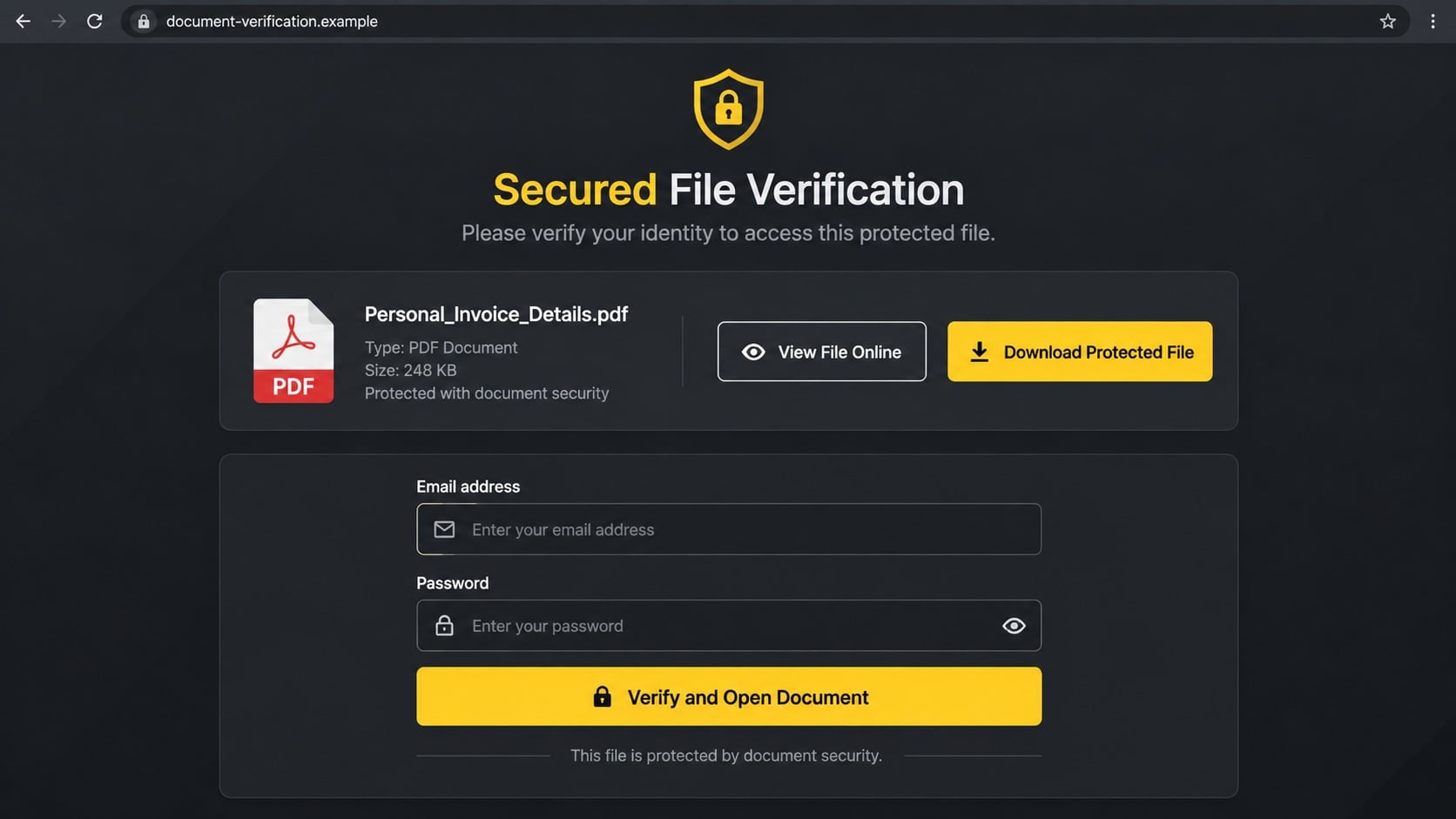
Instead of a normal PDF, the button loads a website styled as a secured Adobe document viewer. A blurred invoice preview sits behind an authentication panel.
The panel asks for an email address and password before it will display or download the file. Logos and lock graphics make that request appear procedural.
The form is not authenticating an invoice. Information entered there is sent to the phishing operator, who can immediately test the credentials against the victim’s mailbox.
Neither the security brand nor Adobe needs a recipient’s mailbox password inside an unknown webpage. Their names are visual props within the deception.
Warning signs visible before any password is entered
The campaign depends on recognizable names while avoiding verifiable transaction details. Several clues can expose that mismatch quickly.
- No expected purchase or invoice matches the notice.
- The sender’s address does not belong to the displayed brand.
- The button leads away from both the sender and Adobe.
- A web page requests an email password to reveal a PDF.
- The invoice preview remains unreadable until credentials are supplied.
- The message creates concern without naming a real merchant or amount.
A protected file can require access through a trusted account. It should never make an unrelated page the custodian of a mailbox password.
Why the Protected Invoice Story Feels Believable
Invoices are commonly sent as attachments, cloud links, or portal notifications. A recipient may therefore interpret an unexpected delivery method as normal business variation.
The word “protected” reverses suspicion. Rather than asking why the file is inaccessible, the visitor may view the login barrier as evidence of responsible security.
Personal invoice information also sounds consequential. Nobody wants private purchasing details exposed, and few people feel comfortable ignoring a possible billing issue.
The campaign benefits from ambiguity. Consumers wonder whether a subscription renewed, while employees may assume that purchasing or accounts payable recognizes the document.
Brand familiarity completes the setup. A security logo implies protection, and an Adobe-style window resembles software many people already use for office documents.
None of those visual signals confirms who sent the message. Email templates and logos are easy to copy, while domain ownership is harder to fake convincingly.
The blurred page is another psychological device. It suggests valuable content exists just beyond the prompt, even when the background may be a single fabricated image.
People often type credentials manually when a password manager stays silent. That silence may actually be the clearest warning that the page belongs to an unfamiliar domain.
Protected Documents Do Not Need Your Mailbox Password
A legitimate document service authenticates visitors on its own verified domain. It does not embed a generic email-password form inside a page controlled by an unknown host.
Email credentials prove access to a mailbox, not permission to read every third-party invoice. The two systems have no automatic trust relationship.
Single sign-on can connect services, but the browser must redirect to the actual identity provider. The address bar should show the organization’s known login domain.
A branded panel displayed within another website is not equivalent to that redirect. Attackers can reproduce text boxes, buttons, colors, and logos with ordinary web code.
Real encrypted PDFs may require a document-specific password supplied through a separate channel. That password should not be the recipient’s email account password.
If the sender genuinely shared a file, open the known document platform independently. An authorized item should appear within the account or invitation history.
When no matching file exists, contact the supposed sender through a saved address or established conversation. Do not reply to the questionable notification for reassurance.
This distinction prevents a security-themed design from replacing actual verification. Protection comes from controlling the authentication route, not admiring its appearance.
What Criminals Can Do With a Stolen Email Login
A mailbox contains far more than messages. It can reveal invoices, password resets, customer identities, travel plans, financial records, and confidential attachments.
After signing in, an attacker may search for terms such as payment, bank details, purchase order, wire, payroll, or overdue. Those searches identify profitable conversations.
Hidden forwarding rules can copy future mail to an outside address. Deletion rules may remove security alerts before the account owner sees them.
The intruder can study writing style and signatures, then send convincing requests from the real account. Colleagues trust the familiar address and conversation history.
Cloud storage, calendars, contacts, and collaboration tools may share the same identity. One captured password can expose multiple services when additional controls are absent.
Reused credentials create a wider problem. Criminals can test the same email and password against shopping, social, financial, and workplace accounts.
A second authentication prompt may follow the password form. Approving an unexpected code or sign-in request can complete access despite multifactor protection.
Fast action matters because mailbox compromise can become payment fraud. Recovery must address sessions and rules, not merely change the password once.
How the Scam Works
Step 1: A security-branded email introduces a private invoice
The target receives an unsolicited notice claiming a protected document contains personal billing information. A respected name is displayed to lower suspicion.
The message rarely explains the underlying purchase. That omission lets one template reach consumers, small businesses, and corporate mailboxes without customization.
Concern about an unknown invoice supplies the motivation. The recipient believes opening the document is the fastest way to resolve uncertainty.
Step 2: The attachment button records interest and redirects the visitor
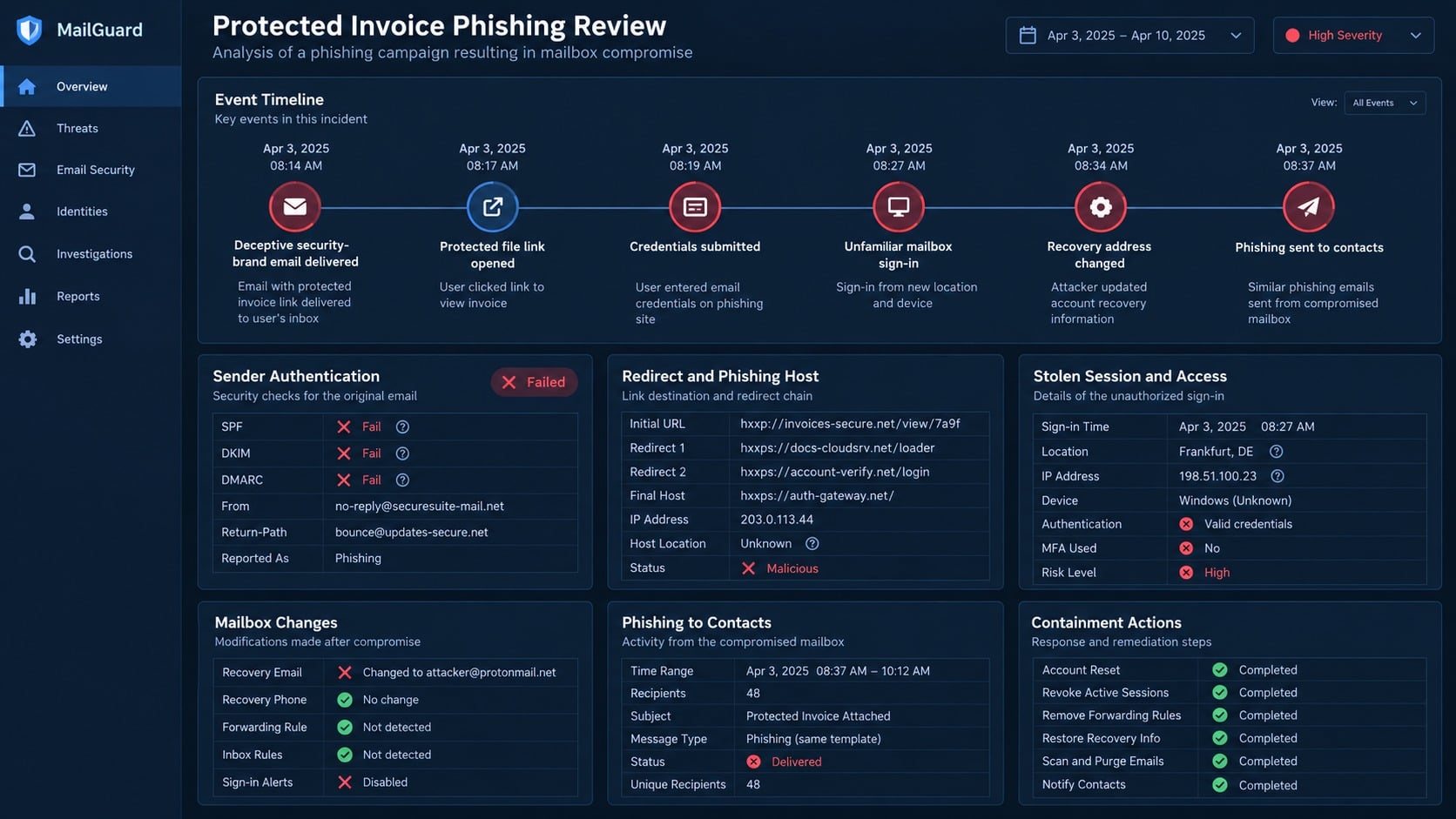
Clicking the prominent control sends the browser to an external page. The destination may include tracking values connected with the recipient’s email address.
Those values tell the operator that the account is active and the lure was opened. Future messages can then target the responsive address more aggressively.
The destination domain usually has no meaningful connection with the displayed security company, document provider, or alleged merchant.
Step 3: A counterfeit viewer presents a locked invoice
The landing page imitates a protected Adobe file. It may show a PDF icon, page count, blurred text, and buttons for online viewing or downloading.
A modal window blocks the content and claims verification is required. The inaccessible background prevents the victim from noticing that no functional invoice exists.
The page can prefill the targeted email address. Personalization makes the prompt look connected to an existing account, although the value came from the phishing link.
Step 4: The victim is asked to submit mailbox credentials
The form requests an email address and password. It may accept any input, display an error, and ask for another attempt to capture alternate passwords.
Nothing is checked against a legitimate document service. The submitted values travel to infrastructure selected by the criminal.
A loading animation can delay the visitor while automated tools test the password. An authentic sign-in notification may appear during that pause.
Step 5: Additional verification may be collected
If multifactor authentication blocks access, the page can request a current code. Attackers may also trigger a genuine approval notification and urge acceptance.
Codes expire quickly, so the counterfeit viewer uses urgency. It may claim the protected session will close unless verification finishes immediately.
Approving an unexpected request gives the operator the missing factor. Never confirm a sign-in that you did not start through the provider’s real site.
Step 6: The mailbox is searched and persistence is added
Successful access exposes correspondence and connected services. The intruder looks for financial opportunities, sensitive documents, and people likely to trust the account.
Forwarding addresses, inbox rules, delegated access, application passwords, or connected applications can preserve access after the obvious session ends.
Security warnings may be marked read or deleted. The owner sees an ordinary inbox while the compromise continues quietly.
Step 7: The account supports a second, more convincing attack
The original phishing page may vanish, but the stolen identity remains valuable. Messages can be sent to customers, suppliers, friends, or coworkers.
A criminal may replace bank details in a genuine invoice thread, request gift cards, distribute malicious files, or reset passwords for other services.
Recipients of that second wave see a legitimate address and familiar history. This makes containment and prompt partner notification especially important.
Brand, Document, Domain, and Login Verification Checks
Confirm whether a real invoice should exist
Search orders, subscriptions, expense records, and internal purchasing systems before opening the file. A genuine invoice should correspond with a recognizable transaction.
For workplace mail, ask accounts payable or the named buyer. They should identify the merchant, amount, purpose, and expected delivery channel.
If nobody recognizes the purchase, do not use the protected page to investigate. Preserve the email and submit it through the organization’s reporting process.
Consumers can review account statements directly. An unexplained email is not evidence that a charge occurred.
Separate the displayed brand from the actual sender
Expand the full From and Reply-To addresses. Logos and friendly names can say anything, while the domain reveals where the message originated.
Look for misspellings, unrelated free-mail accounts, newly invented domains, or a Reply-To that differs from the visible sender.
A real company can still be impersonated. Visit its official website independently and use published support information when confirmation is necessary.
Do not call numbers placed inside the suspicious message. They may connect directly to another stage of the same operation.
Inspect the document route without authenticating
Hover over the button or inspect the destination safely. The registered domain should belong to the claimed document service, not a random publishing host.
Shortened links and long redirect chains hide ownership. Security teams can analyze them in an isolated environment without visiting from the employee’s normal browser.
If a familiar cloud platform is named, open that service using a bookmark. Search shared files and notifications inside the authenticated account.
A legitimate invitation should survive that independent route. A phishing page depends on the special link supplied by the attacker.
Recognize an improper password request
Check the address bar before entering credentials. The page must belong to the exact identity provider that normally handles the account.
Do not type an email password into an embedded window simply because it carries Adobe or security-company artwork.
Password managers often refuse to fill credentials on the wrong domain. Investigate that mismatch instead of overriding the protection manually.
Close the page when uncertain. Contact the sender through a known channel and request the invoice through an established, approved delivery method.
What to Do if You Have Fallen Victim to This Scam
Begin by recording what happened. A click alone differs from submitting a password, approving a code, downloading a file, or granting an application permission.
- Leave the fraudulent page. Close its tab and do not test additional passwords or attempt another download.
- Secure the mailbox directly. Visit the provider through a trusted bookmark, change the exposed password, and replace reused credentials elsewhere.
- Terminate unauthorized access. Sign out other sessions, remove unknown devices, revoke suspicious applications, and regenerate application passwords.
- Review account settings. Inspect forwarding, inbox rules, delegates, recovery details, signatures, automatic replies, and recently deleted messages.
- Strengthen authentication. Enable multifactor protection with an authenticator or security key, then preserve backup codes safely.
- Warn affected contacts. Tell colleagues, customers, and suppliers to distrust unusual attachments or payment changes sent from the account.
- Check the device. Run a complete Malwarebytes scan after any download. Use AdGuard to reduce exposure to malicious advertisements and deceptive pages.
- Preserve useful evidence. Save the original email, complete headers, destination address, screenshots, sign-in logs, and a timeline for investigators.
Is Your Device Infected? Run a Free Malware Scan
Slow performance, constant pop-ups, or strange behavior? These are classic signs of a malware infection. The fastest way to find out is to scan your device with Malwarebytes Free — one of the most trusted malware removal tools available.
The free version detects and removes the most common threats, including:
- Adware — the cause of those annoying pop-ups
- Browser hijackers — unwanted redirects and changed homepages
- Trojans and spyware — hidden programs stealing your data
- Potentially unwanted programs (PUPs) — software you never asked for
👉 Select your device below — Windows, Mac, or Android — then follow the simple steps to download Malwarebytes, scan your system, and remove any threats it finds. The scan usually takes 5 to 20 minutes.
Run a Malware Scan with Malwarebytes for Windows
Malwarebytes is one of the most popular and trusted anti-malware tools for Windows — and it’s completely free for removing infections. It catches threats that many antivirus programs miss, including adware, browser hijackers, and trojans. Follow the steps below to scan and clean your PC in just a few minutes.
Download Malwarebytes
Click the button below to download the latest version of Malwarebytes for Windows from the official source. The free version is all you need — it will scan your computer and remove adware, browser hijackers, and other malicious software at no cost.
Download MalwarebytesOfficial installer for Windows 11 and 10. Your download starts right away.Want real-time protection? See Malwarebytes Premium Malwarebytes Free for WindowsScans and removes malware at no cost
-
Install Malwarebytes
When the download finishes, open your Downloads folder and double-click the MBSetup file. If Windows shows a User Account Control pop-up, click “Yes” to allow the installation.

Follow the On-Screen Prompts to Install Malwarebytes
The setup wizard will walk you through a few quick screens:
-
Choose where you’re installing the program — “Personal Computer” or “Work Computer” — then click Next.

-
Malwarebytes will now install on your device. This usually takes under a minute.

-
When installation is complete, the “Welcome to Malwarebytes” screen will open automatically.

-
On the final screen, click Open Malwarebytes to launch the program.

-
Enable “Scan for Rootkits”
Before scanning, turn on rootkit detection so Malwarebytes can find even the most hidden threats. Click the Settings gear icon on the left side of the screen.

In the settings menu, find “Scan for rootkits” and click the toggle so it turns blue.

Done? Click “Dashboard” in the left pane to return to the main screen.
Start the Scan
Click the blue Scan button. Malwarebytes will automatically update its virus database and start checking your computer for malware.

-
Wait for the Scan to Finish
The scan checks your entire system for browser hijackers and other malicious programs, so it can take 5 to 20 minutes depending on your computer. Feel free to do something else — just check back occasionally to see the progress.

-
Quarantine the Detected Threats
When the scan is done, you’ll see a list of everything Malwarebytes found — malware, adware, and potentially unwanted programs. Click the “Quarantine” button to remove all of them at once.

Malwarebytes will now remove the malicious files and registry entries and move them safely into quarantine.

-
Restart Your Computer
Some threats can only be fully removed after a reboot. If Malwarebytes asks you to restart, click Yes. Once you’re logged back in, Malwarebytes has finished removing the threats it found.

That’s it — your Windows PC is now clean of trojans, adware, and other malware, and should be back to running smoothly.
If you are still having problems with your computer after completing these instructions, then please follow one of the steps:
- Run a computer scan with ESET Online Scanner
- Ask for help in our Windows Malware Removal Help & Support forum.
Run a Malware Scan with Malwarebytes for Mac
Malwarebytes for Mac is a free on-demand scanner that removes the malware other security software tends to miss — adware, browser hijackers, and unwanted programs included. Cleaning an infected Mac with Malwarebytes has always been completely free, and it’s our go-to recommendation. Follow the steps below to scan and clean your Mac in just a few minutes.
-
Download Malwarebytes for Mac
Click the button below to download the latest version of Malwarebytes for Mac.
Download MalwarebytesOfficial installer for macOS. Your download starts right away.Want real-time protection? See Malwarebytes PremiumMalwarebytes Free for MacScans and removes malware at no cost -
Open the Malwarebytes setup file
When the download finishes, open your Downloads folder and double-click the setup file to begin the installation.

-
Follow the On-Screen Prompts to Install Malwarebytes
The Malwarebytes for Mac Installer will guide you through a few quick screens. Click “Continue” and keep following the prompts until the installation completes.



When the installation is complete, Malwarebytes opens to the Welcome to Malwarebytes screen. Click “Get started“.
-
Select “Personal Computer” or “Work Computer”
Malwarebytes will ask what type of computer you’re installing it on. Click either Personal Computer or Work Computer, whichever applies.

-
Start the Scan
Click the “Scan” button. Malwarebytes will automatically update its detection database and begin checking your Mac for malware.

-
Wait for the Scan to Finish
Malwarebytes will scan your Mac for adware, browser hijackers, and other malicious programs. This can take a few minutes, so feel free to do something else — just check back occasionally to see the progress.

-
Quarantine the Detected Threats
When the scan is done, you’ll see a list of everything Malwarebytes found. Click the “Quarantine” button to remove all the threats at once.

-
Restart Your Mac
Malwarebytes will now remove all the malicious files it found. Some threats can only be fully removed after a reboot — if Malwarebytes asks you to restart, allow it. Once you’re logged back in, your Mac is clean.

That’s it — your Mac is now free of adware, rogue browser extensions, and other potentially harmful software.
If you are still experiencing problems while trying to remove a malicious program from your computer, please ask for help in our Mac Malware Removal Help & Support forum.
Run a Malware Scan with Malwarebytes for Android
Malwarebytes for Android automatically detects and removes dangerous threats like malware and ransomware so you don’t have to worry about your most-used device being compromised. Aggressive detection of adware and potentially unwanted programs keeps your Android phone or tablet running smooth.
-
Download Malwarebytes for Android.
You can download Malwarebytes for Android by clicking the link below.
Get Malwarebytes for AndroidOpens Google Play in a new tab.Want real-time protection? See Malwarebytes Premium for AndroidMalwarebytes for AndroidScans your phone and removes malware at no cost -
Install Malwarebytes for Android on your phone.
In the Google Play Store, tap “Install” to install Malwarebytes for Android on your device.

When the installation process has finished, tap “Open” to begin using Malwarebytes for Android. You can also open Malwarebytes by tapping on its icon in your phone menu or home screen.

-
Follow the on-screen prompts to complete the setup process
When Malwarebytes will open, you will see the Malwarebytes Setup Wizard which will guide you through a series of permissions and other setup options.
This is the first of two screens that explain the difference between the Premium and Free versions. Swipe this screen to continue.
Tap on “Got it” to proceed to the next step.
Malwarebytes for Android will now ask for a set of permissions that are required to scan your device and protect it from malware. Tap on “Give permission” to continue.
Tap on “Allow” to permit Malwarebytes to access the files on your phone.
-
Update database and run a scan with Malwarebytes for Android
You will now be prompted to update the Malwarebytes database and run a full system scan.

Click on “Update database” to update the Malwarebytes for Android definitions to the latest version, then click on “Run full scan” to perform a system scan.

-
Wait for the Malwarebytes scan to complete.
Malwarebytes will now start scanning your phone for adware and other malicious apps. This process can take a few minutes, so we suggest you do something else and periodically check on the status of the scan to see when it is finished.

-
Click on “Remove Selected”.
When the scan has been completed, you will be presented with a screen showing the malware infections that Malwarebytes for Android has detected. To remove the malicious apps that Malwarebytes has found, tap on the “Remove Selected” button.

-
Restart your phone.
Malwarebytes for Android will now remove all the malicious apps that it has found. To complete the malware removal process, Malwarebytes may ask you to restart your device.
That’s it — your Android phone is now clean — no more malicious apps, adware, or browser redirects.
If you are still having problems with your phone after completing these instructions, then please follow one of the steps:
- Restore your phone to factory settings by going to Settings > General management > Reset > Factory data reset.
- Ask for help in our Mobile Malware Removal Help & Support forum.
Stay Protected: Block Ads and Malicious Sites
Now that your device is clean, keep it that way. Most infections start with a malicious ad or a fake download button — so blocking them at the source is your best defense.
We recommend AdGuard, which blocks malicious ads, phishing pages, and dangerous redirects before they can reach you.
👉 Download AdGuard and browse safely
Business administrators should search mail logs for matching subjects, senders, links, and attachments. Other employees may have received the same protected-document lure.
Continue monitoring the account after recovery. Information copied during a short intrusion can support a delayed invoice or impersonation attempt.
Frequently Asked Questions
Is the protected invoice email really from Norton?
Not merely because the message displays its name or logo. Verify the complete sender address and transaction independently before trusting the notice.
Would Adobe ask for my email password to open a PDF?
An unknown page should never collect that password. Authentic Adobe authentication occurs on Adobe’s verified domain or through a clearly identified organizational provider.
What if the fake page already knew my email address?
The address may be encoded within the link or taken from a mailing list. Prefilling it does not prove account access or document ownership.
Can opening the link alone compromise my mailbox?
A visit confirms interest and exposes technical data, but credential theft normally requires submission. Still report the page and inspect any downloaded content.
Why did my password manager refuse to autofill?
It likely did not recognize the host as the saved login domain. That protective mismatch should prompt verification, not manual entry.
Should I contact the brand shown in the message?
Only through contact details obtained independently. First determine whether a real purchase, account, or invoice connects you with that company.
The Bottom Line
The protected invoice document email scam turns familiar security language, copied branding, and a blurred file preview into a convincing mailbox-password trap.
Verify the purchase, sender, destination domain, and login provider separately. A genuine invoice never requires surrendering email credentials to an unfamiliar embedded form.

Join the discussion
0 commentsShare your experience or ask a question about this article.
Discussion
Start the conversation
Have a question or something useful to share? Add the first comment.