

A promising invitation from a global company can make an ordinary morning feel like a turning point. For a small supplier, the opportunity may appear unusually well timed.
Before sending a capability statement or celebrating a new contract, pause. The most revealing part of this offer is not always the recognizable company name.
Overview
What the partnership invitation says
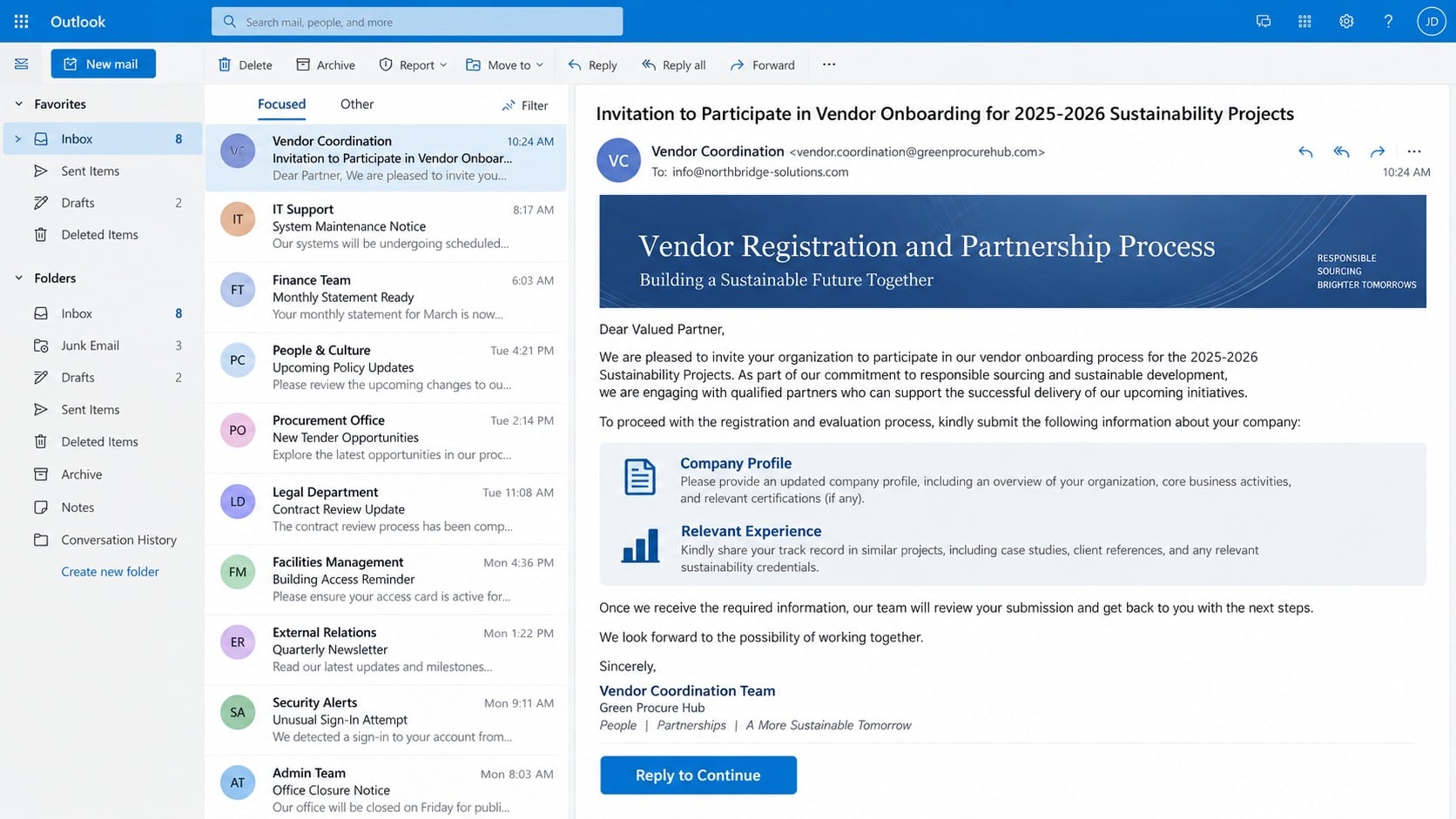
The email presents itself as a vendor registration or supplier partnership request. It may claim that a large energy company is preparing projects for 2025 or 2026.
Recipients are invited to join a procurement program covering sustainability, maintenance, logistics, construction, consulting, or another broad category with commercial appeal.
The sender usually requests a company profile, list of services, relevant experience, references, and contact details for the person authorized to discuss contracts.
Some versions mention a prequalification process. Others promise that suitable businesses will receive tender documents, purchase requirements, or instructions from a supposed procurement officer.
Why the message can look convincing
Nothing in the opening request necessarily asks for money. That restraint makes the approach feel closer to normal business development than an obvious fraud attempt.
The message may borrow a real corporation’s name, office address, industry vocabulary, and project themes. Those accurate fragments create credibility around an unrelated sender.
A signature can include an impressive job title, confidentiality notice, telephone number, and procurement department. None of those details proves the writer works there.
Scammers also understand that suppliers expect paperwork. Requests for registration forms, tax records, bank letters, insurance certificates, and ownership details can seem perfectly routine.
What is actually at risk
The first reply tells the sender that the mailbox is monitored and the business is interested. That alone makes the company a more valuable target.
- Business registration records and identity documents can support impersonation.
- Banking letters and payment instructions can enable invoice fraud.
- Employee names and signatures can strengthen later social engineering.
- Internal pricing and customer references can reveal sensitive commercial relationships.
- Advance fees can be disguised as compliance, tender, insurance, or processing costs.
- Malicious attachments can be presented as supplier forms or contract packages.
The scheme often unfolds through patient correspondence. A polite first email can develop into document theft, payment fraud, malware delivery, or several losses at once.
Why Suppliers Are Attractive Targets
Small and midsize businesses actively seek new customers. An unexpected procurement lead therefore arrives in a context where optimism is reasonable, not careless.
A recognizable buyer can represent months of work. The prospect of stable orders may encourage staff to complete forms before confirming who controls the conversation.
Vendor onboarding also involves unusual information. A legitimate customer may request company certificates, insurance, tax forms, ownership declarations, and payment coordinates.
That overlap gives criminals cover. They can ask for valuable records while claiming each document is a standard compliance requirement.
Multiple employees may participate. Sales answers the invitation, finance supplies bank details, management signs forms, and information technology opens a shared portal.
Each handoff weakens context. A finance employee may see a polished registration form without knowing that the original request came from an unverified address.
The fraud can continue for days. Calm, professional replies lower suspicion while the sender learns the company’s processes, decision makers, and payment habits.
Later messages may reference information the victim previously supplied. Those personalized details make a fabricated contract or payment request appear internally consistent.
The Documents Commonly Requested
A capability statement is usually the opening request. It confirms the organization’s services, markets, notable projects, and likely appetite for a large contract.
Scammers may then ask for incorporation certificates, tax identifiers, licenses, director names, or copies of identification. These records can support further impersonation.
Bank confirmation letters are especially sensitive. They reveal account names, institutions, routing details, and authorized representatives in a format that looks official.
Blank signed forms create additional danger. A signature copied from one document can be placed onto altered payment instructions or counterfeit agreements.
Customer references expose other companies connected to the target. Criminals can approach those partners while pretending to represent the supplier.
Insurance certificates reveal policy numbers, brokers, coverage periods, and renewal dates. That knowledge helps an impostor construct believable follow-up conversations.
A genuine buyer may need some of this material. The safe sequence is verification first, controlled disclosure second, and independent confirmation before any payment.
Documents should be watermarked for their intended recipient when practical. Access should be limited, and unnecessary personal identifiers should be removed.
How Procurement Impersonation Changes Over Time
The company name used today may disappear from tomorrow’s version. Operators switch brands, countries, project years, and industries whenever complaints expose a campaign.
The underlying sequence changes far less. An attractive opportunity opens the conversation, ordinary paperwork deepens trust, and a later requirement produces the loss.
That pattern matters more than memorizing one sender address. A blocked mailbox can be replaced, while the social pressure behind vendor onboarding remains effective.
Businesses should teach staff to verify the process, not recognize one template. Strong procedures continue working after the logo, project, and supposed coordinator change.
How the Scam Works
Step 1: The sender offers an impressive commercial opportunity
The approach typically reaches an address published on a company website, directory, trade listing, or professional profile. It may address the business by name.
The message claims that a major corporation is expanding its supplier network. Broad project descriptions ensure that many unrelated businesses still feel eligible.
A real corporate address or project phrase may appear in the signature. The sender relies on recognition while avoiding details that a genuine procurement employee could answer.
Step 2: A reply begins a controlled relationship
When the recipient expresses interest, the supposed coordinator responds quickly. The tone remains helpful, organized, and deliberately free from obvious pressure.
The scammer may ask basic qualifying questions about location, staffing, revenue, past work, or service capacity. These questions also collect intelligence.
Every answer helps the criminal tailor future paperwork. The resulting exchange feels personal because it now contains facts supplied by the target.
Step 3: The business is moved into a false onboarding process
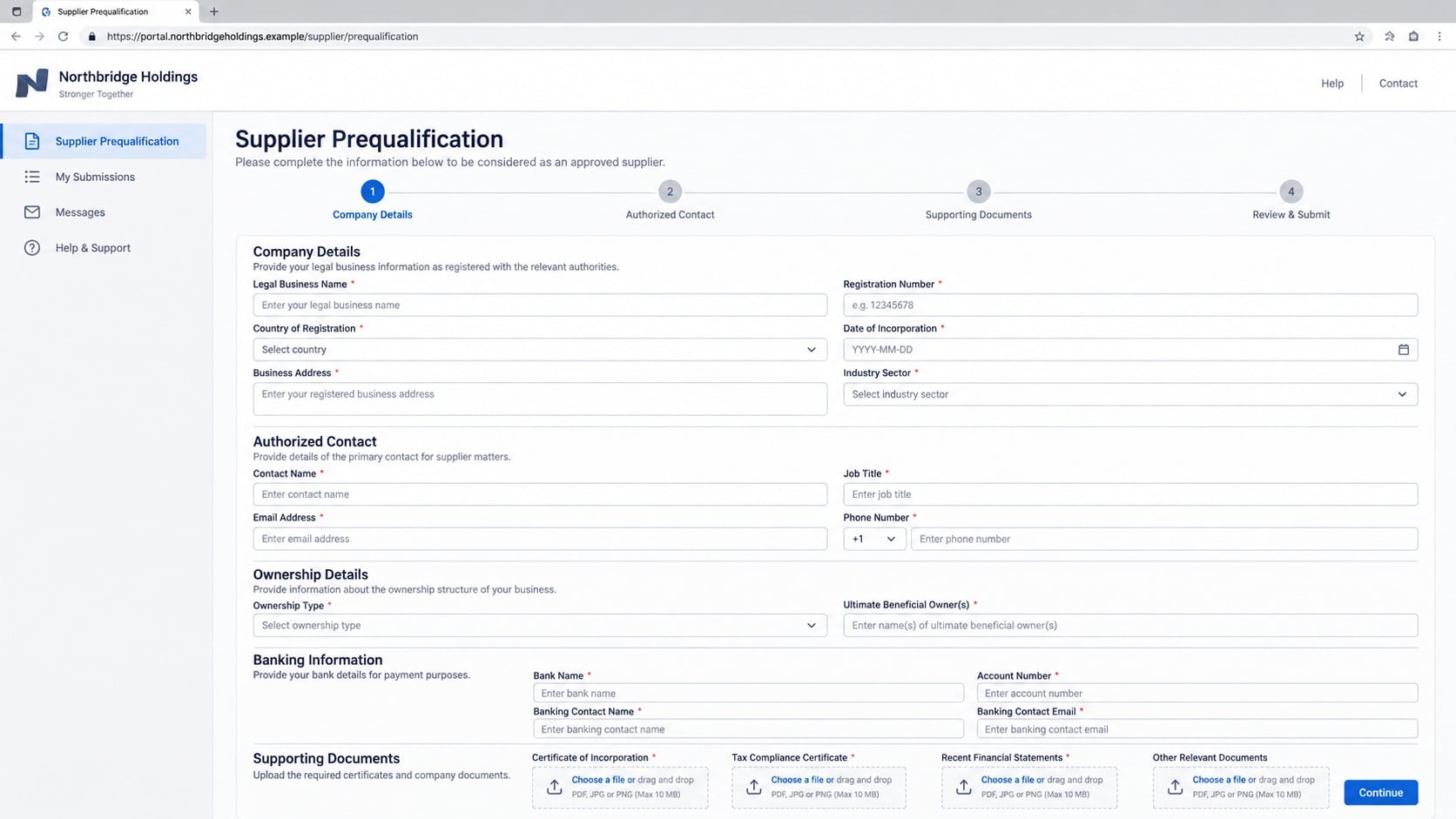
A registration form or portal follows. Its design may imitate a procurement platform, complete with progress indicators, required fields, and document upload areas.
The form can request corporate records, owner identification, bank letters, and signatures. Data submitted there may travel directly to infrastructure controlled by criminals.
Some campaigns use ordinary email attachments instead. A file can contain harmless-looking forms, credential-stealing links, or malicious content designed to compromise a workstation.
Step 4: Fabricated approval creates confidence
After receiving the records, the sender announces that the supplier passed an initial review. A reference number, approval letter, or draft contract may accompany the message.
This milestone rewards cooperation. The victim may interpret continued communication as evidence that earlier doubts were unnecessary.
A counterfeit purchase forecast can display large projected values. That potential revenue makes a later fee appear small by comparison.
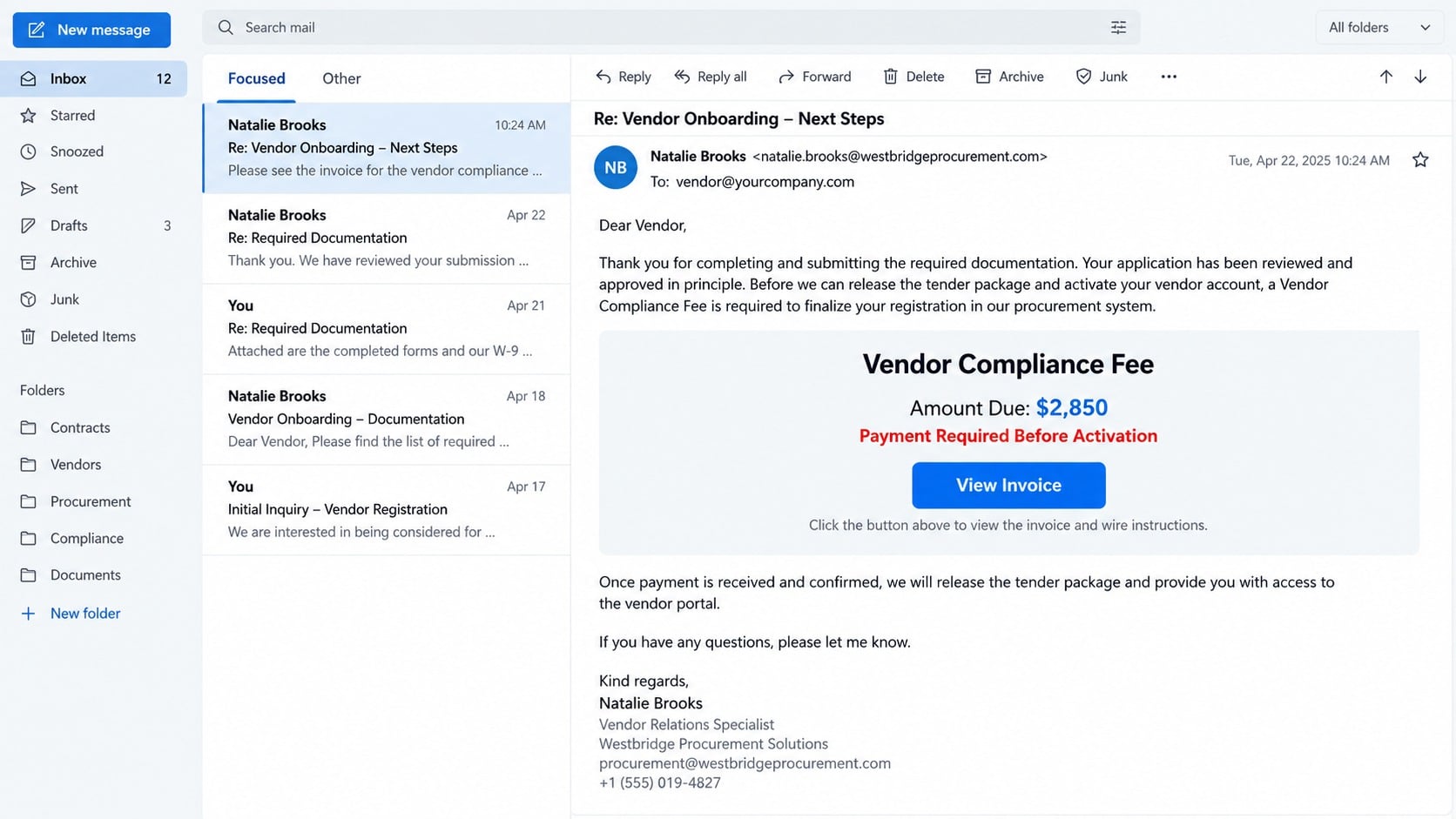
Step 5: A fee or financial instruction appears
The next requirement might be described as registration, accreditation, compliance, insurance, inspection, tender access, legal review, or refundable security.
Payment may be directed to a consultant, agent, certification provider, or local representative. This separation is explained as part of corporate procedure.
Criminals can also send false banking instructions for a supposed bid bond. Urgency increases when the victim questions the unusual destination.
Step 6: The demand expands after the first payment
Once money is sent, another obstacle appears. The sender may claim that a tax stamp, customs document, anti-fraud certificate, or release authorization remains outstanding.
Each new charge is positioned as the final barrier before contract activation. Previous payments encourage the victim to continue rather than accept the loss.
There may never have been a tender, approved supplier account, or purchasing department behind the exchange.
Step 7: Stolen information supports secondary fraud
Even a target who refuses payment may still suffer consequences. Submitted documents can be reused in identity theft and business email compromise.
A scammer may impersonate the supplier when approaching customers. Authentic registration papers and signatures make the invented relationship harder to challenge.
If credentials were captured, the mailbox can reveal invoices, contacts, contracts, and payment conversations. Criminals may then redirect a legitimate transaction.
Company, Procurement, Contact, and Payment Verification Checks
Confirm the procurement channel independently
Do not use the telephone number, website, or contact supplied in the invitation. Find the corporation’s official vendor information through its established public domain.
Large organizations usually publish structured registration guidance. An employee should be able to explain the portal, required documents, and whether the named project exists.
Search the supposed coordinator’s name, but treat search results carefully. A real employee’s identity can be copied by someone using an unrelated mailbox.
Ask the company’s main office to connect you with procurement. A scammer cannot control a conversation started through an independently sourced channel.
Compare every sender, reply, and link address
Expand the full From and Reply-To fields. A familiar display name can hide free webmail, a misspelled domain, or an unrelated consulting address.
Hover over portal buttons without opening them. The destination should belong to the verified corporation or a procurement service it publicly identifies.
Look beyond superficial spelling. Added words, substituted letters, unfamiliar country domains, and long hosting addresses are common signs of impersonation.
A corporate footer does not authenticate a message. Addresses, logos, legal notices, and executive names can be copied in minutes.
Protect company records and banking information
Share only what the verified process requires. Remove unnecessary identification numbers, personal addresses, signatures, and customer information before uploading documents.
Watermark sensitive copies with the recipient, purpose, and date. That mark may limit how convincingly a stolen record can be reused elsewhere.
Bank changes deserve a separate verification call. Never trust new payment instructions simply because they appear inside an ongoing email thread.
Use a controlled repository with access logs when possible. Ordinary attachments become difficult to retrieve after they leave the mailbox.
Challenge every fee, agent, and deadline
Ask why the payment is required, which legal entity receives it, and where that requirement appears in the buyer’s published vendor guidance.
Confirm the beneficiary name with the corporation. A personal account, unrelated company, cryptocurrency address, or money-transfer recipient deserves immediate rejection.
Pressure is evidence, not a business necessity. Genuine procurement staff can explain charges and permit reasonable time for legal or financial review.
Have counsel examine unfamiliar contracts. A forged document can look polished while containing inconsistent entities, jurisdictions, dates, or obligations.
What to Do if You Have Fallen Victim to This Scam
Act according to what was shared. A reply alone requires different containment than a bank transfer, document upload, password entry, or opened executable file.
- Stop the exchange. Do not send another form, fee, or explanation. Preserve the conversation before blocking the addresses involved.
- Contact the bank immediately. Ask the fraud team to recall or freeze any transfer. Provide beneficiary details, timestamps, references, and the complete correspondence.
- Change exposed credentials. Use a clean device, create a unique password, revoke active sessions, review recovery methods, and enable multifactor authentication.
- Inspect the mailbox. Check forwarding rules, delegates, sent mail, deleted messages, connected applications, and sign-in history for unauthorized activity.
- Notify affected partners. Warn customers, employees, banks, and insurers if their details appeared in submitted records or compromised correspondence.
- Document the disclosure. List every file, identifier, signature, account detail, and person exposed so follow-up monitoring addresses the actual risk.
- Scan business devices. Run a full Malwarebytes scan after opening attachments. Use AdGuard to reduce access to known malicious advertising and phishing destinations.
- Report the impersonation. Send evidence to the real corporation, relevant email provider, hosting service, and local fraud or cybercrime authority.
Is Your Device Infected? Run a Free Malware Scan
Slow performance, constant pop-ups, or strange behavior? These are classic signs of a malware infection. The fastest way to find out is to scan your device with Malwarebytes Free — one of the most trusted malware removal tools available.
The free version detects and removes the most common threats, including:
- Adware — the cause of those annoying pop-ups
- Browser hijackers — unwanted redirects and changed homepages
- Trojans and spyware — hidden programs stealing your data
- Potentially unwanted programs (PUPs) — software you never asked for
👉 Select your device below — Windows, Mac, or Android — then follow the simple steps to download Malwarebytes, scan your system, and remove any threats it finds. The scan usually takes 5 to 20 minutes.
Run a Malware Scan with Malwarebytes for Windows
Malwarebytes is one of the most popular and trusted anti-malware tools for Windows — and it’s completely free for removing infections. It catches threats that many antivirus programs miss, including adware, browser hijackers, and trojans. Follow the steps below to scan and clean your PC in just a few minutes.
Download Malwarebytes
Click the button below to download the latest version of Malwarebytes for Windows from the official source. The free version is all you need — it will scan your computer and remove adware, browser hijackers, and other malicious software at no cost.
Download MalwarebytesOfficial installer for Windows 11 and 10. Your download starts right away.Want real-time protection? See Malwarebytes Premium Malwarebytes Free for WindowsScans and removes malware at no cost
-
Install Malwarebytes
When the download finishes, open your Downloads folder and double-click the MBSetup file. If Windows shows a User Account Control pop-up, click “Yes” to allow the installation.

Follow the On-Screen Prompts to Install Malwarebytes
The setup wizard will walk you through a few quick screens:
-
Choose where you’re installing the program — “Personal Computer” or “Work Computer” — then click Next.

-
Malwarebytes will now install on your device. This usually takes under a minute.

-
When installation is complete, the “Welcome to Malwarebytes” screen will open automatically.

-
On the final screen, click Open Malwarebytes to launch the program.

-
Enable “Scan for Rootkits”
Before scanning, turn on rootkit detection so Malwarebytes can find even the most hidden threats. Click the Settings gear icon on the left side of the screen.

In the settings menu, find “Scan for rootkits” and click the toggle so it turns blue.

Done? Click “Dashboard” in the left pane to return to the main screen.
Start the Scan
Click the blue Scan button. Malwarebytes will automatically update its virus database and start checking your computer for malware.

-
Wait for the Scan to Finish
The scan checks your entire system for browser hijackers and other malicious programs, so it can take 5 to 20 minutes depending on your computer. Feel free to do something else — just check back occasionally to see the progress.

-
Quarantine the Detected Threats
When the scan is done, you’ll see a list of everything Malwarebytes found — malware, adware, and potentially unwanted programs. Click the “Quarantine” button to remove all of them at once.

Malwarebytes will now remove the malicious files and registry entries and move them safely into quarantine.

-
Restart Your Computer
Some threats can only be fully removed after a reboot. If Malwarebytes asks you to restart, click Yes. Once you’re logged back in, Malwarebytes has finished removing the threats it found.

That’s it — your Windows PC is now clean of trojans, adware, and other malware, and should be back to running smoothly.
If you are still having problems with your computer after completing these instructions, then please follow one of the steps:
- Run a computer scan with ESET Online Scanner
- Ask for help in our Windows Malware Removal Help & Support forum.
Run a Malware Scan with Malwarebytes for Mac
Malwarebytes for Mac is a free on-demand scanner that removes the malware other security software tends to miss — adware, browser hijackers, and unwanted programs included. Cleaning an infected Mac with Malwarebytes has always been completely free, and it’s our go-to recommendation. Follow the steps below to scan and clean your Mac in just a few minutes.
-
Download Malwarebytes for Mac
Click the button below to download the latest version of Malwarebytes for Mac.
Download MalwarebytesOfficial installer for macOS. Your download starts right away.Want real-time protection? See Malwarebytes PremiumMalwarebytes Free for MacScans and removes malware at no cost -
Open the Malwarebytes setup file
When the download finishes, open your Downloads folder and double-click the setup file to begin the installation.

-
Follow the On-Screen Prompts to Install Malwarebytes
The Malwarebytes for Mac Installer will guide you through a few quick screens. Click “Continue” and keep following the prompts until the installation completes.



When the installation is complete, Malwarebytes opens to the Welcome to Malwarebytes screen. Click “Get started“.
-
Select “Personal Computer” or “Work Computer”
Malwarebytes will ask what type of computer you’re installing it on. Click either Personal Computer or Work Computer, whichever applies.

-
Start the Scan
Click the “Scan” button. Malwarebytes will automatically update its detection database and begin checking your Mac for malware.

-
Wait for the Scan to Finish
Malwarebytes will scan your Mac for adware, browser hijackers, and other malicious programs. This can take a few minutes, so feel free to do something else — just check back occasionally to see the progress.

-
Quarantine the Detected Threats
When the scan is done, you’ll see a list of everything Malwarebytes found. Click the “Quarantine” button to remove all the threats at once.

-
Restart Your Mac
Malwarebytes will now remove all the malicious files it found. Some threats can only be fully removed after a reboot — if Malwarebytes asks you to restart, allow it. Once you’re logged back in, your Mac is clean.

That’s it — your Mac is now free of adware, rogue browser extensions, and other potentially harmful software.
If you are still experiencing problems while trying to remove a malicious program from your computer, please ask for help in our Mac Malware Removal Help & Support forum.
Run a Malware Scan with Malwarebytes for Android
Malwarebytes for Android automatically detects and removes dangerous threats like malware and ransomware so you don’t have to worry about your most-used device being compromised. Aggressive detection of adware and potentially unwanted programs keeps your Android phone or tablet running smooth.
-
Download Malwarebytes for Android.
You can download Malwarebytes for Android by clicking the link below.
Get Malwarebytes for AndroidOpens Google Play in a new tab.Want real-time protection? See Malwarebytes Premium for AndroidMalwarebytes for AndroidScans your phone and removes malware at no cost -
Install Malwarebytes for Android on your phone.
In the Google Play Store, tap “Install” to install Malwarebytes for Android on your device.

When the installation process has finished, tap “Open” to begin using Malwarebytes for Android. You can also open Malwarebytes by tapping on its icon in your phone menu or home screen.

-
Follow the on-screen prompts to complete the setup process
When Malwarebytes will open, you will see the Malwarebytes Setup Wizard which will guide you through a series of permissions and other setup options.
This is the first of two screens that explain the difference between the Premium and Free versions. Swipe this screen to continue.
Tap on “Got it” to proceed to the next step.
Malwarebytes for Android will now ask for a set of permissions that are required to scan your device and protect it from malware. Tap on “Give permission” to continue.
Tap on “Allow” to permit Malwarebytes to access the files on your phone.
-
Update database and run a scan with Malwarebytes for Android
You will now be prompted to update the Malwarebytes database and run a full system scan.

Click on “Update database” to update the Malwarebytes for Android definitions to the latest version, then click on “Run full scan” to perform a system scan.

-
Wait for the Malwarebytes scan to complete.
Malwarebytes will now start scanning your phone for adware and other malicious apps. This process can take a few minutes, so we suggest you do something else and periodically check on the status of the scan to see when it is finished.

-
Click on “Remove Selected”.
When the scan has been completed, you will be presented with a screen showing the malware infections that Malwarebytes for Android has detected. To remove the malicious apps that Malwarebytes has found, tap on the “Remove Selected” button.

-
Restart your phone.
Malwarebytes for Android will now remove all the malicious apps that it has found. To complete the malware removal process, Malwarebytes may ask you to restart your device.
That’s it — your Android phone is now clean — no more malicious apps, adware, or browser redirects.
If you are still having problems with your phone after completing these instructions, then please follow one of the steps:
- Restore your phone to factory settings by going to Settings > General management > Reset > Factory data reset.
- Ask for help in our Mobile Malware Removal Help & Support forum.
Stay Protected: Block Ads and Malicious Sites
Now that your device is clean, keep it that way. Most infections start with a malicious ad or a fake download button — so blocking them at the source is your best defense.
We recommend AdGuard, which blocks malicious ads, phishing pages, and dangerous redirects before they can reach you.
👉 Download AdGuard and browse safely
Do not delete the original message. Headers, attachments, bank instructions, and portal addresses can help investigators connect the incident to related campaigns.
If personal identification was disclosed, consider fraud alerts or credit monitoring where available. Business records can be misused long after the conversation ends.
Frequently Asked Questions
Is every unsolicited vendor invitation fraudulent?
No. Companies sometimes discover suppliers through directories or referrals. The deciding factor is whether the opportunity survives independent verification through official channels.
Can a scam email contain a real corporate address?
Yes. Public addresses, telephone numbers, project descriptions, and employee names are easy to copy. Accurate details do not authenticate the sender.
Why does the scam begin without asking for money?
A gradual approach builds trust and collects intelligence. The financial demand becomes more believable after forms, reviews, and apparent approvals.
What should a legitimate vendor portal ask for?
Requirements vary, but the portal should be verifiable through the buyer’s official website. Sensitive requests should match published onboarding guidance and contractual necessity.
Can submitted company documents be dangerous later?
Yes. Registration papers, bank letters, signatures, and references can strengthen invoice fraud, identity theft, and impersonation aimed at other businesses.
Should I pay a refundable supplier registration charge?
Not until the buyer independently confirms the charge, recipient, and governing policy. “Refundable” is frequently used to make an invented fee feel safe.
The Bottom Line
The vendor registration partnership email scam turns a believable business opportunity into a pipeline for documents, credentials, banking intelligence, and advance payments.
Treat recognition as a starting point, not proof. Verify the procurement route independently, limit disclosure, and stop whenever the company, domain, or payment path fails to match.

Join the discussion
0 commentsShare your experience or ask a question about this article.
Discussion
Start the conversation
Have a question or something useful to share? Add the first comment.