

A major-company vendor invitation can feel like the kind of break a growing business has been waiting for.
When the message mentions future projects and supplier registration, even experienced owners may pause before dismissing it.
Overview
The invitation borrows a believable procurement setting
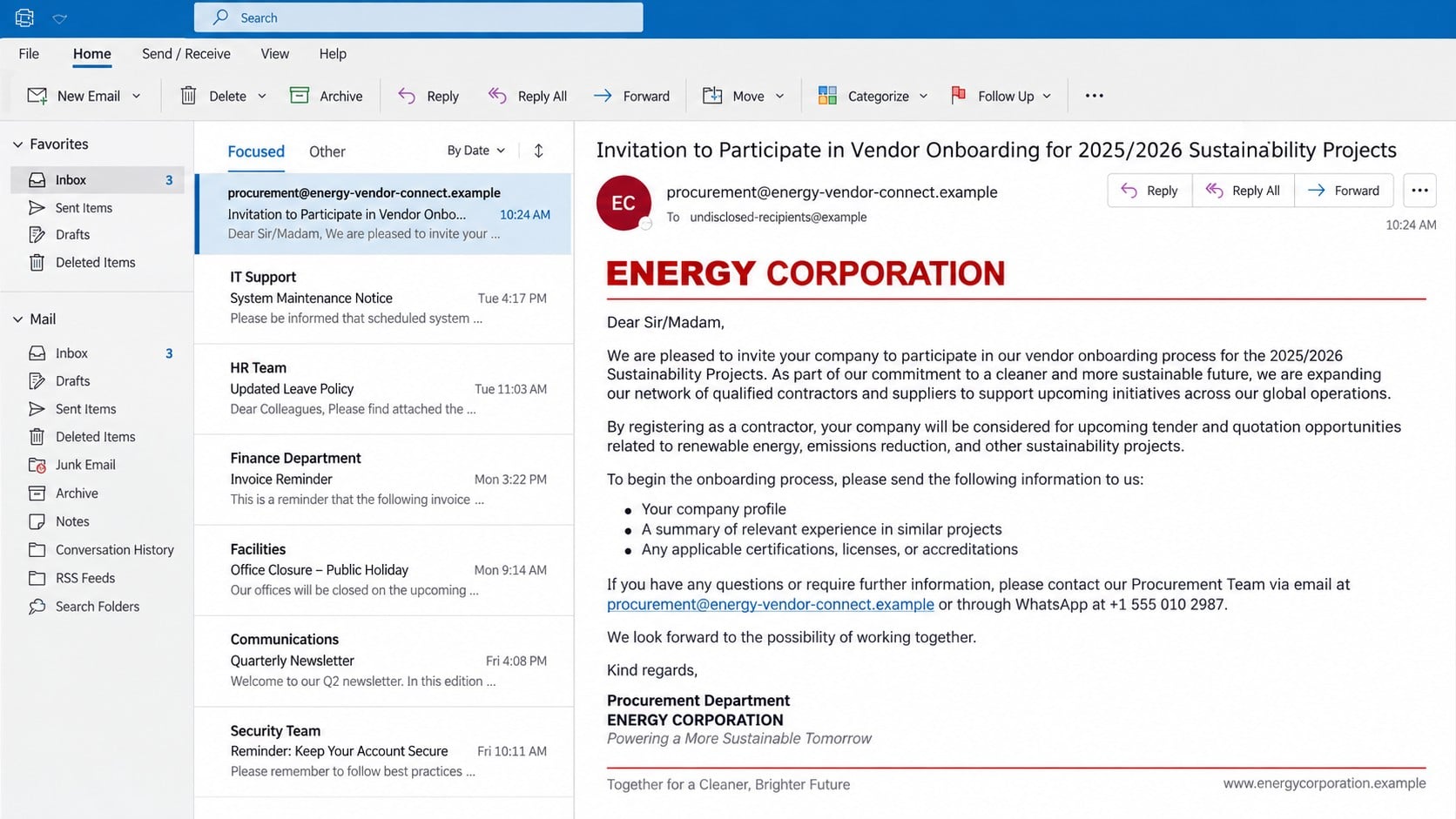
The Vendor Registration and Partnership Process email impersonates ExxonMobil and presents an unsolicited opportunity to join a supplier program.
Observed messages mention sustainability projects for 2025 and 2026, global sourcing, and possible long-term business relationships.
That language sounds plausible because large energy companies really do maintain structured procurement and supplier qualification programs.
The resemblance ends at the story. The invitation does not arrive through a verified corporate sourcing channel.
The first request can look harmless
Recipients may be asked for a company profile, service history, operating regions, references, and details about existing international customers.
None of those questions initially resembles a password prompt or obvious payment demand.
This gradual approach lets the sender measure interest, identify decision-makers, and collect information for a more convincing follow-up.
A reply also confirms that the mailbox is active and that somebody believes the proposed opportunity could be real.
The conversation can turn into data theft or advance fees
Once a target engages, the supposed procurement representative may request registration documents, banking information, identification, signatures, or confidential commercial records.
Later messages can introduce fabricated compliance charges, tender deposits, certification costs, legal processing fees, or supplier activation payments.
The real ExxonMobil is not responsible for these messages, and its name does not validate the sender.
Warning signs commonly include:
- An unsolicited invitation offering unusually broad or valuable contract access.
- A sender address outside an official, independently verified corporate domain.
- Requests to continue through WhatsApp or a personal email account.
- Vague references to projects without tender numbers or procurement contacts.
- Pressure to submit business documents before a formal sourcing event.
- Fees described as refundable, mandatory, or needed before approval.
- Banking instructions sent only through email attachments.
- Logos and signatures that cannot be confirmed through official channels.
Why the Proposal Can Feel Convincing
Vendor fraud works differently from a rushed consumer phishing message. It often develops through several polite, professional exchanges.
The opening email may avoid spelling errors, threats, and exaggerated promises. Its restraint makes the approach feel more credible.
Small suppliers routinely seek larger customers. Scammers exploit that ambition by presenting themselves as gatekeepers to a valuable corporate relationship.
The timing may also appear reasonable. References to an upcoming procurement cycle give recipients an explanation for the unexpected contact.
Generic sustainability language broadens the lure. Construction, logistics, consulting, maintenance, technology, and environmental companies can all imagine a possible role.
The sender may praise the recipient’s industry experience without naming any specific project they completed.
That flattering ambiguity allows the same script to reach thousands of businesses while still feeling selectively written.
A copied employee name, corporate logo, confidentiality notice, or office address can further reduce suspicion.
Those details are public and easy to reproduce. They do not prove that the person controlling the mailbox works for the named company.
What Criminals May Want From a Supplier
The value of the scheme extends beyond one registration fee. A business application can reveal a surprisingly complete organizational profile.
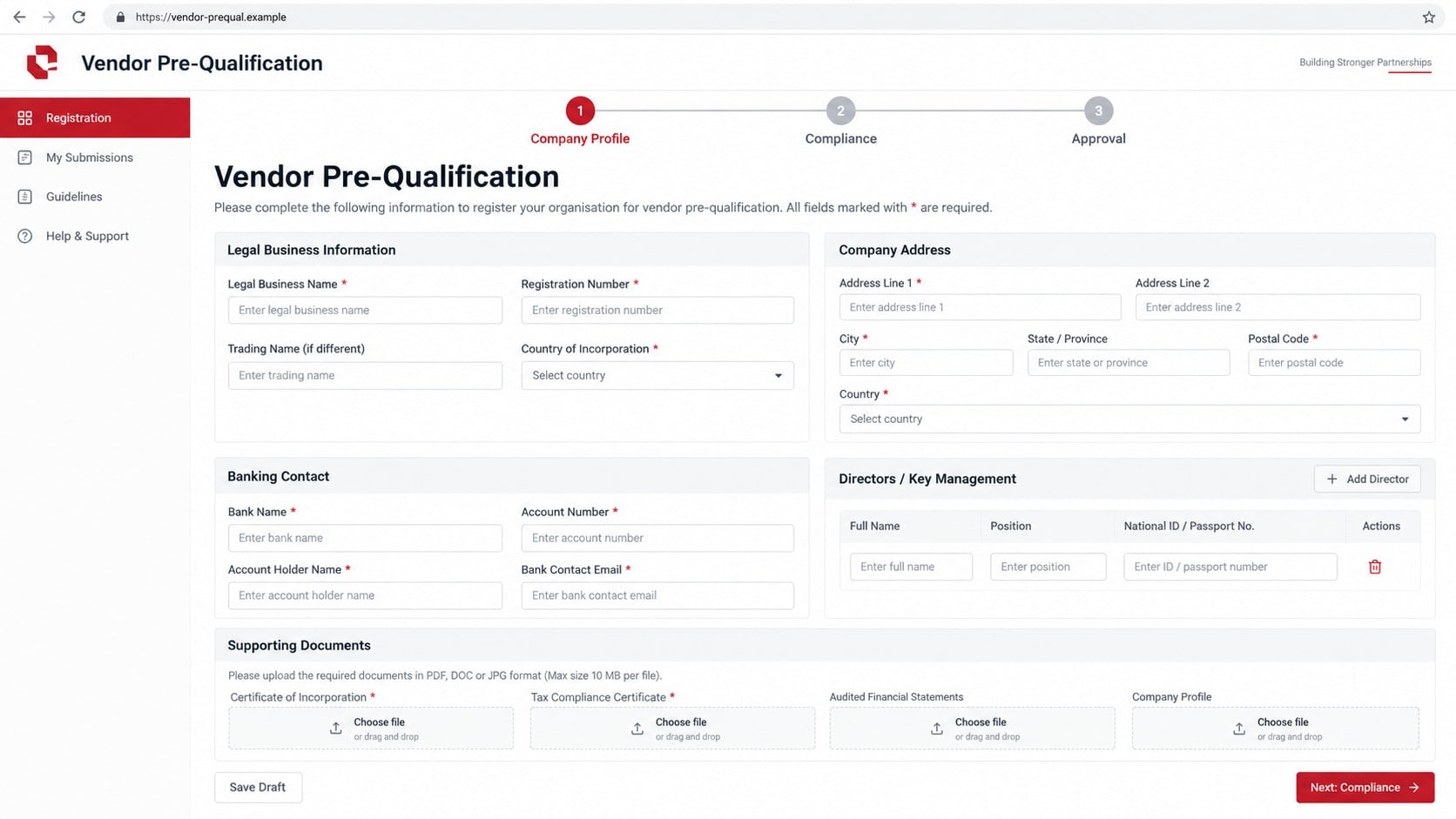
Company certificates expose legal names, registration numbers, directors, signatures, addresses, and sometimes identity documents.
Bank letters and payment forms can disclose account numbers, relationship managers, invoice formats, and authorized signatories.
Customer references identify additional organizations that criminals can approach while pretending to have a trusted introduction.
Tax records, insurance certificates, and licensing documents can support later impersonation attempts.
Even an employee directory has value because it maps finance, purchasing, leadership, and operational roles.
The sender may combine these details into forged purchase orders, altered invoices, or business email compromise messages.
A seemingly unsuccessful vendor application can therefore create risks weeks after the original conversation ends.
How the Vendor Registration and Partnership Process Scam Works
Step 1: The scammer identifies a business that wants new contracts
Targets are often found through company websites, trade directories, professional networks, procurement listings, and public tender records.
The criminal learns the company’s services, location, contact names, and likely appetite for expansion.
This research may be shallow. A few copied facts are often enough to make the opening message appear relevant.
Shared inboxes such as sales, accounts, info, or procurement are useful because several employees may see the offer.
Step 2: A fabricated procurement representative introduces the opportunity
The first email describes a vendor registration exercise, partnership process, or supplier onboarding campaign connected to future projects.
ExxonMobil branding supplies instant familiarity, while broad project language prevents the recipient from checking one concrete claim.
The sender may include a job title, telephone number, office address, and polished signature copied from public sources.
Recipients are encouraged to reply quickly, but the deadline may be framed as ordinary business scheduling rather than an obvious threat.
Step 3: The target is moved into a private conversation
After receiving interest, the fraudster may suggest WhatsApp, another mailbox, or direct contact with a supposed procurement coordinator.
Moving away from the original channel reduces oversight from workplace security systems and other employees.
It also allows the scammer to send frequent messages, build rapport, and answer questions with prepared explanations.
A telephone conversation does not authenticate the caller. Voice calls can be made from disposable or spoofed numbers.
Step 4: Business documents are requested for prequalification
The victim receives forms that resemble supplier questionnaires, nondisclosure agreements, expressions of interest, or compliance checklists.
Requests may include incorporation records, director identification, banking details, references, licenses, insurance, and signed declarations.
Real procurement teams can request similar documents, which makes independent verification essential.
The difference is not the form’s appearance. It is whether the request exists inside a confirmed corporate procurement process.
Step 5: A counterfeit portal or attachment reinforces the story
The sender may provide a portal displaying application stages, document upload fields, tender references, and approval indicators.
Another version uses branded PDF or spreadsheet forms delivered as attachments.
A polished portal can still be a simple website created solely to collect files and contact information.
Look at the actual domain, not the logo, padlock, page title, or words displayed beside the form.
Step 6: A supposed approval creates emotional commitment
The target may be congratulated for passing preliminary review or being shortlisted for an international supplier panel.
That message rewards cooperation and makes the business feel close to securing a valuable contract.
Victims who have invested time preparing documents may hesitate to challenge a final requirement.
This commitment is deliberately cultivated before the financial demand appears.
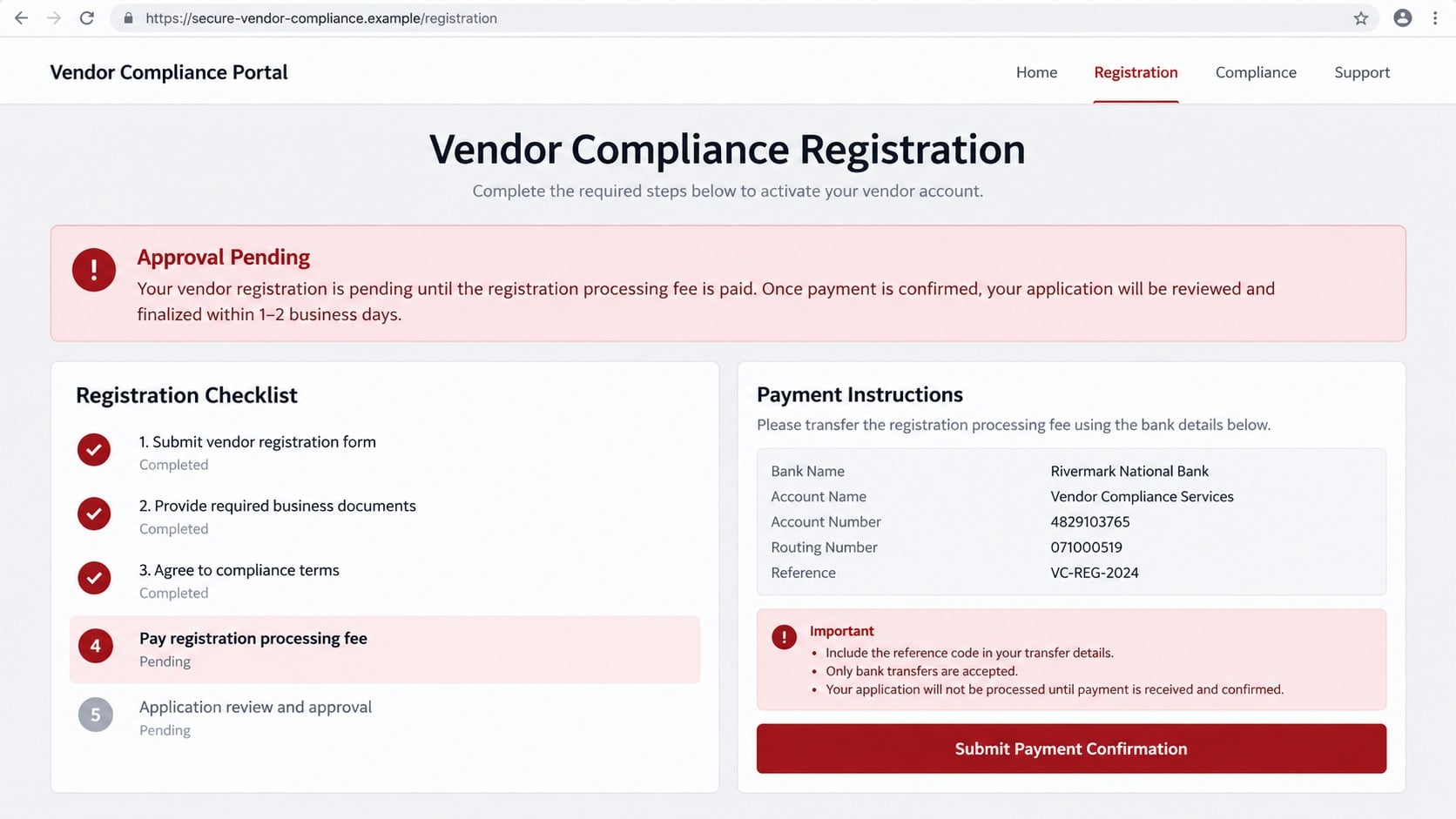
Step 7: A mandatory fee or banking request appears
The fraudster introduces a registration charge, certificate fee, compliance bond, legal stamp, tender deposit, or vendor identification payment.
The amount may seem modest compared with the promised contract, making payment feel commercially reasonable.
Bank instructions can name an unrelated company, payment agent, or individual described as an approved local partner.
If the first payment succeeds, new obstacles and additional fees often follow.
Step 8: Stolen information supports further fraud
After payment or document collection, the supposed representative may disappear, invent delays, or continue requesting money.
Submitted records can be reused to impersonate the victim’s company in other procurement schemes.
Banking details and signatures can strengthen invoice fraud aimed at the victim’s own customers.
Compromised email credentials, if collected, may let criminals enter genuine payment conversations and alter instructions.
Company, Contact, Procurement, and Payment Verification Checks
Confirm the opportunity through the company’s official supplier route
Open the organization’s website independently and locate its published supplier, procurement, or contact pages.
Do not use links, telephone numbers, QR codes, or contact names supplied inside the invitation.
Ask whether the tender reference, project, representative, and requested documents are recognized.
A real corporate logo does not turn an unverified email conversation into an authorized sourcing event.
Examine the complete sender and reply path
Display the full sender address and compare every character with the company’s confirmed domain.
Check whether replies are redirected to a different mailbox, free email service, or recently created lookalike domain.
Do not excuse a mismatch because the sender claims to be a consultant, regional partner, or external processing agent.
Verify that relationship directly through a known corporate contact before sharing anything.
Treat fees and unusual banking instructions as a stop signal
Pause when supplier approval depends on paying an unfamiliar entity, personal account, cryptocurrency wallet, or money-transfer service.
Do not rely on a stamped invoice, payment certificate, or refund promise supplied by the same person requesting money.
Have finance and legal staff review the beneficiary independently.
A large future contract cannot compensate for sending funds to an account that was never authenticated.
Protect documents before submitting them
Determine which records are genuinely required and remove unnecessary personal, banking, and signature data.
Use an approved secure channel after the opportunity has been confirmed, rather than emailing sensitive archives to a new contact.
Watermark copies for the specific application when appropriate, recording the intended recipient and date.
Keep an internal log of every file, form, and identifier disclosed during the process.
Why a Familiar Company Name Is Not Verification
Impersonation succeeds because people recognize brands faster than they inspect infrastructure.
A message can reproduce a public logo, executive name, postal address, and legal disclaimer within minutes.
Search results may even confirm that the named employee or office exists, creating false reassurance.
The important question is whether that verified person controls the specific address contacting you.
Criminals also register domains containing corporate names, procurement words, geographic abbreviations, or hyphenated departments.
These addresses can look professional while remaining completely independent from the impersonated organization.
HTTPS only confirms that traffic is encrypted to the displayed domain. It does not certify the site’s business identity.
Always begin verification from a known official channel, then work outward toward the invitation.
How to Respond Without Losing a Real Opportunity
Caution does not require ignoring every unexpected business approach. It requires separating the proposal from the contact method.
Tell the sender that your company verifies new procurement requests through independently sourced channels.
A legitimate representative should understand normal fraud controls and provide a traceable tender or sourcing reference.
Contact the named organization using a published switchboard or supplier portal and ask for confirmation.
Do not forward the suspicious email to an unverified address supplied in the same conversation.
Internally, involve procurement, finance, information security, and legal staff before releasing documents or accepting banking instructions.
If the opportunity is genuine, that review protects both parties. If it is fabricated, the process interrupts the scam early.
What to Do if You Have Fallen Victim to This Scam
- Stop the conversation and preserve evidence. Save messages, headers, attachments, forms, portal addresses, telephone numbers, payment instructions, and chat history.
- Contact your bank immediately. If money was sent, request a fraud recall or transfer freeze and provide the beneficiary details and transaction references.
- Notify the impersonated company. Use contact information from its independently opened official website, not information contained in the suspicious correspondence.
- Reset exposed passwords. Change any credentials entered into a portal, beginning with email, then revoke sessions and enable strong multifactor authentication.
- Inspect mailbox settings. Remove unknown forwarding addresses, inbox rules, delegated access, recovery methods, application passwords, and connected applications.
- Contain disclosed business records. List every document shared and alert banks, customers, insurers, or authorities when those records could enable impersonation.
- Scan affected computers. Run Malwarebytes if attachments were opened or software was installed, then remove anything detected before changing additional passwords.
- Reduce repeat exposure. Use AdGuard to block many known malicious pages and deceptive advertising destinations, while keeping browser and email protections enabled.
- Warn internal teams. Tell finance, sales, reception, and leadership which identities, signatures, and banking details may now be abused.
- Report the incident. File reports with local cybercrime authorities, relevant business fraud services, and the mailbox or hosting providers involved.
Is Your Device Infected? Run a Free Malware Scan
Slow performance, constant pop-ups, or strange behavior? These are classic signs of a malware infection. The fastest way to find out is to scan your device with Malwarebytes Free — one of the most trusted malware removal tools available.
The free version detects and removes the most common threats, including:
- Adware — the cause of those annoying pop-ups
- Browser hijackers — unwanted redirects and changed homepages
- Trojans and spyware — hidden programs stealing your data
- Potentially unwanted programs (PUPs) — software you never asked for
👉 Select your device below — Windows, Mac, or Android — then follow the simple steps to download Malwarebytes, scan your system, and remove any threats it finds. The scan usually takes 5 to 20 minutes.
Run a Malware Scan with Malwarebytes for Windows
Malwarebytes is one of the most popular and trusted anti-malware tools for Windows — and it’s completely free for removing infections. It catches threats that many antivirus programs miss, including adware, browser hijackers, and trojans. Follow the steps below to scan and clean your PC in just a few minutes.
Download Malwarebytes
Click the button below to download the latest version of Malwarebytes for Windows from the official source. The free version is all you need — it will scan your computer and remove adware, browser hijackers, and other malicious software at no cost.
Download MalwarebytesOfficial installer for Windows 11 and 10. Your download starts right away.Want real-time protection? See Malwarebytes Premium Malwarebytes Free for WindowsScans and removes malware at no cost
-
Install Malwarebytes
When the download finishes, open your Downloads folder and double-click the MBSetup file. If Windows shows a User Account Control pop-up, click “Yes” to allow the installation.

Follow the On-Screen Prompts to Install Malwarebytes
The setup wizard will walk you through a few quick screens:
-
Choose where you’re installing the program — “Personal Computer” or “Work Computer” — then click Next.

-
Malwarebytes will now install on your device. This usually takes under a minute.

-
When installation is complete, the “Welcome to Malwarebytes” screen will open automatically.

-
On the final screen, click Open Malwarebytes to launch the program.

-
Enable “Scan for Rootkits”
Before scanning, turn on rootkit detection so Malwarebytes can find even the most hidden threats. Click the Settings gear icon on the left side of the screen.

In the settings menu, find “Scan for rootkits” and click the toggle so it turns blue.

Done? Click “Dashboard” in the left pane to return to the main screen.
Start the Scan
Click the blue Scan button. Malwarebytes will automatically update its virus database and start checking your computer for malware.

-
Wait for the Scan to Finish
The scan checks your entire system for browser hijackers and other malicious programs, so it can take 5 to 20 minutes depending on your computer. Feel free to do something else — just check back occasionally to see the progress.

-
Quarantine the Detected Threats
When the scan is done, you’ll see a list of everything Malwarebytes found — malware, adware, and potentially unwanted programs. Click the “Quarantine” button to remove all of them at once.

Malwarebytes will now remove the malicious files and registry entries and move them safely into quarantine.

-
Restart Your Computer
Some threats can only be fully removed after a reboot. If Malwarebytes asks you to restart, click Yes. Once you’re logged back in, Malwarebytes has finished removing the threats it found.

That’s it — your Windows PC is now clean of trojans, adware, and other malware, and should be back to running smoothly.
If you are still having problems with your computer after completing these instructions, then please follow one of the steps:
- Run a computer scan with ESET Online Scanner
- Ask for help in our Windows Malware Removal Help & Support forum.
Run a Malware Scan with Malwarebytes for Mac
Malwarebytes for Mac is a free on-demand scanner that removes the malware other security software tends to miss — adware, browser hijackers, and unwanted programs included. Cleaning an infected Mac with Malwarebytes has always been completely free, and it’s our go-to recommendation. Follow the steps below to scan and clean your Mac in just a few minutes.
-
Download Malwarebytes for Mac
Click the button below to download the latest version of Malwarebytes for Mac.
Download MalwarebytesOfficial installer for macOS. Your download starts right away.Want real-time protection? See Malwarebytes PremiumMalwarebytes Free for MacScans and removes malware at no cost -
Open the Malwarebytes setup file
When the download finishes, open your Downloads folder and double-click the setup file to begin the installation.

-
Follow the On-Screen Prompts to Install Malwarebytes
The Malwarebytes for Mac Installer will guide you through a few quick screens. Click “Continue” and keep following the prompts until the installation completes.



When the installation is complete, Malwarebytes opens to the Welcome to Malwarebytes screen. Click “Get started“.
-
Select “Personal Computer” or “Work Computer”
Malwarebytes will ask what type of computer you’re installing it on. Click either Personal Computer or Work Computer, whichever applies.

-
Start the Scan
Click the “Scan” button. Malwarebytes will automatically update its detection database and begin checking your Mac for malware.

-
Wait for the Scan to Finish
Malwarebytes will scan your Mac for adware, browser hijackers, and other malicious programs. This can take a few minutes, so feel free to do something else — just check back occasionally to see the progress.

-
Quarantine the Detected Threats
When the scan is done, you’ll see a list of everything Malwarebytes found. Click the “Quarantine” button to remove all the threats at once.

-
Restart Your Mac
Malwarebytes will now remove all the malicious files it found. Some threats can only be fully removed after a reboot — if Malwarebytes asks you to restart, allow it. Once you’re logged back in, your Mac is clean.

That’s it — your Mac is now free of adware, rogue browser extensions, and other potentially harmful software.
If you are still experiencing problems while trying to remove a malicious program from your computer, please ask for help in our Mac Malware Removal Help & Support forum.
Run a Malware Scan with Malwarebytes for Android
Malwarebytes for Android automatically detects and removes dangerous threats like malware and ransomware so you don’t have to worry about your most-used device being compromised. Aggressive detection of adware and potentially unwanted programs keeps your Android phone or tablet running smooth.
-
Download Malwarebytes for Android.
You can download Malwarebytes for Android by clicking the link below.
Get Malwarebytes for AndroidOpens Google Play in a new tab.Want real-time protection? See Malwarebytes Premium for AndroidMalwarebytes for AndroidScans your phone and removes malware at no cost -
Install Malwarebytes for Android on your phone.
In the Google Play Store, tap “Install” to install Malwarebytes for Android on your device.

When the installation process has finished, tap “Open” to begin using Malwarebytes for Android. You can also open Malwarebytes by tapping on its icon in your phone menu or home screen.

-
Follow the on-screen prompts to complete the setup process
When Malwarebytes will open, you will see the Malwarebytes Setup Wizard which will guide you through a series of permissions and other setup options.
This is the first of two screens that explain the difference between the Premium and Free versions. Swipe this screen to continue.
Tap on “Got it” to proceed to the next step.
Malwarebytes for Android will now ask for a set of permissions that are required to scan your device and protect it from malware. Tap on “Give permission” to continue.
Tap on “Allow” to permit Malwarebytes to access the files on your phone.
-
Update database and run a scan with Malwarebytes for Android
You will now be prompted to update the Malwarebytes database and run a full system scan.

Click on “Update database” to update the Malwarebytes for Android definitions to the latest version, then click on “Run full scan” to perform a system scan.

-
Wait for the Malwarebytes scan to complete.
Malwarebytes will now start scanning your phone for adware and other malicious apps. This process can take a few minutes, so we suggest you do something else and periodically check on the status of the scan to see when it is finished.

-
Click on “Remove Selected”.
When the scan has been completed, you will be presented with a screen showing the malware infections that Malwarebytes for Android has detected. To remove the malicious apps that Malwarebytes has found, tap on the “Remove Selected” button.

-
Restart your phone.
Malwarebytes for Android will now remove all the malicious apps that it has found. To complete the malware removal process, Malwarebytes may ask you to restart your device.
That’s it — your Android phone is now clean — no more malicious apps, adware, or browser redirects.
If you are still having problems with your phone after completing these instructions, then please follow one of the steps:
- Restore your phone to factory settings by going to Settings > General management > Reset > Factory data reset.
- Ask for help in our Mobile Malware Removal Help & Support forum.
Stay Protected: Block Ads and Malicious Sites
Now that your device is clean, keep it that way. Most infections start with a malicious ad or a fake download button — so blocking them at the source is your best defense.
We recommend AdGuard, which blocks malicious ads, phishing pages, and dangerous redirects before they can reach you.
👉 Download AdGuard and browse safely
Frequently Asked Questions
Is the ExxonMobil vendor registration email genuine?
Not when it comes from an unverified address and cannot be confirmed through ExxonMobil’s independently accessed procurement channels.
The company’s real existence does not authenticate a message using its name.
Can a legitimate supplier application ask for company documents?
Yes, genuine onboarding can require legal, insurance, tax, and banking records.
Confirm the sourcing event and receiving portal independently before providing them.
Why does the scammer ask to use WhatsApp?
Private messaging reduces corporate oversight and helps the sender build pressure through frequent direct contact.
A WhatsApp conversation cannot prove employment or procurement authority.
Are supplier registration fees always fraudulent?
Not universally, but an unexpected fee paid to an unrelated beneficiary is a serious warning.
Verify every charge through confirmed procurement and finance contacts.
What if I only sent a company profile?
Record exactly what it contained and alert colleagues that the information may support more tailored impersonation attempts.
Monitor for follow-up messages referencing those details.
Can antivirus software prevent this vendor scam?
Security software can block some malicious attachments and sites, but it cannot validate a business opportunity.
Independent procurement verification remains the decisive protection.
The Bottom Line
The ExxonMobil Vendor Registration and Partnership Process email uses a credible corporate setting to collect trust, documents, and potentially money from businesses seeking contracts.
Verify the opportunity through official procurement channels before replying, uploading records, or paying. A real proposal will survive careful authentication.

Join the discussion
0 commentsShare your experience or ask a question about this article.
Discussion
Start the conversation
Have a question or something useful to share? Add the first comment.