


An email says your Meta ad account has one day left to appeal a trademark complaint. When you look at the sender, you see a Google service.
Those two details can look like they confirm each other. If you run ads for a living, it pays to check them separately.
Overview
A real AppSheet email delivers a false Meta claim
The Google AppSheet Meta trademark scam uses a message sent through AppSheet, a legitimate Google service. The reported email used Meta as its display name.
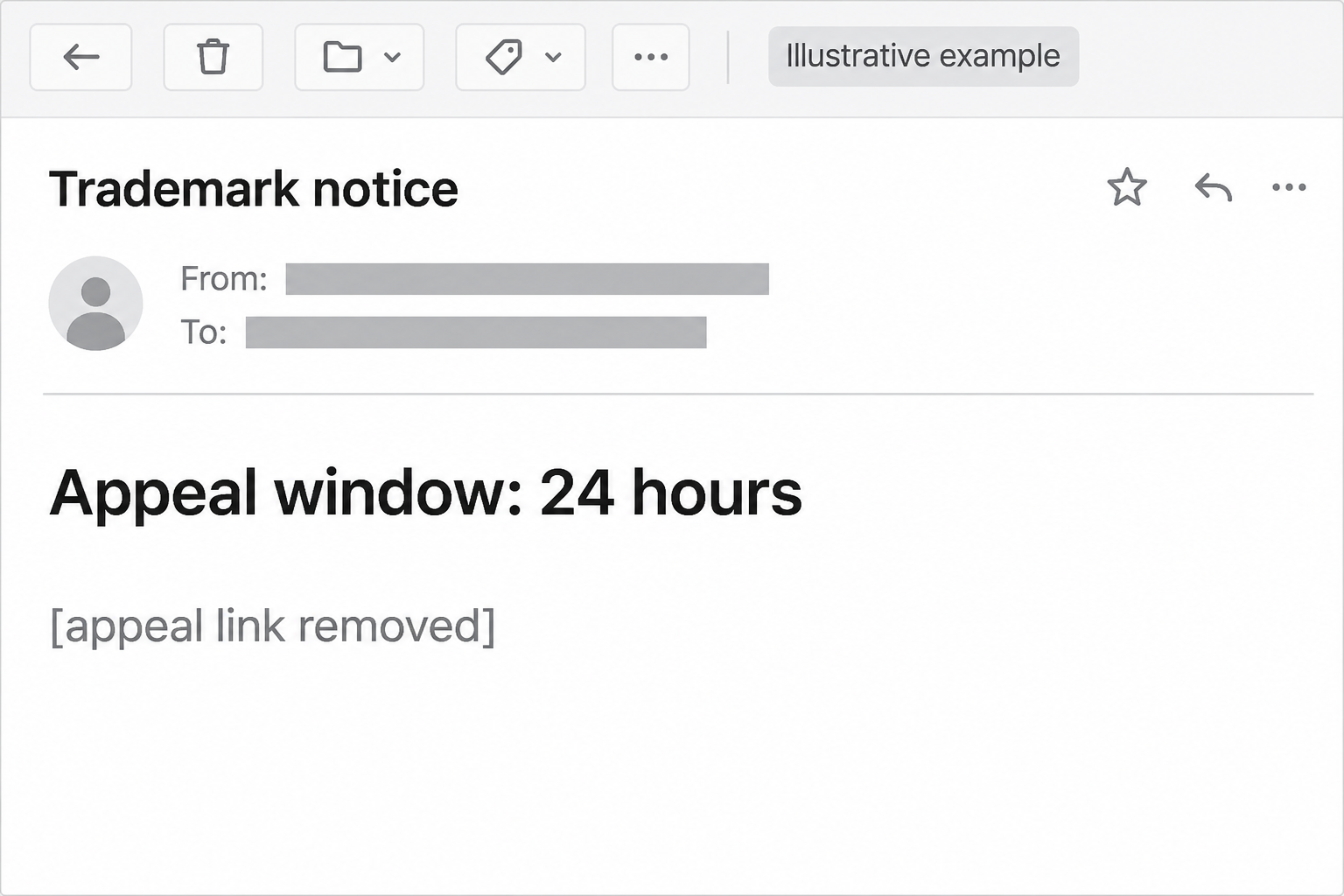
It claimed an advertising account would be disabled because of a trademark complaint unless the recipient appealed within 24 hours. The complaint wasn’t a genuine Meta decision.
The report identifies the service that delivered the email and the company impersonated in the text. It doesn’t show that either Google or Meta lost control of its platform.
The appeal is the part that puts the account at risk
The visible email isn’t asking you to decide whether a brand complaint is valid. It wants you to begin the appeal on a page the sender selected.
Researchers reported that links in this variant typically lead to fake sign-in pages.
The danger is entering a password or other sensitive information there, not receiving a message that mentions trademarks.
Different businesses may see similar language in other messages.
This case is specifically about a Meta-branded complaint delivered through Google AppSheet, not every email that claims a copyright or trademark violation.
Two different companies have two different roles
AppSheet is a service that can send notifications. Meta is the company that can take action on a Meta ad account.
One can’t serve as proof of what the other decided.
That distinction is useful even when your mail client says the message was authenticated.
The result helps describe where it came from. It doesn’t confirm the statement about your account.
Look for this combination of clues:
- The display name says Meta, while the underlying delivery service is Google AppSheet.
- The email threatens to disable an ad account for an alleged trademark issue.
- You’re given 24 hours to appeal through a link from the email.
- The appeal page asks you to sign in outside the normal route you use for business accounts.
- The claimed restriction isn’t independently confirmed for the affected business and ad account.
How the AppSheet Meta Trademark Scam Works
Step 1: An ordinary mail notification carries an alarming message
The email can look ordinary enough to reach the inbox without drawing attention to its source.
AppSheet is real; it doesn’t need to be invented for the message to arrive.
If you use Google Workspace, automated notices may be part of your day.
A message routed through an identifiable Google service can look more plausible than a warning from an unfamiliar domain.
The difference is in the claim the email makes. It describes a trademark complaint from another company. A genuine AppSheet notification can’t tell you whether Meta made that decision.
Before checking any link, ask which service is notifying you and which service holds the account. In this case, they aren’t the same.
Step 2: A trademark deadline makes the business cost feel immediate
Advertising outages can affect orders, leads, appointments, or client commitments. An email that threatens to interrupt a live campaign gets attention even if the recipient doesn’t recognize the wording.
The documented message added a 24-hour appeal deadline. That short window encourages whoever reads the shared inbox to handle it first and check internally later.
This isn’t just a worry about losing a password. A person dealing with a client may fear looking careless if they forward a warning instead of responding immediately.
Give the next few minutes to verification. A genuine issue can be handled through a known account channel.
A deadline isn’t a reason to enter credentials on an unverified page.
Step 3: The appeal link separates you from the account you trust
The email presents the appeal as a route back to normal business. If you follow it, you no longer know that the page you’re looking at belongs to Meta.
You don’t have to open the link to find out where it goes.
Open Meta Business Support Home through a route you already trust and select the affected business or ad account.
For an agency, it helps to identify the correct portfolio before comparing alerts.
Seeing a healthy status in your own company account doesn’t settle a claim aimed at a client account.
If you can’t identify an affected account at all, that’s a reason to ask through your normal support path.
Don’t let the email supply both the problem and the solution.
Step 4: The lookalike sign-in page requests access it doesn’t need
A password screen can feel routine if you regularly switch between business accounts. That’s what makes it a plausible next page in an alleged appeal.
The reported link typically led to a fraudulent sign-in. Information typed there can reach the page operator instead of going to the service whose name appears on-screen.
A security code or approval prompt requires separate attention. If you approved anything, tell support exactly what it was. The report doesn’t establish that every version requests codes.
Closing the page is the right first move if you haven’t submitted anything.
Anyone who entered a password should make account recovery the priority rather than trying the link again.
Step 5: Business access is worth checking even if you can still sign in
A person’s login may control business assets in addition to an individual profile. This can include permissions for a Page, an advertising account, or billing.
A stolen credential doesn’t prove anyone reached those assets.
It does make a review important, especially if unusual ads, account changes, or unknown login alerts appeared around the same time.
A password change and a business-access review solve different problems. One protects a login.
The other can reveal whether someone granted access to another account or made changes to campaigns.
If you’re not the account owner, tell one as soon as you can. Waiting until someone notices a charge leaves them with less time to check what changed.
How to Verify a Meta Trademark Notice Without the Email
Work from the account you already use
Open the normal business dashboard and check the affected portfolio. Look for account restrictions, alerts, or support correspondence in that account, rather than looking for a matching email subject.
Meta’s advertising standards overview describes using Business Support Home to review account status and respond to issues. Keep the account context correct when you do.
If the owner has an active support case, talk to them through your existing team channel. They can compare any real notice with what the inbox claims.
Keep delivery evidence and business evidence separate
An email administrator may be able to confirm that the message came through AppSheet. That answers a mail question. It doesn’t tell you whether your ad account was restricted.
Likewise, an account administrator can tell you what the dashboard shows. They may need the email administrators to check whether colleagues received matching messages.
Send your internal security contact the original or the approved report from your email client.
Keep the plain subject and the approximate time if your process doesn’t allow forwarding the original.
Don’t treat every AppSheet email as a threat
People use AppSheet for legitimate work, and this case doesn’t make the service inherently unsafe. A blanket rule that hides every AppSheet notification could interrupt normal work.
What makes this message dangerous is the cross-company claim combined with the pressure to log in.
A legitimate workflow is something your team should recognize or be able to confirm.
For a shared inbox, agree on who checks these messages before the next one arrives.
A teammate who knows the process is more useful than a longer list of domains.
What to Do if You Have Fallen Victim to This Scam
If you entered a password or approved a sign-in, tell the account owner or security team immediately. If you only opened the email, don’t assume your account was accessed.
-
Stop using the link and report the email as phishing. Save the message or its time and sender details according to your company’s policy. Don’t forward the appeal button casually.
-
On a trusted device, change the password on the real account. Change it wherever you reused it. Secure the email account tied to Meta if that password was exposed.
-
Review active sessions and sign out unfamiliar devices. Verify that recovery information and two-factor settings are yours. Tell your administrator immediately if you approved a prompt you didn’t initiate.
-
Tell an authorized business administrator which account and portfolio you used. Have them check people, partners, Page roles, and asset permissions for changes you didn’t make.
-
Review advertising activity and billing. Record unfamiliar campaigns or charges. Ask an authorized administrator to pause unauthorized spending and use the genuine platform and card issuer to report charges.
-
Use Facebook’s account recovery route if you lost access. For a business asset issue, have an authorized colleague contact support through your usual business dashboard.
-
Ask your email administrator to look for copies of the same message. Give colleagues the subject, claimed deadline, and safe dashboard route without copying the live appeal link.
If you reached the page without submitting anything
Close the page and report it. Opening a page, entering a password, and running a file are different things.
Write down what happened while you can still remember the order.
If a link prompted a download and you opened it, tell your security team.
On a personal device, a trusted scanner such as Malwarebytes can help check an unexpected download.
An established blocker such as AdGuard can reduce some exposure to malicious destinations.
It can’t certify a link in a legitimate service’s message or tell you whether a trademark notice is real.
Give the next person enough information to help
Tell support which Page or ad account you manage, what you entered, and when you last saw a normal account state.
Avoid guessing about information the page might have collected.
When a client owns the ad account, notify the client contact you already know.
Ask them to confirm whether anything changed. Don’t assume your own login has permission to repair their assets.
Save a copy of evidence your team is authorized to retain.
Don’t send passwords, backup codes, payment card data, or private client correspondence in a regular chat to prove you were affected.
What an Agency Should Check Before Resuming Ads
If one of several people received the appeal, start with the person who opened it. Ask what they actually entered rather than treating every recipient as compromised.
Write down which clients and assets that person normally manages. Give each owner facts about their own account, not a generic warning stripped of the affected portfolio.
Compare current ads with the campaign plan that existed before the notice arrived. A familiar campaign name isn’t enough; check that its creative and destination match.
Ask the owner to preserve a record of unexplained changes before removing them if they can safely do so. If spending is still active, containing it may come first.
When an alert mentions intellectual property, don’t let that allegation dominate your recovery conversation. Password exposure, account permissions, and charges are immediate security questions even if the complaint was invented.
Once the owner confirms the account is secure, agree on who will watch for further changes. Check the account directly rather than waiting for email updates.
Compare any invoice you receive later with the actual account activity. A second unverified “billing support” email can turn a credential scare into a separate payment problem.
Frequently Asked Questions
Is an AppSheet email claiming to be Meta legitimate?
Not just because AppSheet sent it. In the documented case, AppSheet delivered a false Meta trademark claim. Check the account directly to see if Meta actually restricted anything.
Does mail authentication mean I can trust the appeal link?
No. An authentication result helps identify the sending domain. It doesn’t verify a claim about another company’s account or make the destination safe.
Can Meta really restrict an advertising account over a complaint?
A real platform action can affect an account. Verify its details through the appropriate Meta account and official support instead of assuming any particular inbox notice represents that action.
What if I already clicked the link?
Close it. If you didn’t type anything, approve a sign-in, or run a download, start by reporting the email. Escalate promptly if any of those other actions happened.
Is this the same as a Meta Business Manager partner request scam?
No. A fake partner invitation abuses a Meta invitation. This example uses AppSheet to deliver a message pretending to carry Meta’s trademark enforcement decision.
Should our business block all mail from AppSheet?
Not as a first response. Report the individual message and let your email team evaluate related copies. Consider how your business uses the service before changing a broad rule.
The Bottom Line
The fake notice borrows credibility from Google AppSheet and urgency from Meta’s name. A genuine sending service can deliver an email without verifying the complaint written inside it.
Check your advertising account from the dashboard you already use. If anyone entered credentials, secure their login and have the business owner review access and spending promptly.

Join the discussion
0 commentsShare your experience or ask a question about this article.
Community experiences
Did this happen to you?
Your experience could help someone recognize the same scam. Submit a private report for our team to review.
I experienced this tooReports are reviewed before publication. Sharing publicly is always your choice.
Discussion
Start the conversation
Have a question or something useful to share? Add the first comment.