

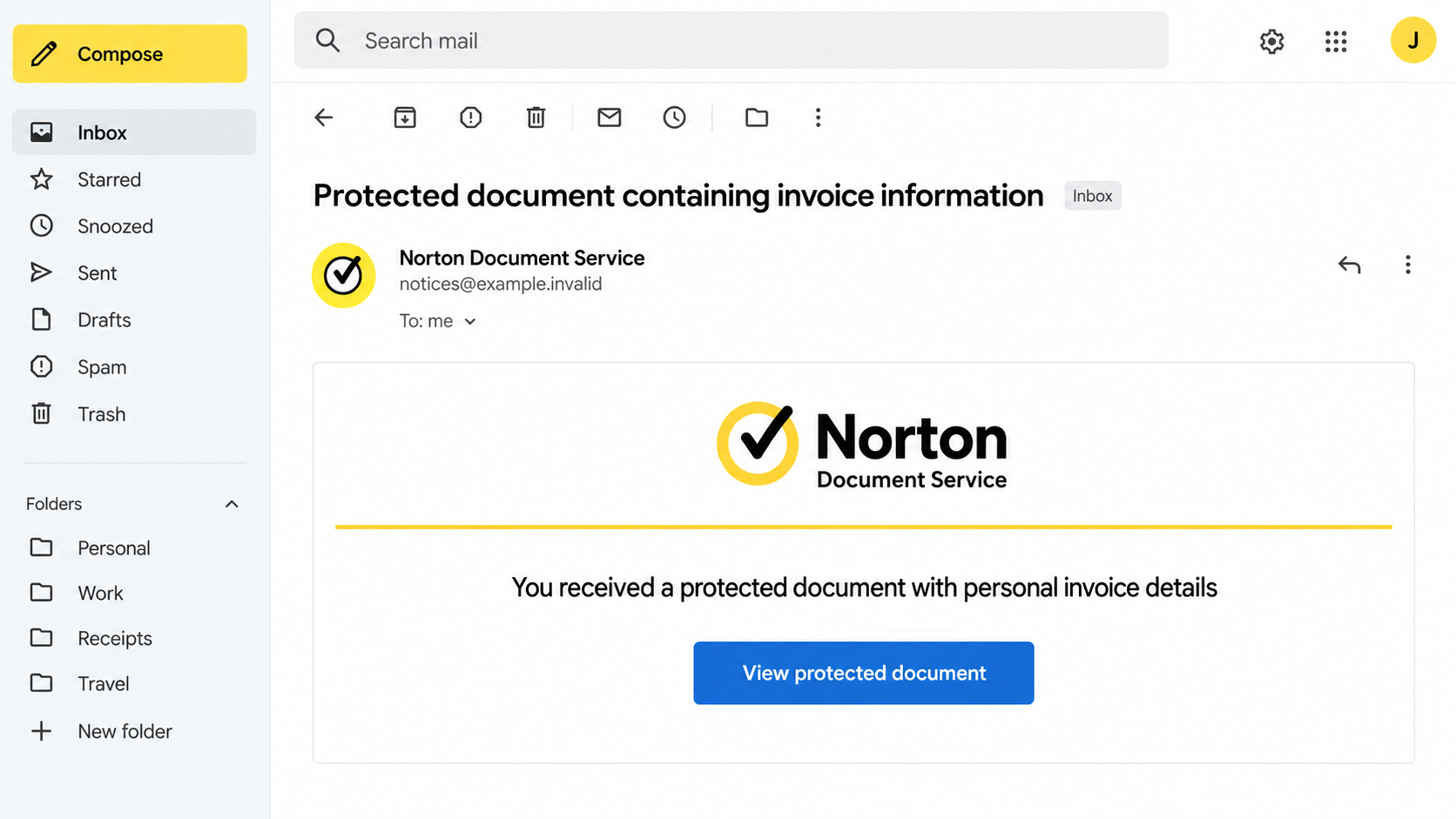
An email carrying Norton’s name says a protected invoice document has arrived. The message does not show the bill, only a button to reveal it.
That missing detail is what makes the invitation tempting. Before trying to open it, follow the chain of names and addresses it wants you to trust.
Overview
One message, two borrowed brands
A documented phishing email posed as a Norton notice about a protected document containing personal invoice information. It urged recipients to click for details.
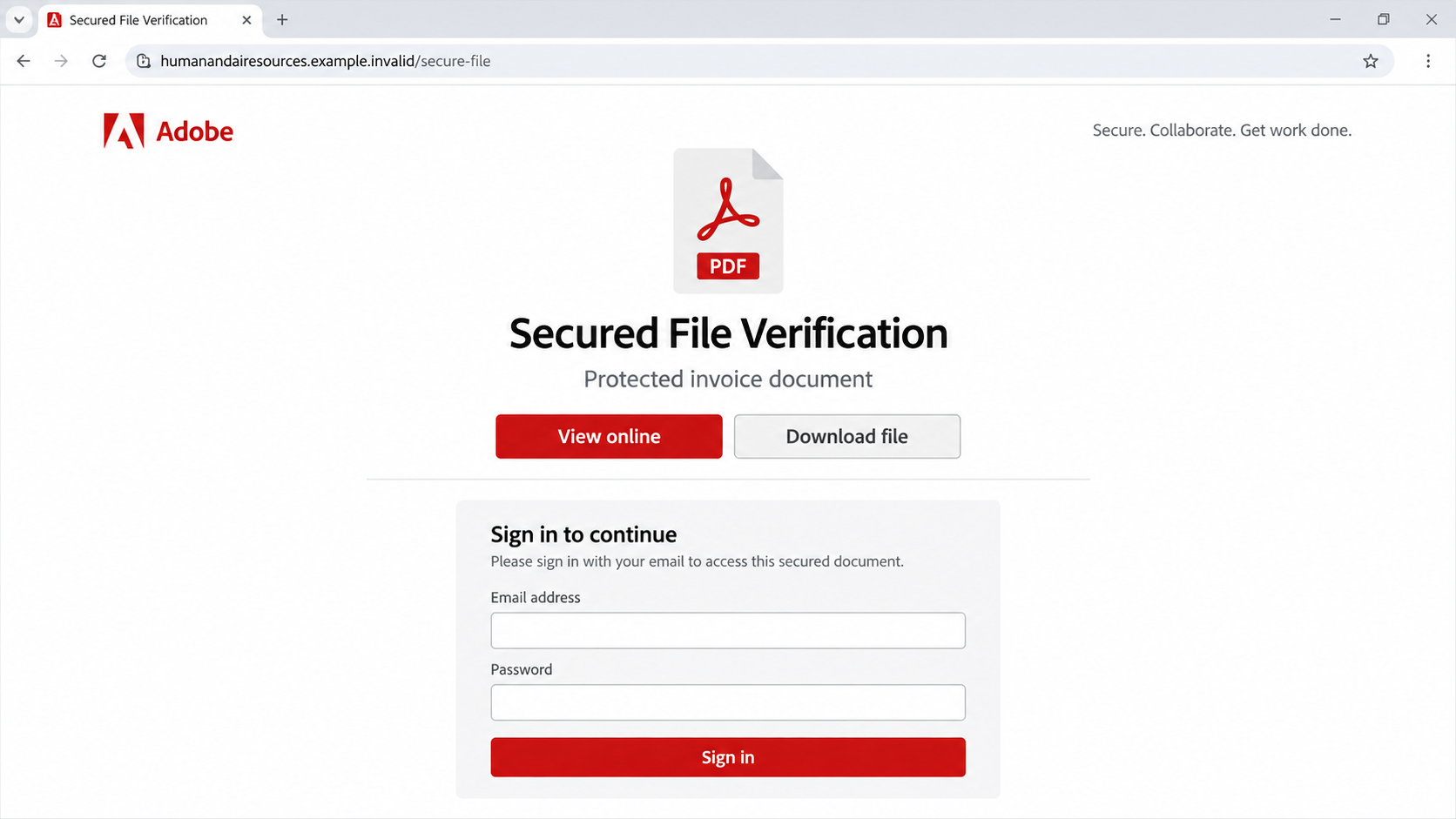
The link did not take people to a Norton account. It opened a separate site dressed as an Adobe file-verification page.
That switch is the heart of the case. The email borrows a security brand, then the website borrows a document brand.
The first image is an original illustration, not a captured message. Its sender is fictional and cannot be used to identify a live campaign.
The site presented a choice that led to the same demand
On the observed page, visitors could choose to view the supposed file online or download it. A login request followed.
The page asked for an email address and password. That is the information the operator wanted, not proof that any invoice was available.
A service can genuinely require authentication for private documents. But a form on an unrelated domain cannot be trusted merely because it displays Adobe-style branding.
Neither Norton nor Adobe was shown to be involved in sending the lure. Their names were used to make an unfamiliar page seem familiar.
The likely harm is account takeover
Someone who submits an email password may give the attacker a way into that mailbox. The mailbox can then be used to reset other accounts.
Before entering credentials, check these basic facts:
- Did you expect a Norton document or invoice from this sender?
- Is there a matching item in your real Norton account?
- Does the link lead to a verified Norton or Adobe domain?
- Why does an invoice preview require your general email password?
- Can you confirm the bill from a trusted account or purchase record?
How the Norton Protected Document Email Scam Works
Step 1: The sender raises an invoice question
Invoices have a way of demanding attention. A recipient might worry about a new charge, renewal, purchase, or confidential financial detail.
The message avoids showing enough information to settle the question. Instead, it says the details are inside a protected document.
That framing is persuasive because privacy sounds responsible. In this case, it also prevents the reader from checking whether the invoice is even relevant.
The visible Norton name can be copied into an email. It does not tell you who controls the sending domain.
Step 2: A protected-file button moves the reader away
The email’s button promises the missing invoice information. It acts as a bridge between concern about a charge and a site the recipient did not seek out.
A safe way to investigate is to leave the message untouched and open the real Norton account independently. The email itself should not define the route.
In the observed specimen, the destination was hosted at an unrelated domain, humanandairesources.com. The exact domain could change in later copies.
Knowing that name helps identify the documented example, but memorizing it is not enough. Future operators can use other addresses with the same design.
Step 3: The landing page impersonates a second company
After a Norton-styled email, an Adobe-style “Secured File Verification” screen appears. That handoff can seem logical because PDFs are associated with Adobe.
But visual logic is not identity verification. Adobe’s logo or PDF icon can be placed on a page that Adobe does not own.
The site’s domain matters more than the artwork. A browser padlock only means the connection is encrypted; it does not validate the page’s claim.
The second illustration makes the domain mismatch visible with a fictional safe address. It is not a working file portal.
Step 4: View and download options create a false choice
Offering both “view online” and “download” makes the page feel like a document service rather than a plain phishing form.
Those options also keep the visitor moving. Someone who distrusts a download may choose the online view and still encounter the login request.
Do not infer that a file exists from the presence of a document icon or button. The observed chain was designed to collect credentials.
If any page asks you to install software, treat that as a separate risk. The documented specimen’s primary observed goal was password theft.
Step 5: The form asks for an email password
The fake page invites the visitor to enter an email address and password to unlock the invoice. That request targets the mailbox, not a specific Norton document.
Many people use email as a recovery channel for shopping, banking, and work services. Control of that account can have consequences beyond one invoice.
A password manager may refuse to fill the credential on the wrong domain. Do not copy the password manually to bypass that warning.
There is no established public count of people who submitted credentials in this campaign. The page’s design establishes the intent, not the victim total.
Step 6: Stolen access can support more impersonation
If an attacker signs in, they may search the inbox for account-reset links or real invoices. Those records can support more targeted fraud.
They may also send messages from the compromised mailbox to contacts. A real friend’s address can make the next fake document invitation harder to spot.
Forwarding rules and recovery options deserve attention after a compromise. A password reset alone may not remove every foothold.
This chain is about credential capture. It should not be described as a confirmed malware installation unless a particular device examination supports that claim.
How to Check Whether an Invoice Is Real
Look in the account that would own the purchase
Open your Norton account from a bookmark or a manually typed official address. Check active subscriptions, order history, and billing notices there.
If you never had a Norton account, the protected invoice claim becomes less plausible. Still, check card activity through your bank if the message worried you.
The illustrated second image shows why an invoice label is not enough. A form at an unfamiliar address can ask for credentials without containing a real bill.
Do not call a number shown only inside the suspicious email. A scammer can control both the message and its supposed customer-support line.
Inspect the link’s destination
On a desktop, hover over the button without clicking. On a phone, press and hold to preview the link when your email app allows it.
Read the registered domain, not just words such as secure, invoice, Norton, or Adobe in the path.
If the link redirects, the final destination matters too. A legitimate-looking first address can hand you to an unrelated login page.
When the destination is obscure or does not match the claimed service, close the message and verify through the account instead.
Ask why a general email password is required
Document portals sometimes ask you to sign in. But a third-party invoice page should not casually request the password for your entire mailbox.
If a genuine Adobe sign-in is needed, it should occur through Adobe’s own verified account flow, not through a form copied onto a stranger’s domain.
Work mailboxes may be protected by an employer’s single sign-on page. If a supposed invoice skips that normal route, involve IT.
An authentic invoice can be confirmed by purchase records and customer support reached independently. No mystery document is worth surrendering your email account.
What to Do If You Entered a Password on the Fake Page
- Stop using the link. Close the form and do not submit any verification codes or recovery details that arrive afterward.
- Change the affected email password. Reach your provider from a saved or manually entered address. Choose a new, unique password.
- End unfamiliar sessions. Check recent sign-ins and sign out devices you do not recognize. Enable or review multifactor authentication.
- Inspect mailbox settings. Look for forwarding rules, filters, delegated accounts, and changed recovery contacts that you did not set.
- Secure connected accounts. Change any reused passwords and review services that send password resets to the exposed mailbox.
- Check real billing records. Open your Norton account and bank app directly. The phishing email does not prove that a charge occurred.
- Report the message. Use your mail provider’s phishing control and Norton’s published scam-reporting channel. Keep the original email for investigators.
- Assess device exposure separately. If you downloaded and ran a file, scan with Malwarebytes. AdGuard may reduce future deceptive-page exposure, but it cannot undo a submitted password.
Why the Two-Brand Handoff Is Effective
Most people would question an unfamiliar website that immediately asks for an email password. This campaign delays that moment through two familiar identities.
The Norton-styled email supplies a reason to care. The Adobe-styled page supplies a reason the invoice is not visible yet.
By the time the password field appears, the visitor has already taken several small steps. Each step makes the next one feel less surprising.
The protected-document language is important too. It explains away missing content while implying that the site is careful with private information.
In reality, a stranger’s page cannot prove it has a private file by hiding the file. The claim should be checked against real account records.
Look for the point where the story stops matching the system. An invoice email from Norton should not become an Adobe-like login at an unrelated domain.
This does not mean Norton notices or Adobe file-sharing are inherently unsafe. The fraud lies in the impersonation and the credential request.
Once you recognize that pattern, you can apply it to other brands. A logo handoff is not an identity handoff.
How to Review the Message Without Feeding the Trap
Start with the purchase itself. If you have a Norton subscription, check its renewal date and invoices in the genuine account.
Then compare the sender’s full address with previous legitimate notices. Be careful: a matching display name is not a matching sending domain.
If the message claims a charge but shows no amount, ask why it needs a password before giving you even a basic billing reference.
A real payment record should also appear in your card or bank account. No visible transaction means you should not assume a bill exists.
If an unfamiliar charge does appear, contact the bank using its official app or card number. Do not use contact details inside the email.
Some phishing pages accept any password and display an error, then ask you to try again. Repeated attempts can hand over several passwords.
Others redirect to a legitimate site after collecting credentials. Landing on a real page afterward does not make the earlier form safe.
Save the original message if you report it. Headers and the complete link can help a provider trace the sender more effectively than a cropped screenshot.
A coworker may receive an identical email. If the message went to a work address, alert IT so they can block the link and warn others.
Do not forward the suspicious link in a group chat for friends to test. Describe the claim and share a redacted screenshot instead.
Check browser downloads after visiting the page. The documented page targeted credentials, but a later version could add a file request.
If a download exists, leave it unopened and ask a trusted security professional to inspect it. Do not run it to discover what it does.
Finally, consider what the password unlocks. Email is often the master key for recovering shopping, cloud storage, and financial accounts.
That is why fast password change and session review matter more than arguing with the sender about whether an invoice is real.
Frequently Asked Questions
Did Norton send the protected invoice email?
The documented message was an impersonation. Check your actual Norton account or contact the company through its official site before acting on any similar notice.
Was Adobe hosting the login page?
No. The observed page used Adobe-like branding on an unrelated domain. A copied logo does not turn that domain into an Adobe account portal.
Was there a real invoice to view?
The investigation described a phishing flow, not an authenticated invoice. A real bill should be visible through the merchant account or purchase records.
What if I only opened the email?
Reading the message does not expose your password. Mark it as phishing and avoid the embedded link.
What if I clicked but did not enter credentials?
Close the page and check whether any file downloaded. The documented credential theft required information to be submitted to the fake form.
Could the page install malware as well?
A future variation could add downloads, but malware installation was not the documented outcome of this specimen. Treat any file you ran as a separate incident.
The Bottom Line
The protected invoice email uses Norton’s name to lead readers to an Adobe-like file page. The apparent document is a pretext for an email-password request.
Check the actual billing account, not the emailed button. If you entered credentials, secure the mailbox and its recovery settings immediately.

Join the discussion
0 commentsShare your experience or ask a question about this article.
Discussion
Start the conversation
Have a question or something useful to share? Add the first comment.