

A delivery update is easy to believe when packages arrive constantly. Work orders, household purchases, replacement parts, and gifts all make an unexpected shipment seem possible.
This notice borrows that uncertainty, then adds a document that appears worth checking. Its real destination becomes clear only after following the trail carefully.
Overview
What the delivery message promises
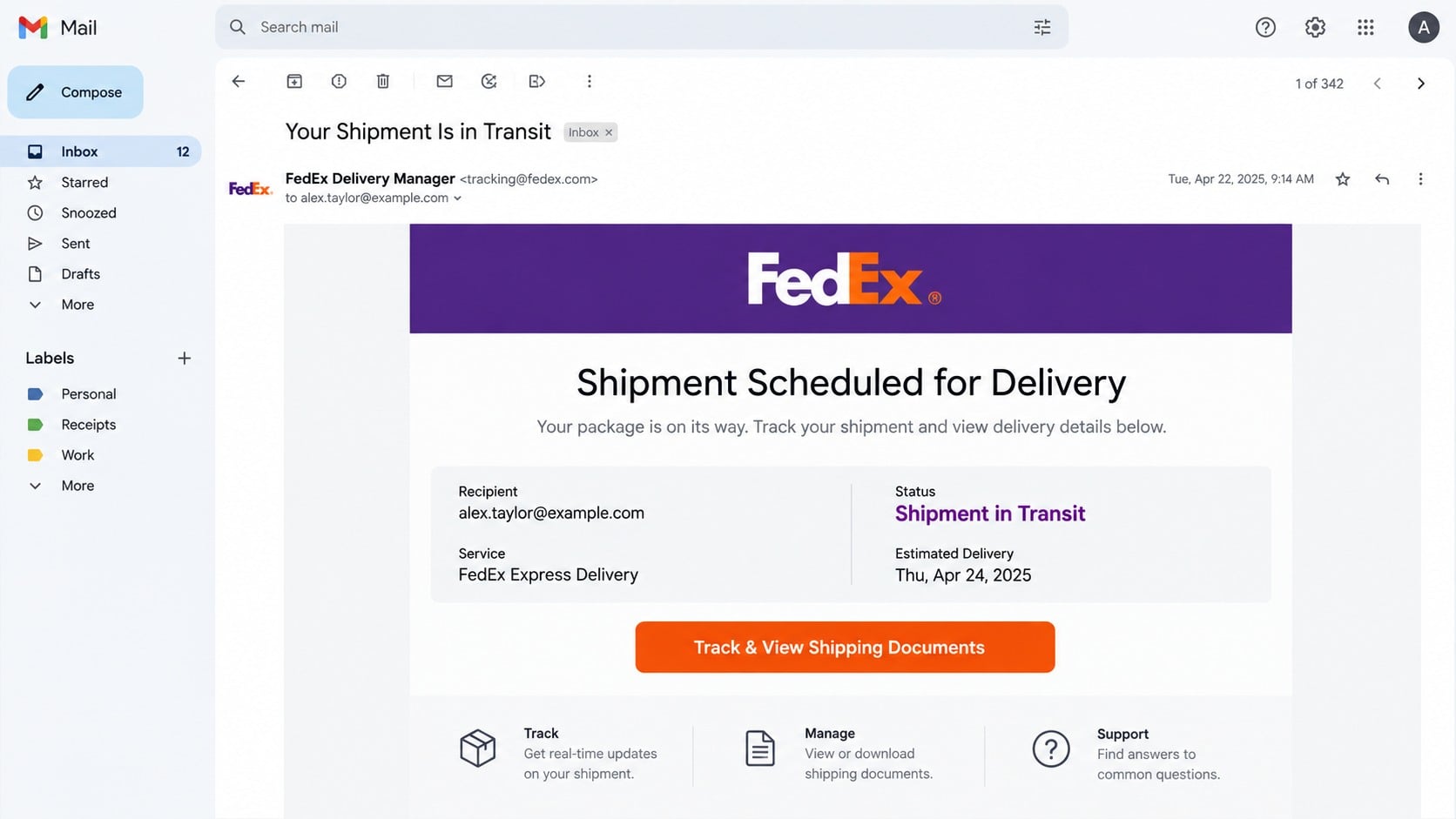
The email claims a shipment is in transit and scheduled for delivery. It may list “FedEx Express Delivery” as the service and display a polished status summary.
A button invites the recipient to “Track & View Shipping Documents.” Combining tracking with documents makes the request relevant to both consumers and business employees.
The message may omit a useful tracking number or provide one that cannot be verified. Instead, the button becomes the only apparent route to more information.
FedEx did not send this campaign. Its name, colors, and delivery language are being used to create confidence around an unrelated link.
Where the button actually leads
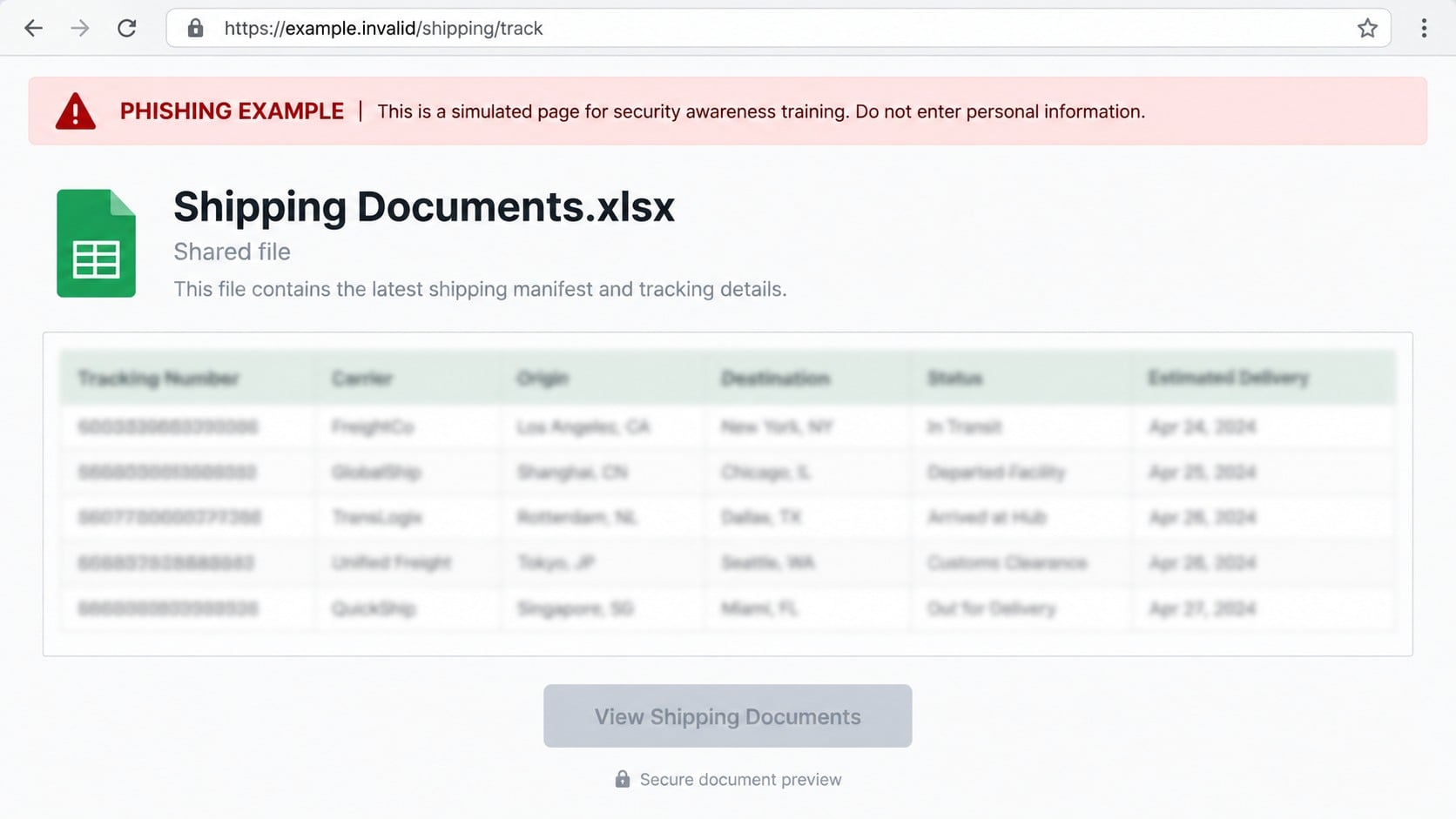
The destination can resemble an online spreadsheet viewer. A file titled Shipping Documents.xlsx or something similar appears behind an authentication prompt.
The page may imitate familiar office software rather than a courier website. That switch is explained as protection for invoices, customs forms, or shipment manifests.
Visitors are asked to enter email credentials before viewing the document. The form does not confirm a delivery; it sends information to the campaign operator.
A genuine carrier tracking page does not need the password for your personal or workplace mailbox to display ordinary shipment progress.
Which information and accounts are endangered
The immediate target is often an email account. The shipment story provides a broad reason for users across many industries to open the link.
- Email addresses and passwords entered into the false viewer
- Business correspondence about suppliers, orders, and payments
- Consumer receipts and account recovery messages
- Contact lists used for additional delivery lures
- Cloud documents connected to the compromised identity
- Other accounts protected by a reused password
Some delivery scams seek card payments or personal data. This version uses shipping paperwork primarily as a bridge into credential theft.
Why Delivery Notifications Reach So Many People
Online ordering creates a constant background of real parcels. Few recipients can immediately remember every retailer, marketplace seller, relative, or workplace sender.
Businesses face even more uncertainty. Reception, purchasing, warehouse, finance, and customer service teams may all encounter legitimate carrier messages.
A criminal does not need to know about a real shipment. Large distribution guarantees that some recipients are already waiting for something.
Those who are not expecting a package may still click from curiosity. The possibility of an unknown sender or workplace delivery keeps the story plausible.
Delivery timing also produces natural urgency. People worry about missed drivers, weather delays, customs holds, and packages left outside.
This campaign uses a calmer angle than a failed-delivery warning. “In transit” sounds routine, reducing the defensive reaction created by dramatic threats.
The request to view documents feels especially normal for commercial recipients. Manifests, packing lists, invoices, and customs records often accompany genuine shipments.
That realistic context cannot replace a verifiable tracking record. The shipment must still exist outside the message.
Why an Excel Document Appears After a Courier Email
The unexpected spreadsheet is not an accident. Business users commonly receive inventory lists, shipping manifests, and itemized paperwork in workbook format.
A blurred preview gives the impression that rows of packages or products are waiting. No meaningful shipment data needs to be present.
An office-style header borrows trust from productivity software. The victim may focus on opening the document instead of noticing that the carrier branding disappeared.
The page might say the file was shared securely. It then asks for a mailbox password, pretending that email identity controls document permission.
This logic is backwards. A courier can provide tracking status through a tracking number without collecting credentials for an unrelated service.
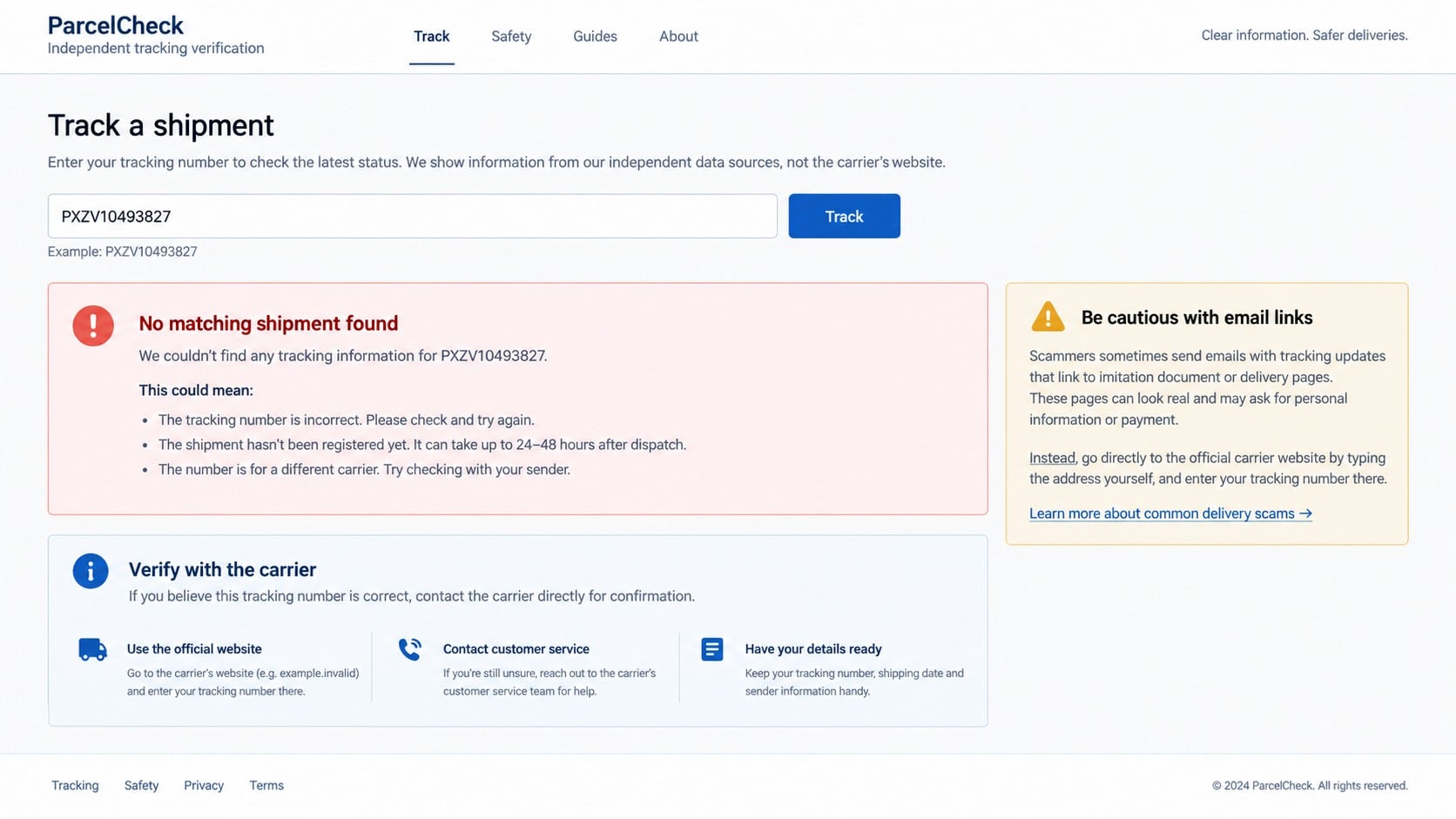
The address bar often exposes the substitution. The site may use disposable hosting, a compromised domain, or a name unrelated to either FedEx or the email provider.
A lock icon only indicates an encrypted connection to that site. It does not prove the page represents the courier or a document platform.
If the form reports failure, the operator may still possess every value submitted. Error messages on an attacker-controlled page provide no reassurance.
Possible Consequences of Mailbox Takeover
A personal inbox can reveal addresses, phone numbers, travel plans, purchases, and password reset links. Those records support identity theft and targeted follow-up fraud.
A company mailbox may contain vendor invoices, customer orders, freight details, and payment approvals. Each conversation can be repurposed for impersonation.
Attackers can send new shipping notices from the stolen address. Contacts who recognize the sender are more likely to trust the next document link.
Incoming messages can be silently forwarded. This lets the intruder monitor replies and wait for a financially useful opportunity.
Filters may hide security alerts or move customer warnings into obscure folders. The legitimate owner sees an apparently quiet account.
Reused passwords increase the impact. Retailer accounts can expose saved addresses and orders, while cloud services may contain sensitive files.
Criminals sometimes use shipment information found in the mailbox to create better scams. A real order number makes later contact much more persuasive.
For organizations, quick containment should include the mailbox, connected applications, and any transactions discussed in exposed messages.
How the Scam Works
Step 1: A broad delivery notice enters the inbox
The message says a shipment is traveling toward the recipient. It includes general delivery terminology that applies equally well to packages, freight, and business documents.
Familiar branding and a concise status box make the email resemble an automated carrier update.
The sender expects coincidence to do the targeting. At any moment, many recipients will have genuine packages underway.
Step 2: The tracking action doubles as a document lure
Instead of presenting a complete tracking number, the email emphasizes a button for tracking and paperwork. This directs curiosity into one controlled route.
The link can pass through redirects that record clicks or replace a blocked destination with a new one.
People who only want delivery status are quietly moved toward an authentication request they never expected.
Step 3: A fake spreadsheet appears
The landing page shows an online workbook, shipping manifest, or locked attachment. Generic rows and file icons create a convincing impression of content.
Courier branding may disappear because the story has transitioned from package tracking to protected document access.
The site claims that viewing requires email verification, even though no legitimate relationship with the mailbox exists.
Step 4: Credentials are collected
The visitor supplies an email address and password. Those values can be transmitted immediately, regardless of what message appears next.
A false error may request another attempt. This sometimes captures alternative passwords used by the same person.
Successful-looking redirection can be equally deceptive. It merely ends the interaction after the data has been taken.
Step 5: The attacker accesses email and connected services
The operator tests the credentials against common providers. A reused password may be tried on retailers, cloud storage, and workplace systems.
Within email, searches for tracking, invoice, payment, order, and bank reveal commercially useful threads.
Security prompts generated during these attempts should be denied. Approving one can grant access even after recognizing the original email as suspicious.
Step 6: The stolen identity produces further losses
The mailbox can distribute fresh delivery notices, altered invoices, or shared-document invitations. Existing contacts provide a ready list of targets.
Recovery settings and forwarding rules may prolong the intrusion. Future purchase and shipping details can continue reaching the attacker.
The original fake shipment becomes irrelevant once the account supplies real relationships and genuine transactions to exploit.
Carrier, Tracking, Document, and Login Verification Checks
Find the shipment without using the email
Open the courier’s official website from a bookmark or manually entered address. Type the tracking number there if the message provides one.
Check retailer order pages and recent receipts. A real shipment should connect to a purchase, sender, destination, or item you recognize.
If no matching record exists, contact the merchant or carrier through independently located support details.
Examine the sender and reply path
Expand the email address completely. A familiar display name can hide an unrelated domain, misspelling, or compromised mailbox.
Carrier notifications should not direct replies to free-mail accounts or unrelated organizations. Authentication failures in the header add further concern.
Remember that a compromised legitimate sender can also distribute malicious links. Verify the shipment context, not just the name.
Inspect what the button is asking you to do
A normal tracking page requests a tracking number or shows public status. It does not need your email password.
If the flow abruptly switches to a spreadsheet viewer, stop. That unexplained change is central to the credential trap.
Read the webpage domain before entering anything. Brand-colored graphics inside the page cannot override an unrelated address.
Contact the courier through an independent channel
Use the official website, mobile application, saved account, or published telephone number. Provide only the tracking reference, not mailbox credentials.
For workplace deliveries, ask purchasing or receiving whether the shipment appears in internal records.
Forward the suspicious message to your security team. Central reporting can protect other employees who received the same lure.
Common Variations of the Delivery Story
Campaigns regularly change carriers. The same fake document structure may impersonate postal services, international couriers, local delivery firms, or retailers.
Another version claims an address correction is required. That path may collect personal details, payment card data, or a small fabricated redelivery fee.
Customs-themed messages request invoices or identification. Business recipients may be asked to open protected clearance documents.
Voicemail-style notifications can say a driver left a message. Their links may lead to the same kind of credential page.
QR codes sometimes replace buttons. Scanning moves the investigation to a phone, where long domains are harder to inspect.
The logo, parcel status, and filename can change overnight. The enduring warning is an unverified delivery leading to unrelated authentication or payment.
Businesses can route carrier notices into dedicated systems instead of individual inboxes. Central records make unexpected deliveries easier to challenge.
Receiving teams should compare sender, purchase order, tracking reference, destination, and expected arrival. One recognizable detail is not enough.
Retail customers can use merchant applications for delivery progress. Notifications viewed inside an authenticated order history provide stronger context than random email buttons.
Turn on carrier account alerts only after registering through an official website. Saved preferences make unsolicited document requests stand out.
Be cautious when a shipment notice arrives at an address never used for shopping. That mismatch often exposes broad distribution.
Workplace training should include both payment-fee lures and credential-document lures. Delivery scams do not all ask for the same information.
When uncertain, waiting briefly is safer than authenticating elsewhere. A real parcel continues to exist while independent verification takes place.
What to Do if You Have Fallen Victim to This Scam
- Close the document page. Do not retry the login, download a file, scan additional codes, or follow instructions shown after submission.
- Change the mailbox password. Visit the genuine provider independently and create a unique replacement from a trusted device.
- Secure other accounts. Replace the same password anywhere else, especially retailer, cloud, banking, and workplace services.
- Terminate unauthorized access. Review recent activity, sign out unknown sessions, revoke connected applications, and remove app passwords.
- Check mailbox settings. Remove suspicious forwarding, filters, delegates, recovery methods, and automatic replies.
- Enable multifactor authentication. Use an authenticator or hardware key and deny every prompt you did not initiate.
- Tell your employer or provider. Administrators can inspect logs, quarantine matching emails, and notify affected contacts.
- Verify real deliveries separately. Check purchases through retailer accounts and carrier sites opened without the email link.
- Run security scans. Use Malwarebytes for a complete device check and AdGuard to reduce exposure to malicious redirects and deceptive advertisements.
- Monitor for impersonation. Warn contacts and question unexpected documents, shipment notices, or payment changes sent from your account.
Is Your Device Infected? Run a Free Malware Scan
Slow performance, constant pop-ups, or strange behavior? These are classic signs of a malware infection. The fastest way to find out is to scan your device with Malwarebytes Free — one of the most trusted malware removal tools available.
The free version detects and removes the most common threats, including:
- Adware — the cause of those annoying pop-ups
- Browser hijackers — unwanted redirects and changed homepages
- Trojans and spyware — hidden programs stealing your data
- Potentially unwanted programs (PUPs) — software you never asked for
👉 Select your device below — Windows, Mac, or Android — then follow the simple steps to download Malwarebytes, scan your system, and remove any threats it finds. The scan usually takes 5 to 20 minutes.
Run a Malware Scan with Malwarebytes for Windows
Malwarebytes is one of the most popular and trusted anti-malware tools for Windows — and it’s completely free for removing infections. It catches threats that many antivirus programs miss, including adware, browser hijackers, and trojans. Follow the steps below to scan and clean your PC in just a few minutes.
Download Malwarebytes
Click the button below to download the latest version of Malwarebytes for Windows from the official source. The free version is all you need — it will scan your computer and remove adware, browser hijackers, and other malicious software at no cost.
Download MalwarebytesOfficial installer for Windows 11 and 10. Your download starts right away.Want real-time protection? See Malwarebytes Premium Malwarebytes Free for WindowsScans and removes malware at no cost
-
Install Malwarebytes
When the download finishes, open your Downloads folder and double-click the MBSetup file. If Windows shows a User Account Control pop-up, click “Yes” to allow the installation.

Follow the On-Screen Prompts to Install Malwarebytes
The setup wizard will walk you through a few quick screens:
-
Choose where you’re installing the program — “Personal Computer” or “Work Computer” — then click Next.

-
Malwarebytes will now install on your device. This usually takes under a minute.

-
When installation is complete, the “Welcome to Malwarebytes” screen will open automatically.

-
On the final screen, click Open Malwarebytes to launch the program.

-
Enable “Scan for Rootkits”
Before scanning, turn on rootkit detection so Malwarebytes can find even the most hidden threats. Click the Settings gear icon on the left side of the screen.

In the settings menu, find “Scan for rootkits” and click the toggle so it turns blue.

Done? Click “Dashboard” in the left pane to return to the main screen.
Start the Scan
Click the blue Scan button. Malwarebytes will automatically update its virus database and start checking your computer for malware.

-
Wait for the Scan to Finish
The scan checks your entire system for browser hijackers and other malicious programs, so it can take 5 to 20 minutes depending on your computer. Feel free to do something else — just check back occasionally to see the progress.

-
Quarantine the Detected Threats
When the scan is done, you’ll see a list of everything Malwarebytes found — malware, adware, and potentially unwanted programs. Click the “Quarantine” button to remove all of them at once.

Malwarebytes will now remove the malicious files and registry entries and move them safely into quarantine.

-
Restart Your Computer
Some threats can only be fully removed after a reboot. If Malwarebytes asks you to restart, click Yes. Once you’re logged back in, Malwarebytes has finished removing the threats it found.

That’s it — your Windows PC is now clean of trojans, adware, and other malware, and should be back to running smoothly.
If you are still having problems with your computer after completing these instructions, then please follow one of the steps:
- Run a computer scan with ESET Online Scanner
- Ask for help in our Windows Malware Removal Help & Support forum.
Run a Malware Scan with Malwarebytes for Mac
Malwarebytes for Mac is a free on-demand scanner that removes the malware other security software tends to miss — adware, browser hijackers, and unwanted programs included. Cleaning an infected Mac with Malwarebytes has always been completely free, and it’s our go-to recommendation. Follow the steps below to scan and clean your Mac in just a few minutes.
-
Download Malwarebytes for Mac
Click the button below to download the latest version of Malwarebytes for Mac.
Download MalwarebytesOfficial installer for macOS. Your download starts right away.Want real-time protection? See Malwarebytes PremiumMalwarebytes Free for MacScans and removes malware at no cost -
Open the Malwarebytes setup file
When the download finishes, open your Downloads folder and double-click the setup file to begin the installation.

-
Follow the On-Screen Prompts to Install Malwarebytes
The Malwarebytes for Mac Installer will guide you through a few quick screens. Click “Continue” and keep following the prompts until the installation completes.



When the installation is complete, Malwarebytes opens to the Welcome to Malwarebytes screen. Click “Get started“.
-
Select “Personal Computer” or “Work Computer”
Malwarebytes will ask what type of computer you’re installing it on. Click either Personal Computer or Work Computer, whichever applies.

-
Start the Scan
Click the “Scan” button. Malwarebytes will automatically update its detection database and begin checking your Mac for malware.

-
Wait for the Scan to Finish
Malwarebytes will scan your Mac for adware, browser hijackers, and other malicious programs. This can take a few minutes, so feel free to do something else — just check back occasionally to see the progress.

-
Quarantine the Detected Threats
When the scan is done, you’ll see a list of everything Malwarebytes found. Click the “Quarantine” button to remove all the threats at once.

-
Restart Your Mac
Malwarebytes will now remove all the malicious files it found. Some threats can only be fully removed after a reboot — if Malwarebytes asks you to restart, allow it. Once you’re logged back in, your Mac is clean.

That’s it — your Mac is now free of adware, rogue browser extensions, and other potentially harmful software.
If you are still experiencing problems while trying to remove a malicious program from your computer, please ask for help in our Mac Malware Removal Help & Support forum.
Run a Malware Scan with Malwarebytes for Android
Malwarebytes for Android automatically detects and removes dangerous threats like malware and ransomware so you don’t have to worry about your most-used device being compromised. Aggressive detection of adware and potentially unwanted programs keeps your Android phone or tablet running smooth.
-
Download Malwarebytes for Android.
You can download Malwarebytes for Android by clicking the link below.
Get Malwarebytes for AndroidOpens Google Play in a new tab.Want real-time protection? See Malwarebytes Premium for AndroidMalwarebytes for AndroidScans your phone and removes malware at no cost -
Install Malwarebytes for Android on your phone.
In the Google Play Store, tap “Install” to install Malwarebytes for Android on your device.

When the installation process has finished, tap “Open” to begin using Malwarebytes for Android. You can also open Malwarebytes by tapping on its icon in your phone menu or home screen.

-
Follow the on-screen prompts to complete the setup process
When Malwarebytes will open, you will see the Malwarebytes Setup Wizard which will guide you through a series of permissions and other setup options.
This is the first of two screens that explain the difference between the Premium and Free versions. Swipe this screen to continue.
Tap on “Got it” to proceed to the next step.
Malwarebytes for Android will now ask for a set of permissions that are required to scan your device and protect it from malware. Tap on “Give permission” to continue.
Tap on “Allow” to permit Malwarebytes to access the files on your phone.
-
Update database and run a scan with Malwarebytes for Android
You will now be prompted to update the Malwarebytes database and run a full system scan.

Click on “Update database” to update the Malwarebytes for Android definitions to the latest version, then click on “Run full scan” to perform a system scan.

-
Wait for the Malwarebytes scan to complete.
Malwarebytes will now start scanning your phone for adware and other malicious apps. This process can take a few minutes, so we suggest you do something else and periodically check on the status of the scan to see when it is finished.

-
Click on “Remove Selected”.
When the scan has been completed, you will be presented with a screen showing the malware infections that Malwarebytes for Android has detected. To remove the malicious apps that Malwarebytes has found, tap on the “Remove Selected” button.

-
Restart your phone.
Malwarebytes for Android will now remove all the malicious apps that it has found. To complete the malware removal process, Malwarebytes may ask you to restart your device.
That’s it — your Android phone is now clean — no more malicious apps, adware, or browser redirects.
If you are still having problems with your phone after completing these instructions, then please follow one of the steps:
- Restore your phone to factory settings by going to Settings > General management > Reset > Factory data reset.
- Ask for help in our Mobile Malware Removal Help & Support forum.
Stay Protected: Block Ads and Malicious Sites
Now that your device is clean, keep it that way. Most infections start with a malicious ad or a fake download button — so blocking them at the source is your best defense.
We recommend AdGuard, which blocks malicious ads, phishing pages, and dangerous redirects before they can reach you.
👉 Download AdGuard and browse safely
Frequently Asked Questions
Is the shipment scheduled email really from FedEx?
No. This campaign impersonates FedEx. Verify any actual delivery through the carrier’s independently opened website or official application.
Does FedEx send Excel shipping documents?
Business paperwork can exist in many formats, but ordinary tracking should never require your mailbox password on an unrelated website.
Can a valid tracking number still appear in a scam?
Yes. Criminals can copy, guess, or reuse tracking data. Confirm that the shipment matches your name, sender, address, and order.
Why did the link open an office-style webpage?
The campaign changes context from parcel tracking to protected paperwork. That transition gives it an excuse to request email credentials.
What if I only opened the page?
Close it and report the email. If nothing was entered or downloaded, credential risk is lower, but review the device and account for anomalies.
What if the form rejected my password?
Assume the password was captured before the error appeared. Replace it immediately and revoke active sessions.
The Bottom Line
The FedEx Shipment Scheduled email uses a believable delivery update to lead recipients into a fake shipping document viewer designed for credential theft.
Track parcels through official channels and never give an email password to a courier document page. Rapid account security steps can contain an accidental submission.

Join the discussion
0 commentsShare your experience or ask a question about this article.
Discussion
Start the conversation
Have a question or something useful to share? Add the first comment.