

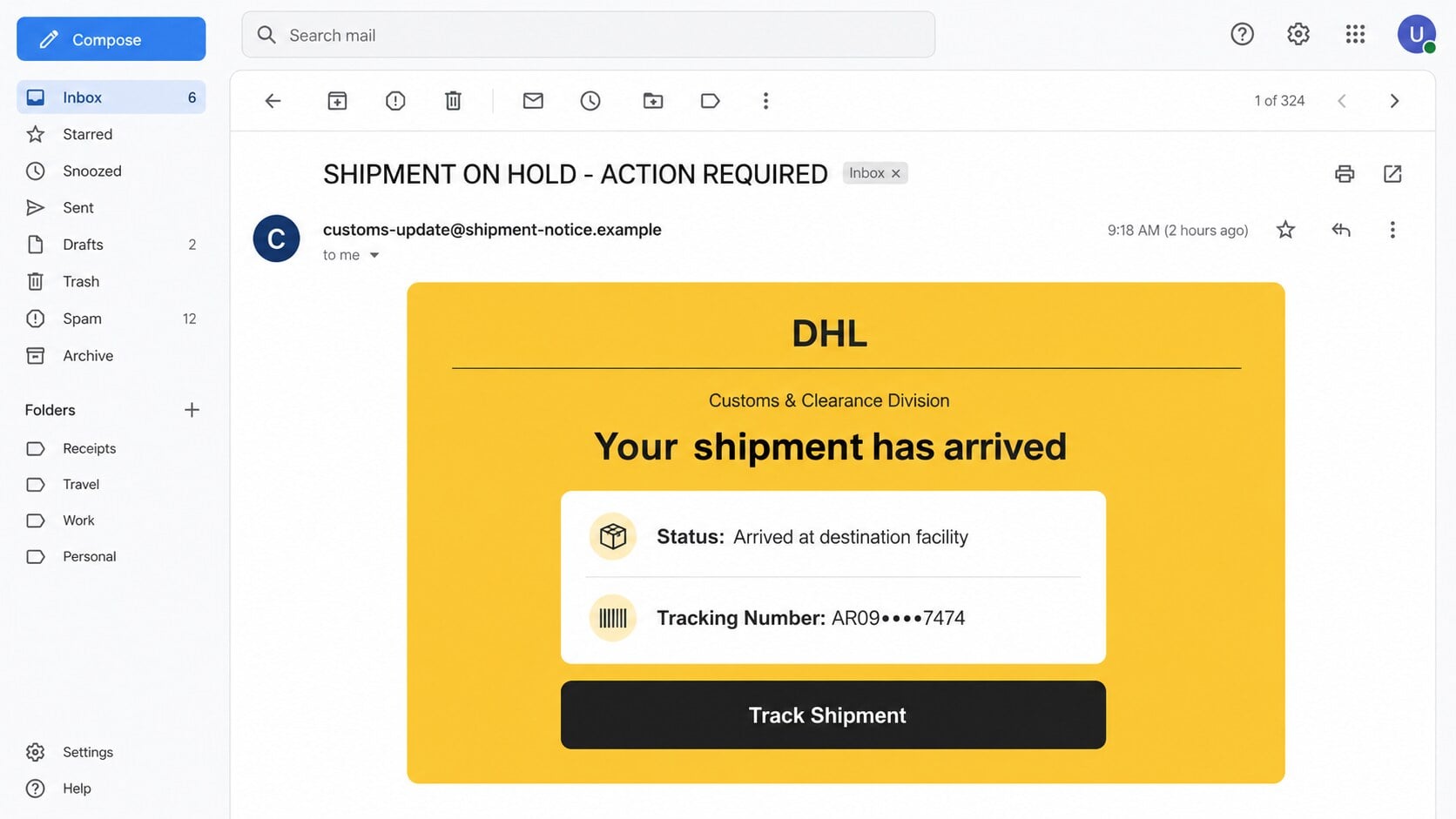
A customs-style notice announces that a DHL shipment reached its destination facility and provides a tracking number, arrival date, and one convenient tracking button.
For anyone waiting on an international order, the timing may feel lucky. The most dangerous detail appears only after the click.
Overview
The email imitates a customs and clearance update
The DHL Shipment Has Arrived email claims a parcel is at the destination facility and ready for the next delivery stage.
It includes a long tracking number, an arrival date, status wording, and the recipient’s address to resemble an operational logistics notice.
The subject may also say the shipment, bill of lading, invoice, or packing list is on hold.
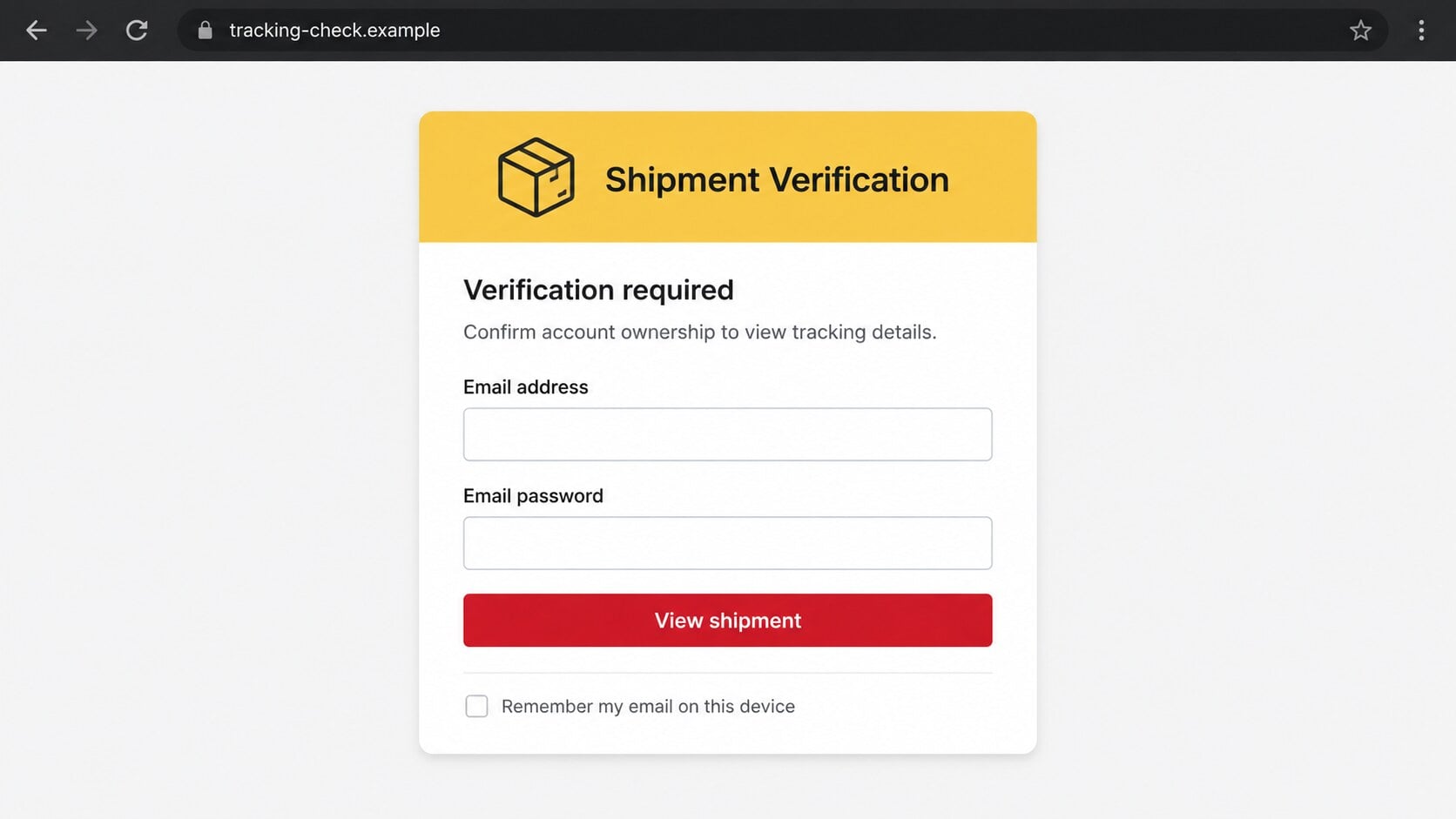
The tracking button opens an email-password form
The observed destination displayed a DHL-themed verification page on a domain unrelated to DHL.
The victim’s email address appeared in the form, while the page requested the password for that mailbox.
A courier does not need an email password to show public tracking information or confirm delivery ownership.
DHL is being impersonated, not accused
DHL operates a real global shipping business and publishes warnings about fraudulent messages using its name.
The company says official links lead to its recognized domains and asks recipients to report suspicious mail to its anti-abuse address.
The unrelated sender, destination, and credential request separate this campaign from legitimate DHL communication.
- The email uses customs language to attract international shoppers.
- A tracking number gives the message manufactured specificity.
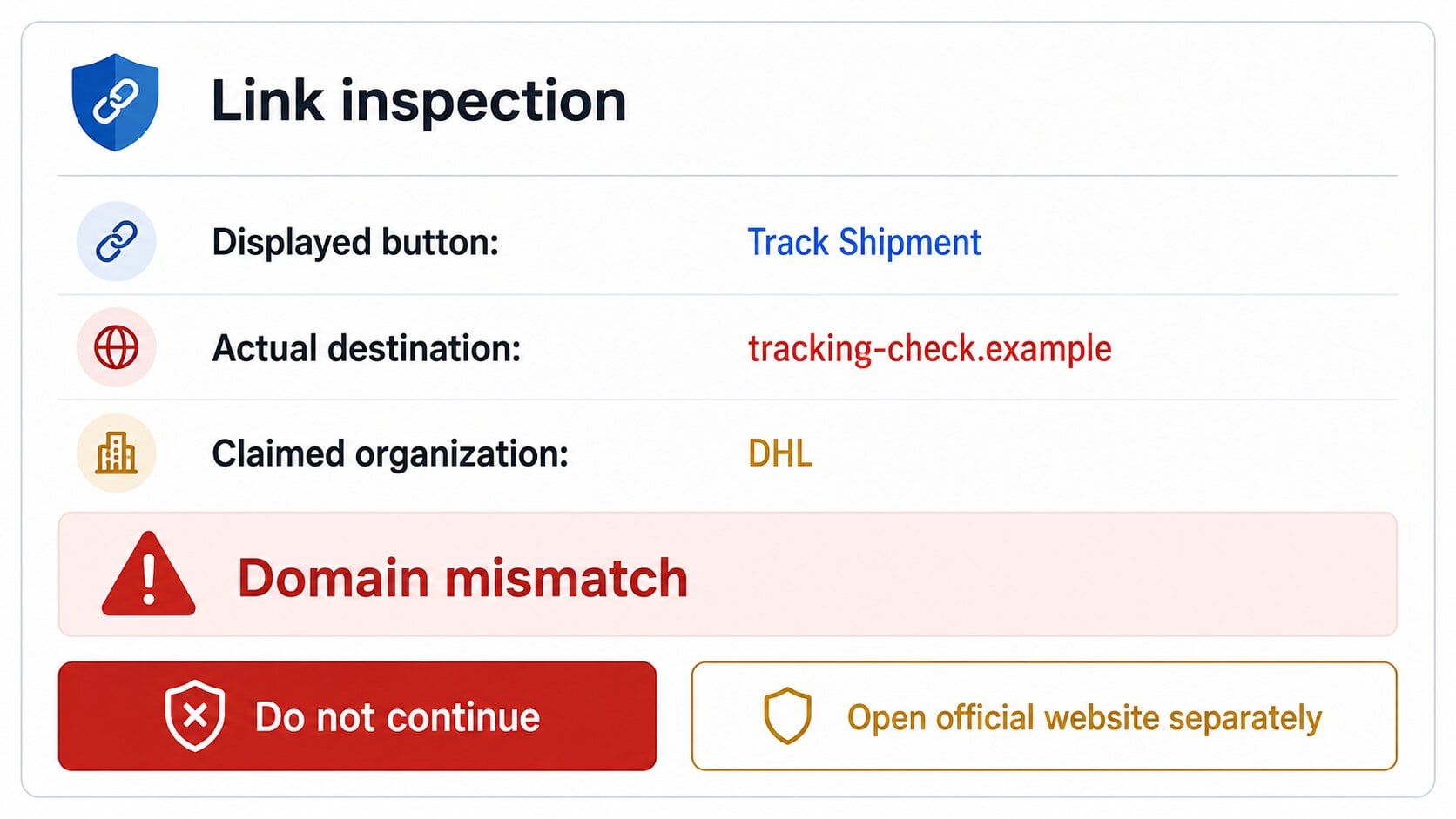
- The button leads away from DHL’s official web properties.
- The page asks for an email password, not parcel information.
- The prefilled address creates personalization without proving legitimacy.
Why Shipment-Arrival Phishing Works So Often
Many recipients are already waiting for something
Online orders, replacement cards, documents, gifts, and work shipments make delivery messages an everyday part of email.
Attackers do not need access to a real order. Large mailing volumes eventually reach people expecting a package.
The coincidence feels like confirmation, even though the message contains no verifiable purchase or sender.
Customs language makes limited detail seem normal
International shipping involves unfamiliar references, divisions, statuses, and acronyms.
A recipient may tolerate odd wording because customs processes already feel complex.
That uncertainty gives a fabricated “Customs & Clearance Division” identity more authority than a generic delivery message.
Tracking is usually a low-risk activity
People commonly open tracking pages without thinking of them as account sign-ins.
The scam uses that expectation to place a credential prompt after the visitor has committed to checking the parcel.
The sudden password request should stop the process, regardless of how convincing the shipment card appears.
How the DHL Shipment Has Arrived Email Scam Works
Step 1: A high-volume campaign targets ordinary inboxes
Email addresses may come from breaches, online forms, public pages, marketing databases, and infected accounts.
The scam does not require a victim’s shopping history.
Delivery language is broad enough to catch both personal shoppers and employees handling business shipments.
Step 2: The letter fabricates a completed arrival event
The parcel is described as already present at a destination facility.
That positive update lowers suspicion because it does not immediately demand a fee, threaten destruction, or claim a missed delivery.
The recipient is simply invited to view the latest status.
Step 3: Operational details manufacture authenticity
A long identifier, formal division name, status label, and recent date create the appearance of data from a logistics system.
Random characters can look like a valid tracking number without corresponding to any parcel.
Recipients should test the number only by entering it on DHL’s official website independently.
Step 4: The button sends the browser to an unrelated host
The visible “Track Shipment” label says nothing about the underlying address.
The destination can use another country’s domain, a recently created host, a compromised site, or a rotating subdomain.
Attackers change those hosts as providers and security teams remove reported pages.
Step 5: The fake portal reframes a password as verification
The page claims the visitor must prove account ownership before viewing tracking information.
It may prefill the email address using data embedded in the original link.
This personalization requires no mailbox access. The attacker already knew the address because the message was sent there.
Step 6: Submitted credentials are tested or sold
The form delivers the password to the phishing operator rather than DHL or the real email provider.
Criminals may attempt access quickly, especially before the victim recognizes the missing tracking result.
Working credentials can also be packaged with addresses and sold to other fraud groups.
Step 7: The inbox supports wider account takeover
Email access allows password resets, conversation monitoring, identity impersonation, and theft of receipts or documents.
Attackers can search for genuine shipping notifications and reuse them in more targeted messages.
A hidden forwarding rule may continue copying future delivery, banking, or shopping correspondence after the original login.
Tracking Numbers Are Details, Not Proof
A plausible identifier does not establish that the sender owns a parcel record.
Numbers can be invented, copied from old labels, partially obscured, or reused across thousands of messages.
The useful test is whether the number produces matching information on the carrier’s official website without requiring an email password.
If no shipment appears, contact the retailer or sender through the original purchase record.
Sender, Tracking, Destination, and Credential Checks
The sender address must belong to an official DHL domain
DHL states that official communications use its recognized DHL and group domains, not free mailboxes or unrelated hosts.
Display names and copied yellow branding are easy to forge.
When reporting suspicious mail, DHL asks for the message as an attachment so complete headers remain available.
The tracking number should work through a separately opened site
Type DHL’s address yourself or use the retailer’s established order page.
Enter the number there rather than pressing the email button.
Compare the origin, destination, shipment type, and dates with the order you actually expect.
The link must remain within a legitimate carrier domain
Preview the full hostname and ignore familiar words placed before the true registered domain.
DHL’s fraud guidance warns that its messages do not direct recipients to unrelated websites.
Redirect chains deserve the same scrutiny because the first visible host may conceal the final destination.
The parcel should never require your mailbox password
Tracking may request a shipment number, postal code, account login, or one-time verification in legitimate contexts.
It should not collect the password belonging to Gmail, Outlook, Yahoo, or a workplace mailbox.
A carrier-themed form asking for that secret is a credential theft warning.
What Happens After an Email Password Is Stolen
Shopping accounts may be reset
Receipts reveal which stores the victim uses and which addresses or payment methods are associated with orders.
Attackers can request password resets and attempt purchases through connected accounts.
Deleted reset messages may hide those actions temporarily.
Real parcel information improves later scams
A compromised inbox contains genuine tracking numbers, retailer names, delivery dates, and addresses.
Criminals can build a second message around a real shipment rather than a random one.
That later approach may demand customs payment, address confirmation, or account authentication.
Work mail can expose supply-chain relationships
Freight documents and vendor correspondence identify carriers, ports, brokers, consignees, and responsible employees.
Attackers may imitate a known partner and redirect future invoices or release instructions.
Organizations should validate financial and routing changes outside email.
Contacts become new targets
A hijacked account can send parcel notices to friends, customers, or colleagues under a familiar name.
Recipients who trust the sender may skip the domain check that would expose the phishing page.
Fast notification to contacts can limit that secondary spread.
Warning Signs in This DHL Email
- The recipient did not receive a matching retailer notice.
- The sender address is unrelated to DHL.
- The tracking number cannot be confirmed independently.
- The subject mixes shipping documents and an urgent hold.
- The button opens a non-DHL hostname.
- The page requests the password for an email account.
- The recipient’s address is prefilled to create false confidence.
- The page uses copied carrier colors as its main proof.
A real shipment should connect to an order, sender, and official tracking record.
If those three pieces do not align, stop before providing information or paying any fee.
How Legitimate Parcel Tracking Differs
The parcel begins with a known transaction or sender
A retailer, relative, employer, or business partner should be able to explain why the shipment exists.
Their original communication normally includes an order number and identifies the carrier before an unexpected customs message arrives.
A random tracking notice without that history deserves verification.
Public tracking does not require a mailbox secret
Carrier tracking commonly works with a shipment identifier and sometimes a destination postal code.
Account features may require authentication, but that login occurs through the carrier’s own recognized website.
The password for an unrelated email provider has no role in releasing parcel status.
Status details should remain consistent
Compare the carrier, origin, service level, dates, and destination with the information supplied by the sender.
Unexpected routes or impossible dates can reveal a copied or invented record.
Call the carrier through its official directory when a valuable shipment appears to be held.
Payment requests need their own verification
International packages can involve legitimate duties and taxes, so a fee alone does not prove fraud.
Confirm the charge inside official tracking and check that the payment page remains under a recognized carrier domain.
Do not pay through cryptocurrency, gift cards, or personal transfers requested by an unsolicited sender.
Why Business Shipping Accounts Need Special Attention
Freight language can reach the right employee by chance
Companies publish logistics, purchasing, and accounts-payable contacts on websites and trade directories.
A broad campaign may therefore land with someone accustomed to bills of lading, customs releases, and packing lists.
Familiar terminology makes the message feel targeted even when the attacker knows nothing about current cargo.
One mailbox can reveal an entire shipment chain
Real correspondence identifies suppliers, brokers, carriers, warehouses, ports, quantities, and delivery schedules.
Attackers can use those facts to impersonate a partner at a financially sensitive moment.
Shared mailboxes should use restricted permissions, strong authentication, and monitored forwarding changes.
Release instructions deserve a second channel
Changes to bank details, consignee information, destinations, or document-release procedures should never rely on email alone.
Verify them with a known person and telephone number recorded before the request arrived.
That process blocks fraud even after an attacker has learned the language of a genuine shipment.
What to Do if You Have Fallen Victim to This Scam
Start with the action you completed. Simply receiving a delivery email does not compromise the mailbox or create a parcel obligation.
- Close the fake tracking page. Save its address and the original email, then avoid further buttons or repeated password attempts.
- Check the parcel independently. Use the retailer’s order history or type DHL’s official address into a new browser tab.
- Report the impersonation. DHL accepts suspicious emails at phishing@dhl.com and prefers the original message attached with complete headers.
- Change any submitted email password. Use the genuine provider on a trusted device and choose a new, unique credential.
- End active sessions. Remove unfamiliar devices, revoke tokens, inspect recovery methods, and enable multi-factor authentication.
- Check hidden mailbox changes. Review forwarding, filters, delegates, application passwords, sent mail, and deleted security notices.
- Secure shopping accounts. Reset reused passwords and examine orders, delivery addresses, stored cards, and recent account changes.
- Scan downloaded content. Malwarebytes can examine suspicious files and unwanted software. AdGuard can block many known phishing and malicious advertising destinations.
- Notify an employer when appropriate. Business mailboxes may expose vendor, freight, customer, or payment information requiring a broader response.
- Contact financial providers if money moved. Report unauthorized charges promptly and distrust recovery callers asking for remote access or upfront payment.
Is Your Device Infected? Run a Free Malware Scan
Slow performance, constant pop-ups, or strange behavior? These are classic signs of a malware infection. The fastest way to find out is to scan your device with Malwarebytes Free — one of the most trusted malware removal tools available.
The free version detects and removes the most common threats, including:
- Adware — the cause of those annoying pop-ups
- Browser hijackers — unwanted redirects and changed homepages
- Trojans and spyware — hidden programs stealing your data
- Potentially unwanted programs (PUPs) — software you never asked for
👉 Select your device below — Windows, Mac, or Android — then follow the simple steps to download Malwarebytes, scan your system, and remove any threats it finds. The scan usually takes 5 to 20 minutes.
Run a Malware Scan with Malwarebytes for Windows
Malwarebytes is one of the most popular and trusted anti-malware tools for Windows — and it’s completely free for removing infections. It catches threats that many antivirus programs miss, including adware, browser hijackers, and trojans. Follow the steps below to scan and clean your PC in just a few minutes.
Download Malwarebytes
Click the button below to download the latest version of Malwarebytes for Windows from the official source. The free version is all you need — it will scan your computer and remove adware, browser hijackers, and other malicious software at no cost.
Download MalwarebytesOfficial installer for Windows 11 and 10. Your download starts right away.Want real-time protection? See Malwarebytes Premium Malwarebytes Free for WindowsScans and removes malware at no cost
-
Install Malwarebytes
When the download finishes, open your Downloads folder and double-click the MBSetup file. If Windows shows a User Account Control pop-up, click “Yes” to allow the installation.

Follow the On-Screen Prompts to Install Malwarebytes
The setup wizard will walk you through a few quick screens:
-
Choose where you’re installing the program — “Personal Computer” or “Work Computer” — then click Next.

-
Malwarebytes will now install on your device. This usually takes under a minute.

-
When installation is complete, the “Welcome to Malwarebytes” screen will open automatically.

-
On the final screen, click Open Malwarebytes to launch the program.

-
Enable “Scan for Rootkits”
Before scanning, turn on rootkit detection so Malwarebytes can find even the most hidden threats. Click the Settings gear icon on the left side of the screen.

In the settings menu, find “Scan for rootkits” and click the toggle so it turns blue.

Done? Click “Dashboard” in the left pane to return to the main screen.
Start the Scan
Click the blue Scan button. Malwarebytes will automatically update its virus database and start checking your computer for malware.

-
Wait for the Scan to Finish
The scan checks your entire system for browser hijackers and other malicious programs, so it can take 5 to 20 minutes depending on your computer. Feel free to do something else — just check back occasionally to see the progress.

-
Quarantine the Detected Threats
When the scan is done, you’ll see a list of everything Malwarebytes found — malware, adware, and potentially unwanted programs. Click the “Quarantine” button to remove all of them at once.

Malwarebytes will now remove the malicious files and registry entries and move them safely into quarantine.

-
Restart Your Computer
Some threats can only be fully removed after a reboot. If Malwarebytes asks you to restart, click Yes. Once you’re logged back in, Malwarebytes has finished removing the threats it found.

That’s it — your Windows PC is now clean of trojans, adware, and other malware, and should be back to running smoothly.
If you are still having problems with your computer after completing these instructions, then please follow one of the steps:
- Run a computer scan with ESET Online Scanner
- Ask for help in our Windows Malware Removal Help & Support forum.
Run a Malware Scan with Malwarebytes for Mac
Malwarebytes for Mac is a free on-demand scanner that removes the malware other security software tends to miss — adware, browser hijackers, and unwanted programs included. Cleaning an infected Mac with Malwarebytes has always been completely free, and it’s our go-to recommendation. Follow the steps below to scan and clean your Mac in just a few minutes.
-
Download Malwarebytes for Mac
Click the button below to download the latest version of Malwarebytes for Mac.
Download MalwarebytesOfficial installer for macOS. Your download starts right away.Want real-time protection? See Malwarebytes PremiumMalwarebytes Free for MacScans and removes malware at no cost -
Open the Malwarebytes setup file
When the download finishes, open your Downloads folder and double-click the setup file to begin the installation.

-
Follow the On-Screen Prompts to Install Malwarebytes
The Malwarebytes for Mac Installer will guide you through a few quick screens. Click “Continue” and keep following the prompts until the installation completes.



When the installation is complete, Malwarebytes opens to the Welcome to Malwarebytes screen. Click “Get started“.
-
Select “Personal Computer” or “Work Computer”
Malwarebytes will ask what type of computer you’re installing it on. Click either Personal Computer or Work Computer, whichever applies.

-
Start the Scan
Click the “Scan” button. Malwarebytes will automatically update its detection database and begin checking your Mac for malware.

-
Wait for the Scan to Finish
Malwarebytes will scan your Mac for adware, browser hijackers, and other malicious programs. This can take a few minutes, so feel free to do something else — just check back occasionally to see the progress.

-
Quarantine the Detected Threats
When the scan is done, you’ll see a list of everything Malwarebytes found. Click the “Quarantine” button to remove all the threats at once.

-
Restart Your Mac
Malwarebytes will now remove all the malicious files it found. Some threats can only be fully removed after a reboot — if Malwarebytes asks you to restart, allow it. Once you’re logged back in, your Mac is clean.

That’s it — your Mac is now free of adware, rogue browser extensions, and other potentially harmful software.
If you are still experiencing problems while trying to remove a malicious program from your computer, please ask for help in our Mac Malware Removal Help & Support forum.
Run a Malware Scan with Malwarebytes for Android
Malwarebytes for Android automatically detects and removes dangerous threats like malware and ransomware so you don’t have to worry about your most-used device being compromised. Aggressive detection of adware and potentially unwanted programs keeps your Android phone or tablet running smooth.
-
Download Malwarebytes for Android.
You can download Malwarebytes for Android by clicking the link below.
Get Malwarebytes for AndroidOpens Google Play in a new tab.Want real-time protection? See Malwarebytes Premium for AndroidMalwarebytes for AndroidScans your phone and removes malware at no cost -
Install Malwarebytes for Android on your phone.
In the Google Play Store, tap “Install” to install Malwarebytes for Android on your device.

When the installation process has finished, tap “Open” to begin using Malwarebytes for Android. You can also open Malwarebytes by tapping on its icon in your phone menu or home screen.

-
Follow the on-screen prompts to complete the setup process
When Malwarebytes will open, you will see the Malwarebytes Setup Wizard which will guide you through a series of permissions and other setup options.
This is the first of two screens that explain the difference between the Premium and Free versions. Swipe this screen to continue.
Tap on “Got it” to proceed to the next step.
Malwarebytes for Android will now ask for a set of permissions that are required to scan your device and protect it from malware. Tap on “Give permission” to continue.
Tap on “Allow” to permit Malwarebytes to access the files on your phone.
-
Update database and run a scan with Malwarebytes for Android
You will now be prompted to update the Malwarebytes database and run a full system scan.

Click on “Update database” to update the Malwarebytes for Android definitions to the latest version, then click on “Run full scan” to perform a system scan.

-
Wait for the Malwarebytes scan to complete.
Malwarebytes will now start scanning your phone for adware and other malicious apps. This process can take a few minutes, so we suggest you do something else and periodically check on the status of the scan to see when it is finished.

-
Click on “Remove Selected”.
When the scan has been completed, you will be presented with a screen showing the malware infections that Malwarebytes for Android has detected. To remove the malicious apps that Malwarebytes has found, tap on the “Remove Selected” button.

-
Restart your phone.
Malwarebytes for Android will now remove all the malicious apps that it has found. To complete the malware removal process, Malwarebytes may ask you to restart your device.
That’s it — your Android phone is now clean — no more malicious apps, adware, or browser redirects.
If you are still having problems with your phone after completing these instructions, then please follow one of the steps:
- Restore your phone to factory settings by going to Settings > General management > Reset > Factory data reset.
- Ask for help in our Mobile Malware Removal Help & Support forum.
Stay Protected: Block Ads and Malicious Sites
Now that your device is clean, keep it that way. Most infections start with a malicious ad or a fake download button — so blocking them at the source is your best defense.
We recommend AdGuard, which blocks malicious ads, phishing pages, and dangerous redirects before they can reach you.
👉 Download AdGuard and browse safely
If you only opened the email, mark it as phishing and remove it. No device scan is necessary unless a file was downloaded or opened.
Continue tracking expected packages through saved retailer and carrier channels while the account review is underway.
Frequently Asked Questions
Is the DHL shipment-arrival email genuine?
The campaign described here is phishing. Confirm any real shipment through DHL’s official site or the retailer’s order record.
Why does the message include a tracking number?
The number adds credibility. It may be fabricated, copied, incomplete, or unrelated to the recipient.
Does DHL need my email password for tracking?
No. A courier has no reason to collect the secret used to access an outside mailbox.
How did the fake page know my email address?
The sender already had it and could place it inside the link for the page to display.
What if I was genuinely expecting a package?
Expectation increases the lure’s effectiveness, not its legitimacy. Track the order through established channels.
Can this email install malware by itself?
Reading ordinary email content usually does not. Risk rises after opening an attachment, downloading a file, or installing software.
The Bottom Line
The DHL Shipment Has Arrived scam uses believable logistics details to lead recipients from routine tracking into an unrelated email-password form.
Track parcels independently and judge the hostname before the artwork. If a password was entered, secure the mailbox and the shopping accounts connected to it immediately.

Join the discussion
0 commentsShare your experience or ask a question about this article.
Discussion
Start the conversation
Have a question or something useful to share? Add the first comment.