

A shipping email arrives while online orders are still fresh in your mind. It says documentation is ready and asks you to check everything before processing continues.
The branding feels familiar, the request seems ordinary, and the button promises useful paperwork. One missing detail changes the entire meaning of that message.
Overview
The email borrows a believable moment in the shipping process
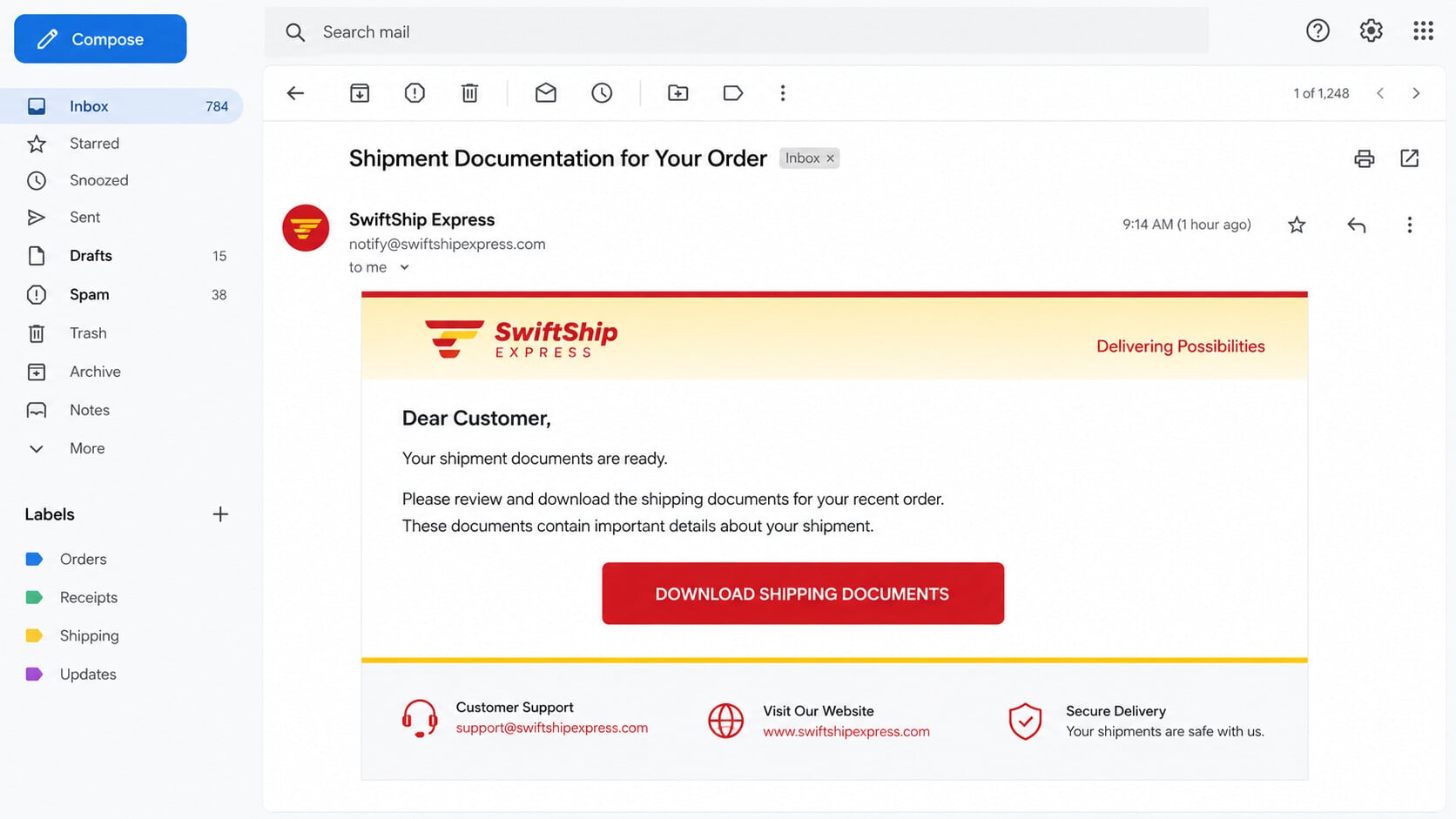
The DHL Express Shipment Documentation Available email claims that shipping records are ready for review. It invites the recipient to download and verify them before processing.
The message includes an “Important Notice,” polite closing, delivery-team signature, and copyright line. Together, those details resemble an ordinary automated courier notification.
However, it addresses “Dear Customer” and provides no tracking number, sender, destination, expected delivery, package description, or account-specific shipping history.
The button leads away from the evidence you actually need
The central action says “Download Shipping Documents.” Its wording encourages an immediate click without letting the recipient confirm which shipment the documents belong to.
The destination captured during the investigation was inactive when reviewed. Therefore, its final behavior cannot be described as identical for every recipient or every campaign wave.
That uncertainty increases the risk. Similar courier lures can open credential pages, request card information, or deliver files disguised as invoices and waybills.
DHL is being impersonated, not accused
DHL is a legitimate logistics company and has no connection to the deceptive message. Criminals use recognizable shipping brands because recipients frequently expect parcels.
The official company advises customers to inspect sender domains, unfamiliar links, urgent wording, and attachments. It also provides a dedicated phishing-reporting address.
- The email announces unspecified shipment documents.
- The greeting is generic and the package is unidentified.
- A download button directs the recipient to an external site.
- The destination may steal credentials or deliver malware.
- Authentic tracking should be checked on DHL’s official website.
What Makes This Shipping Notice Suspicious
A real logistics document should connect to a real shipment. The examined email provides no way to match its request with something the recipient actually sent or ordered.
There is no airway bill number, tracking reference, shipper name, recipient address, route, scheduled date, customs issue, or account contact.
Instead, the message asks the reader to download first and verify later. That order is backwards. Safe verification should happen before an external file or page is opened.
The message also says discrepancies should be reported to customer support, but it does not provide a verified support route inside the email.
That line is decorative reassurance. It makes the email sound service-oriented without giving the recipient useful, independently checkable information.
Phishing Page or Malware Download: Two Possible Outcomes
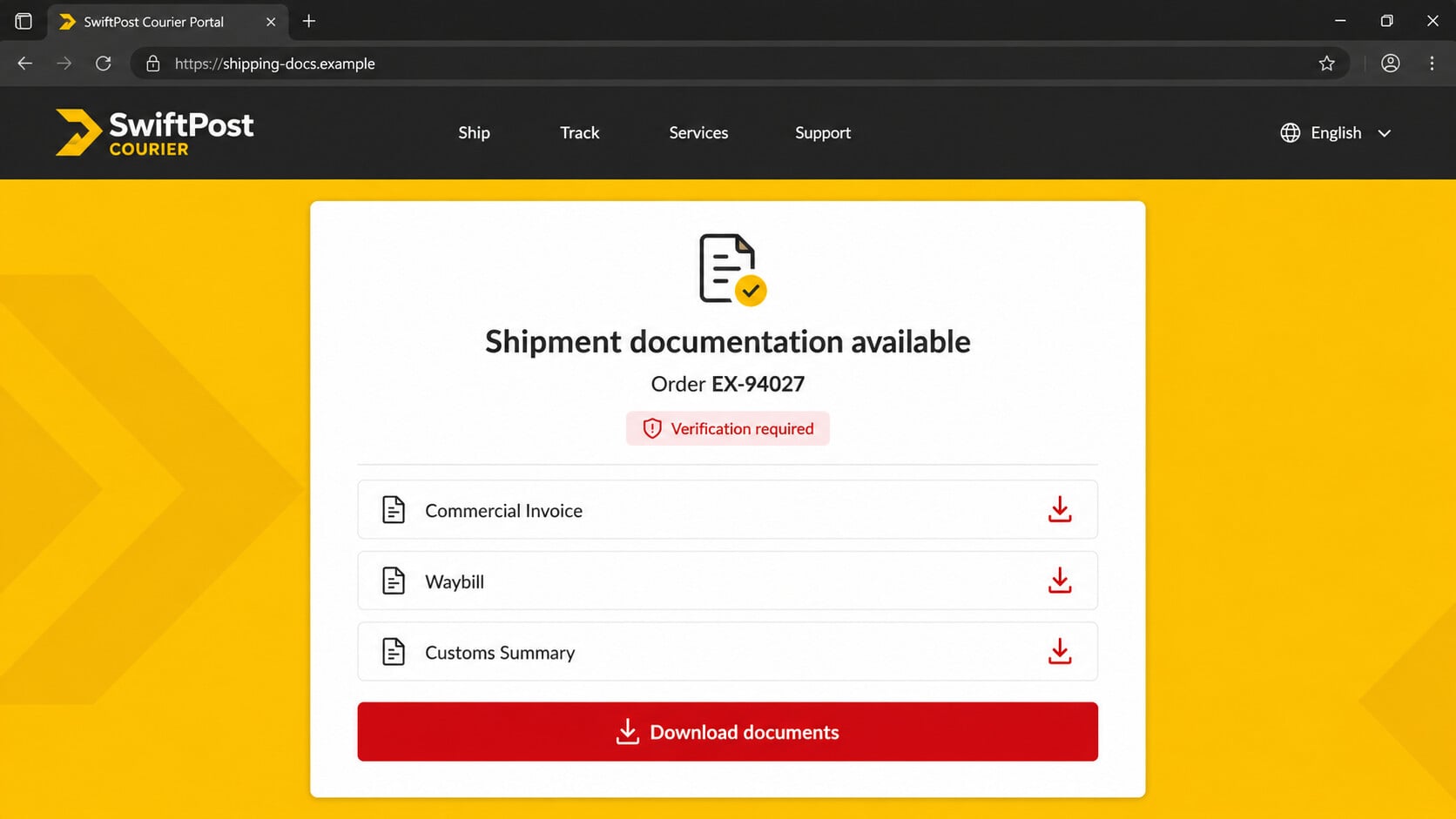
The dead destination means we cannot prove which final payload that particular link served. Responsible analysis must keep the two most plausible paths separate.
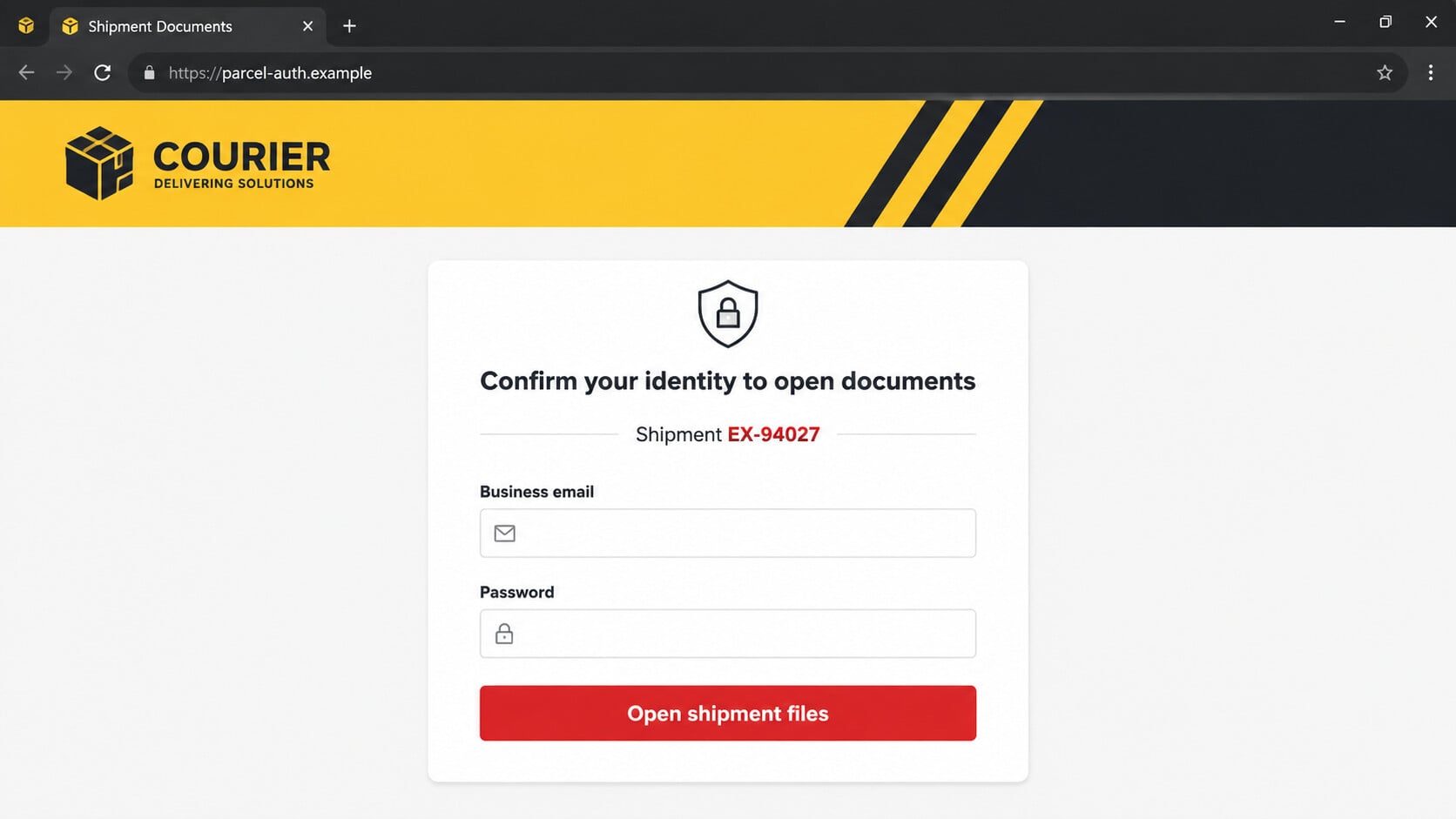
In a credential-theft path, the site may imitate DHL, Microsoft 365, Google, or a company webmail page. The visitor is asked to sign in.
Any username and password entered into that imitation can be transmitted to criminals. The page may then redirect to a genuine site to reduce suspicion.
In a malware-delivery path, the button may download an archive, script, installer, Office document, PDF lure, or shortcut file.
A document can appear harmless while launching another process. Archives also help attackers hide dangerous file extensions from casual inspection.
Neither outcome is confirmed solely by the email. What is confirmed is that the unsolicited link should not be trusted or used for shipment verification.
How the DHL Shipment Documentation Email Scam Works
Step 1: The message reaches people who may already expect deliveries
Attackers do not need to know that a specific package exists. Online shopping and business shipping are common enough that a broad campaign will find relevant recipients.
Business inboxes are especially attractive because invoices, customs records, bills of lading, and delivery notices regularly arrive by email.
Step 2: Familiar branding lowers the first layer of suspicion
The design uses DHL’s name, recognizable colors, a formal footer, and a delivery-team signature. These visual elements are copied, not proof of origin.
A recipient scanning quickly may register the brand before checking the sender address or missing tracking details.
Step 3: The email creates a task without creating panic
Some scams threaten immediate account closure. This one is quieter. It asks the recipient to review paperwork before shipping proceeds.
That routine tone is strategic. Office workers are accustomed to completing small operational tasks, particularly when a document appears time-sensitive.
Step 4: The download button hides the true destination
A styled button can display any words while linking somewhere unrelated. The visible phrase “Download Shipping Documents” reveals nothing about the actual host.
Tracking redirects may pass through several domains before reaching the final page. This makes casual link inspection harder and lets attackers replace dead destinations quickly.
Step 5: The destination asks for credentials or supplies a file
A fake document portal may claim the files are protected and require an email login. That request converts curiosity into credential theft.
Alternatively, the browser may receive a file immediately. A filename containing “invoice,” “waybill,” or “shipping documents” makes the download appear connected to the email.
Step 6: One click becomes account access or device compromise
Submitted credentials may expose an email account, courier profile, or workplace identity. Reused passwords can extend the breach to other services.
If malicious software runs, it may steal browser data, record keystrokes, open remote access, or fetch additional payloads. The exact capability depends on the file delivered.
Step 7: The stolen access supports larger fraud
A compromised business mailbox can reveal genuine shipping schedules and supplier conversations. Criminals can use that information for more convincing follow-up messages.
They may redirect parcels, alter payment instructions, impersonate employees, or send the same lure from a trusted account to customers and partners.
Sender, Tracking, and Download Checks
Official DHL mail comes from a limited set of domains
DHL states that official communications use domains including dhl.com, dpdhl.com, dhl-news.com, recognized subdomains, and country-specific DHL domains.
The company also says it does not send official notices from free Gmail or Yahoo addresses. Even a familiar-looking address still deserves content and link inspection.
A real shipment should have a usable tracking reference
Copy the tracking number from your genuine order record, not from the questionable email. Enter it manually on the official DHL site.
If the email contains no tracking number, ask the seller through the marketplace or store where the purchase was made.
A browser download is not automatically a document
Windows may hide known file extensions. A file appearing as “Waybill.pdf” can actually carry another ending if the name is crafted to confuse the viewer.
Do not open unexpected ZIP, ISO, IMG, LNK, JS, VBS, EXE, MSI, or password-protected archive files. Escalate business documents to your security team.
Use the company’s real fraud channel
DHL asks users to attach suspicious emails with their complete headers and send them to phishing@dhl.com. A simple forward may omit information investigators need.
Questions about a genuine shipment should go through official customer support, not any number or address embedded in the suspicious message.
How to Check the Shipment Safely
Start from the purchase confirmation in your retailer account. That record should identify the courier, tracking number, destination, and current status.
Open DHL by typing its address or using a trusted bookmark. Never search for a support telephone number inside a sponsored advertisement.
Compare the official tracking event with the email. If DHL genuinely needs customs paperwork, the requirement should connect to the same shipment reference.
Business recipients should check their transportation-management system or contact the known shipping coordinator. Unexpected documents deserve a separate verification channel.
DHL’s official fraud awareness guidance explains sender domains, suspicious links, attachments, and reporting.
Red Flags Specific to This Email
- It uses “Dear Customer” instead of an account or recipient name.
- No tracking number or shipment reference appears.
- The shipper, destination, route, and delivery date are missing.
- The main action is a broad download button.
- The important notice adds credibility but no verifiable detail.
- The external destination was inactive when reviewed.
A dead link does not make the email harmless. Campaign operators routinely abandon domains after blocking begins and replace them with new addresses.
Do not revisit a known phishing destination to see whether it returns. Preserve the message and let the service provider or security team investigate.
What to Do if You Have Fallen Victim to This Scam
- If you only received the email, report and delete it. Do not click unsubscribe. Preserve it first if your employer or DHL needs the original headers.
- If you clicked but entered nothing, close the page. Check the browser’s download list and remove any untrusted file without opening it.
- If you submitted credentials, change that password immediately. Use the genuine account page from a trusted device, then update every account sharing the password.
- Sign out unfamiliar sessions. Review devices, forwarding rules, recovery addresses, application passwords, and connected applications. Remove anything you do not recognize.
- Enable multi-factor authentication. Prefer an authenticator application or security key. Never approve an unexpected prompt generated by an attacker testing your stolen password.
- If a file was opened, disconnect the device from the network. This can limit remote access and prevent malware from reaching shared business resources.
- Run a complete Malwarebytes scan. It can identify information stealers, trojans, scripts, and unwanted software that may have arrived through the fake download.
- Use AdGuard to reduce malicious routes. Its filtering can block many known scam domains, harmful advertisements, and tracking redirects before the page opens.
- Tell workplace IT promptly. Provide the email, headers, destination URL, filename, and time of interaction. Fast containment matters more than embarrassment.
- Contact banks if financial information was exposed. Lock affected cards, dispute unauthorized transactions, and monitor accounts for attempted changes.
- Report the impersonation to DHL. Attach the original message to an email addressed to phishing@dhl.com, following the company’s fraud instructions.
- Reject unsolicited recovery offers. Anyone requesting remote access, gift cards, cryptocurrency, or one-time codes is creating a second opportunity for theft.
Is Your Device Infected? Run a Free Malware Scan
Slow performance, constant pop-ups, or strange behavior? These are classic signs of a malware infection. The fastest way to find out is to scan your device with Malwarebytes Free — one of the most trusted malware removal tools available.
The free version detects and removes the most common threats, including:
- Adware — the cause of those annoying pop-ups
- Browser hijackers — unwanted redirects and changed homepages
- Trojans and spyware — hidden programs stealing your data
- Potentially unwanted programs (PUPs) — software you never asked for
👉 Select your device below — Windows, Mac, or Android — then follow the simple steps to download Malwarebytes, scan your system, and remove any threats it finds. The scan usually takes 5 to 20 minutes.
Run a Malware Scan with Malwarebytes for Windows
Malwarebytes is one of the most popular and trusted anti-malware tools for Windows — and it’s completely free for removing infections. It catches threats that many antivirus programs miss, including adware, browser hijackers, and trojans. Follow the steps below to scan and clean your PC in just a few minutes.
Download Malwarebytes
Click the button below to download the latest version of Malwarebytes for Windows from the official source. The free version is all you need — it will scan your computer and remove adware, browser hijackers, and other malicious software at no cost.
Download MalwarebytesOfficial installer for Windows 11 and 10. Your download starts right away.Want real-time protection? See Malwarebytes Premium Malwarebytes Free for WindowsScans and removes malware at no cost
-
Install Malwarebytes
When the download finishes, open your Downloads folder and double-click the MBSetup file. If Windows shows a User Account Control pop-up, click “Yes” to allow the installation.

Follow the On-Screen Prompts to Install Malwarebytes
The setup wizard will walk you through a few quick screens:
-
Choose where you’re installing the program — “Personal Computer” or “Work Computer” — then click Next.

-
Malwarebytes will now install on your device. This usually takes under a minute.

-
When installation is complete, the “Welcome to Malwarebytes” screen will open automatically.

-
On the final screen, click Open Malwarebytes to launch the program.

-
Enable “Scan for Rootkits”
Before scanning, turn on rootkit detection so Malwarebytes can find even the most hidden threats. Click the Settings gear icon on the left side of the screen.

In the settings menu, find “Scan for rootkits” and click the toggle so it turns blue.

Done? Click “Dashboard” in the left pane to return to the main screen.
Start the Scan
Click the blue Scan button. Malwarebytes will automatically update its virus database and start checking your computer for malware.

-
Wait for the Scan to Finish
The scan checks your entire system for browser hijackers and other malicious programs, so it can take 5 to 20 minutes depending on your computer. Feel free to do something else — just check back occasionally to see the progress.

-
Quarantine the Detected Threats
When the scan is done, you’ll see a list of everything Malwarebytes found — malware, adware, and potentially unwanted programs. Click the “Quarantine” button to remove all of them at once.

Malwarebytes will now remove the malicious files and registry entries and move them safely into quarantine.

-
Restart Your Computer
Some threats can only be fully removed after a reboot. If Malwarebytes asks you to restart, click Yes. Once you’re logged back in, Malwarebytes has finished removing the threats it found.

That’s it — your Windows PC is now clean of trojans, adware, and other malware, and should be back to running smoothly.
If you are still having problems with your computer after completing these instructions, then please follow one of the steps:
- Run a computer scan with ESET Online Scanner
- Ask for help in our Windows Malware Removal Help & Support forum.
Run a Malware Scan with Malwarebytes for Mac
Malwarebytes for Mac is a free on-demand scanner that removes the malware other security software tends to miss — adware, browser hijackers, and unwanted programs included. Cleaning an infected Mac with Malwarebytes has always been completely free, and it’s our go-to recommendation. Follow the steps below to scan and clean your Mac in just a few minutes.
-
Download Malwarebytes for Mac
Click the button below to download the latest version of Malwarebytes for Mac.
Download MalwarebytesOfficial installer for macOS. Your download starts right away.Want real-time protection? See Malwarebytes PremiumMalwarebytes Free for MacScans and removes malware at no cost -
Open the Malwarebytes setup file
When the download finishes, open your Downloads folder and double-click the setup file to begin the installation.

-
Follow the On-Screen Prompts to Install Malwarebytes
The Malwarebytes for Mac Installer will guide you through a few quick screens. Click “Continue” and keep following the prompts until the installation completes.



When the installation is complete, Malwarebytes opens to the Welcome to Malwarebytes screen. Click “Get started“.
-
Select “Personal Computer” or “Work Computer”
Malwarebytes will ask what type of computer you’re installing it on. Click either Personal Computer or Work Computer, whichever applies.

-
Start the Scan
Click the “Scan” button. Malwarebytes will automatically update its detection database and begin checking your Mac for malware.

-
Wait for the Scan to Finish
Malwarebytes will scan your Mac for adware, browser hijackers, and other malicious programs. This can take a few minutes, so feel free to do something else — just check back occasionally to see the progress.

-
Quarantine the Detected Threats
When the scan is done, you’ll see a list of everything Malwarebytes found. Click the “Quarantine” button to remove all the threats at once.

-
Restart Your Mac
Malwarebytes will now remove all the malicious files it found. Some threats can only be fully removed after a reboot — if Malwarebytes asks you to restart, allow it. Once you’re logged back in, your Mac is clean.

That’s it — your Mac is now free of adware, rogue browser extensions, and other potentially harmful software.
If you are still experiencing problems while trying to remove a malicious program from your computer, please ask for help in our Mac Malware Removal Help & Support forum.
Run a Malware Scan with Malwarebytes for Android
Malwarebytes for Android automatically detects and removes dangerous threats like malware and ransomware so you don’t have to worry about your most-used device being compromised. Aggressive detection of adware and potentially unwanted programs keeps your Android phone or tablet running smooth.
-
Download Malwarebytes for Android.
You can download Malwarebytes for Android by clicking the link below.
Get Malwarebytes for AndroidOpens Google Play in a new tab.Want real-time protection? See Malwarebytes Premium for AndroidMalwarebytes for AndroidScans your phone and removes malware at no cost -
Install Malwarebytes for Android on your phone.
In the Google Play Store, tap “Install” to install Malwarebytes for Android on your device.

When the installation process has finished, tap “Open” to begin using Malwarebytes for Android. You can also open Malwarebytes by tapping on its icon in your phone menu or home screen.

-
Follow the on-screen prompts to complete the setup process
When Malwarebytes will open, you will see the Malwarebytes Setup Wizard which will guide you through a series of permissions and other setup options.
This is the first of two screens that explain the difference between the Premium and Free versions. Swipe this screen to continue.
Tap on “Got it” to proceed to the next step.
Malwarebytes for Android will now ask for a set of permissions that are required to scan your device and protect it from malware. Tap on “Give permission” to continue.
Tap on “Allow” to permit Malwarebytes to access the files on your phone.
-
Update database and run a scan with Malwarebytes for Android
You will now be prompted to update the Malwarebytes database and run a full system scan.

Click on “Update database” to update the Malwarebytes for Android definitions to the latest version, then click on “Run full scan” to perform a system scan.

-
Wait for the Malwarebytes scan to complete.
Malwarebytes will now start scanning your phone for adware and other malicious apps. This process can take a few minutes, so we suggest you do something else and periodically check on the status of the scan to see when it is finished.

-
Click on “Remove Selected”.
When the scan has been completed, you will be presented with a screen showing the malware infections that Malwarebytes for Android has detected. To remove the malicious apps that Malwarebytes has found, tap on the “Remove Selected” button.

-
Restart your phone.
Malwarebytes for Android will now remove all the malicious apps that it has found. To complete the malware removal process, Malwarebytes may ask you to restart your device.
That’s it — your Android phone is now clean — no more malicious apps, adware, or browser redirects.
If you are still having problems with your phone after completing these instructions, then please follow one of the steps:
- Restore your phone to factory settings by going to Settings > General management > Reset > Factory data reset.
- Ask for help in our Mobile Malware Removal Help & Support forum.
Stay Protected: Block Ads and Malicious Sites
Now that your device is clean, keep it that way. Most infections start with a malicious ad or a fake download button — so blocking them at the source is your best defense.
We recommend AdGuard, which blocks malicious ads, phishing pages, and dangerous redirects before they can reach you.
👉 Download AdGuard and browse safely
Why Fake Delivery Documents Remain Effective
Delivery timing creates accidental credibility
Many households and businesses have several parcels moving at once. Criminals do not need to know the exact order when probability supplies a convincing coincidence.
A recipient expecting electronics, replacement parts, or an overseas purchase may assume the message concerns that shipment. The email benefits from an event it did not create.
Busy receiving departments face an additional problem. Staff routinely process unfamiliar senders and attachments, so a generic document request can resemble ordinary daily work.
Internal procedures should require tracking verification before opening shipment files. The tracking number must work when entered independently on the official carrier website.
A document button can hide several different file types
The words “shipping documents” do not describe what a browser will download. A link can deliver an archive, disk image, script, executable, or shortcut.
Attackers may place a harmless-looking PDF icon on a dangerous file. Windows can also hide the final extension, making a double-extension filename easier to misread.
Password-protected ZIP archives deserve particular caution. Encryption prevents mail scanners from examining the contents, while the password in the message lets the recipient open them.
Do not enable macros, disable antivirus, or install a viewer supplied by an unexpected shipping page. Those instructions serve the attacker, not the document.
Shipment impersonation can continue after the first click
A fake portal may first request an email address, then display the logo of that email provider. This personalization makes the second screen look more relevant.
Another version asks for a small customs or redelivery payment. The amount feels harmless, but the form can capture complete card and billing details.
Victims may later receive calls from criminals claiming to investigate the suspicious charge. That follow-up converts one phishing event into a refund or technical-support scam.
Treat every unexpected follow-up as unverified. Contact the carrier, bank, or merchant through a number obtained independently from its official website or your statement.
Frequently Asked Questions
Is the DHL Express Shipment Documentation Available email genuine?
The examined email is an impersonation. It lacks shipment-specific details and sends the recipient toward an unverified external destination.
Does DHL email shipping documents?
Legitimate shipping communications exist, but they should match a real shipment and use official channels. Verify through DHL’s site instead of the email button.
What happens after clicking Download Shipping Documents?
The captured destination was inactive. Comparable campaigns lead to fake sign-in pages or malicious downloads, so either outcome must be treated seriously.
Can I be infected just by reading the email?
Simply viewing normal message text is usually not enough. Opening a linked page, allowing a download, or running an attachment creates greater risk.
Where should I report a fake DHL email?
DHL directs suspicious emails to phishing@dhl.com as attachments with full headers. Workplace users should also notify their internal security team.
Should I call the support number in a shipping email?
No. Obtain customer support details from DHL’s official website or your genuine order record. A fraudulent message can display a criminal-controlled number.
The Bottom Line
The DHL shipment-document email exploits a common expectation, then replaces trackable package facts with a risky download button. Familiar branding does not authenticate the sender.
Check every shipment through your retailer and DHL’s official tracking tools. If credentials or files were involved, secure the account and inspect the device immediately.

Join the discussion
0 commentsShare your experience or ask a question about this article.
Discussion
Start the conversation
Have a question or something useful to share? Add the first comment.