


A shipping document arriving during a busy week may seem perfectly timed. The message looks polished, mentions DHL Express, and offers one button to review the paperwork.
The decision should not depend on appearance or timing. A real delivery leaves verifiable records outside the email, and those records deserve the first look.
Overview
What the shipment notification claims
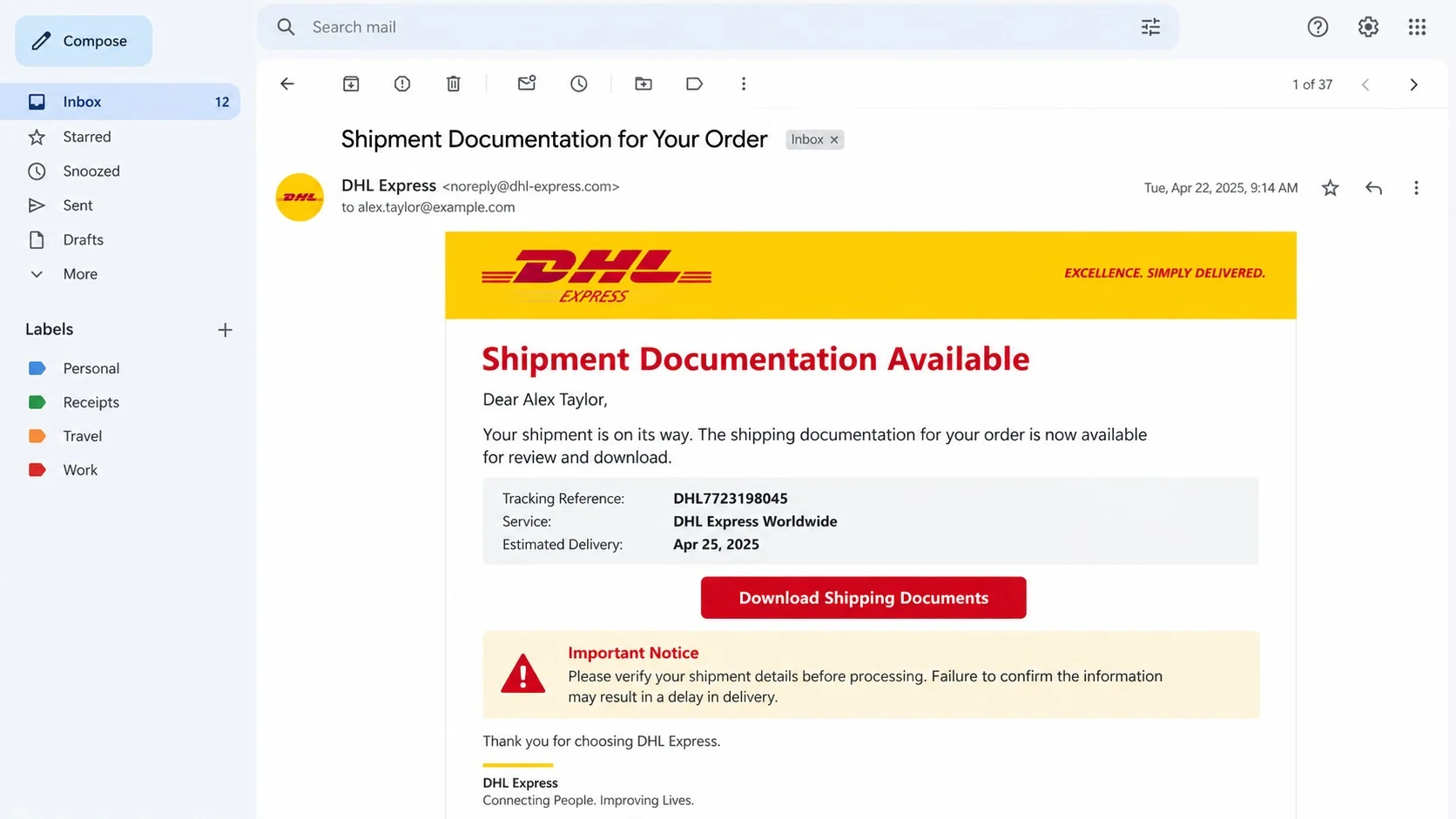
The email presents itself as an automated DHL Express notice. Its subject announces shipment documentation for an order, while the body says paperwork is ready.
A prominent “Download Shipping Documents” button invites the recipient to verify every detail before processing. An important-notice box makes that instruction feel procedural.
The message may include courier colors, logos, a generic tracking reference, and an estimated delivery date. A copied footer completes the official appearance.
There may be no recognizable sender, merchant, order number, origin, destination, or item description. “Dear Customer” replaces the information a genuine shipment should contain.
What can happen after the download button is pressed
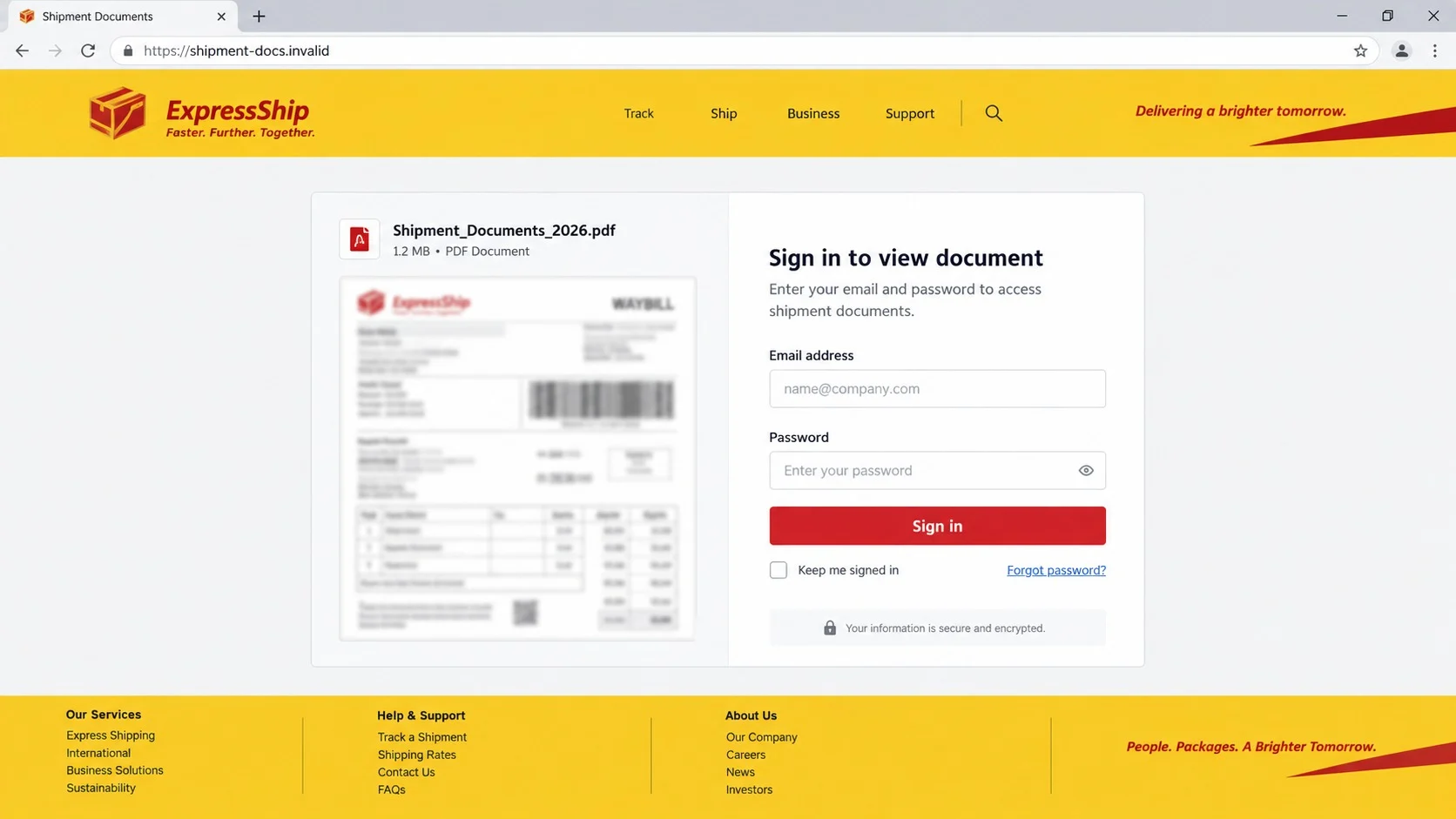
The link leaves the email and opens an external site. One version may display a counterfeit courier portal or a protected document viewer.
A login form can request DHL credentials, email credentials, or both. Information entered there travels to the operator rather than the legitimate company.
Another version may begin downloading an archive, executable, script, Office document, or deceptive PDF. Opening it can start a malware installation sequence.
The destination can change after messages are sent. A dead link today does not make the original email harmless or reveal what earlier visitors received.
Warning signs visible in the message
DHL is a legitimate company being impersonated and has no connection with this campaign. The following mismatches expose the borrowed identity.
- No expected order matches the supposed shipment.
- The actual sender domain does not belong to DHL.
- The greeting is generic despite claimed order documentation.
- The button leads to an unrelated external website.
- The notice withholds useful origin, destination, and item details.
- A document page requests an email password or unknown download.
A genuine delivery can be checked by entering its tracking number on the courier’s official site. The email link is never the only route to shipment status.
Why Shipping Documents Make Effective Bait
Millions of people expect deliveries at any moment. Online shopping, business supply chains, returns, gifts, and replacement parts keep courier messages familiar.
The recipient does not need to recognize the supposed sender immediately. A family member, colleague, marketplace seller, or purchasing department might have arranged the package.
Documentation also sounds more important than a routine tracking update. Customs forms, commercial invoices, labels, and waybills can affect whether goods move.
The request to verify details feels responsible. Nobody wants a valuable shipment delayed because an address, quantity, or classification was wrong.
Courier branding supplies instant authority. Familiar yellow and red styling can draw attention away from the actual sender address and link destination.
Timing does the rest. A mass campaign will accidentally reach many people who ordered something recently, and that coincidence feels like confirmation.
Businesses face additional pressure. Logistics employees handle numerous unfamiliar shippers and attachments, so one more document can blend into ordinary work.
The safest habit is to verify the shipment independently before interacting. Coincidence and polished design are starting points, not proof.
The Two Main Risks: Phishing and Malware
Credential phishing is the quieter route. The visitor sees a branded portal and is asked to sign in before viewing the shipment record.
Captured DHL credentials may expose saved addresses, account numbers, shipment history, and delivery-management options. Criminals could redirect or interfere with real parcels.
Email credentials create broader damage. A compromised mailbox can reset other accounts, expose private documents, and send convincing scams to known contacts.
Malware delivery uses the document itself as the lure. The download may claim to be a PDF while carrying a different extension or hiding inside an archive.
Office files can request macros or editing permissions. Shortcuts, scripts, disk images, and executables may run harmful code when the user opens them.
Information stealers search for browser passwords, authentication cookies, cryptocurrency wallets, and financial data. Remote-access trojans can give operators continuing device control.
Some files do nothing obvious at first. Quiet credential theft can occur while the victim assumes the document simply failed to open.
Because the campaign can switch between outcomes, recovery must follow the action taken. Entered passwords and opened downloads require different containment steps.
A Tracking Number Is Useful Only When It Verifies
A random string formatted like a tracking number can make an email appear individualized. Its value comes from matching records on the courier’s real system.
Copy the reference without opening the message’s links. Type the official DHL address independently or use the recognized mobile application.
A valid number should display status, origin, destination region, service, and recent scan events consistent with an order the recipient recognizes.
No result may mean the number is invented, incomplete, too new, or associated with another carrier. It does not justify using the supplied document page.
Even a valid reference can be copied from a real shipment. Confirm that the merchant, destination, and expected delivery window belong to you.
Businesses should compare the notice with purchase orders, supplier messages, customs brokers, and warehouse schedules. Internal records provide context that a phishing template lacks.
Contact the courier through its published support route if uncertainty remains. Do not call telephone numbers embedded in the suspicious email.
This simple separation defeats the campaign’s most important advantage. Verification happens in an environment the sender cannot control.
How the Scam Works
Step 1: A bulk email imitates a DHL document notice
The campaign sends a polished message to many addresses. DHL Express branding frames the email as an ordinary logistics update.
The subject refers to shipment documentation rather than a specific parcel problem. Broad wording remains relevant to consumers, importers, retailers, and office employees.
Accurate personal details are unnecessary. The high volume of real deliveries ensures some recipients will be waiting for packages.
Step 2: A verification request creates practical urgency
The body says documents must be reviewed before processing. This implies that inaction could cause delay without making an overt threat.
An important-notice panel asks users to contact support if details are incorrect. That instruction makes the workflow resemble responsible shipping practice.
The button promises the missing specifics. Curiosity becomes the reason to leave the inbox and enter the attacker’s controlled environment.
Step 3: The button sends the visitor away from DHL
The displayed button text hides its actual destination. Redirectors, compromised websites, or newly registered domains may sit between the email and final page.
Tracking values can identify the recipient who clicked. Operators learn that the address is active and responsive to delivery themes.
The destination may vary by country, browser, or campaign phase. One visitor can see a login form while another receives a download.
Step 4: A fake portal requests account credentials
The phishing route copies courier colors, shipment icons, and a blurred waybill. A sign-in panel blocks access to the alleged documentation.
The form may ask for an email address and password instead of a DHL account. That mismatch shows the document is only a pretext.
Submitted details are captured immediately. An error message may request another attempt, collecting an alternative password as well.
Step 5: Another route delivers a harmful file
The download route supplies an archive or document named like shipping paperwork. File icons and double extensions can disguise its real type.
Instructions may tell the victim to extract an archive, enter a supplied password, enable content, or bypass a browser warning.
Those actions help the file evade scanning and execute. The supposed waybill may install an information stealer, keylogger, or remote-access trojan.
Step 6: Stolen access is used beyond the shipment
Mailbox access supports password resets, identity theft, and further phishing. Courier-account access can reveal legitimate shipment information useful for impersonation.
Malware can harvest stored sessions and passwords from many services. A single opened file may therefore compromise accounts unrelated to delivery.
Contacts may receive new shipment notices from the victim’s real address. Familiar identity makes the second campaign more convincing.
Step 7: Follow-up fraud exploits the collected context
Criminals may send customs-fee demands, failed-delivery texts, or support calls referencing the earlier interaction. Each stage appears to confirm the others.
A stolen card or account can support unauthorized purchases. A compromised business mailbox may expose suppliers, invoices, and purchase orders.
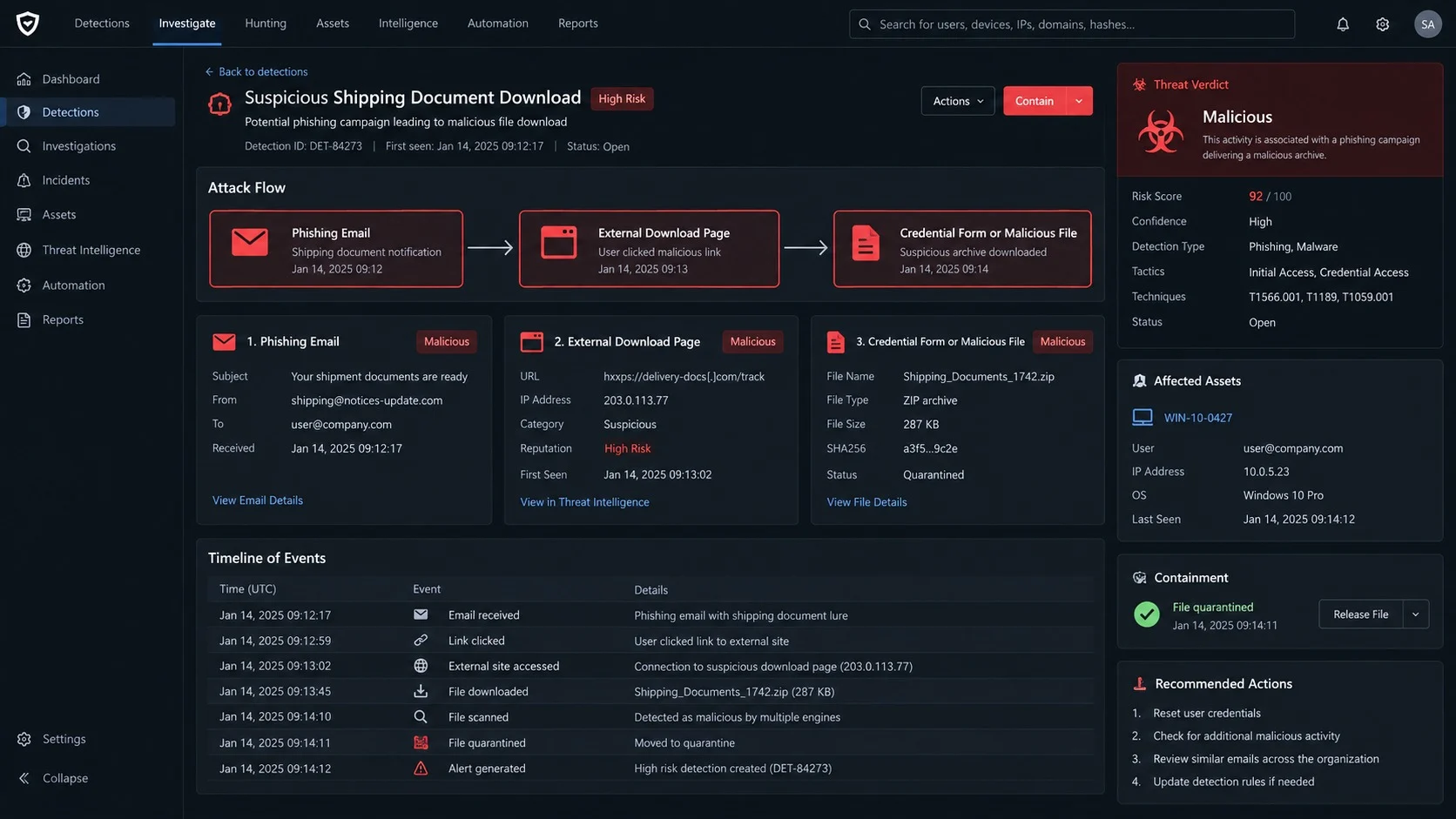
The malicious site can disappear rapidly, but account logs, message headers, downloads, and security alerts preserve evidence for investigation.
Shipment, Sender, Link, and Download Verification Checks
Confirm the order before reviewing documents
Search recent purchases, merchant confirmations, business purchase orders, and messages from known senders. A real shipment should connect to an identifiable transaction.
Ask household members or workplace teams when another person may have ordered the item. Obtain the tracking reference from that original source.
If no order exists, do not click merely to identify the package. Mark the message as phishing and preserve it when workplace reporting requires evidence.
Unsolicited merchandise can exist, but its documentation still should not require credentials through an unknown link.
Inspect the complete sender and reply addresses
Expand the From field rather than trusting “DHL Express” as a display name. Compare the registered domain carefully with DHL’s official domain.
Look for added words, substituted letters, free email services, and a Reply-To pointing elsewhere. A copied logo cannot repair those inconsistencies.
Authentication results in the message header can help workplace investigators evaluate spoofing. Ordinary users should rely on independent courier tracking.
Never answer the suspicious sender to ask whether the email is genuine. A reply only returns to the party being questioned.
Verify the tracking number outside the email
Open the courier’s website or application independently and enter the reference there. Avoid search advertisements that may imitate official support.
Compare the displayed origin, destination, dates, and merchant with your actual order. A working number belonging to someone else does not authenticate the notice.
Contact the seller through the marketplace or receipt when records disagree. The merchant should know which carrier and number were assigned.
Use support details from the official site if direct courier help is needed. Ignore numbers introduced by the questionable message or landing page.
Evaluate every login prompt and downloaded file
Check the address bar before entering information. A courier document should not collect an email password on an unrelated registered domain.
Do not open an unexpected executable, script, shortcut, disk image, or password-protected archive. Ask the legitimate sender for a safer delivery method.
Keep file extensions visible and scan downloads before opening. A familiar PDF icon can be assigned to a different file type.
When a document asks to enable macros, editing, or content, close it. Shipping paperwork does not need active code to display addresses and item details.
What to Do if You Have Fallen Victim to This Scam
Start by identifying the furthest action completed. Reading the email differs from visiting the page, entering credentials, downloading a file, or running it.
- Stop interacting with the campaign. Close the page, cancel downloads, do not reply, and avoid telephone numbers shown in the message.
- Secure exposed accounts. Change DHL, email, and reused passwords through official sites, revoke sessions, and enable multifactor authentication.
- Inspect mailbox settings. Review forwarding rules, recovery information, connected applications, sent messages, and recent sign-ins for unauthorized changes.
- Contain opened downloads. Disconnect the affected device from networks and avoid logging into sensitive services until security checks finish.
- Protect shipments and payments. Contact DHL and the merchant independently about unauthorized changes, then alert the card issuer about suspicious charges.
- Warn relevant contacts. Tell coworkers, customers, or relatives if the compromised account may have sent them delivery links or exposed their information.
- Scan the device thoroughly. Run a full Malwarebytes scan after any download. Use AdGuard to reduce malicious advertising and redirect exposure.
- Preserve evidence and report it. Save the original email, headers, link, downloaded file, login alerts, transaction records, and incident timeline.
Is Your Device Infected? Run a Free Malware Scan
Slow performance, constant pop-ups, or strange behavior? These are classic signs of a malware infection. A quick way to check is to scan your device with Malwarebytes Free, one of the most trusted malware removal tools available. If you only visited a scam page and didn’t download or install anything, this scan is optional.
The free version detects and removes the most common threats, including:
- Adware — the cause of those annoying pop-ups
- Browser hijackers — unwanted redirects and changed homepages
- Trojans and spyware — hidden programs stealing your data
- Potentially unwanted programs (PUPs) — software you never asked for
👉 Select your device below — Windows, Mac, or Android — then follow the simple steps to download Malwarebytes, scan your system, and remove any threats it finds. The scan usually takes 5 to 20 minutes.
Run a Malware Scan with Malwarebytes for Windows
Malwarebytes is one of the most popular and trusted anti-malware tools for Windows — and it’s completely free for removing infections. It catches threats that many antivirus programs miss, including adware, browser hijackers, and trojans. Follow the steps below to scan your PC and remove what Malwarebytes finds.
Download Malwarebytes
Click the button below to download the latest version of Malwarebytes for Windows from the official source. The free version is all you need — it will scan your computer and remove adware, browser hijackers, and other malicious software at no cost.
Download MalwarebytesOfficial installer for Windows 11 and 10. Your download starts right away.Want real-time protection? See Malwarebytes Premium Malwarebytes Free for WindowsScans and removes malware at no cost
-
Install Malwarebytes
When the download finishes, open your Downloads folder and double-click the MBSetup file. If Windows shows a User Account Control pop-up, click “Yes” to allow the installation.

Follow the On-Screen Prompts to Install Malwarebytes
The setup wizard will walk you through a few quick screens:
-
Choose where you’re installing the program — “Personal Computer” or “Work Computer” — then click Next.

-
Malwarebytes will now install on your device. This usually takes under a minute.

-
When installation is complete, the “Welcome to Malwarebytes” screen will open automatically.

-
On the final screen, click Open Malwarebytes to launch the program.

-
Optional: Check for rootkits with a Custom Scan
You don’t need to change any settings for a normal scan. The standard Threat Scan in the next step is enough for most problems, so you can go straight to it.
If you also want to check for rootkits, use a Custom Scan. In current versions of Malwarebytes, rootkit scanning is only available there:
- On the Scanner tile, click the three-dot menu and select Advanced Scan.
- Choose Custom Scan. In its options, check Scan for rootkits.
- Select your system drive (usually C:\) as the location to scan, then start the scan. It takes longer than a Threat Scan.
- When it finishes, review and quarantine the results as described in the steps below.
Rootkit scanning isn’t available on Windows devices with ARM processors.
Start the Scan
Click the blue Scan button. Malwarebytes will automatically update its virus database and start checking your computer for malware.

-
Wait for the Scan to Finish
The scan checks your entire system for browser hijackers and other malicious programs, so it can take 5 to 20 minutes depending on your computer. Feel free to do something else — just check back occasionally to see the progress.

-
Quarantine the Detected Threats
When the scan is done, you’ll see a list of everything Malwarebytes found — malware, adware, and potentially unwanted programs. Click the “Quarantine” button to remove all of them at once.

Malwarebytes will now remove the malicious files and registry entries and move them safely into quarantine.

-
Restart Your Computer
Some threats can only be fully removed after a reboot. If Malwarebytes asks you to restart, click Yes. Once you’re logged back in, Malwarebytes has finished removing the threats it found.

When the scan is done, check whether the problems you noticed have stopped. If they continue, see the options below.
If you are still having problems with your computer after completing these instructions, then please follow one of the steps:
- Run a computer scan with ESET Online Scanner
- Ask for help in our Windows Malware Removal Help & Support forum.
Run a Malware Scan with Malwarebytes for Mac
Malwarebytes for Mac is a free on-demand scanner that removes the malware other security software tends to miss — adware, browser hijackers, and unwanted programs included. Cleaning an infected Mac with Malwarebytes has always been completely free, and it’s our go-to recommendation. Follow the steps below to scan your Mac and remove what Malwarebytes finds.
-
Download Malwarebytes for Mac
Click the button below to download the latest version of Malwarebytes for Mac.
Download MalwarebytesOfficial installer for macOS. Your download starts right away.Want real-time protection? See Malwarebytes PremiumMalwarebytes Free for MacScans and removes malware at no cost -
Open the Malwarebytes setup file
When the download finishes, open your Downloads folder and double-click the setup file to begin the installation.

-
Follow the On-Screen Prompts to Install Malwarebytes
The Malwarebytes for Mac Installer will guide you through a few quick screens. Click “Continue” and keep following the prompts until the installation completes.



When the installation is complete, Malwarebytes opens to the Welcome to Malwarebytes screen. Click “Get started“.
Malwarebytes needs Full Disk Access to check your whole Mac. When it asks, open System Settings > Privacy & Security > Full Disk Access, turn on Malwarebytes (it may be listed as Malwarebytes Protection), and confirm with your password or Touch ID. Then return to Malwarebytes. On macOS Monterey and earlier, this setting is in System Preferences > Security & Privacy > Privacy.
-
Select “Personal Computer” or “Work Computer”
Malwarebytes will ask what type of computer you’re installing it on. Click either Personal Computer or Work Computer, whichever applies.

-
Start the Scan
Click the “Scan” button. Malwarebytes will automatically update its detection database and begin checking your Mac for malware.

-
Wait for the Scan to Finish
Malwarebytes will scan your Mac for adware, browser hijackers, and other malicious programs. This can take a few minutes, so feel free to do something else — just check back occasionally to see the progress.

-
Quarantine the Detected Threats
When the scan is done, you’ll see a list of everything Malwarebytes found. Click the “Quarantine” button to remove all the threats at once.

-
Restart Your Mac
Malwarebytes will now remove all the malicious files it found. Some threats can only be fully removed after a reboot — if Malwarebytes asks you to restart, allow it. Once you’re logged back in, check whether the problems you noticed have stopped. If they come back, save the scan report and ask for help in our forum.

If the problems you noticed continue after the scan, see the options below.
If you are still experiencing problems while trying to remove a malicious program from your computer, please ask for help in our Mac Malware Removal Help & Support forum.
Run a Malware Scan with Malwarebytes for Android
Malwarebytes for Android scans your phone or tablet for malware, adware, and potentially unwanted apps. The free version scans only when you start a scan. Real-time protection, which checks apps automatically, is part of the paid Premium version.
-
Download Malwarebytes for Android.
You can download Malwarebytes for Android by clicking the link below.
Get Malwarebytes for AndroidOpens Google Play in a new tab.Want real-time protection? See Malwarebytes Premium for AndroidMalwarebytes for AndroidScans your phone and removes malware at no cost -
Install Malwarebytes for Android on your phone.
In the Google Play Store, tap “Install” to install Malwarebytes for Android on your device.

When the installation process has finished, tap “Open” to begin using Malwarebytes for Android. You can also open Malwarebytes by tapping on its icon in your phone menu or home screen.

-
Follow the on-screen prompts to complete the setup process
When Malwarebytes opens, it walks you through a short setup. Tap Get started and follow the prompts. If you see an offer for a trial or a paid plan, read it before you accept. You can skip it and keep using the free scanner.
Malwarebytes will ask for permission to access the files on your phone so it can scan them. Tap Allow, or turn on the permission in the Android screen that opens, then return to Malwarebytes.
-
Run a scan with Malwarebytes for Android
On the main screen, tap Scan now. In some versions, you open the menu, tap Scanner, and then tap Run a scan.
-
Wait for the Malwarebytes scan to complete.
Malwarebytes will now start scanning your phone for adware and other malicious apps. This process can take a few minutes, so we suggest you do something else and periodically check on the status of the scan to see when it is finished.

-
Remove the detected apps.
When the scan has been completed, you will see a list of the threats that Malwarebytes for Android has detected. Next to each detected item, tap the menu icon (three dots), then choose to uninstall the app or delete the file. Android then asks you to confirm. Tap OK or Uninstall to remove the app.
-
Restart your phone.
When the detected apps are removed, restart your phone if Malwarebytes asks you to. Then check whether the problems you noticed have stopped.
If the problems you noticed continue after the scan, see the options below.
If you are still having problems with your phone after completing these instructions, then please follow one of the steps:
- Ask for help in our Mobile Malware Removal Help & Support forum.
- Only as a last resort, reset your phone to factory settings. Read the warning below first.
- Back up your photos, videos, files, and messages, for example to your Google account or a computer.
- Make sure you know your Google account email and password. The phone asks for them after the reset. If you changed the password recently, Google recommends waiting 24 hours before you reset.
- On a Samsung phone, also make sure you know your Samsung account password.
- If you use an authenticator app for two-step verification, move your accounts to another device or save your backup codes first.
Stay Protected: Block Ads and Malicious Sites
No scan can prove a device is completely clean, so it helps to block threats before they reach you. Most infections start with a malicious ad or a fake download button — so blocking them at the source is your best defense.
We recommend AdGuard, which blocks malicious ads, phishing pages, and dangerous redirects before they can reach you.
👉 Download AdGuard and browse safely
Only reading the email normally does not install malware. The risk rises when a link opens, credentials are submitted, or a downloaded file runs.
Workplace administrators should search for matching subjects, sender domains, links, and attachment hashes. One report may identify a wider campaign across the organization.
Frequently Asked Questions
Is the shipment documentation email really from DHL?
Branding alone cannot prove that. Confirm the full sender domain, tracking reference, and expected order through DHL’s official site or application.
Why would scammers offer shipping documents instead of a fee?
Documents justify a link or download without immediate payment. The first objective may be credential theft, malware installation, or preparation for later fraud.
Can a fake message contain a valid tracking number?
Yes. Numbers can be copied from real shipments. Verify that the merchant, destination, service, and dates match your own transaction.
What if I clicked but entered nothing?
Close the page, remove unexpected downloads, update the browser, and monitor for redirects. Report the message so its destination can be blocked.
Is a PDF shipping document always safe?
No. A PDF can contain phishing links, and another file can disguise itself with a PDF-like name or icon. Verify the sender first.
Can stolen DHL credentials affect a real delivery?
Account access may reveal shipments or enable unauthorized delivery-management attempts. Change the password and contact DHL through verified support when activity appears unfamiliar.
The Bottom Line
The DHL shipment documentation email scam uses familiar courier branding and a routine verification request to conceal phishing pages or dangerous downloads.
Match the message with a real order and track it independently. Never surrender credentials or open unknown files simply to discover what an unexpected shipment contains.

Join the discussion
0 commentsShare your experience or ask a question about this article.
Community experiences
Did this happen to you?
Your experience could help someone recognize the same scam. Submit a private report for our team to review.
I experienced this tooReports are reviewed before publication. Sharing publicly is always your choice.
Discussion
Start the conversation
Have a question or something useful to share? Add the first comment.