

A warning that your mailbox has already been approved for removal feels final. The 48-hour countdown makes even a questionable message difficult to ignore.
Two buttons appear to offer opposite choices, yet neither is safe. The scheme depends on fear making “Cancel Removal” feel automatically trustworthy.
Overview
What the deletion notice claims
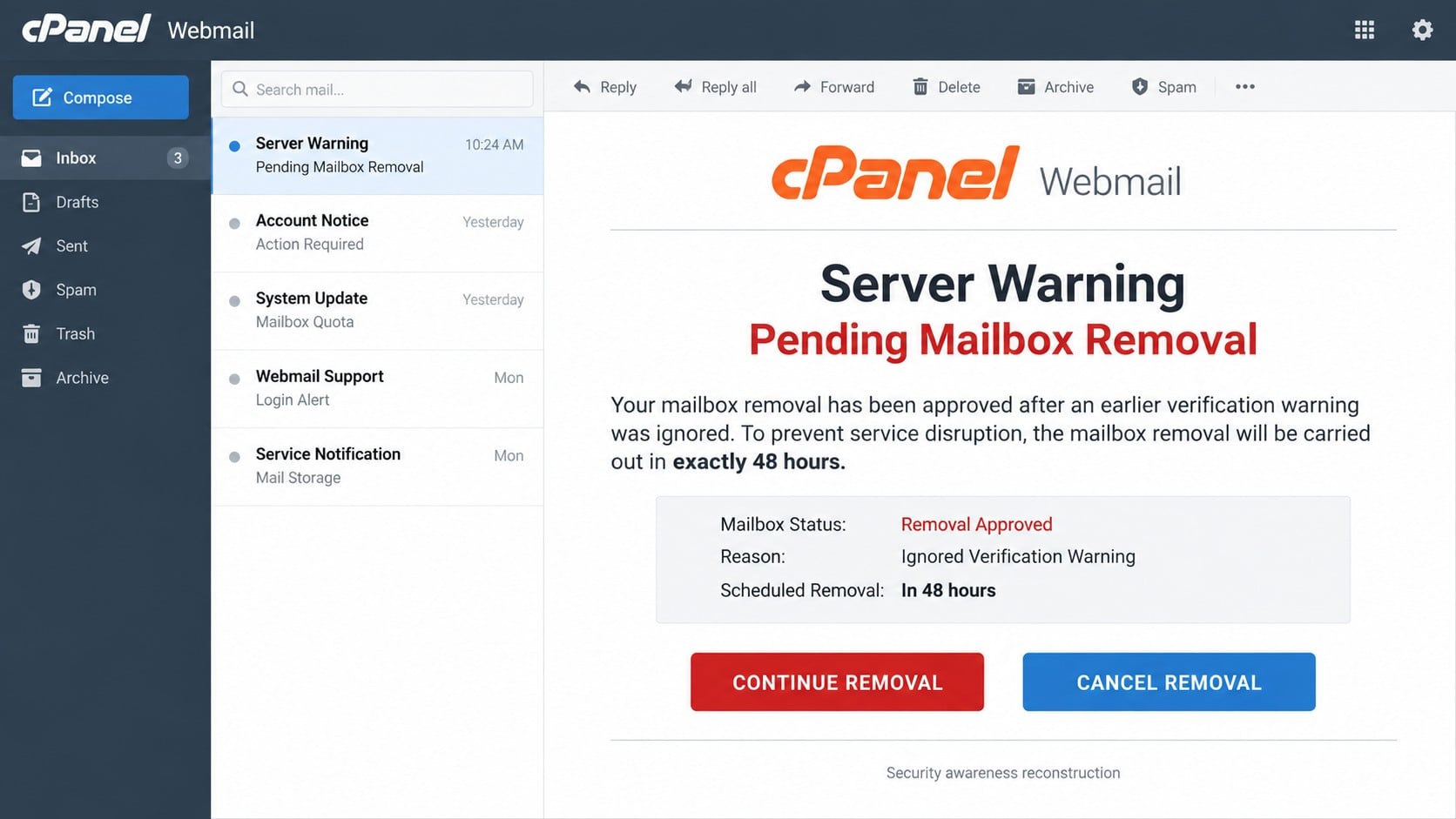
The email poses as an automated cPanel Webmail server warning. It says mailbox removal was approved because an earlier verification request was ignored.
Permanent deletion will supposedly occur in exactly 48 hours. A timestamp can make the countdown look tied to a real administrative action.
The recipient sees “Continue Removal” and “Cancel Removal.” The second option feels protective, but both can direct visitors into the same trap.
cPanel did not authorize this campaign. Its name and hosting reputation are being used to create urgency around an invented deletion.
Why the cancel button is not safe
People naturally avoid the red destructive choice and select cancellation. Criminals understand that interface habit and place the phishing route behind the safer-looking control.
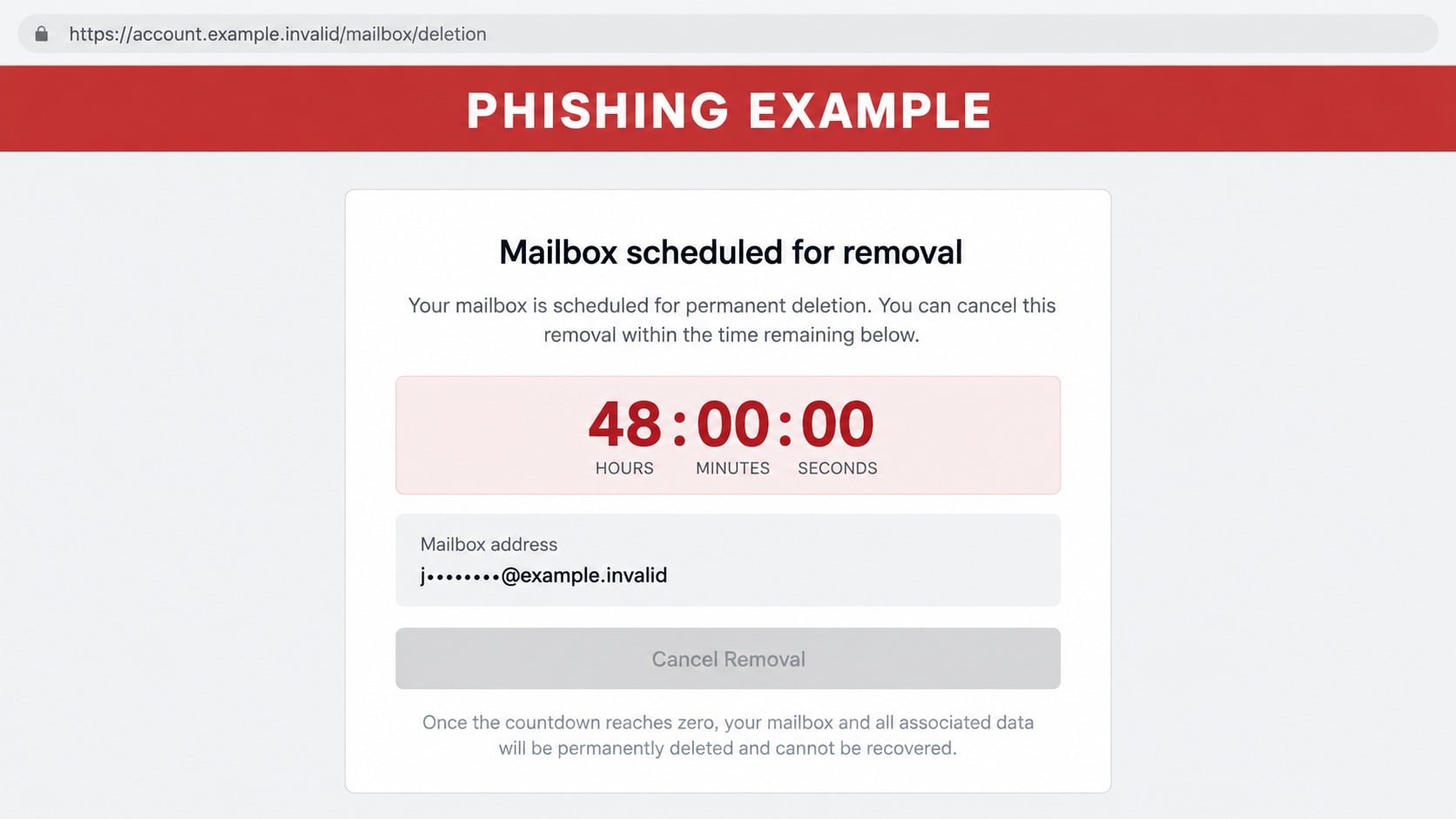
The destination can imitate cPanel or adapt to the recipient’s provider. It asks for mailbox credentials to confirm that removal should stop.
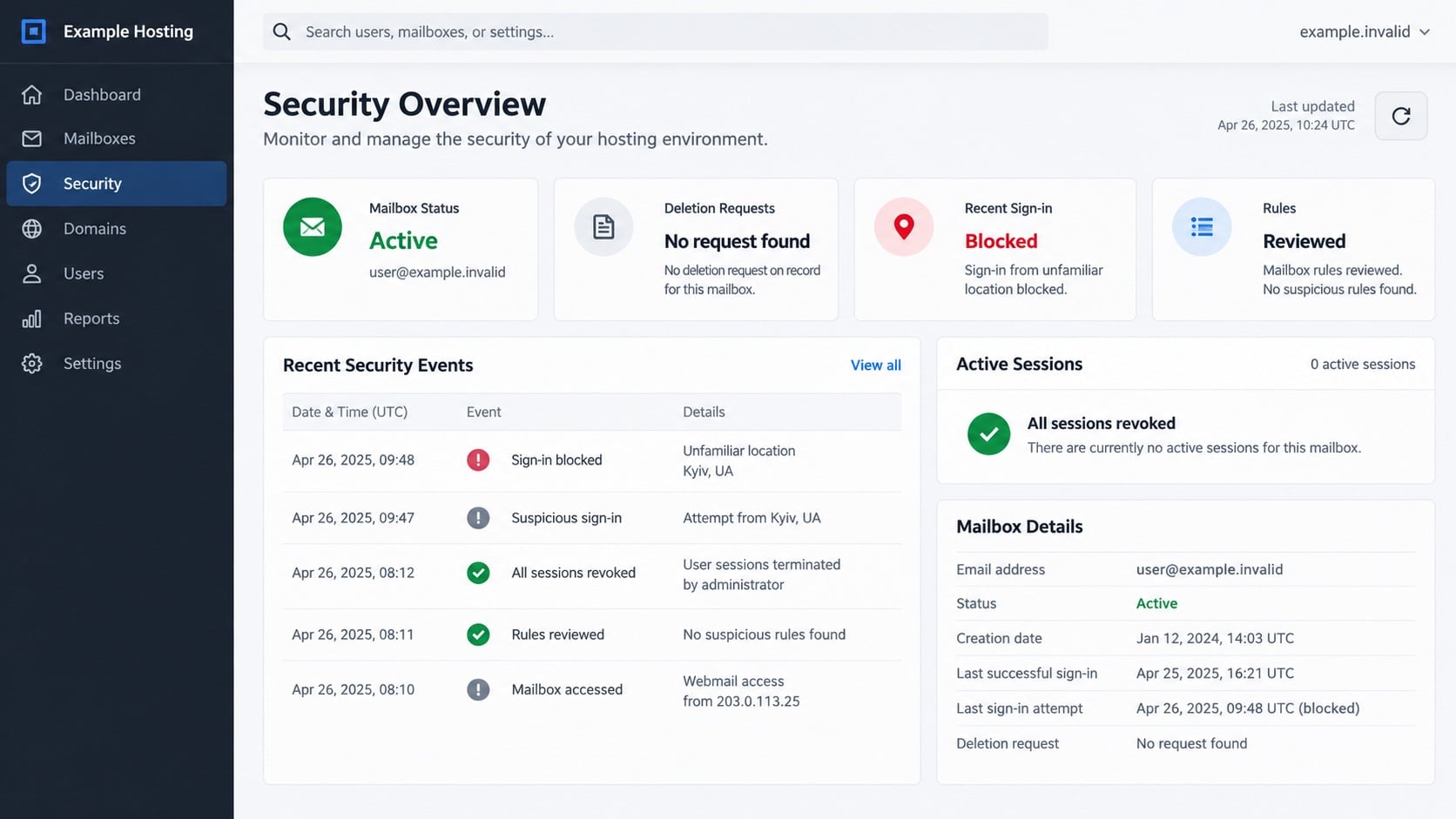
The page cannot cancel anything because no deletion request exists. Its only operational purpose is collecting credentials.
A legitimate provider lets customers review account status through the established hosting portal, not an unrelated webpage reached from a threat.
What can be lost
A working mailbox password gives an intruder access to correspondence, contacts, attachments, password resets, and the trusted identity represented by the email address.
- Private conversations and confidential attachments
- Hosting notices, invoices, and domain administration details
- Contact lists for additional phishing distribution
- Forwarding rules that copy future messages
- Recovery links for other online accounts
- Business payment discussions useful for impersonation
The removal story weaponizes loss. Users fear losing old mail, contacts, work records, and the address itself.
Why Two Opposite Buttons Can Lead to One Trap
The message creates a false choice. “Continue Removal” appears destructive, while “Cancel Removal” looks like the reasonable rescue option.
Both buttons belong to the sender’s email content. Labels do not constrain where either link opens.
A campaign can point both controls to one destination or use separate tracking routes that end on the same credential page.
The safe decision is outside the false choice: close the message and inspect the real hosting account independently.
Interface colors reinforce the trick. Red warns against continuing, while blue suggests cancellation is approved and safe.
No button inside an unverified email should receive trust merely because its wording matches the desired outcome.
Hovering can reveal that both links share a domain. Even different destinations remain unsafe when neither belongs to the known provider.
A genuine deletion request should also appear in the customer portal and support records.
The 48-Hour Countdown Is Manufactured Pressure
A precise deadline makes the notice feel generated by a server. It also limits the time recipients believe they have for verification.
The email may include a changing clock, exact removal time, or date. These values are ordinary text and scripts, not evidence.
Real hosting companies generally provide repeated notices, billing context, policy reasons, and support options before destroying customer data.
The claim that an earlier warning was ignored creates guilt and uncertainty. Recipients may assume they overlooked a genuine message.
No original verification ticket is provided. The campaign invents a prior history that cannot be checked inside the email.
Independent portal access breaks the pressure. If no deletion request appears, the countdown loses its authority.
Even when a real account issue exists, contact the host using saved records before entering credentials through email.
A legitimate provider can pause or explain an action after identity is confirmed through its normal channel.
How Mailbox Access Supports Further Attacks
Once inside, an attacker can read old threads and understand the victim’s relationships. That knowledge makes later requests much more precise.
Business mail may reveal invoices, bank details, payroll schedules, suppliers, and approval chains. Criminals can wait for the best financial opportunity.
A stolen account can send additional mailbox-removal notices. Contacts see a legitimate address and may trust the warning.
Forwarding rules provide silent monitoring. Copies of new mail reach an external address without changing what the owner sees.
Filters can hide replies, warnings, and security alerts. An intruder may move those messages into archives or delete them automatically.
Recovery methods or connected applications can create persistence. Changing the visible password may not terminate every active route.
Reused credentials might unlock hosting controls, cloud storage, customer portals, and social accounts. The incident can expand quickly.
That broader exposure is why any password submitted to the fake portal should be replaced everywhere it was used.
How the Scam Works
Step 1: A server warning announces pending removal
The campaign says mailbox deletion was approved after a missed verification warning. The supposed earlier event gives the threat a fabricated history.
Users may assume they overlooked a real administrative email and now have only one chance to save the account.
cPanel branding makes the alert look connected to the hosting environment serving the mailbox.
Step 2: A 48-hour countdown adds urgency
The email says permanent removal will occur in exactly 48 hours. A precise time makes the threat seem automated.
The warning provides no genuine ticket, billing issue, or hosting policy that can explain the action.
The call to action becomes the easiest apparent way to avoid losing access.
Step 3: The cancellation button leaves the real host
The destination is hosted on infrastructure unrelated to the recipient’s provider. A content-delivery hostname or compromised site may carry the page.
HTTPS can be present, but encryption only protects the connection to whoever operates that host.
Redirects may conceal the final location from basic scanning and permit rapid replacement after takedowns.
Step 4: A provider-matching form requests credentials
The landing page borrows cPanel or provider styling. It asks the visitor to sign in before cancellation can supposedly finish.
Any entered password can be captured immediately. The form does not need to communicate with the genuine mailbox server or cPanel.
An error may request a second attempt, potentially collecting another password choice.
Step 5: The genuine mailbox is tested
The operator tries the credentials against common webmail and hosting endpoints. Unexpected sign-in alerts or multifactor prompts can appear quickly.
If access succeeds, messages, contacts, rules, and recovery options are examined.
Searches for invoices, payments, credentials, taxes, and contracts identify valuable material efficiently.
Step 6: Persistence and impersonation follow
Unauthorized forwarding, filters, delegates, or app passwords may preserve access. Outgoing phishing then benefits from the account’s trusted reputation.
Contacts can receive copied secure-message notices, altered invoices, or requests for sensitive documents.
The invented removal warning can lead to real private correspondence being stolen from the compromised account.
Host, Deletion, Button, and Account Verification Checks
Open the hosting portal through the normal route
Use a saved bookmark, invoice, or organization portal. Check mailbox status, service notices, support tickets, and deletion requests.
Do not use the notification button while verifying the claim. Independent navigation removes the campaign’s control over the destination.
If the account shows no relevant alert, preserve the email for reporting and delete it afterward.
A real removal request should also have an identifiable requester, timestamp, ticket, and reversible account record inside that portal.
Identify the real hosting administrator
Determine which host or organization operates the mailbox. Contact that provider using invoices, bookmarks, or existing account records.
Ask whether any removal, suspension, or verification request is pending. A genuine administrator can check server records.
Never rely solely on telephone numbers or support addresses printed inside the suspicious notice.
Compare the sender, link, and final domain
Expand the sender details and hover over the button. Read the registered domain rather than familiar words placed within the address.
Follow no chain that moves from an unknown sender to unrelated hosting and then a copied cPanel interface.
A padlock cannot establish that the site belongs to your mail provider.
Review account security for real changes
Check login history, active sessions, forwarding, filters, delegates, recovery contacts, and application access through genuine settings.
Reject sign-in prompts you did not initiate. They can indicate that captured credentials are being tested.
Report anomalies to the administrator before removing evidence that could explain the intrusion.
Simple Clues That Expose the Notification
The greeting is often generic despite claiming account-specific knowledge. A real provider already knows the customer or mailbox identifier.
No ticket or previous warning is supplied for the supposed deletion. The user cannot confirm how the process began.
A countdown is treated like proof, creating fear without showing an authentic account record.
The cancellation page leaves the provider-owned path. A genuine recovery action should remain inside the established hosting portal.
The page requests a mailbox password on a domain that does not belong to the known host.
The safest response requires no guesswork: inspect the real account and contact the operator of that installation.
Organizations should document their approved webmail addresses. A published internal reference helps staff reject unfamiliar login locations.
Administrators can also disable external forwarding where unnecessary and alert users whenever rules or recovery details change.
How Organizations Can Reduce Webmail Credential Theft
Publish the exact login address on an internal help page. Users should never need to discover webmail through an unsolicited message.
Distribute managed bookmarks on company devices. A familiar, centrally controlled shortcut provides a safe route whenever a warning appears.
Enable multifactor authentication for mail and hosting panels. Hardware-backed methods offer stronger resistance than easily approved push prompts.
Disable legacy authentication protocols unless operations truly require them. Older methods can sometimes accept passwords without modern security challenges.
Set alerts for new forwarding addresses, filter creation, delegate changes, and recovery updates. Silent persistence becomes harder when every change produces a notice.
Limit external auto-forwarding at the organization level. Most users do not need it, while attackers frequently abuse it for continued surveillance.
Monitor sudden sending spikes and unusual recipient patterns. A compromised mailbox may begin distributing phishing before anyone reports the first message.
Retain sign-in logs long enough to investigate delayed abuse. Criminals sometimes wait until attention around the original email has faded.
Employees should have a one-click phishing report option. Fast reports let administrators search for identical subjects, senders, links, and message identifiers.
Training should explain the relationship between cPanel, hosted mailboxes, and individual providers. Familiar branding becomes less persuasive when users understand those roles.
Support teams must never shame someone who clicked. Early disclosure is far more valuable than a quiet mistake discovered after financial harm.
Incident plans should assign responsibility for password resets, session revocation, rule review, contact warnings, and payment verification.
After recovery, administrators should compare current settings with a known baseline. That review can reveal subtle changes missed during urgent containment.
These safeguards do not depend on recognizing one subject line. They continue working when scammers change logos, deadlines, domains, and message counts.
Consistent verification turns an alarming webmail notice into a routine, manageable security check.
What to Do if You Have Fallen Victim to This Scam
- Leave the imitation sign-in screen. Do not retry the password, contact its support, or approve any unexpected prompt.
- Change the mailbox password. Enter the genuine webmail or hosting portal independently and create a unique replacement.
- Secure related hosting access. Replace reused credentials for cPanel, domain accounts, and other services.
- Revoke sessions and applications. End unknown logins, remove app passwords, and disconnect unauthorized clients.
- Inspect mailbox configuration. Delete unfamiliar forwarding, filters, delegates, recovery addresses, and automatic replies.
- Enable multifactor authentication. Protect mail and hosting administration with an authenticator or security key where supported.
- Inform the administrator. Request log review, message quarantine, and checks for other recipients of the campaign.
- Warn contacts. Tell them to ignore mailbox warnings, invoices, or file links unexpectedly sent from the account.
- Scan the computer. Run Malwarebytes completely and use AdGuard to help block malicious redirects and deceptive advertising paths.
- Monitor financial conversations. Confirm recent payment changes and document requests through known channels.
Is Your Device Infected? Run a Free Malware Scan
Slow performance, constant pop-ups, or strange behavior? These are classic signs of a malware infection. The fastest way to find out is to scan your device with Malwarebytes Free — one of the most trusted malware removal tools available.
The free version detects and removes the most common threats, including:
- Adware — the cause of those annoying pop-ups
- Browser hijackers — unwanted redirects and changed homepages
- Trojans and spyware — hidden programs stealing your data
- Potentially unwanted programs (PUPs) — software you never asked for
👉 Select your device below — Windows, Mac, or Android — then follow the simple steps to download Malwarebytes, scan your system, and remove any threats it finds. The scan usually takes 5 to 20 minutes.
Run a Malware Scan with Malwarebytes for Windows
Malwarebytes is one of the most popular and trusted anti-malware tools for Windows — and it’s completely free for removing infections. It catches threats that many antivirus programs miss, including adware, browser hijackers, and trojans. Follow the steps below to scan and clean your PC in just a few minutes.
Download Malwarebytes
Click the button below to download the latest version of Malwarebytes for Windows from the official source. The free version is all you need — it will scan your computer and remove adware, browser hijackers, and other malicious software at no cost.
Download MalwarebytesOfficial installer for Windows 11 and 10. Your download starts right away.Want real-time protection? See Malwarebytes Premium Malwarebytes Free for WindowsScans and removes malware at no cost
-
Install Malwarebytes
When the download finishes, open your Downloads folder and double-click the MBSetup file. If Windows shows a User Account Control pop-up, click “Yes” to allow the installation.

Follow the On-Screen Prompts to Install Malwarebytes
The setup wizard will walk you through a few quick screens:
-
Choose where you’re installing the program — “Personal Computer” or “Work Computer” — then click Next.

-
Malwarebytes will now install on your device. This usually takes under a minute.

-
When installation is complete, the “Welcome to Malwarebytes” screen will open automatically.

-
On the final screen, click Open Malwarebytes to launch the program.

-
Enable “Scan for Rootkits”
Before scanning, turn on rootkit detection so Malwarebytes can find even the most hidden threats. Click the Settings gear icon on the left side of the screen.

In the settings menu, find “Scan for rootkits” and click the toggle so it turns blue.

Done? Click “Dashboard” in the left pane to return to the main screen.
Start the Scan
Click the blue Scan button. Malwarebytes will automatically update its virus database and start checking your computer for malware.

-
Wait for the Scan to Finish
The scan checks your entire system for browser hijackers and other malicious programs, so it can take 5 to 20 minutes depending on your computer. Feel free to do something else — just check back occasionally to see the progress.

-
Quarantine the Detected Threats
When the scan is done, you’ll see a list of everything Malwarebytes found — malware, adware, and potentially unwanted programs. Click the “Quarantine” button to remove all of them at once.

Malwarebytes will now remove the malicious files and registry entries and move them safely into quarantine.

-
Restart Your Computer
Some threats can only be fully removed after a reboot. If Malwarebytes asks you to restart, click Yes. Once you’re logged back in, Malwarebytes has finished removing the threats it found.

That’s it — your Windows PC is now clean of trojans, adware, and other malware, and should be back to running smoothly.
If you are still having problems with your computer after completing these instructions, then please follow one of the steps:
- Run a computer scan with ESET Online Scanner
- Ask for help in our Windows Malware Removal Help & Support forum.
Run a Malware Scan with Malwarebytes for Mac
Malwarebytes for Mac is a free on-demand scanner that removes the malware other security software tends to miss — adware, browser hijackers, and unwanted programs included. Cleaning an infected Mac with Malwarebytes has always been completely free, and it’s our go-to recommendation. Follow the steps below to scan and clean your Mac in just a few minutes.
-
Download Malwarebytes for Mac
Click the button below to download the latest version of Malwarebytes for Mac.
Download MalwarebytesOfficial installer for macOS. Your download starts right away.Want real-time protection? See Malwarebytes PremiumMalwarebytes Free for MacScans and removes malware at no cost -
Open the Malwarebytes setup file
When the download finishes, open your Downloads folder and double-click the setup file to begin the installation.

-
Follow the On-Screen Prompts to Install Malwarebytes
The Malwarebytes for Mac Installer will guide you through a few quick screens. Click “Continue” and keep following the prompts until the installation completes.



When the installation is complete, Malwarebytes opens to the Welcome to Malwarebytes screen. Click “Get started“.
-
Select “Personal Computer” or “Work Computer”
Malwarebytes will ask what type of computer you’re installing it on. Click either Personal Computer or Work Computer, whichever applies.

-
Start the Scan
Click the “Scan” button. Malwarebytes will automatically update its detection database and begin checking your Mac for malware.

-
Wait for the Scan to Finish
Malwarebytes will scan your Mac for adware, browser hijackers, and other malicious programs. This can take a few minutes, so feel free to do something else — just check back occasionally to see the progress.

-
Quarantine the Detected Threats
When the scan is done, you’ll see a list of everything Malwarebytes found. Click the “Quarantine” button to remove all the threats at once.

-
Restart Your Mac
Malwarebytes will now remove all the malicious files it found. Some threats can only be fully removed after a reboot — if Malwarebytes asks you to restart, allow it. Once you’re logged back in, your Mac is clean.

That’s it — your Mac is now free of adware, rogue browser extensions, and other potentially harmful software.
If you are still experiencing problems while trying to remove a malicious program from your computer, please ask for help in our Mac Malware Removal Help & Support forum.
Run a Malware Scan with Malwarebytes for Android
Malwarebytes for Android automatically detects and removes dangerous threats like malware and ransomware so you don’t have to worry about your most-used device being compromised. Aggressive detection of adware and potentially unwanted programs keeps your Android phone or tablet running smooth.
-
Download Malwarebytes for Android.
You can download Malwarebytes for Android by clicking the link below.
Get Malwarebytes for AndroidOpens Google Play in a new tab.Want real-time protection? See Malwarebytes Premium for AndroidMalwarebytes for AndroidScans your phone and removes malware at no cost -
Install Malwarebytes for Android on your phone.
In the Google Play Store, tap “Install” to install Malwarebytes for Android on your device.

When the installation process has finished, tap “Open” to begin using Malwarebytes for Android. You can also open Malwarebytes by tapping on its icon in your phone menu or home screen.

-
Follow the on-screen prompts to complete the setup process
When Malwarebytes will open, you will see the Malwarebytes Setup Wizard which will guide you through a series of permissions and other setup options.
This is the first of two screens that explain the difference between the Premium and Free versions. Swipe this screen to continue.
Tap on “Got it” to proceed to the next step.
Malwarebytes for Android will now ask for a set of permissions that are required to scan your device and protect it from malware. Tap on “Give permission” to continue.
Tap on “Allow” to permit Malwarebytes to access the files on your phone.
-
Update database and run a scan with Malwarebytes for Android
You will now be prompted to update the Malwarebytes database and run a full system scan.

Click on “Update database” to update the Malwarebytes for Android definitions to the latest version, then click on “Run full scan” to perform a system scan.

-
Wait for the Malwarebytes scan to complete.
Malwarebytes will now start scanning your phone for adware and other malicious apps. This process can take a few minutes, so we suggest you do something else and periodically check on the status of the scan to see when it is finished.

-
Click on “Remove Selected”.
When the scan has been completed, you will be presented with a screen showing the malware infections that Malwarebytes for Android has detected. To remove the malicious apps that Malwarebytes has found, tap on the “Remove Selected” button.

-
Restart your phone.
Malwarebytes for Android will now remove all the malicious apps that it has found. To complete the malware removal process, Malwarebytes may ask you to restart your device.
That’s it — your Android phone is now clean — no more malicious apps, adware, or browser redirects.
If you are still having problems with your phone after completing these instructions, then please follow one of the steps:
- Restore your phone to factory settings by going to Settings > General management > Reset > Factory data reset.
- Ask for help in our Mobile Malware Removal Help & Support forum.
Stay Protected: Block Ads and Malicious Sites
Now that your device is clean, keep it that way. Most infections start with a malicious ad or a fake download button — so blocking them at the source is your best defense.
We recommend AdGuard, which blocks malicious ads, phishing pages, and dangerous redirects before they can reach you.
👉 Download AdGuard and browse safely
Frequently Asked Questions
Does cPanel send mailbox deletion warnings?
Hosts using cPanel can send service notices, but every warning must be verified through the company actually operating the account.
Can both removal buttons be malicious?
Yes. Button labels are controlled by the sender, and opposite choices can lead to the same phishing destination.
Will the mailbox disappear after 48 hours?
The countdown in this campaign is fabricated. Confirm actual account status with the hosting provider independently.
Why does the destination copy cPanel?
The phishing page borrows a familiar hosting interface to support its story. Appearance does not establish ownership.
What if the fake page rejected my password?
Assume it was captured before the error appeared. Replace it immediately and revoke active access.
Can simply receiving the email infect my computer?
Receiving it usually does not. Risk increases after opening links, downloading files, entering data, or running content.
The Bottom Line
The cPanel Mailbox Removal email uses a false 48-hour deletion and a reassuring cancellation button to steer recipients into a counterfeit login.
Check deletion status through the known host and reject the email’s false choice. Credentials entered elsewhere require immediate password, session, and rule cleanup.

Join the discussion
0 commentsShare your experience or ask a question about this article.
Discussion
Start the conversation
Have a question or something useful to share? Add the first comment.