

An account security notice deserves attention, especially when it warns that ordinary email access may soon stop. The protective language makes immediate verification feel responsible.
Real providers do send security alerts, but this message offers no event to confirm. Its button is the beginning of the actual risk.
Overview
What the verification notice says
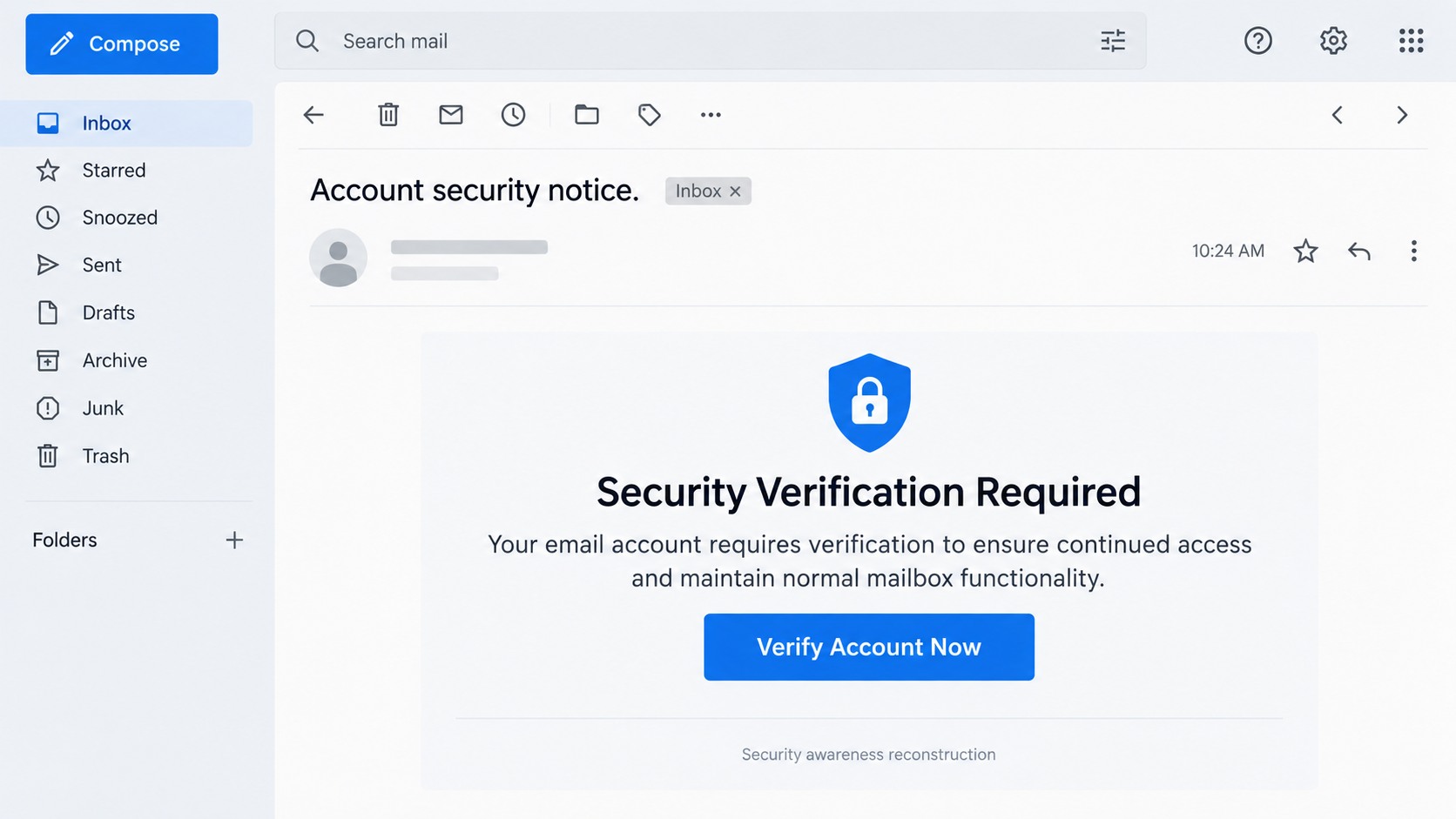
The email claims the recipient’s account requires security verification to ensure continued access. Mailbox functionality may supposedly be limited if the process remains incomplete.
A large “Verify Account Now” button presents one convenient solution. The message may describe unspecified changes to the account or services.
No unfamiliar device, location, time, or security event is identified. The warning sounds personal while providing nothing useful to investigate.
The vagueness is intentional. One template can target users of many providers without making a claim that is easily disproved.
How the fake verification page adapts
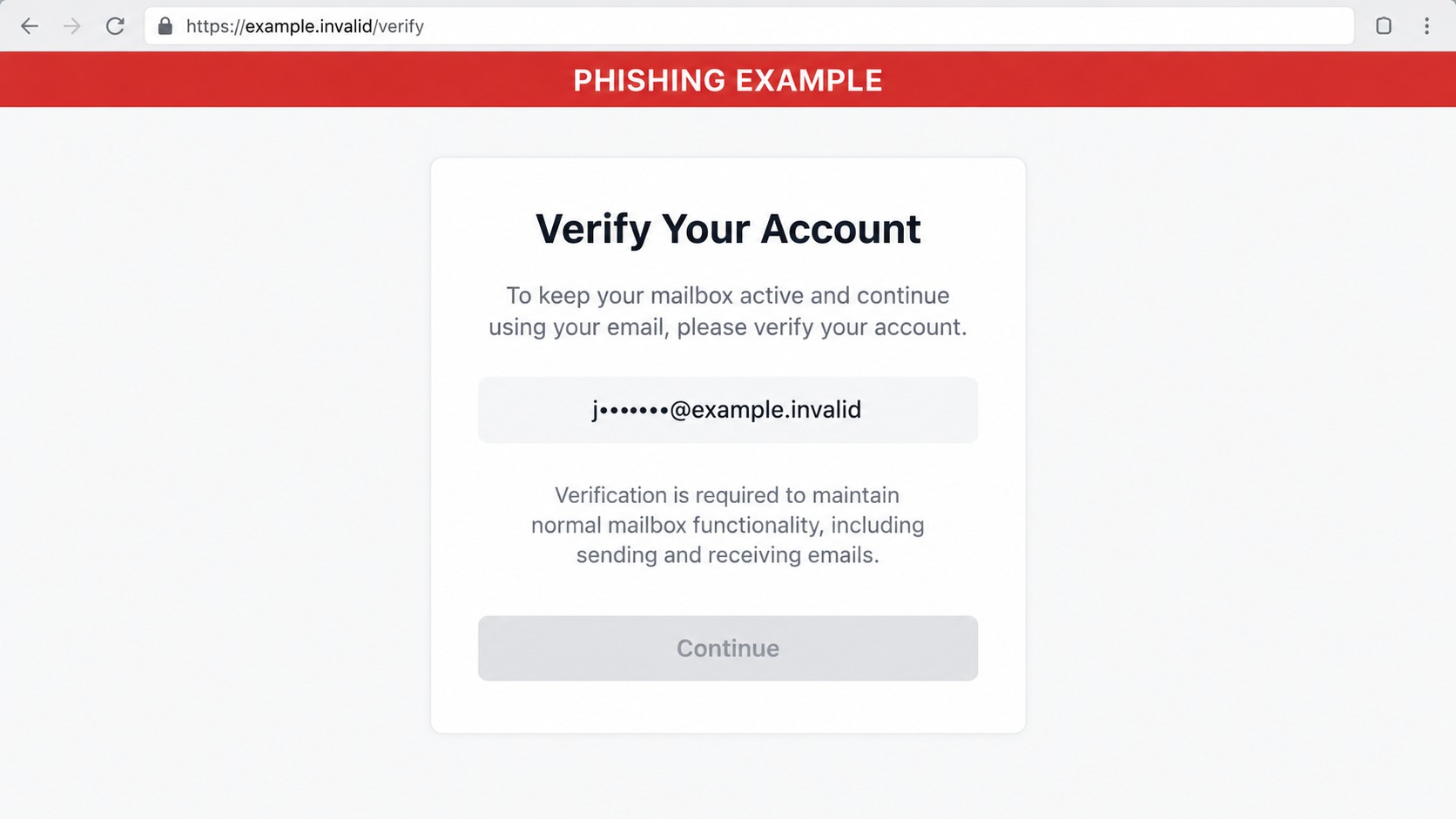
The linked page can examine the target’s email domain and display a matching provider theme. Familiar colors and layouts make the form feel connected.
An address may already be filled in because it traveled inside the link. That personalization does not prove the site accessed the mailbox.
The fraudulent host requests credentials under the pretext of maintaining normal service. It has no authority to verify, suspend, or repair the account.
Passwords entered there can be captured before any error, success message, or redirect appears.
What the campaign can put at risk
The immediate objective is a mailbox login. Working credentials can expose years of private correspondence and unlock password resets for connected services.
- Incoming and sent messages stored in the account
- Contacts who may trust future requests from that address
- Forwarding rules that silently copy private correspondence
- Filters that hide replies, warnings, or payment questions
- Password reset links for connected online accounts
- Financial and identity information inside archived conversations
The verification story is merely a route into the account. Once access works, the intruder can create forwarding, filters, recovery changes, and convincing follow-up messages.
Why Generic Security Language Is Persuasive
Most users know providers occasionally request protective action. Words such as security, verification, and continued access therefore sound familiar.
The notice avoids a dramatic accusation. It suggests routine maintenance, allowing recipients to feel careful rather than frightened.
At the same time, possible mailbox disruption supplies urgency. Email is important enough that users may prefer quick compliance over uncertainty.
A shield icon and clean formatting reinforce the protective story. Neither element contains information retrieved from the account.
Legitimate security alerts usually identify an event, device, approximate location, setting, or policy change. The fake notice supplies none.
Its broad wording is not a sign of privacy. It is what lets the same email work across thousands of unrelated accounts.
Provider-Matching Is Visual Theater
A phishing kit can read the domain after the @ symbol and choose graphics associated with that provider.
It may also fetch an employer logo from a public website. Copied branding requires no access to internal systems.
Some forms request only a password because the email address is embedded in the link. Others ask for both fields.
The address bar remains decisive. A provider’s interface displayed on an unrelated domain is still an imitation.
Password managers often refuse to fill the form because the domain differs. That refusal should stop the process.
Any submitted value must be treated as stolen, even when the page reports a failure.
What Account Recovery Must Cover
Changing the password is essential, but it may not remove established access. Active sessions can remain valid until explicitly revoked.
Forwarding rules may copy incoming mail, while filters hide alerts or victim replies. Both deserve direct inspection.
Recovery addresses, phone numbers, delegates, application passwords, and connected apps can provide alternative routes back inside.
Review sent, deleted, and archived folders for messages you did not create. Contacts may already have received impersonation attempts.
Reused passwords expand the incident. Prioritize financial, workplace, cloud, and social accounts when replacing them.
Organizations should review sign-in logs and notify exposed contacts. One compromised mailbox can endanger an entire relationship network.
Why the Notice Avoids Specific Security Details
A genuine security alert usually identifies an event. It may name a browser, location, device, time, changed setting, or attempted recovery.
This campaign stays deliberately imprecise. “Verification required” can fit almost any mailbox, regardless of which company actually provides the service.
That ambiguity also prevents an immediate factual check. The recipient cannot compare the warning with a clearly described login or account change.
Instead, the message emphasizes consequences. Normal mailbox functions may supposedly stop unless the account owner follows the embedded action.
The wording encourages movement before thought. People worried about losing email access may click first and investigate the unexplained event later.
Generic language also makes the campaign reusable. Criminals can send the same basic message to corporate, school, personal, and hosted-mail addresses.
The landing page performs the customization that the email lacks. It can inspect the submitted address and display familiar provider colors or branding.
This creates a misleading sense of continuity. The email looked vague, but the next screen suddenly appears tailored to the visitor’s own service.
Recipients should treat that change as a warning, not reassurance. A page can imitate a provider without being connected to that provider.
The safest response is independent verification. Open the genuine account through a saved bookmark and inspect its security center without using the email.
If no corresponding event appears inside the genuine portal, the urgent verification request has failed the most important authenticity test.
How the Scam Works
Step 1: A vague security requirement is announced
The sender says verification is required for continued access and normal mailbox functionality. No actual security event is documented.
Because real providers sometimes request account reviews, the story sounds possible without providing evidence that can be checked.
The notice lacks a device, location, time, policy, or support ticket that would explain the request.
Step 2: Continued access becomes the pressure point
The recipient is told that failure to verify may affect the mailbox. Losing email access feels serious enough to encourage immediate action.
A deadline such as “today” discourages waiting for technical support. It makes the link appear to be the fastest route to safety.
Legitimate providers generally offer account notices through known portals and do not punish users for independently checking a warning.
Step 3: The action link opens unrelated hosting
The destination may sit on a cloud storage service, compromised website, or newly created domain. None controls the recipient’s mail server.
The campaign can use redirects to conceal the final location until after the click. Tracking parameters also identify responsive recipients.
HTTPS may be present, but it only protects the connection to the fraudulent host.
Step 4: An adaptive sign-in form requests credentials
The page can imitate the target’s usual provider. Its form requests credentials under the pretext of completing security verification.
The site may prefill an address carried in the link. That convenience creates false continuity between the email and the page.
Any password submitted can reach the operator before the page displays an error, loading screen, or redirect.
Step 5: The real account is tested and modified
The attacker signs in through the genuine provider and reviews conversations. Financial, administrative, and recovery messages receive special attention.
Forwarding rules or filters may be added to maintain surveillance and hide evidence. Recovery information can also be changed.
Unexpected sign-in notifications or multifactor prompts may appear during this stage. They should never be approved.
Step 6: Contacts receive trusted-looking follow-ups
The compromised account can distribute new mailbox alerts, shared documents, invoices, or urgent requests. Known contacts provide built-in credibility.
Replies may be diverted from the legitimate owner through hidden rules, allowing the operator to sustain conversations.
A fake warning about eleven misplaced messages can therefore lead to genuine message theft across many accounts.
Sender, Event, Domain, and Account Verification Checks
Look for the security event inside the real account
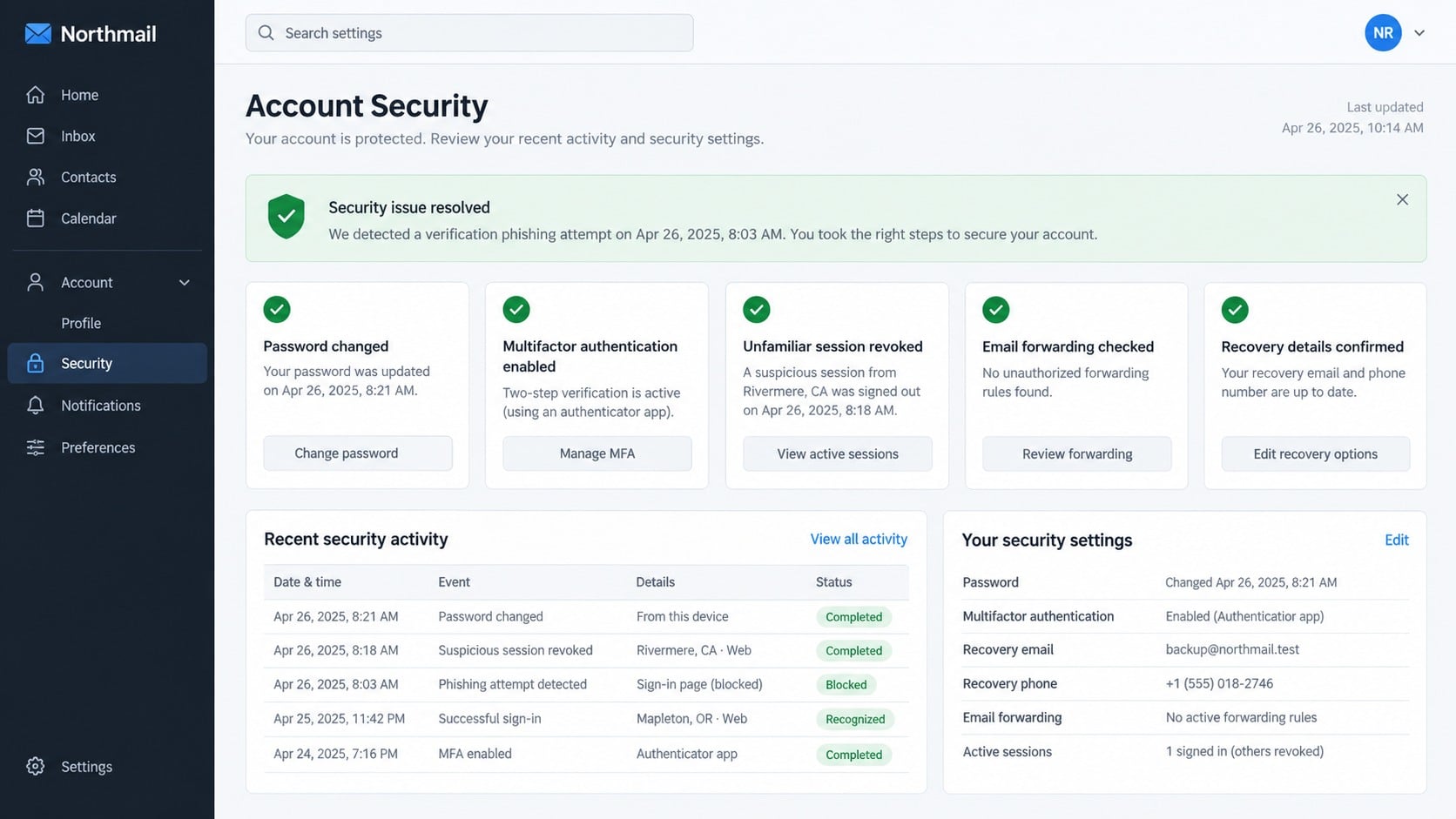
Open the provider through the usual bookmark and inspect recent security activity, devices, sessions, and official notifications.
Look for an event matching the claim. A genuine verification requirement should leave observable information inside account settings.
Do not use the embedded link to perform this check. Independent access prevents the alert from controlling the investigation.
Review account changes directly
Open settings and examine filters, forwarding, delegates, and automatic processing. Note any rule you do not recognize.
Check creation or modification timestamps when available. A suspicious change near an unfamiliar login may indicate an actual compromise.
If the account belongs to an organization, ask an administrator to review server logs and policy-based routing.
Compare the claimed provider with the domain
A provider name displayed inside a page cannot override an unrelated registered domain. That inconsistency is highly significant.
Read the registered domain carefully. Words in a page title, subdomain, image, or path can be chosen freely by the site owner.
Never enter a password after a provider unexpectedly changes identity during the same process.
Contact the real administrator independently
Use a saved support portal, hosting invoice, internal directory, or known telephone number. Ask whether any deactivation or routing alert exists.
A genuine administrator can describe affected rules, server events, and corrective steps without sending you back to an unknown form.
Report the original email with its headers. Security teams can search for matching recipients and block the destination.
Warning Signs Visible Before You Click
The message claims security knowledge yet omits the event that supposedly triggered verification. That missing context deserves suspicion.
No device, location, timestamp, or policy is identified. Real security diagnostics usually include useful context.
“Verify Account Now” is vague. Legitimate notices identify the exact setting, event, or support action required.
A threat to normal mailbox functionality creates pressure without explaining which feature is affected or why.
Provider graphics on an unrelated domain are a major clue. Visual familiarity cannot replace ownership.
The strongest defense remains simple: close the message, open the known service independently, and examine real settings.
Mailbox owners should periodically photograph or document expected rules. A simple baseline helps unusual additions stand out during an incident.
Administrators can alert users whenever forwarding changes. Immediate notifications turn a quiet persistence method into visible evidence.
External forwarding may be unnecessary for many organizations. Disabling it by policy removes one path criminals commonly use for surveillance.
Audit logs deserve retention beyond a few days. Some intruders wait before acting, hoping the original phishing memory fades.
Shared accounts require named responsibility. Without an owner, an unknown rule may be mistaken for another team member’s configuration.
Users should also search deleted and archived folders after recovery. Hidden replies can reveal which contacts received impersonation messages.
Contact those recipients through a different channel. A warning sent from the same recently compromised mailbox may not feel trustworthy.
Keep a record of every corrective action. If suspicious behavior returns, that timeline helps the provider identify remaining access.
What to Do if You Have Fallen Victim to This Scam
- Exit the false verification page. Do not submit another credential, approve a prompt, or follow its recovery instructions.
- Change the password through the genuine provider. Use a trusted device and select a strong password not used anywhere else.
- End all suspicious sessions. Revoke unknown devices, application tokens, delegates, and app passwords.
- Remove malicious routing changes. Inspect forwarding, filters, inbox rules, automatic replies, and blocked-sender lists for unauthorized entries.
- Secure recovery options. Correct altered telephone numbers, backup addresses, security questions, and multifactor methods.
- Alert administrators and contacts. Warn them about possible messages sent from the compromised account and request log review.
- Verify sensitive conversations. Independently confirm recent payment, payroll, password, and document requests associated with the mailbox.
- Scan the device carefully. Run Malwarebytes, then use AdGuard to help block deceptive destinations and harmful advertising redirects.
- Preserve evidence. Save headers, link addresses, timestamps, screenshots, security alerts, and the names of unfamiliar rules.
- Monitor every affected account. Watch for new resets, unexpected sent mail, continued forwarding, or attempts using a reused password.
Is Your Device Infected? Run a Free Malware Scan
Slow performance, constant pop-ups, or strange behavior? These are classic signs of a malware infection. The fastest way to find out is to scan your device with Malwarebytes Free — one of the most trusted malware removal tools available.
The free version detects and removes the most common threats, including:
- Adware — the cause of those annoying pop-ups
- Browser hijackers — unwanted redirects and changed homepages
- Trojans and spyware — hidden programs stealing your data
- Potentially unwanted programs (PUPs) — software you never asked for
👉 Select your device below — Windows, Mac, or Android — then follow the simple steps to download Malwarebytes, scan your system, and remove any threats it finds. The scan usually takes 5 to 20 minutes.
Run a Malware Scan with Malwarebytes for Windows
Malwarebytes is one of the most popular and trusted anti-malware tools for Windows — and it’s completely free for removing infections. It catches threats that many antivirus programs miss, including adware, browser hijackers, and trojans. Follow the steps below to scan and clean your PC in just a few minutes.
Download Malwarebytes
Click the button below to download the latest version of Malwarebytes for Windows from the official source. The free version is all you need — it will scan your computer and remove adware, browser hijackers, and other malicious software at no cost.
Download MalwarebytesOfficial installer for Windows 11 and 10. Your download starts right away.Want real-time protection? See Malwarebytes Premium Malwarebytes Free for WindowsScans and removes malware at no cost
-
Install Malwarebytes
When the download finishes, open your Downloads folder and double-click the MBSetup file. If Windows shows a User Account Control pop-up, click “Yes” to allow the installation.

Follow the On-Screen Prompts to Install Malwarebytes
The setup wizard will walk you through a few quick screens:
-
Choose where you’re installing the program — “Personal Computer” or “Work Computer” — then click Next.

-
Malwarebytes will now install on your device. This usually takes under a minute.

-
When installation is complete, the “Welcome to Malwarebytes” screen will open automatically.

-
On the final screen, click Open Malwarebytes to launch the program.

-
Enable “Scan for Rootkits”
Before scanning, turn on rootkit detection so Malwarebytes can find even the most hidden threats. Click the Settings gear icon on the left side of the screen.

In the settings menu, find “Scan for rootkits” and click the toggle so it turns blue.

Done? Click “Dashboard” in the left pane to return to the main screen.
Start the Scan
Click the blue Scan button. Malwarebytes will automatically update its virus database and start checking your computer for malware.

-
Wait for the Scan to Finish
The scan checks your entire system for browser hijackers and other malicious programs, so it can take 5 to 20 minutes depending on your computer. Feel free to do something else — just check back occasionally to see the progress.

-
Quarantine the Detected Threats
When the scan is done, you’ll see a list of everything Malwarebytes found — malware, adware, and potentially unwanted programs. Click the “Quarantine” button to remove all of them at once.

Malwarebytes will now remove the malicious files and registry entries and move them safely into quarantine.

-
Restart Your Computer
Some threats can only be fully removed after a reboot. If Malwarebytes asks you to restart, click Yes. Once you’re logged back in, Malwarebytes has finished removing the threats it found.

That’s it — your Windows PC is now clean of trojans, adware, and other malware, and should be back to running smoothly.
If you are still having problems with your computer after completing these instructions, then please follow one of the steps:
- Run a computer scan with ESET Online Scanner
- Ask for help in our Windows Malware Removal Help & Support forum.
Run a Malware Scan with Malwarebytes for Mac
Malwarebytes for Mac is a free on-demand scanner that removes the malware other security software tends to miss — adware, browser hijackers, and unwanted programs included. Cleaning an infected Mac with Malwarebytes has always been completely free, and it’s our go-to recommendation. Follow the steps below to scan and clean your Mac in just a few minutes.
-
Download Malwarebytes for Mac
Click the button below to download the latest version of Malwarebytes for Mac.
Download MalwarebytesOfficial installer for macOS. Your download starts right away.Want real-time protection? See Malwarebytes PremiumMalwarebytes Free for MacScans and removes malware at no cost -
Open the Malwarebytes setup file
When the download finishes, open your Downloads folder and double-click the setup file to begin the installation.

-
Follow the On-Screen Prompts to Install Malwarebytes
The Malwarebytes for Mac Installer will guide you through a few quick screens. Click “Continue” and keep following the prompts until the installation completes.



When the installation is complete, Malwarebytes opens to the Welcome to Malwarebytes screen. Click “Get started“.
-
Select “Personal Computer” or “Work Computer”
Malwarebytes will ask what type of computer you’re installing it on. Click either Personal Computer or Work Computer, whichever applies.

-
Start the Scan
Click the “Scan” button. Malwarebytes will automatically update its detection database and begin checking your Mac for malware.

-
Wait for the Scan to Finish
Malwarebytes will scan your Mac for adware, browser hijackers, and other malicious programs. This can take a few minutes, so feel free to do something else — just check back occasionally to see the progress.

-
Quarantine the Detected Threats
When the scan is done, you’ll see a list of everything Malwarebytes found. Click the “Quarantine” button to remove all the threats at once.

-
Restart Your Mac
Malwarebytes will now remove all the malicious files it found. Some threats can only be fully removed after a reboot — if Malwarebytes asks you to restart, allow it. Once you’re logged back in, your Mac is clean.

That’s it — your Mac is now free of adware, rogue browser extensions, and other potentially harmful software.
If you are still experiencing problems while trying to remove a malicious program from your computer, please ask for help in our Mac Malware Removal Help & Support forum.
Run a Malware Scan with Malwarebytes for Android
Malwarebytes for Android automatically detects and removes dangerous threats like malware and ransomware so you don’t have to worry about your most-used device being compromised. Aggressive detection of adware and potentially unwanted programs keeps your Android phone or tablet running smooth.
-
Download Malwarebytes for Android.
You can download Malwarebytes for Android by clicking the link below.
Get Malwarebytes for AndroidOpens Google Play in a new tab.Want real-time protection? See Malwarebytes Premium for AndroidMalwarebytes for AndroidScans your phone and removes malware at no cost -
Install Malwarebytes for Android on your phone.
In the Google Play Store, tap “Install” to install Malwarebytes for Android on your device.

When the installation process has finished, tap “Open” to begin using Malwarebytes for Android. You can also open Malwarebytes by tapping on its icon in your phone menu or home screen.

-
Follow the on-screen prompts to complete the setup process
When Malwarebytes will open, you will see the Malwarebytes Setup Wizard which will guide you through a series of permissions and other setup options.
This is the first of two screens that explain the difference between the Premium and Free versions. Swipe this screen to continue.
Tap on “Got it” to proceed to the next step.
Malwarebytes for Android will now ask for a set of permissions that are required to scan your device and protect it from malware. Tap on “Give permission” to continue.
Tap on “Allow” to permit Malwarebytes to access the files on your phone.
-
Update database and run a scan with Malwarebytes for Android
You will now be prompted to update the Malwarebytes database and run a full system scan.

Click on “Update database” to update the Malwarebytes for Android definitions to the latest version, then click on “Run full scan” to perform a system scan.

-
Wait for the Malwarebytes scan to complete.
Malwarebytes will now start scanning your phone for adware and other malicious apps. This process can take a few minutes, so we suggest you do something else and periodically check on the status of the scan to see when it is finished.

-
Click on “Remove Selected”.
When the scan has been completed, you will be presented with a screen showing the malware infections that Malwarebytes for Android has detected. To remove the malicious apps that Malwarebytes has found, tap on the “Remove Selected” button.

-
Restart your phone.
Malwarebytes for Android will now remove all the malicious apps that it has found. To complete the malware removal process, Malwarebytes may ask you to restart your device.
That’s it — your Android phone is now clean — no more malicious apps, adware, or browser redirects.
If you are still having problems with your phone after completing these instructions, then please follow one of the steps:
- Restore your phone to factory settings by going to Settings > General management > Reset > Factory data reset.
- Ask for help in our Mobile Malware Removal Help & Support forum.
Stay Protected: Block Ads and Malicious Sites
Now that your device is clean, keep it that way. Most infections start with a malicious ad or a fake download button — so blocking them at the source is your best defense.
We recommend AdGuard, which blocks malicious ads, phishing pages, and dangerous redirects before they can reach you.
👉 Download AdGuard and browse safely
Frequently Asked Questions
Do real providers require security verification?
Sometimes, but genuine requirements should appear inside the independently opened account and include verifiable context.
Why is the warning so vague?
Vagueness lets one campaign target many providers and users. It also avoids details that recipients could disprove.
How can the page recognize my provider?
It can read the email domain carried in the link and load matching graphics without accessing your account.
Will my mailbox stop working if I ignore this email?
Not because of this fraudulent notice. Confirm genuine status through the known provider or administrator.
What if I entered my password only once?
One submission is enough. Change it immediately, revoke sessions, inspect rules, and secure every account using the same credential.
What should I review after changing the password?
Review sessions, forwarding, filters, delegates, recovery methods, application passwords, and connected apps.
The Bottom Line
The Security Verification Required email turns a vague account notice into a provider-matching credential page controlled outside the real mail service.
Check security events through the normal account entry point. If information was submitted, replace credentials and revoke every hidden access route.

Join the discussion
0 commentsShare your experience or ask a question about this article.
Discussion
Start the conversation
Have a question or something useful to share? Add the first comment.