


You download RustDesk, open the installer, and the remote desktop window appears. Everything seems ready for the task you wanted to finish.
That familiar window can settle your doubts surprisingly quickly. Before trusting the installation, though, there is another part of the download worth understanding.
Overview
The problem starts with an impersonated download source
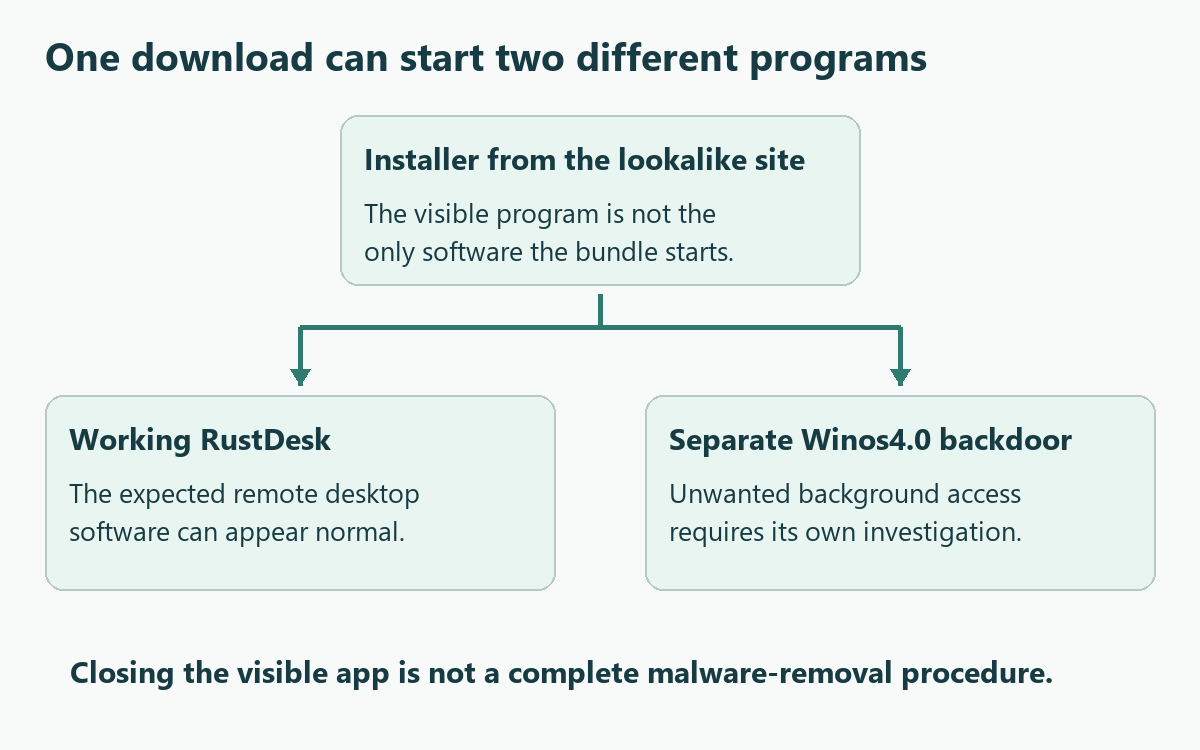
Malwarebytes’ January 2026 RustDesk investigation identified rustdesk[.]work distributing a bundle containing genuine RustDesk and the Winos4.0 backdoor. The useful application was the decoy.
This was a documented campaign, not evidence that every RustDesk installation is dangerous. The legitimate project is a separate party whose name was being misused.
A working application does not account for everything installed
The diagram shows the distinction that matters: the program you expected and another program you did not knowingly choose. It is not a captured installer screen.
For someone who executed the suspicious bundle, the priorities extend beyond closing the remote desktop window:
- Contain the affected Windows computer before continuing sensitive work.
- Investigate the unwanted payload separately from the visible application.
- Protect exposed accounts through a different, trustworthy device.
- Review remote-access permissions and involve workplace support when appropriate.
The genuine project has a specific official domain
RustDesk’s own website identifies rustdesk.com as its only official domain. A similar spelling or familiar download button does not authenticate another site.
If your installation came through an employer, contact its IT team before removing approved remote-support software. The relevant questions are provenance, execution, and access.
What to Do If You Downloaded or Ran the Suspicious Installer
-
Separate a download from confirmed execution. Write down where the file came from and whether you opened it. A file sitting in Downloads is not proof it ran.
Do not reopen it to find out. Preserve any existing browser-history entry, download time, or security notification without revisiting the suspected download website.
-
If the bundle ran, disconnect the affected computer. Turn off Wi-Fi and unplug its network cable. Use another trusted device for account recovery and urgent communications.
For a work computer, tell your security team what happened before uninstalling software, clearing logs, or restarting. Those actions can change evidence they need.
-
Prioritize accounts that mattered during the exposure. Start with primary email, work access, and financial services. Review saved-browser credentials and anything entered after the suspect installation.
If you find an unauthorized payment, contact the payment provider through its genuine app or independently located number. Device cleanup cannot reverse the transaction.
-
Tell anyone whose computer was involved in the support session. Explain which installer you used and when. Avoid assuming that every connected computer is infected.
The other person can check the access they granted with their own support team. A shared session deserves investigation, not an unsupported accusation against your colleague.
-
Follow the Windows cleanup procedure below, then complete account recovery. Keep the scan results and relevant notices so unresolved findings have a clear record.
You do not need to purchase prevention software to use the manual free scan described here. Organization-managed computers should follow their security team’s response plan instead.
Remove the Winos4.0 Payload From a Personal Windows Computer
If this is a managed work computer, contact your security team before making changes. They may need logs and other evidence before cleanup or restarting.
If the suspicious RustDesk bundle ran, note its source and installation time. Do not start another remote session while investigating the additional software.
Step 1: Isolate the computer before using sensitive accounts
Disconnect Wi-Fi and unplug the network cable. Use a different, trusted device for urgent account protection rather than signing in again on the suspect computer.
Record existing detection names, file paths, and alert times. Do not reopen the suspicious download to identify it or upload personal files into a public discussion.
An offline scanner already installed may be useful initially. If installation or updates require reconnection, keep that connection brief and avoid using sensitive accounts.
Step 2: Obtain the legitimate Windows installer
The site’s direct installer and free-download page provide separate legitimate routes. Choose one route below rather than downloading software advertised by an unexpected warning.
Download Malwarebytes for Windows Using the Direct Installer
Get the Free Malwarebytes Scanner From Its Download Page
Free on-demand scanning and quarantine do not require a paid protection subscription. Premium prevention is optional, rather than a condition for following this removal procedure.
See Optional Malwarebytes Premium Protection for Windows
MalwareTips may receive commissions through the linked affiliate pages. Those commercial links do not make a detection certain or change which items require examination.
Open your Downloads folder and locate the MBSetup installer from the legitimate route. The tutorial image identifies that installer, not the suspect file being investigated.

Step 3: Complete setup without accepting unwanted extras
Open the downloaded MBSetup file and check the expected publisher before approving Windows’ permission prompt. Follow the installer to install Malwarebytes on your personal computer.
Current setup screens may offer a browser product, trial, or subscription. Skip optional offers you do not want, then open Malwarebytes when installation finishes.
Allow available updates before starting the scan. If setup fails, retain the error and seek help instead of disabling protection or trying an unofficial installer.
Step 4: Run a free Custom Scan
On the Scanner tile, open the three-dot menu and choose Advanced Scan. Select Custom Scan in the pop-up window, rather than the dashboard’s Scan button.
On Configure Custom Scan, expand the file finder and select the Windows system drive, usually C:\. Include other drives or folders that held suspicious files.
Set detections of PUPs and PUMs to be treated as malware, then click Start Custom Scan. Let the scan finish before reviewing its results.
Use Custom Scan for this free procedure. If the dashboard instead offers a paid Threat Scan, return to the three-dot menu rather than purchasing protection.
The older tutorial image identifies the Scanner card, not the Custom Scan settings. Use the menu instructions above rather than the highlighted Scan button.

Step 5: Examine results and quarantine detected threats
Review detection names and file locations after completion. Keep confirmed malicious items selected and choose Quarantine to isolate them, then retain the scan report.
If an item is uncertain, ask for qualified help before excluding or restoring it. Do not release a quarantined file just because an application stops working.

Step 6: Complete a requested restart and review again
If Malwarebytes requests a restart, save your open work and accept it. Reopen the application afterward and check whether any removal actions remain outstanding.
Run another updated scan and compare the results with your saved report. Returning detections need investigation even if the original warning has stopped appearing.
No clean scan can guarantee that all attacker activity has been found. Continue the case-specific account and configuration checks explained elsewhere in this guide.

Step 7: Escalate recurring or blocked cleanup
Keep a persistently affected computer isolated if detections return or security tools cannot operate. Repeatedly deleting unfamiliar files is not a reliable substitute for investigation.
Use the MalwareTips malware removal assistance forum for guided help. Share relevant detection reports without passwords, tokens, private documents, or full personal identifiers.
A qualified specialist may recommend a planned clean Windows installation after serious compromise. Back up essential documents safely and understand the data-loss implications before proceeding.
Restoring a trusted operating system addresses local software. Previously exposed credentials, copied files, fraudulent transactions, and compromised online accounts still require their own response.
How the Fake RustDesk Download Scam Works
Step 1: A familiar product name creates the first impression
The reported distribution site imitated RustDesk’s branding and downloads. Its address, rustdesk[.]work, was different from the genuine project’s rustdesk.com domain.
A download page answers an immediate need, so you may concentrate on the Windows button rather than the address. That makes the source check important before installation.
Read the full domain, not just the name in a page heading. Branding inside a website cannot independently prove that the website belongs to the project.
Step 2: The expected program provides convincing reassurance
The analyzed installer launched real RustDesk while also staging the unwanted payload. Ordinary remote desktop functionality therefore continued to look legitimate.
Successful use answers a narrow question: can this application perform its advertised task? It does not answer whether the package installed something else alongside it.
Reinstalling the same bundle to fix a minor connection issue would repeat the questionable installation rather than verify its safety.
Step 3: The hidden component operates outside the visible task
Malwarebytes traced the separate loader through logger.exe and a Libserver.exe runtime identity into memory-resident Winos4.0 components.
The article’s practical warning is about that second execution path. You cannot assess it merely by watching whether the RustDesk window opens or closes normally.
Do not start deleting every similarly named file. Detection context, origin, and qualified investigation are more useful than guessing from a short executable name.
Step 4: Cleanup must address access, not just appearance
Removing the visible application is not a complete investigation of the bundled backdoor. A computer can stop showing a particular window without resolving the underlying incident.
Work through endpoint cleanup and account protection as separate jobs. Record which sessions, credentials, and remote-access arrangements have actually been reviewed rather than marking everything complete together.
There is no need to wait for another alarming symptom before taking those precautions. At the same time, avoid claiming that every account was stolen.
What Winos4.0 Means Beyond This Download
FortiGuard’s earlier Winos4.0 analysis describes a modular Windows backdoor with system-information collection, clipboard monitoring, and additional components for screenshots and document access.
That research concerned a different distribution campaign. It helps explain the malware family’s significance, but does not identify the operators of the RustDesk impersonation.
For a household computer, think about the information available during ordinary use. An email inbox, a saved password, and an open work document present different recovery concerns.
For an administrator, the consequences may extend to services the computer could reach. Bring that scope to the security team rather than attempting private cleanup first.
Check the Download Record Without Running the File
The investigated package was named rustdesk-1.4.4-x86_64.exe. The reported installer SHA-256 was 330016ab17f2b03c7bc0e10482f7cb70d44a46f03ea327cd6dfe50f772e6af30.
A filename can be changed, and a different file can use the same name. Conversely, a different hash does not by itself prove another download is safe.
If you already have a detection report, save the path and hash it records. You do not need to download a suspected sample to make a comparison.
Keep private files out of public analysis submissions. When asking for help, share the relevant detection details first and let the analyst explain what is needed.
Review Remote Access Without Blaming Legitimate Software
Remote-support software can have a legitimate place on a computer. The issue here is the deceptive bundle and any access you did not intend to authorize.
List which remote-access applications you recognize and why they are installed. Ask your employer or usual support provider about anything that belongs to their management process.
For unwanted software on a personal Windows 11 computer, open Settings > Apps > Installed apps. Find the application, open its menu, and choose Uninstall.
Microsoft’s removal instructions also explain the Control Panel alternative. Follow that route when the application cannot be removed through Settings.
Uninstalling a remote-access app addresses that application, not every other component or copied credential. Keep its removal separate from the malware scan and account checklist.
If legitimate unattended access was configured, have its owner review who can use it. Do not publish connection details or passwords in a help request.
Secure Accounts From a Device You Trust
Changing a password on the same suspect computer can put the replacement within reach of unresolved malware. Use another device while containment and cleanup continue.
For Google accounts, the compromised-account guide directs you to review security events, recognized devices, recovery information, and unfamiliar application access.
In Security & sign-in, inspect recent security events and follow the prompts for activity you did not perform. Review signed-in devices as a separate check.
Also check Gmail forwarding and filters you did not create. Fixing a password does not explain why a message was redirected or an unfamiliar rule appeared.
Apply equivalent provider-specific checks to other important accounts. For work credentials, report the exposure so administrators can revoke the relevant access rather than merely replacing a local password.
Keep your recovery sequence practical: regain primary email, secure high-impact services, then review the remaining accounts. Save a list so lower-priority changes are not forgotten.
When a Windows Reinstallation May Be Necessary
A returning detection, blocked security tool, or unexplained access after cleanup deserves qualified investigation. Do not keep reconnecting a persistently affected computer just to see what happens.
A specialist may recommend rebuilding the system after serious backdoor exposure. That decision should account for what happened, available evidence, and how confidently the machine can be trusted.
Microsoft distinguishes a clean installation from an in-place repair. A clean installation removes personal files, applications, and settings, so prepare before taking that route.
Preserve essential documents and recovery information safely, then obtain appropriate help. Do not follow a destructive partition-deletion procedure simply because a website promises an instant fix.
Rebuilding the computer does not retrieve data already copied elsewhere. Keep reviewing affected services afterward, especially any account used before the suspect installation was contained.
Frequently Asked Questions
Does this mean genuine RustDesk is malware?
No, this case concerns a deceptive installer bundle distributed through an impersonating source. The legitimate remote desktop project is not the Winos4.0 payload.
Why is the remote desktop application still working?
The expected program can function while a separate payload runs. Working features are therefore not a reliable check of everything included in a downloaded package.
Am I infected if I only downloaded the installer?
A download alone does not establish that the file executed. Do not open it to investigate; preserve existing alerts and ask for help if execution is uncertain.
Should I remove every file named logger.exe?
No, a common filename is insufficient identification. Use the file’s origin, detection context, and an analyst’s guidance rather than deleting unrelated software based on its name.
Do I need a paid Malwarebytes subscription for these steps?
The manual Custom Scan described above is a free route under Malwarebytes’ current feature table. Paid prevention is optional, not a prerequisite for this procedure.
Does a clean scan settle the account-security questions?
No, endpoint findings do not account for access or information already exposed. Complete the separate account, remote-support, and financial checks that fit what happened.
The Bottom Line
Do not use the documented RustDesk impersonation source or trust a bundle merely because the visible software works. Obtain legitimate downloads through the genuine project’s route.
If the suspicious installer ran, contain the computer and follow both the Windows cleanup and account-recovery steps. Treat unresolved findings as a reason for help, not reassurance.

Join the discussion
0 commentsShare your experience or ask a question about this article.
Your progress
Did these steps help?
Let us know how the guide worked for you.
Describe what you see and the step you reached. Keep passwords and other private information out.
Discussion
Start the conversation
Have a question or something useful to share? Add the first comment.