


A warning that your mailbox needs validation can interrupt an ordinary day instantly. Losing access to email would disrupt work, bills, and important conversations.
The notice may look like a routine service message, yet its safest response begins somewhere other than the button placed inside it.
Overview
A Security Warning With No Identifiable Provider
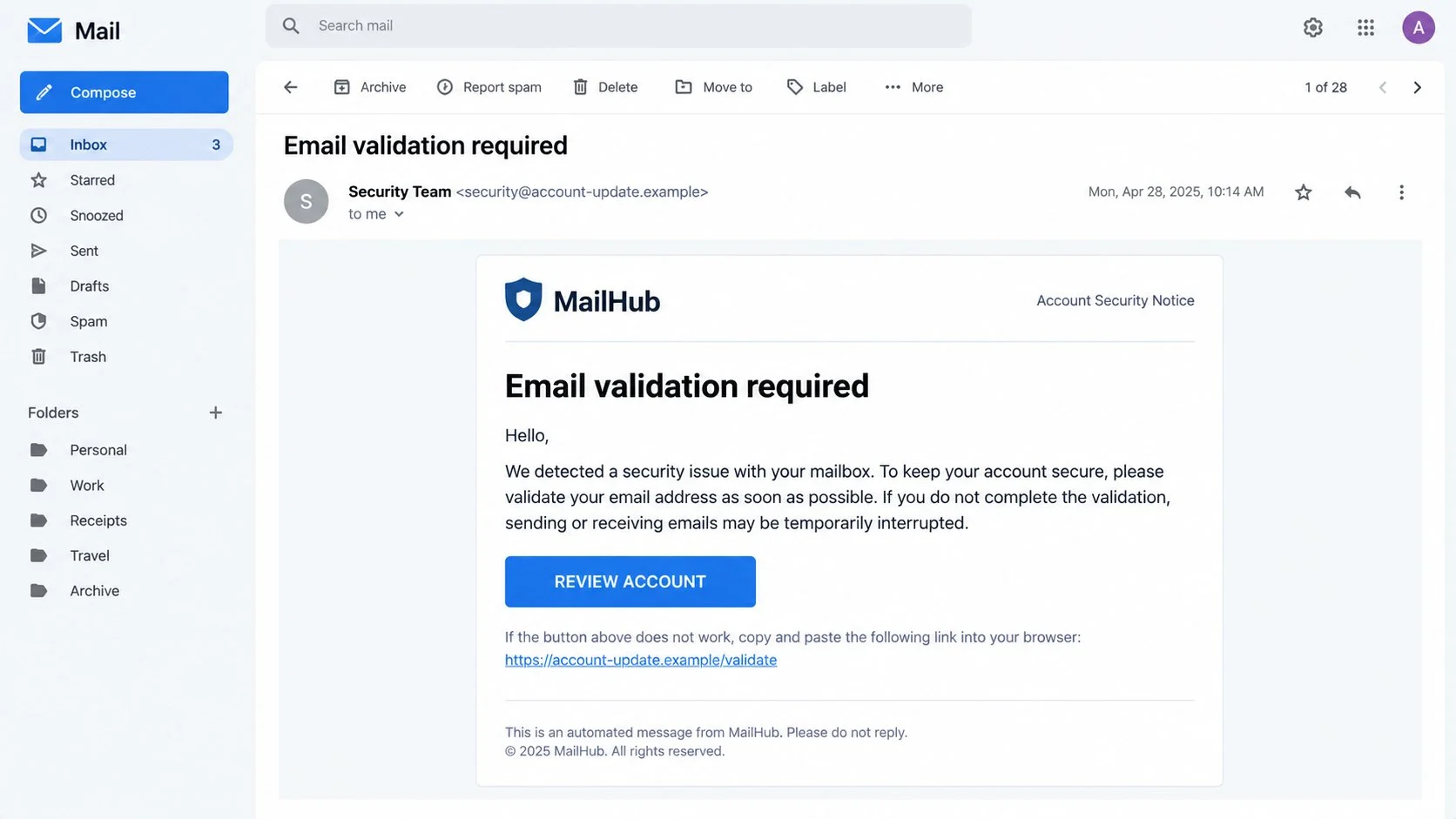
The Email Validation Required scam claims a security problem has been detected in the recipient’s mailbox. It threatens interruption unless the account is reviewed.
The message uses the subject “Email validation required” and presents itself as an automated service notification. A “REVIEW ACCOUNT” button supplies the proposed solution.
There is no meaningful explanation of what was detected, which provider sent the alert, or when the alleged interruption will occur.
That vagueness is intentional. The same template can target business domains, personal addresses, hosted mailboxes, and users of different platforms.
The Destination Imitates Webmail
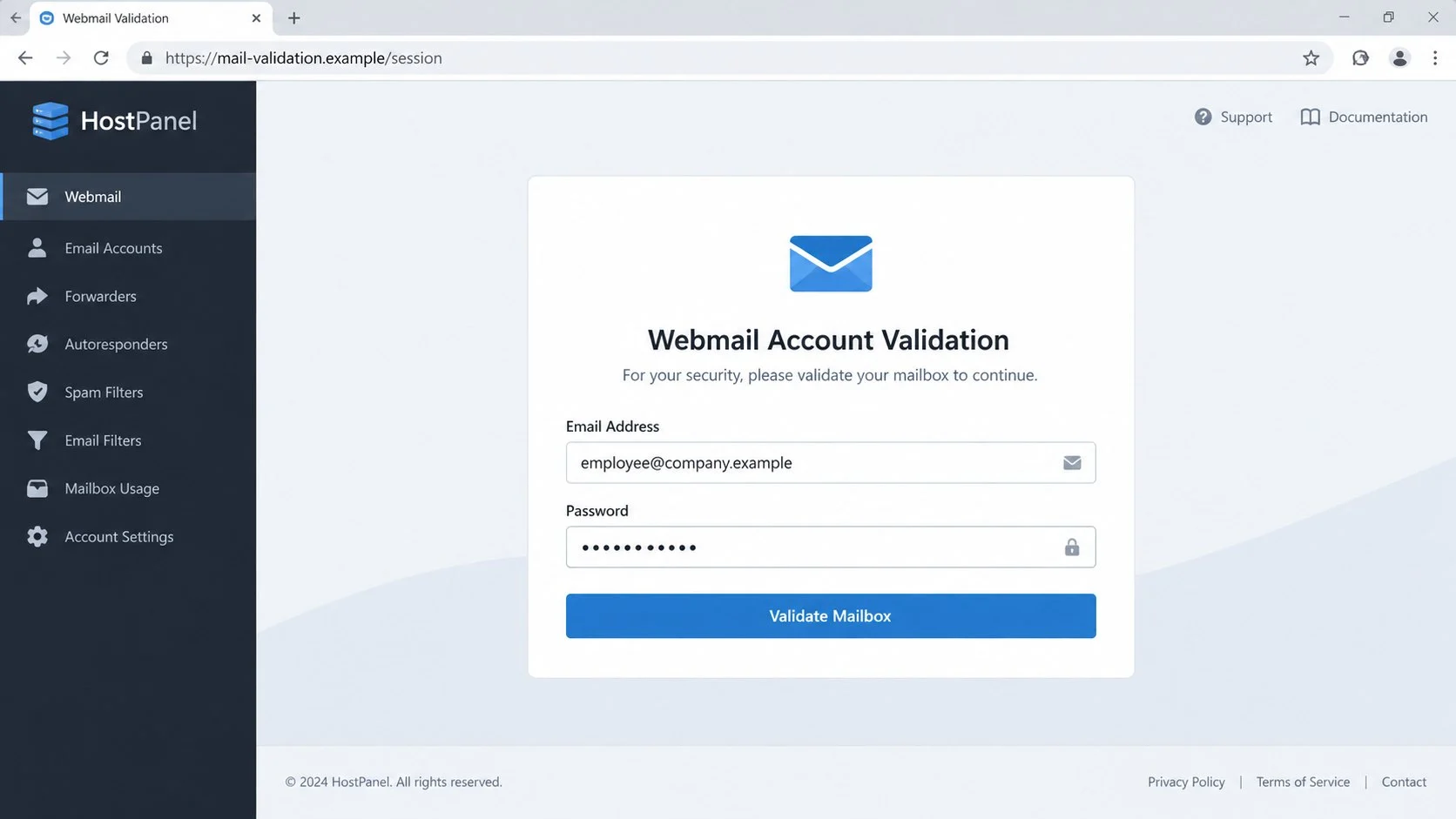
Clicking the button does not take the recipient to an established account dashboard. It opens a counterfeit cPanel-style Webmail page hosted elsewhere.
The address may already appear in the username field. Prefilling it makes the page feel connected to the message and reduces the victim’s time to reconsider.
- The sender does not identify a real hosting company.
- The threat is urgent but technically unexplained.
- The review link leaves the normal mail domain.
- The landing page asks directly for the mailbox password.
- Copied webmail styling substitutes for verifiable ownership.
- The email discourages replies while offering no independent support route.
cPanel is a legitimate platform and is not behind the campaign. Criminals borrow recognizable interface elements to make their collection form believable.
The Real Objective Is Mailbox Access
The form is designed to capture an email address and password. Completing it does not validate, repair, secure, or preserve a mailbox.
Once stolen, that credential may expose messages, contacts, stored attachments, password-reset links, and connected workplace services.
Attackers can also use the account’s reputation. A phishing message sent from a genuine employee address often receives more trust than an external warning.
The observed operation centers on credential theft. It does not establish that simply receiving the email installs malware or disables mail delivery.
How the Email Validation Required Scam Works
Step 1: The Email Invents a Mailbox Security Problem
The opening claim is broad enough to sound possible without being testable. It says a security issue exists, but provides no event log or diagnostic detail.
Mailbox warnings deserve attention, so recipients may act quickly. The possibility of missed messages makes delay feel riskier than clicking.
Real providers usually identify themselves clearly and place alerts inside the authenticated account. This email depends entirely on its own unsupported statement.
The phrase “validation required” sounds administrative rather than criminal. It frames password entry as maintenance instead of disclosure.
Step 2: A Service Interruption Threat Creates Pressure
The message warns that sending or receiving could be interrupted. That consequence targets anyone who relies on email for daily responsibilities.
No exact quota, policy violation, expiration date, or security incident is supplied. The absence of specifics prevents meaningful verification inside the message.
Urgency narrows attention. A worried recipient may focus on preserving access and overlook the sender domain or unusual link.
Scammers often choose reversible-sounding problems. “Reviewing” an account feels safer than paying money, even though the requested password is extremely valuable.
Step 3: The Review Button Carries the Address to Another Site
The button may include the target’s email address in its link. The destination uses that value to personalize the next page automatically.
This personalization can look like proof that the provider recognizes the user. In reality, any website can display data supplied in a URL.
The domain belongs neither to the recipient’s mail provider nor to an expected hosting panel. It may use file-storage or temporary website infrastructure.
Redirect services can further obscure the path. The page visible after several hops matters more than the button text shown in the email.
Step 4: A Counterfeit Webmail Panel Requests the Password
The landing page copies the layout of a familiar hosting control panel. A mail icon, navigation labels, and clean card design create visual confidence.
The username may be filled in already, leaving only the password blank. That small convenience encourages a fast, almost automatic response.
Entering a mailbox password on an unrelated domain sends it outside the provider’s protection. The page has no legitimate validation role.
Brand-like styling cannot authenticate a website. The address bar remains the clearest evidence of who controls the form.
Step 5: The Operator Tests and Reuses the Credential
Submitted values can be relayed immediately. An operator or automated tool may attempt a login while the victim still sees the fake page.
If the password works, the intruder can read messages and collect context for targeted fraud. They may also search for other accounts sharing it.
A failed attempt does not necessarily end the campaign. The kit may request the password again and capture a second variation.
Password reuse expands the damage. One mailbox credential might also unlock cloud storage, customer portals, or company tools.
Step 6: Mailbox Settings Help the Intruder Stay Hidden
An attacker can add a forwarding address or filtering rule. Incoming security messages may be copied, archived, marked read, or removed automatically.
Recovery details and trusted applications can also be changed. Those alterations make the account harder for its owner to reclaim completely.
From inside a workplace mailbox, the attacker can observe invoice timing and authority relationships. That knowledge supports highly tailored requests.
The original validation notice may then reach more employees from the compromised account. Internal distribution gives the same template renewed credibility.
How to Check a Mailbox Validation Warning
Open Your Account Without Using the Email
Use a known bookmark, official application, or manually entered provider address. Look for warnings inside the authenticated dashboard.
If service remains normal and no account alert exists, the external demand becomes much less credible. Do not revisit its button for confirmation.
Hosted business users can reach their panel through the address supplied during account setup. An unsolicited link should never redefine that route.
Identify the Actual Service Responsible for Your Mail
Many people know their email address but not the company hosting it. Check prior billing, onboarding records, or instructions from your administrator.
A real provider should name itself consistently and communicate from an established domain. A generic “Security Team” label offers no accountability.
Business users should ask IT whether any validation campaign is active. Administrators can confirm account status without requesting the current password.
Examine Headers and the Link Separately
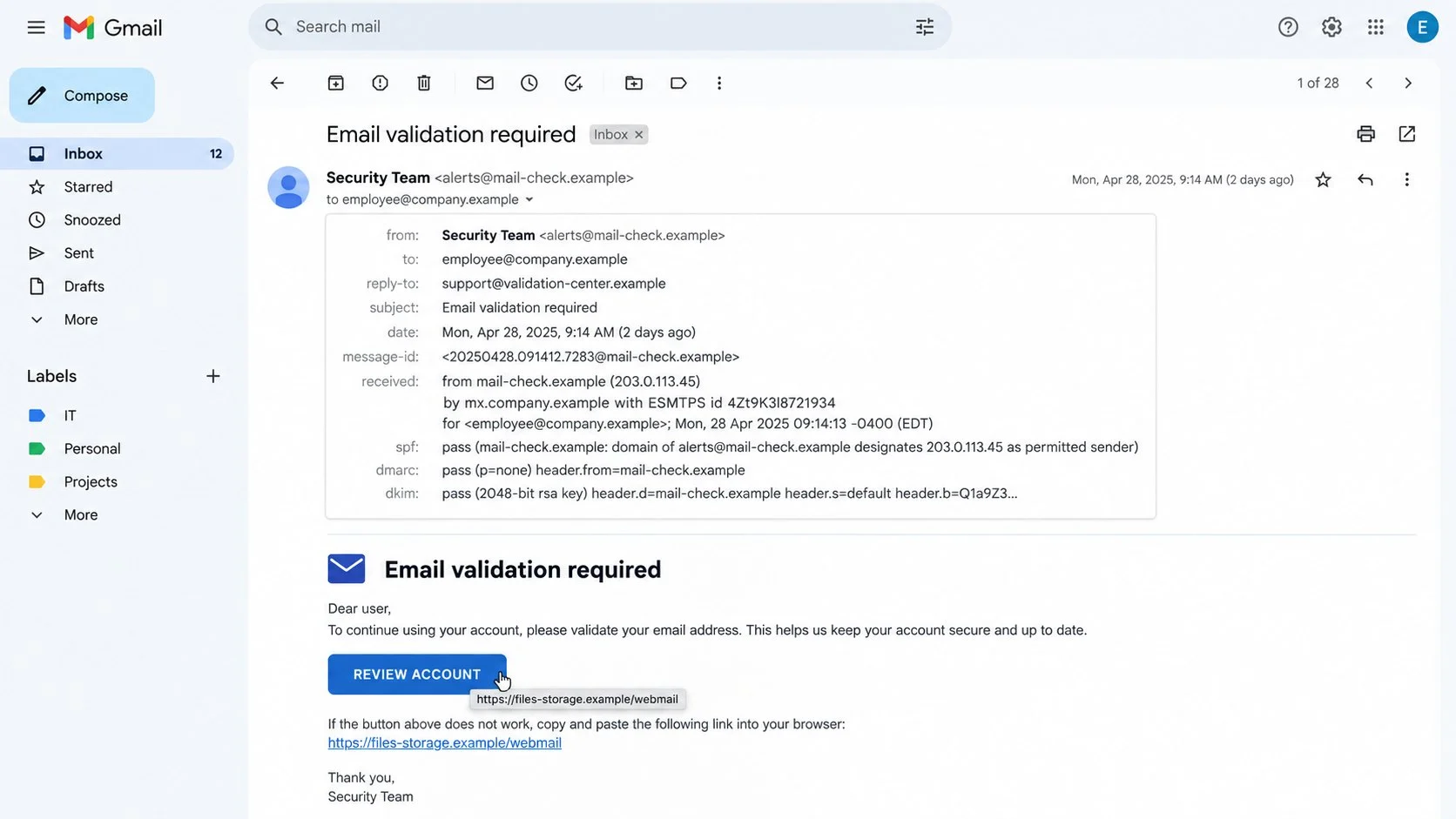
Expand the full sender and reply addresses. Differences between those identities can reveal that responses are being directed elsewhere.
Preview the review button’s destination. An unrelated file host, temporary subdomain, or misspelled service address should be treated as hostile.
Do not assume a padlock proves legitimacy. It only indicates that traffic to the displayed site is encrypted.
Ask Support Through a Known Channel
Contact the provider using its established support portal, saved telephone number, or verified account dashboard. Do not use details inside the questionable email.
Describe the subject and sender, then ask whether validation is required. Support can inspect the account without asking you to disclose its existing password.
If the address belongs to an employer, report the message rather than investigating alone. Security staff may already be tracking the same campaign.
What to Do If You Fell Victim to the Email Validation Required Scam
Act from a clean, trusted route and complete each relevant step. A prompt password change is important, but it is not the entire recovery.
- Leave the fraudulent page and retain evidence.
Close its tab without submitting more information. Keep the original message, full headers, link address, and any confirmation screen.
For a company account, report the incident immediately. Give administrators the time you clicked and whether a password was entered.
- Replace the mailbox password at the real provider.
Navigate independently to the authentic account portal. Choose a long, unique password that has never been used elsewhere.
Change reused credentials on every other service. Start with banking, storage, payroll, social media, and accounts capable of resetting additional passwords.
- Remove unauthorized access.
Sign out all sessions and review recent activity, connected applications, trusted devices, recovery contacts, and application-specific passwords.
Enable strong multifactor protection. A passkey or hardware security key provides better resistance to ordinary password phishing.
- Audit the mailbox configuration.
Inspect rules, filters, delegates, forwarding, automatic replies, and blocked-address lists. Delete changes you did not create.
Review sent, archived, spam, and trash folders for messages you never handled. Criminals may move evidence away from the inbox.
- Notify affected contacts and teams.
Warn anyone who received unusual mail from the account. Tell them not to open validation links or reply with credentials.
Workplaces should examine related logins and messages across the tenant. One reported account may reveal a broader targeting attempt.
- Check the device if a file was opened.
The documented page sought credentials, yet copycat campaigns may attach malicious content. Use Malwarebytes for a full scan after opening any download.
AdGuard can reduce exposure to known phishing destinations and intrusive redirects. Treat it as defense in depth, not permission to trust unexpected warnings.
- Report financial or identity consequences.
Submit the message through the provider’s phishing channel. If personal records were exposed, follow local identity-protection and fraud-reporting guidance.
Contact banks promptly if mailbox access could affect payments. Document conversations, case references, and security changes for later follow-up.
Is Your Device Infected? Run a Free Malware Scan
Slow performance, constant pop-ups, or strange behavior? These are classic signs of a malware infection. A quick way to check is to scan your device with Malwarebytes Free, one of the most trusted malware removal tools available. If you only visited a scam page and didn’t download or install anything, this scan is optional.
The free version detects and removes the most common threats, including:
- Adware — the cause of those annoying pop-ups
- Browser hijackers — unwanted redirects and changed homepages
- Trojans and spyware — hidden programs stealing your data
- Potentially unwanted programs (PUPs) — software you never asked for
👉 Select your device below — Windows, Mac, or Android — then follow the simple steps to download Malwarebytes, scan your system, and remove any threats it finds. The scan usually takes 5 to 20 minutes.
Run a Malware Scan with Malwarebytes for Windows
Malwarebytes is one of the most popular and trusted anti-malware tools for Windows — and it’s completely free for removing infections. It catches threats that many antivirus programs miss, including adware, browser hijackers, and trojans. Follow the steps below to scan your PC and remove what Malwarebytes finds.
Download Malwarebytes
Click the button below to download the latest version of Malwarebytes for Windows from the official source. The free version is all you need — it will scan your computer and remove adware, browser hijackers, and other malicious software at no cost.
Download MalwarebytesOfficial installer for Windows 11 and 10. Your download starts right away.Want real-time protection? See Malwarebytes Premium Malwarebytes Free for WindowsScans and removes malware at no cost
-
Install Malwarebytes
When the download finishes, open your Downloads folder and double-click the MBSetup file. If Windows shows a User Account Control pop-up, click “Yes” to allow the installation.

Follow the On-Screen Prompts to Install Malwarebytes
The setup wizard will walk you through a few quick screens:
-
Choose where you’re installing the program — “Personal Computer” or “Work Computer” — then click Next.

-
Malwarebytes will now install on your device. This usually takes under a minute.

-
When installation is complete, the “Welcome to Malwarebytes” screen will open automatically.

-
On the final screen, click Open Malwarebytes to launch the program.

-
Optional: Check for rootkits with a Custom Scan
You don’t need to change any settings for a normal scan. The standard Threat Scan in the next step is enough for most problems, so you can go straight to it.
If you also want to check for rootkits, use a Custom Scan. In current versions of Malwarebytes, rootkit scanning is only available there:
- On the Scanner tile, click the three-dot menu and select Advanced Scan.
- Choose Custom Scan. In its options, check Scan for rootkits.
- Select your system drive (usually C:\) as the location to scan, then start the scan. It takes longer than a Threat Scan.
- When it finishes, review and quarantine the results as described in the steps below.
Rootkit scanning isn’t available on Windows devices with ARM processors.
Start the Scan
Click the blue Scan button. Malwarebytes will automatically update its virus database and start checking your computer for malware.

-
Wait for the Scan to Finish
The scan checks your entire system for browser hijackers and other malicious programs, so it can take 5 to 20 minutes depending on your computer. Feel free to do something else — just check back occasionally to see the progress.

-
Quarantine the Detected Threats
When the scan is done, you’ll see a list of everything Malwarebytes found — malware, adware, and potentially unwanted programs. Click the “Quarantine” button to remove all of them at once.

Malwarebytes will now remove the malicious files and registry entries and move them safely into quarantine.

-
Restart Your Computer
Some threats can only be fully removed after a reboot. If Malwarebytes asks you to restart, click Yes. Once you’re logged back in, Malwarebytes has finished removing the threats it found.

When the scan is done, check whether the problems you noticed have stopped. If they continue, see the options below.
If you are still having problems with your computer after completing these instructions, then please follow one of the steps:
- Run a computer scan with ESET Online Scanner
- Ask for help in our Windows Malware Removal Help & Support forum.
Run a Malware Scan with Malwarebytes for Mac
Malwarebytes for Mac is a free on-demand scanner that removes the malware other security software tends to miss — adware, browser hijackers, and unwanted programs included. Cleaning an infected Mac with Malwarebytes has always been completely free, and it’s our go-to recommendation. Follow the steps below to scan your Mac and remove what Malwarebytes finds.
-
Download Malwarebytes for Mac
Click the button below to download the latest version of Malwarebytes for Mac.
Download MalwarebytesOfficial installer for macOS. Your download starts right away.Want real-time protection? See Malwarebytes PremiumMalwarebytes Free for MacScans and removes malware at no cost -
Open the Malwarebytes setup file
When the download finishes, open your Downloads folder and double-click the setup file to begin the installation.

-
Follow the On-Screen Prompts to Install Malwarebytes
The Malwarebytes for Mac Installer will guide you through a few quick screens. Click “Continue” and keep following the prompts until the installation completes.



When the installation is complete, Malwarebytes opens to the Welcome to Malwarebytes screen. Click “Get started“.
Malwarebytes needs Full Disk Access to check your whole Mac. When it asks, open System Settings > Privacy & Security > Full Disk Access, turn on Malwarebytes (it may be listed as Malwarebytes Protection), and confirm with your password or Touch ID. Then return to Malwarebytes. On macOS Monterey and earlier, this setting is in System Preferences > Security & Privacy > Privacy.
-
Select “Personal Computer” or “Work Computer”
Malwarebytes will ask what type of computer you’re installing it on. Click either Personal Computer or Work Computer, whichever applies.

-
Start the Scan
Click the “Scan” button. Malwarebytes will automatically update its detection database and begin checking your Mac for malware.

-
Wait for the Scan to Finish
Malwarebytes will scan your Mac for adware, browser hijackers, and other malicious programs. This can take a few minutes, so feel free to do something else — just check back occasionally to see the progress.

-
Quarantine the Detected Threats
When the scan is done, you’ll see a list of everything Malwarebytes found. Click the “Quarantine” button to remove all the threats at once.

-
Restart Your Mac
Malwarebytes will now remove all the malicious files it found. Some threats can only be fully removed after a reboot — if Malwarebytes asks you to restart, allow it. Once you’re logged back in, check whether the problems you noticed have stopped. If they come back, save the scan report and ask for help in our forum.

If the problems you noticed continue after the scan, see the options below.
If you are still experiencing problems while trying to remove a malicious program from your computer, please ask for help in our Mac Malware Removal Help & Support forum.
Run a Malware Scan with Malwarebytes for Android
Malwarebytes for Android scans your phone or tablet for malware, adware, and potentially unwanted apps. The free version scans only when you start a scan. Real-time protection, which checks apps automatically, is part of the paid Premium version.
-
Download Malwarebytes for Android.
You can download Malwarebytes for Android by clicking the link below.
Get Malwarebytes for AndroidOpens Google Play in a new tab.Want real-time protection? See Malwarebytes Premium for AndroidMalwarebytes for AndroidScans your phone and removes malware at no cost -
Install Malwarebytes for Android on your phone.
In the Google Play Store, tap “Install” to install Malwarebytes for Android on your device.

When the installation process has finished, tap “Open” to begin using Malwarebytes for Android. You can also open Malwarebytes by tapping on its icon in your phone menu or home screen.

-
Follow the on-screen prompts to complete the setup process
When Malwarebytes opens, it walks you through a short setup. Tap Get started and follow the prompts. If you see an offer for a trial or a paid plan, read it before you accept. You can skip it and keep using the free scanner.
Malwarebytes will ask for permission to access the files on your phone so it can scan them. Tap Allow, or turn on the permission in the Android screen that opens, then return to Malwarebytes.
-
Run a scan with Malwarebytes for Android
On the main screen, tap Scan now. In some versions, you open the menu, tap Scanner, and then tap Run a scan.
-
Wait for the Malwarebytes scan to complete.
Malwarebytes will now start scanning your phone for adware and other malicious apps. This process can take a few minutes, so we suggest you do something else and periodically check on the status of the scan to see when it is finished.

-
Remove the detected apps.
When the scan has been completed, you will see a list of the threats that Malwarebytes for Android has detected. Next to each detected item, tap the menu icon (three dots), then choose to uninstall the app or delete the file. Android then asks you to confirm. Tap OK or Uninstall to remove the app.
-
Restart your phone.
When the detected apps are removed, restart your phone if Malwarebytes asks you to. Then check whether the problems you noticed have stopped.
If the problems you noticed continue after the scan, see the options below.
If you are still having problems with your phone after completing these instructions, then please follow one of the steps:
- Ask for help in our Mobile Malware Removal Help & Support forum.
- Only as a last resort, reset your phone to factory settings. Read the warning below first.
- Back up your photos, videos, files, and messages, for example to your Google account or a computer.
- Make sure you know your Google account email and password. The phone asks for them after the reset. If you changed the password recently, Google recommends waiting 24 hours before you reset.
- On a Samsung phone, also make sure you know your Samsung account password.
- If you use an authenticator app for two-step verification, move your accounts to another device or save your backup codes first.
Stay Protected: Block Ads and Malicious Sites
No scan can prove a device is completely clean, so it helps to block threats before they reach you. Most infections start with a malicious ad or a fake download button — so blocking them at the source is your best defense.
We recommend AdGuard, which blocks malicious ads, phishing pages, and dangerous redirects before they can reach you.
👉 Download AdGuard and browse safely
Why the Fake Webmail Page Feels Familiar
Hosting dashboards tend to share predictable elements: navigation bars, envelope icons, account fields, and neutral blue buttons. Phishers reproduce that visual grammar cheaply.
Users may not remember the exact appearance of a panel visited only occasionally. A close approximation can therefore feel correct.
Prefilled information adds another persuasive detail. The page seems to know the account because the email itself passed that address through the link.
People also expect providers to require occasional verification. The idea is plausible, even when the route and request are not.
The password field is the point where familiarity must stop. A provider login belongs only on the provider’s known domain or approved identity service.
Learning one interface by sight is not enough. Domain ownership, account history, and independent confirmation remain reliable when designs change.
How Organizations Can Reduce Validation Phishing
Companies should publish the exact addresses used for webmail and account support. Employees need a stable destination they can reach without an email prompt.
Single sign-on and phishing-resistant authentication reduce reliance on reusable passwords. They also make an unexpected standalone form easier to question.
Administrators can alert users before legitimate maintenance. A known schedule and internal announcement deprive vague interruption threats of credibility.
Mail gateways should flag newly observed domains, mismatched reply addresses, and links to external file-hosting services. No filter catches every variation.
Users need a one-click reporting option that sends headers and URLs to security staff. Manual forwarding can lose useful technical details.
Conditional access can restrict unusual locations and devices. Rapid alerts help responders disable a stolen credential before it supports wider fraud.
Audit logs should be retained long enough to investigate forwarding changes, application consent, and session activity. Recovery requires more than seeing one failed login.
Support teams must never request a current password. Repeating that rule gives employees a simple boundary during stressful account warnings.
Training should use realistic examples and explain personalization tricks. Recognizing how a prefilled address appears removes much of its psychological power.
Finally, mailbox incidents should trigger checks on related payment workflows. Email compromise often becomes financially harmful through later impersonation.
Providers can publish screenshots of their genuine alert center and explain normal maintenance procedures. Clear expectations make generic validation demands easier to reject.
Regular account reviews also build familiarity. Users who recognize their real security dashboard are less dependent on urgent instructions delivered through an unexpected message.
Incident exercises should include hosted email and personal domains. Criminal templates do not care which department owns the underlying mailbox infrastructure.
Frequently Asked Questions
Is “Email validation required” a genuine security notice?
Not in the campaign described here. The message sent recipients to a counterfeit webmail form intended to collect their passwords.
Will my mailbox stop working if I ignore the email?
The scammer cannot suspend service merely because the message was ignored. Check account status directly with the genuine provider.
Is cPanel involved in the phishing operation?
No. The criminals imitate familiar webmail and control-panel styling. The legitimate platform does not operate the unrelated credential page.
Why was my email address already filled in?
The link can carry the address as ordinary data. The fake site reads it and places it in the form to appear personalized.
What if I entered an incorrect password?
Assume every value submitted was recorded. If the password resembles one you use, change the real credentials and review account activity.
Can two-factor authentication still protect me?
It can limit some reuse, but session-stealing attacks may request codes too. Change the password, revoke sessions, and inspect authentication methods.
The Bottom Line
The Email Validation Required message invents a security interruption and directs recipients to a fake webmail panel built to harvest passwords.
Open account portals independently, verify warnings through known support, and treat any unrelated password page as a stop sign.

Join the discussion
0 commentsShare your experience or ask a question about this article.
Discussion
Start the conversation
Have a question or something useful to share? Add the first comment.