

A mailbox verification notice can resemble routine hosting maintenance. Its familiar language makes a sudden request for confirmation feel easier to accept.
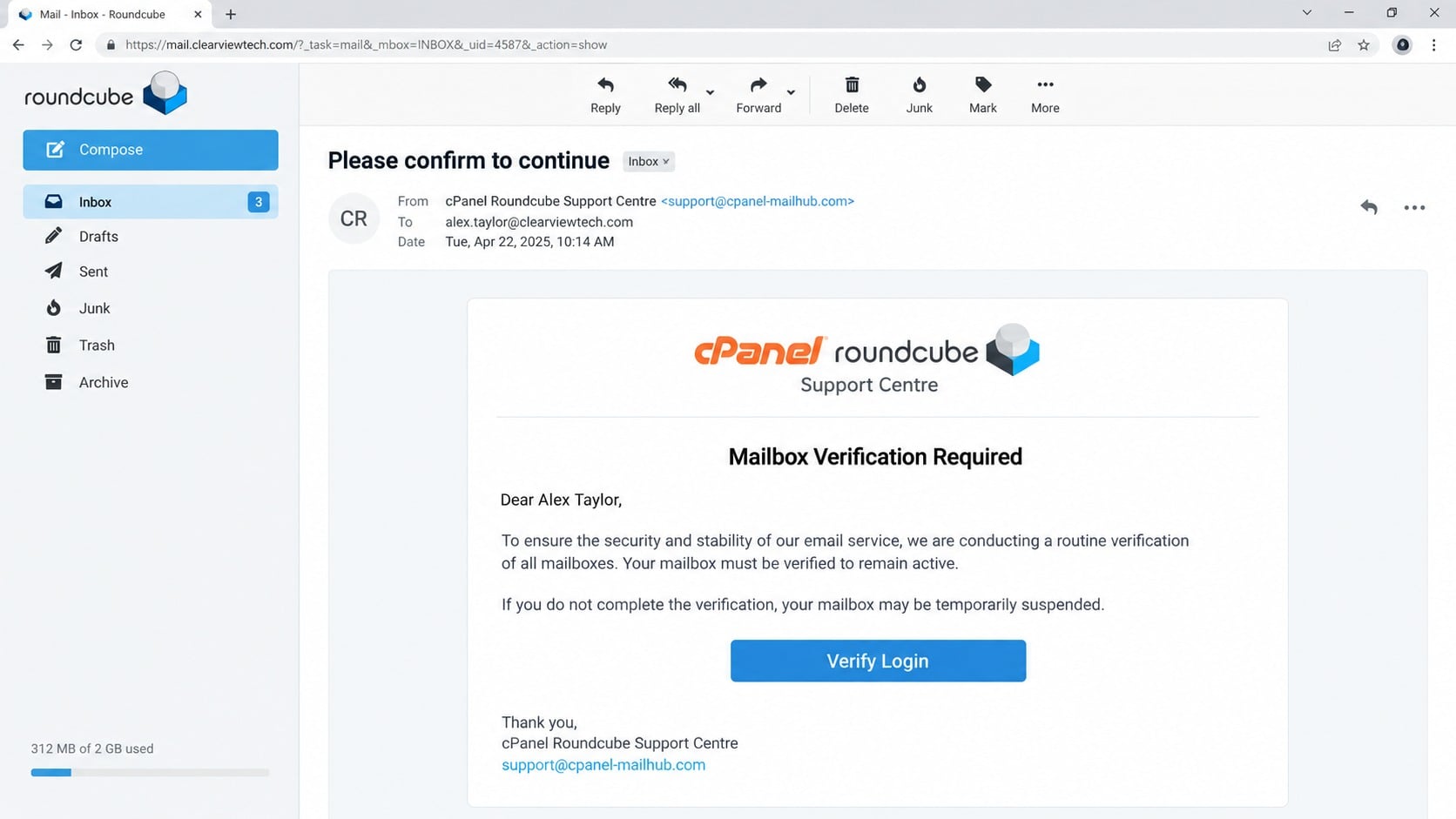
The cPanel Roundcube email adds an account-deactivation warning, placing important messages behind one tempting verification button.
Overview
The message impersonates a familiar hosting control panel
The cPanel Roundcube Email Verification message claims support received numerous reports requesting stronger protection against phishing.
Observed subjects include “Please confirm to continue,” while the body says the named mailbox requires confirmation to remain active.
The sender presents credential verification as a security upgrade needed for uninterrupted webmail access.
cPanel did not send the analyzed message. Its name and branding were used without authorization.
Temporary restrictions create artificial urgency
The email warns that unverified accounts may face temporary limitations until the process is completed.
That threat matters to website owners because a hosting outage can affect sales, mail delivery, support, and customer confidence.
The message does not explain which hosting provider manages the mailbox or why support needs a password to keep it active.
Instead, a “Verify your account” button offers a single immediate route.
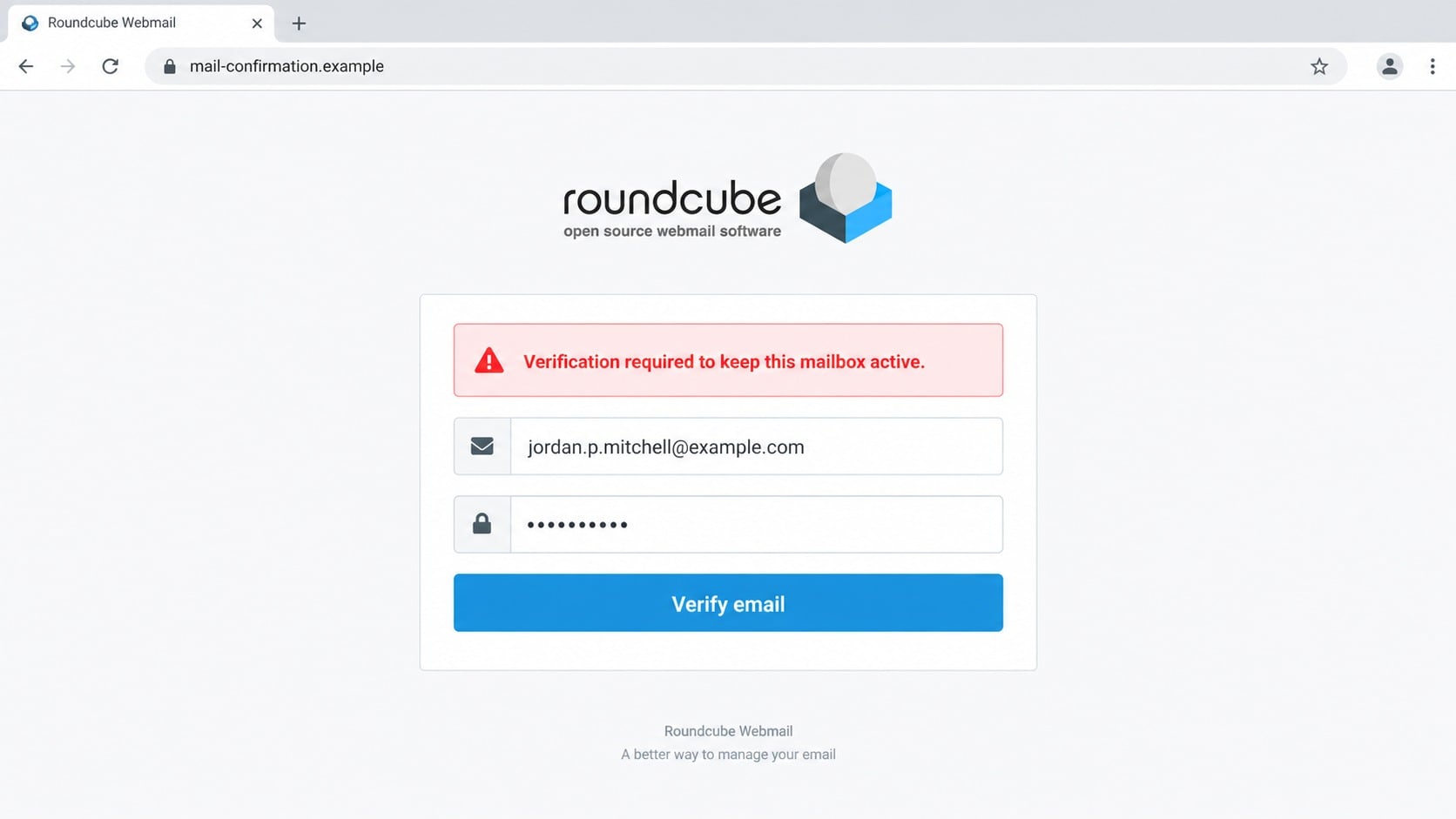
The expected destination is a credential form
The malicious page observed during research was no longer active, but the campaign’s structure points toward a copied control-panel or webmail login.
Credentials entered there would go to the phishing operator rather than the real hosting provider.
A stolen control-panel account can expose websites, databases, files, backups, FTP users, DNS settings, and mailboxes hosted under the domain.
Warning signs include:
- An unexpected support message demands mailbox verification.
- The email threatens hosting restrictions without provider-specific details.
- The sender address does not belong to cPanel or the known host.
- The button leads outside the normal hosting portal.
- The page requests a control-panel or mailbox password.
- No corresponding notice appears inside the real account.
- The greeting does not identify the server, plan, or provider accurately.
- Urgency replaces an independently verifiable support route.
Why This Phish Can Fool Experienced Website Owners
Mailbox maintenance notices are common. Users regularly see storage warnings, password reminders, spam reports, and hosting announcements.
That experience teaches people to expect technical language, an account name, and a button leading toward administration.
The phish connects anti-phishing protection with account ownership, turning sensible security concerns into a credential request.
Website owners also know that hosting providers can suspend accounts for billing, abuse, or verification problems.
A warning about temporary restrictions therefore sounds possible, even when the supposed requirement was invented.
The cPanel name adds credibility because many hosting companies expose a cPanel interface while handling support and billing under another brand.
That relationship can confuse responsibility. A customer may not know whether a notice should come from cPanel or the hosting provider.
The hosting provider is the missing piece
Most cPanel users receive the product through a hosting company, reseller, managed server provider, or internal administrator.
That provider controls the account, server address, feature availability, support route, and password-reset process.
A generic notice that bypasses the known host deserves careful verification.
Open the established provider portal and check tickets or announcements there before acting.
A copied login can look completely normal
Control-panel login pages are simple, making them easy to reproduce with a username field, password field, logo, and server label.
HTTPS and a padlock do not establish that the host belongs to cPanel or the website’s provider.
Criminals can add the victim’s domain or server name to make the page appear connected with the real account.
The browser address bar remains the critical clue, followed by whether the visit began through a trusted route.
How the cPanel Roundcube Email Verification Email Scam Works
Step 1: The attacker targets hosting-related addresses
Recipients can be collected from website contact pages, public business records, breach lists, certificate data, and earlier phishing campaigns.
Addresses such as admin, webmaster, support, billing, and info are attractive because they may reach people with hosting responsibility.
The criminal does not need to confirm that every recipient uses cPanel.
Large campaigns remain profitable when only a small percentage of targets recognize the product.
Step 2: A security improvement creates a plausible reason to contact everyone
The message claims users requested tighter email protection after multiple reports of phishing attempts.
That story sounds broad enough to apply across plans, domains, and hosting providers.
The email frames password submission as the procedure for confirming mailbox ownership.
No real support ticket, server announcement, or authenticated account notice demonstrates that requirement.
Step 3: Access restrictions supply the pressure
The recipient is told that delays may limit hosting, email, or control-panel features.
A business owner imagines lost orders, missing mail, or an inaccessible website.
The warning may avoid a precise deadline, allowing the reader’s anxiety to create one.
Urgency makes the embedded verification button feel safer than pausing to contact the host.
Step 4: The button opens unrelated infrastructure
Visible button text does not reveal the destination. HTML can send a click to any registered or compromised domain.
The criminal page may use brand terms in its path, title, or subdomain while another party controls the registrable host.
A valid certificate only encrypts the connection to that host.
Phishing domains can disappear quickly, then return under a different address with the same template.
Step 5: The fake panel captures login credentials
The landing page asks for a cPanel username, hosting password, email address, webmail password, or several of those values.
Some pages adapt after reading the recipient’s domain and display a matching provider identity.
Submitting the form sends the information to the attacker or a remote collection panel.
An error or redirect to the real service can disguise the theft as a failed session.
Step 6: Criminals test access across hosting services
Control-panel credentials may unlock file management, databases, backups, email administration, DNS tools, statistics, and account configuration.
The operator can create FTP users, add mail forwarders, upload web shells, or change website files.
If the password was reused, the attacker may also test webmail, registrar, billing, cloud, and administrator accounts.
Multi-factor prompts can trigger immediately while the victim is still watching the fake page.
Step 7: Compromised infrastructure supports more attacks
A hijacked website can host phishing pages, malicious downloads, redirects, or search-engine spam.
Mailboxes under the domain can send convincing messages that pass through legitimate company infrastructure.
Database access can expose customer records, orders, credentials, tokens, and private application data.
Backups may be deleted to make cleanup harder, while modified DNS can redirect traffic away from the genuine server.
Sender, Hosting Provider, and Login Verification Checks
Inspect the complete message headers
A display name saying cPanel can be chosen by anyone. Expand the sender, reply-to address, return path, and authentication results.
cPanel’s own guidance recommends checking whether SPF, DKIM, and DMARC align with expected cpanel.net sending infrastructure.
Authentication helps analysts, but a suspicious email still should not be trusted only because one technical result passes.
Confirm the notice with the actual hosting provider
Open the provider portal through a bookmark, password manager, contract, or manually typed address.
Check announcements, tickets, billing notices, and account alerts. Contact support through the verified portal when nothing matches.
Do not use the email’s link, telephone number, or reply address to perform that confirmation.
Reach cPanel through the known server address
Users commonly access cPanel through their server domain or address over the secure service port 2083.
The hosting provider may also offer single sign-on from its customer area.
A newly introduced verification domain should not replace the route already used to manage the website.
Review the hosting account for persistent changes
After possible exposure, inspect sessions, administrators, FTP users, SSH keys, API tokens, mail forwarders, DNS records, scheduled tasks, and changed files.
Check database users, application configuration, backup retention, billing contacts, and password resets.
Preserve access logs and timestamps before reversing changes because they can identify the intrusion window and affected services.
What Attackers Can Reach Through a Hosting Control Panel
A control panel is designed to centralize administration. That convenience creates broad consequences when its credentials are stolen.
File access can reveal website source code, configuration files, database passwords, payment integration secrets, and private uploads.
Database tools may expose customer profiles, orders, password hashes, support records, and content-management accounts.
Email management can create mailboxes or forward copies of incoming messages to the attacker.
DNS access can redirect the website, alter mail delivery, or undermine services that rely on domain verification.
FTP and SSH users provide alternate access paths that survive a simple control-panel password change.
Backup tools may contain complete historical copies, including data removed from the live site.
Incident response must therefore map privileges and changes rather than treating the event as one exposed password.
The Difference Between cPanel, Webmail, and Your Hosting Provider
cPanel is software used by hosting companies and server administrators. It is not always the company that bills or supports the website owner.
The hosting provider assigns the account, server, plan, access route, and available features.
Webmail is the interface for individual mailboxes hosted on that server. Its password may differ from the primary cPanel account.
WHM provides higher-level server or reseller administration and can carry substantially broader privileges.
Phishing pages blur these roles because any one credential can be useful.
A message may mention cPanel while presenting a Roundcube form, or claim to improve security while collecting a reusable mailbox password.
Before entering credentials, identify which service is requesting them and who actually owns the page.
An unsolicited verification email should never redefine the trusted login route without confirmation from the established provider.
Signs a Hosting Account May Already Be Compromised
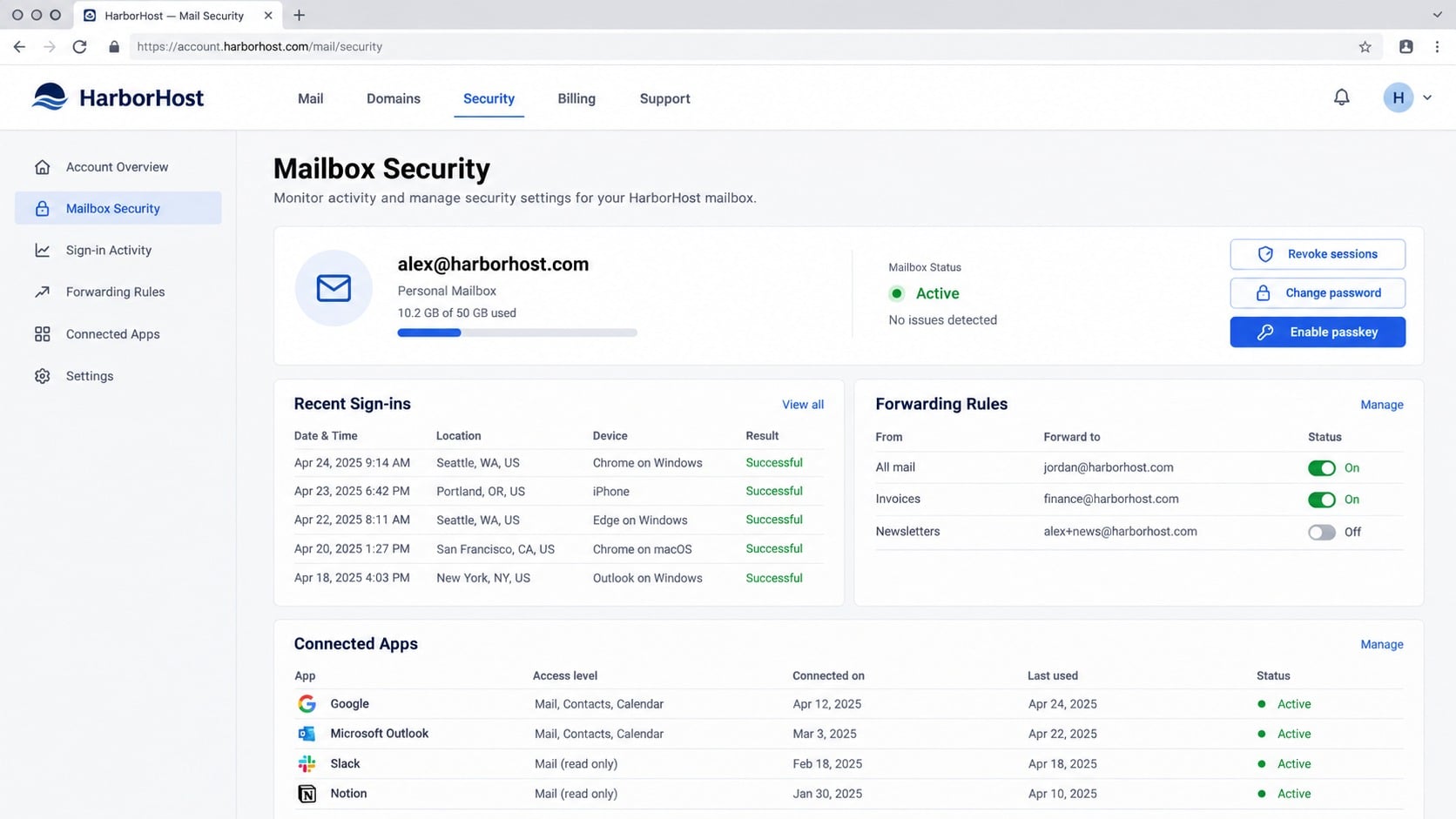
Website compromise can remain quiet while the attacker establishes backups and waits for an opportunity.
Compare current settings with a known-good inventory rather than looking only for a defaced homepage.
- An unfamiliar administrator or reseller account appears.
- New FTP, SSH, database, or API credentials exist.
- Mail forwarders send messages outside the organization.
- Website files changed without a deployment.
- Scheduled tasks run unknown scripts.
- DNS or nameserver records point elsewhere.
- Backups were deleted or retention settings changed.
- Security notifications disappear from hosted mailboxes.
- Outgoing mail volume rises unexpectedly.
- Visitors report redirects, warnings, or counterfeit pages.
Hosting logs, content-management audit records, and external monitoring can reveal activity the main dashboard does not show.
What to Do if You Have Fallen Victim to This Scam
- Close the fake page. Do not retry credentials, submit a one-time code, approve a prompt, or download any verification utility.
- Contact the hosting provider through a verified route. Report the exposure and ask it to preserve logs before routine retention removes them.
- Reset credentials from a clean device. Change cPanel, WHM, webmail, FTP, SSH, database, registrar, billing, and content-management passwords where exposure is possible.
- Revoke persistent access. Remove unknown sessions, users, keys, tokens, forwarders, delegates, recovery details, and external applications.
- Enable two-factor authentication. cPanel supports a six-digit authenticator code when the hosting provider enables that feature.
- Audit website and server changes. Compare files, databases, DNS, scheduled tasks, redirects, mail settings, and backups with trusted baselines.
- Run a full Malwarebytes scan. Check the device used for the phish for stealers, malicious extensions, or downloads that could capture replacement credentials.
- Restore only verified content. Use clean backups after closing the entry point, and preserve one untouched copy for investigation.
- Notify affected users and customers. Warn them about suspicious mail, password resets, redirects, and possible data exposure when the investigation supports that risk.
- Add AdGuard as another defensive layer. It can block many known phishing and malicious advertising destinations, but trusted bookmarks and account monitoring remain necessary.
Is Your Device Infected? Run a Free Malware Scan
Slow performance, constant pop-ups, or strange behavior? These are classic signs of a malware infection. The fastest way to find out is to scan your device with Malwarebytes Free — one of the most trusted malware removal tools available.
The free version detects and removes the most common threats, including:
- Adware — the cause of those annoying pop-ups
- Browser hijackers — unwanted redirects and changed homepages
- Trojans and spyware — hidden programs stealing your data
- Potentially unwanted programs (PUPs) — software you never asked for
👉 Select your device below — Windows, Mac, or Android — then follow the simple steps to download Malwarebytes, scan your system, and remove any threats it finds. The scan usually takes 5 to 20 minutes.
Run a Malware Scan with Malwarebytes for Windows
Malwarebytes is one of the most popular and trusted anti-malware tools for Windows — and it’s completely free for removing infections. It catches threats that many antivirus programs miss, including adware, browser hijackers, and trojans. Follow the steps below to scan and clean your PC in just a few minutes.
Download Malwarebytes
Click the button below to download the latest version of Malwarebytes for Windows from the official source. The free version is all you need — it will scan your computer and remove adware, browser hijackers, and other malicious software at no cost.
Download MalwarebytesOfficial installer for Windows 11 and 10. Your download starts right away.Want real-time protection? See Malwarebytes Premium Malwarebytes Free for WindowsScans and removes malware at no cost
-
Install Malwarebytes
When the download finishes, open your Downloads folder and double-click the MBSetup file. If Windows shows a User Account Control pop-up, click “Yes” to allow the installation.

Follow the On-Screen Prompts to Install Malwarebytes
The setup wizard will walk you through a few quick screens:
-
Choose where you’re installing the program — “Personal Computer” or “Work Computer” — then click Next.

-
Malwarebytes will now install on your device. This usually takes under a minute.

-
When installation is complete, the “Welcome to Malwarebytes” screen will open automatically.

-
On the final screen, click Open Malwarebytes to launch the program.

-
Enable “Scan for Rootkits”
Before scanning, turn on rootkit detection so Malwarebytes can find even the most hidden threats. Click the Settings gear icon on the left side of the screen.

In the settings menu, find “Scan for rootkits” and click the toggle so it turns blue.

Done? Click “Dashboard” in the left pane to return to the main screen.
Start the Scan
Click the blue Scan button. Malwarebytes will automatically update its virus database and start checking your computer for malware.

-
Wait for the Scan to Finish
The scan checks your entire system for browser hijackers and other malicious programs, so it can take 5 to 20 minutes depending on your computer. Feel free to do something else — just check back occasionally to see the progress.

-
Quarantine the Detected Threats
When the scan is done, you’ll see a list of everything Malwarebytes found — malware, adware, and potentially unwanted programs. Click the “Quarantine” button to remove all of them at once.

Malwarebytes will now remove the malicious files and registry entries and move them safely into quarantine.

-
Restart Your Computer
Some threats can only be fully removed after a reboot. If Malwarebytes asks you to restart, click Yes. Once you’re logged back in, Malwarebytes has finished removing the threats it found.

That’s it — your Windows PC is now clean of trojans, adware, and other malware, and should be back to running smoothly.
If you are still having problems with your computer after completing these instructions, then please follow one of the steps:
- Run a computer scan with ESET Online Scanner
- Ask for help in our Windows Malware Removal Help & Support forum.
Run a Malware Scan with Malwarebytes for Mac
Malwarebytes for Mac is a free on-demand scanner that removes the malware other security software tends to miss — adware, browser hijackers, and unwanted programs included. Cleaning an infected Mac with Malwarebytes has always been completely free, and it’s our go-to recommendation. Follow the steps below to scan and clean your Mac in just a few minutes.
-
Download Malwarebytes for Mac
Click the button below to download the latest version of Malwarebytes for Mac.
Download MalwarebytesOfficial installer for macOS. Your download starts right away.Want real-time protection? See Malwarebytes PremiumMalwarebytes Free for MacScans and removes malware at no cost -
Open the Malwarebytes setup file
When the download finishes, open your Downloads folder and double-click the setup file to begin the installation.

-
Follow the On-Screen Prompts to Install Malwarebytes
The Malwarebytes for Mac Installer will guide you through a few quick screens. Click “Continue” and keep following the prompts until the installation completes.



When the installation is complete, Malwarebytes opens to the Welcome to Malwarebytes screen. Click “Get started“.
-
Select “Personal Computer” or “Work Computer”
Malwarebytes will ask what type of computer you’re installing it on. Click either Personal Computer or Work Computer, whichever applies.

-
Start the Scan
Click the “Scan” button. Malwarebytes will automatically update its detection database and begin checking your Mac for malware.

-
Wait for the Scan to Finish
Malwarebytes will scan your Mac for adware, browser hijackers, and other malicious programs. This can take a few minutes, so feel free to do something else — just check back occasionally to see the progress.

-
Quarantine the Detected Threats
When the scan is done, you’ll see a list of everything Malwarebytes found. Click the “Quarantine” button to remove all the threats at once.

-
Restart Your Mac
Malwarebytes will now remove all the malicious files it found. Some threats can only be fully removed after a reboot — if Malwarebytes asks you to restart, allow it. Once you’re logged back in, your Mac is clean.

That’s it — your Mac is now free of adware, rogue browser extensions, and other potentially harmful software.
If you are still experiencing problems while trying to remove a malicious program from your computer, please ask for help in our Mac Malware Removal Help & Support forum.
Run a Malware Scan with Malwarebytes for Android
Malwarebytes for Android automatically detects and removes dangerous threats like malware and ransomware so you don’t have to worry about your most-used device being compromised. Aggressive detection of adware and potentially unwanted programs keeps your Android phone or tablet running smooth.
-
Download Malwarebytes for Android.
You can download Malwarebytes for Android by clicking the link below.
Get Malwarebytes for AndroidOpens Google Play in a new tab.Want real-time protection? See Malwarebytes Premium for AndroidMalwarebytes for AndroidScans your phone and removes malware at no cost -
Install Malwarebytes for Android on your phone.
In the Google Play Store, tap “Install” to install Malwarebytes for Android on your device.

When the installation process has finished, tap “Open” to begin using Malwarebytes for Android. You can also open Malwarebytes by tapping on its icon in your phone menu or home screen.

-
Follow the on-screen prompts to complete the setup process
When Malwarebytes will open, you will see the Malwarebytes Setup Wizard which will guide you through a series of permissions and other setup options.
This is the first of two screens that explain the difference between the Premium and Free versions. Swipe this screen to continue.
Tap on “Got it” to proceed to the next step.
Malwarebytes for Android will now ask for a set of permissions that are required to scan your device and protect it from malware. Tap on “Give permission” to continue.
Tap on “Allow” to permit Malwarebytes to access the files on your phone.
-
Update database and run a scan with Malwarebytes for Android
You will now be prompted to update the Malwarebytes database and run a full system scan.

Click on “Update database” to update the Malwarebytes for Android definitions to the latest version, then click on “Run full scan” to perform a system scan.

-
Wait for the Malwarebytes scan to complete.
Malwarebytes will now start scanning your phone for adware and other malicious apps. This process can take a few minutes, so we suggest you do something else and periodically check on the status of the scan to see when it is finished.

-
Click on “Remove Selected”.
When the scan has been completed, you will be presented with a screen showing the malware infections that Malwarebytes for Android has detected. To remove the malicious apps that Malwarebytes has found, tap on the “Remove Selected” button.

-
Restart your phone.
Malwarebytes for Android will now remove all the malicious apps that it has found. To complete the malware removal process, Malwarebytes may ask you to restart your device.
That’s it — your Android phone is now clean — no more malicious apps, adware, or browser redirects.
If you are still having problems with your phone after completing these instructions, then please follow one of the steps:
- Restore your phone to factory settings by going to Settings > General management > Reset > Factory data reset.
- Ask for help in our Mobile Malware Removal Help & Support forum.
Stay Protected: Block Ads and Malicious Sites
Now that your device is clean, keep it that way. Most infections start with a malicious ad or a fake download button — so blocking them at the source is your best defense.
We recommend AdGuard, which blocks malicious ads, phishing pages, and dangerous redirects before they can reach you.
👉 Download AdGuard and browse safely
How Hosting Administrators Can Reduce Future Risk
Use separate unique passwords for hosting, webmail, registrar, content management, databases, and billing.
Enable two-factor authentication for cPanel and WHM where the provider supports it. Protect email and registrar accounts with equally strong controls.
Prefer scoped API tokens and individual administrator identities over shared master credentials.
Limit FTP and SSH access, remove unused accounts, restrict source addresses, and review keys on a schedule.
Maintain offline or immutable backups outside the same control panel, then test restoration regularly.
Monitor file integrity, DNS changes, mail volume, new users, forwarders, and authentication events.
Document the hosting provider’s real support address and control-panel route so employees do not search or follow email links during an emergency.
Frequently Asked Questions
Is the cPanel Roundcube Email Verification email genuine?
The analyzed message is phishing. It falsely ties anti-phishing improvements to mandatory verification and expected credential theft.
Check the known hosting-provider portal and cPanel route independently before acting on any similar notice.
Did cPanel send this verification request?
No. cPanel LLC has no connection with the campaign described here.
Its product names, visual identity, and security language were copied to make the email appear official.
Why would criminals want cPanel credentials?
A hosting panel can expose websites, files, databases, mailboxes, DNS, backups, FTP users, and application secrets.
That access can support data theft, website takeover, spam, malware distribution, and further phishing.
Where should I log in to cPanel?
Use the address supplied by your established hosting provider, often through its customer portal or the server’s secure port 2083.
Do not let an unsolicited email introduce a replacement login domain.
Is changing the main password enough?
No. Review users, sessions, FTP accounts, SSH keys, API tokens, forwarders, DNS, scheduled tasks, databases, and website files.
Attackers often create alternate access that survives one password reset.
Can cPanel use two-factor authentication?
Yes, when the hosting provider enables the feature. A login then requires the password and a six-digit authenticator code.
Ask the provider to reconfigure two-factor access if the existing setup may have been altered.
The Bottom Line
The cPanel Roundcube Email Verification email turns ordinary security language into a mailbox-credential trap. The threatened deactivation is meant to outrun independent verification.
Open the known provider portal instead. After any exposure, audit the complete hosting environment because hidden users and changed files can outlive a password reset.

Join the discussion
0 commentsShare your experience or ask a question about this article.
Discussion
Start the conversation
Have a question or something useful to share? Add the first comment.