


A sign-in alert from another country can make anyone fear that an account is already under attack. The instinct to secure it immediately is powerful.
That instinct is useful only when the warning leads somewhere trustworthy. The smallest technical details can show whether the rescue button creates a new danger.
Overview
A Frightening Login Report From China
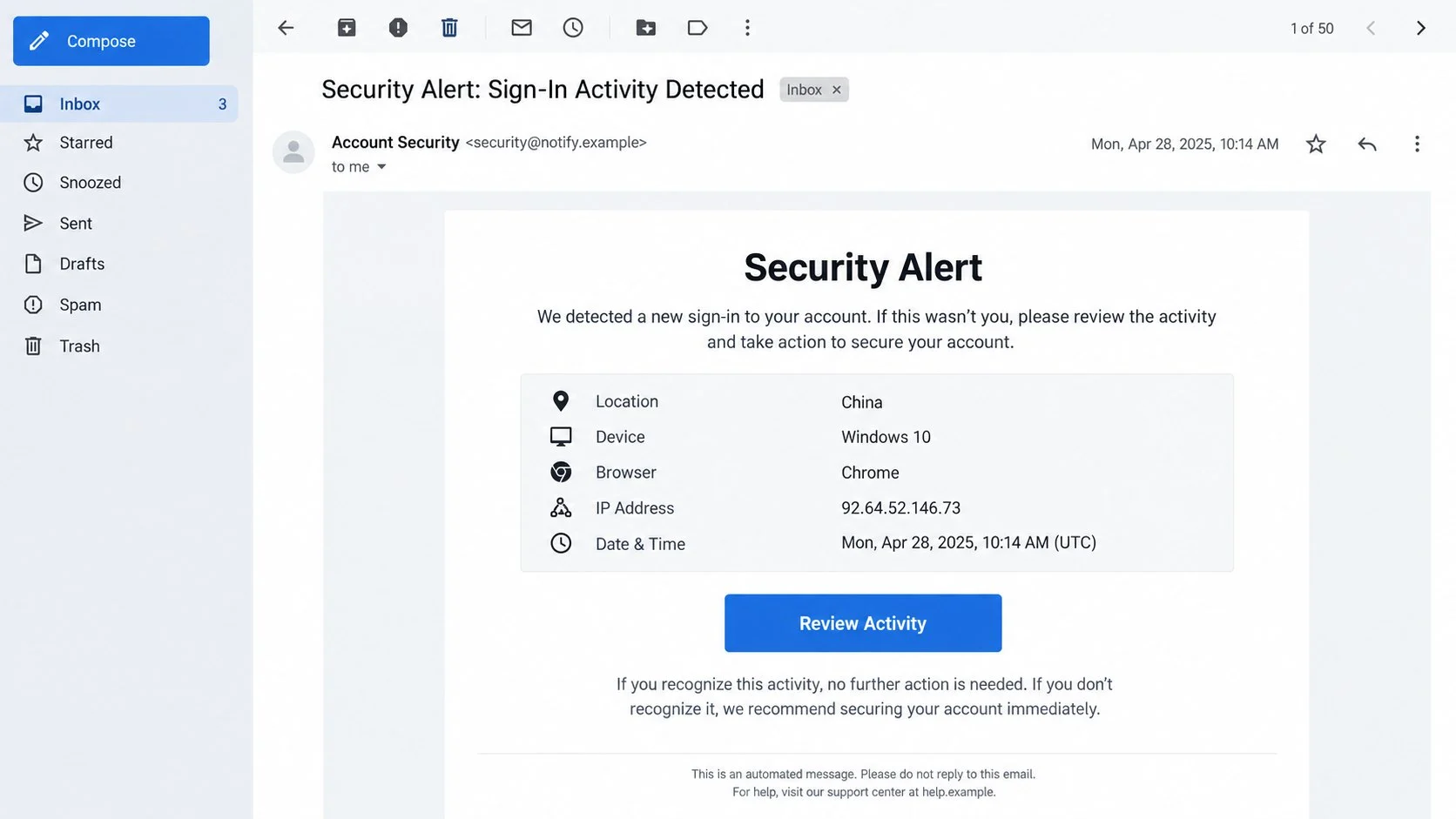
The Sign-In Activity Notice email scam claims an unfamiliar person accessed the recipient’s account. Its subject says “Security Alert: Sign-In Activity Detected.”
The alert lists China as the location, Windows 10 as the platform, and Chrome as the browser. It provides a timestamp to increase realism.
A blue “Review Activity” button appears to offer immediate protection. Worried recipients may click before checking whether the sender represents their actual provider.
The security event is fabricated. Its details serve as emotional pressure rather than evidence of a confirmed login.
The Listed IP Address Contains an Obvious Defect
The sample displays “92.64.52.146.73” as the source address. A standard IPv4 address contains four numeric sections, not five.
That malformed value is a strong clue that the template was assembled carelessly. It is not a valid record of the described connection.
- The sender uses a generic security identity.
- The alarming location is presented without account context.
- The supposed IPv4 address has too many sections.
- The review button points outside the claimed provider.
- The destination requests a password to inspect activity.
- No matching warning is required inside the genuine account.
A technical-looking table can feel authoritative. Each field still needs to make sense and come from an authenticated source.
The Security Button Opens a Credential Form
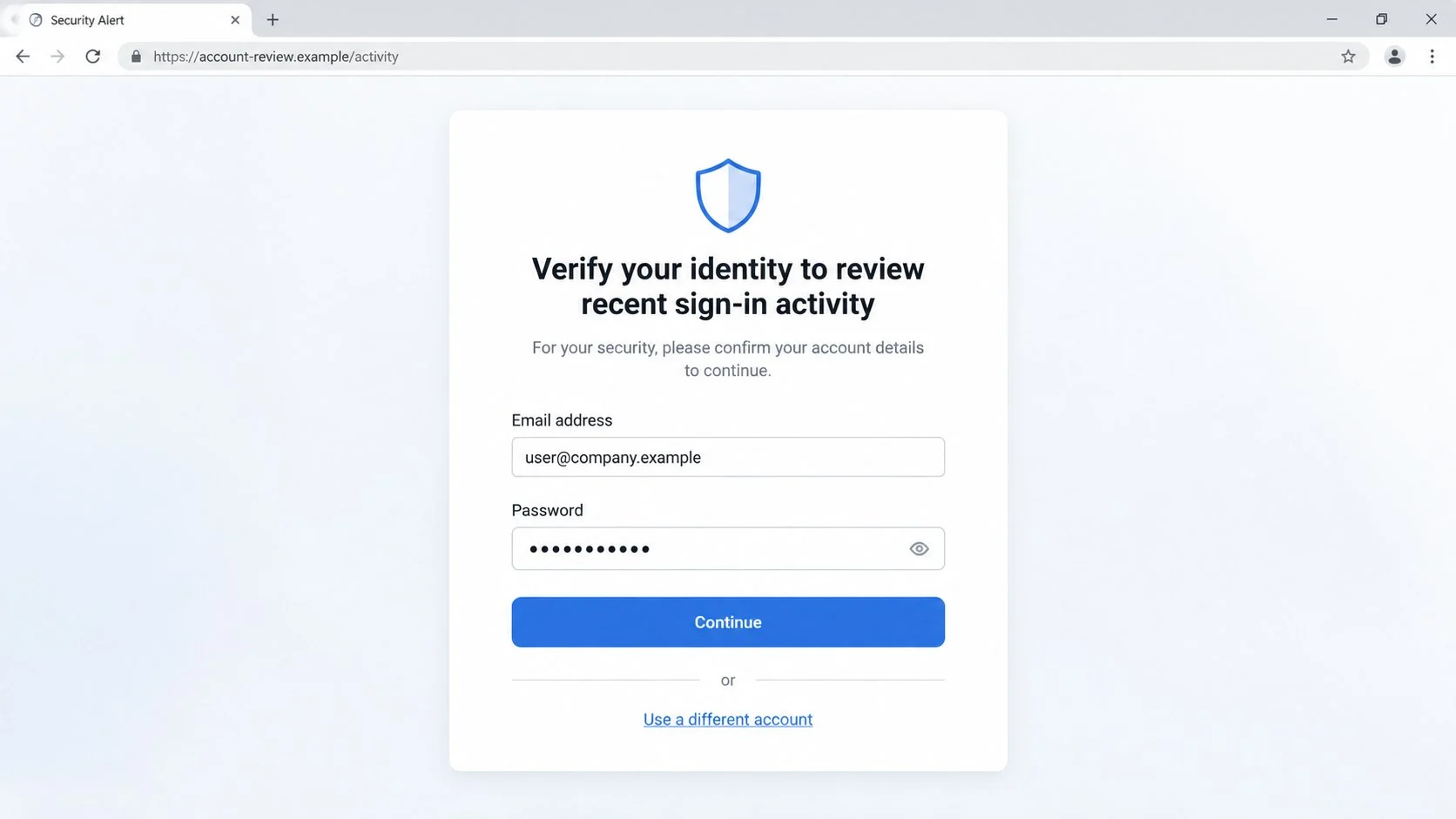
The review link sends the visitor to an unrelated website. The observed destination can adapt its appearance to imitate a familiar mail login.
The victim’s address may travel inside the URL and appear prefilled. That trick makes the page seem connected to the real account.
Entering a password sends valuable access information to criminals. It does not display a genuine activity log or remove an unauthorized session.
This is a credential-phishing operation. The warning manufactures fear, then positions credential disclosure as the way to resolve it.
How the Sign-In Activity Notice Email Scam Works
Step 1: The Message Creates an Immediate Account Emergency
Unexpected login alerts are among the few emails that reasonably demand quick attention. Criminals exploit that established security habit.
A foreign country intensifies concern. The recipient may assume an attacker possesses the password and that every second matters.
The subject and opening line repeat the security theme, leaving little room for neutral interpretation. Fear replaces the curiosity used by document scams.
A genuine alert may look similar, which is why visual appearance alone cannot decide the message’s legitimacy.
Step 2: Device Details Make the Story Concrete
Listing Windows 10 and Chrome gives the alert the texture of an actual audit record. Both are common enough to sound plausible.
The timestamp adds precision, even though the recipient cannot validate it from the email itself. Specificity often feels like proof when it is merely formatting.
China is chosen because distance implies obvious unauthorized access for many targets. A surprising location increases the chance of immediate action.
However, the malformed IP exposes poor construction. Five numeric groups cannot represent the standard IPv4 value that the table implies.
Step 3: “Review Activity” Appears to Be the Safe Choice
The call-to-action is framed as defensive rather than transactional. Clicking feels like protecting an account, not taking a risk.
The email may say no action is needed if the login was yours. This balanced wording imitates authentic security notifications.
Its button conceals the actual destination until the link is inspected. The page it opens is unrelated to the supposed mail provider.
Attackers depend on recipients trusting the purpose of a button instead of verifying the address behind it.
Step 4: The Landing Page Adapts to the Target
The phishing site can read an email address included in the link. It then displays the address and chooses a corresponding provider-like design.
A Gmail user may see colors and labels resembling Google, while another visitor sees a different familiar login style.
This adaptation is automated. It does not indicate that the provider sent the warning or recognizes the website.
The registered domain remains controlled by someone else. A copied interface cannot transfer legitimate ownership to that operator.
Step 5: Password Entry Supplies the Missing Credential
The page says identity verification is required before activity can be reviewed. Its password field is the campaign’s real objective.
Once submitted, the credential may be transmitted instantly. Some kits also request a verification code, attempting to bypass multifactor protection.
An error message can prompt another attempt and capture alternate passwords. A spinner may simply buy time while the operator tests the first entry.
The victim never receives an authentic security report because the page has no access to the provider’s account records.
Step 6: A Real Compromise Follows the Fake Warning
If the stolen password works, the attacker may establish a genuine session. An invented login notice has now caused actual unauthorized access.
They can change recovery options, approve connected applications, create forwarding rules, and inspect conversations for profitable opportunities.
The mailbox may unlock other services through password resets. A personal address can become the recovery key for shopping, social, and cloud accounts.
From a business account, the criminal can impersonate the employee. Colleagues may receive convincing security alerts from someone they already trust.
How to Verify a Sign-In Alert
Check Activity Inside the Real Account
Open the provider’s official application or type its established address yourself. Navigate to security, devices, or recent activity from that trusted session.
If the described login exists, use the controls provided there to secure the account. The email button is unnecessary for a legitimate response.
If no matching event appears, report the message as phishing. Do not return to its external review page.
Test Whether the Technical Details Are Coherent
Examine the timestamp, platform, browser, location, and network address. A malformed value can reveal that the record was never generated by a security system.
The five-part “92.64.52.146.73” value is not standard IPv4 notation. That defect undermines the entire event description.
Location estimates can be imperfect in genuine alerts, especially with mobile networks or VPNs. Formatting errors remain different from normal geolocation uncertainty.
Compare the Sender and Link With Known Provider Domains
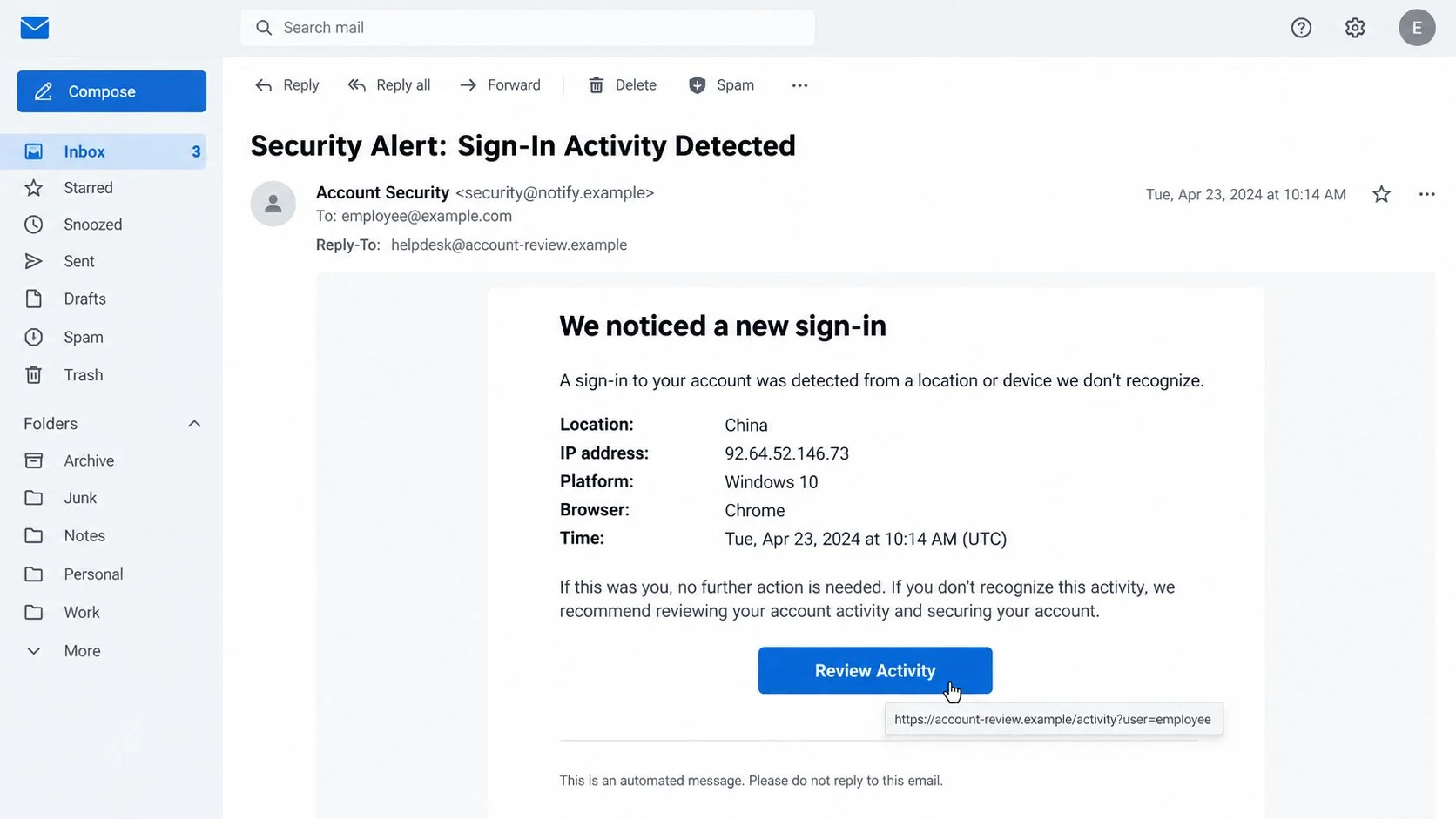
Expand the full sender information and check the reply address. Generic labels such as “Account Security” can conceal unrelated infrastructure.
Preview the review link without opening it. The registered domain should belong to the provider, not a compromised website or unfamiliar business.
Spelling, subdomain tricks, and extra words can make hostile addresses look familiar. Read the ownership portion carefully from right to left.
Use Independent Support When Doubt Remains
Contact support through the authenticated account, official application, or verified public website. Never call a number supplied only by the warning.
Business users should send the original message to their IT or security team. Administrators can compare the claim with tenant login logs.
No legitimate support agent needs your current password to investigate. A request for it confirms that the conversation is unsafe.
What to Do If You Fell Victim to the Sign-In Activity Notice Scam
A fast response can turn a submitted password into a contained incident. Complete the steps from a trusted device and genuine account portal.
- Exit the counterfeit page and document what occurred.
Close it without entering additional codes or passwords. Record the address, time, fields completed, and any files that were downloaded.
Keep the original alert with its headers. Workplace security teams can use those details to locate other targeted recipients.
- Change the real account password immediately.
Navigate to the provider independently and set a new, unique password. Do not use any recovery control shown on the phishing site.
Update other services that shared the old credential. Begin with accounts capable of moving money or resetting further identities.
- End sessions and review authentication methods.
Sign out every device, remove unknown trusted sessions, and inspect recovery addresses, telephone numbers, application passwords, and connected applications.
Enable a passkey, security key, or authenticator method. Replace backup codes if the account settings may have been visible.
- Search for persistence and unauthorized messages.
Check forwarding, inbox rules, filters, delegates, sent mail, archives, and deleted items. Remove settings or communications you cannot explain.
Review genuine login history again after containment. Note unfamiliar countries, devices, or consent events for the incident report.
- Protect contacts and connected services.
Warn recipients if your account sent unexpected alerts or links. Tell them the exact subject but avoid circulating the active destination.
Watch for password-reset emails and account-change notices. Intruders may attempt to pivot from the mailbox into other services.
- Scan if anything beyond the form was opened.
Credential theft was the observed goal, but adjacent campaigns can deliver malware. Run a complete Malwarebytes scan after opening any suspicious download.
AdGuard can help stop known phishing pages and malicious advertising chains. Keep it updated while remembering that filtering cannot verify every new domain.
- Report the campaign and any resulting loss.
Mark the message as phishing with the provider and follow organizational reporting rules. Save support tickets and security-action timestamps.
If financial or identity harm occurred, contact the affected company, bank, and appropriate fraud authority. Explain that mailbox access may be involved.
Is Your Device Infected? Run a Free Malware Scan
Slow performance, constant pop-ups, or strange behavior? These are classic signs of a malware infection. A quick way to check is to scan your device with Malwarebytes Free, one of the most trusted malware removal tools available. If you only visited a scam page and didn’t download or install anything, this scan is optional.
The free version detects and removes the most common threats, including:
- Adware — the cause of those annoying pop-ups
- Browser hijackers — unwanted redirects and changed homepages
- Trojans and spyware — hidden programs stealing your data
- Potentially unwanted programs (PUPs) — software you never asked for
👉 Select your device below — Windows, Mac, or Android — then follow the simple steps to download Malwarebytes, scan your system, and remove any threats it finds. The scan usually takes 5 to 20 minutes.
Run a Malware Scan with Malwarebytes for Windows
Malwarebytes is one of the most popular and trusted anti-malware tools for Windows — and it’s completely free for removing infections. It catches threats that many antivirus programs miss, including adware, browser hijackers, and trojans. Follow the steps below to scan your PC and remove what Malwarebytes finds.
Download Malwarebytes
Click the button below to download the latest version of Malwarebytes for Windows from the official source. The free version is all you need — it will scan your computer and remove adware, browser hijackers, and other malicious software at no cost.
Download MalwarebytesOfficial installer for Windows 11 and 10. Your download starts right away.Want real-time protection? See Malwarebytes Premium Malwarebytes Free for WindowsScans and removes malware at no cost
-
Install Malwarebytes
When the download finishes, open your Downloads folder and double-click the MBSetup file. If Windows shows a User Account Control pop-up, click “Yes” to allow the installation.

Follow the On-Screen Prompts to Install Malwarebytes
The setup wizard will walk you through a few quick screens:
-
Choose where you’re installing the program — “Personal Computer” or “Work Computer” — then click Next.

-
Malwarebytes will now install on your device. This usually takes under a minute.

-
When installation is complete, the “Welcome to Malwarebytes” screen will open automatically.

-
On the final screen, click Open Malwarebytes to launch the program.

-
Optional: Check for rootkits with a Custom Scan
You don’t need to change any settings for a normal scan. The standard Threat Scan in the next step is enough for most problems, so you can go straight to it.
If you also want to check for rootkits, use a Custom Scan. In current versions of Malwarebytes, rootkit scanning is only available there:
- On the Scanner tile, click the three-dot menu and select Advanced Scan.
- Choose Custom Scan. In its options, check Scan for rootkits.
- Select your system drive (usually C:\) as the location to scan, then start the scan. It takes longer than a Threat Scan.
- When it finishes, review and quarantine the results as described in the steps below.
Rootkit scanning isn’t available on Windows devices with ARM processors.
Start the Scan
Click the blue Scan button. Malwarebytes will automatically update its virus database and start checking your computer for malware.

-
Wait for the Scan to Finish
The scan checks your entire system for browser hijackers and other malicious programs, so it can take 5 to 20 minutes depending on your computer. Feel free to do something else — just check back occasionally to see the progress.

-
Quarantine the Detected Threats
When the scan is done, you’ll see a list of everything Malwarebytes found — malware, adware, and potentially unwanted programs. Click the “Quarantine” button to remove all of them at once.

Malwarebytes will now remove the malicious files and registry entries and move them safely into quarantine.

-
Restart Your Computer
Some threats can only be fully removed after a reboot. If Malwarebytes asks you to restart, click Yes. Once you’re logged back in, Malwarebytes has finished removing the threats it found.

When the scan is done, check whether the problems you noticed have stopped. If they continue, see the options below.
If you are still having problems with your computer after completing these instructions, then please follow one of the steps:
- Run a computer scan with ESET Online Scanner
- Ask for help in our Windows Malware Removal Help & Support forum.
Run a Malware Scan with Malwarebytes for Mac
Malwarebytes for Mac is a free on-demand scanner that removes the malware other security software tends to miss — adware, browser hijackers, and unwanted programs included. Cleaning an infected Mac with Malwarebytes has always been completely free, and it’s our go-to recommendation. Follow the steps below to scan your Mac and remove what Malwarebytes finds.
-
Download Malwarebytes for Mac
Click the button below to download the latest version of Malwarebytes for Mac.
Download MalwarebytesOfficial installer for macOS. Your download starts right away.Want real-time protection? See Malwarebytes PremiumMalwarebytes Free for MacScans and removes malware at no cost -
Open the Malwarebytes setup file
When the download finishes, open your Downloads folder and double-click the setup file to begin the installation.

-
Follow the On-Screen Prompts to Install Malwarebytes
The Malwarebytes for Mac Installer will guide you through a few quick screens. Click “Continue” and keep following the prompts until the installation completes.



When the installation is complete, Malwarebytes opens to the Welcome to Malwarebytes screen. Click “Get started“.
Malwarebytes needs Full Disk Access to check your whole Mac. When it asks, open System Settings > Privacy & Security > Full Disk Access, turn on Malwarebytes (it may be listed as Malwarebytes Protection), and confirm with your password or Touch ID. Then return to Malwarebytes. On macOS Monterey and earlier, this setting is in System Preferences > Security & Privacy > Privacy.
-
Select “Personal Computer” or “Work Computer”
Malwarebytes will ask what type of computer you’re installing it on. Click either Personal Computer or Work Computer, whichever applies.

-
Start the Scan
Click the “Scan” button. Malwarebytes will automatically update its detection database and begin checking your Mac for malware.

-
Wait for the Scan to Finish
Malwarebytes will scan your Mac for adware, browser hijackers, and other malicious programs. This can take a few minutes, so feel free to do something else — just check back occasionally to see the progress.

-
Quarantine the Detected Threats
When the scan is done, you’ll see a list of everything Malwarebytes found. Click the “Quarantine” button to remove all the threats at once.

-
Restart Your Mac
Malwarebytes will now remove all the malicious files it found. Some threats can only be fully removed after a reboot — if Malwarebytes asks you to restart, allow it. Once you’re logged back in, check whether the problems you noticed have stopped. If they come back, save the scan report and ask for help in our forum.

If the problems you noticed continue after the scan, see the options below.
If you are still experiencing problems while trying to remove a malicious program from your computer, please ask for help in our Mac Malware Removal Help & Support forum.
Run a Malware Scan with Malwarebytes for Android
Malwarebytes for Android scans your phone or tablet for malware, adware, and potentially unwanted apps. The free version scans only when you start a scan. Real-time protection, which checks apps automatically, is part of the paid Premium version.
-
Download Malwarebytes for Android.
You can download Malwarebytes for Android by clicking the link below.
Get Malwarebytes for AndroidOpens Google Play in a new tab.Want real-time protection? See Malwarebytes Premium for AndroidMalwarebytes for AndroidScans your phone and removes malware at no cost -
Install Malwarebytes for Android on your phone.
In the Google Play Store, tap “Install” to install Malwarebytes for Android on your device.

When the installation process has finished, tap “Open” to begin using Malwarebytes for Android. You can also open Malwarebytes by tapping on its icon in your phone menu or home screen.

-
Follow the on-screen prompts to complete the setup process
When Malwarebytes opens, it walks you through a short setup. Tap Get started and follow the prompts. If you see an offer for a trial or a paid plan, read it before you accept. You can skip it and keep using the free scanner.
Malwarebytes will ask for permission to access the files on your phone so it can scan them. Tap Allow, or turn on the permission in the Android screen that opens, then return to Malwarebytes.
-
Run a scan with Malwarebytes for Android
On the main screen, tap Scan now. In some versions, you open the menu, tap Scanner, and then tap Run a scan.
-
Wait for the Malwarebytes scan to complete.
Malwarebytes will now start scanning your phone for adware and other malicious apps. This process can take a few minutes, so we suggest you do something else and periodically check on the status of the scan to see when it is finished.

-
Remove the detected apps.
When the scan has been completed, you will see a list of the threats that Malwarebytes for Android has detected. Next to each detected item, tap the menu icon (three dots), then choose to uninstall the app or delete the file. Android then asks you to confirm. Tap OK or Uninstall to remove the app.
-
Restart your phone.
When the detected apps are removed, restart your phone if Malwarebytes asks you to. Then check whether the problems you noticed have stopped.
If the problems you noticed continue after the scan, see the options below.
If you are still having problems with your phone after completing these instructions, then please follow one of the steps:
- Ask for help in our Mobile Malware Removal Help & Support forum.
- Only as a last resort, reset your phone to factory settings. Read the warning below first.
- Back up your photos, videos, files, and messages, for example to your Google account or a computer.
- Make sure you know your Google account email and password. The phone asks for them after the reset. If you changed the password recently, Google recommends waiting 24 hours before you reset.
- On a Samsung phone, also make sure you know your Samsung account password.
- If you use an authenticator app for two-step verification, move your accounts to another device or save your backup codes first.
Stay Protected: Block Ads and Malicious Sites
No scan can prove a device is completely clean, so it helps to block threats before they reach you. Most infections start with a malicious ad or a fake download button — so blocking them at the source is your best defense.
We recommend AdGuard, which blocks malicious ads, phishing pages, and dangerous redirects before they can reach you.
👉 Download AdGuard and browse safely
Real Security Alerts Versus Manufactured Panic
A genuine alert tells the account owner what happened, but it also allows confirmation inside the provider’s established security center.
Fraudulent warnings make their own button feel like the only solution. They try to keep the recipient inside a route controlled by the sender.
Authentic providers know which account generated the event. Generic messages that omit the relevant address, service, or account context deserve skepticism.
Real event records use valid technical formats. They may contain imperfect location estimates, but basic network notation should not be impossible.
A provider may ask the user to sign in. That authentication must occur on its known domain or official application, not a newly introduced website.
Security notifications should never request a password by reply. Support staff can verify ownership through established account mechanisms.
The safest habit is simple: treat the email as an alert, then leave it. Investigate through the service you already know.
Why the Foreign-Login Story Is So Effective
Account security is personal. A warning suggests someone may be reading private messages, impersonating the owner, or resetting other accounts.
A distant location makes the threat easy to visualize. The recipient does not need technical knowledge to decide that the login seems wrong.
Familiar device labels add credibility without identifying a real attacker. Windows and Chrome are common enough to suit millions of fabricated records.
The button label avoids suspicious words such as “submit password.” “Review Activity” sounds cautious and responsible.
The landing page then reframes credential entry as verification. Fear makes the request seem connected to stopping the alleged intruder.
Prefilling the email address creates apparent continuity. The victim may believe the page received account information securely from the provider.
In fact, the attacker supplied both the warning and the website. The entire sequence is a closed performance with no authenticated evidence.
Taking a separate route breaks that performance. Once the real activity log is open, the scammer’s page loses authority.
Practical Security Improvements for Mail Accounts
Use a password manager to create a distinct credential for every important service. Reuse allows one stolen password to unlock unrelated accounts.
Prefer passkeys or hardware-backed authentication. These methods bind sign-in more closely to the legitimate website and resist ordinary counterfeit forms.
Enable genuine login notifications, then learn where they appear inside the account. Familiarity with the real security center makes independent checking faster.
Review active sessions periodically rather than waiting for an emergency email. Remove old devices and applications that no longer require access.
Keep recovery information current and protected. An abandoned telephone number or old secondary address can undermine otherwise strong authentication.
Businesses should alert on unusual sign-ins, suspicious inbox rules, and risky application consent. Each signal can reveal activity that a password change misses.
Teach staff to report security alerts without clicking. A rapid internal check is safer than asking every user to judge technical details alone.
Do not punish honest reporting. People disclose mistakes earlier when they expect practical help instead of blame.
Finally, practice recovery before an incident. Knowing the provider’s authentic route reduces the temptation to trust a convenient emergency button.
Frequently Asked Questions
Was there really a sign-in from China?
The email provides no trustworthy evidence of one. Check the genuine provider’s activity log to determine whether any matching event occurred.
Is 92.64.52.146.73 a valid IP address?
It is not valid standard IPv4 notation because it contains five numeric groups. That error is a notable warning sign.
Why did the fake page already know my address?
The email link can include the address as a parameter. The destination reads it and fills the field automatically.
What if my provider also sends sign-in alerts?
Assume neither legitimacy nor fraud from appearance alone. Open the provider independently and compare the warning with its real security records.
Could clicking alone compromise the account?
The documented objective is password collection. If you entered nothing and downloaded nothing, close the page and report the email.
Should I change my password after every alert?
Change it when genuine activity is unauthorized or credentials were exposed. Verify through the real account rather than responding blindly to email.
The Bottom Line
The Sign-In Activity Notice email fabricates a foreign login and uses a review button to deliver a counterfeit authentication form.
Check activity directly with the provider, question malformed technical details, and never submit credentials through an unsolicited security-alert link.

Join the discussion
0 commentsShare your experience or ask a question about this article.
Discussion
Start the conversation
Have a question or something useful to share? Add the first comment.