

Mailbox updates are usually quiet background events. When an email says outdated settings may block incoming messages, the request can feel both technical and urgent.
The polished notice below uses that concern carefully. Understanding its contradictions is more useful than judging the design alone.
Overview
A Supposedly Outdated Mailbox
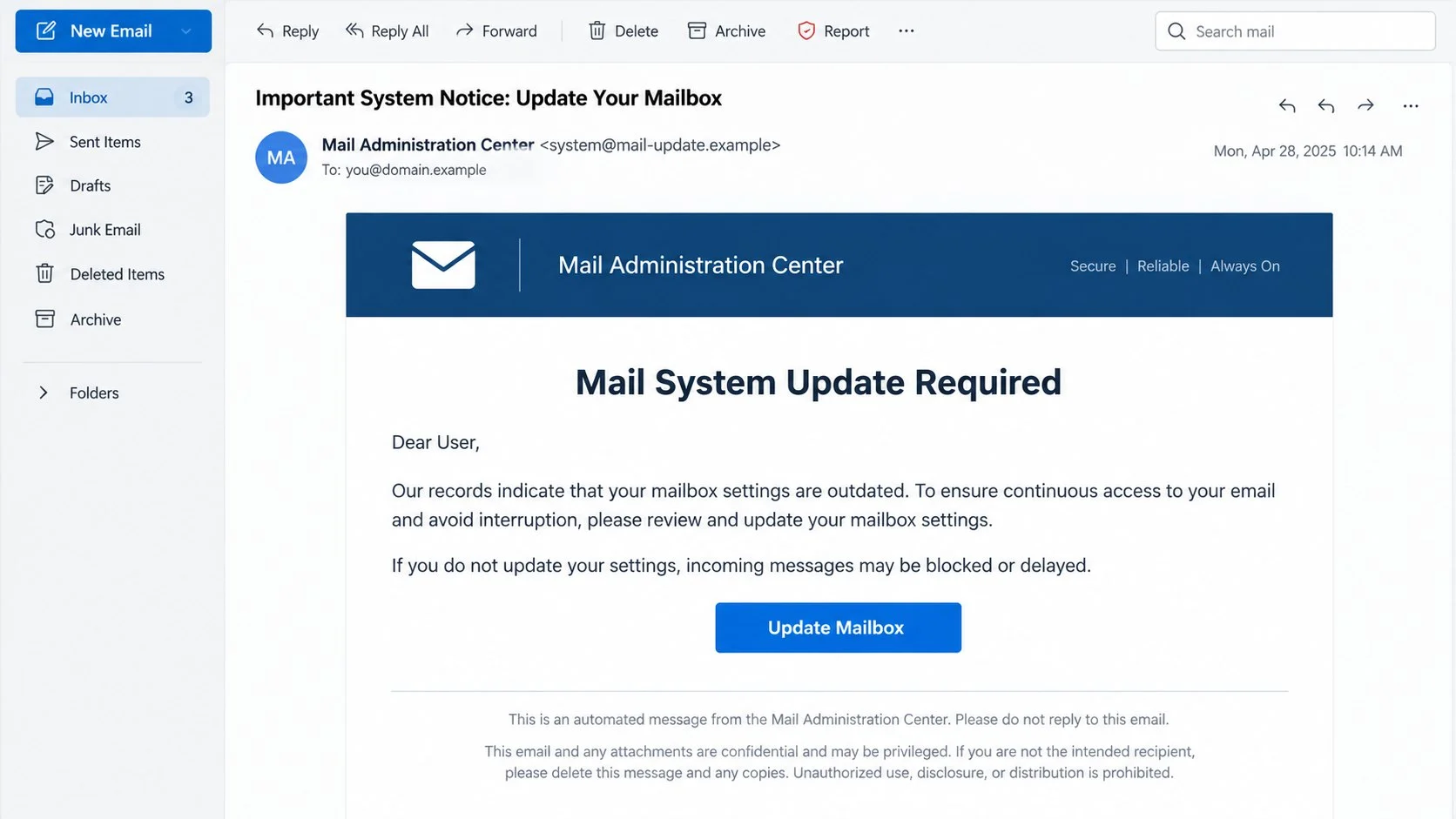
The Mail System Update Required email scam tells recipients their mailbox settings are outdated and must be refreshed immediately.
Its subject reads “Important System Notice: Update Your Mailbox.” The sender adopts the generic identity “Mail Administration Center.”
The body warns that incoming mail may be blocked or delayed until the update is completed. A blue “Update Mailbox” button provides the alleged fix.
Confidentiality language and an automated-message footer make the email look administrative. Neither element proves that a real mail operator sent it.
The Update Is Actually a Sign-In Form
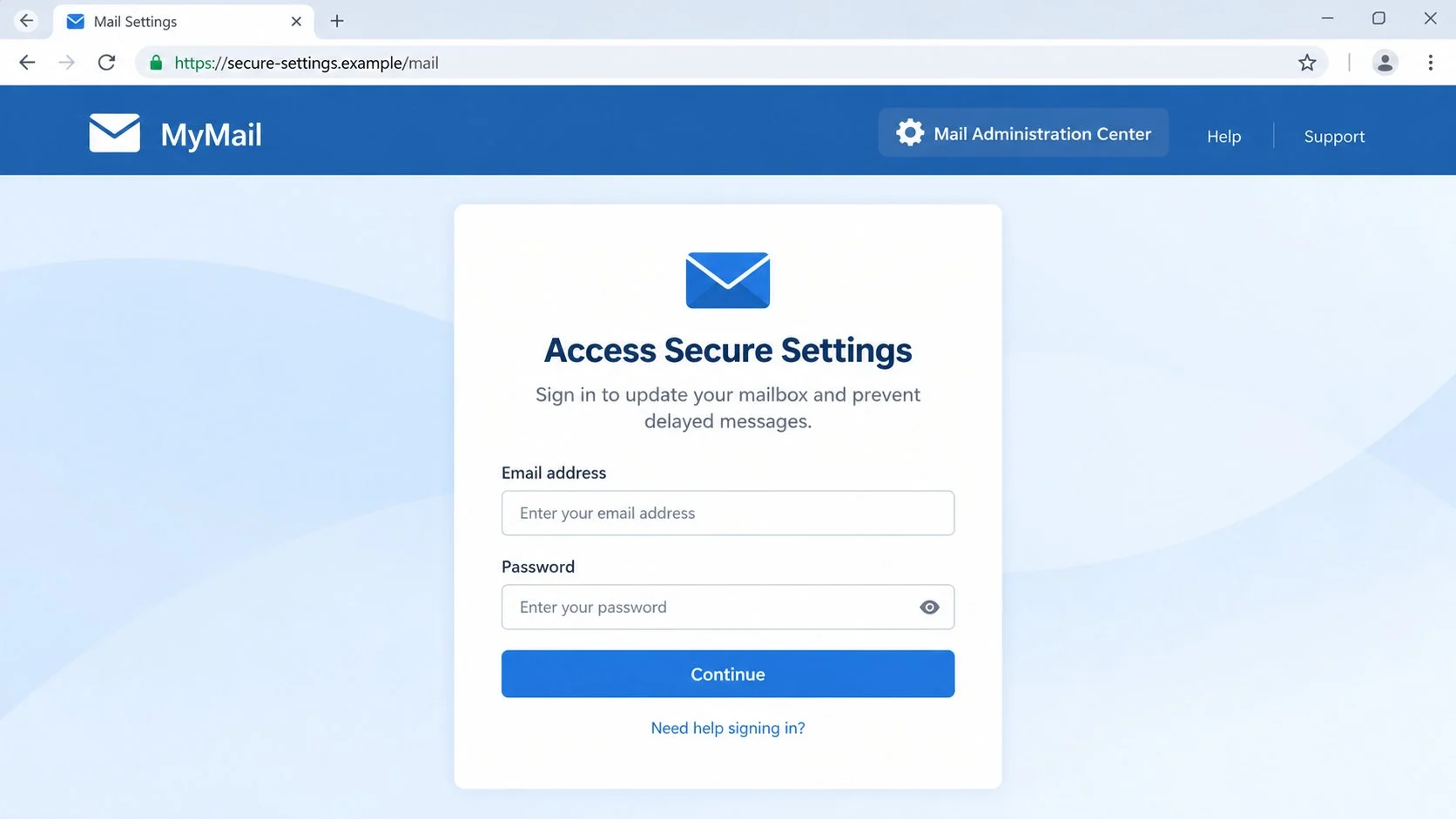
The button opens a counterfeit page hosted outside the recipient’s normal email environment. It asks for an address and password to “access secure settings.”
No mailbox configuration is updated. The submitted credentials are available to whoever controls the form.
- The sender uses a vague administrative title.
- No provider, hosting plan, or server is identified.
- The warning invents blocked or delayed incoming mail.
- The embedded button hides an unrelated destination.
- The page copies a generic provider login.
- A password is requested for a supposed settings refresh.
- Boilerplate confidentiality text adds false formality.
Legitimate providers update server software without collecting passwords through unsolicited pages. User action, when needed, is available inside an established account portal.
The Risk Extends Beyond Missed Email
Mailbox access gives intruders a view into personal and professional relationships. They can search for passwords, financial records, identity documents, and private discussions.
They may reset other accounts by intercepting recovery links. The email address then becomes a master key for services tied to it.
At work, one compromised account can support invoice fraud or confidential-data theft. Internal messages from a known colleague carry built-in credibility.
The campaign is a credential-harvesting scheme. Its talk of mail-system maintenance exists solely to make an external login request seem necessary.
How the Mail System Update Required Scam Works
Step 1: A Generic Administrator Claims There Is a Problem
The message introduces itself as coming from a “Mail Administration Center.” That title sounds official but does not identify a real organization.
Broad naming is deliberate. One template can reach customers of many providers because recipients may assume it refers to their own administrator.
The email lacks useful account facts such as the mailbox domain, storage plan, server name, ticket number, or previous support conversation.
Rather than explaining a measurable fault, it asserts that settings are outdated. The recipient is expected to accept the diagnosis.
Step 2: Delivery Problems Turn Maintenance Into an Emergency
The notice says incoming messages may be blocked or delayed. That possibility creates anxiety because missing mail is difficult to observe directly.
A delayed invoice, interview response, customer request, or password reset could matter. The campaign lets each reader imagine the message they most fear losing.
Genuine delivery incidents usually produce status information, bounce messages, or an administrator announcement. They do not remain visible only inside one unexpected email.
The warning also fails to name any affected sender or time period. Its threat is specific enough to worry but too vague to verify.
Step 3: Administrative Boilerplate Lowers Suspicion
A footer may describe the message as confidential, privileged, or automatically generated. Those sentences are frequently copied from ordinary corporate email.
Long disclaimers can make a page feel legally reviewed. In reality, anyone can paste them below fraudulent content.
The formal tone encourages recipients to treat the notice as routine IT work. That mental category can bypass the scrutiny applied to prizes or payment demands.
A real confidentiality notice says nothing about who owns the button’s destination. Technical evidence still matters.
Step 4: The Update Button Moves the User Off-Site
Clicking “Update Mailbox” sends the visitor to a page hosted separately from the actual mail provider. Some campaigns abuse legitimate cloud storage for this stage.
Cloud services make deployment easy and may initially look reputable. Their presence does not mean the provider examined or endorsed the uploaded page.
The route can include redirects that hide the final host from the email itself. It may also refuse access to automated security scanners.
Users should judge the final registered domain, not the color of the button or the reputation of an intermediate platform.
Step 5: A Familiar Form Collects the Credentials
The destination displays a conventional email login card. It may imitate a major provider or choose neutral styling that fits many services.
Text above the fields says authentication is needed to update secure settings. The explanation creates a false bridge between maintenance and password entry.
When a visitor submits the form, the data can be transmitted to the campaign operator. The real mailbox receives no configuration change.
A second password prompt may appear after a fabricated error. That tactic encourages people to provide another credential or confirm the first.
Step 6: The Compromised Inbox Becomes a Surveillance Point
The attacker can watch new conversations, collect reset messages, and learn which contacts or services are valuable.
Inbox rules may forward selected mail while leaving ordinary traffic untouched. Quiet surveillance can continue longer than obvious spam sent from the account.
Criminals may wait for a payment discussion, then insert altered bank details at a believable moment. Context makes the demand difficult to challenge.
They can also send more “system updates” from the trusted address. The initial victim’s reputation becomes part of the next lure.
How to Check a Mail System Update Request
Look for Evidence Inside the Real Service
Open your mail portal or application through its usual route. Check provider notices, service status, storage usage, recent errors, and administrative announcements.
If messages are genuinely blocked, the provider or domain administrator should have logs. Ask for the affected dates and delivery reason.
Send a harmless test message from another account if appropriate. Do not expose sensitive content merely to test the warning.
Identify the Responsible Administrator
Personal accounts are managed by a named provider. Workplace addresses belong to the employer’s technical team or contracted host, not an anonymous center.
Compare the sender address with known support tickets and earlier notices. A legitimate operator should use an established domain and verifiable contact route.
Call the internal help desk or open a ticket independently. Do not reply to the questionable email and ask its sender to validate itself.
Inspect the Update Destination
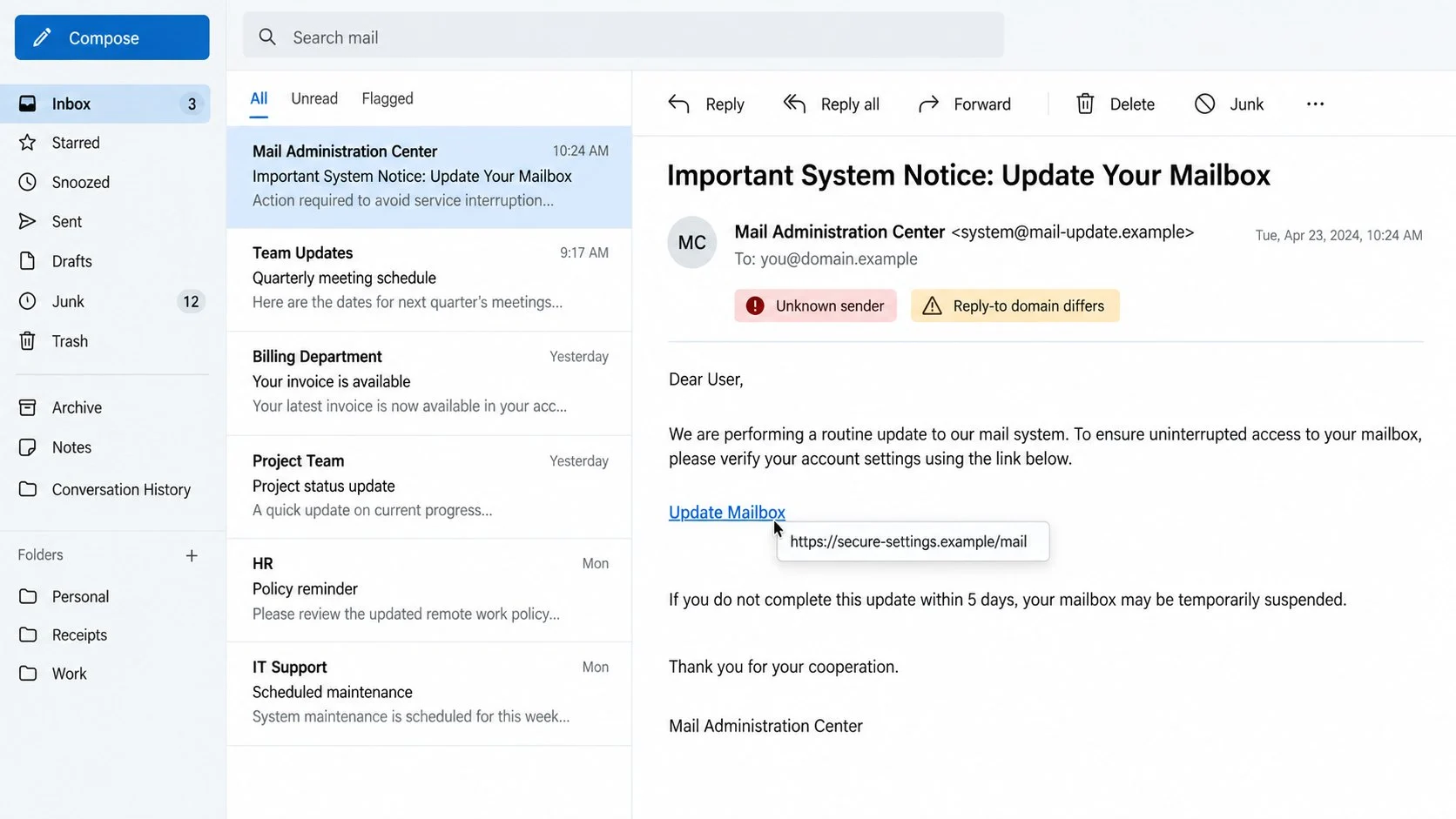
Preview the button without opening it. The hostname should belong to the same provider or identity platform your organization normally uses.
Cloud-storage links, newly introduced domains, spelling variations, and unrelated hosts are strong reasons to stop.
Even a perfect copy of the genuine sign-in screen remains fraudulent when loaded from the wrong domain.
Question Why a Password Is Needed
Server-side maintenance happens without customers revealing their existing secrets. Providers may ask users to sign in, but only through the recognized account portal.
An administrator should never request your password by email, telephone, chat, or an external form. They can reset access without knowing it.
If the page says it needs the password to read secure settings, leave. That explanation describes credential collection, not responsible account management.
What to Do If You Fell Victim to the Mail System Update Scam
Recovery is manageable when handled methodically. Secure the authentic account first, then remove any access or settings the intruder may have added.
- Stop the fake update process.
Close the page and avoid submitting more details. Keep the suspicious email and record the destination, submission time, and information entered.
Employees should contact their security team through an approved channel. Rapid reporting may protect every other recipient of the same campaign.
- Reset the mailbox password from a trusted device.
Navigate to the genuine provider independently and choose a new, exclusive password. Begin official recovery if normal sign-in no longer works.
Replace the exposed secret wherever it was reused. Do not make small variations that remain easy to test.
- Revoke access that a password change may miss.
Sign out other sessions and review application passwords, connected apps, trusted browsers, and authorized mail clients. Remove anything unfamiliar.
Check recovery addresses and telephone numbers. An attacker may alter them to regain entry after cleanup.
- Examine mail flow for hidden manipulation.
Inspect forwarding addresses, delegates, filters, rules, and aliases. Pay special attention to instructions that delete security or payment messages.
Review sent, trash, archive, and spam folders. Search for unfamiliar replies and password-reset confirmations.
- Strengthen authentication and related accounts.
Enable a passkey, security key, or authenticator-based verification. Regenerate backup codes if the mailbox previously stored them.
Secure services that rely on this inbox for recovery. Prioritize banking, cloud storage, work applications, and social networks.
- Check the device if the page delivered anything.
The documented lure sought passwords, but variants can push browser extensions or downloads. Use Malwarebytes to perform a full scan after opening either.
AdGuard can filter many malicious landing pages and deceptive ad routes. It adds useful friction, although it cannot authenticate every future email.
- Report the incident and limit secondary harm.
Use the provider’s phishing-report option and notify affected correspondents if messages were sent. Describe the lure without forwarding an active link.
For workplace accounts, ask administrators to inspect audit logs and payment-related conversations. Report financial loss through the appropriate institution and authority.
Is Your Device Infected? Run a Free Malware Scan
Slow performance, constant pop-ups, or strange behavior? These are classic signs of a malware infection. The fastest way to find out is to scan your device with Malwarebytes Free — one of the most trusted malware removal tools available.
The free version detects and removes the most common threats, including:
- Adware — the cause of those annoying pop-ups
- Browser hijackers — unwanted redirects and changed homepages
- Trojans and spyware — hidden programs stealing your data
- Potentially unwanted programs (PUPs) — software you never asked for
👉 Select your device below — Windows, Mac, or Android — then follow the simple steps to download Malwarebytes, scan your system, and remove any threats it finds. The scan usually takes 5 to 20 minutes.
Run a Malware Scan with Malwarebytes for Windows
Malwarebytes is one of the most popular and trusted anti-malware tools for Windows — and it’s completely free for removing infections. It catches threats that many antivirus programs miss, including adware, browser hijackers, and trojans. Follow the steps below to scan and clean your PC in just a few minutes.
Download Malwarebytes
Click the button below to download the latest version of Malwarebytes for Windows from the official source. The free version is all you need — it will scan your computer and remove adware, browser hijackers, and other malicious software at no cost.
Download MalwarebytesOfficial installer for Windows 11 and 10. Your download starts right away.Want real-time protection? See Malwarebytes Premium Malwarebytes Free for WindowsScans and removes malware at no cost
-
Install Malwarebytes
When the download finishes, open your Downloads folder and double-click the MBSetup file. If Windows shows a User Account Control pop-up, click “Yes” to allow the installation.

Follow the On-Screen Prompts to Install Malwarebytes
The setup wizard will walk you through a few quick screens:
-
Choose where you’re installing the program — “Personal Computer” or “Work Computer” — then click Next.

-
Malwarebytes will now install on your device. This usually takes under a minute.

-
When installation is complete, the “Welcome to Malwarebytes” screen will open automatically.

-
On the final screen, click Open Malwarebytes to launch the program.

-
Enable “Scan for Rootkits”
Before scanning, turn on rootkit detection so Malwarebytes can find even the most hidden threats. Click the Settings gear icon on the left side of the screen.

In the settings menu, find “Scan for rootkits” and click the toggle so it turns blue.

Done? Click “Dashboard” in the left pane to return to the main screen.
Start the Scan
Click the blue Scan button. Malwarebytes will automatically update its virus database and start checking your computer for malware.

-
Wait for the Scan to Finish
The scan checks your entire system for browser hijackers and other malicious programs, so it can take 5 to 20 minutes depending on your computer. Feel free to do something else — just check back occasionally to see the progress.

-
Quarantine the Detected Threats
When the scan is done, you’ll see a list of everything Malwarebytes found — malware, adware, and potentially unwanted programs. Click the “Quarantine” button to remove all of them at once.

Malwarebytes will now remove the malicious files and registry entries and move them safely into quarantine.

-
Restart Your Computer
Some threats can only be fully removed after a reboot. If Malwarebytes asks you to restart, click Yes. Once you’re logged back in, Malwarebytes has finished removing the threats it found.

That’s it — your Windows PC is now clean of trojans, adware, and other malware, and should be back to running smoothly.
If you are still having problems with your computer after completing these instructions, then please follow one of the steps:
- Run a computer scan with ESET Online Scanner
- Ask for help in our Windows Malware Removal Help & Support forum.
Run a Malware Scan with Malwarebytes for Mac
Malwarebytes for Mac is a free on-demand scanner that removes the malware other security software tends to miss — adware, browser hijackers, and unwanted programs included. Cleaning an infected Mac with Malwarebytes has always been completely free, and it’s our go-to recommendation. Follow the steps below to scan and clean your Mac in just a few minutes.
-
Download Malwarebytes for Mac
Click the button below to download the latest version of Malwarebytes for Mac.
Download MalwarebytesOfficial installer for macOS. Your download starts right away.Want real-time protection? See Malwarebytes PremiumMalwarebytes Free for MacScans and removes malware at no cost -
Open the Malwarebytes setup file
When the download finishes, open your Downloads folder and double-click the setup file to begin the installation.

-
Follow the On-Screen Prompts to Install Malwarebytes
The Malwarebytes for Mac Installer will guide you through a few quick screens. Click “Continue” and keep following the prompts until the installation completes.



When the installation is complete, Malwarebytes opens to the Welcome to Malwarebytes screen. Click “Get started“.
-
Select “Personal Computer” or “Work Computer”
Malwarebytes will ask what type of computer you’re installing it on. Click either Personal Computer or Work Computer, whichever applies.

-
Start the Scan
Click the “Scan” button. Malwarebytes will automatically update its detection database and begin checking your Mac for malware.

-
Wait for the Scan to Finish
Malwarebytes will scan your Mac for adware, browser hijackers, and other malicious programs. This can take a few minutes, so feel free to do something else — just check back occasionally to see the progress.

-
Quarantine the Detected Threats
When the scan is done, you’ll see a list of everything Malwarebytes found. Click the “Quarantine” button to remove all the threats at once.

-
Restart Your Mac
Malwarebytes will now remove all the malicious files it found. Some threats can only be fully removed after a reboot — if Malwarebytes asks you to restart, allow it. Once you’re logged back in, your Mac is clean.

That’s it — your Mac is now free of adware, rogue browser extensions, and other potentially harmful software.
If you are still experiencing problems while trying to remove a malicious program from your computer, please ask for help in our Mac Malware Removal Help & Support forum.
Run a Malware Scan with Malwarebytes for Android
Malwarebytes for Android automatically detects and removes dangerous threats like malware and ransomware so you don’t have to worry about your most-used device being compromised. Aggressive detection of adware and potentially unwanted programs keeps your Android phone or tablet running smooth.
-
Download Malwarebytes for Android.
You can download Malwarebytes for Android by clicking the link below.
Get Malwarebytes for AndroidOpens Google Play in a new tab.Want real-time protection? See Malwarebytes Premium for AndroidMalwarebytes for AndroidScans your phone and removes malware at no cost -
Install Malwarebytes for Android on your phone.
In the Google Play Store, tap “Install” to install Malwarebytes for Android on your device.

When the installation process has finished, tap “Open” to begin using Malwarebytes for Android. You can also open Malwarebytes by tapping on its icon in your phone menu or home screen.

-
Follow the on-screen prompts to complete the setup process
When Malwarebytes will open, you will see the Malwarebytes Setup Wizard which will guide you through a series of permissions and other setup options.
This is the first of two screens that explain the difference between the Premium and Free versions. Swipe this screen to continue.
Tap on “Got it” to proceed to the next step.
Malwarebytes for Android will now ask for a set of permissions that are required to scan your device and protect it from malware. Tap on “Give permission” to continue.
Tap on “Allow” to permit Malwarebytes to access the files on your phone.
-
Update database and run a scan with Malwarebytes for Android
You will now be prompted to update the Malwarebytes database and run a full system scan.

Click on “Update database” to update the Malwarebytes for Android definitions to the latest version, then click on “Run full scan” to perform a system scan.

-
Wait for the Malwarebytes scan to complete.
Malwarebytes will now start scanning your phone for adware and other malicious apps. This process can take a few minutes, so we suggest you do something else and periodically check on the status of the scan to see when it is finished.

-
Click on “Remove Selected”.
When the scan has been completed, you will be presented with a screen showing the malware infections that Malwarebytes for Android has detected. To remove the malicious apps that Malwarebytes has found, tap on the “Remove Selected” button.

-
Restart your phone.
Malwarebytes for Android will now remove all the malicious apps that it has found. To complete the malware removal process, Malwarebytes may ask you to restart your device.
That’s it — your Android phone is now clean — no more malicious apps, adware, or browser redirects.
If you are still having problems with your phone after completing these instructions, then please follow one of the steps:
- Restore your phone to factory settings by going to Settings > General management > Reset > Factory data reset.
- Ask for help in our Mobile Malware Removal Help & Support forum.
Stay Protected: Block Ads and Malicious Sites
Now that your device is clean, keep it that way. Most infections start with a malicious ad or a fake download button — so blocking them at the source is your best defense.
We recommend AdGuard, which blocks malicious ads, phishing pages, and dangerous redirects before they can reach you.
👉 Download AdGuard and browse safely
Real Mail Updates Versus Credential Traps
Providers do sometimes change authentication methods, storage policies, or supported applications. That reality gives this story a credible foundation.
Legitimate changes are normally documented in a help center and visible after independent sign-in. Customers are not confined to one unexpected link.
A genuine notice identifies the provider and explains which product, setting, or software version is affected. Generic urgency is not enough.
When reauthentication is required, the browser should remain on the established provider or organizational identity domain.
Technical teams never need to learn an existing password. Systems verify credentials; responsible staff do not ask users to disclose them.
Reducing Mailbox-Update Phishing at Work
Organizations should announce maintenance through predictable channels. Staff can then distinguish an internal notice from a surprise external message.
Publish the exact login and support addresses in an accessible location. Encourage employees to bookmark them before an incident occurs.
Use domain-based message authentication and display clear external-sender warnings. These measures improve context, though they do not replace user judgment.
Alert administrators when forwarding rules, delegates, recovery factors, or application passwords change. Those events often reveal persistence after credential theft.
Adopt phishing-resistant multifactor authentication for sensitive users. Passkeys and security keys do not hand a reusable secret to ordinary web forms.
Restrict sign-ins by risk, geography, or device where business needs allow. Investigate impossible travel and unusual mail downloads.
Finance processes should require confirmation outside email for bank-detail changes. A compromised inbox must not be sufficient authority to redirect money.
Most importantly, respond supportively to reports. Quick disclosure is far more valuable than punishing someone for an honest mistake.
Signs of an Actual Mail Configuration Problem
Real delivery failures often generate bounce messages containing recipient addresses, timestamps, server responses, and standardized error codes.
A full mailbox may show a storage meter near its limit. Senders can receive a clear quota-related rejection rather than an anonymous update demand.
Changes to DNS or provider migrations can interrupt mail, but administrators should announce them through documented channels and provide a support reference.
One affected sender may have a reputation or configuration problem of its own. That situation does not require the recipient to reveal a mailbox password.
Organizations can examine mail-flow logs to distinguish rejected, delayed, quarantined, and delivered messages. Each outcome leaves technical evidence.
Personal users can compare webmail with a phone or desktop client. When only one application fails, its local configuration may need attention.
These checks produce specific findings. The phishing email produces only an alarming statement and a button controlled by an unknown party.
Document the resolution after a genuine incident. Familiarity with the real support process makes later imitations easier to recognize.
Frequently Asked Questions
Are my mailbox settings really outdated?
The email supplies no reliable proof. Check the authentic account portal or ask the known administrator whether any change is required.
Can outdated settings block incoming messages?
Configuration problems can affect mail, but genuine incidents appear in logs, status notices, or support records. They do not justify an external password form.
Who is the Mail Administration Center?
In this campaign, it is a generic identity used by the sender. It does not name a verifiable provider, host, or organizational team.
Does the confidentiality footer make the notice legitimate?
No. Boilerplate disclaimers are easy to copy and provide no authentication. Sender ownership and the link’s registered domain are stronger evidence.
What if I updated my password on the fake page?
Treat every value entered there as exposed. Change the real account password independently, revoke sessions, and inspect rules and recovery settings.
Will changing my password remove forwarding rules?
Not necessarily. Review and delete unauthorized rules, delegates, connected applications, and forwarding addresses separately after securing access.
The Bottom Line
The Mail System Update Required email invents outdated settings and delivery problems to direct recipients toward a counterfeit credential form.
Check service notices inside the real portal and contact the known administrator. No legitimate mailbox update requires surrendering your existing password to an unfamiliar page.

Join the discussion
0 commentsShare your experience or ask a question about this article.
Discussion
Start the conversation
Have a question or something useful to share? Add the first comment.