

The email says your mailbox will be permanently deactivated unless you complete a required update. It gives you a deadline, repeats the threat, and places one convenient button in front of you.
Do not click it. The “Complete The Required Mailbox Update” message is a confirmed phishing scam built to capture your email address and password on a fake webmail login page.
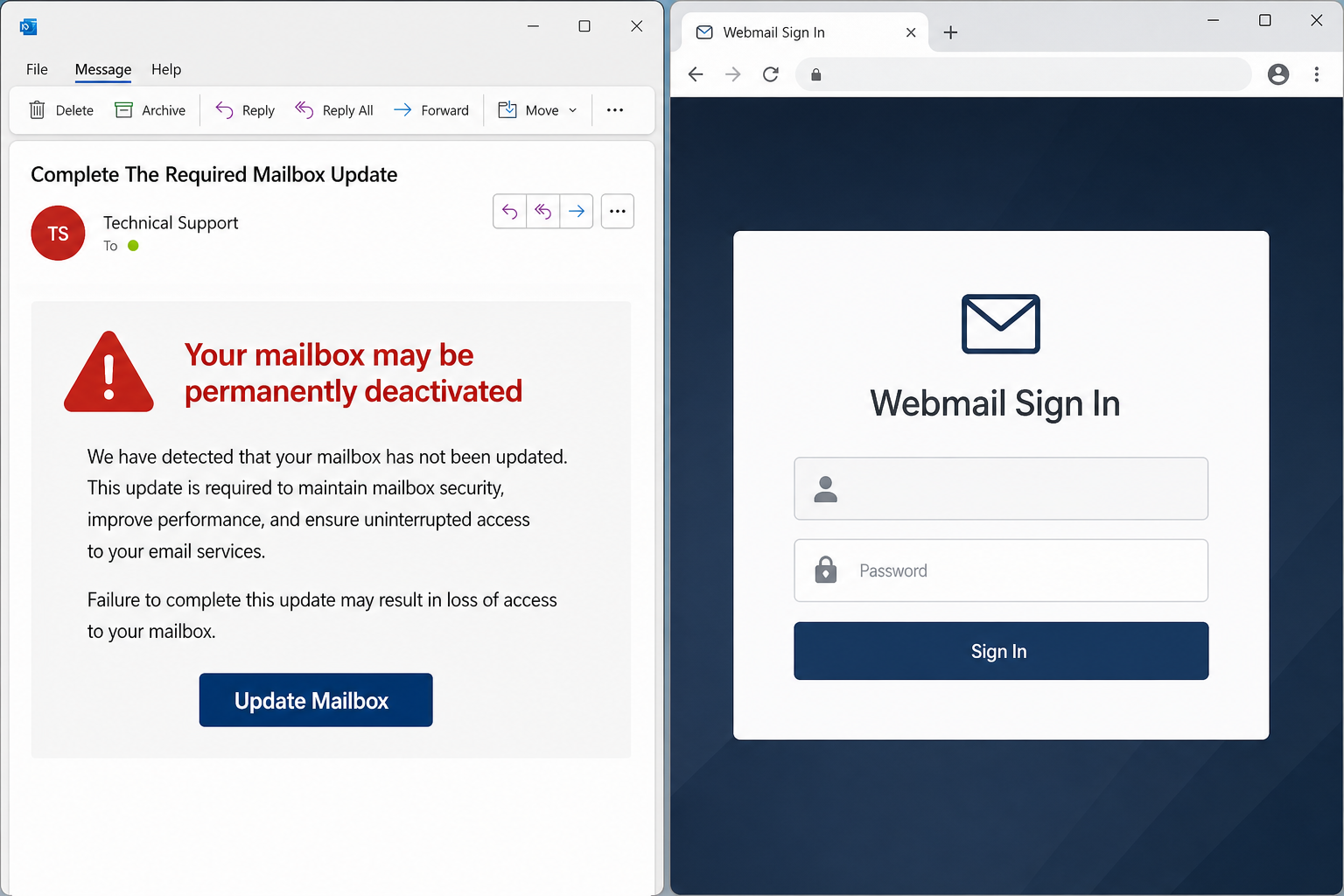
Complete The Required Mailbox Update Scam Overview
This campaign impersonates a vague “Technical Support Department” and claims that every user must update mailbox settings by a fixed date. The supposed reason is routine maintenance and security improvements. The consequence for ignoring the request is deliberately severe: permanent mailbox deactivation, service interruption, and loss of access to email.
The message is not a real system notice. It does not come from the recipient’s hosting provider, workplace IT team, cPanel, or a legitimate email service. The generic department name allows the same template to be sent to people using many different providers. Details such as the recipient’s email address or company name can be inserted automatically to make the warning feel personal.
The “Update Mailbox” button leads to a counterfeit webmail sign-in page styled to resemble a cPanel-hosted login. The email address may already be filled in, which creates the impression that the page recognizes the account. The password field is the real target. Anything typed there is sent to the criminals rather than used to update a mailbox.
The phishing page has been hosted through IPFS-related infrastructure, which can make a single fraudulent page harder to remove quickly. A stolen email password gives attackers far more than access to messages. They can reset linked accounts, search for invoices and identity documents, impersonate the victim, target coworkers or customers, and hide password-reset alerts. If the same password was reused elsewhere, every matching account is at risk.
The scam does not become legitimate because the page uses HTTPS, displays a padlock, or resembles the webmail service perfectly. Encryption only protects the connection to whichever server is in the address bar; it does not prove that the server belongs to the email provider. The only reliable destination is the verified login address you already use, opened independently of the message.
How the Mailbox Update Phishing Scam Works
Step 1: The email invents a mandatory update
The message claims that all users must complete a mailbox update as part of maintenance or a security enhancement. It does not explain which provider is performing the work or why a password must be entered through an email button.
A broad technical claim makes the scam portable. The same wording can target business mailboxes, hosted domains, and personal email accounts.
Step 2: A deadline creates panic
The email gives a near-term deadline and says accounts that are not updated may be permanently deactivated. The warning may be repeated in slightly different language to keep the threat at the center of the message.
This urgency is psychological pressure. Real providers give notices inside the authenticated account and provide support documentation; they do not normally erase a mailbox because a user ignored an unsolicited login link.
Step 3: The Update Mailbox button hides the destination
A large button makes the requested action look routine. On desktop, hovering over it may reveal an address unrelated to the provider. On a phone, the full link is easier to miss.
The page may be placed behind redirects or decentralized storage links to obscure where the form is really hosted.
Step 4: A fake webmail page asks for the password
The landing page copies familiar webmail colors, field layouts, and sign-in language. It may prefill the victim’s email address using information from the link, making the page feel connected to the real mailbox.
The browser address bar is the giveaway. A real webmail login should be on the organization’s verified domain, not an unfamiliar IPFS gateway, free-hosting page, or unrelated website.
Step 5: The credentials are sent to the scammers
When the victim submits the form, the password is captured. The page may show an error and ask for it again, redirect to the real provider, or display a fake confirmation. Those endings are meant to prevent immediate suspicion.
Because the victim typed the credentials willingly, the theft can succeed even when the computer itself has no malware.
Step 6: The stolen inbox is used for wider fraud
Attackers can read messages, find financial conversations, reset passwords, and impersonate the account owner. A work inbox can be used to request payments, change bank details on invoices, or send believable phishing messages from a trusted address.
The criminals may also create forwarding rules, delete security alerts, and add recovery methods so they retain access after a simple password change.
Signs This Mailbox Update Email Is Phishing
Here are signs that this email is a scam, even though it looks like it comes from a company you know — and even uses the company’s logo in the header:- A generic greeting is used in place of a name (eg. “customer,” “account holder,” or “dear”).
- The sender’s email address is not associated with a legitimate domain name
- The email invites you to click on a link to resolve an issue. Most reputable organizations will not ask users to disclose sensitive information (e.g. credit card numbers) by clicking on a link.
- There is a time limit or uncharacteristic sense of urgency
- Poor grammar, spelling, and sentence structure may hint that an email is not from a reputable source.
This particular campaign adds several more warning signs:
- The sender calls itself only “Technical Support Department” without naming a real provider or administrator.
- The message threatens permanent deactivation on a short deadline.
- The update supposedly requires a password through a button in the email.
- The link opens an unrelated or IPFS-based address instead of the real webmail domain.
- The fake login page already knows the email address because it was embedded in the phishing link.
- Wording such as “Thankyou” or inconsistent capitalization makes the notice look less professional.
What the Scammers Can Do With Your Email Password
- Read private messages, attachments, invoices, and identity documents.
- Reset passwords for shopping, cloud, social, and financial accounts.
- Impersonate you in conversations with coworkers, customers, friends, or family.
- Create hidden forwarding rules and delete security notifications.
- Search old mail for reused passwords, recovery codes, and payment information.
- Send phishing from your real address, making the next messages more convincing.
- Attempt credential stuffing anywhere you reused the same password.
What to Do If You Entered Your Password
- Open the provider’s real site manually. Do not return through the email link. Type the known address or use a trusted bookmark.
- Change the mailbox password immediately. Make it new, long, and unique. If that password was reused, change every other affected account as well.
- Sign out all active sessions. Look for a “log out everywhere” or “remove all devices” option so stolen cookies and sessions are invalidated where possible.
- Enable multi-factor authentication. Prefer an authenticator app or hardware security key. Review existing methods and remove phone numbers, devices, or backup addresses you do not recognize.
- Inspect forwarding and inbox rules. Delete unknown rules, forwarding addresses, delegated users, app passwords, and connected applications.
- Check sent, deleted, and archived mail. Look for messages you did not send and alerts the attacker may have hidden. Warn affected contacts through a separate channel.
- Contact your administrator or provider. A workplace account may require token revocation, audit-log review, and checks for business email compromise.
- Scan the device if you opened an attachment or downloaded a file. This campaign focuses on credential theft, but a malicious email can use more than one payload.
How to Check a Mailbox Notice Safely
Ignore the button and sign in through the provider’s normal website. If maintenance is genuinely required, the same notice should appear inside the authenticated account or official admin panel. For a work mailbox, forward the message as an attachment to the real IT or security team so headers and links remain available for analysis.
Never verify a mailbox by typing credentials into a page opened from an unexpected email. A legitimate provider already knows which account you are using and will direct you through its established domain, not an anonymous page that threatens deletion within hours.
Frequently Asked Questions
Does receiving the email mean my mailbox is already hacked?
No. Receiving a phishing message does not by itself give the sender access. The immediate danger begins if you submit credentials, approve a sign-in, or open a malicious attachment.
What if the password was rejected by the fake page?
Assume it was captured anyway. Fake forms often show an error on purpose to collect a second password or delay suspicion. Change the submitted password through the real provider and terminate active sessions immediately.
The Bottom Line
The “Complete The Required Mailbox Update” email is a credential-theft operation, not a maintenance notice. Its deadline, deactivation threat, and generic technical-support identity exist to rush you past the fake destination.
Delete the message if you did not interact with it. If you entered a password, change it through the real provider immediately, terminate active sessions, inspect forwarding rules, and alert your administrator before the attackers can turn the inbox into a wider fraud campaign.

Join the discussion
0 commentsShare your experience or ask a question about this article.
Discussion
Start the conversation
Have a question or something useful to share? Add the first comment.