


Email synchronization usually happens quietly, so a warning that it stopped can feel both confusing and urgent. Nobody wants important messages stranded somewhere unseen.
The notice offers a one-click repair, but the fastest-looking route is not necessarily connected to the mailbox it claims to protect.
Overview
The Message Invents a Synchronization Failure
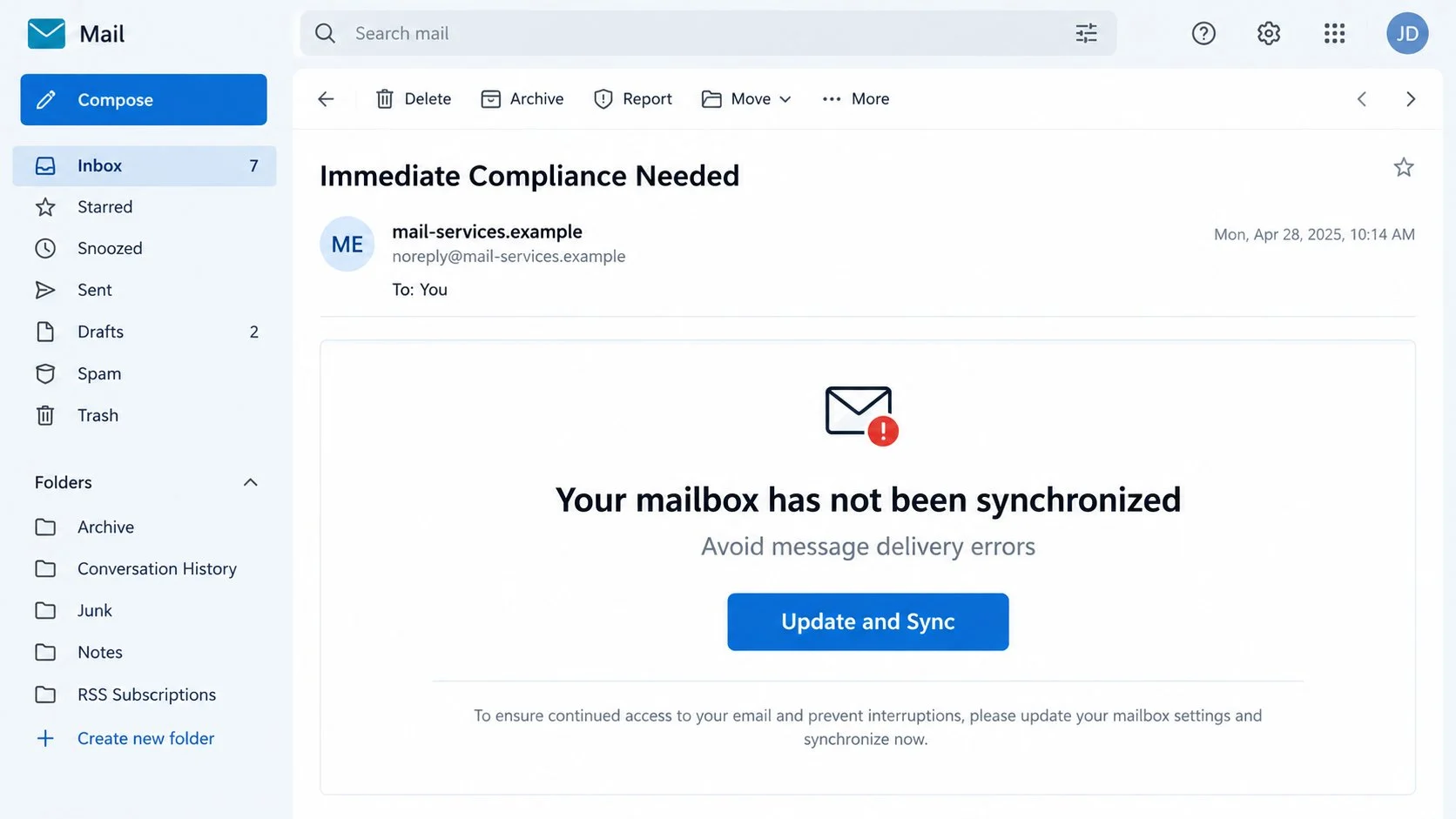
The Update and Synchronize Your Mailbox email claims the account has not synchronized since a precise date and time.
It warns that delivery, sent items, or other mailbox functions may fail. An “Update and Sync” button promises to correct everything immediately.
Synchronization is a familiar concept because messages appear across phones, browsers, and desktop applications. The campaign borrows that everyday experience.
However, the message does not identify a genuine provider, affected device, protocol, folder, or error code. Its explanation remains deliberately universal.
Labels such as “Mail Services” and “Webmail” sound official while avoiding a company name that recipients could verify.
The Claimed Repair Is Really a Password Request
The button directs the visitor away from normal mailbox settings. In examined campaigns, the original destination later became unavailable.
That disappearance is common. Phishing operators abandon addresses quickly when hosting companies or browser defenses begin blocking them.
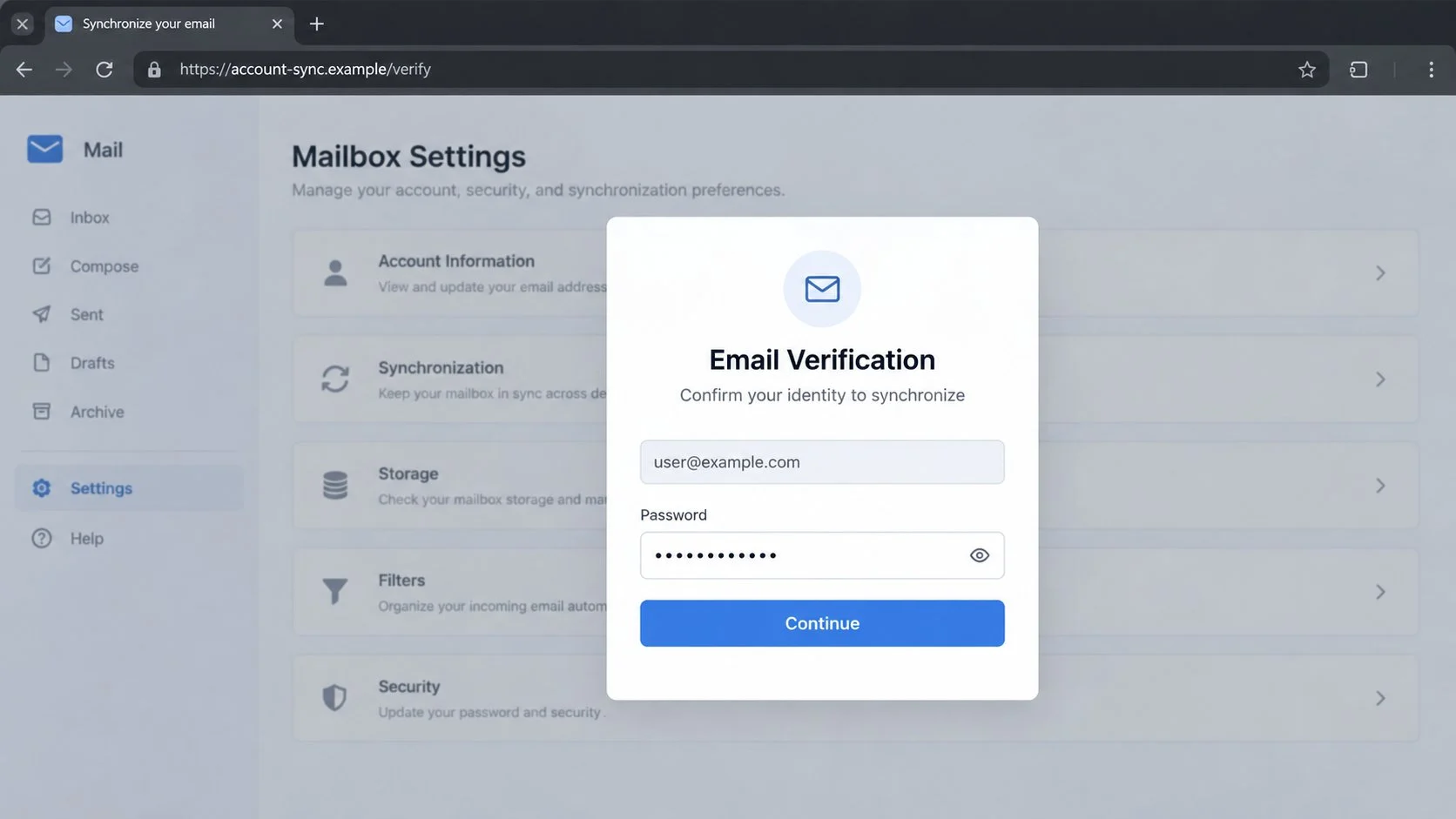
The promoted page likely imitated a generic mail login or adapted its appearance using the victim’s email domain.
A password entered there does not trigger synchronization. It is captured because the attacker controls the form or receives its submissions.
Real synchronization changes occur inside client settings, official account pages, or administrator tools. They never require sending credentials to unrelated hosting.
A Mailbox Password Opens More Than Email
Inbox access can expose conversations, attachments, receipts, security notifications, and the recovery path for many other services.
Criminals may use the account quietly, hiding alerts while they learn which contacts and transactions offer the greatest opportunity.
- A precise timestamp creates artificial technical credibility.
- Generic branding lets the template target any provider.
- Delivery problems make recipients fear missing urgent mail.
- The repair button points outside known account settings.
- A provider-themed form requests the mailbox password.
- False errors can collect repeated credential entries.
- Account access enables reset and impersonation fraud.
Receiving the notice does not prove the mailbox is malfunctioning. The email presents no server-side evidence and cannot inspect the recipient’s actual configuration.
Reading it normally does not install malware. Risk increases after clicking, entering information, granting permissions, or opening a downloaded file.
A real sync issue should also appear inside the official service or affected application. Independent confirmation is both safer and more technically meaningful.
How the Update and Synchronize Your Mailbox Scam Works
Step 1: A Generic Template Reaches Many Providers
The campaign distributes the same message to addresses using different domains. It avoids specific product details that would expose a mismatch.
Because “webmail” can describe many services, recipients may mentally substitute the provider they already use.
The sender can insert the target address and a recent timestamp automatically. Those personalized fields require no access to the mailbox.
Some messages claim synchronization stopped weeks earlier. Most users cannot remember a background process well enough to challenge that date immediately.
Step 2: The Email Predicts Vague Delivery Problems
The warning says incoming mail, sent items, or general functions will suffer. These broad symptoms cover nearly any minor email inconvenience.
If a recipient recently experienced delay, the scam seems to explain it. That coincidence strengthens the lure without any real diagnosis.
“Immediate compliance” language frames the task as mandatory. The button becomes the apparent difference between normal service and continued disruption.
Legitimate technical notices normally provide incident identifiers, device names, service status, or documented steps. This email supplies none.
Step 3: Brand Ambiguity Prevents Easy Verification
The footer may say Mail Services or Group, Inc. Such vague identity cannot be matched to an account contract or official support page.
A simple envelope icon and clean layout create authority. These design elements are easy to reproduce and carry no proof of origin.
The actual sender domain may have no relationship with the user’s provider. Display-name familiarity should never outweigh domain ownership.
Authentication results only show whether a sending domain authorized the message. They do not show that the domain represents the mailbox service.
Step 4: The Button Leads to a Provider-Aware Phishing Kit
The destination can read the email address included within a URL parameter. It then chooses colors, logos, or wording associated with that domain.
That adaptation makes one campaign appear customized for Gmail, Outlook, Yahoo, or privately hosted webmail accounts.
A blurred settings screen behind the form suggests the visitor has almost reached protected content. The visual shortcut discourages inspection of the host.
The address bar remains decisive. A copied interface on an unrelated domain is still controlled by whoever registered or hosted that address.
Step 5: The Form Harvests Credentials
The email field may already be populated, leaving only the password box. A shorter form can feel like a normal reauthentication step.
When the victim presses Continue, browser code sends the password to the operator. It may do so before any visible error appears.
The site can request a second attempt, claiming the first password was incorrect. This provides a cleaner copy or a second password candidate.
Finally, the page may redirect to a real mail portal. The victim often blames an expired session and never reports the event.
Step 6: Attackers Turn Access Into Persistence
Successful credentials are tested quickly. Criminals may register a new session, application password, or connected application before the owner reacts.
Forwarding rules can silently export messages. Inbox filters can conceal security alerts and responses from people targeted through the account.
Reset emails allow access to shopping, storage, social media, and business tools. Password reuse creates additional paths even without resets.
The compromised mailbox may send fresh synchronization notices to contacts. Messages originating from a familiar account receive less scrutiny.
How to Check a Mailbox Sync Warning
Look at the Official Account Status
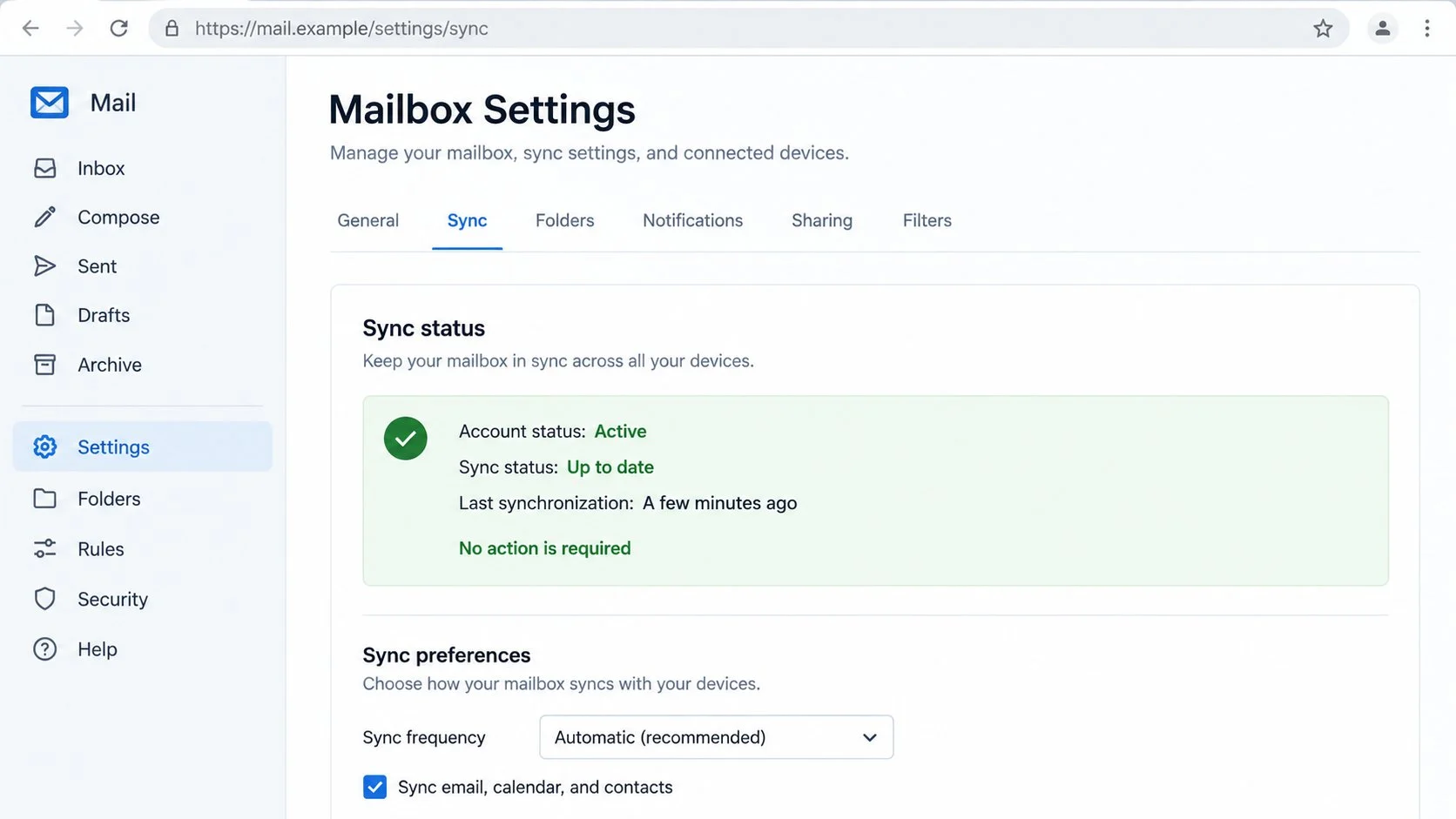
Open the mail service through a trusted bookmark or typed address. Review alerts, storage, connected devices, and synchronization settings.
Many providers show account health and recent activity. An authentic service problem should leave evidence beyond an unsolicited message.
For workplace accounts, check the internal status page or help desk. Organization-wide outages usually affect multiple people and have a documented incident.
If the official dashboard says the account is active and current, the email’s repair demand has no credible foundation.
Check the Device That Supposedly Stopped Syncing
Open the mail application and note which folders or timestamps appear delayed. Compare the same account in a web browser.
A local problem may involve connectivity, outdated software, storage, or changed settings. None requires entering a password on an unknown website.
Review configured account types, such as Exchange, IMAP, or POP3. A generic email cannot accurately diagnose these without device information.
Contact support before deleting and recreating an account. Unnecessary changes can remove locally stored mail or complicate recovery.
Inspect the Sender and Destination
Reveal the complete From address, Reply-To field, and authentication details. Compare them with earlier genuine notices.
Hover over the update button and identify the registered domain. Shorteners, free hosting, and unfamiliar cloud pages deserve caution.
Do not be reassured by HTTPS. Encryption protects traffic to the operator but does not establish the operator’s identity.
Use Known Support Instead of the Email
Reach the provider from its official help center, account page, contract, or saved support number. Do not reply to the alert.
Give support the subject, timestamp, and sender domain. Ask whether the service issued a synchronization notice for your account.
Company users should involve IT because administrators can inspect server logs and identify whether messages are actually queued.
A legitimate representative should help diagnose the client. They should never demand a reusable password through a third-party page.
What to Do If You Fell Victim to the Mailbox Sync Scam
The situation is recoverable when handled promptly. Start with account control, then check persistence, connected services, and the device.
- Stop interacting and document what happened.
Close the fraudulent page. Save the original email, full headers, destination, submission time, and any error message you saw.
Note whether the browser downloaded a file or requested permissions. This determines whether device cleanup is necessary.
- Create a new password on the genuine site.
Navigate independently to the mail provider and replace the exposed secret. Make the new password unique and sufficiently long.
Change reused versions on other accounts. Prioritize services capable of spending money, storing documents, or resetting additional identities.
- Revoke sessions and unauthorized access methods.
Use the provider’s sign-out-everywhere feature. Remove unknown devices, application passwords, recovery contacts, and connected applications.
Enable strong multifactor authentication. Passkeys or hardware-backed methods resist phishing better than codes that can be relayed.
- Audit rules, delegates, and forwarding.
Search for filters that delete alerts, hide replies, or forward mail externally. Review POP3 and IMAP connections too.
Check Sent and Deleted folders for messages you did not create. Ask administrators for server-side logs when local history appears incomplete.
- Secure accounts linked to the inbox.
Review recent password resets, purchase confirmations, and profile changes. Reverse unauthorized changes through each service’s official recovery process.
Notify contacts if the account sent phishing or altered payment instructions. Use a channel the attacker does not control.
- Scan when content was downloaded.
If you opened an attachment or installed software, run a complete Malwarebytes scan and remove anything it identifies.
AdGuard can help prevent access to recognized phishing and advertising networks. Browser protection complements, but cannot replace, a password reset.
- Escalate financial or identity exposure.
Contact banks immediately if statements, card data, or payment messages were accessible. Monitor accounts for unusual activity.
Report identity theft through the appropriate national service. Keep copies of alerts, case references, and provider correspondence.
Is Your Device Infected? Run a Free Malware Scan
Slow performance, constant pop-ups, or strange behavior? These are classic signs of a malware infection. A quick way to check is to scan your device with Malwarebytes Free, one of the most trusted malware removal tools available. If you only visited a scam page and didn’t download or install anything, this scan is optional.
The free version detects and removes the most common threats, including:
- Adware — the cause of those annoying pop-ups
- Browser hijackers — unwanted redirects and changed homepages
- Trojans and spyware — hidden programs stealing your data
- Potentially unwanted programs (PUPs) — software you never asked for
👉 Select your device below — Windows, Mac, or Android — then follow the simple steps to download Malwarebytes, scan your system, and remove any threats it finds. The scan usually takes 5 to 20 minutes.
Run a Malware Scan with Malwarebytes for Windows
Malwarebytes is one of the most popular and trusted anti-malware tools for Windows — and it’s completely free for removing infections. It catches threats that many antivirus programs miss, including adware, browser hijackers, and trojans. Follow the steps below to scan your PC and remove what Malwarebytes finds.
Download Malwarebytes
Click the button below to download the latest version of Malwarebytes for Windows from the official source. The free version is all you need — it will scan your computer and remove adware, browser hijackers, and other malicious software at no cost.
Download MalwarebytesOfficial installer for Windows 11 and 10. Your download starts right away.Want real-time protection? See Malwarebytes Premium Malwarebytes Free for WindowsScans and removes malware at no cost
-
Install Malwarebytes
When the download finishes, open your Downloads folder and double-click the MBSetup file. If Windows shows a User Account Control pop-up, click “Yes” to allow the installation.

Follow the On-Screen Prompts to Install Malwarebytes
The setup wizard will walk you through a few quick screens:
-
Choose where you’re installing the program — “Personal Computer” or “Work Computer” — then click Next.

-
Malwarebytes will now install on your device. This usually takes under a minute.

-
When installation is complete, the “Welcome to Malwarebytes” screen will open automatically.

-
On the final screen, click Open Malwarebytes to launch the program.

-
Optional: Check for rootkits with a Custom Scan
You don’t need to change any settings for a normal scan. The standard Threat Scan in the next step is enough for most problems, so you can go straight to it.
If you also want to check for rootkits, use a Custom Scan. In current versions of Malwarebytes, rootkit scanning is only available there:
- On the Scanner tile, click the three-dot menu and select Advanced Scan.
- Choose Custom Scan. In its options, check Scan for rootkits.
- Select your system drive (usually C:\) as the location to scan, then start the scan. It takes longer than a Threat Scan.
- When it finishes, review and quarantine the results as described in the steps below.
Rootkit scanning isn’t available on Windows devices with ARM processors.
Start the Scan
Click the blue Scan button. Malwarebytes will automatically update its virus database and start checking your computer for malware.

-
Wait for the Scan to Finish
The scan checks your entire system for browser hijackers and other malicious programs, so it can take 5 to 20 minutes depending on your computer. Feel free to do something else — just check back occasionally to see the progress.

-
Quarantine the Detected Threats
When the scan is done, you’ll see a list of everything Malwarebytes found — malware, adware, and potentially unwanted programs. Click the “Quarantine” button to remove all of them at once.

Malwarebytes will now remove the malicious files and registry entries and move them safely into quarantine.

-
Restart Your Computer
Some threats can only be fully removed after a reboot. If Malwarebytes asks you to restart, click Yes. Once you’re logged back in, Malwarebytes has finished removing the threats it found.

When the scan is done, check whether the problems you noticed have stopped. If they continue, see the options below.
If you are still having problems with your computer after completing these instructions, then please follow one of the steps:
- Run a computer scan with ESET Online Scanner
- Ask for help in our Windows Malware Removal Help & Support forum.
Run a Malware Scan with Malwarebytes for Mac
Malwarebytes for Mac is a free on-demand scanner that removes the malware other security software tends to miss — adware, browser hijackers, and unwanted programs included. Cleaning an infected Mac with Malwarebytes has always been completely free, and it’s our go-to recommendation. Follow the steps below to scan your Mac and remove what Malwarebytes finds.
-
Download Malwarebytes for Mac
Click the button below to download the latest version of Malwarebytes for Mac.
Download MalwarebytesOfficial installer for macOS. Your download starts right away.Want real-time protection? See Malwarebytes PremiumMalwarebytes Free for MacScans and removes malware at no cost -
Open the Malwarebytes setup file
When the download finishes, open your Downloads folder and double-click the setup file to begin the installation.

-
Follow the On-Screen Prompts to Install Malwarebytes
The Malwarebytes for Mac Installer will guide you through a few quick screens. Click “Continue” and keep following the prompts until the installation completes.



When the installation is complete, Malwarebytes opens to the Welcome to Malwarebytes screen. Click “Get started“.
Malwarebytes needs Full Disk Access to check your whole Mac. When it asks, open System Settings > Privacy & Security > Full Disk Access, turn on Malwarebytes (it may be listed as Malwarebytes Protection), and confirm with your password or Touch ID. Then return to Malwarebytes. On macOS Monterey and earlier, this setting is in System Preferences > Security & Privacy > Privacy.
-
Select “Personal Computer” or “Work Computer”
Malwarebytes will ask what type of computer you’re installing it on. Click either Personal Computer or Work Computer, whichever applies.

-
Start the Scan
Click the “Scan” button. Malwarebytes will automatically update its detection database and begin checking your Mac for malware.

-
Wait for the Scan to Finish
Malwarebytes will scan your Mac for adware, browser hijackers, and other malicious programs. This can take a few minutes, so feel free to do something else — just check back occasionally to see the progress.

-
Quarantine the Detected Threats
When the scan is done, you’ll see a list of everything Malwarebytes found. Click the “Quarantine” button to remove all the threats at once.

-
Restart Your Mac
Malwarebytes will now remove all the malicious files it found. Some threats can only be fully removed after a reboot — if Malwarebytes asks you to restart, allow it. Once you’re logged back in, check whether the problems you noticed have stopped. If they come back, save the scan report and ask for help in our forum.

If the problems you noticed continue after the scan, see the options below.
If you are still experiencing problems while trying to remove a malicious program from your computer, please ask for help in our Mac Malware Removal Help & Support forum.
Run a Malware Scan with Malwarebytes for Android
Malwarebytes for Android scans your phone or tablet for malware, adware, and potentially unwanted apps. The free version scans only when you start a scan. Real-time protection, which checks apps automatically, is part of the paid Premium version.
-
Download Malwarebytes for Android.
You can download Malwarebytes for Android by clicking the link below.
Get Malwarebytes for AndroidOpens Google Play in a new tab.Want real-time protection? See Malwarebytes Premium for AndroidMalwarebytes for AndroidScans your phone and removes malware at no cost -
Install Malwarebytes for Android on your phone.
In the Google Play Store, tap “Install” to install Malwarebytes for Android on your device.

When the installation process has finished, tap “Open” to begin using Malwarebytes for Android. You can also open Malwarebytes by tapping on its icon in your phone menu or home screen.

-
Follow the on-screen prompts to complete the setup process
When Malwarebytes opens, it walks you through a short setup. Tap Get started and follow the prompts. If you see an offer for a trial or a paid plan, read it before you accept. You can skip it and keep using the free scanner.
Malwarebytes will ask for permission to access the files on your phone so it can scan them. Tap Allow, or turn on the permission in the Android screen that opens, then return to Malwarebytes.
-
Run a scan with Malwarebytes for Android
On the main screen, tap Scan now. In some versions, you open the menu, tap Scanner, and then tap Run a scan.
-
Wait for the Malwarebytes scan to complete.
Malwarebytes will now start scanning your phone for adware and other malicious apps. This process can take a few minutes, so we suggest you do something else and periodically check on the status of the scan to see when it is finished.

-
Remove the detected apps.
When the scan has been completed, you will see a list of the threats that Malwarebytes for Android has detected. Next to each detected item, tap the menu icon (three dots), then choose to uninstall the app or delete the file. Android then asks you to confirm. Tap OK or Uninstall to remove the app.
-
Restart your phone.
When the detected apps are removed, restart your phone if Malwarebytes asks you to. Then check whether the problems you noticed have stopped.
If the problems you noticed continue after the scan, see the options below.
If you are still having problems with your phone after completing these instructions, then please follow one of the steps:
- Ask for help in our Mobile Malware Removal Help & Support forum.
- Only as a last resort, reset your phone to factory settings. Read the warning below first.
- Back up your photos, videos, files, and messages, for example to your Google account or a computer.
- Make sure you know your Google account email and password. The phone asks for them after the reset. If you changed the password recently, Google recommends waiting 24 hours before you reset.
- On a Samsung phone, also make sure you know your Samsung account password.
- If you use an authenticator app for two-step verification, move your accounts to another device or save your backup codes first.
Stay Protected: Block Ads and Malicious Sites
No scan can prove a device is completely clean, so it helps to block threats before they reach you. Most infections start with a malicious ad or a fake download button — so blocking them at the source is your best defense.
We recommend AdGuard, which blocks malicious ads, phishing pages, and dangerous redirects before they can reach you.
👉 Download AdGuard and browse safely
Common Warning Signs in the Synchronization Email
The sender calls itself Webmail without naming the company responsible for the account. That ambiguity supports mass distribution.
A precise last-sync time appears without a device, client, mailbox folder, server, or error code. The specificity is decorative rather than diagnostic.
The message claims multiple functions will fail but offers only a login button. Real troubleshooting provides settings or support guidance.
The footer uses generic corporate wording that cannot be traced to a known legal entity or service agreement.
The link leaves the provider’s domain. This ownership mismatch matters more than copied colors, icons, or brand artwork.
The page requests a mailbox password to repair synchronization. A legitimate provider already manages authentication and does not need credentials submitted elsewhere.
A disappearing destination is also suspicious. Providers maintain stable account portals, while phishing pages often vanish after abuse reports.
No single clue is required. The combined inconsistencies make independent verification the only sensible response.
Better Ways to Handle Real Sync Problems
First compare webmail with the affected application. If webmail is current, the server likely holds the messages and the local client needs attention.
Confirm network access and available storage. Large queues, full devices, or offline modes can delay updates without threatening the account.
Install updates through the operating system or application vendor. Never accept an installer offered by a synchronization email.
Review server names, ports, encryption, and authentication methods against official documentation. Small configuration mistakes can prevent connections.
Use provider-generated application passwords where required. Do not reuse the main account password in unsupported legacy clients.
Ask support before removing a mailbox profile. Locally stored folders may require export or backup before reconfiguration.
Organizations should document approved clients and settings. Clear instructions reduce the credibility of vague external repair notices.
Regular backups protect locally archived mail. Account security and data preservation are separate tasks, and both deserve attention.
Why Generic Mail Alerts Keep Working
Email is invisible infrastructure until something goes wrong. Most users cannot observe server queues, authentication exchanges, or synchronization states directly.
That knowledge gap gives vague warnings room to sound credible. Technical words suggest expertise even when the explanation contains no usable diagnosis.
Different providers also use similar visual language. Envelopes, blue buttons, and white login cards can resemble almost any mail service.
Recipients often manage several addresses across work, personal, and legacy accounts. They may not remember which system uses which settings.
The campaign exploits that uncertainty with one universal repair. Real support must understand the actual account, application, protocol, and device.
Organizations can reduce confusion by publishing approved login domains and support routes. Users should not need to identify infrastructure from memory.
Password managers add a practical warning. A saved credential that refuses to autofill can reveal that the visitor reached an unfamiliar domain.
That signal is not infallible, but it creates a useful pause. The address bar should then decide whether the page deserves trust.
Frequently Asked Questions
Can a mailbox genuinely stop synchronizing?
Yes. Connectivity, storage, authentication, software, and configuration problems can cause delays. Diagnose them through the application and official provider tools.
Does the precise timestamp prove the alert is genuine?
No. Templates can generate realistic dates automatically. A meaningful notice should also identify the affected account, client, server, and support record.
Why does the fake page change its appearance?
Phishing kits can inspect the email domain and load matching artwork. Visual adaptation does not establish a connection with the real provider.
What if the linked site is now offline?
It may have been removed or abandoned. The vanished page does not validate the email, and submitted credentials may already be stolen.
Should I delete and re-add my mail account?
Not immediately. Confirm backups and ask official support first, because removing a profile can affect locally stored messages.
Can a password reset alone remove the attacker?
Not always. Revoke sessions, application passwords, forwarding rules, delegates, connected apps, and unfamiliar recovery methods as well.
The Bottom Line
The Update and Synchronize Your Mailbox scam invents a vague service failure, then replaces genuine troubleshooting with a counterfeit password form.
Check synchronization inside the real account and affected application. Never send a reusable mail password to a destination reached through an unsolicited repair button.

Join the discussion
0 commentsShare your experience or ask a question about this article.
Community experiences
Did this happen to you?
Your experience could help someone recognize the same scam. Submit a private report for our team to review.
I experienced this tooReports are reviewed before publication. Sharing publicly is always your choice.
Discussion
Start the conversation
Have a question or something useful to share? Add the first comment.