


A warning that mail has stopped synchronizing sounds technical, dull, and believable. It also gives busy users a reason to fix something before messages vanish.
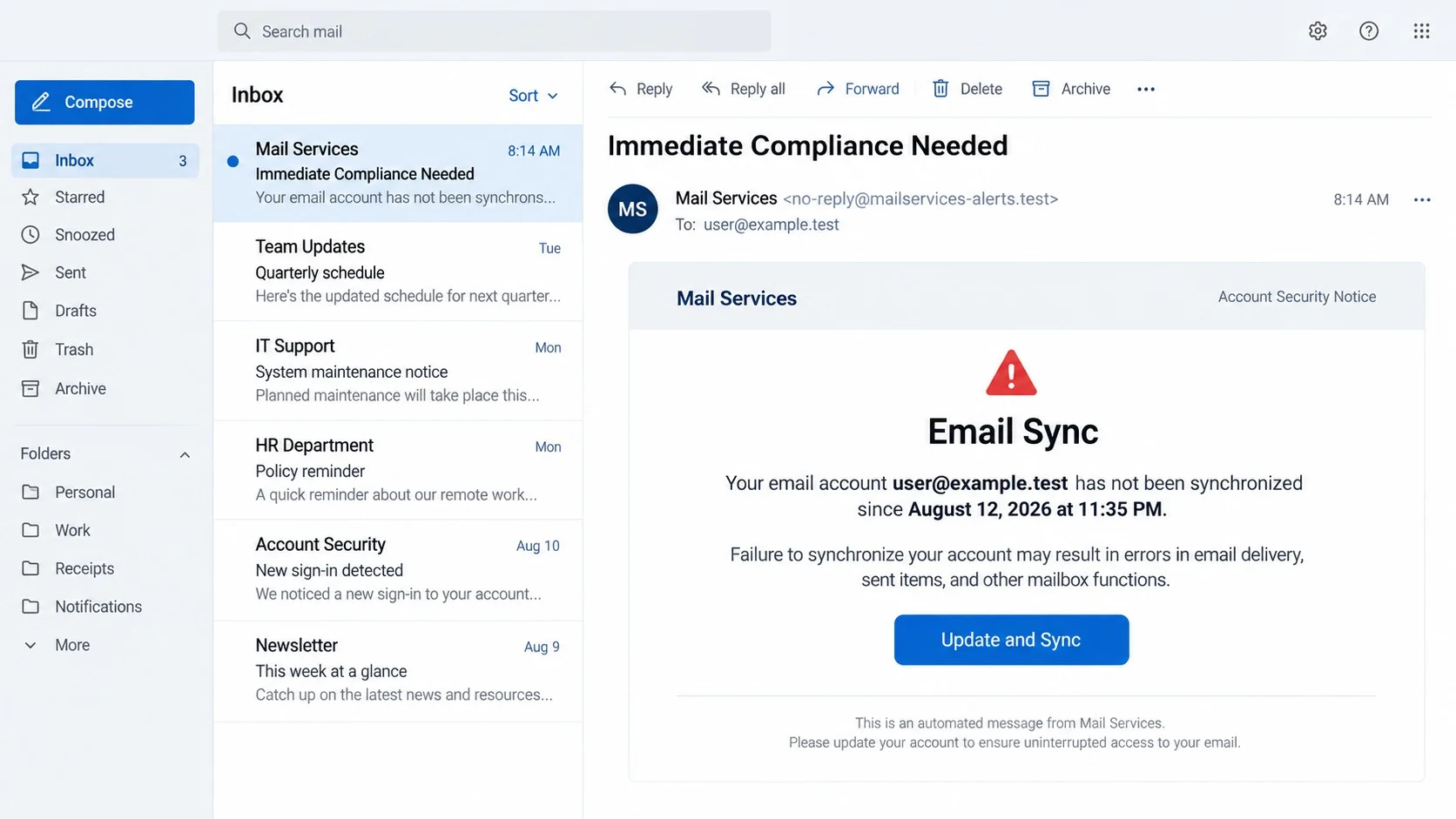
The “Immediate Compliance Needed” email leans on that believable problem. Its calm administrative language deserves closer inspection before anyone follows the offered solution.
Overview
The problem described in the email
The message claims the recipient’s mailbox has not synchronized since a specific date and time. It warns that incoming mail, sent items, or other functions may fail.
A button labeled “Update and Sync” appears to offer a quick repair. The surrounding text presents the action as mandatory account maintenance rather than an optional request.
Generic Webmail or Mail Services branding broadens the campaign. The same template can reach users of many providers without naming the wrong company.
The real purpose of the notice
The synchronization story is a pretext for opening a fake sign-in page. Criminals want the victim to enter an email address and password into their form.
No mailbox update occurs through that page. The submitted credentials can instead be stored, transmitted, and tested against the real email service.
During analysis, one linked site was no longer active. That does not make the message safe because phishing domains frequently disappear, move, or change their displayed provider.
Clues that expose the deception
- The recipient did not report a synchronization problem before the warning arrived.
- A generic sender claims authority over a mailbox without naming its real provider.
- The email uses an old-looking timestamp to manufacture a history of failure.
- The repair begins through an unsolicited link instead of the normal mail settings.
- The landing page’s domain differs from the provider or employer domain.
- The message predicts errors but supplies no genuine diagnostic code or support case.
A well-designed email can still be malicious. Authentication and ownership are established through trusted systems, not typography, logos, or confident technical wording.
How the Update and Synchronize Your Mailbox Scam Works
Step 1: The campaign arrives as a service warning
Phishers send the template to large lists or targeted employees. The subject “Immediate Compliance Needed” creates importance without using obvious threats such as police action.
The content imitates an automated administrator message. It describes synchronization as a background process the user might not fully understand, making the alleged fault difficult to challenge.
A precise failure time lends false authority. Recipients rarely remember when their mailbox last synchronized, so they cannot easily disprove the claim from memory.
The message can remain persuasive even when mail still works. Users may assume only some folders or future delivery are affected.
Step 2: Consequences make a routine issue feel urgent
The email suggests delivery errors, missing sent items, or disrupted mailbox functions. Those outcomes matter to anyone waiting for work, billing, travel, or personal communications.
Unlike an extravagant prize lure, the story asks the recipient to preserve something already owned. Defensive motivation often produces faster action than a promise of gain.
The term “compliance” can be especially effective at work. Employees may fear violating a policy or causing a service outage if they postpone the requested update.
There is usually no meaningful troubleshooting guidance. Everything points toward one controlled button, preventing the user from comparing safer solutions.
Step 3: Update and Sync leads away from the real provider
The button’s visible label says nothing about its actual address. Clicking can pass through tracking or redirection services before reaching a phishing host.
That host may be newly registered, hosted on a compromised website, or placed behind an abused form service. Its lifespan can be brief.
Some campaigns tailor the page after reading the email domain included in the link. A victim may see familiar colors even though the site began as a generic kit.
The page can also refuse later visitors. Criminals use filters to avoid researchers, security crawlers, and locations outside their intended audience.
Step 4: The fake sign-in panel collects credentials
The landing page asks for the account address and password under the guise of authenticating the synchronization repair. Those fields are controlled by the phisher.
A prefilled address does not prove provider integration. It can be embedded in the original link and displayed back to the same recipient.
The portal may claim the first entry was incorrect and request another attempt. That trick can capture both a current password and a variation used elsewhere.
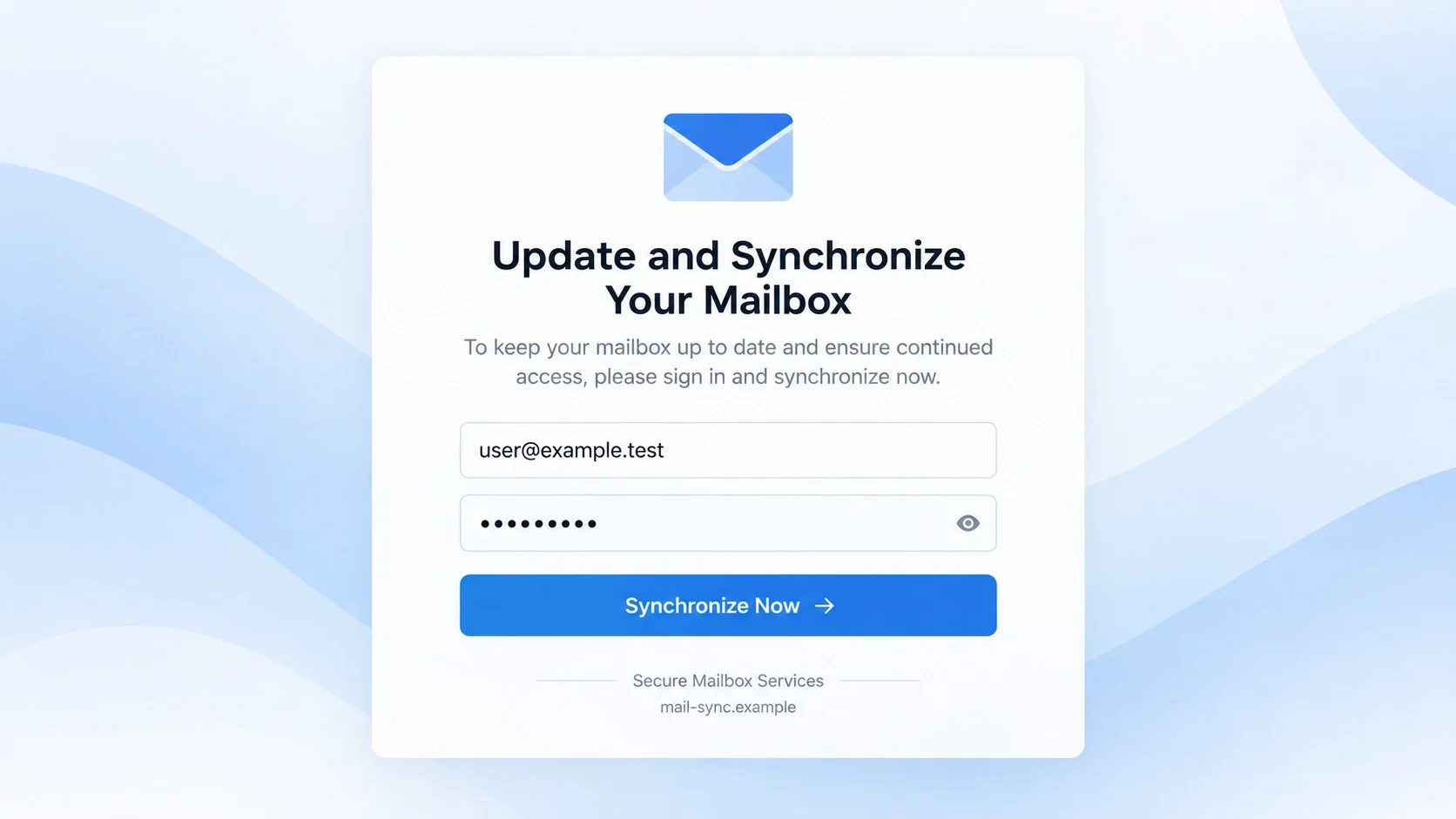
After submission, an error or blank screen may appear. The absence of a visible success message does not mean the form failed to transmit.
Another common ending is a redirect to genuine webmail. Because that page accepts the correct credentials, victims can believe the update eventually succeeded.
Encrypted web traffic only protects data while traveling to the phishing server. It does not prevent the server owner from reading what the victim voluntarily submits.
Step 5: Criminals test and exploit the mailbox
Captured details can be checked quickly by automated tools. A working login gives access to messages, attachments, contacts, calendars, and sometimes connected business services.
Mailboxes contain the context needed for targeted fraud. Purchase orders, payment schedules, signatures, and normal conversation patterns help an attacker write convincing follow-ups.
Personal accounts provide password-reset opportunities. A criminal can request recovery links for other services, then delete the evidence from the inbox.
If the same password was reused, attempts may spread to cloud storage, social media, shopping accounts, and remote-work platforms.
Step 6: Hidden settings prolong the intrusion
Once inside, the operator may add a forwarding address or create filters that hide security messages. The legitimate owner can continue using mail without noticing.
Application permissions are another persistence route. An authorized client can retain mailbox access through a token even after the visible password changes.
Attackers may also alter recovery details, create app passwords, or register a trusted session. Each change needs separate removal during account cleanup.
The compromised address can then deliver phishing to colleagues. Messages arriving within an existing conversation carry more credibility than an unrelated cold email.
Synchronization Problems Do Happen, but They Look Different
Real synchronization failures usually appear inside the mail application, device settings, or provider status page. They often include a specific error and affect observable behavior.
A full mailbox, expired application password, disabled account, or temporary service outage can interrupt mail. The correction should begin through known settings, not an unexpected message button.
Work administrators may contact users about configuration changes. Their notice should be confirmable through an internal help desk, documented maintenance announcement, or authenticated portal.
Even a genuine-looking problem should be approached independently. If opening normal webmail shows no alert, ask support to verify the account from their side.
Never send a password to an administrator. Legitimate support personnel can reset access or examine logs without asking for the existing secret.
How to Verify a Mailbox Synchronization Notice
Check the mailbox directly
Open the usual mail application or type the known provider address manually. Look for error banners, delayed folders, unsent messages, or an authenticated maintenance notice.
Send a harmless test message to an address you control. This can reveal a delivery problem without touching the suspicious email.
Compare the sender with trusted notices
Expand the full sending address and reply path. Compare them with an older service message that you independently know came from the provider.
A display name such as Mail Administrator proves nothing. Criminals choose it freely, and some mail clients show that label more prominently than the address.
Inspect the link without opening it
Hover over “Update and Sync” on a computer or use a mail client’s link preview. The registered domain should belong to the expected provider.
Misspellings, unrelated hosts, raw addresses, excessive subdomains, and unfamiliar redirectors are warning signs. Do not paste the destination into a browser to investigate casually.
Confirm through official support
Use the help-desk number, provider app, or support portal already listed in your records. Ask whether the stated synchronization event exists.
Forward the suspicious message as an attachment if the administrator requests it. That preserves technical headers more accurately than a screenshot alone.
What to Do If You Fell Victim to This Scam
- Use a known-clean device. Open the real mail service from a bookmark or manually typed address. Avoid returning through the phishing message.
- Replace the email password. Create a unique password with a password manager. Never reuse the exposed password or a predictable variation.
- Terminate active sessions. Sign out every browser, mobile client, and connected device from the account’s security panel.
- Turn on multi-factor authentication. Prefer a security key or authenticator app. Save recovery codes somewhere protected and offline.
- Remove hidden persistence. Examine forwarding, filters, delegates, recovery contacts, trusted sessions, app passwords, and OAuth access for unauthorized changes.
- Secure other accounts. Change any service that shared the submitted password. Begin with financial, workplace, storage, and social accounts.
- Inspect sent and deleted mail. Look for messages, password resets, verification codes, or conversation changes you did not initiate.
- Scan with Malwarebytes. A complete scan can identify additional malware or unwanted browser components associated with the visit.
- Use AdGuard as an added layer. It can reduce malicious redirects and deceptive advertising, although independent verification remains necessary.
- Tell the proper people. Notify your mail provider, employer, and contacts if account data or messages may have been exposed.
Is Your Device Infected? Run a Free Malware Scan
Slow performance, constant pop-ups, or strange behavior? These are classic signs of a malware infection. The fastest way to find out is to scan your device with Malwarebytes Free — one of the most trusted malware removal tools available.
The free version detects and removes the most common threats, including:
- Adware — the cause of those annoying pop-ups
- Browser hijackers — unwanted redirects and changed homepages
- Trojans and spyware — hidden programs stealing your data
- Potentially unwanted programs (PUPs) — software you never asked for
👉 Select your device below — Windows, Mac, or Android — then follow the simple steps to download Malwarebytes, scan your system, and remove any threats it finds. The scan usually takes 5 to 20 minutes.
Run a Malware Scan with Malwarebytes for Windows
Malwarebytes is one of the most popular and trusted anti-malware tools for Windows — and it’s completely free for removing infections. It catches threats that many antivirus programs miss, including adware, browser hijackers, and trojans. Follow the steps below to scan and clean your PC in just a few minutes.
Download Malwarebytes
Click the button below to download the latest version of Malwarebytes for Windows from the official source. The free version is all you need — it will scan your computer and remove adware, browser hijackers, and other malicious software at no cost.
Download MalwarebytesOfficial installer for Windows 11 and 10. Your download starts right away.Want real-time protection? See Malwarebytes Premium Malwarebytes Free for WindowsScans and removes malware at no cost
-
Install Malwarebytes
When the download finishes, open your Downloads folder and double-click the MBSetup file. If Windows shows a User Account Control pop-up, click “Yes” to allow the installation.

Follow the On-Screen Prompts to Install Malwarebytes
The setup wizard will walk you through a few quick screens:
-
Choose where you’re installing the program — “Personal Computer” or “Work Computer” — then click Next.

-
Malwarebytes will now install on your device. This usually takes under a minute.

-
When installation is complete, the “Welcome to Malwarebytes” screen will open automatically.

-
On the final screen, click Open Malwarebytes to launch the program.

-
Enable “Scan for Rootkits”
Before scanning, turn on rootkit detection so Malwarebytes can find even the most hidden threats. Click the Settings gear icon on the left side of the screen.

In the settings menu, find “Scan for rootkits” and click the toggle so it turns blue.

Done? Click “Dashboard” in the left pane to return to the main screen.
Start the Scan
Click the blue Scan button. Malwarebytes will automatically update its virus database and start checking your computer for malware.

-
Wait for the Scan to Finish
The scan checks your entire system for browser hijackers and other malicious programs, so it can take 5 to 20 minutes depending on your computer. Feel free to do something else — just check back occasionally to see the progress.

-
Quarantine the Detected Threats
When the scan is done, you’ll see a list of everything Malwarebytes found — malware, adware, and potentially unwanted programs. Click the “Quarantine” button to remove all of them at once.

Malwarebytes will now remove the malicious files and registry entries and move them safely into quarantine.

-
Restart Your Computer
Some threats can only be fully removed after a reboot. If Malwarebytes asks you to restart, click Yes. Once you’re logged back in, Malwarebytes has finished removing the threats it found.

That’s it — your Windows PC is now clean of trojans, adware, and other malware, and should be back to running smoothly.
If you are still having problems with your computer after completing these instructions, then please follow one of the steps:
- Run a computer scan with ESET Online Scanner
- Ask for help in our Windows Malware Removal Help & Support forum.
Run a Malware Scan with Malwarebytes for Mac
Malwarebytes for Mac is a free on-demand scanner that removes the malware other security software tends to miss — adware, browser hijackers, and unwanted programs included. Cleaning an infected Mac with Malwarebytes has always been completely free, and it’s our go-to recommendation. Follow the steps below to scan and clean your Mac in just a few minutes.
-
Download Malwarebytes for Mac
Click the button below to download the latest version of Malwarebytes for Mac.
Download MalwarebytesOfficial installer for macOS. Your download starts right away.Want real-time protection? See Malwarebytes PremiumMalwarebytes Free for MacScans and removes malware at no cost -
Open the Malwarebytes setup file
When the download finishes, open your Downloads folder and double-click the setup file to begin the installation.

-
Follow the On-Screen Prompts to Install Malwarebytes
The Malwarebytes for Mac Installer will guide you through a few quick screens. Click “Continue” and keep following the prompts until the installation completes.



When the installation is complete, Malwarebytes opens to the Welcome to Malwarebytes screen. Click “Get started“.
-
Select “Personal Computer” or “Work Computer”
Malwarebytes will ask what type of computer you’re installing it on. Click either Personal Computer or Work Computer, whichever applies.

-
Start the Scan
Click the “Scan” button. Malwarebytes will automatically update its detection database and begin checking your Mac for malware.

-
Wait for the Scan to Finish
Malwarebytes will scan your Mac for adware, browser hijackers, and other malicious programs. This can take a few minutes, so feel free to do something else — just check back occasionally to see the progress.

-
Quarantine the Detected Threats
When the scan is done, you’ll see a list of everything Malwarebytes found. Click the “Quarantine” button to remove all the threats at once.

-
Restart Your Mac
Malwarebytes will now remove all the malicious files it found. Some threats can only be fully removed after a reboot — if Malwarebytes asks you to restart, allow it. Once you’re logged back in, your Mac is clean.

That’s it — your Mac is now free of adware, rogue browser extensions, and other potentially harmful software.
If you are still experiencing problems while trying to remove a malicious program from your computer, please ask for help in our Mac Malware Removal Help & Support forum.
Run a Malware Scan with Malwarebytes for Android
Malwarebytes for Android automatically detects and removes dangerous threats like malware and ransomware so you don’t have to worry about your most-used device being compromised. Aggressive detection of adware and potentially unwanted programs keeps your Android phone or tablet running smooth.
-
Download Malwarebytes for Android.
You can download Malwarebytes for Android by clicking the link below.
Get Malwarebytes for AndroidOpens Google Play in a new tab.Want real-time protection? See Malwarebytes Premium for AndroidMalwarebytes for AndroidScans your phone and removes malware at no cost -
Install Malwarebytes for Android on your phone.
In the Google Play Store, tap “Install” to install Malwarebytes for Android on your device.

When the installation process has finished, tap “Open” to begin using Malwarebytes for Android. You can also open Malwarebytes by tapping on its icon in your phone menu or home screen.

-
Follow the on-screen prompts to complete the setup process
When Malwarebytes will open, you will see the Malwarebytes Setup Wizard which will guide you through a series of permissions and other setup options.
This is the first of two screens that explain the difference between the Premium and Free versions. Swipe this screen to continue.
Tap on “Got it” to proceed to the next step.
Malwarebytes for Android will now ask for a set of permissions that are required to scan your device and protect it from malware. Tap on “Give permission” to continue.
Tap on “Allow” to permit Malwarebytes to access the files on your phone.
-
Update database and run a scan with Malwarebytes for Android
You will now be prompted to update the Malwarebytes database and run a full system scan.

Click on “Update database” to update the Malwarebytes for Android definitions to the latest version, then click on “Run full scan” to perform a system scan.

-
Wait for the Malwarebytes scan to complete.
Malwarebytes will now start scanning your phone for adware and other malicious apps. This process can take a few minutes, so we suggest you do something else and periodically check on the status of the scan to see when it is finished.

-
Click on “Remove Selected”.
When the scan has been completed, you will be presented with a screen showing the malware infections that Malwarebytes for Android has detected. To remove the malicious apps that Malwarebytes has found, tap on the “Remove Selected” button.

-
Restart your phone.
Malwarebytes for Android will now remove all the malicious apps that it has found. To complete the malware removal process, Malwarebytes may ask you to restart your device.
That’s it — your Android phone is now clean — no more malicious apps, adware, or browser redirects.
If you are still having problems with your phone after completing these instructions, then please follow one of the steps:
- Restore your phone to factory settings by going to Settings > General management > Reset > Factory data reset.
- Ask for help in our Mobile Malware Removal Help & Support forum.
Stay Protected: Block Ads and Malicious Sites
Now that your device is clean, keep it that way. Most infections start with a malicious ad or a fake download button — so blocking them at the source is your best defense.
We recommend AdGuard, which blocks malicious ads, phishing pages, and dangerous redirects before they can reach you.
👉 Download AdGuard and browse safely
Recovery should begin immediately after credentials are submitted. Waiting for obvious abuse gives criminals time to read messages and create less visible access paths.
If workplace information was present, record what happened before deleting evidence. Arrival time, clicked link, submission time, and observed redirects can guide the investigation.
Signs the Mailbox May Already Be Compromised
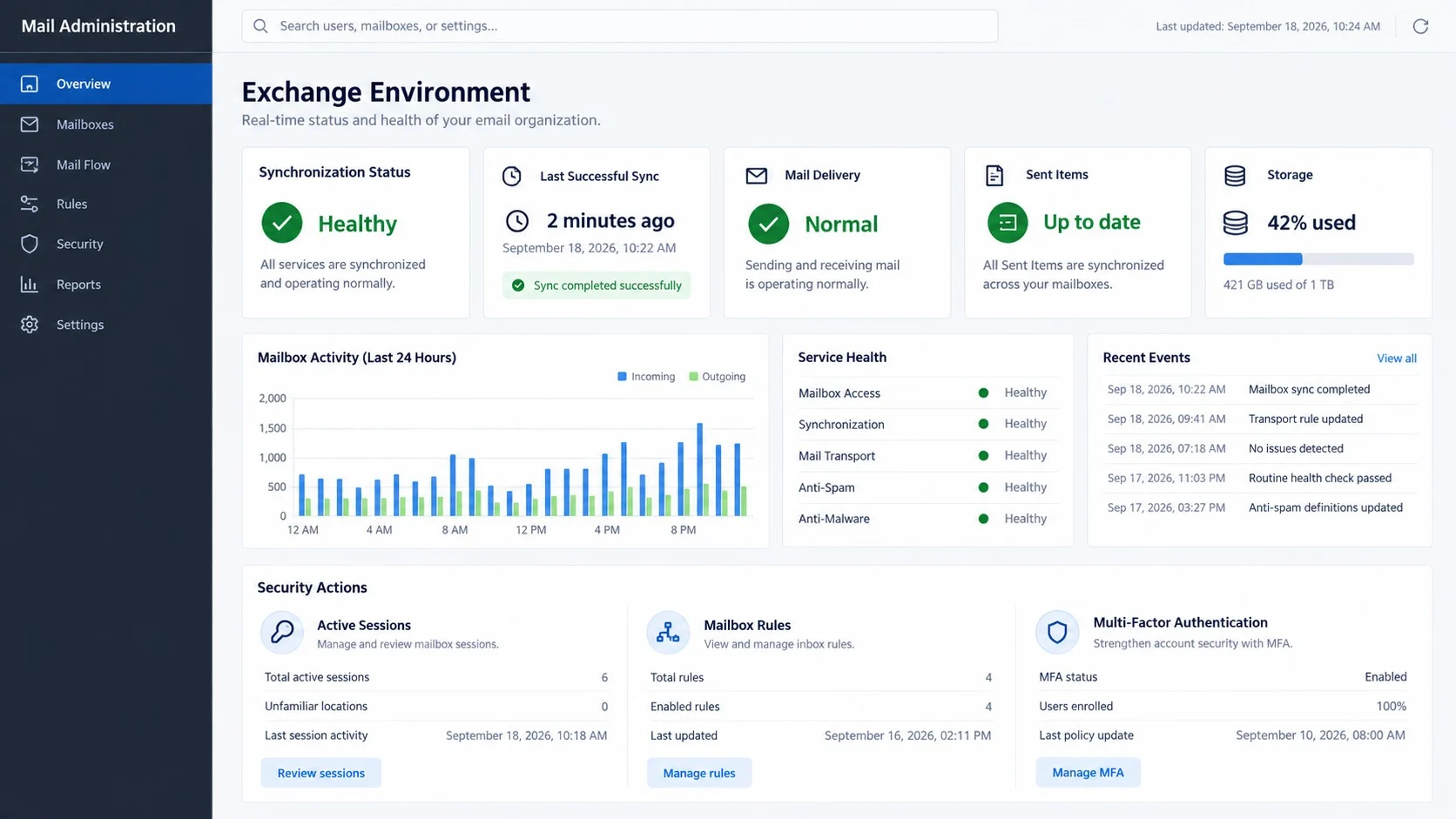
Unrecognized sign-in notifications deserve attention, particularly when their times match the phishing incident. Location data can be imprecise, so combine it with browser and activity details.
Friends may report messages you cannot find in Sent. Attackers can delete mail after sending or configure clients that store copies differently.
New forwarding destinations are especially serious. They let outsiders read future conversations even after the owner resumes normal use.
Missing security alerts may indicate filtering rules. Search every folder for provider notices and inspect rules that mention login, password, invoice, payment, or verification.
Calendar invitations and contact changes also matter. A mailbox intruder may use more than email to reach coworkers or preserve useful information.
Unexpected application authorizations can explain continued activity after a password reset. Revoke them first, then reconnect approved software one item at a time.
How Organizations Can Reduce This Risk
Administrators should require phishing-resistant authentication where possible. Security keys make credential reuse harder because authentication is bound to the legitimate service domain.
Disable legacy mail protocols when they are unnecessary. Older authentication routes can weaken modern account protections and provide additional opportunities for credential testing.
Monitor new forwarding rules, suspicious consent grants, impossible travel, and bulk mailbox access. Alerts should reach a separate security channel the intruder cannot silently filter.
Provide employees with one simple reporting button or address. A confusing incident process causes hesitation precisely when rapid containment would help most.
Training examples should include calm administrative lures, not only messages filled with spelling mistakes. Modern phishing often succeeds because it looks boring and procedural.
Run exercises without shaming participants. Honest reporting provides better defensive data than a culture where users hide clicks to avoid criticism.
Mail gateways can quarantine messages that combine credential links with urgent administrative language. Analysts should still review false positives so important service notices remain deliverable.
Place external-sender labels where employees can see them without opening headers. A label is a prompt for caution, not proof that the content is malicious.
Limit who can approve third-party mail applications. Central consent review prevents one deceptive authorization screen from granting broad access without security visibility.
Keep audit records long enough to investigate delayed discoveries. Some intruders monitor mail quietly for weeks before changing a payment conversation or launching another lure.
Response playbooks should include token revocation and forwarding-rule inspection. A password reset by itself can leave the most useful attacker footholds untouched.
Frequently Asked Questions
Is the Update and Synchronize Your Mailbox email real?
The campaign examined here is phishing. A separate synchronization notice could be legitimate, so verify it inside the normal mail service or with known support.
Can a mailbox really stop synchronizing?
Yes. Storage limits, expired credentials, connectivity, application settings, and outages can cause genuine problems. Those faults do not validate an unsolicited login link.
What if the phishing page is already offline?
Delete the message and report it. An inactive destination may return later, redirect elsewhere, or collect visitors selectively.
Is clicking enough to compromise my mailbox?
Credentials are usually the main target, but a visit can still expose technical data. Close the page, update software, and scan if anything downloaded.
Why was my address already displayed on the fake page?
The campaign can include your address inside the link and copy it into the form. That simple personalization does not prove account access.
Should I contact the sender using Reply?
No. Use an independently known support channel. A reply may reach the criminal, confirm that you read the lure, and invite further targeting.
The Bottom Line
The Update and Synchronize Your Mailbox scam disguises credential theft as routine maintenance. Its button solves no mail problem and leads victims toward a counterfeit login.
Check service status independently, and respond quickly after exposure. Password replacement, session revocation, rule inspection, and authorization cleanup are all necessary parts of recovery.

Join the discussion
0 commentsShare your experience or ask a question about this article.
Discussion
Start the conversation
Have a question or something useful to share? Add the first comment.