


A browser add-on promising sharper streams, fewer ads, and easier rewards sounds like a useful upgrade. The danger is easy to miss when installation feels routine.
Twitch Enhanced Viewer, associated with the name JeetBot, offered exactly that kind of convenience. Its permissions and hidden behavior tell a much more serious story.
Overview
What Twitch Enhanced Viewer promised
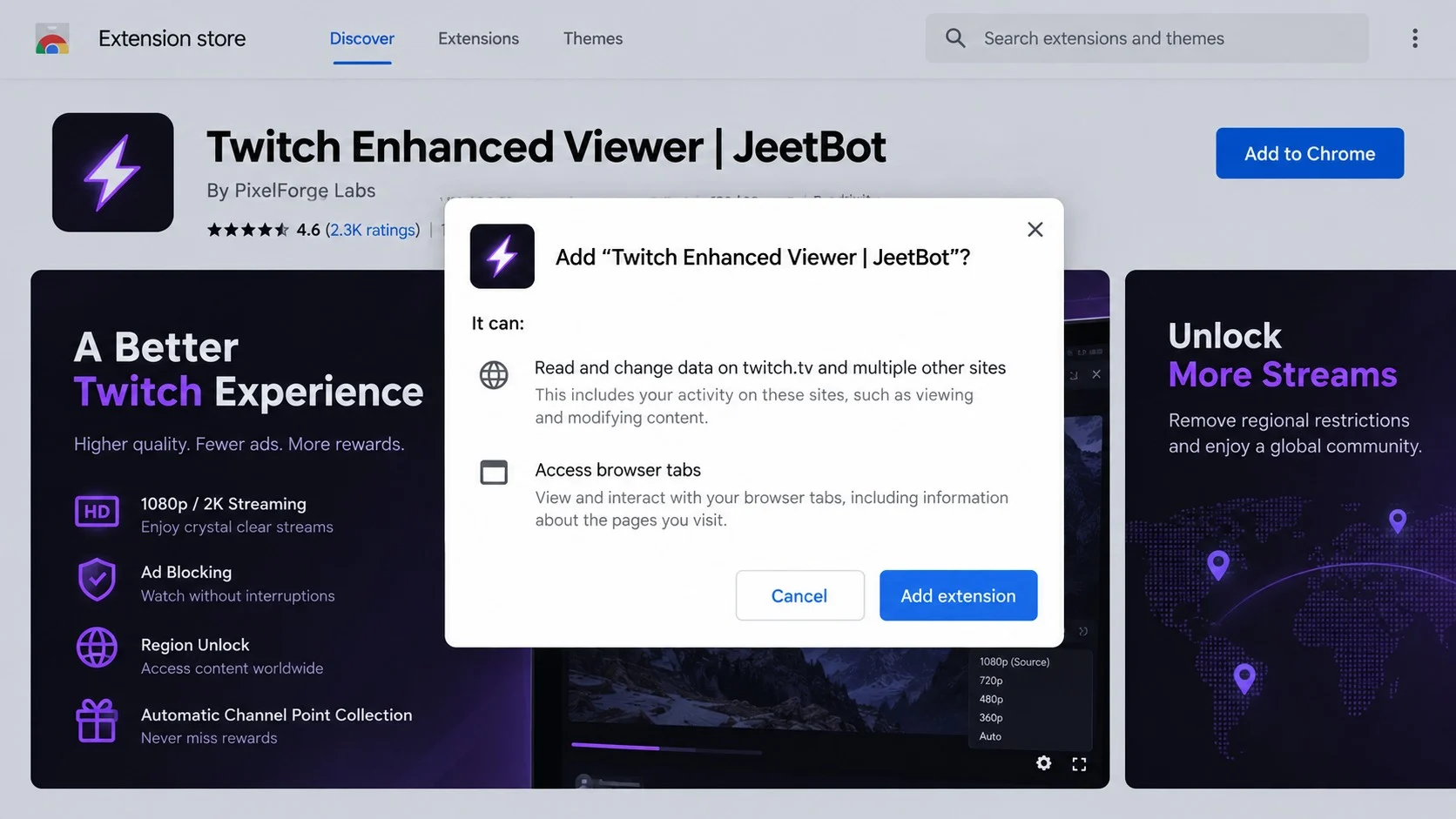
The extension was promoted as a viewing enhancement for Twitch. Advertised features included higher-resolution playback, ad blocking, regional access, and automatic collection of channel points.
These promises targeted ordinary frustrations viewers already recognize. A single extension appeared to replace several settings, workarounds, and browser tools with one convenient installation.
The product reportedly reached more than 31,000 users across Chrome and Firefox. Store distribution can create trust because people assume listed extensions received meaningful security review.
What the extension did behind the scenes
Security analysis linked the add-on to theft of Twitch OAuth session tokens. These tokens can represent an already authenticated session without requiring the account password again.
Stolen session data was reportedly transmitted to infrastructure using the JeetBot name. That behavior directly conflicts with the privacy expectations created by a harmless viewing utility.
With a usable token, an operator may interact with account features as the logged-in user. Possible abuse includes chat activity, private whispers, settings changes, and channel-point manipulation.
Why this incident matters
- The add-on reached users through channels commonly perceived as safer than random download pages.
- Its advertised features closely matched real viewer interests and frustrations.
- Session-token theft can bypass the need to know a victim’s password.
- Broad permissions increased what the extension could observe or alter in the browser.
- A reassuring privacy statement did not match the reported technical behavior.
- Removing the extension alone may not invalidate session tokens already copied elsewhere.
This is not a dispute about whether an enhancement worked perfectly. The central issue is concealed access to authentication material that users did not knowingly agree to share.
How the JeetBot Extension Steals Session Tokens
Step 1: Useful features attract Twitch viewers
The campaign begins with a plausible product. Viewers genuinely look for better quality, fewer interruptions, easier reward collection, or access when regional restrictions affect a stream.
Bundling those desires creates a compelling shortcut. Instead of evaluating each claim separately, a visitor may focus on the overall promise of a smoother viewing experience.
The name “Enhanced Viewer” sounds descriptive rather than alarming. It resembles the plain naming used by legitimate utilities, which helps the installation blend into normal browser behavior.
Promotion through a dedicated site and official extension marketplaces adds another layer of apparent legitimacy. Neither location guarantees that every update remains safe.
Step 2: Installation grants privileged browser access
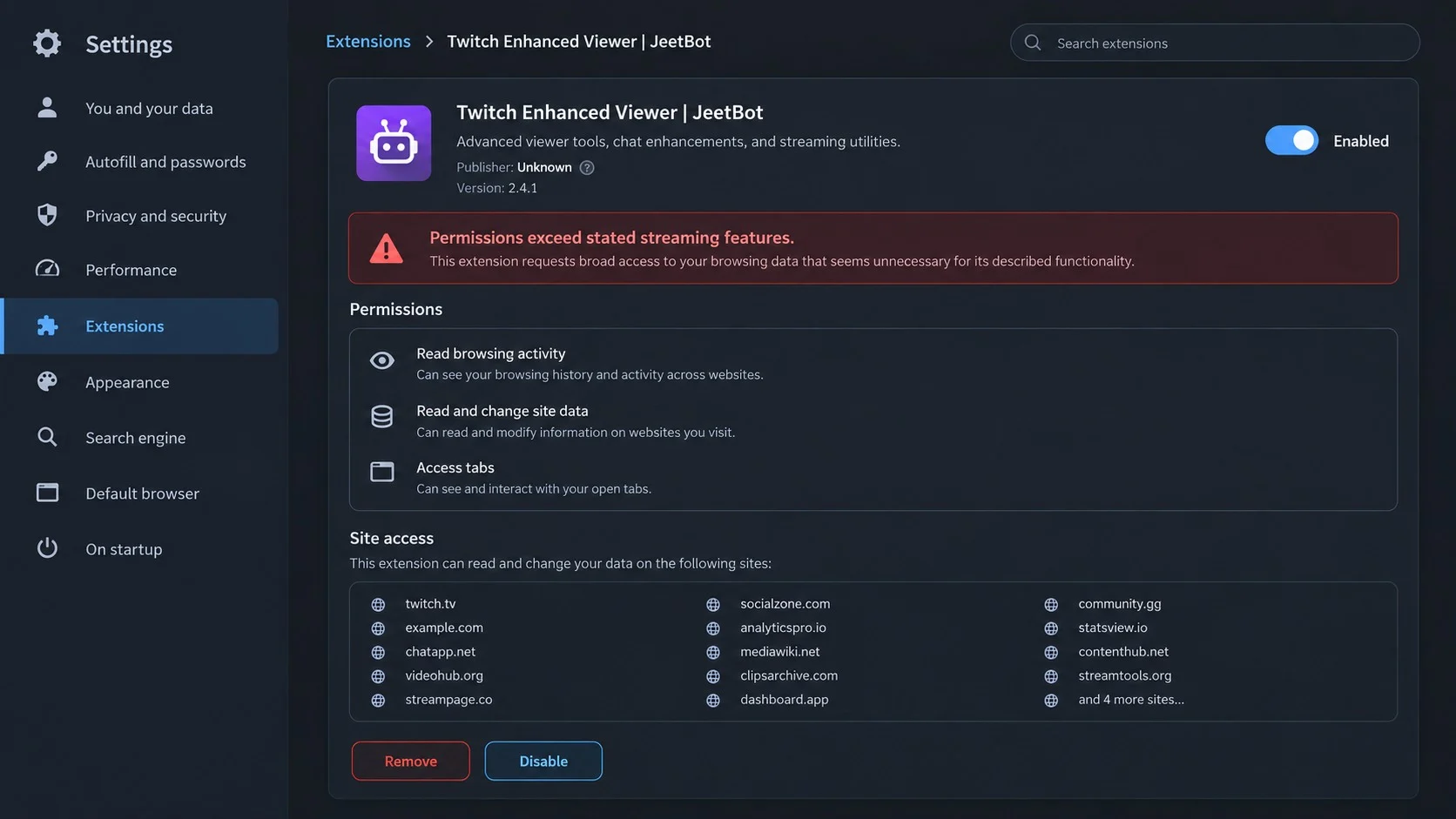
Browser extensions operate with declared permissions. Some need narrow access for a real function, while others request extensive control across websites, tabs, storage, or network requests.
Twitch Enhanced Viewer reportedly sought broad access connected to Twitch and additional domains. That reach matters because extensions execute inside a browser where authenticated sessions already exist.
Permission prompts can become background noise. Users often accept them quickly, especially when the requested access appears related to modifying a streaming page.
However, “read and change data” can mean far more than adjusting video quality. It may expose page content, authentication artifacts, requests, and actions performed under the user’s identity.
Step 3: The extension locates an authenticated Twitch token
After a viewer signs in, the service uses session information to remember that authentication. An OAuth token can authorize requests without repeatedly asking for the password.
The malicious logic reportedly accessed that token from the browsing environment. To the victim, nothing necessarily changes because the legitimate Twitch session continues working.
This makes token theft quieter than a traditional fake login page. There may be no suspicious form, failed password prompt, or unfamiliar page to trigger concern.
A token is not the same as the readable password, but it can still be highly valuable. It tells Twitch that a previously authenticated session may continue.
Two-factor authentication primarily protects the sign-in stage. If criminals steal the result of a completed login, they may avoid triggering a new verification challenge.
The exact capabilities depend on token scope and current platform controls. Even limited access can support impersonation, private-message abuse, reconnaissance, or manipulation of viewer features.
Step 4: Authentication data leaves the browser
Researchers reported that stolen information was sent to a domain associated with the extension’s JeetBot infrastructure. This transfer converted local session access into remote account exposure.
Configuration resources were also reportedly fetched from separate infrastructure. Remote configuration can let operators change behavior without presenting a clearly visible feature update to the user.
That arrangement creates flexibility for abuse. Rules, targets, or supported actions can be adjusted centrally while installed copies continue appearing like the same familiar add-on.
A published privacy promise does not neutralize this behavior. What software actually collects and transmits is more meaningful than a statement saying it stores nothing.
Step 5: The stolen session enables account impersonation
An attacker using valid session material may appear to the platform as the account owner. Suspicious actions can therefore originate from an otherwise legitimate user identity.
Private whispers are particularly useful for spreading promotions, malicious links, or fraudulent requests. Recipients may trust the message because it comes from somebody they recognize.
Chat actions can harm a victim’s reputation or trigger moderation penalties. Streamers and community members may initially blame the real account holder for behavior they never performed.
Automated point collection or redemption can also distort engagement systems. The financial value may be limited, but account control and community trust remain important losses.
Step 6: Ordinary extension behavior hides the compromise
The add-on may continue providing some advertised functions. Working features make victims less likely to question the installation or connect strange account activity with the extension.
Reported exclusions for certain accounts also suggest selective logic. Avoiding particular targets can reduce complaints, preserve infrastructure, or reflect operator preferences rather than technical necessity.
Store removal helps future users, but existing installations may remain until browsers disable or uninstall them. Forked copies can also return under changed names and descriptions.
For that reason, detection should focus on permissions, publisher history, network behavior, and unexpected account sessions, not solely one extension title.
Why Official Browser Stores Did Not Eliminate the Risk
Extension stores use automated checks, policy reviews, user reports, and later investigations. Those controls reduce risk, but malicious behavior can be delayed, obscured, or introduced through updates.
A useful extension may build an audience before its code changes. Alternatively, a legitimate developer account can be sold, compromised, or persuaded to include questionable components.
Reviews are also imperfect evidence. Early comments may describe working features, while fake ratings can bury warnings or create momentum around a newly published tool.
Install counts measure adoption, not safety. Large numbers can actually strengthen social proof, encouraging cautious users to trust the crowd instead of examining access requests.
Store badges should therefore be treated as one signal. They cannot replace publisher research, permission review, update monitoring, and prompt action when credible abuse reports appear.
How to Identify the JeetBot Malicious Extension
Check the installed extension name and publisher
Open the browser’s extension-management page and look for Twitch Enhanced Viewer or JeetBot references. Also inspect unfamiliar viewing, reward, ad-blocking, or quality-enhancement add-ons.
Record the extension identifier and version before removal if an organization needs evidence. Names and icons are easy to change, while identifiers help incident responders compare installations.
Review site access and permissions
Look for authority to read and change data on Twitch, JeetBot-related domains, or an unexpectedly wide collection of sites. Excessive scope is a serious warning.
Consider whether each privilege is necessary for the claimed feature. Automatic rewards do not justify unrestricted access to unrelated browsing activity.
Examine Twitch account activity
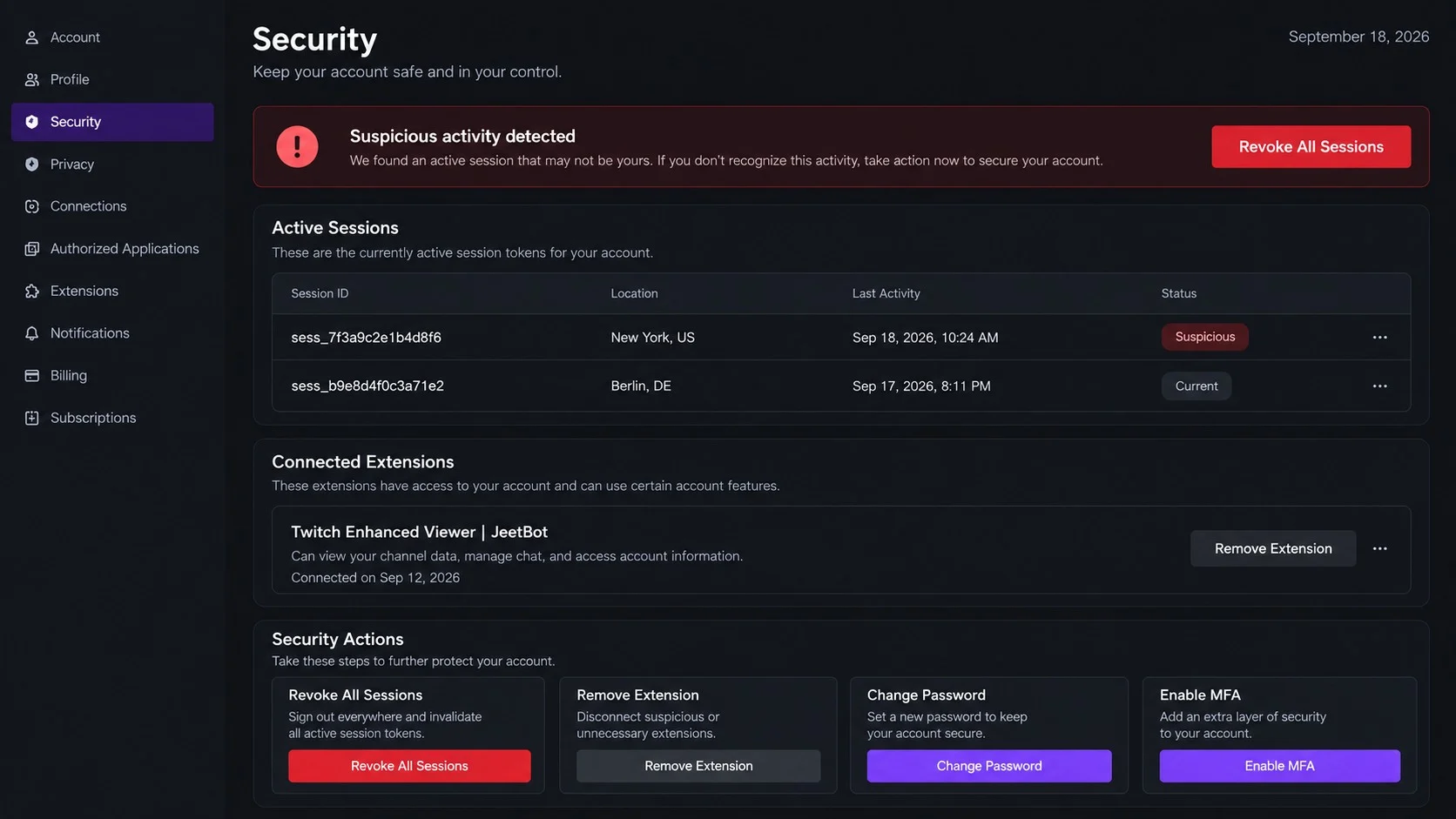
Check active sessions, authorized applications, chat history, whispers, security notices, and setting changes. Focus on activity that occurred while the extension was installed.
Unexpected messages or moderation events can be more visible than the token theft itself. Ask trusted contacts whether your account sent unusual links.
Look for network and security evidence
Managed environments can inspect DNS, proxy, endpoint, and browser logs for connections tied to the extension. Preserve timestamps before deleting evidence needed for investigation.
Home users may have less telemetry, so uncertainty should favor containment. Revoking sessions and authorization tokens is safer than waiting for conclusive signs of misuse.
What to Do If You Installed This Extension
- Remove the extension from every browser profile. Check Chrome, Firefox, Edge, and synchronized profiles. A second installation can restore the same exposure.
- Close and reopen the browser. This stops active extension processes. On managed systems, administrators should confirm that policy does not reinstall the add-on.
- Sign out of all Twitch sessions. Use Twitch security settings to invalidate existing sessions. Do this even when the current session appears normal.
- Revoke connected applications. Remove unfamiliar authorizations and anything associated with the extension. Grant access again only to tools you still trust.
- Change your Twitch password. Choose a new, unique password. Although the reported target is a session token, full credential hygiene limits related risk.
- Enable two-factor authentication. An authenticator app provides valuable protection against future logins, even though a previously stolen token requires separate revocation.
- Review account behavior. Inspect whispers, chat activity, followed channels, subscriptions, redemptions, and settings. Document anything you did not initiate.
- Run a Malwarebytes scan. Check for additional unwanted software, modified browser components, or payloads delivered alongside the extension.
- Use AdGuard carefully. It can block known malicious pages and intrusive promotions, but no blocker can make an overprivileged extension trustworthy.
- Warn contacts and report abuse. Tell recipients to ignore suspicious messages from your account. Streamers or organizations should preserve logs and notify their security team.
Is Your Device Infected? Run a Free Malware Scan
Slow performance, constant pop-ups, or strange behavior? These are classic signs of a malware infection. The fastest way to find out is to scan your device with Malwarebytes Free — one of the most trusted malware removal tools available.
The free version detects and removes the most common threats, including:
- Adware — the cause of those annoying pop-ups
- Browser hijackers — unwanted redirects and changed homepages
- Trojans and spyware — hidden programs stealing your data
- Potentially unwanted programs (PUPs) — software you never asked for
👉 Select your device below — Windows, Mac, or Android — then follow the simple steps to download Malwarebytes, scan your system, and remove any threats it finds. The scan usually takes 5 to 20 minutes.
Run a Malware Scan with Malwarebytes for Windows
Malwarebytes is one of the most popular and trusted anti-malware tools for Windows — and it’s completely free for removing infections. It catches threats that many antivirus programs miss, including adware, browser hijackers, and trojans. Follow the steps below to scan and clean your PC in just a few minutes.
Download Malwarebytes
Click the button below to download the latest version of Malwarebytes for Windows from the official source. The free version is all you need — it will scan your computer and remove adware, browser hijackers, and other malicious software at no cost.
Download MalwarebytesOfficial installer for Windows 11 and 10. Your download starts right away.Want real-time protection? See Malwarebytes Premium Malwarebytes Free for WindowsScans and removes malware at no cost
-
Install Malwarebytes
When the download finishes, open your Downloads folder and double-click the MBSetup file. If Windows shows a User Account Control pop-up, click “Yes” to allow the installation.

Follow the On-Screen Prompts to Install Malwarebytes
The setup wizard will walk you through a few quick screens:
-
Choose where you’re installing the program — “Personal Computer” or “Work Computer” — then click Next.

-
Malwarebytes will now install on your device. This usually takes under a minute.

-
When installation is complete, the “Welcome to Malwarebytes” screen will open automatically.

-
On the final screen, click Open Malwarebytes to launch the program.

-
Enable “Scan for Rootkits”
Before scanning, turn on rootkit detection so Malwarebytes can find even the most hidden threats. Click the Settings gear icon on the left side of the screen.

In the settings menu, find “Scan for rootkits” and click the toggle so it turns blue.

Done? Click “Dashboard” in the left pane to return to the main screen.
Start the Scan
Click the blue Scan button. Malwarebytes will automatically update its virus database and start checking your computer for malware.

-
Wait for the Scan to Finish
The scan checks your entire system for browser hijackers and other malicious programs, so it can take 5 to 20 minutes depending on your computer. Feel free to do something else — just check back occasionally to see the progress.

-
Quarantine the Detected Threats
When the scan is done, you’ll see a list of everything Malwarebytes found — malware, adware, and potentially unwanted programs. Click the “Quarantine” button to remove all of them at once.

Malwarebytes will now remove the malicious files and registry entries and move them safely into quarantine.

-
Restart Your Computer
Some threats can only be fully removed after a reboot. If Malwarebytes asks you to restart, click Yes. Once you’re logged back in, Malwarebytes has finished removing the threats it found.

That’s it — your Windows PC is now clean of trojans, adware, and other malware, and should be back to running smoothly.
If you are still having problems with your computer after completing these instructions, then please follow one of the steps:
- Run a computer scan with ESET Online Scanner
- Ask for help in our Windows Malware Removal Help & Support forum.
Run a Malware Scan with Malwarebytes for Mac
Malwarebytes for Mac is a free on-demand scanner that removes the malware other security software tends to miss — adware, browser hijackers, and unwanted programs included. Cleaning an infected Mac with Malwarebytes has always been completely free, and it’s our go-to recommendation. Follow the steps below to scan and clean your Mac in just a few minutes.
-
Download Malwarebytes for Mac
Click the button below to download the latest version of Malwarebytes for Mac.
Download MalwarebytesOfficial installer for macOS. Your download starts right away.Want real-time protection? See Malwarebytes PremiumMalwarebytes Free for MacScans and removes malware at no cost -
Open the Malwarebytes setup file
When the download finishes, open your Downloads folder and double-click the setup file to begin the installation.

-
Follow the On-Screen Prompts to Install Malwarebytes
The Malwarebytes for Mac Installer will guide you through a few quick screens. Click “Continue” and keep following the prompts until the installation completes.



When the installation is complete, Malwarebytes opens to the Welcome to Malwarebytes screen. Click “Get started“.
-
Select “Personal Computer” or “Work Computer”
Malwarebytes will ask what type of computer you’re installing it on. Click either Personal Computer or Work Computer, whichever applies.

-
Start the Scan
Click the “Scan” button. Malwarebytes will automatically update its detection database and begin checking your Mac for malware.

-
Wait for the Scan to Finish
Malwarebytes will scan your Mac for adware, browser hijackers, and other malicious programs. This can take a few minutes, so feel free to do something else — just check back occasionally to see the progress.

-
Quarantine the Detected Threats
When the scan is done, you’ll see a list of everything Malwarebytes found. Click the “Quarantine” button to remove all the threats at once.

-
Restart Your Mac
Malwarebytes will now remove all the malicious files it found. Some threats can only be fully removed after a reboot — if Malwarebytes asks you to restart, allow it. Once you’re logged back in, your Mac is clean.

That’s it — your Mac is now free of adware, rogue browser extensions, and other potentially harmful software.
If you are still experiencing problems while trying to remove a malicious program from your computer, please ask for help in our Mac Malware Removal Help & Support forum.
Run a Malware Scan with Malwarebytes for Android
Malwarebytes for Android automatically detects and removes dangerous threats like malware and ransomware so you don’t have to worry about your most-used device being compromised. Aggressive detection of adware and potentially unwanted programs keeps your Android phone or tablet running smooth.
-
Download Malwarebytes for Android.
You can download Malwarebytes for Android by clicking the link below.
Get Malwarebytes for AndroidOpens Google Play in a new tab.Want real-time protection? See Malwarebytes Premium for AndroidMalwarebytes for AndroidScans your phone and removes malware at no cost -
Install Malwarebytes for Android on your phone.
In the Google Play Store, tap “Install” to install Malwarebytes for Android on your device.

When the installation process has finished, tap “Open” to begin using Malwarebytes for Android. You can also open Malwarebytes by tapping on its icon in your phone menu or home screen.

-
Follow the on-screen prompts to complete the setup process
When Malwarebytes will open, you will see the Malwarebytes Setup Wizard which will guide you through a series of permissions and other setup options.
This is the first of two screens that explain the difference between the Premium and Free versions. Swipe this screen to continue.
Tap on “Got it” to proceed to the next step.
Malwarebytes for Android will now ask for a set of permissions that are required to scan your device and protect it from malware. Tap on “Give permission” to continue.
Tap on “Allow” to permit Malwarebytes to access the files on your phone.
-
Update database and run a scan with Malwarebytes for Android
You will now be prompted to update the Malwarebytes database and run a full system scan.

Click on “Update database” to update the Malwarebytes for Android definitions to the latest version, then click on “Run full scan” to perform a system scan.

-
Wait for the Malwarebytes scan to complete.
Malwarebytes will now start scanning your phone for adware and other malicious apps. This process can take a few minutes, so we suggest you do something else and periodically check on the status of the scan to see when it is finished.

-
Click on “Remove Selected”.
When the scan has been completed, you will be presented with a screen showing the malware infections that Malwarebytes for Android has detected. To remove the malicious apps that Malwarebytes has found, tap on the “Remove Selected” button.

-
Restart your phone.
Malwarebytes for Android will now remove all the malicious apps that it has found. To complete the malware removal process, Malwarebytes may ask you to restart your device.
That’s it — your Android phone is now clean — no more malicious apps, adware, or browser redirects.
If you are still having problems with your phone after completing these instructions, then please follow one of the steps:
- Restore your phone to factory settings by going to Settings > General management > Reset > Factory data reset.
- Ask for help in our Mobile Malware Removal Help & Support forum.
Stay Protected: Block Ads and Malicious Sites
Now that your device is clean, keep it that way. Most infections start with a malicious ad or a fake download button — so blocking them at the source is your best defense.
We recommend AdGuard, which blocks malicious ads, phishing pages, and dangerous redirects before they can reach you.
👉 Download AdGuard and browse safely
Removing the browser add-on is only the first half of recovery. Stolen tokens may remain useful until Twitch invalidates the associated sessions or authorizations.
Do not reinstall a renamed copy because a forum post claims the problem was fixed. Wait for independently verifiable evidence and a transparent publisher response.
Session Tokens, Passwords, and Two-Factor Authentication
A password proves identity during login. A session token is issued afterward so the service can recognize subsequent requests without repeating the entire sign-in process.
This distinction explains why changing only the password may leave uncertainty. Some services invalidate old sessions automatically, while others offer a separate “sign out everywhere” control.
Two-factor authentication remains worthwhile because it blocks many unauthorized logins. It cannot retroactively protect a session token that malicious code copied from an authenticated browser.
Revocation is therefore the central recovery action. Ending sessions and withdrawing application access tells the platform to stop honoring authentication material that may have escaped.
Users should also consider the browser itself part of the security boundary. Extensions can sit close to sensitive sessions, making publisher trust and minimal permissions essential.
Safer Habits for Browser Extensions
Install fewer extensions and remove those no longer used. Every add-on adds code, permissions, updates, and a publisher relationship to the browser’s attack surface.
Read negative reviews by date instead of looking only at the average score. Sudden complaints after an update can reveal a change that older ratings conceal.
Check whether the developer maintains a credible history and clearly explains data handling. Vague policies and unrelated domains deserve additional scrutiny.
Restrict site access when the browser allows it. “Only when clicked” or access limited to one necessary domain is preferable to permanent authority across every site.
After updates, revisit permissions. An extension that gains new capabilities should be evaluated again, even if it behaved safely when first installed.
Separate sensitive work into a browser profile with very few extensions. Streaming customizations do not need to share an environment with financial, workplace, or administrative accounts.
Frequently Asked Questions
Was Twitch itself hacked by JeetBot?
The reported issue involved a malicious browser extension taking authentication data from users. That is different from evidence that Twitch’s central systems were breached.
Can JeetBot steal an account without the password?
A valid session token can enable account actions without a fresh password prompt. Capabilities depend on token scope, platform controls, and whether the session remains active.
Does uninstalling Twitch Enhanced Viewer solve everything?
No. Uninstallation stops the local code, but users should also revoke sessions, remove connected applications, change credentials, and inspect activity.
Why would an extension need access to Twitch pages?
Legitimate enhancement features may require limited page access. The concern arises when permissions are broader than necessary or data leaves the browser without informed consent.
Can browser synchronization reinstall the extension?
It can synchronize extensions across profiles or computers. Inspect every connected browser and disable synchronization temporarily if the unwanted add-on returns.
Should I stop using all Twitch extensions?
Not necessarily. Choose established, transparent tools with minimal permissions, and reassess them after major updates. Avoid treating store availability as a complete safety guarantee.
The Bottom Line
Twitch Enhanced Viewer was presented as a convenience tool, but reported JeetBot behavior turned browser access into a route for stealing valuable session tokens.
Affected users should remove it, invalidate sessions, revoke authorizations, and review account activity. Future protection starts with fewer extensions and much closer permission scrutiny.

Join the discussion
0 commentsShare your experience or ask a question about this article.
Discussion
Start the conversation
Have a question or something useful to share? Add the first comment.