

A fake Teams HR notification says you have overdue payroll and benefits tasks waiting in Teams. The link opens the real Microsoft sign-in page, so the usual fake-domain warning seems to disappear. The dangerous moment comes after login.
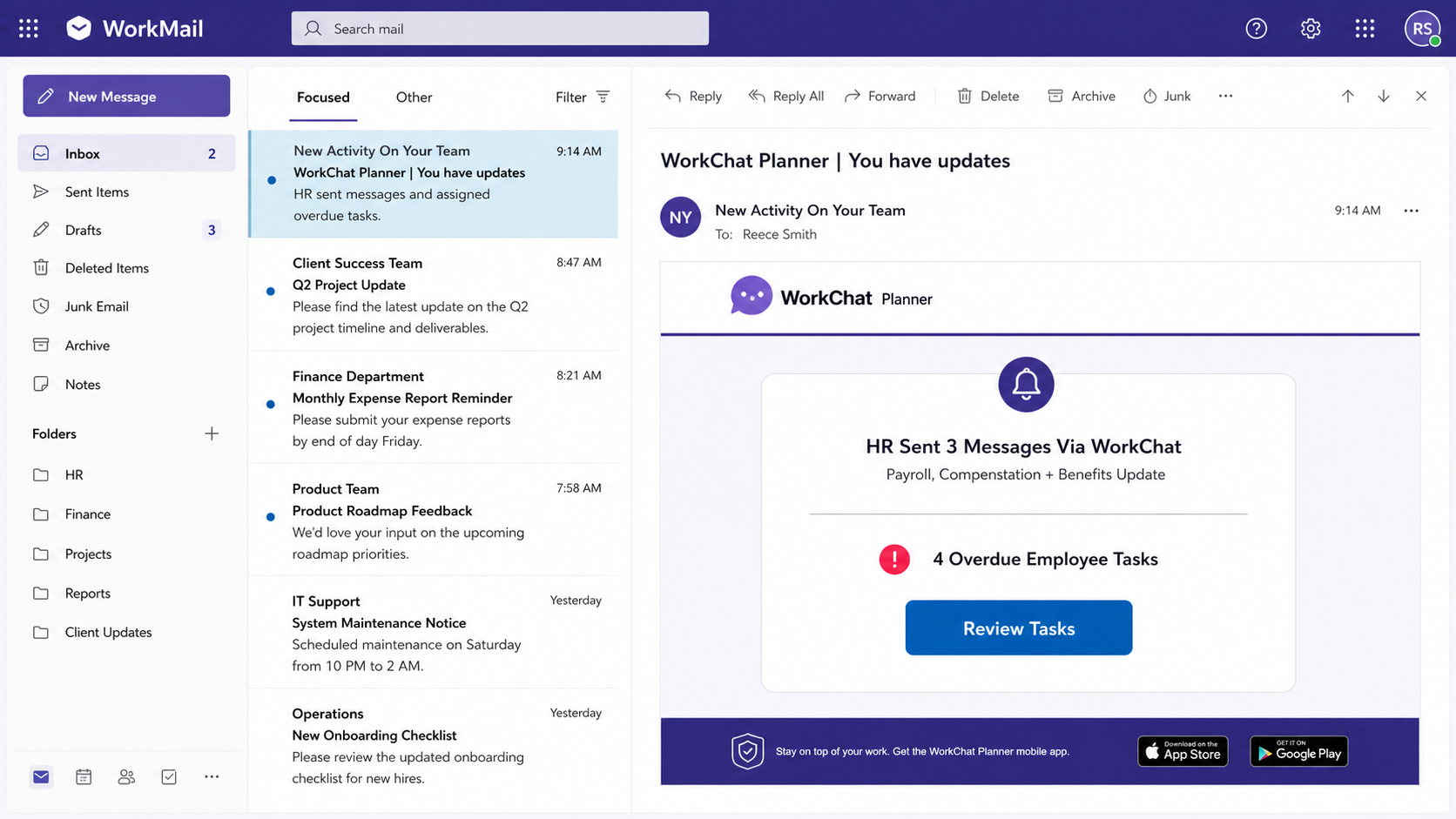
Check Point researchers identified more than 200 messages sent to users at roughly 120 organizations between June 25 and the second week of July 2026. The emails impersonated Microsoft Teams or Planner task notifications from HR.
The lure mentioned Payroll, Compensation + Benefits Update and displayed four overdue employee tasks. Every button passed through the same redirect and eventually opened a genuine login.microsoftonline.com authorization address.
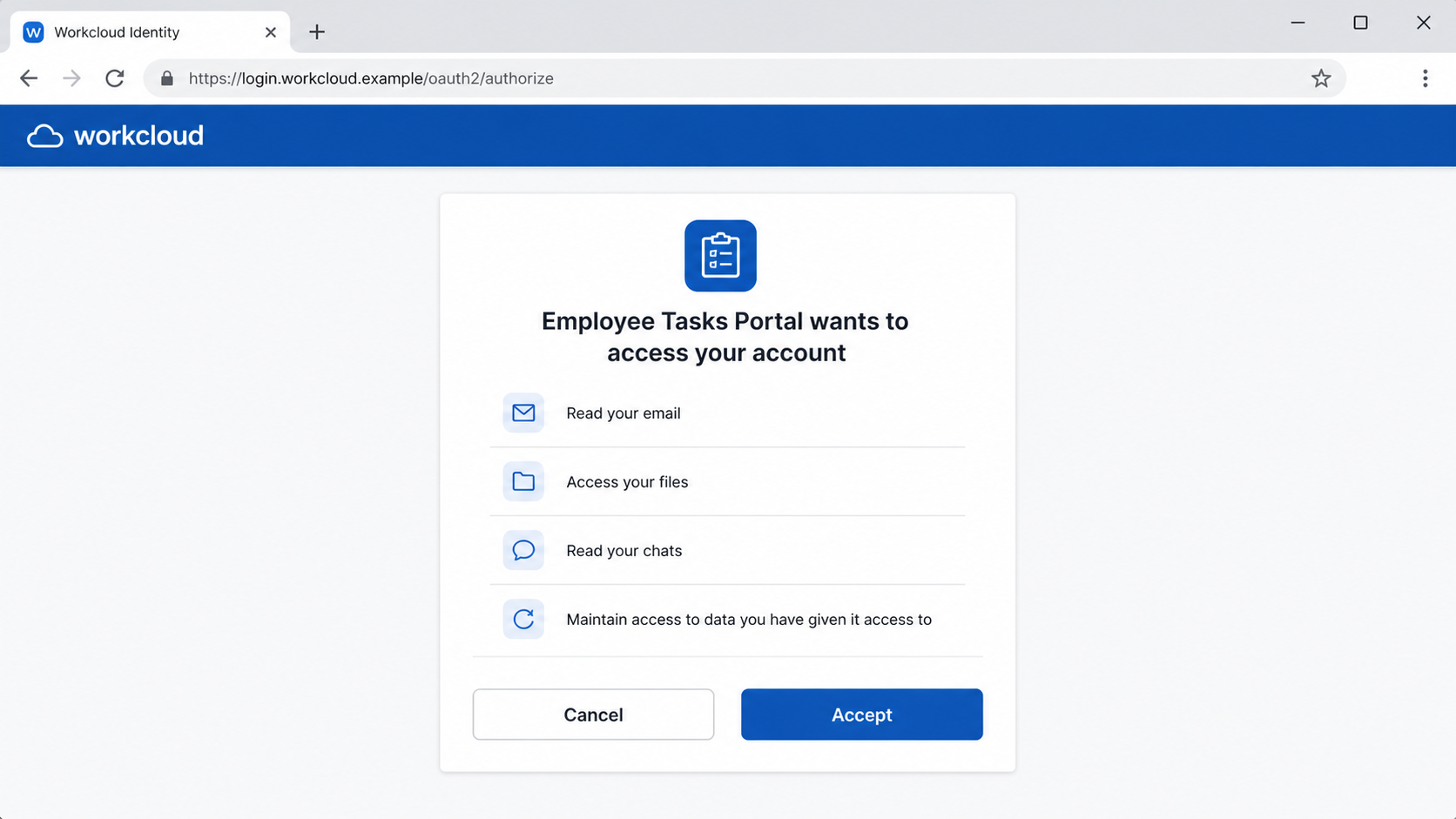
The genuine Microsoft page was not proof that the request was safe. The application asking for permission was controlled by the attacker, and the authorization result was sent to an attacker-controlled AWS API Gateway endpoint.
Overview
One Accept button can authorize an outside application to reach email, files, chats, and other workplace data without ever stealing the password directly.
The email exploits an ordinary workplace anxiety
Payroll, compensation, benefits, and overdue HR tasks are difficult to ignore. Employees may worry that a missed deadline will affect a paycheck, insurance enrollment, or performance record.
The message closely resembles a task-assignment notification and may appear to come from the recipient's own organization. That internal appearance encourages quick action before the sender and context are checked.
Attackers do not need a dramatic threat. A familiar task counter and a routine Review Tasks button can produce enough urgency to move the employee into the authorization flow.
A real Microsoft login page hides the malicious intent
Traditional phishing copies a sign-in page and collects a password. This campaign sent victims to Microsoft's legitimate OAuth authorization system, where the browser could display the correct Microsoft domain.
OAuth is designed to let one application access data held by another service with the user's permission. It is useful when the requesting application is trusted and dangerous when the app belongs to a criminal.
The authentication page can be genuine while the request is malicious. The critical questions are which application is asking, who published it, what permissions it wants, and why the user reached it from an unsolicited email.
Consent can create access that survives a password change
If the user approves broad permissions, the attacker may receive tokens that allow the application to read mail, search files, access chats, or maintain access without repeatedly asking for credentials.
Changing the password is still important after a suspicious event, but it may not revoke every application grant or refresh token. Administrators need to remove the malicious consent and invalidate affected sessions.
This makes the scam especially serious for business accounts. One compromised mailbox can become a trusted launch point for invoice fraud, payroll diversion, and phishing messages sent to colleagues or customers.
- The email imitates a Teams or Planner notification from HR.
- Payroll and benefits language creates immediate workplace pressure.
- The recipient may appear to be both sender and receiver.
- The link opens Microsoft's real OAuth authorization service.
- An attacker-controlled application asks for broad account permissions.
- A successful grant can expose email, files, chats, calendar, OneDrive, and SharePoint data.
What OAuth Consent Means in Plain English
OAuth lets an application request specific rights to another account. A calendar app might ask to read a calendar, while a backup tool might request file access. The user can approve without giving the application a password.
That separation is a security benefit when the application is legitimate. The service issues a token describing what the app may do, and the app uses the token instead of learning the user's secret password.
Consent phishing turns that convenience against the user. The criminal registers or controls an application, crafts an email that explains why access seems necessary, and sends the victim to the real authorization page.
The Microsoft domain, account chooser, and multifactor prompt may all be genuine. The deception is the story attached to the app and the identity of the person who benefits from the granted permissions.
Permissions determine the damage. Read Mail is different from Send Mail, and basic profile access is different from reading files, chats, or maintaining offline access.
Employees should read the consent page as carefully as a financial authorization. Accept does not merely continue to the HR task. It can create an ongoing data relationship with the named application.
What Researchers Observed in the 2026 Teams-Themed Campaign
The sender display name appeared as There's New Activity On Team, while the subject said an HR address had sent three messages through Teams chat. The body referenced payroll, compensation, and benefits.
The email showed four overdue employee tasks and used multiple buttons that all led through the same redirect. That repeated destination was a clue that the visual options did not represent separate Teams functions.
The final authorization request opened on login.microsoftonline.com, a real Microsoft domain. After approval, Microsoft redirected the result toward an attacker-controlled AWS API Gateway address specified by the malicious app.
Check Point reported more than 200 emails across around 120 organizations.
North American targets made up most classified locations, while manufacturing, professional services, nonprofit, government, and healthcare organizations appeared among the sectors.
The reported campaign was no longer active when the research was published. The method remains relevant because new applications and lures can reuse the same trusted Microsoft authorization flow.
How the Fake Teams HR Notification Phishing Scam Works
Step 1: An overdue HR task appears to come from inside the company
The employee receives a message styled like Teams or Planner. It claims HR posted payroll, compensation, or benefits information and says several tasks are already overdue.
The visible sender may contain the recipient's own organizational address. A display name can also say New Activity On Team, which looks close enough to a system-generated notification when read quickly.
The employee is encouraged to click before asking HR, because payroll themes feel private and time sensitive. That emotional pressure is the first security bypass.
Step 2: The link passes through a redirect
Every button in the message can lead to the same intermediate address. Redirects help the attacker track victims, replace destinations, and hide the final authorization URL from the email preview.
Hovering over the button may reveal a domain that has nothing to do with Microsoft or the employer. Even if the final page is genuine, an unexplained redirect deserves investigation.
Employees should open Teams directly and look for the task. If the app contains nothing matching the email, there is no reason to continue through the message.
Step 3: Microsoft authenticates the real employee
The browser opens login.microsoftonline.com and may ask the employee to choose an account, enter a password, or complete multifactor authentication. These screens belong to Microsoft.
Because the domain is real, the employee assumes the original email was real too. Authentication only proves who the employee is to Microsoft, not that the outside application deserves access.
The attacker does not need to capture the password at this stage. The goal is to persuade Microsoft to issue authorization tokens for the attacker's app.
Step 4: The consent screen lists powerful permissions
The page names an application and describes the data it wants. Depending on the configuration, the list may include reading mail, accessing files, viewing chats, or maintaining access.
The app name may sound related to HR, employee tasks, payroll, or document review. Names are easy to create and should not be treated as proof of publisher identity.
If the permission has no clear relationship to the promised task, cancel. A payroll notification should not require an unknown app to read every email or OneDrive file.
Step 5: Accept sends the authorization result to the attacker
When the user approves, Microsoft generates an authorization result for the application. In the observed campaign, the redirect destination was an attacker-controlled AWS API Gateway endpoint.
The attacker exchanges the result for tokens and can use the permissions granted by the user. The Microsoft sign-in may have worked exactly as designed.
A final blank page or harmless error can make the victim think the HR portal simply malfunctioned. The authorization may already be complete.
Step 6: The app reads data and prepares trusted follow-up attacks
With mailbox access, the criminal can learn writing styles, active invoices, reporting lines, travel plans, and vendor relationships. That context makes later fraud difficult to spot.
With send rights, the compromised identity can contact colleagues from a trusted account. Messages about updated bank details or urgent documents may bypass skepticism because the sender is familiar.
File, chat, SharePoint, and OneDrive access can expose confidential records. Calendar access reveals when executives or finance staff are traveling and less likely to verify requests.
Step 7: Persistent access continues until consent is revoked
Some grants include permission to maintain access. Tokens can remain useful after the browser closes, and a simple password change may not remove the application relationship.
The employee or administrator must revoke the malicious app's consent, invalidate sessions and tokens, and review audit logs for activity that occurred after approval.
The campaign can return with a new app name and another HR story. Training must cover permission screens, not only fake passwords and misspelled domains.
Company, Address, and Fulfillment Checks
Microsoft branding does not identify the requesting application
Microsoft operates the genuine login and consent service, but the company does not endorse every third-party app that requests access. An attacker can send users into the same authorization framework.
Read the application name and publisher details separately from the Microsoft page header. An unverified publisher or unfamiliar app should not receive workplace permissions.
Ask HR or IT whether the organization approved the exact application. Do not rely on the display name printed in the original email.
The redirect address exposes who receives the authorization result
In the documented campaign, the final redirect URI pointed to AWS API Gateway. AWS is a legitimate cloud provider, but a customer-controlled endpoint is not automatically part of Microsoft or the employer.
Cloud hosting replaces a traditional street address in this scheme. The service may host the attacker without knowing the customer's intended abuse until it is reported.
Administrators should preserve the full OAuth URL, app identifier, tenant information, redirect URI, and timestamps. Those technical details are more useful than a mailing address printed on a fake page.
There is no legitimate HR support conversation behind the task
A real HR team can confirm the task through the normal directory, Teams channel, HR portal, or ticket system. The phishing message tries to keep the employee inside its own links.
Replying to the suspicious email may reach the attacker or a dead mailbox. Contact the HR department using a known number or internal address instead.
If IT confirms the app is unauthorized, report the message at once. Fast reporting can help remove the application and locate other recipients before more people approve it.
The permission chain must be traceable to an approved business owner
A legitimate enterprise application has an owner, purpose, publisher, privacy policy, approved permissions, and support process. Security staff should be able to explain why each requested scope is necessary.
A vague Employee Tasks or Benefits name is not enough. The app should not ask for mailbox, chat, or file access merely to display a single notification.
When the business owner, publisher, redirect endpoint, and data use cannot be verified, the consent request should be denied and escalated.
Why the Correct Domain Is No Longer a Complete Phishing Test
Checking the address bar remains important, but this campaign demonstrates its limit. A criminal can abuse a legitimate authorization endpoint and rely on the user to approve a malicious app.
The next generation of phishing awareness must include app identity, requested permissions, publisher status, redirect context, and whether the action exists inside the official service.
Employees should treat an OAuth Accept button like granting a key. The key may open email, files, chat history, and other systems for as long as the authorization remains active.
Organizations can reduce risk by limiting user consent, requiring administrator approval for sensitive scopes, monitoring new enterprise applications, and alerting on unusual token use.
For individuals, the simplest defense is behavioral. Open Teams directly, confirm the task, and cancel any permission screen for an app you did not intentionally install.
Warning Signs to Watch For
- An HR task arrives unexpectedly through an email button.
- The message claims several payroll or benefits tasks are overdue.
- The visible sender appears to be the recipient's own address.
- Different buttons lead to the same redirect URL.
- The task is missing when Teams is opened directly.
- An unfamiliar application asks to read mail, files, or chats.
- The consent page lists an unverified publisher.
- The app requests permission to maintain access after the session ends.
The Microsoft page may be genuine. The permission request is the part that must be treated as potentially hostile.
What to Do if You Have Fallen Victim to This Scam
- Cancel the prompt if you have not approved it. Close the page and open Teams directly. Preserve the email, app name, permissions, OAuth URL, redirect address, and screenshots for your security team.
- Report the event to IT immediately. Say whether you clicked, signed in, completed multifactor authentication, or pressed Accept. Do not soften the report because the page looked genuine.
- Revoke the application's consent. Use the organization's approved Microsoft account portal or have an administrator remove the malicious enterprise application and every user grant associated with it.
- Invalidate sessions and tokens. Administrators should revoke active sessions and refresh tokens, then review sign-in and audit logs. A password reset alone may not remove OAuth access.
- Review mailbox and file activity. Check sent mail, deleted items, forwarding rules, inbox rules, sharing changes, OneDrive links, SharePoint access, Teams messages, and calendar activity.
- Change the password if credentials were exposed. Create a unique password and strengthen multifactor authentication. Never approve a prompt you did not initiate from the official account.
- Scan the device if the redirect delivered a file. OAuth consent itself does not require an installer. If anything was downloaded or an extension was added, remove it and run a full Malwarebytes scan.
- Reduce malicious redirects on personal devices. AdGuard can block many known phishing and advertising destinations. Workplace controls and consent revocation are still required because the initial Microsoft authorization page may be legitimate.
- Warn affected contacts and report the message. If the account sent messages, tell recipients not to click them. Report the phishing email through the company's security process and to the email provider.
Frequently Asked Questions
Can a phishing attack really use the real Microsoft login page?
Yes. Consent phishing can send you to Microsoft's genuine OAuth service while an attacker-controlled application requests access.
Did the attacker learn my Microsoft password?
Not necessarily. In this method, the attacker may obtain authorized access tokens without seeing the password. Credentials could still be at risk if another page collected them.
What does Accept on an OAuth page actually do?
It grants the named application the permissions listed on screen. Those rights may include reading mail, accessing files, or maintaining access.
Is changing my password enough after I approved the app?
No. Revoke the application's consent and sessions as well. Persistent tokens may survive a password change depending on configuration.
How can I verify a real Teams task?
Open Teams, Planner, or the HR portal directly instead of using the email link. Contact HR through the company directory if the task is not visible.
Why would the email appear to come from my own address?
Sender information can be spoofed or manipulated. The internal appearance is part of the lure and does not prove your mailbox sent the message.
The Bottom Line
The fake Teams HR notification phishing scam does not need a counterfeit Microsoft login. It uses the real authorization system to place a dangerous permission request behind a believable workplace story.
Open Teams and HR systems directly. If an unfamiliar app asks to read mail, files, or chats, cancel and contact IT before approving anything.
After approval, act quickly. Revoke consent, invalidate sessions and tokens, review account activity, and warn anyone who may have received messages from the compromised identity.

Join the discussion
0 commentsShare your experience or ask a question about this article.
Discussion
Start the conversation
Have a question or something useful to share? Add the first comment.