

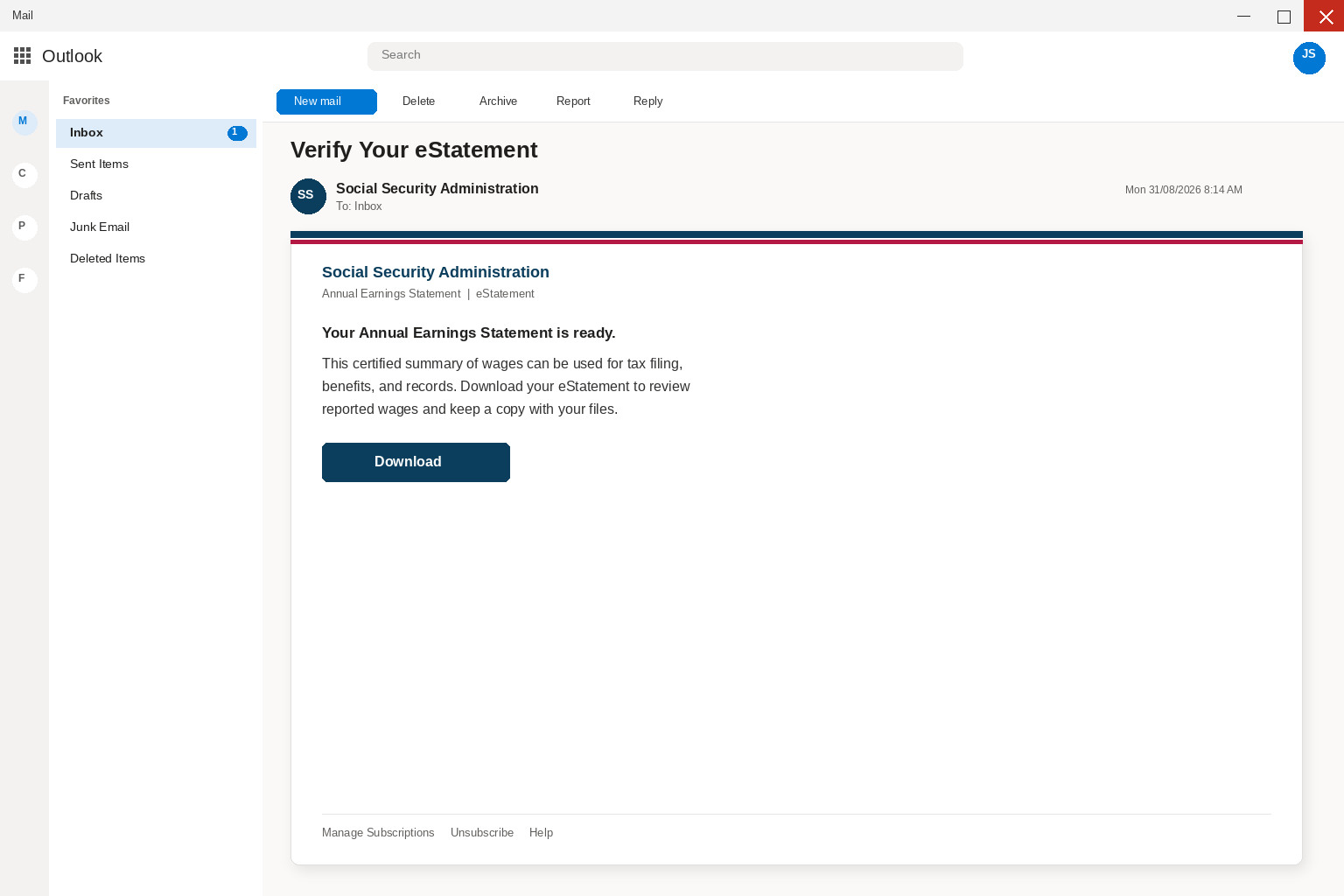
An email says an annual earnings statement is ready for review. For people tracking retirement credits, that subject line can feel important enough to open immediately.
The danger is not the idea of a statement. It is the unexpected route the message offers for getting one.
Overview
A believable document notice
The message presents a routine-sounding earnings update and a download button. It borrows the language of records, benefits, and annual review without using the recipient’s verified account.
That framing works because an earnings history is meaningful. Small errors can affect future questions, so readers may feel responsible for checking fast.
The official statement is meant to be accessed through a personal my Social Security account, not through an unfamiliar email download.
A file type that changes the risk
The reviewed path advertised a statement, then produced an unexpected ZIP archive rather than a normal account page. A ZIP can contain many kinds of files, including scripts.
In this case, the material reviewed included a batch file disguised by the surrounding document story. A document theme does not make an executable safe.
The exact outcome can vary by campaign, but opening a disguised file can expose the device and stored credentials.
The attacker wants a quick download
A clean-looking notice reduces the pause that normally happens before downloading an attachment. The button turns a public-service topic into a software-delivery route.
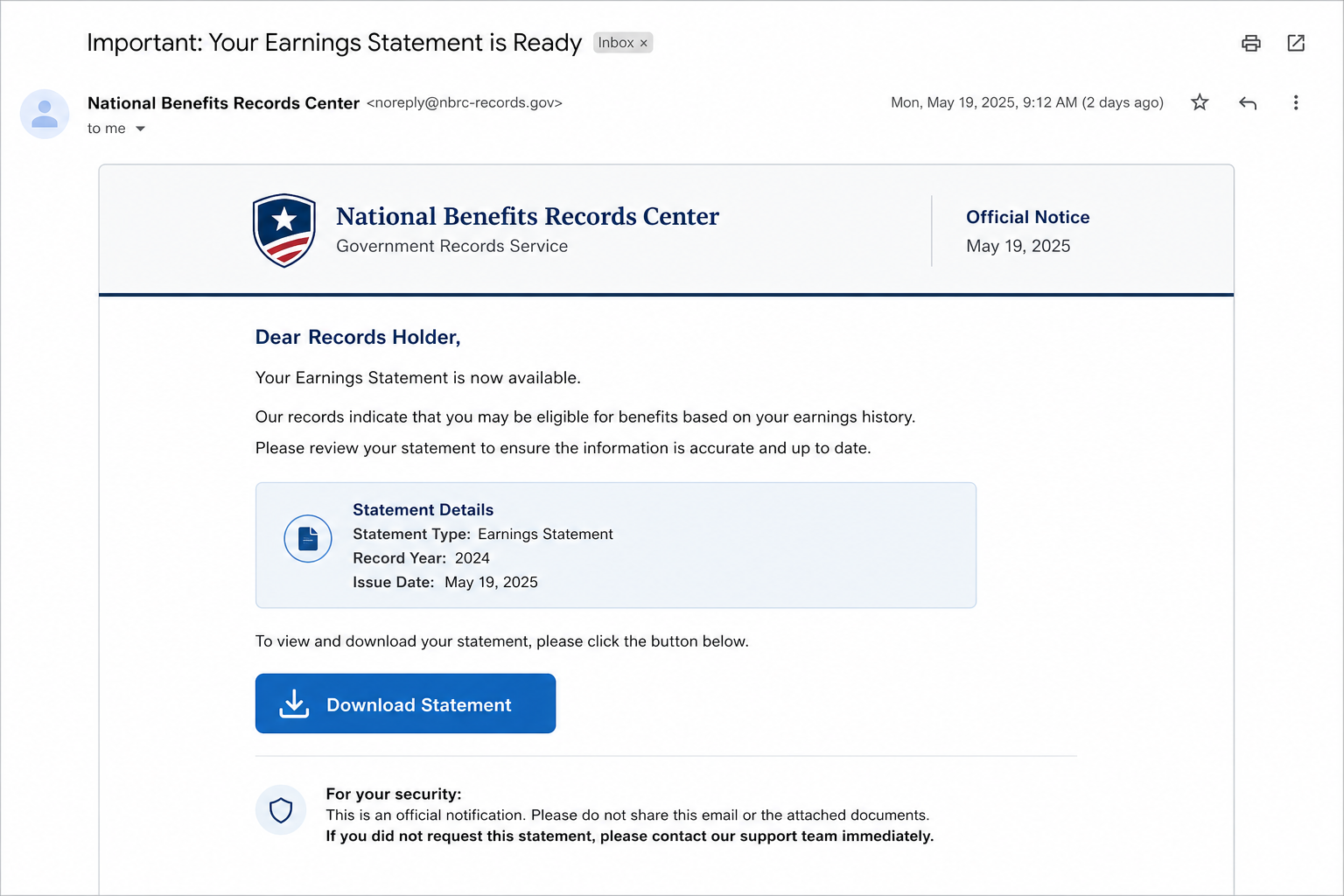
The sender may use a government-like name, a formal date, and a record reference. Those touches are meant to create confidence before the filename is examined.
An unexpected archive deserves the same caution whether it mentions earnings, taxes, benefits, or healthcare.
- An annual earnings statement framed as time-sensitive
- A government-style sender name without an authenticated account session
- A download path that substitutes a ZIP archive for a normal record page
- A batch-file risk hidden inside a document-themed package
- A request that can be checked safely through my Social Security
- Visual polish that cannot establish a sender’s identity
The earnings-statement lure succeeds by borrowing a task that people know they should complete eventually. It then makes “eventually” feel like “right now.”
That pressure is unnecessary when you can review a genuine statement by starting from your own official account.
A statement request should lead to records, not to an unknown archive sitting in the downloads folder.
How The Scam Works
Step 1: A routine benefit topic lands in the inbox
At this point, an annual earnings notice arrives without being requested.
The earnings notice assumes that retirement and work-history concerns make the subject feel legitimate.
For a rushed recipient, the reader is invited to act before comparing the sender with a known SSA route.
Work history and retirement records matter enough that people rarely ignore a statement notice.
The campaign turns a sensible desire for accuracy into pressure to download immediately.
The urgency comes from the sender, not from a verified account message.
An earnings record feels personal, so an annual earnings notice arrives without being requested. That relevance is precisely what gives this notice its leverage.
The statement language sounds official, yet an annual earnings notice arrives without being requested. An account session is stronger evidence than a formal-looking email.
This benefits-themed detour depends on an annual earnings notice arrives without being requested. Visiting my Social Security directly removes the sender from the decision.
Step 2: The sender imitates records language
At this point, formal dates, record labels, and benefit language decorate the email.
The earnings notice assumes that the presentation makes a generic notice sound individualized.
For a rushed recipient, the message does not place the reader inside an established my Social Security session.
Government-sounding terminology gives the notice a ceremonial tone.
A reader may assume that an issued date or record label proves the email was generated by an agency.
Those labels are simple text when they arrive outside a confirmed account.
An earnings record feels personal, so formal dates, record labels, and benefit language decorate the email. That relevance is precisely what gives this notice its leverage.
The statement language sounds official, yet formal dates, record labels, and benefit language decorate the email. An account session is stronger evidence than a formal-looking email.
This benefits-themed detour depends on formal dates, record labels, and benefit language decorate the email. Visiting my Social Security directly removes the sender from the decision.
Step 3: A statement button replaces a normal sign-in
At this point, a Download Statement control offers one simple next move.
The earnings notice assumes that the link can leave the expected government environment immediately.
For a rushed recipient, the actual destination may be unrelated to Social Security.
The official account is the place where an earnings record belongs.
A surprise link gives an unknown sender control over the first technical decision.
That is the opposite of a safe benefit-review process.
An earnings record feels personal, so a Download Statement control offers one simple next move. That relevance is precisely what gives this notice its leverage.
The statement language sounds official, yet a Download Statement control offers one simple next move. An account session is stronger evidence than a formal-looking email.
This benefits-themed detour depends on a Download Statement control offers one simple next move. Visiting my Social Security directly removes the sender from the decision.
Step 4: The download changes from document to archive
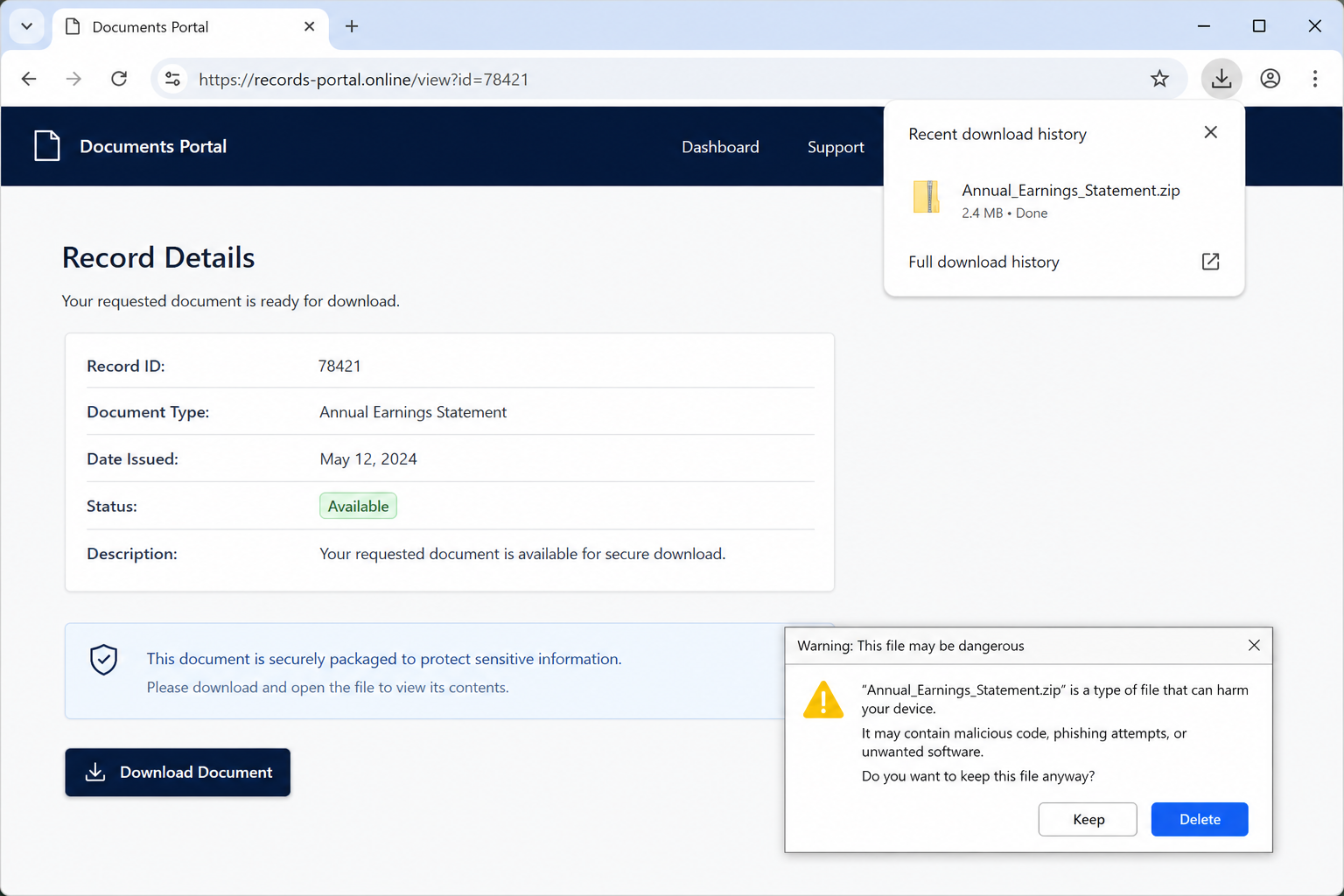
At this point, the promised statement becomes a ZIP archive.
The earnings notice assumes that archives are containers, not proof that contents are harmless.
For a rushed recipient, the new extension is the moment to stop rather than to open it.
An archive changes the question from record access to file safety.
The recipient should notice the extension before the file is unpacked or opened.
A ZIP does not deserve trust merely because an email called it a statement.
An earnings record feels personal, so the promised statement becomes a ZIP archive. That relevance is precisely what gives this notice its leverage.
The statement language sounds official, yet the promised statement becomes a ZIP archive. An account session is stronger evidence than a formal-looking email.
This benefits-themed detour depends on the promised statement becomes a ZIP archive. Visiting my Social Security directly removes the sender from the decision.
Step 5: The archive hides a script behind a familiar promise
At this point, the reviewed material included a batch file alongside the document story.
The earnings notice assumes that a batch file is a command script, not an earnings statement.
For a rushed recipient, renamed or disguised downloads can make a dangerous file look administrative.
Windows scripts can run commands that a normal PDF never would.
A filename that mentions a document reader is not a reliable description of its contents.
The file extension is the more important clue.
An earnings record feels personal, so the reviewed material included a batch file alongside the document story. That relevance is precisely what gives this notice its leverage.
The statement language sounds official, yet the reviewed material included a batch file alongside the document story. An account session is stronger evidence than a formal-looking email.
This benefits-themed detour depends on the reviewed material included a batch file alongside the document story. Visiting my Social Security directly removes the sender from the decision.
Step 6: A file can reach beyond the initial message
At this point, a malicious or unwanted program can seek saved passwords and browser data.
The earnings notice assumes that a work computer can create additional organizational exposure.
For a rushed recipient, the harm depends on what was opened and what protections were active.
A compromised device may contain saved browser sessions and personal documents.
That makes a benefit-themed download relevant to many accounts beyond Social Security.
Containment should begin before logging into sensitive services again.
An earnings record feels personal, so a malicious or unwanted program can seek saved passwords and browser data. That relevance is precisely what gives this notice its leverage.
The statement language sounds official, yet a malicious or unwanted program can seek saved passwords and browser data. An account session is stronger evidence than a formal-looking email.
This benefits-themed detour depends on a malicious or unwanted program can seek saved passwords and browser data. Visiting my Social Security directly removes the sender from the decision.
Step 7: The campaign counts on a quiet mistake
At this point, many people close the message after the file runs and never report it.
The earnings notice assumes that that delay gives a hostile program or credential thief more time.
For a rushed recipient, quick disclosure to a bank, employer, or IT team can limit damage.
A person who opened a file may assume nothing happened if no obvious window appears.
Quiet activity is one reason security scans and password changes matter after execution.
Waiting for a visible problem can give an intruder more time.
An earnings record feels personal, so many people close the message after the file runs and never report it. That relevance is precisely what gives this notice its leverage.
The statement language sounds official, yet many people close the message after the file runs and never report it. An account session is stronger evidence than a formal-looking email.
This benefits-themed detour depends on many people close the message after the file runs and never report it. Visiting my Social Security directly removes the sender from the decision.
Company, Address, and Fulfillment Checks
An official-looking sender can still be unrelated
A government title in the display field is not enough. Inspect the complete address, but do not click a link merely to investigate it.
Messages about benefits should be matched against a known account portal.
A generic records label cannot substitute for authentication.
A download host is not automatically a government service
The address that serves a file may have a reassuring name while having no connection to the agency mentioned in the email.
Use a separately opened official site to find the statement. Do not let the email choose the destination.
A secure connection icon only confirms encryption to that host.
Support should be found outside the message
A suspicious email may include a callback number or reply address that leads back to the same operation.
For benefit questions, use contact details published by Social Security or your established account.
Do not give a caller a code, password, or remote access because they referenced the downloaded statement.
A file needs a clear, traceable origin
An annual record should not require a surprise ZIP package or a script. File type is a practical security signal.
Keep the download unopened if the expected PDF becomes an archive, installer, or command file.
A legitimate record can be reached again from the official account if needed.
Why This Message Can Cause Real Harm
The appearance of a government document is not the same as a government delivery process. Cybercriminals often borrow familiar institutions because their names reduce skepticism.
Windows may hide file extensions in some views. Enable extensions before opening an attachment so a script cannot pass as a PDF by name alone.
A ZIP archive should be treated as a package requiring inspection, especially when it arrives unexpectedly. It is not a safer version of a statement.
If a household shares a computer, tell other users about the message. One opened archive can place saved browsers, email, and financial sessions at risk.
Small business owners should alert their IT provider if the email reached a work address. The relevant concern is not embarrassment, it is containment.
Do not forward the attachment to friends for a second opinion. Forwarding can spread the file and may place another device at risk.
An independent sign-in restores control. It lets the reader discover whether a statement exists without handing that decision to the sender.
What to Do if You Have Fallen Victim to This Scam
- Do not open the archive again. Preserve the email, filename, and download time so security staff can understand what occurred.
- If the file was saved but not opened, delete it, empty the recycle bin, and run a security scan before treating the device as normal.
- If a script or installer was opened, disconnect the device from sensitive accounts when practical and contact a trusted IT professional or employer security team.
- Change passwords from a known-clean device, beginning with email. Turn on multi-factor authentication where it is available.
- Review bank, retirement, and credit accounts for unfamiliar activity. The email itself may also lead to later credential or payment fraud.
- Run Malwarebytes to look for malicious files, persistence tools, and unwanted changes created by the downloaded package.
- Use AdGuard to reduce malicious ad and phishing exposure while you review browser extensions, saved passwords, and notification permissions.
- Report the campaign to the appropriate government and consumer-fraud channels. Include the sender, destination address, and file name rather than forwarding the file widely.
Is Your Device Infected? Run a Free Malware Scan
Slow performance, constant pop-ups, or strange behavior? These are classic signs of a malware infection. The fastest way to find out is to scan your device with Malwarebytes Free — one of the most trusted malware removal tools available.
The free version detects and removes the most common threats, including:
- Adware — the cause of those annoying pop-ups
- Browser hijackers — unwanted redirects and changed homepages
- Trojans and spyware — hidden programs stealing your data
- Potentially unwanted programs (PUPs) — software you never asked for
👉 Select your device below — Windows, Mac, or Android — then follow the simple steps to download Malwarebytes, scan your system, and remove any threats it finds. The scan usually takes 5 to 20 minutes.
Run a Malware Scan with Malwarebytes for Windows
Malwarebytes is one of the most popular and trusted anti-malware tools for Windows — and it’s completely free for removing infections. It catches threats that many antivirus programs miss, including adware, browser hijackers, and trojans. Follow the steps below to scan and clean your PC in just a few minutes.
Download Malwarebytes
Click the button below to download the latest version of Malwarebytes for Windows from the official source. The free version is all you need — it will scan your computer and remove adware, browser hijackers, and other malicious software at no cost.
Download MalwarebytesOfficial installer for Windows 11 and 10. Your download starts right away.Want real-time protection? See Malwarebytes Premium Malwarebytes Free for WindowsScans and removes malware at no cost
-
Install Malwarebytes
When the download finishes, open your Downloads folder and double-click the MBSetup file. If Windows shows a User Account Control pop-up, click “Yes” to allow the installation.

Follow the On-Screen Prompts to Install Malwarebytes
The setup wizard will walk you through a few quick screens:
-
Choose where you’re installing the program — “Personal Computer” or “Work Computer” — then click Next.

-
Malwarebytes will now install on your device. This usually takes under a minute.

-
When installation is complete, the “Welcome to Malwarebytes” screen will open automatically.

-
On the final screen, click Open Malwarebytes to launch the program.

-
Enable “Scan for Rootkits”
Before scanning, turn on rootkit detection so Malwarebytes can find even the most hidden threats. Click the Settings gear icon on the left side of the screen.

In the settings menu, find “Scan for rootkits” and click the toggle so it turns blue.

Done? Click “Dashboard” in the left pane to return to the main screen.
Start the Scan
Click the blue Scan button. Malwarebytes will automatically update its virus database and start checking your computer for malware.

-
Wait for the Scan to Finish
The scan checks your entire system for browser hijackers and other malicious programs, so it can take 5 to 20 minutes depending on your computer. Feel free to do something else — just check back occasionally to see the progress.

-
Quarantine the Detected Threats
When the scan is done, you’ll see a list of everything Malwarebytes found — malware, adware, and potentially unwanted programs. Click the “Quarantine” button to remove all of them at once.

Malwarebytes will now remove the malicious files and registry entries and move them safely into quarantine.

-
Restart Your Computer
Some threats can only be fully removed after a reboot. If Malwarebytes asks you to restart, click Yes. Once you’re logged back in, Malwarebytes has finished removing the threats it found.

That’s it — your Windows PC is now clean of trojans, adware, and other malware, and should be back to running smoothly.
If you are still having problems with your computer after completing these instructions, then please follow one of the steps:
- Run a computer scan with ESET Online Scanner
- Ask for help in our Windows Malware Removal Help & Support forum.
Run a Malware Scan with Malwarebytes for Mac
Malwarebytes for Mac is a free on-demand scanner that removes the malware other security software tends to miss — adware, browser hijackers, and unwanted programs included. Cleaning an infected Mac with Malwarebytes has always been completely free, and it’s our go-to recommendation. Follow the steps below to scan and clean your Mac in just a few minutes.
-
Download Malwarebytes for Mac
Click the button below to download the latest version of Malwarebytes for Mac.
Download MalwarebytesOfficial installer for macOS. Your download starts right away.Want real-time protection? See Malwarebytes PremiumMalwarebytes Free for MacScans and removes malware at no cost -
Open the Malwarebytes setup file
When the download finishes, open your Downloads folder and double-click the setup file to begin the installation.

-
Follow the On-Screen Prompts to Install Malwarebytes
The Malwarebytes for Mac Installer will guide you through a few quick screens. Click “Continue” and keep following the prompts until the installation completes.



When the installation is complete, Malwarebytes opens to the Welcome to Malwarebytes screen. Click “Get started“.
-
Select “Personal Computer” or “Work Computer”
Malwarebytes will ask what type of computer you’re installing it on. Click either Personal Computer or Work Computer, whichever applies.

-
Start the Scan
Click the “Scan” button. Malwarebytes will automatically update its detection database and begin checking your Mac for malware.

-
Wait for the Scan to Finish
Malwarebytes will scan your Mac for adware, browser hijackers, and other malicious programs. This can take a few minutes, so feel free to do something else — just check back occasionally to see the progress.

-
Quarantine the Detected Threats
When the scan is done, you’ll see a list of everything Malwarebytes found. Click the “Quarantine” button to remove all the threats at once.

-
Restart Your Mac
Malwarebytes will now remove all the malicious files it found. Some threats can only be fully removed after a reboot — if Malwarebytes asks you to restart, allow it. Once you’re logged back in, your Mac is clean.

That’s it — your Mac is now free of adware, rogue browser extensions, and other potentially harmful software.
If you are still experiencing problems while trying to remove a malicious program from your computer, please ask for help in our Mac Malware Removal Help & Support forum.
Run a Malware Scan with Malwarebytes for Android
Malwarebytes for Android automatically detects and removes dangerous threats like malware and ransomware so you don’t have to worry about your most-used device being compromised. Aggressive detection of adware and potentially unwanted programs keeps your Android phone or tablet running smooth.
-
Download Malwarebytes for Android.
You can download Malwarebytes for Android by clicking the link below.
Get Malwarebytes for AndroidOpens Google Play in a new tab.Want real-time protection? See Malwarebytes Premium for AndroidMalwarebytes for AndroidScans your phone and removes malware at no cost -
Install Malwarebytes for Android on your phone.
In the Google Play Store, tap “Install” to install Malwarebytes for Android on your device.

When the installation process has finished, tap “Open” to begin using Malwarebytes for Android. You can also open Malwarebytes by tapping on its icon in your phone menu or home screen.

-
Follow the on-screen prompts to complete the setup process
When Malwarebytes will open, you will see the Malwarebytes Setup Wizard which will guide you through a series of permissions and other setup options.
This is the first of two screens that explain the difference between the Premium and Free versions. Swipe this screen to continue.
Tap on “Got it” to proceed to the next step.
Malwarebytes for Android will now ask for a set of permissions that are required to scan your device and protect it from malware. Tap on “Give permission” to continue.
Tap on “Allow” to permit Malwarebytes to access the files on your phone.
-
Update database and run a scan with Malwarebytes for Android
You will now be prompted to update the Malwarebytes database and run a full system scan.

Click on “Update database” to update the Malwarebytes for Android definitions to the latest version, then click on “Run full scan” to perform a system scan.

-
Wait for the Malwarebytes scan to complete.
Malwarebytes will now start scanning your phone for adware and other malicious apps. This process can take a few minutes, so we suggest you do something else and periodically check on the status of the scan to see when it is finished.

-
Click on “Remove Selected”.
When the scan has been completed, you will be presented with a screen showing the malware infections that Malwarebytes for Android has detected. To remove the malicious apps that Malwarebytes has found, tap on the “Remove Selected” button.

-
Restart your phone.
Malwarebytes for Android will now remove all the malicious apps that it has found. To complete the malware removal process, Malwarebytes may ask you to restart your device.
That’s it — your Android phone is now clean — no more malicious apps, adware, or browser redirects.
If you are still having problems with your phone after completing these instructions, then please follow one of the steps:
- Restore your phone to factory settings by going to Settings > General management > Reset > Factory data reset.
- Ask for help in our Mobile Malware Removal Help & Support forum.
Stay Protected: Block Ads and Malicious Sites
Now that your device is clean, keep it that way. Most infections start with a malicious ad or a fake download button — so blocking them at the source is your best defense.
We recommend AdGuard, which blocks malicious ads, phishing pages, and dangerous redirects before they can reach you.
👉 Download AdGuard and browse safely
Frequently Asked Questions
Does Social Security provide an earnings statement?
Yes, but the safest way to view it is through your personal my Social Security account opened independently.
Why is a ZIP file suspicious in this situation?
A ZIP is a container that can hold scripts or installers. It is not the normal reassurance a reader should expect from a statement notice.
Is a batch file the same as a PDF?
No. A batch file contains commands for Windows. It should never be treated as a harmless earnings document.
What if the email has formal government language?
Professional wording can be copied. Verify the account route and sender independently before downloading anything.
Should I reply to ask whether the statement is real?
No. Sign in through a trusted official route or use a published agency contact method instead.
Can deleting the archive solve the problem?
Deleting helps if it was never opened. If it ran, scan the device and change passwords from a clean system.
The Bottom Line
The SSA annual earnings email scam turns a familiar government record into a dangerous download path.
Do not judge the message by its title or design. Judge it by the independent route to your real account and the actual file type it offers.
A genuine statement can wait for a safe sign-in. A surprise ZIP should not.

Join the discussion
0 commentsShare your experience or ask a question about this article.
Discussion
Start the conversation
Have a question or something useful to share? Add the first comment.