


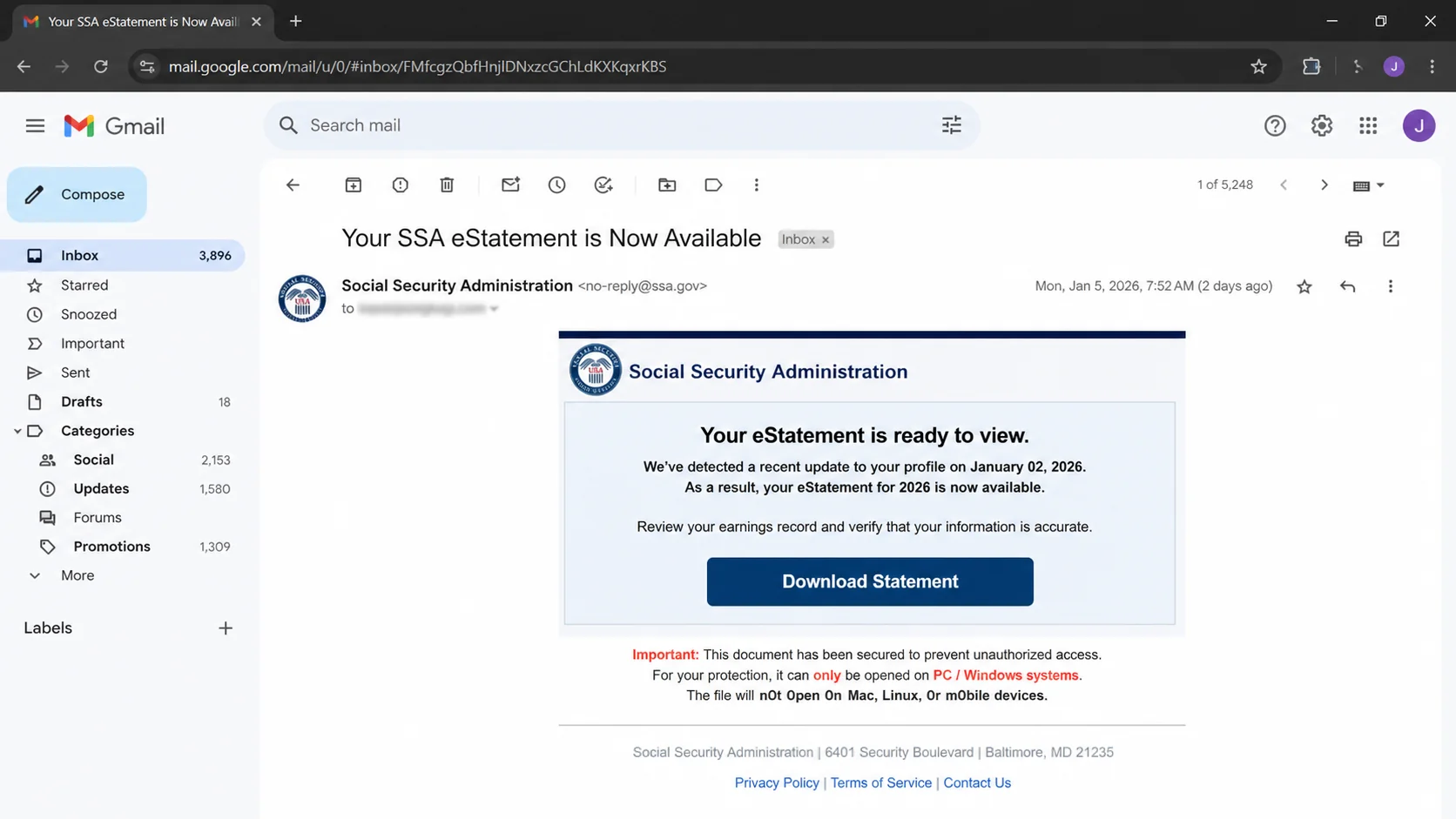
An email announces that a new Social Security eStatement is ready. The message resembles a routine government reminder and promises quick access to important retirement information.
Another version mentions a recent profile change. Because the account affects benefits and identity records, even a cautious recipient may feel compelled to check.
Overview
The scam imitates a notification people may expect
The SSA eStatement email scam impersonates the Social Security Administration and claims an electronic statement is available for viewing or download.
Some messages use subjects similar to “Your SSA eStatement is Now Available.” Others mention an account-profile update to create concern about unauthorized changes.
Legitimate users can review Social Security information online. That genuine service gives the fraudulent message a believable reason to arrive.
The scam’s strength is not a bizarre promise. It inserts an unsafe route into a familiar administrative task.
Criminal versions may tell recipients to download a statement, use only a Windows computer, or complete a required installation process.
A government statement should not require installing unexpected software from an email destination. That instruction changes a document review into a device-security risk.
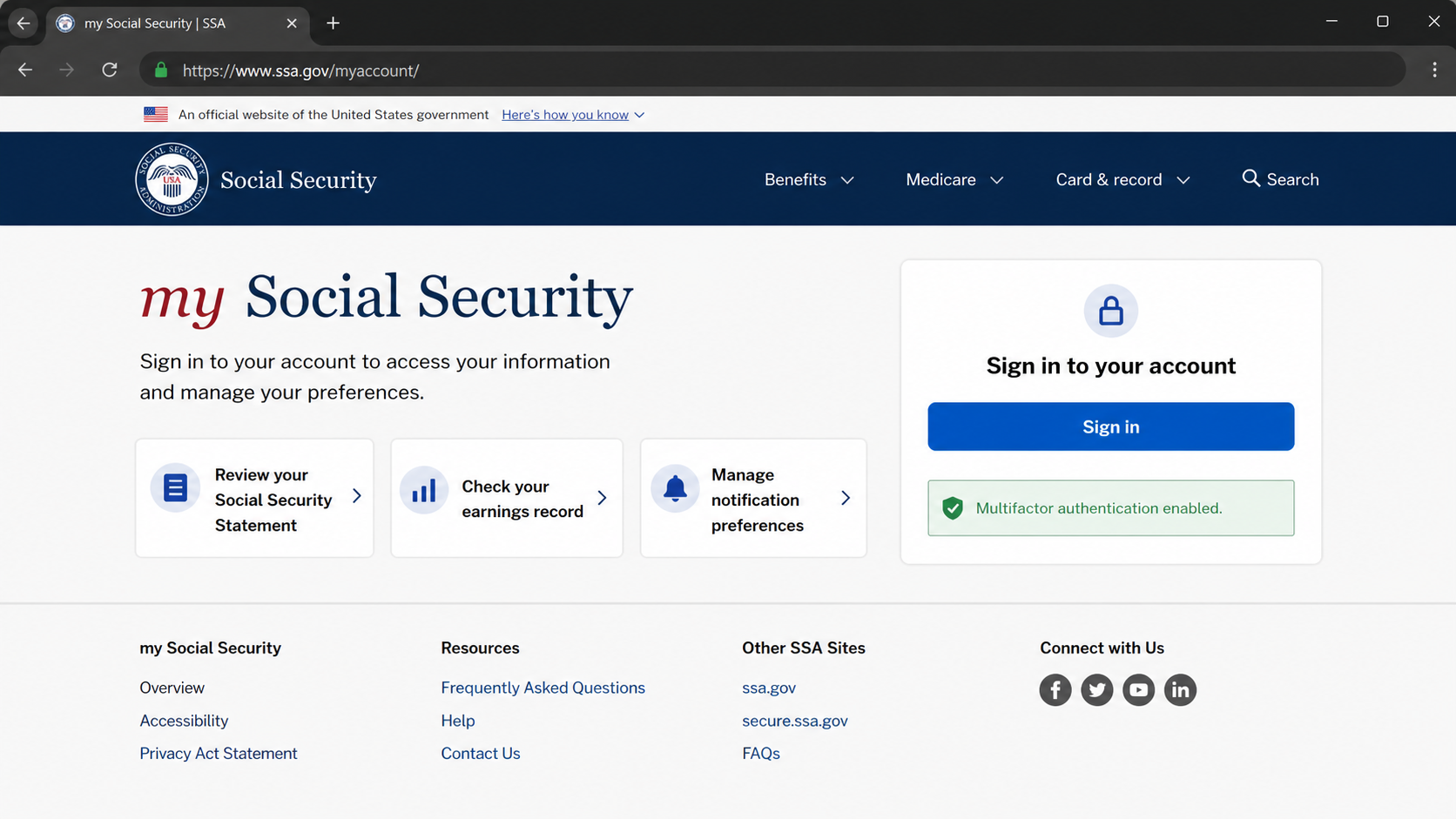
The safest approach is simple: type ssa.gov/myaccount into a fresh browser or use a trusted bookmark, then check the account directly.
The destination may steal identity data or deliver malware
The email link can lead to a counterfeit sign-in page, a suspicious download, or several redirects that change according to the visitor.
A false portal may request Social Security credentials, personal information, financial details, or an authentication code.
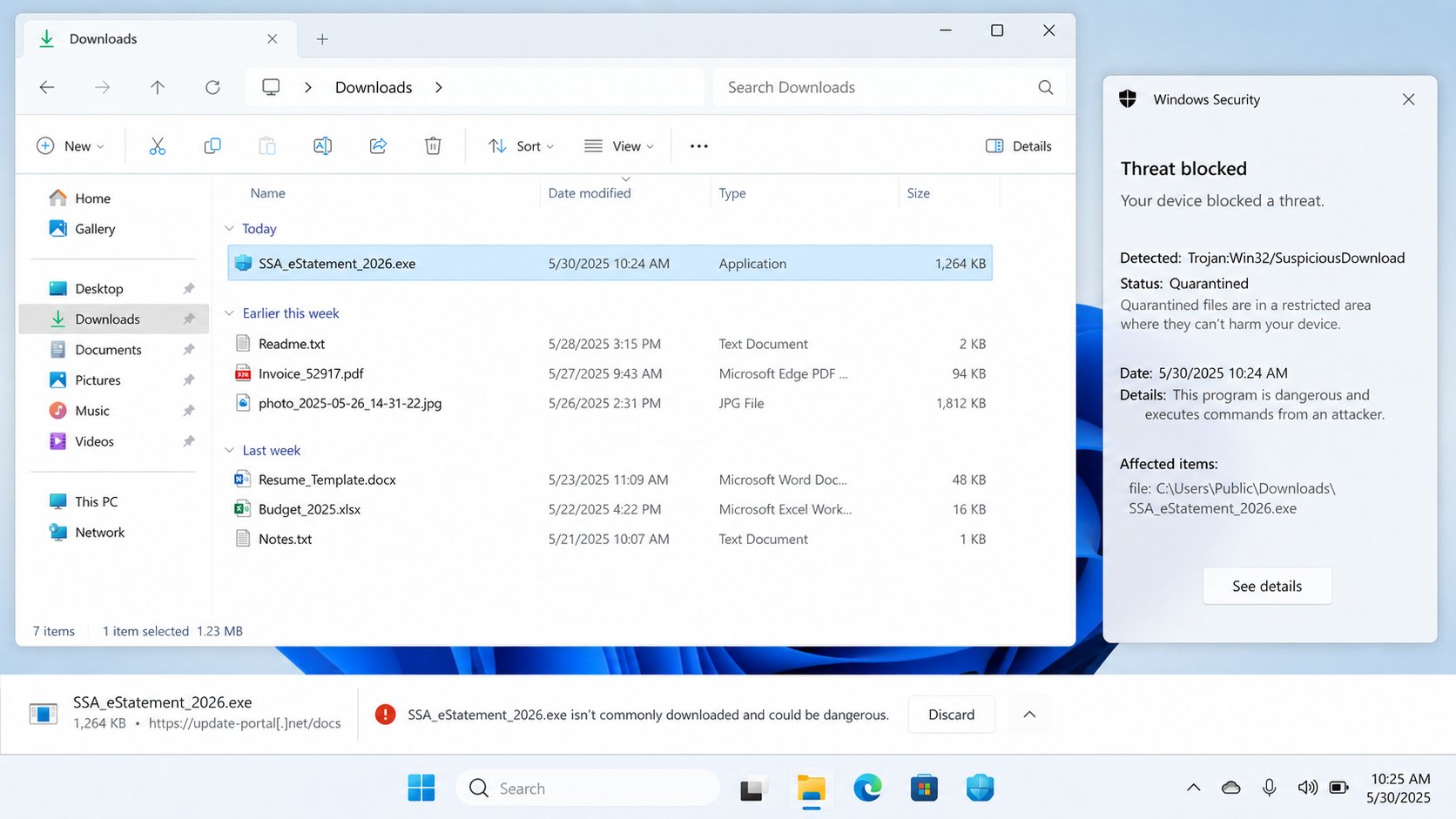
A downloaded file can be disguised as a statement while actually being an executable, archive, shortcut, or script.
The analyzed destination in one campaign was no longer functioning during later examination. That prevents certainty about every payload previously served.
It does not make the email safe. Short-lived infrastructure commonly disappears, changes content, blocks researchers, or redirects selected visitors differently.
Warning signs can include:
- A statement link that does not end at ssa.gov or secure.ssa.gov.
- Instructions to complete an installation before viewing benefits.
- A file whose type is not an ordinary document.
- Zeroes or unusual characters replacing letters in government words.
- A profile-change warning without matching account activity.
- A request for credentials after an unsolicited download link.
- Pressure to use one device or browser without explanation.
The official domain provides the clearest boundary
Social Security states that official online services use ssa.gov or secure.ssa.gov addresses. Lookalike words elsewhere do not cross that boundary.
Most official agency email uses government domains, but sender text alone remains insufficient. Addresses can be spoofed, and compromised systems can distribute misleading content.
The agency has warned the public about surges in fraudulent Social Security statement emails linked with fake websites, identity theft, financial loss, and malware.
A legitimate annual reminder does not require trusting its embedded route. The same information should be available after an independent visit to the account.
Users should distinguish a visible destination from a button label. “Download eStatement” describes what the sender wants you to expect, not what the server supplies.
Mobile devices may hide much of the address. When anything looks uncertain, wait until the full destination can be inspected safely.
Government branding, flags, seals, and formal language are public visuals. The domain and independently verified account activity carry stronger evidentiary value.
How The Scam Works
Step 1: Criminals distribute a government-themed notification
The campaign begins with email addresses obtained from data leaks, public records, marketing lists, or automated generation.
Social Security provides broad relevance because nearly every U.S. worker recognizes the agency. Operators do not need detailed knowledge of each recipient.
The message adopts official colors, a seal, administrative wording, and a familiar statement concept. These visual signals encourage quick trust.
A sender name can say Social Security Administration while the real address uses unrelated infrastructure or a compromised mailbox.
Some campaigns alter letters with similar-looking characters. A zero can replace an “o,” making a deceptive address harder to notice at a glance.
Save suspicious notices as evidence and use the mail provider’s reporting feature. Forwarding screenshots alone may omit valuable header information.
Step 2: The subject creates personal relevance
An available statement sounds routine, while a profile change sounds urgent. Both subjects connect the email with records people consider sensitive.
Retirement earnings, benefit estimates, and identity data carry long-term importance. Recipients may fear that ignoring the notice creates financial problems later.
The message can claim the document is ready only for a limited time. Artificial scarcity turns a normal account review into an immediate task.
Profile-change language can suggest another person accessed the account. That fear prepares the user to accept an unexpected sign-in page.
The email may contain enough formal wording to appear bureaucratic without including verifiable transaction details.
A genuine concern remains checkable inside the official account. The recipient loses nothing by ignoring the email route and opening ssa.gov independently.
Step 3: A button moves the visitor outside government infrastructure
The statement button may hide an unrelated address behind trusted wording. Redirect services can add several hops before the final page appears.
Operators sometimes compromise legitimate websites or use cloud platforms to host intermediate content. A familiar hosting provider does not make the government claim authentic.
The browser’s final host matters more than icons shown within the page. Official Social Security account activity belongs under ssa.gov or secure.ssa.gov.
Attackers can tailor delivery by country, device, browser, or previous visit. Researchers and ordinary recipients may therefore see different content.
A dead link only means the route is inactive now. It cannot establish what earlier visitors received or submitted.
Do not explore a suspicious destination for curiosity. Report it and let trained analysts use controlled systems if examination is necessary.
Step 4: The page requests a login or a software installation
One version may display a counterfeit Social Security sign-in and ask for credentials. Another may offer a downloadable “statement” file.
Installation instructions are especially revealing. Viewing a benefits statement should not require adding a new program supplied by an email sender.
The file may use a double extension, misleading icon, or archive to conceal its actual type. Windows can hide known extensions by default.
A fake login may ask for more than a username and password. Identity questions, birth dates, telephone numbers, and financial data increase the potential harm.
If the victim provides a one-time code, the operator may complete a live sign-in against a genuine account.
Stop when a document notification becomes an installation or identity-verification process. Reach the account from the official site instead.
Step 5: Submitted information or downloaded code reaches the attacker
A phishing form records whatever the visitor enters. The operator can test credentials, assemble identity profiles, or sell the collected information.
Malicious software can steal browser data, monitor activity, download further components, or create remote access. Exact behavior depends on the payload served.
Do not assume every campaign installs the same threat. Infrastructure changes rapidly, and one link can deliver different files over time.
Executing the file increases risk, but downloading alone still deserves investigation. Browser history and security logs can identify the route and filename.
Security software may quarantine a known sample. That is helpful, but a clean alert panel does not prove nothing else ran.
Affected users should separate account recovery from device recovery. Both require attention when credentials and executable files were involved.
Step 6: The criminal exploits government-account trust
Stolen credentials may expose statement data, earnings history, address information, or benefit-related records available within the account.
Identity details can support fraudulent credit, tax schemes, account recovery attempts, or convincing calls pretending to be government representatives.
An intruder might alter contact or notification settings where permitted. Those changes can hide later warnings or redirect communications.
Malware on the device can capture passwords for unrelated services entered afterward. This expands the incident beyond Social Security.
Criminals often combine channels. After email engagement, the victim may receive a telephone call referencing the supposed statement problem.
Never rely on caller ID as confirmation. End the call and use an official number located independently.
Step 7: Follow-up pressure seeks money or deeper identity access
Collected information lets an operator personalize later contact. A caller may cite the recipient’s address, email, or partial records as proof.
The story can shift from statement delivery to suspended benefits, overpayment, identity verification, or an alleged fee.
Government impostors may request gift cards, cryptocurrency, cash, wire transfers, or sensitive financial credentials. Those methods deserve immediate suspicion.
Device access creates another route. A fraudster posing as support may ask to install remote-control software to “fix” the statement problem.
Victims should document every connected message, call, payment request, and account alert. The pieces may belong to one coordinated campaign.
Recovery is most effective when it interrupts the entire sequence, not merely the first email address.
Why a Legitimate SSA Reminder Can Still Be Safer to Ignore
People sometimes receive genuine reminders to review their statements. That possibility does not require clicking the message.
An authentic account event remains available after the user opens the official website independently. A fraudulent route loses its only advantage when bypassed.
This habit removes the burden of visually authenticating every government email. Users do not need to decide whether a seal, signature, or template looks perfect.
Bookmarks should be created from a manually verified address, not from a link under examination. Future visits then begin from a known route.
Search-engine advertisements can also impersonate official services. Typing ssa.gov directly is safer than selecting a sponsored result.
If the official account shows no statement alert or profile change, the email’s story should not be treated as evidence.
Sender, Statement, Download, and Identity Checks
Examine the sender beyond its display name
Open complete sender details and inspect the domain character by character. A government name in the display field is easily forged.
Be alert for substituted letters, extra words, unexpected country domains, and addresses belonging to unrelated services.
Use your provider’s phishing-report function. It can transmit technical information needed to investigate delivery and block similar copies.
Confirm the statement inside your real account
Type ssa.gov/myaccount yourself and sign in using your normal protected method. Do not paste the email’s destination into another tab.
Review statement availability, earnings history, contact information, and recent changes. Record anything unfamiliar before correcting it.
If assistance is needed, obtain contact options from ssa.gov. Avoid telephone numbers displayed in the suspect message.
Inspect downloads before opening anything
Check the full filename and extension. A document should not quietly become an EXE, script, shortcut, installer, or password-protected archive.
Do not enable macros, bypass browser warnings, or disable antivirus protection because an email claims the installation is mandatory.
Company users should send the file to security personnel without executing it. Personal users can delete an untouched suspicious download and scan the device.
Protect the broader identity footprint
Review the email account connected with Social Security, because password resets and notices depend on that mailbox remaining secure.
Check financial and credit activity when personal data was submitted. Consider a credit freeze or fraud alert according to the exposure and local guidance.
Keep records of reports, dates, account changes, and expenses. Organized evidence helps agencies and financial institutions understand what occurred.
What to Do if You Have Fallen Victim to This Scam
- Disconnect a device that ran the download. Remove network access, stop using it for sensitive accounts, and seek qualified technical assistance.
- Secure the email account from a clean device. Change its password, revoke sessions, inspect forwarding, and remove unfamiliar recovery methods or applications.
- Open your Social Security account independently. Review profile details and activity through ssa.gov, then change credentials and authentication controls if exposed.
- Scan and investigate the computer. Run Malwarebytes, review quarantined items, and obtain professional help when software executed or security tools were bypassed.
- Protect financial identity. Contact affected institutions, monitor statements, and consider credit-report protections if sensitive personal information was entered.
- Report the impersonation. Submit evidence to the Social Security Administration Office of the Inspector General and appropriate consumer-protection authorities.
- Block the dangerous route. Report it to the email and hosting providers. AdGuard can prevent some known malicious destinations from loading.
- Watch for coordinated follow-ups. Treat calls, texts, or emails referencing the statement as untrusted until verified through official channels.
Is Your Device Infected? Run a Free Malware Scan
Slow performance, constant pop-ups, or strange behavior? These are classic signs of a malware infection. A quick way to check is to scan your device with Malwarebytes Free, one of the most trusted malware removal tools available. If you only visited a scam page and didn’t download or install anything, this scan is optional.
The free version detects and removes the most common threats, including:
- Adware — the cause of those annoying pop-ups
- Browser hijackers — unwanted redirects and changed homepages
- Trojans and spyware — hidden programs stealing your data
- Potentially unwanted programs (PUPs) — software you never asked for
👉 Select your device below — Windows, Mac, or Android — then follow the simple steps to download Malwarebytes, scan your system, and remove any threats it finds. The scan usually takes 5 to 20 minutes.
Run a Malware Scan with Malwarebytes for Windows
Malwarebytes is one of the most popular and trusted anti-malware tools for Windows — and it’s completely free for removing infections. It catches threats that many antivirus programs miss, including adware, browser hijackers, and trojans. Follow the steps below to scan your PC and remove what Malwarebytes finds.
Download Malwarebytes
Click the button below to download the latest version of Malwarebytes for Windows from the official source. The free version is all you need — it will scan your computer and remove adware, browser hijackers, and other malicious software at no cost.
Download MalwarebytesOfficial installer for Windows 11 and 10. Your download starts right away.Want real-time protection? See Malwarebytes Premium Malwarebytes Free for WindowsScans and removes malware at no cost
-
Install Malwarebytes
When the download finishes, open your Downloads folder and double-click the MBSetup file. If Windows shows a User Account Control pop-up, click “Yes” to allow the installation.

Follow the On-Screen Prompts to Install Malwarebytes
The setup wizard will walk you through a few quick screens:
-
Choose where you’re installing the program — “Personal Computer” or “Work Computer” — then click Next.

-
Malwarebytes will now install on your device. This usually takes under a minute.

-
When installation is complete, the “Welcome to Malwarebytes” screen will open automatically.

-
On the final screen, click Open Malwarebytes to launch the program.

-
Optional: Check for rootkits with a Custom Scan
You don’t need to change any settings for a normal scan. The standard Threat Scan in the next step is enough for most problems, so you can go straight to it.
If you also want to check for rootkits, use a Custom Scan. In current versions of Malwarebytes, rootkit scanning is only available there:
- On the Scanner tile, click the three-dot menu and select Advanced Scan.
- Choose Custom Scan. In its options, check Scan for rootkits.
- Select your system drive (usually C:\) as the location to scan, then start the scan. It takes longer than a Threat Scan.
- When it finishes, review and quarantine the results as described in the steps below.
Rootkit scanning isn’t available on Windows devices with ARM processors.
Start the Scan
Click the blue Scan button. Malwarebytes will automatically update its virus database and start checking your computer for malware.

-
Wait for the Scan to Finish
The scan checks your entire system for browser hijackers and other malicious programs, so it can take 5 to 20 minutes depending on your computer. Feel free to do something else — just check back occasionally to see the progress.

-
Quarantine the Detected Threats
When the scan is done, you’ll see a list of everything Malwarebytes found — malware, adware, and potentially unwanted programs. Click the “Quarantine” button to remove all of them at once.

Malwarebytes will now remove the malicious files and registry entries and move them safely into quarantine.

-
Restart Your Computer
Some threats can only be fully removed after a reboot. If Malwarebytes asks you to restart, click Yes. Once you’re logged back in, Malwarebytes has finished removing the threats it found.

When the scan is done, check whether the problems you noticed have stopped. If they continue, see the options below.
If you are still having problems with your computer after completing these instructions, then please follow one of the steps:
- Run a computer scan with ESET Online Scanner
- Ask for help in our Windows Malware Removal Help & Support forum.
Run a Malware Scan with Malwarebytes for Mac
Malwarebytes for Mac is a free on-demand scanner that removes the malware other security software tends to miss — adware, browser hijackers, and unwanted programs included. Cleaning an infected Mac with Malwarebytes has always been completely free, and it’s our go-to recommendation. Follow the steps below to scan your Mac and remove what Malwarebytes finds.
-
Download Malwarebytes for Mac
Click the button below to download the latest version of Malwarebytes for Mac.
Download MalwarebytesOfficial installer for macOS. Your download starts right away.Want real-time protection? See Malwarebytes PremiumMalwarebytes Free for MacScans and removes malware at no cost -
Open the Malwarebytes setup file
When the download finishes, open your Downloads folder and double-click the setup file to begin the installation.

-
Follow the On-Screen Prompts to Install Malwarebytes
The Malwarebytes for Mac Installer will guide you through a few quick screens. Click “Continue” and keep following the prompts until the installation completes.



When the installation is complete, Malwarebytes opens to the Welcome to Malwarebytes screen. Click “Get started“.
Malwarebytes needs Full Disk Access to check your whole Mac. When it asks, open System Settings > Privacy & Security > Full Disk Access, turn on Malwarebytes (it may be listed as Malwarebytes Protection), and confirm with your password or Touch ID. Then return to Malwarebytes. On macOS Monterey and earlier, this setting is in System Preferences > Security & Privacy > Privacy.
-
Select “Personal Computer” or “Work Computer”
Malwarebytes will ask what type of computer you’re installing it on. Click either Personal Computer or Work Computer, whichever applies.

-
Start the Scan
Click the “Scan” button. Malwarebytes will automatically update its detection database and begin checking your Mac for malware.

-
Wait for the Scan to Finish
Malwarebytes will scan your Mac for adware, browser hijackers, and other malicious programs. This can take a few minutes, so feel free to do something else — just check back occasionally to see the progress.

-
Quarantine the Detected Threats
When the scan is done, you’ll see a list of everything Malwarebytes found. Click the “Quarantine” button to remove all the threats at once.

-
Restart Your Mac
Malwarebytes will now remove all the malicious files it found. Some threats can only be fully removed after a reboot — if Malwarebytes asks you to restart, allow it. Once you’re logged back in, check whether the problems you noticed have stopped. If they come back, save the scan report and ask for help in our forum.

If the problems you noticed continue after the scan, see the options below.
If you are still experiencing problems while trying to remove a malicious program from your computer, please ask for help in our Mac Malware Removal Help & Support forum.
Run a Malware Scan with Malwarebytes for Android
Malwarebytes for Android scans your phone or tablet for malware, adware, and potentially unwanted apps. The free version scans only when you start a scan. Real-time protection, which checks apps automatically, is part of the paid Premium version.
-
Download Malwarebytes for Android.
You can download Malwarebytes for Android by clicking the link below.
Get Malwarebytes for AndroidOpens Google Play in a new tab.Want real-time protection? See Malwarebytes Premium for AndroidMalwarebytes for AndroidScans your phone and removes malware at no cost -
Install Malwarebytes for Android on your phone.
In the Google Play Store, tap “Install” to install Malwarebytes for Android on your device.

When the installation process has finished, tap “Open” to begin using Malwarebytes for Android. You can also open Malwarebytes by tapping on its icon in your phone menu or home screen.

-
Follow the on-screen prompts to complete the setup process
When Malwarebytes opens, it walks you through a short setup. Tap Get started and follow the prompts. If you see an offer for a trial or a paid plan, read it before you accept. You can skip it and keep using the free scanner.
Malwarebytes will ask for permission to access the files on your phone so it can scan them. Tap Allow, or turn on the permission in the Android screen that opens, then return to Malwarebytes.
-
Run a scan with Malwarebytes for Android
On the main screen, tap Scan now. In some versions, you open the menu, tap Scanner, and then tap Run a scan.
-
Wait for the Malwarebytes scan to complete.
Malwarebytes will now start scanning your phone for adware and other malicious apps. This process can take a few minutes, so we suggest you do something else and periodically check on the status of the scan to see when it is finished.

-
Remove the detected apps.
When the scan has been completed, you will see a list of the threats that Malwarebytes for Android has detected. Next to each detected item, tap the menu icon (three dots), then choose to uninstall the app or delete the file. Android then asks you to confirm. Tap OK or Uninstall to remove the app.
-
Restart your phone.
When the detected apps are removed, restart your phone if Malwarebytes asks you to. Then check whether the problems you noticed have stopped.
If the problems you noticed continue after the scan, see the options below.
If you are still having problems with your phone after completing these instructions, then please follow one of the steps:
- Ask for help in our Mobile Malware Removal Help & Support forum.
- Only as a last resort, reset your phone to factory settings. Read the warning below first.
- Back up your photos, videos, files, and messages, for example to your Google account or a computer.
- Make sure you know your Google account email and password. The phone asks for them after the reset. If you changed the password recently, Google recommends waiting 24 hours before you reset.
- On a Samsung phone, also make sure you know your Samsung account password.
- If you use an authenticator app for two-step verification, move your accounts to another device or save your backup codes first.
Stay Protected: Block Ads and Malicious Sites
No scan can prove a device is completely clean, so it helps to block threats before they reach you. Most infections start with a malicious ad or a fake download button — so blocking them at the source is your best defense.
We recommend AdGuard, which blocks malicious ads, phishing pages, and dangerous redirects before they can reach you.
👉 Download AdGuard and browse safely
Frequently Asked Questions
Does Social Security send legitimate statement reminders?
It may send account communications, but users can bypass every embedded link and review their information by typing ssa.gov/myaccount directly.
Which domains should official Social Security pages use?
Official online services use ssa.gov or secure.ssa.gov addresses. Similar government words placed on another domain do not prove agency ownership.
Why would an eStatement ask me to install software?
It should not require an unexpected emailed installer. Treat that instruction as dangerous and check the statement through the official account.
What if the suspicious link no longer works?
An inactive page does not prove safety. It may have been removed, reconfigured, selectively delivered, or active only during a limited campaign.
Is downloading the file the same as running it?
No. Execution creates greater risk, but an unknown download still warrants deletion, scanning, and review for any unintended opening or browser action.
Where should a fake SSA message be reported?
Report it through the SSA Office of the Inspector General’s official scam-reporting route and your email provider’s phishing control.
The Bottom Line
The SSA eStatement email scam borrows a routine government service to direct recipients toward credential theft, identity collection, or dangerous downloads.
A polished seal and familiar statement language cannot authenticate the route. The address bar and independently opened account provide safer answers.
Visit ssa.gov directly, reject installation demands, and treat exposed credentials or executed files as a combined identity and device-security incident.

Join the discussion
0 commentsShare your experience or ask a question about this article.
Discussion
Start the conversation
Have a question or something useful to share? Add the first comment.