


An annual earnings statement sounds like the sort of document people save for taxes, retirement planning, or a benefits application.
The email offers one convenient Download button. The file waiting behind it is not the PDF the message promises.
Overview
A government record creates instant relevance
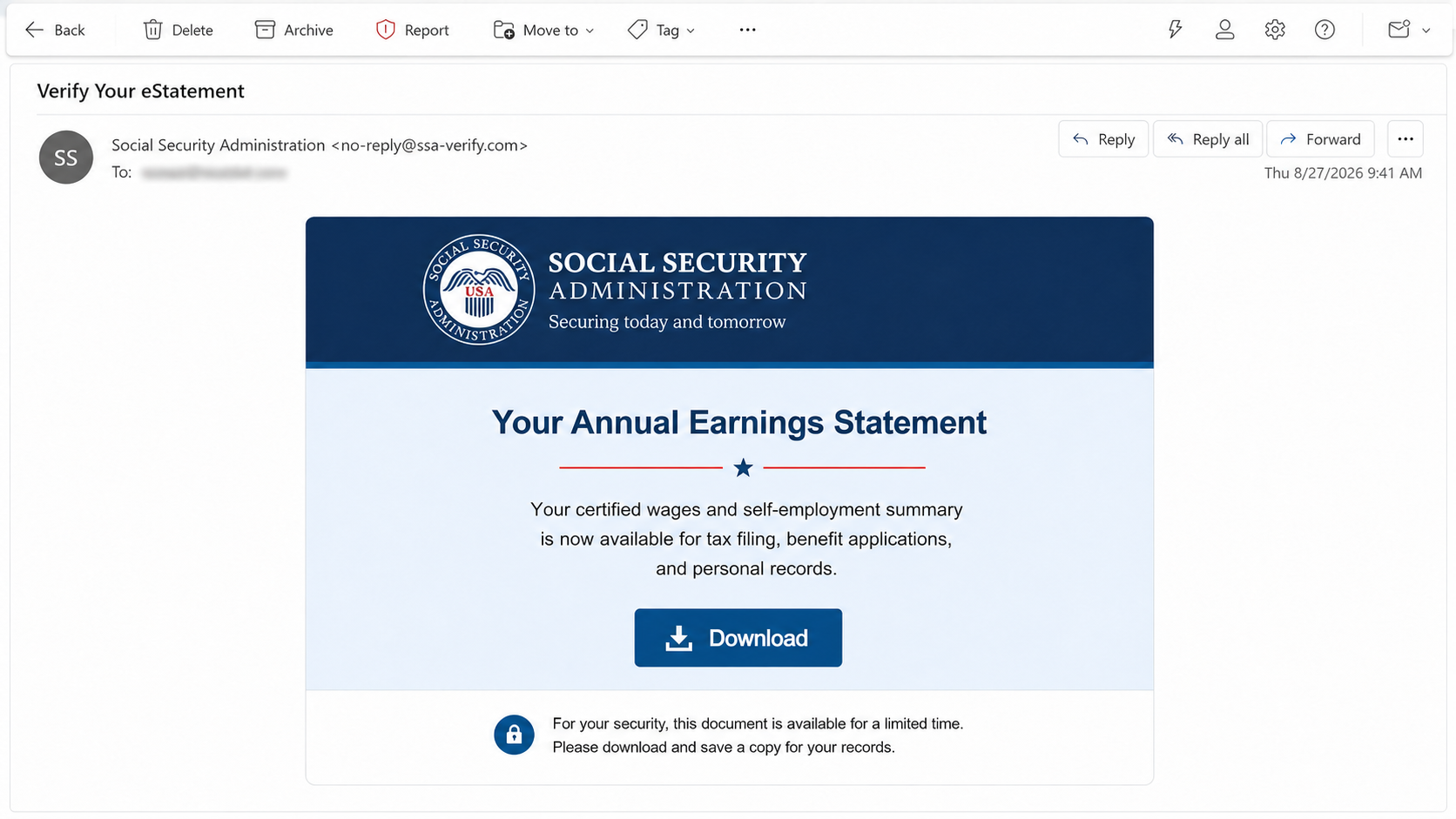
The Social Security Annual Earnings Statement email scam impersonates the U.S. Social Security Administration and claims a certified income summary is ready.
The message says the document contains wages and self-employment earnings useful for tax filing, benefit applications, and personal records.
That description reaches several audiences at once. Workers, retirees, self-employed people, and benefit applicants may all consider the subject plausible.
The Social Security Administration did not send the observed message. Its name and visual identity were used without authorization.
Government correspondence deserves independent verification. An important-sounding record should never make an unknown download safer.
A fake SSA portal disguises the file switch
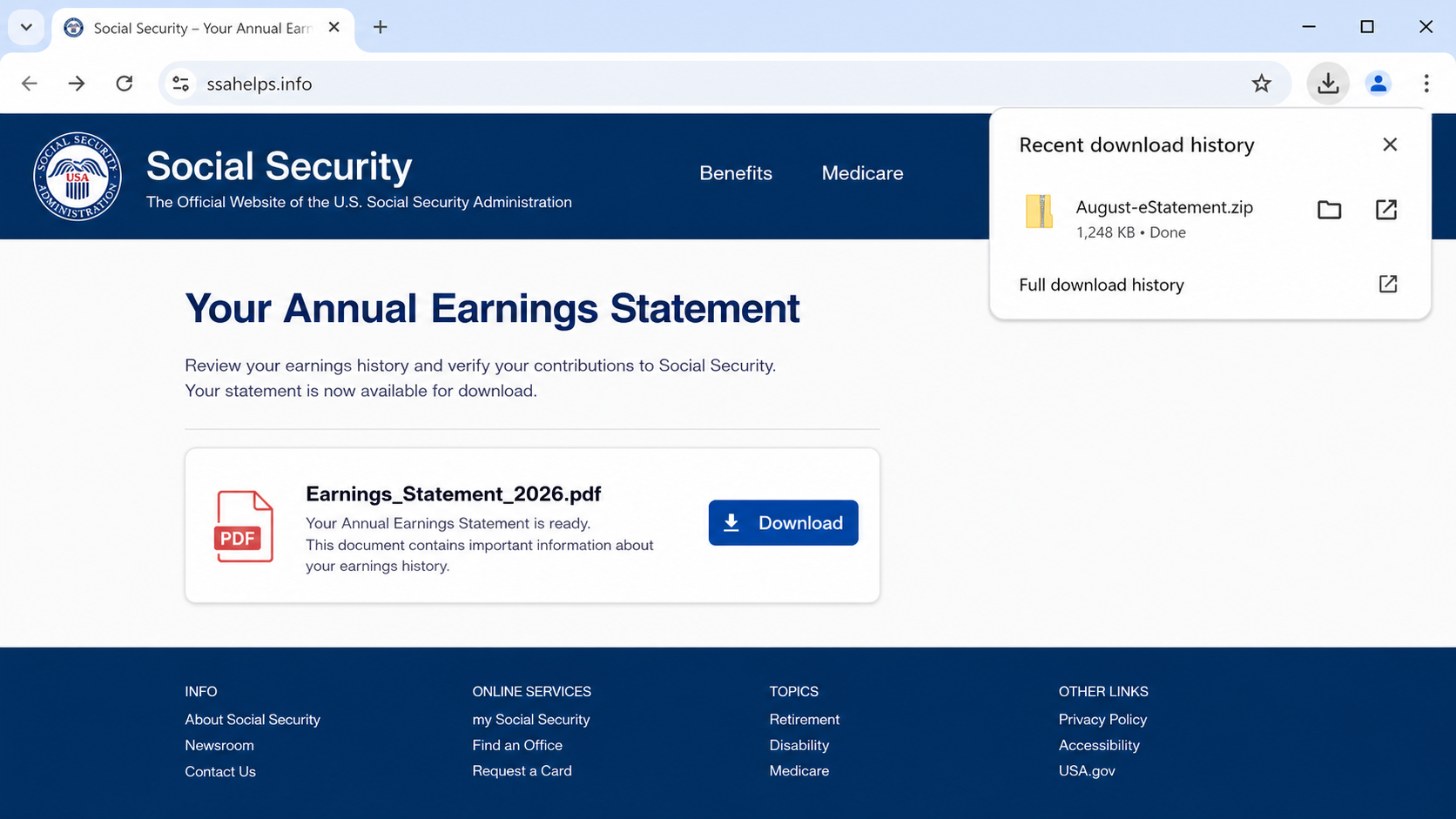
The Download link led to ssahelps.info, a deceptive website designed to resemble an official Social Security portal.
The page displayed a document card named Earnings_Statement_2026.pdf. Visitors were encouraged to believe they were receiving a familiar, non-executable format.
The browser actually downloaded August-eStatement.zip. That mismatch is visible in the download panel and is a decisive warning.
An official-looking header cannot change domain ownership. A U.S. government service should be reached through its verified .gov presence.
The fraudulent host may disappear, but replacement domains can repeat the same PDF-to-ZIP bait.
The archive conceals a Windows batch script
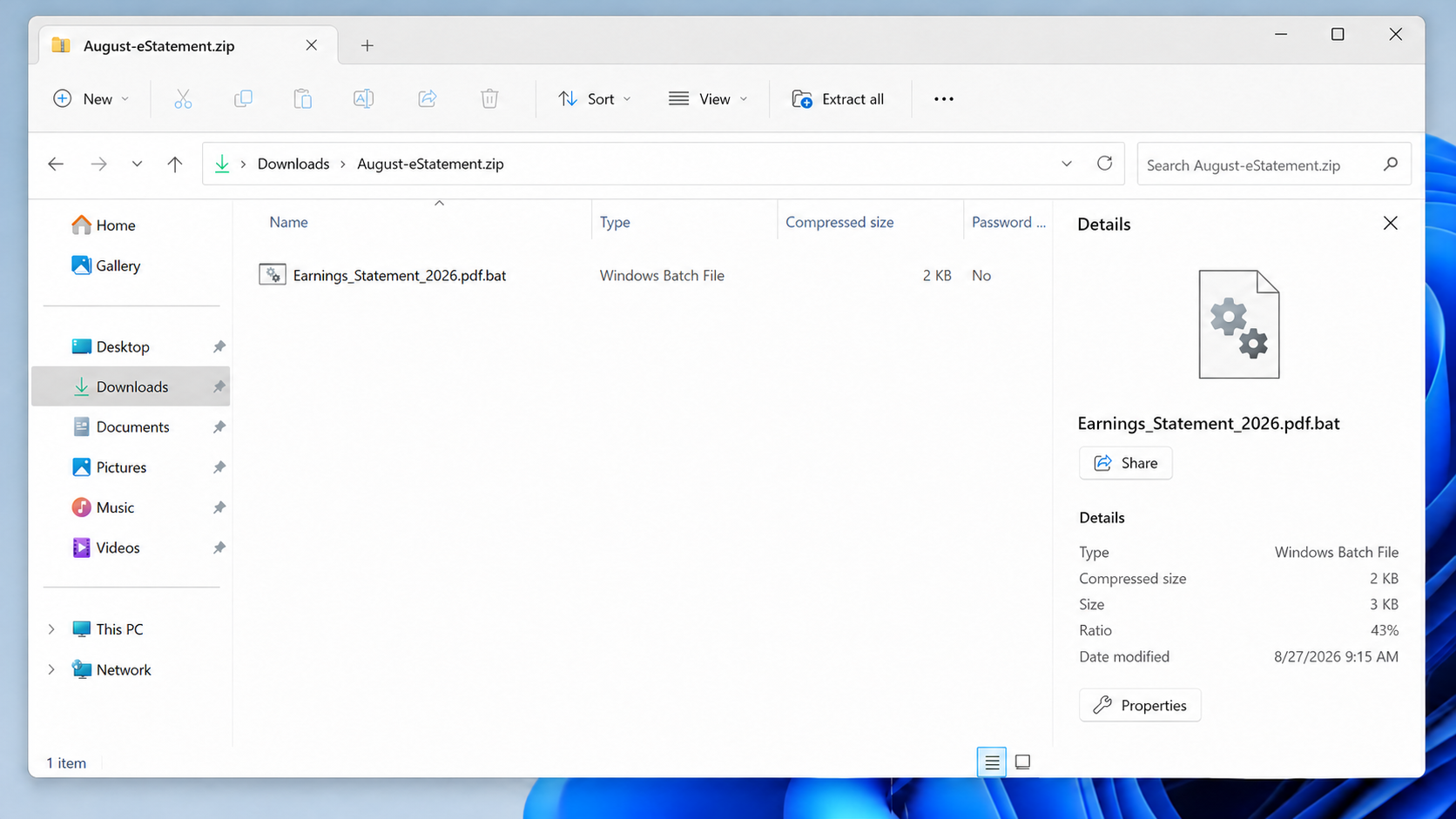
Inside August-eStatement.zip is a .bat file made to look like the promised statement. Windows identifies it as a batch script, not a PDF.
A batch file contains commands for the operating system. Opening it can launch activity without showing a normal document window.
The exact final malware delivered in the analyzed campaign was unknown. The script could be changed to install different threats over time.
Potential consequences include credential theft, spyware, remote access, ransomware, keylogging, and financial loss.
The fraud can be summarized through these clues:
- An unsolicited message announces a certified earnings statement.
- The sender borrows Social Security Administration branding.
- The call to action opens ssahelps.info instead of a .gov service.
- The page labels its download as a 2026 PDF.
- The browser saves an August-eStatement.zip archive.
- The archive contains a Windows batch file.
- Running the script can begin a hidden malware chain.
Simply receiving or reading the email does not cause infection. The harmful chain depends on opening the link, retrieving the archive, and executing its contents.
If the ZIP downloaded but remained unopened, remove it carefully and scan the system. If the batch file ran, treat the device as potentially compromised.
How The Scam Works
Step 1: The email presents a document nearly everyone recognizes
Annual earnings records sound administrative rather than sensational. That restrained subject can slip past the skepticism triggered by prizes or threats.
Many people expect periodic messages about taxes, retirement, and benefits. The campaign exploits that broad expectation without knowing the recipient’s actual status.
Scammers can distribute the lure to large mailing lists. They do not need Social Security numbers or access to government databases.
The email address itself may come from commercial lists, breaches, public profiles, or previous spam campaigns.
A government seal or formal heading creates emotional authority before the recipient inspects the technical details.
Step 2: Useful purposes make the statement feel worth saving
The message mentions tax filing, benefit applications, and personal records. Each purpose gives the reader a practical reason to download immediately.
“Certified summary” suggests the file is official and important. That language can make an ordinary link seem like controlled document delivery.
The campaign does not claim an outrageous windfall. Plausibility is stronger when the supposed benefit is access to one’s own information.
An unsubscribe footer or help link may appear beneath the lure. Those familiar email elements are easy to copy and may also be unsafe.
Real account notices can be checked by signing into the official Social Security account through a trusted bookmark or manually typed address.
Step 3: The link moves the recipient outside government infrastructure
The fraudulent destination uses ssahelps.info, a name chosen to sound supportive and related to the agency.
The important ending is .info, not the letters “ssa” at the beginning. A brand word inside a domain does not establish ownership.
Browsers can show a padlock for malicious sites because HTTPS certificates are available automatically. Encryption is not federal endorsement.
A mobile browser may shorten the address, leaving the page’s seal and blue header more visually prominent.
Open government services independently. If the promised statement exists, it should appear after authentic login without using the email’s route.
Step 4: The webpage advertises a PDF while sending a ZIP
The page shows Earnings_Statement_2026.pdf, a red PDF icon, and a Download control. Those elements describe what the visitor expects.
The actual response saves August-eStatement.zip. Browser download panels expose the name, but hurried users may focus on the page card instead.
A ZIP archive is not automatically malicious. Organizations use archives legitimately when combining files or reducing size.
Here, the unexpected format matters because the page explicitly promised one PDF and silently delivered something different.
Stop whenever advertised and downloaded formats disagree. Do not extract the archive merely to discover what it contains.
Step 5: The archive uses a double-looking extension
The contained file is a Windows batch script. Its name may include “pdf” before the final .bat extension to imitate a statement.
Windows determines behavior from the final extension. Earnings_Statement_2026.pdf.bat is a batch file even though “pdf” appears inside the name.
When known extensions are hidden, the last portion may not be obvious. Enabling extension display makes this disguise easier to catch.
The gear-like icon and Type column provide additional clues. A genuine statement should open in a PDF reader, not execute operating-system commands.
Never double-click the file to test it. Examination belongs in an isolated security environment, not on a personal workstation.
Step 6: The batch script can retrieve a changing threat
Batch commands can launch built-in utilities, contact remote servers, write files, alter settings, and start additional processes.
The campaign’s final payload was not publicly identified during analysis. It would be inaccurate to promise one predictable infection.
Operators can update download servers without redesigning the email. One victim might receive a stealer while another later receives different malware.
Security alerts may be delayed or absent. A quiet system can still be sending browser data, credentials, screenshots, or device information.
Any executed .bat file from this lure warrants containment and a full investigation appropriate to the environment.
Step 7: Government identity makes follow-up theft more dangerous
Malware on a computer used for taxes or benefits may encounter highly sensitive records, including addresses, income documents, and identification data.
Saved browser sessions can expose email, financial accounts, tax services, and cloud storage without requiring each password again.
Attackers may use stolen information to file fraud, impersonate the victim, or craft messages referencing authentic personal circumstances.
Remote access can turn the device into a foothold for future operations. Home networks and shared business systems may also need review.
Fast isolation reduces opportunities, but recovery decisions should be based on logs and scans rather than guesswork.
PDF, ZIP, and BAT Files Are Not Interchangeable
Windows may hide known extensions by default, allowing a dangerous filename to resemble an ordinary document during a quick glance.
Enable visible extensions and inspect extracted contents before opening them. A government logo cannot change what the operating system will execute.
A PDF is a document format normally opened by a reader or browser. It should not need Windows Script Host to display text.
A ZIP is a container. Opening it reveals other files, which may have entirely different capabilities from the archive itself.
A BAT file is a command script. Its instructions can interact with Windows and launch other programs.
Attackers combine these formats because the victim expects the first, receives the second, and is tricked into executing the third.
The file’s icon can be misleading, especially when custom icons, shortcuts, or hidden extensions are involved.
Use the Type column, Properties dialog, and full filename. Do not rely solely on what a website calls the download.
An actual government statement will not arrive as a mysterious installer requiring desktop execution.
Sender, Agency, File, and Device Checks
Confirm the statement through the official account
Navigate independently to the Social Security Administration’s verified website and review available records after authentic sign-in.
Do not search for the exact email subject and click a sponsored result. Advertisements can also lead to impersonation pages.
If uncertain, use contact details published on the agency’s official site, not the message footer.
Read the domain from right to left
The host ssahelps.info is not a U.S. government domain. Words suggesting help or benefits do not change that fact.
Look for the true registrable domain before paths and query strings. Government branding displayed below it is only webpage content.
Check redirects as well. A legitimate-looking first link may forward to a completely different host.
Compare every promised and actual file type
Observe the download panel before opening anything. A page showing PDF while saving ZIP is already behaving deceptively.
After safe transfer to security staff, inspect the archive without executing its contents. Record filenames, hashes, and extensions.
Do not rename .bat to .pdf and assume it becomes safe. Renaming does not transform the underlying file or remove its commands.
Assess the device according to what was executed
If nothing was opened, risk remains far lower. Delete the archive, scan the machine, and watch for other unexpected downloads.
If the script ran, isolate the system and protect credentials from another device. Home users may need professional technical help.
Organizations should review endpoint and network telemetry, because the original workstation may not be the only affected asset.
What to Do if You Have Fallen Victim to This Scam
- Stop interacting with the files. Do not extract August-eStatement.zip or open anything that claims to be Earnings_Statement_2026.pdf.
- Isolate the computer if the batch file ran. Disconnect networking while keeping the device powered for professional evidence collection when organizational policy requires it.
- Run a complete Malwarebytes scan. Quarantine findings, then use Microsoft Defender Offline or another trusted second-opinion scanner approved for the device.
- Change sensitive credentials elsewhere. From a clean device, replace email, tax, banking, benefits, and cloud passwords used or stored on the affected computer.
- Revoke sessions and tokens. Sign out unknown devices, invalidate browser sessions, remove suspicious applications, and rotate recovery codes for important accounts.
- Check for identity misuse. Review tax filings, benefit activity, bank statements, credit reports, and account alerts for unauthorized changes.
- Notify the proper organization. Inform workplace security when applicable, and report the impersonation through official Social Security and cybercrime channels.
- Save evidence before cleanup. Preserve the email, headers, ssahelps.info URL, downloaded filenames, security detections, and approximate execution time.
- Use AdGuard as a supporting defense. Filtering may stop known malicious destinations, but official-domain verification remains essential for government correspondence.
- Consider rebuilding the system. If reliable investigation cannot establish what the batch script changed, a clean operating-system installation may be the safer recovery.
Is Your Device Infected? Run a Free Malware Scan
Slow performance, constant pop-ups, or strange behavior? These are classic signs of a malware infection. A quick way to check is to scan your device with Malwarebytes Free, one of the most trusted malware removal tools available. If you only visited a scam page and didn’t download or install anything, this scan is optional.
The free version detects and removes the most common threats, including:
- Adware — the cause of those annoying pop-ups
- Browser hijackers — unwanted redirects and changed homepages
- Trojans and spyware — hidden programs stealing your data
- Potentially unwanted programs (PUPs) — software you never asked for
👉 Select your device below — Windows, Mac, or Android — then follow the simple steps to download Malwarebytes, scan your system, and remove any threats it finds. The scan usually takes 5 to 20 minutes.
Run a Malware Scan with Malwarebytes for Windows
Malwarebytes is one of the most popular and trusted anti-malware tools for Windows — and it’s completely free for removing infections. It catches threats that many antivirus programs miss, including adware, browser hijackers, and trojans. Follow the steps below to scan your PC and remove what Malwarebytes finds.
Download Malwarebytes
Click the button below to download the latest version of Malwarebytes for Windows from the official source. The free version is all you need — it will scan your computer and remove adware, browser hijackers, and other malicious software at no cost.
Download MalwarebytesOfficial installer for Windows 11 and 10. Your download starts right away.Want real-time protection? See Malwarebytes Premium Malwarebytes Free for WindowsScans and removes malware at no cost
-
Install Malwarebytes
When the download finishes, open your Downloads folder and double-click the MBSetup file. If Windows shows a User Account Control pop-up, click “Yes” to allow the installation.

Follow the On-Screen Prompts to Install Malwarebytes
The setup wizard will walk you through a few quick screens:
-
Choose where you’re installing the program — “Personal Computer” or “Work Computer” — then click Next.

-
Malwarebytes will now install on your device. This usually takes under a minute.

-
When installation is complete, the “Welcome to Malwarebytes” screen will open automatically.

-
On the final screen, click Open Malwarebytes to launch the program.

-
Optional: Check for rootkits with a Custom Scan
You don’t need to change any settings for a normal scan. The standard Threat Scan in the next step is enough for most problems, so you can go straight to it.
If you also want to check for rootkits, use a Custom Scan. In current versions of Malwarebytes, rootkit scanning is only available there:
- On the Scanner tile, click the three-dot menu and select Advanced Scan.
- Choose Custom Scan. In its options, check Scan for rootkits.
- Select your system drive (usually C:\) as the location to scan, then start the scan. It takes longer than a Threat Scan.
- When it finishes, review and quarantine the results as described in the steps below.
Rootkit scanning isn’t available on Windows devices with ARM processors.
Start the Scan
Click the blue Scan button. Malwarebytes will automatically update its virus database and start checking your computer for malware.

-
Wait for the Scan to Finish
The scan checks your entire system for browser hijackers and other malicious programs, so it can take 5 to 20 minutes depending on your computer. Feel free to do something else — just check back occasionally to see the progress.

-
Quarantine the Detected Threats
When the scan is done, you’ll see a list of everything Malwarebytes found — malware, adware, and potentially unwanted programs. Click the “Quarantine” button to remove all of them at once.

Malwarebytes will now remove the malicious files and registry entries and move them safely into quarantine.

-
Restart Your Computer
Some threats can only be fully removed after a reboot. If Malwarebytes asks you to restart, click Yes. Once you’re logged back in, Malwarebytes has finished removing the threats it found.

When the scan is done, check whether the problems you noticed have stopped. If they continue, see the options below.
If you are still having problems with your computer after completing these instructions, then please follow one of the steps:
- Run a computer scan with ESET Online Scanner
- Ask for help in our Windows Malware Removal Help & Support forum.
Run a Malware Scan with Malwarebytes for Mac
Malwarebytes for Mac is a free on-demand scanner that removes the malware other security software tends to miss — adware, browser hijackers, and unwanted programs included. Cleaning an infected Mac with Malwarebytes has always been completely free, and it’s our go-to recommendation. Follow the steps below to scan your Mac and remove what Malwarebytes finds.
-
Download Malwarebytes for Mac
Click the button below to download the latest version of Malwarebytes for Mac.
Download MalwarebytesOfficial installer for macOS. Your download starts right away.Want real-time protection? See Malwarebytes PremiumMalwarebytes Free for MacScans and removes malware at no cost -
Open the Malwarebytes setup file
When the download finishes, open your Downloads folder and double-click the setup file to begin the installation.

-
Follow the On-Screen Prompts to Install Malwarebytes
The Malwarebytes for Mac Installer will guide you through a few quick screens. Click “Continue” and keep following the prompts until the installation completes.



When the installation is complete, Malwarebytes opens to the Welcome to Malwarebytes screen. Click “Get started“.
Malwarebytes needs Full Disk Access to check your whole Mac. When it asks, open System Settings > Privacy & Security > Full Disk Access, turn on Malwarebytes (it may be listed as Malwarebytes Protection), and confirm with your password or Touch ID. Then return to Malwarebytes. On macOS Monterey and earlier, this setting is in System Preferences > Security & Privacy > Privacy.
-
Select “Personal Computer” or “Work Computer”
Malwarebytes will ask what type of computer you’re installing it on. Click either Personal Computer or Work Computer, whichever applies.

-
Start the Scan
Click the “Scan” button. Malwarebytes will automatically update its detection database and begin checking your Mac for malware.

-
Wait for the Scan to Finish
Malwarebytes will scan your Mac for adware, browser hijackers, and other malicious programs. This can take a few minutes, so feel free to do something else — just check back occasionally to see the progress.

-
Quarantine the Detected Threats
When the scan is done, you’ll see a list of everything Malwarebytes found. Click the “Quarantine” button to remove all the threats at once.

-
Restart Your Mac
Malwarebytes will now remove all the malicious files it found. Some threats can only be fully removed after a reboot — if Malwarebytes asks you to restart, allow it. Once you’re logged back in, check whether the problems you noticed have stopped. If they come back, save the scan report and ask for help in our forum.

If the problems you noticed continue after the scan, see the options below.
If you are still experiencing problems while trying to remove a malicious program from your computer, please ask for help in our Mac Malware Removal Help & Support forum.
Run a Malware Scan with Malwarebytes for Android
Malwarebytes for Android scans your phone or tablet for malware, adware, and potentially unwanted apps. The free version scans only when you start a scan. Real-time protection, which checks apps automatically, is part of the paid Premium version.
-
Download Malwarebytes for Android.
You can download Malwarebytes for Android by clicking the link below.
Get Malwarebytes for AndroidOpens Google Play in a new tab.Want real-time protection? See Malwarebytes Premium for AndroidMalwarebytes for AndroidScans your phone and removes malware at no cost -
Install Malwarebytes for Android on your phone.
In the Google Play Store, tap “Install” to install Malwarebytes for Android on your device.

When the installation process has finished, tap “Open” to begin using Malwarebytes for Android. You can also open Malwarebytes by tapping on its icon in your phone menu or home screen.

-
Follow the on-screen prompts to complete the setup process
When Malwarebytes opens, it walks you through a short setup. Tap Get started and follow the prompts. If you see an offer for a trial or a paid plan, read it before you accept. You can skip it and keep using the free scanner.
Malwarebytes will ask for permission to access the files on your phone so it can scan them. Tap Allow, or turn on the permission in the Android screen that opens, then return to Malwarebytes.
-
Run a scan with Malwarebytes for Android
On the main screen, tap Scan now. In some versions, you open the menu, tap Scanner, and then tap Run a scan.
-
Wait for the Malwarebytes scan to complete.
Malwarebytes will now start scanning your phone for adware and other malicious apps. This process can take a few minutes, so we suggest you do something else and periodically check on the status of the scan to see when it is finished.

-
Remove the detected apps.
When the scan has been completed, you will see a list of the threats that Malwarebytes for Android has detected. Next to each detected item, tap the menu icon (three dots), then choose to uninstall the app or delete the file. Android then asks you to confirm. Tap OK or Uninstall to remove the app.
-
Restart your phone.
When the detected apps are removed, restart your phone if Malwarebytes asks you to. Then check whether the problems you noticed have stopped.
If the problems you noticed continue after the scan, see the options below.
If you are still having problems with your phone after completing these instructions, then please follow one of the steps:
- Ask for help in our Mobile Malware Removal Help & Support forum.
- Only as a last resort, reset your phone to factory settings. Read the warning below first.
- Back up your photos, videos, files, and messages, for example to your Google account or a computer.
- Make sure you know your Google account email and password. The phone asks for them after the reset. If you changed the password recently, Google recommends waiting 24 hours before you reset.
- On a Samsung phone, also make sure you know your Samsung account password.
- If you use an authenticator app for two-step verification, move your accounts to another device or save your backup codes first.
Stay Protected: Block Ads and Malicious Sites
No scan can prove a device is completely clean, so it helps to block threats before they reach you. Most infections start with a malicious ad or a fake download button — so blocking them at the source is your best defense.
We recommend AdGuard, which blocks malicious ads, phishing pages, and dangerous redirects before they can reach you.
👉 Download AdGuard and browse safely
Frequently Asked Questions
Did Social Security send this earnings statement email?
No. The observed campaign impersonated the agency and directed recipients to ssahelps.info, which is not an official government service.
Check statements by accessing the genuine account independently rather than using an unsolicited download link.
Why does the page show a PDF but download a ZIP?
The displayed PDF name lowers concern. The ZIP container hides the executable batch script that the campaign ultimately wants the user to run.
A format mismatch is sufficient reason to stop, even before the archive’s contents are known.
Is a .bat file malware?
Batch files are legitimate administrative tools, but one delivered through this deception is dangerous because it can execute attacker-provided commands.
Context matters. An unexpected government document should never arrive as a Windows command script.
What if I downloaded the archive but never opened it?
Downloading alone is different from executing the contained file. Remove the archive, scan the device, and verify that no other files appeared.
If browser behavior changed or security alerts appeared, escalate the review even without deliberate execution.
What malware does the campaign install?
Analysts did not identify the malware ultimately installed during this incident. Operators can change what the batch script retrieves without altering the email.
Avoid choosing recovery steps based on one guessed family. Respond to the device as a potentially broad compromise.
Can antivirus guarantee the computer is clean?
A clean scan is useful evidence but not an absolute guarantee after unknown code executed. Advanced threats can evade one product or alter logs.
High-risk systems may require forensic review or reimaging, particularly when they handle money, identity records, or business access.
The Bottom Line
The Social Security Earnings Statement email scam hides a malware delivery chain behind a practical, official-looking record.
The email leads to ssahelps.info, where a displayed PDF name masks a ZIP archive containing a Windows batch script.
Trust the domain and actual file type, not the government seal. Official records never require running an unexplained command file.
If execution occurred, disconnect the system, scan thoroughly, secure important accounts from another device, and investigate possible identity exposure.

Join the discussion
0 commentsShare your experience or ask a question about this article.
Discussion
Start the conversation
Have a question or something useful to share? Add the first comment.