


A warning that someone changed the phone number and home address on your Social Security record can feel deeply personal. It suggests that benefit notices may go elsewhere and that a stranger could be trying to take control of your identity.
The SSA Contact Information email scam uses that fear to push an unexpected “report.” The message is not from the Social Security Administration, and the report button may lead to malware or a page built to collect sensitive information.
Overview
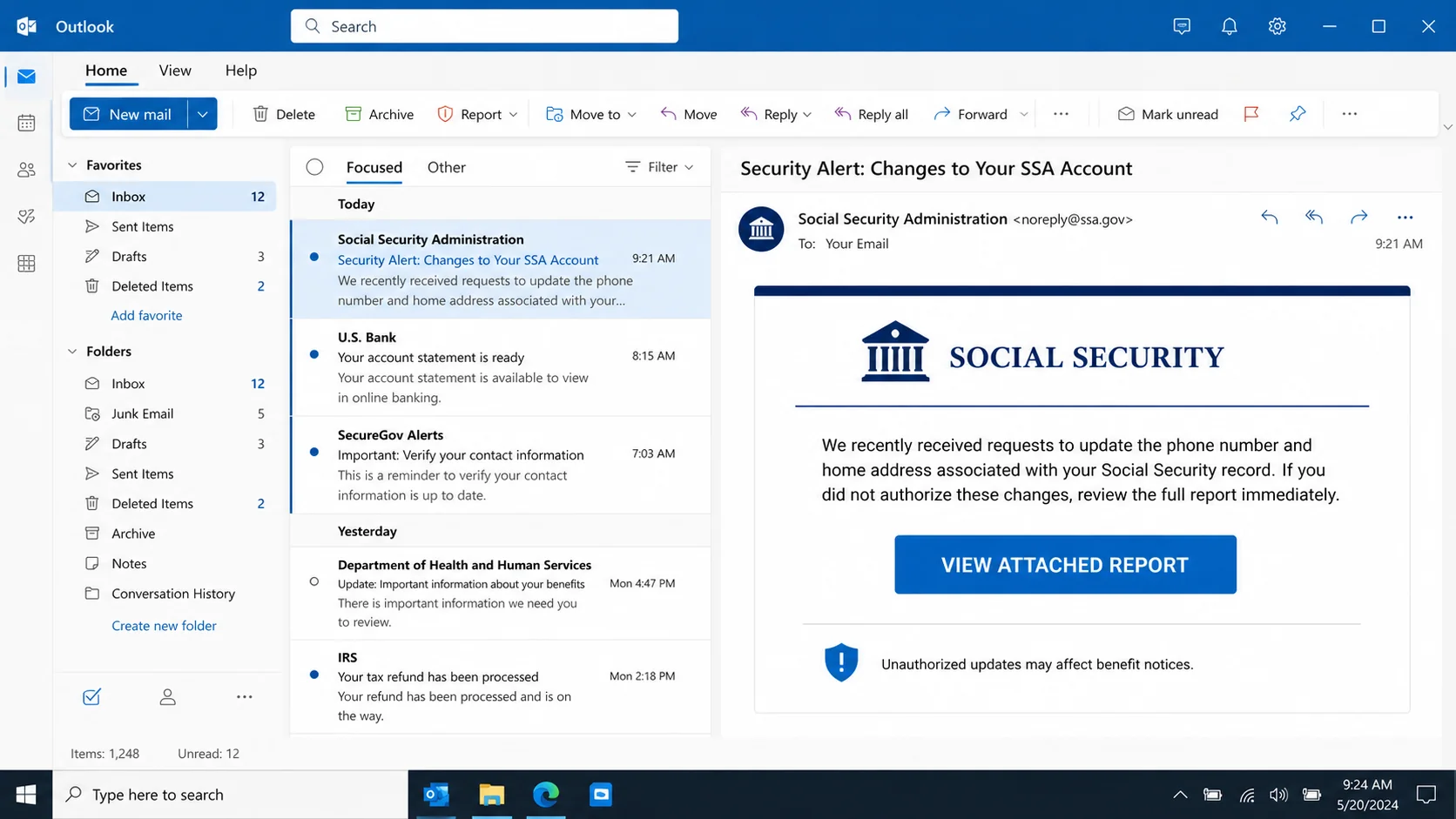
This scam impersonates the US Social Security Administration and presents itself as an account security alert. It says requests were received to update the phone number and home address associated with the recipient’s Social Security record.
The message warns that unauthorized updates could affect important notices about benefits. It then tells the recipient to click a button or download an “Attached Report” to review the changes.
The message uses a serious identity concern
Contact information matters because agencies use it to deliver notices and help verify account owners. The suggestion that both a phone number and address changed can make the recipient imagine redirected mail, missed deadlines, or stolen benefits.
The email offers no reliable proof that any change occurred. It provides a frightening claim and places the supposed evidence behind the attacker’s button.
The destination is intentionally uncertain
The campaign’s linked destination was no longer active when reviewed, so its final payload cannot be established with certainty. The wording supports two common possibilities: a malicious download or a counterfeit government login and identity form.
That uncertainty should not be minimized. A dead link today may have delivered a file yesterday, and a replacement version can point to a different destination tomorrow.
The potential damage goes beyond one password
- Malware infection after opening a downloaded file
- Theft of a my Social Security username and password
- Collection of a Social Security number and date of birth
- Exposure of addresses, phone numbers, and benefit information
- Identity theft, fraudulent accounts, or benefit-related fraud
The real SSA is not connected to the message. SSA’s Office of the Inspector General warns that scammers may send official-looking documents and use government jargon to gain trust.
Why This Government Impersonation Works
Social Security records feel permanent and high stakes
People may ignore a routine marketing email, but a notice about a government record feels different. Social Security numbers are closely associated with identity, employment, taxes, credit, and benefits.
The scammer does not need to explain a complicated technical issue. A short claim about altered contact details can create enough uncertainty to make the recipient seek answers immediately.
The email borrows real agency language
Words such as “record,” “benefit notices,” and “contact information” sound administrative rather than sensational. The message may include an authentic public SSA phone number, polished formatting, or a government-style header.
Real contact details inside a fraudulent email do not validate the sender. Criminals copy publicly available information precisely because recipients may recognize it.
The “report” sounds safer than a login form
Many people have learned to distrust direct requests for passwords. A button promising a report can feel less dangerous because it appears to offer information rather than ask for it.
The request is still a delivery mechanism. The report may be a harmful file, a redirect, or a first step toward a form requesting personal data.
How the Social Security Contact Information Scam Works
Step 1: Criminals distribute an SSA-themed alert
The email is sent to many recipients, usually without knowing whether they receive benefits or maintain an online SSA account. Because Social Security affects a large population, the lure does not require precise targeting.
The display name and graphics are chosen to resemble government communication. The actual sending domain may be unrelated, recently registered, or hidden behind a compromised account.
Step 2: The notice alleges unauthorized changes
The message says requests were made to replace the phone number and home address on the recipient’s record. It warns that the changes could affect delivery of benefit information.
This is a carefully selected claim. It creates fear of identity theft while giving the recipient a practical reason to open the supposed report.
Step 3: The email directs attention to one button
A large button may say “View Attached Report,” “Review Full Report,” or similar. The wording can make a web link look like a document already attached to the message.
Before clicking, inspect the message for an actual attachment and the destination for the button. Neither should be trusted merely because the email uses a government name.
Step 4: The destination may deliver a malicious file
One version of the attack may lead to an archive, executable, script, PDF, or Office document. A file can use an innocent name such as “SSA_Contact_Change_Report” while containing harmful code or a link to another stage.
Some files require the victim to enable content, run a program, or bypass a warning. Those instructions are part of the attack, not routine government procedure.
Step 5: Another version may display a fake SSA portal
The page can copy the colors and layout of an official government service. It may request a username, password, Social Security number, date of birth, mailing address, phone number, or security answers.
Data entered there goes to criminals. The page may show a fake confirmation afterward so the victim believes the changes were stopped.
Step 6: Stolen details are combined with other data
Identity criminals rarely rely on one field. They can combine information from phishing with data breaches, public records, social media, and previous scams.
A name, birth date, address, and Social Security number together can support credit applications, tax fraud, account recovery attempts, or more convincing future impersonation.
Step 7: Malware can expose additional accounts
If a malicious file was opened, an information stealer may collect saved browser passwords, session cookies, cryptocurrency wallet data, and documents. Remote-access malware can give an attacker continuing control over the device.
The email theme does not reveal the malware family. A full security scan and incident review are appropriate whenever an unknown program was executed.
Step 8: Victims may receive follow-up calls or messages
Once criminals know someone responded, they may impersonate an SSA employee, bank investigator, credit bureau, or identity-recovery service. They can refer to information already submitted to sound credible.
Do not pay a person who promises to reverse identity theft or protect benefits. Use official agency, financial institution, and credit bureau channels.
How to Verify an SSA Account Concern Safely
Use a known SSA address
Type ssa.gov yourself or use a saved bookmark. Do not reach the account through an unexpected email, sponsored search result, pop-up, or caller-provided link.
Check the real account and recent notices
Sign in through the official service and review contact information. If the email’s claim is genuine, the account or official correspondence should provide a safe path to address it.
Call an official number found independently
Use the number shown on ssa.gov or trusted paperwork already in your possession. Do not rely on a number in the suspicious message, even when it appears familiar.
Ask what triggered the notice
A legitimate representative should be able to explain the account process without asking you to install software, send gift cards, move money, or disclose a complete password.
Warning Signs in the Fake SSA Email
- You did not request any account or contact change.
- The full sender address does not belong to an official government domain.
- A button is described as an “attached” report even though no normal attachment is present.
- The message uses fear to discourage independent verification.
- The destination requests extensive identity data immediately.
- A downloaded file asks you to enable content, install a viewer, or bypass protection.
- The email asks for payment, secrecy, gift cards, cryptocurrency, or remote computer access.
Typos can be useful clues, but polished grammar is not proof of legitimacy. Modern scam messages can look professional and include accurate public information.
What Information May Be at Risk
A government account login
If the destination copied a my Social Security sign-in page, the attacker may have captured the username and password. Reused credentials can also expose the victim’s email and other services.
Account access can reveal notices and personal details. It may also help a criminal craft later messages that reference real information and therefore sound more convincing.
A Social Security number and date of birth
Identity forms often request a Social Security number, birth date, address, and phone number together. This combination can support account applications, authentication attempts, and fraudulent tax or credit activity.
Exposure does not guarantee identity theft will occur, but it creates a continuing risk. Monitoring and protective credit measures may be appropriate even when no misuse is visible yet.
Documents stored on the computer
A malicious report can install software that searches the device rather than focusing only on SSA information. Tax documents, scanned identification, browser passwords, and financial files may all become targets.
If a program ran, use a different clean device for password changes. A password entered on an infected computer could be captured again.
Access to email and phone accounts
Criminals may use submitted contact details to target the victim’s email provider or mobile carrier. Controlling either channel can help intercept password resets and authentication codes.
Protect those accounts with unique passwords and strong multi-factor authentication. Ask the mobile carrier about a port-out PIN or account lock when identity information was heavily exposed.
Credit Freeze, Fraud Alert, and Monitoring Explained
A credit freeze restricts access to a credit file and can make it harder for someone to open a new account. It is stronger than simply watching for suspicious activity, and it can be lifted when legitimate credit is needed.
A fraud alert asks businesses to take extra steps to verify identity before extending credit. Credit monitoring notifies the consumer when certain changes appear, but it does not necessarily prevent the change.
The appropriate choice depends on what was shared and what has happened. IdentityTheft.gov provides a recovery plan, while the three major credit bureaus provide their current freeze and alert procedures.
What to Do if You Have Fallen Victim to This Scam
- Stop interacting with the message. Close the site, do not open the report again, and do not respond to follow-up contacts.
- Disconnect a device that ran a suspicious file. Turn off Wi-Fi or unplug the network cable to limit communication while you arrange a security check.
- Run a full malware scan. Malwarebytes can detect many credential stealers, remote-access tools, and other threats that may arrive through a deceptive download.
- Change exposed passwords from a clean device. Start with email and the official Social Security account, then change every account using the same or similar password.
- Secure the email account completely. Sign out active sessions, remove unknown recovery methods, check forwarding rules, and enable strong multi-factor authentication.
- Contact the SSA through official channels. Explain what information was shared and ask what account protections or reviews are appropriate.
- Report the SSA-themed scam to SSA OIG. Preserve the message, sender address, headers, links, screenshots, and filenames before deleting it.
- Create an identity-theft recovery plan. IdentityTheft.gov can provide steps based on the information exposed and the type of misuse detected.
- Review your credit reports. Look for unfamiliar accounts, addresses, inquiries, or lenders. Consider a fraud alert or credit freeze when sensitive identity data was disclosed.
- Monitor financial and government correspondence. Watch for changed addresses, new cards, tax notices, benefit changes, or authentication messages you did not initiate.
- Block malicious pages and ads. AdGuard can help reduce exposure to dangerous redirects and known phishing destinations while you continue monitoring.
- Reject recovery scams. No legitimate government investigator or recovery specialist needs gift cards, cryptocurrency, remote access, or an advance fee.
Is Your Device Infected? Run a Free Malware Scan
Slow performance, constant pop-ups, or strange behavior? These are classic signs of a malware infection. A quick way to check is to scan your device with Malwarebytes Free, one of the most trusted malware removal tools available. If you only visited a scam page and didn’t download or install anything, this scan is optional.
The free version detects and removes the most common threats, including:
- Adware — the cause of those annoying pop-ups
- Browser hijackers — unwanted redirects and changed homepages
- Trojans and spyware — hidden programs stealing your data
- Potentially unwanted programs (PUPs) — software you never asked for
👉 Select your device below — Windows, Mac, or Android — then follow the simple steps to download Malwarebytes, scan your system, and remove any threats it finds. The scan usually takes 5 to 20 minutes.
Run a Malware Scan with Malwarebytes for Windows
Malwarebytes is one of the most popular and trusted anti-malware tools for Windows — and it’s completely free for removing infections. It catches threats that many antivirus programs miss, including adware, browser hijackers, and trojans. Follow the steps below to scan your PC and remove what Malwarebytes finds.
Download Malwarebytes
Click the button below to download the latest version of Malwarebytes for Windows from the official source. The free version is all you need — it will scan your computer and remove adware, browser hijackers, and other malicious software at no cost.
Download MalwarebytesOfficial installer for Windows 11 and 10. Your download starts right away.Want real-time protection? See Malwarebytes Premium Malwarebytes Free for WindowsScans and removes malware at no cost
-
Install Malwarebytes
When the download finishes, open your Downloads folder and double-click the MBSetup file. If Windows shows a User Account Control pop-up, click “Yes” to allow the installation.

Follow the On-Screen Prompts to Install Malwarebytes
The setup wizard will walk you through a few quick screens:
-
Choose where you’re installing the program — “Personal Computer” or “Work Computer” — then click Next.

-
Malwarebytes will now install on your device. This usually takes under a minute.

-
When installation is complete, the “Welcome to Malwarebytes” screen will open automatically.

-
On the final screen, click Open Malwarebytes to launch the program.

-
Optional: Check for rootkits with a Custom Scan
You don’t need to change any settings for a normal scan. The standard Threat Scan in the next step is enough for most problems, so you can go straight to it.
If you also want to check for rootkits, use a Custom Scan. In current versions of Malwarebytes, rootkit scanning is only available there:
- On the Scanner tile, click the three-dot menu and select Advanced Scan.
- Choose Custom Scan. In its options, check Scan for rootkits.
- Select your system drive (usually C:\) as the location to scan, then start the scan. It takes longer than a Threat Scan.
- When it finishes, review and quarantine the results as described in the steps below.
Rootkit scanning isn’t available on Windows devices with ARM processors.
Start the Scan
Click the blue Scan button. Malwarebytes will automatically update its virus database and start checking your computer for malware.

-
Wait for the Scan to Finish
The scan checks your entire system for browser hijackers and other malicious programs, so it can take 5 to 20 minutes depending on your computer. Feel free to do something else — just check back occasionally to see the progress.

-
Quarantine the Detected Threats
When the scan is done, you’ll see a list of everything Malwarebytes found — malware, adware, and potentially unwanted programs. Click the “Quarantine” button to remove all of them at once.

Malwarebytes will now remove the malicious files and registry entries and move them safely into quarantine.

-
Restart Your Computer
Some threats can only be fully removed after a reboot. If Malwarebytes asks you to restart, click Yes. Once you’re logged back in, Malwarebytes has finished removing the threats it found.

When the scan is done, check whether the problems you noticed have stopped. If they continue, see the options below.
If you are still having problems with your computer after completing these instructions, then please follow one of the steps:
- Run a computer scan with ESET Online Scanner
- Ask for help in our Windows Malware Removal Help & Support forum.
Run a Malware Scan with Malwarebytes for Mac
Malwarebytes for Mac is a free on-demand scanner that removes the malware other security software tends to miss — adware, browser hijackers, and unwanted programs included. Cleaning an infected Mac with Malwarebytes has always been completely free, and it’s our go-to recommendation. Follow the steps below to scan your Mac and remove what Malwarebytes finds.
-
Download Malwarebytes for Mac
Click the button below to download the latest version of Malwarebytes for Mac.
Download MalwarebytesOfficial installer for macOS. Your download starts right away.Want real-time protection? See Malwarebytes PremiumMalwarebytes Free for MacScans and removes malware at no cost -
Open the Malwarebytes setup file
When the download finishes, open your Downloads folder and double-click the setup file to begin the installation.

-
Follow the On-Screen Prompts to Install Malwarebytes
The Malwarebytes for Mac Installer will guide you through a few quick screens. Click “Continue” and keep following the prompts until the installation completes.



When the installation is complete, Malwarebytes opens to the Welcome to Malwarebytes screen. Click “Get started“.
Malwarebytes needs Full Disk Access to check your whole Mac. When it asks, open System Settings > Privacy & Security > Full Disk Access, turn on Malwarebytes (it may be listed as Malwarebytes Protection), and confirm with your password or Touch ID. Then return to Malwarebytes. On macOS Monterey and earlier, this setting is in System Preferences > Security & Privacy > Privacy.
-
Select “Personal Computer” or “Work Computer”
Malwarebytes will ask what type of computer you’re installing it on. Click either Personal Computer or Work Computer, whichever applies.

-
Start the Scan
Click the “Scan” button. Malwarebytes will automatically update its detection database and begin checking your Mac for malware.

-
Wait for the Scan to Finish
Malwarebytes will scan your Mac for adware, browser hijackers, and other malicious programs. This can take a few minutes, so feel free to do something else — just check back occasionally to see the progress.

-
Quarantine the Detected Threats
When the scan is done, you’ll see a list of everything Malwarebytes found. Click the “Quarantine” button to remove all the threats at once.

-
Restart Your Mac
Malwarebytes will now remove all the malicious files it found. Some threats can only be fully removed after a reboot — if Malwarebytes asks you to restart, allow it. Once you’re logged back in, check whether the problems you noticed have stopped. If they come back, save the scan report and ask for help in our forum.

If the problems you noticed continue after the scan, see the options below.
If you are still experiencing problems while trying to remove a malicious program from your computer, please ask for help in our Mac Malware Removal Help & Support forum.
Run a Malware Scan with Malwarebytes for Android
Malwarebytes for Android scans your phone or tablet for malware, adware, and potentially unwanted apps. The free version scans only when you start a scan. Real-time protection, which checks apps automatically, is part of the paid Premium version.
-
Download Malwarebytes for Android.
You can download Malwarebytes for Android by clicking the link below.
Get Malwarebytes for AndroidOpens Google Play in a new tab.Want real-time protection? See Malwarebytes Premium for AndroidMalwarebytes for AndroidScans your phone and removes malware at no cost -
Install Malwarebytes for Android on your phone.
In the Google Play Store, tap “Install” to install Malwarebytes for Android on your device.

When the installation process has finished, tap “Open” to begin using Malwarebytes for Android. You can also open Malwarebytes by tapping on its icon in your phone menu or home screen.

-
Follow the on-screen prompts to complete the setup process
When Malwarebytes opens, it walks you through a short setup. Tap Get started and follow the prompts. If you see an offer for a trial or a paid plan, read it before you accept. You can skip it and keep using the free scanner.
Malwarebytes will ask for permission to access the files on your phone so it can scan them. Tap Allow, or turn on the permission in the Android screen that opens, then return to Malwarebytes.
-
Run a scan with Malwarebytes for Android
On the main screen, tap Scan now. In some versions, you open the menu, tap Scanner, and then tap Run a scan.
-
Wait for the Malwarebytes scan to complete.
Malwarebytes will now start scanning your phone for adware and other malicious apps. This process can take a few minutes, so we suggest you do something else and periodically check on the status of the scan to see when it is finished.

-
Remove the detected apps.
When the scan has been completed, you will see a list of the threats that Malwarebytes for Android has detected. Next to each detected item, tap the menu icon (three dots), then choose to uninstall the app or delete the file. Android then asks you to confirm. Tap OK or Uninstall to remove the app.
-
Restart your phone.
When the detected apps are removed, restart your phone if Malwarebytes asks you to. Then check whether the problems you noticed have stopped.
If the problems you noticed continue after the scan, see the options below.
If you are still having problems with your phone after completing these instructions, then please follow one of the steps:
- Ask for help in our Mobile Malware Removal Help & Support forum.
- Only as a last resort, reset your phone to factory settings. Read the warning below first.
- Back up your photos, videos, files, and messages, for example to your Google account or a computer.
- Make sure you know your Google account email and password. The phone asks for them after the reset. If you changed the password recently, Google recommends waiting 24 hours before you reset.
- On a Samsung phone, also make sure you know your Samsung account password.
- If you use an authenticator app for two-step verification, move your accounts to another device or save your backup codes first.
Stay Protected: Block Ads and Malicious Sites
No scan can prove a device is completely clean, so it helps to block threats before they reach you. Most infections start with a malicious ad or a fake download button — so blocking them at the source is your best defense.
We recommend AdGuard, which blocks malicious ads, phishing pages, and dangerous redirects before they can reach you.
👉 Download AdGuard and browse safely
Frequently Asked Questions
Does SSA email people about their accounts?
Government agencies can send legitimate communications, but the existence of real emails does not validate this message. Verify through ssa.gov or an independently sourced official number.
Is the public SSA phone number inside the message proof?
No. Anyone can copy a real public number into an email. Use the official website or existing trusted paperwork to obtain contact information yourself.
Can the report install malware?
It may. The final destination in the observed campaign was inactive, so the payload could not be confirmed. The design is consistent with both malicious downloads and identity-phishing pages.
What if I only read the email?
Reading it normally does not infect the device. Risk begins when you follow links, open files, enable content, install software, or submit information.
What if I entered my Social Security number?
Contact SSA through official channels, report the scam, follow IdentityTheft.gov guidance, review credit reports, and consider protective measures such as a fraud alert or credit freeze.
Should I delete the email immediately?
Preserve evidence first if you interacted with it or need to report it. Save screenshots, the full sender address, headers, links, and filenames, then report and delete the message.
The Bottom Line
The Social Security Administration Contact Information email scam invents unauthorized record changes so the recipient will trust a dangerous report or fraudulent identity page.
Do not use the button. Check the account through ssa.gov, contact SSA using independently verified details, and treat any downloaded file or submitted identity information as a serious incident requiring prompt action.

Join the discussion
0 commentsShare your experience or ask a question about this article.
Discussion
Start the conversation
Have a question or something useful to share? Add the first comment.