

The message says your mailbox password has already expired. A precise 24-hour deadline follows, along with a convenient button promising to preserve the password you know.
For anyone worried about losing work email, the safest-looking choice appears obvious. A closer reading reveals an identity problem the button cannot explain.
Overview
A fake expiration notice creates an immediate account problem
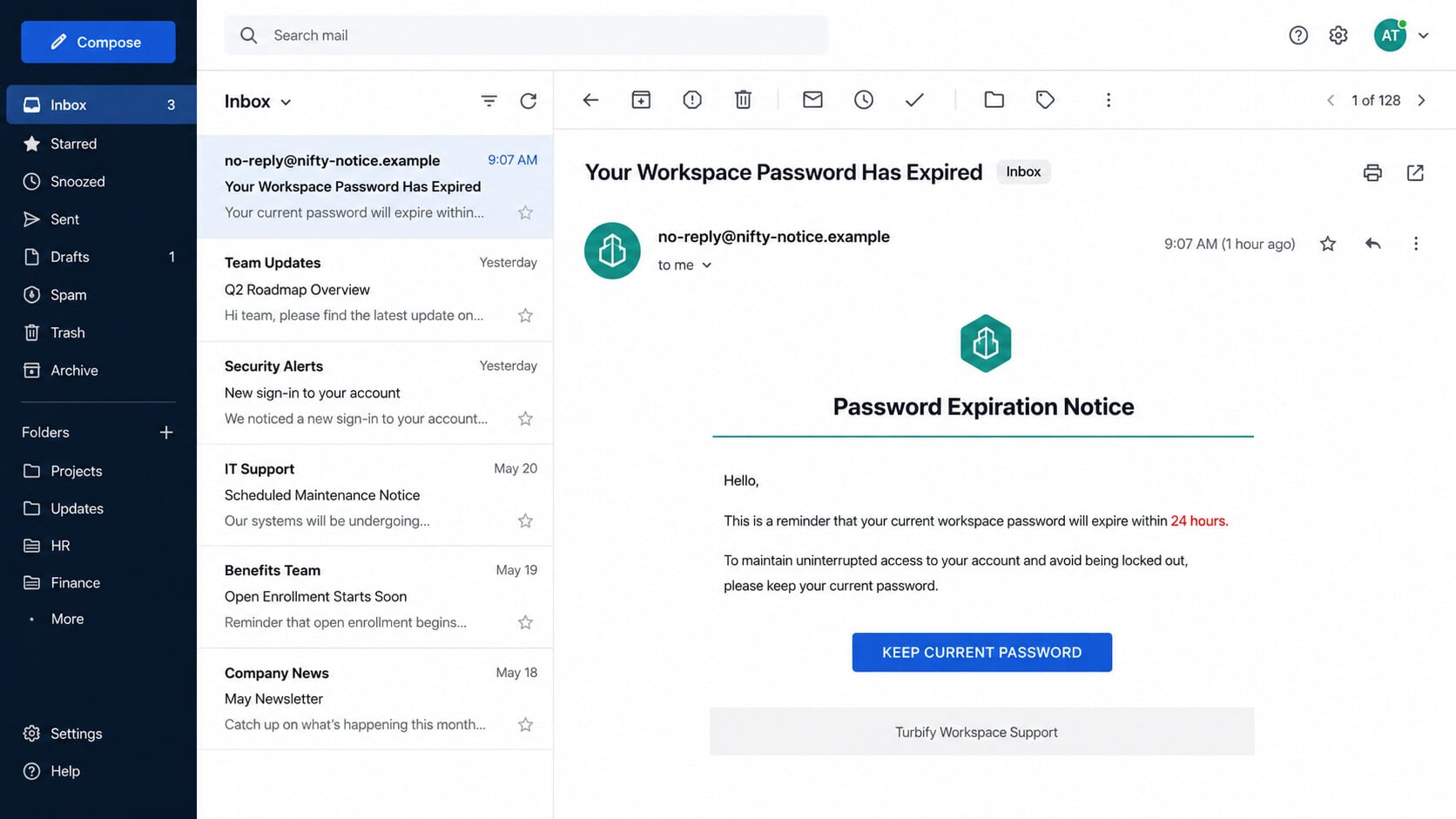
The Zoho Workspace Password Expired email claims the recipient’s mailbox password no longer works. It warns that a new password will be generated after 24 hours.
A blue button labeled “Keep Current Password” appears to offer a painless solution. The recipient is encouraged to act before the system logs them out.
The deadline is unusually precise, but the message does not explain the organization’s password policy, administrator, previous notices, or approved recovery process.
Three different service identities appear in one message
The email displays Zoho Workspace branding. Its footer says it came from a Turbify Workspace organization, while the visible sender uses an unrelated Nifty address.
Zoho, Turbify, and Nifty are separate identities. Their unexplained combination is not a normal technical detail. It is a strong sign of copied template material.
A genuine administrator may use external mail infrastructure, but the organization should still provide consistent identity, expected policy language, and a verifiable support path.
The button opens a counterfeit Zoho Accounts page
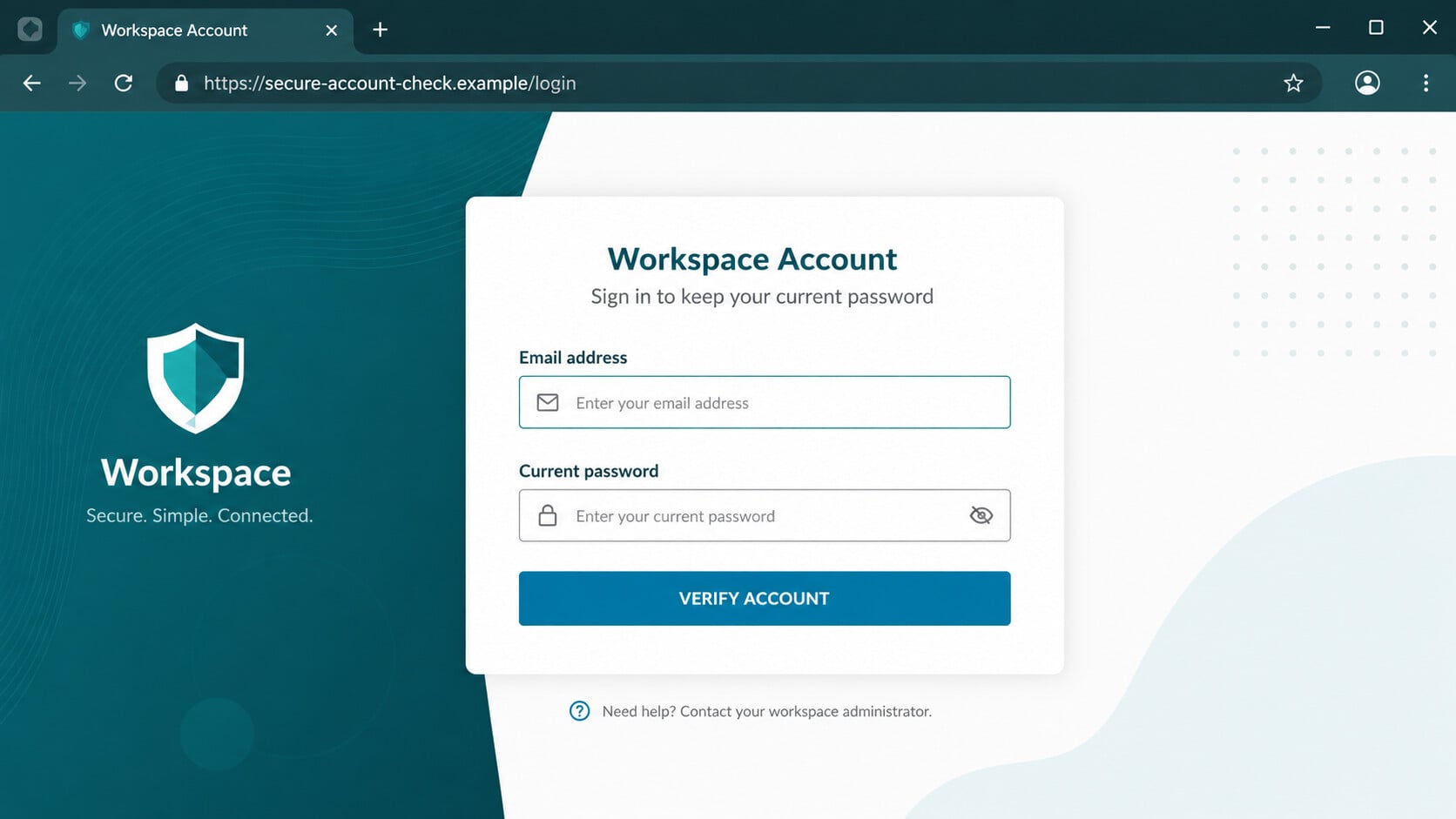
The examined link led to cordialchauffeurs.co.uk, a domain unrelated to Zoho. The page copied the appearance of the Zoho Accounts sign-in portal.
That host is visible in the browser address bar even when the page logo and layout look familiar. The address exposes what the visual design tries to hide.
- The password-expiration claim is fabricated.
- The sender, branding, and footer identify different services.
- The 24-hour deadline pressures the recipient.
- The button opens a non-Zoho domain.
- The counterfeit form is designed to collect credentials.
The Identity Mismatches Are the Clearest Evidence
The visible sender address in the captured message belongs to Nifty, not Zoho. Recipients should expand the complete header instead of trusting the display name.
At the bottom, the notice describes itself as an automated email from “your Turbify Workspace organization.” That statement conflicts with the logo and main text.
Template mistakes like this often appear when a phishing kit is repurposed. The attacker changes the prominent brand but overlooks language deeper in the layout.
The conflict also defeats the email’s central claim. A Zoho password cannot be safely preserved through an unexplained Turbify notice sent by another provider.
Even without knowing the final URL, that inconsistency would justify closing the email and checking the account independently.
How a Genuine Zoho Password Change Differs
Zoho’s official help directs users to accounts.zoho.com for password management. Forgotten-password recovery begins from the real sign-in page or official recovery page.
The process verifies identity through a configured recovery email, recovery telephone number, trusted device, domain ownership, or another supported method.
If multi-factor authentication is enabled, that verification remains part of recovery. Organization users may also receive assistance from their legitimate administrator.
The fake email offers a different story. It claims an expired password can remain unchanged merely by submitting it through an external button.
No legitimate service needs you to type an existing password into an unrelated domain to prevent automatic replacement.
When uncertain, manually open accounts.zoho.com, check the Security area, or contact the administrator through a known company channel.
How the Zoho Workspace Password Expired Email Scam Works
Step 1: A mailbox interruption becomes the emotional hook
Email access feels essential. The possibility of being logged out creates anxiety about missed messages, delayed work, and difficult account recovery.
The scam does not need a financial promise. It borrows the recipient’s desire to keep an ordinary tool working without interruption.
Step 2: A precise deadline discourages careful checking
The message says the system will generate a new password exactly 24 hours later. Precision makes an invented rule sound automated and unavoidable.
Deadlines narrow attention. Instead of asking whether the policy is real, a worried user may focus on completing the offered fix.
Step 3: The Keep Current Password button frames exposure as protection
The button’s wording is psychologically clever. It does not say “Sign in to an unknown site.” It promises to preserve something familiar.
A recipient may interpret the action as rejecting an unwanted reset. In reality, the click moves them outside the genuine Zoho account environment.
Step 4: A compromised or unrelated domain hosts the imitation
The observed landing page used cordialchauffeurs.co.uk. That address has no legitimate role in Zoho account authentication.
Criminals commonly use breached websites, disposable domains, or abused hosting accounts. A secure padlock only means the browser encrypted traffic to that host.
Step 5: Familiar branding hides the credential collector
The counterfeit page copies Zoho’s sign-in layout, logo, social login choices, and passwordless-login promotion. Visual accuracy encourages habitual behavior.
The crucial check is the domain. A correct-looking sign-in form on the wrong host remains fraudulent.
Step 6: The attacker receives whatever the victim submits
The form can collect an email address, password, and sometimes a one-time code. Real-time phishing kits may immediately test those details against the genuine service.
If the victim approves an unexpected MFA prompt, the attacker can complete the login while the phishing session is still active.
Step 7: Mailbox access expands the attack
An intruder can read private correspondence, reset connected accounts, download attachments, and impersonate the owner. Business mailboxes can expose billing and customer data.
Hidden forwarding rules may preserve access to incoming messages after a password change. Attackers also target contacts with new lures sent from the genuine account.
Sender, Domain, and Account Checks
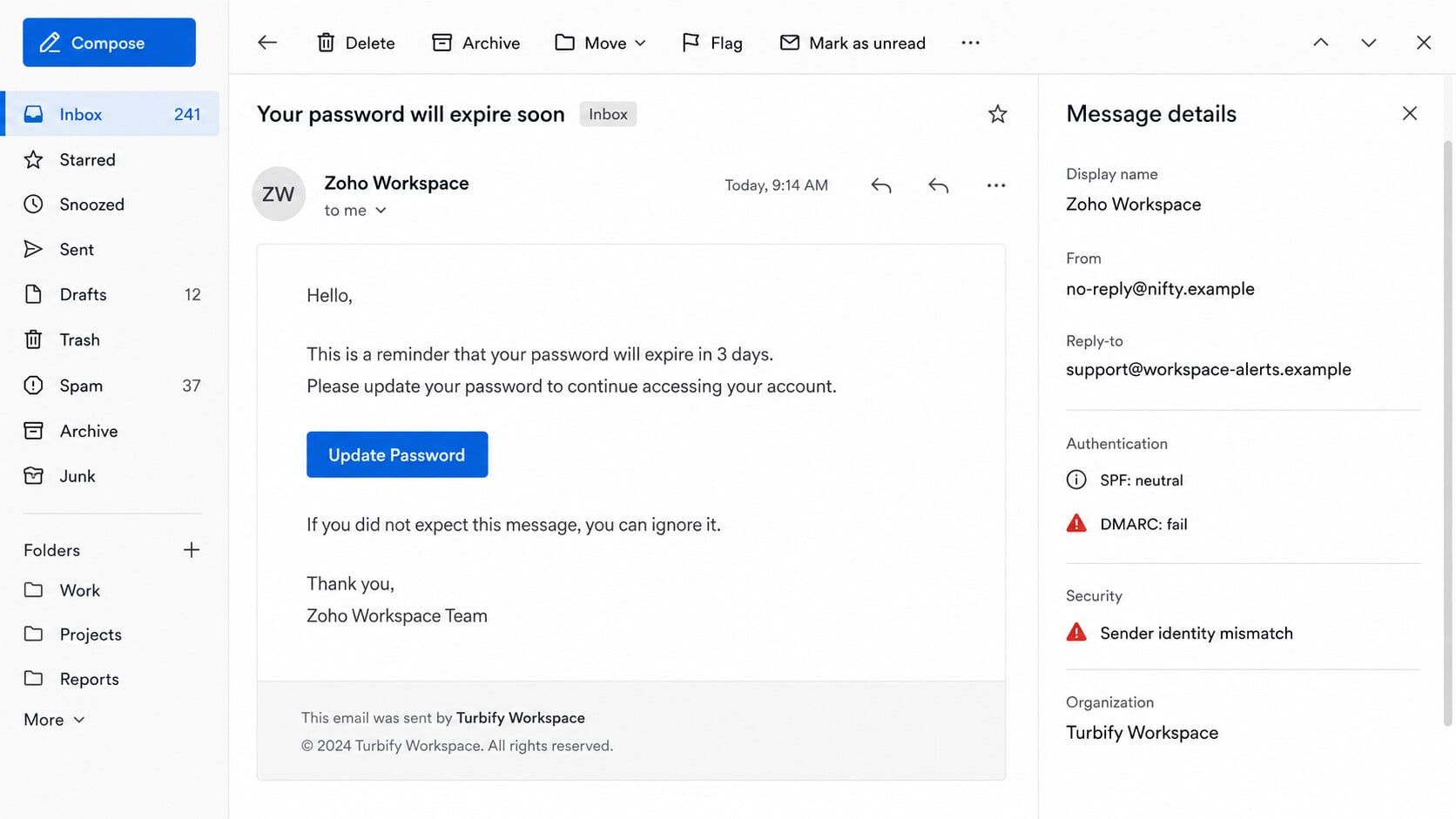
The visible From line does not match the claimed service
The captured sender is associated with Nifty while the message presents Zoho branding. Expand headers and inspect From, Reply-To, Return-Path, and authentication results.
A friendly display name can be typed by anyone. Domain alignment and authenticated mail results provide stronger evidence, though even a compromised legitimate account requires caution.
The footer exposes a recycled template
The Turbify Workspace footer does not belong beneath a Zoho password warning. This mismatch suggests the page was assembled from unrelated service templates.
Read beyond the logo. Fraudulent emails often contain forgotten brand names, inconsistent copyright years, different support addresses, or policy text copied from another company.
The login host is unrelated to Zoho
The observed phishing page ran on cordialchauffeurs.co.uk rather than accounts.zoho.com. That single fact is enough to reject the sign-in form.
Do not judge by colors, logos, or the padlock symbol. Read the registrable domain immediately before the first slash in the browser address.
The real recovery route remains available independently
Zoho documents password reset through its official Accounts pages, recovery options, MFA, and organization administrators. None requires trusting the suspicious email.
If access is genuinely failing, reach Zoho from a saved bookmark or manually typed address. Workplace users should use their established IT help desk.
What Criminals Can Do With a Zoho Mailbox
A stolen mailbox is not merely a collection of messages. It can become the recovery key for services tied to that email address.
Attackers may search terms such as invoice, payment, password, payroll, tax, contract, and wire. Those searches quickly surface valuable conversations.
They can register new forwarding addresses, create rules that hide security notices, and delete warnings from the Sent or Trash folders.
In a business environment, the intruder can study writing style and payment routines. A carefully timed reply may redirect a genuine invoice.
Contacts trust mail from a known account. This makes the compromised mailbox useful for distributing files, shared-document lures, and false login warnings.
Zoho’s official security guidance explains password changes, session termination, connected applications, and account protections.
Warning Signs You Can Check in Seconds
- The sender domain does not belong to Zoho.
- The footer names Turbify while the page claims Zoho.
- The message invents an exact 24-hour replacement deadline.
- The button promises to keep an already expired password.
- The landing page uses cordialchauffeurs.co.uk.
- The email provides no verifiable administrator or policy reference.
Never paste the suspicious URL into another browser to test it. Verification means avoiding the destination and using the official account page.
If an organization legitimately enforces password expiry, the same requirement should appear inside its trusted sign-in flow or documented internal policy.
What to Do if You Have Fallen Victim to This Scam
- Stop interacting with the counterfeit page. Close the tab. Do not submit another password, social-login account, telephone number, or one-time code.
- Open Zoho independently. Type accounts.zoho.com yourself and change the exposed password. Use a new, unique password that is not a variation of the old one.
- Terminate other sessions and tokens. Review device sign-ins, connected applications, application-specific passwords, and API access. Revoke entries you cannot explain.
- Check recovery settings. Confirm that recovery email addresses, telephone numbers, trusted devices, and backup options still belong to you.
- Enable or repair MFA. Prefer an authenticator or security key. Generate fresh backup codes if you believe the previous set was exposed.
- Audit mailbox behavior. Inspect forwarding, filters, delegation, sent mail, deleted items, and archived messages. Remove unknown rules before resuming normal use.
- Change every reused password. Prioritize financial services, cloud storage, workplace systems, social accounts, and the recovery mailbox connected to Zoho.
- Notify your organization. IT staff can review access logs, invalidate sessions, inspect other recipients, and block the phishing domain across the company.
- Run Malwarebytes when a file downloaded or executed. It can identify stealers, scripts, and other malware that credential pages sometimes deliver alongside phishing.
- Use AdGuard for an additional web-filtering layer. It can block many known phishing hosts, malicious redirects, and advertising routes before they fully load.
- Warn affected contacts. Tell them to disregard unexpected messages, shared documents, password alerts, invoices, or payment requests sent from your account.
- Report the incident. Preserve the email and headers, report it to Zoho or your administrator, and use ReportFraud.ftc.gov when relevant.
Is Your Device Infected? Run a Free Malware Scan
Slow performance, constant pop-ups, or strange behavior? These are classic signs of a malware infection. The fastest way to find out is to scan your device with Malwarebytes Free — one of the most trusted malware removal tools available.
The free version detects and removes the most common threats, including:
- Adware — the cause of those annoying pop-ups
- Browser hijackers — unwanted redirects and changed homepages
- Trojans and spyware — hidden programs stealing your data
- Potentially unwanted programs (PUPs) — software you never asked for
👉 Select your device below — Windows, Mac, or Android — then follow the simple steps to download Malwarebytes, scan your system, and remove any threats it finds. The scan usually takes 5 to 20 minutes.
Run a Malware Scan with Malwarebytes for Windows
Malwarebytes is one of the most popular and trusted anti-malware tools for Windows — and it’s completely free for removing infections. It catches threats that many antivirus programs miss, including adware, browser hijackers, and trojans. Follow the steps below to scan and clean your PC in just a few minutes.
Download Malwarebytes
Click the button below to download the latest version of Malwarebytes for Windows from the official source. The free version is all you need — it will scan your computer and remove adware, browser hijackers, and other malicious software at no cost.
Download MalwarebytesOfficial installer for Windows 11 and 10. Your download starts right away.Want real-time protection? See Malwarebytes Premium Malwarebytes Free for WindowsScans and removes malware at no cost
-
Install Malwarebytes
When the download finishes, open your Downloads folder and double-click the MBSetup file. If Windows shows a User Account Control pop-up, click “Yes” to allow the installation.

Follow the On-Screen Prompts to Install Malwarebytes
The setup wizard will walk you through a few quick screens:
-
Choose where you’re installing the program — “Personal Computer” or “Work Computer” — then click Next.

-
Malwarebytes will now install on your device. This usually takes under a minute.

-
When installation is complete, the “Welcome to Malwarebytes” screen will open automatically.

-
On the final screen, click Open Malwarebytes to launch the program.

-
Enable “Scan for Rootkits”
Before scanning, turn on rootkit detection so Malwarebytes can find even the most hidden threats. Click the Settings gear icon on the left side of the screen.

In the settings menu, find “Scan for rootkits” and click the toggle so it turns blue.

Done? Click “Dashboard” in the left pane to return to the main screen.
Start the Scan
Click the blue Scan button. Malwarebytes will automatically update its virus database and start checking your computer for malware.

-
Wait for the Scan to Finish
The scan checks your entire system for browser hijackers and other malicious programs, so it can take 5 to 20 minutes depending on your computer. Feel free to do something else — just check back occasionally to see the progress.

-
Quarantine the Detected Threats
When the scan is done, you’ll see a list of everything Malwarebytes found — malware, adware, and potentially unwanted programs. Click the “Quarantine” button to remove all of them at once.

Malwarebytes will now remove the malicious files and registry entries and move them safely into quarantine.

-
Restart Your Computer
Some threats can only be fully removed after a reboot. If Malwarebytes asks you to restart, click Yes. Once you’re logged back in, Malwarebytes has finished removing the threats it found.

That’s it — your Windows PC is now clean of trojans, adware, and other malware, and should be back to running smoothly.
If you are still having problems with your computer after completing these instructions, then please follow one of the steps:
- Run a computer scan with ESET Online Scanner
- Ask for help in our Windows Malware Removal Help & Support forum.
Run a Malware Scan with Malwarebytes for Mac
Malwarebytes for Mac is a free on-demand scanner that removes the malware other security software tends to miss — adware, browser hijackers, and unwanted programs included. Cleaning an infected Mac with Malwarebytes has always been completely free, and it’s our go-to recommendation. Follow the steps below to scan and clean your Mac in just a few minutes.
-
Download Malwarebytes for Mac
Click the button below to download the latest version of Malwarebytes for Mac.
Download MalwarebytesOfficial installer for macOS. Your download starts right away.Want real-time protection? See Malwarebytes PremiumMalwarebytes Free for MacScans and removes malware at no cost -
Open the Malwarebytes setup file
When the download finishes, open your Downloads folder and double-click the setup file to begin the installation.

-
Follow the On-Screen Prompts to Install Malwarebytes
The Malwarebytes for Mac Installer will guide you through a few quick screens. Click “Continue” and keep following the prompts until the installation completes.



When the installation is complete, Malwarebytes opens to the Welcome to Malwarebytes screen. Click “Get started“.
-
Select “Personal Computer” or “Work Computer”
Malwarebytes will ask what type of computer you’re installing it on. Click either Personal Computer or Work Computer, whichever applies.

-
Start the Scan
Click the “Scan” button. Malwarebytes will automatically update its detection database and begin checking your Mac for malware.

-
Wait for the Scan to Finish
Malwarebytes will scan your Mac for adware, browser hijackers, and other malicious programs. This can take a few minutes, so feel free to do something else — just check back occasionally to see the progress.

-
Quarantine the Detected Threats
When the scan is done, you’ll see a list of everything Malwarebytes found. Click the “Quarantine” button to remove all the threats at once.

-
Restart Your Mac
Malwarebytes will now remove all the malicious files it found. Some threats can only be fully removed after a reboot — if Malwarebytes asks you to restart, allow it. Once you’re logged back in, your Mac is clean.

That’s it — your Mac is now free of adware, rogue browser extensions, and other potentially harmful software.
If you are still experiencing problems while trying to remove a malicious program from your computer, please ask for help in our Mac Malware Removal Help & Support forum.
Run a Malware Scan with Malwarebytes for Android
Malwarebytes for Android automatically detects and removes dangerous threats like malware and ransomware so you don’t have to worry about your most-used device being compromised. Aggressive detection of adware and potentially unwanted programs keeps your Android phone or tablet running smooth.
-
Download Malwarebytes for Android.
You can download Malwarebytes for Android by clicking the link below.
Get Malwarebytes for AndroidOpens Google Play in a new tab.Want real-time protection? See Malwarebytes Premium for AndroidMalwarebytes for AndroidScans your phone and removes malware at no cost -
Install Malwarebytes for Android on your phone.
In the Google Play Store, tap “Install” to install Malwarebytes for Android on your device.

When the installation process has finished, tap “Open” to begin using Malwarebytes for Android. You can also open Malwarebytes by tapping on its icon in your phone menu or home screen.

-
Follow the on-screen prompts to complete the setup process
When Malwarebytes will open, you will see the Malwarebytes Setup Wizard which will guide you through a series of permissions and other setup options.
This is the first of two screens that explain the difference between the Premium and Free versions. Swipe this screen to continue.
Tap on “Got it” to proceed to the next step.
Malwarebytes for Android will now ask for a set of permissions that are required to scan your device and protect it from malware. Tap on “Give permission” to continue.
Tap on “Allow” to permit Malwarebytes to access the files on your phone.
-
Update database and run a scan with Malwarebytes for Android
You will now be prompted to update the Malwarebytes database and run a full system scan.

Click on “Update database” to update the Malwarebytes for Android definitions to the latest version, then click on “Run full scan” to perform a system scan.

-
Wait for the Malwarebytes scan to complete.
Malwarebytes will now start scanning your phone for adware and other malicious apps. This process can take a few minutes, so we suggest you do something else and periodically check on the status of the scan to see when it is finished.

-
Click on “Remove Selected”.
When the scan has been completed, you will be presented with a screen showing the malware infections that Malwarebytes for Android has detected. To remove the malicious apps that Malwarebytes has found, tap on the “Remove Selected” button.

-
Restart your phone.
Malwarebytes for Android will now remove all the malicious apps that it has found. To complete the malware removal process, Malwarebytes may ask you to restart your device.
That’s it — your Android phone is now clean — no more malicious apps, adware, or browser redirects.
If you are still having problems with your phone after completing these instructions, then please follow one of the steps:
- Restore your phone to factory settings by going to Settings > General management > Reset > Factory data reset.
- Ask for help in our Mobile Malware Removal Help & Support forum.
Stay Protected: Block Ads and Malicious Sites
Now that your device is clean, keep it that way. Most infections start with a malicious ad or a fake download button — so blocking them at the source is your best defense.
We recommend AdGuard, which blocks malicious ads, phishing pages, and dangerous redirects before they can reach you.
👉 Download AdGuard and browse safely
What an Administrator Should Review After a Zoho Phishing Incident
Sign-in records can show whether the password was used
Changing the password is essential, but it does not answer what happened beforehand. Review account activity for unfamiliar locations, devices, browsers, and access times.
An unsuccessful login does not always mean the account is safe. The attacker may have used a different network, application password, or previously captured session.
Compare suspicious activity with the employee’s actual travel and remote-work pattern. Document findings before logs age out or become harder to retrieve.
For managed organizations, administrators should also examine security alerts affecting neighboring accounts. Similar messages may have reached an entire department.
Persistence can survive an ordinary password reset
A compromised mailbox may contain new forwarding rules, filters, delegates, connected applications, or recovery addresses. These changes can preserve access or silently leak messages.
Revoke active sessions and application passwords where available. Remove integrations that the user does not recognize, especially those granted broad mail or contact permissions.
Check sent, deleted, archived, and trash folders for messages the attacker created or concealed. Search for unusual invoice, payment, password, and shared-document language.
If financial instructions were sent, notify recipients through another channel. Do not trust a reply from the same mailbox until control is confirmed.
The message’s contradictions are useful training evidence
This campaign combines Zoho branding, a Nifty sender, a Turbify footer, and an unrelated British domain. Each identity belongs to a different context.
Employees do not need to memorize every legitimate domain to notice that four identities cannot all own one password-expiration process.
Use the example to teach a repeatable habit: compare the sender, button destination, footer, and page address before entering any password.
A password manager offers another clue. It normally refuses to autofill saved Zoho credentials on an unrelated domain, signaling that the site is not the original service.
Frequently Asked Questions
Is the Zoho Workspace Password Expired email legitimate?
The examined version is phishing. Its sender identity conflicts with its branding, and its button opens a login page on a non-Zoho domain.
Does Zoho automatically generate a new password after 24 hours?
This campaign’s precise deadline is fabricated. Organization policies vary, but genuine changes should be confirmed inside Zoho or through a known administrator.
Is cordialchauffeurs.co.uk a Zoho login address?
No. The observed page imitated Zoho Accounts from an unrelated domain. Genuine Zoho password management is reached through official Zoho properties.
Why does the email mention Turbify Workspace?
That footer conflicts with the Zoho presentation and likely reflects a poorly replaced template. The mismatch is a valuable warning sign.
What if I entered my password but did not approve MFA?
Change the password anyway, reject unexpected prompts, terminate sessions, and review the account. The stolen password may be reused elsewhere or tested later.
Can the fake page steal social-login credentials too?
A counterfeit page can display social sign-in choices and redirect to additional phishing forms. Use only official login pages reached independently.
The Bottom Line
The Zoho Workspace Password Expired email collapses three unrelated identities into one urgent warning. The mismatched sender, footer, and destination reveal the deception.
Ignore the Keep Current Password button. Manage the account through accounts.zoho.com, and complete a full security review if anything was submitted.

Join the discussion
0 commentsShare your experience or ask a question about this article.
Discussion
Start the conversation
Have a question or something useful to share? Add the first comment.