

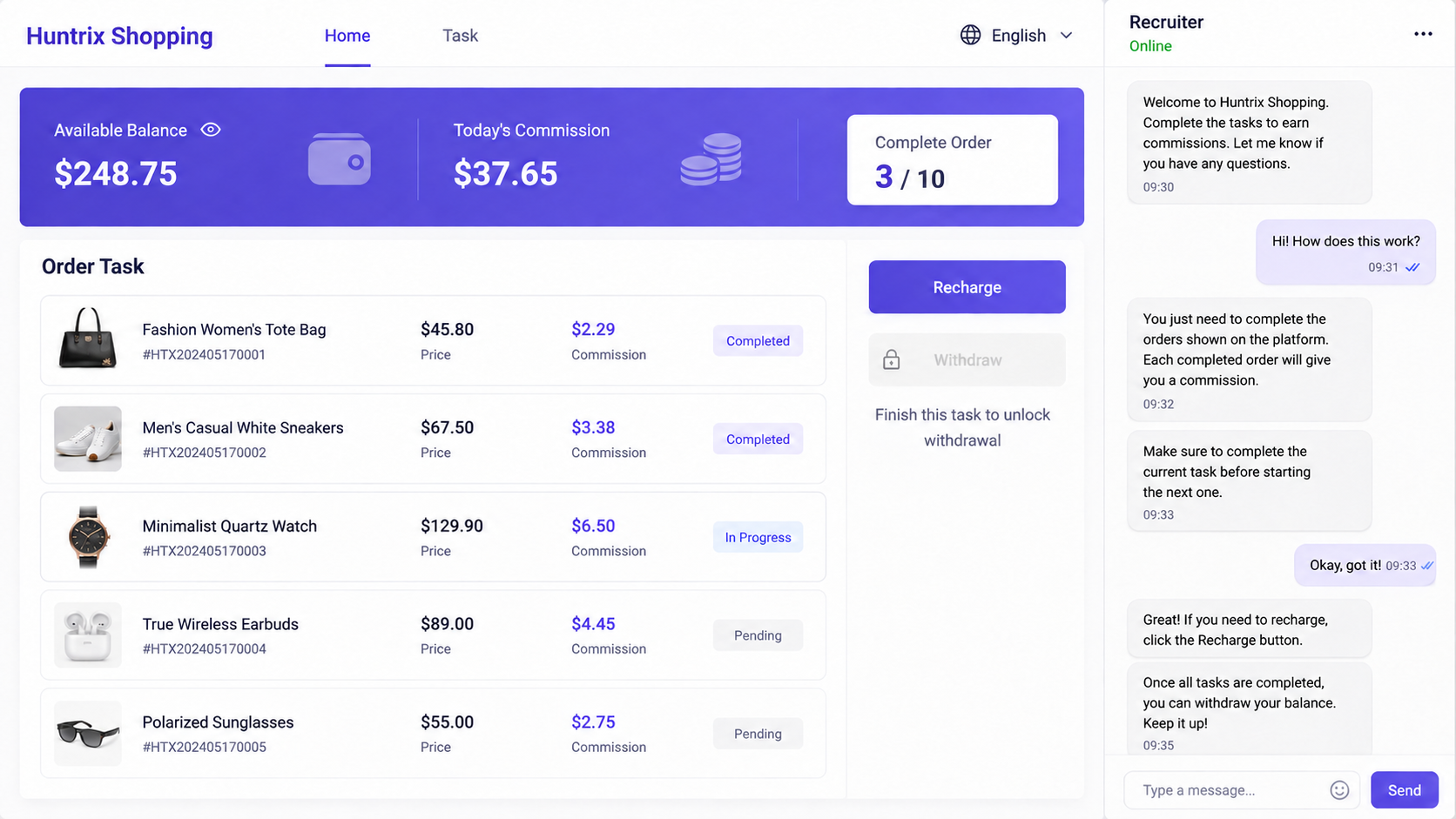
The message looks like a lucky break: flexible online work, simple shopping assignments, and commissions visible after every tap. Huntrix Shopping wraps that promise inside a professional-looking dashboard.
For someone seeking extra income, the numbers can feel unusually convincing. The real test begins when the platform asks the worker to put personal money into the job.
Overview
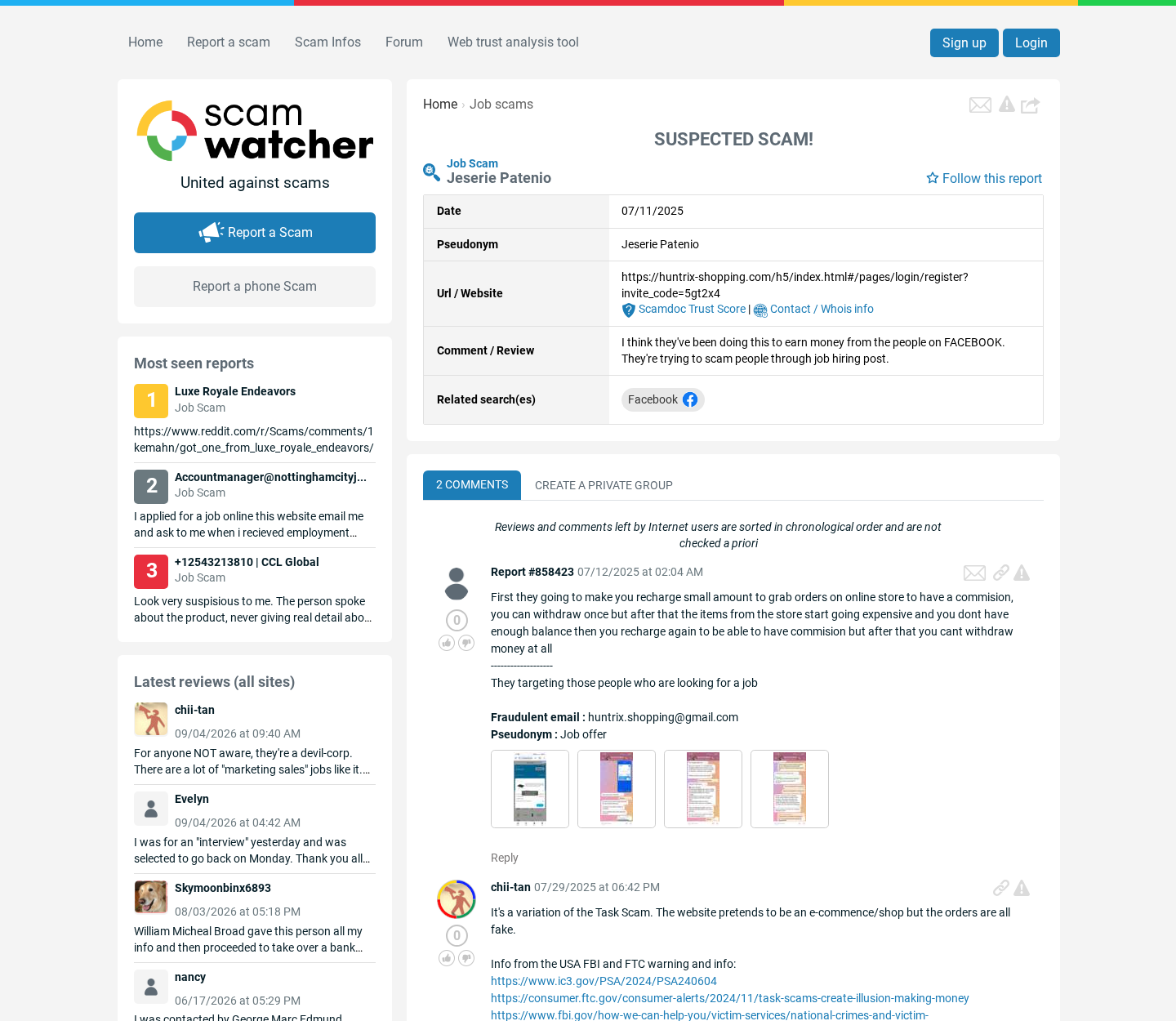
Huntrix Shopping follows the familiar task scam pattern
Huntrix Shopping has been promoted as online work involving orders, product ratings, or shopping-related tasks. Participants are told that completing activity generates commissions.
The work is not built around a normal wage, written employment agreement, or independently verifiable employer. Instead, the website displays balances controlled entirely by its operators.
When a participant reaches a supposedly valuable task, the platform demands a recharge or deposit. The payment is described as temporary and necessary to complete the order.
That requirement reverses the employment relationship. Legitimate employers pay workers for labor. They do not require employees to finance transactions to unlock earned wages.
Early success is used to make later deposits feel safe
Task scams often allow a small withdrawal near the beginning. The payment is not proof of a profitable system. It functions as confidence-building bait.
Once the participant believes withdrawals work, assignments become more expensive. A special order, combination task, negative balance, or upgraded tier creates a new deposit demand.
The dashboard may show commissions growing faster than the deposits. Those figures are entries on a private website, not money held in the worker’s name.
Victims continue because each payment appears to protect everything already deposited. In reality, new payments increase the loss without making the displayed balance withdrawable.
- An unexpected job invitation arrives through social media, text, Telegram, or WhatsApp.
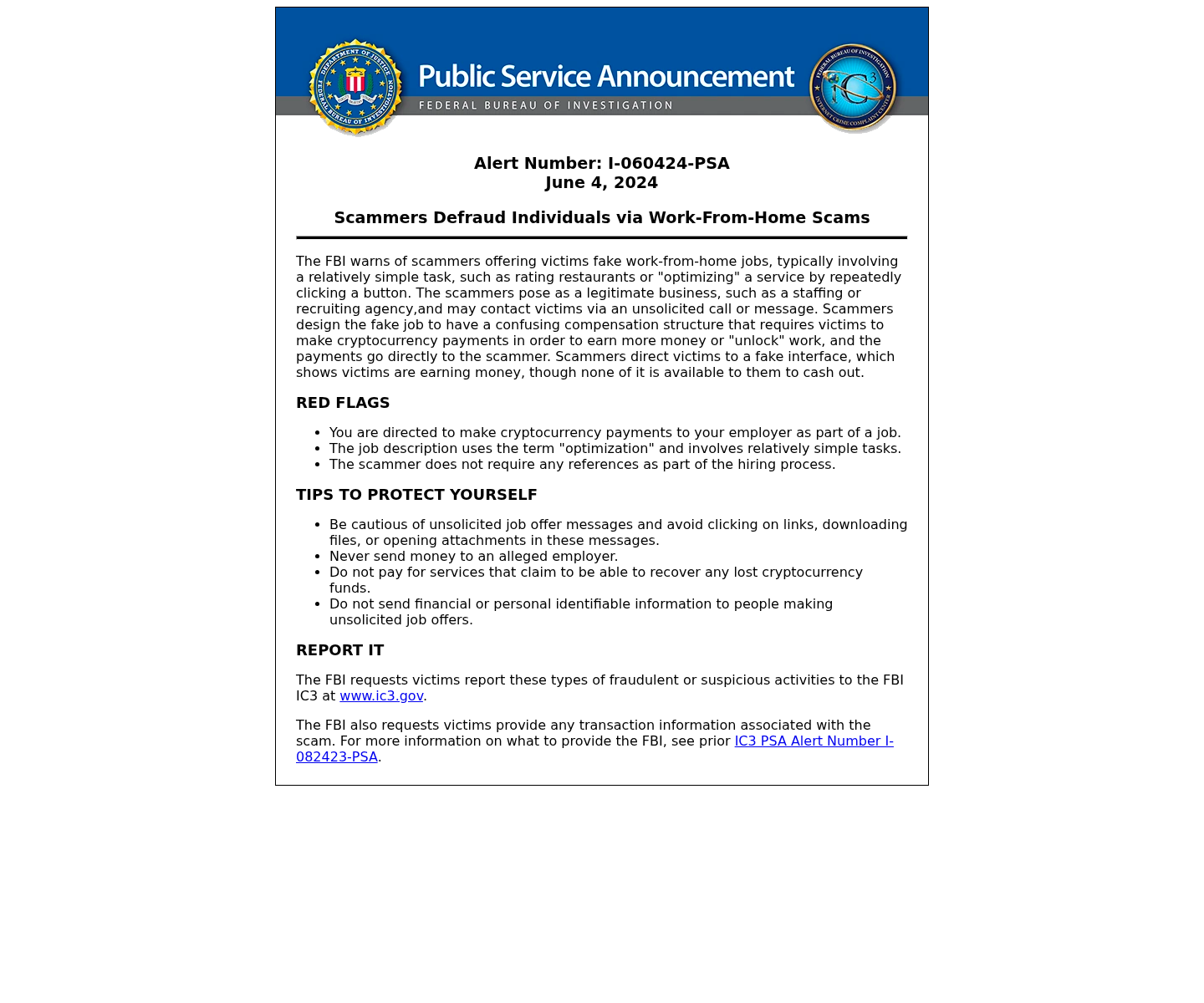
- The work involves effortless clicks, ratings, orders, or “product optimization.”
- A private dashboard displays instant commissions and an expanding balance.
- The participant must recharge an account before completing certain tasks.
- Withdrawals become blocked by taxes, fees, negative balances, or unfinished task groups.
The website can disappear while the operators keep recruiting
The Huntrix Shopping domain examined during this investigation was no longer reliably available. Its broken state removes any practical route to account balances, policies, or customer support.
A vanished task platform is especially dangerous because the apparent earnings exist only inside that platform. There is no regulated account holding the displayed amount.
Operators can launch another domain with a new logo and reuse the same recruitment script. The name changes, but the deposit-and-unlock mechanism remains recognizable.
How the Huntrix Shopping Scam Works
Step 1: A recruiter offers easy remote work
The first contact may arrive after a social media post, messaging-app conversation, or unsolicited text. The recruiter claims a company needs people for flexible online tasks.
Job requirements are deliberately broad. Applicants may need only a smartphone, a few minutes each day, and willingness to follow simple instructions.
The recruiter avoids a normal interview, payroll paperwork, tax forms, or detailed responsibilities. Speed is presented as convenience rather than a warning sign.
Messages often promise daily commissions that seem generous for repetitive clicking. The contrast between low effort and high earnings attracts people under financial pressure.
Step 2: The participant receives a platform account
The recruit is directed to a website and told to create an account. Sometimes an invitation code connects the new worker with a supposed supervisor or team.
The dashboard resembles a shopping or commission system. It may display task progress, order values, bonuses, account credit, and a prominently colored withdrawal button.
These visual elements imitate financial software, but they do not prove a transaction occurred. The operators can change every number shown on the screen.
No independent statement confirms the balance. There is usually no bank, licensed payment provider, or real merchant verifying that commissions were earned from genuine sales.
Step 3: Simple tasks create a feeling of momentum
Early assignments might involve pressing “submit,” rating a product, confirming an order, or completing a sequence. Each action produces an immediate reward on the dashboard.
The quick feedback is psychologically important. It makes the platform feel responsive and teaches the participant that following instructions causes the balance to rise.
A recruiter may celebrate progress and mention higher-paying tiers. Group chats can contain staged success stories from accounts controlled by the same operation.
Some victims receive a modest initial withdrawal. That small payment is funded by the scheme and used to make a much larger future deposit seem reasonable.
Step 4: A special order creates a negative balance
Eventually, the account encounters an unusually expensive task. The platform says available credit is insufficient, leaving the participant with a negative balance.
The recruiter calls this normal. A recharge is supposedly needed to finish the order, restore the balance, and release the task’s larger commission.
The amount may begin small enough to feel manageable. Payment commonly goes through cryptocurrency, a person-to-person transfer, or an account unrelated to a recognizable employer.
Once paid, the dashboard updates instantly. That change only confirms the operator controls the display. It does not prove the deposit entered a recoverable investment.
Step 5: Completed work produces another obstacle
After one recharge, another combination order may appear. The victim is told that task groups cannot be abandoned and all remaining orders must be completed.
The demanded amounts grow because the operators now know the participant can find money. They may encourage loans, credit-card advances, or borrowing from relatives.
If the victim hesitates, the recruiter warns that stopping will forfeit the entire balance. This threat turns previous losses into pressure for another payment.
Promises remain specific enough to sound solvable: finish one final order, correct one balance, verify one account, or pay one release fee.
Step 6: The withdrawal button becomes a collection tool
When the participant attempts to withdraw, the site may demand tax, insurance, security verification, anti-money-laundering clearance, or a percentage-based processing fee.
Real taxes are not normally collected through an anonymous recruiter’s cryptocurrency address. A legitimate platform also does not require new deposits to release wages already earned.
Paying the stated fee rarely ends the problem. The operators invent another reason the withdrawal failed, sometimes blaming an incorrect code entered by the victim.
The account balance can reach impressive levels while remaining fictional. The growing figure is designed to keep hope alive, not to represent accessible funds.
Step 7: Contact ends or moves to a new website
When the victim refuses further payments, the supervisor becomes hostile, stops replying, or removes the person from group chats. The support channel may disappear entirely.
The domain can expire, lose its security certificate, or redirect elsewhere. Those changes make complaints and recovery requests difficult to pursue.
Meanwhile, the same recruiters may approach new targets under another company name. Logos, task descriptions, and website colors can be replaced in a day.
The reliable warning is therefore behavioral: a job that requires deposits to unlock commissions is unsafe, regardless of the platform name printed above the balance.
Why the Dashboard Balance Is Not Real Money
There is no independent custody
A genuine bank balance exists within a regulated financial institution and can be confirmed through statements. Huntrix earnings appear only inside a privately controlled task interface.
The platform operator decides when balances rise, when withdrawals fail, and which fee appears next. No neutral party validates the underlying orders or commissions.
Screen numbers can be made to show $500, $5,000, or $50,000 without any corresponding funds. Attractive formatting does not create ownership.
The displayed merchants may have no involvement
Task pages sometimes use recognizable product images or retailer names. Their appearance does not prove those businesses hired the platform or receive completed orders.
Real merchants do not need strangers to place refundable deposits so product listings can be “optimized.” Ratings generated through paid manipulation would also violate marketplace rules.
A participant should contact any named company through its official website. Recruiter-provided links and support accounts cannot independently verify the recruiter’s own story.
Cryptocurrency makes recovery difficult
Task schemes favor cryptocurrency because transfers can cross borders quickly and cannot usually be reversed like an ordinary card dispute.
A wallet address does not reveal the recipient’s business identity to the sender. Funds may move through several wallets or exchanges soon after payment.
Anyone promising guaranteed cryptocurrency recovery for an upfront fee may be running a second scam. Victim contact lists are valuable to fraudulent recovery operators.
A small withdrawal is part of the persuasion
Receiving money feels like the strongest possible proof. In a task scam, an early payout can be a calculated operating expense used to obtain much larger deposits.
The relevant question is not whether one withdrawal succeeded. It is whether the worker can withdraw freely without recharging, paying release fees, or completing forced tasks.
If access to earnings depends on sending more money, the system has already failed the basic test of legitimate employment.
Company, Address, and Fulfillment Checks
A real employer should have a verifiable legal identity
Ask for the employer’s registered company name, business address, payroll process, and written contract. Check those details without using links supplied by the recruiter.
Task scammers borrow corporate names and logos. A genuine company existing somewhere does not prove the person messaging from WhatsApp represents it.
Contact the organization through a number published on its established website. Ask whether it operates the exact task platform and employs the named recruiter.
A broken website cannot safeguard worker funds
The Huntrix Shopping domain examined here was not functioning reliably. That leaves users without stable access to terms, support, company disclosures, or their displayed balances.
Domain failure is not the only evidence, but it sharply increases risk when a platform already holds deposits and communicates through informal messaging accounts.
Never send additional money to restore access to a broken platform. A new login link may lead to the same operators under a replacement domain.
Addresses and phone numbers can be copied
Search a listed address independently. It may belong to an unrelated business, virtual office, residential building, mailbox provider, or shared workspace.
Call published numbers from trusted corporate records, not the task dashboard. A support agent who only communicates by chat provides little accountability.
Look for consistent company names across employment documents, website policies, payment recipients, and messages. Contradictions are a strong reason to stop.
There is no legitimate fulfillment reason for worker deposits
Workers do not need to buy inventory, fund customer orders, or insure platform balances before receiving wages. Those costs belong to the employer.
A recruiter may rename the payment as a recharge, top-up, correction, reserve, or activation. The label does not change who is financing the supposed job.
When the company cannot explain the business transaction behind each task, assume the dashboard is theatrical and keep money outside the platform.
What to Do if You Have Fallen Victim to This Scam
- Stop every payment immediately. Do not pay a tax, verification charge, negative balance, or final task. Additional money will not make the displayed balance withdrawable.
- Preserve the evidence. Save chats, usernames, phone numbers, wallet addresses, payment receipts, task screens, domain links, recruiter photographs, and every withdrawal error.
- Contact the payment provider. Tell your bank, card issuer, exchange, or transfer service that the payment resulted from a job scam. Request any available recall or fraud review.
- Report cryptocurrency transfers. Give the receiving wallet address and transaction hash to the exchange and law enforcement. Speed can help investigators trace funds before they move further.
- Secure exposed accounts. Change reused passwords, enable multifactor authentication, review email forwarding rules, and remove unknown devices from important accounts.
- Scan affected devices. If the recruiter supplied software or an application, disconnect it and run Malwarebytes to check for credential stealers, remote-access tools, and other threats.
- Block malicious advertising and links. AdGuard can reduce exposure to deceptive ads and dangerous domains, although it cannot reverse completed transfers.
- Reject recovery agents. Do not pay anyone claiming secret access to wallets or guaranteed recovery. Report the original scheme through national cybercrime and consumer-protection channels.
Is Your Device Infected? Run a Free Malware Scan
Slow performance, constant pop-ups, or strange behavior? These are classic signs of a malware infection. The fastest way to find out is to scan your device with Malwarebytes Free — one of the most trusted malware removal tools available.
The free version detects and removes the most common threats, including:
- Adware — the cause of those annoying pop-ups
- Browser hijackers — unwanted redirects and changed homepages
- Trojans and spyware — hidden programs stealing your data
- Potentially unwanted programs (PUPs) — software you never asked for
👉 Select your device below — Windows, Mac, or Android — then follow the simple steps to download Malwarebytes, scan your system, and remove any threats it finds. The scan usually takes 5 to 20 minutes.
Run a Malware Scan with Malwarebytes for Windows
Malwarebytes is one of the most popular and trusted anti-malware tools for Windows — and it’s completely free for removing infections. It catches threats that many antivirus programs miss, including adware, browser hijackers, and trojans. Follow the steps below to scan and clean your PC in just a few minutes.
Download Malwarebytes
Click the button below to download the latest version of Malwarebytes for Windows from the official source. The free version is all you need — it will scan your computer and remove adware, browser hijackers, and other malicious software at no cost.
Download MalwarebytesOfficial installer for Windows 11 and 10. Your download starts right away.Want real-time protection? See Malwarebytes Premium Malwarebytes Free for WindowsScans and removes malware at no cost
-
Install Malwarebytes
When the download finishes, open your Downloads folder and double-click the MBSetup file. If Windows shows a User Account Control pop-up, click “Yes” to allow the installation.

Follow the On-Screen Prompts to Install Malwarebytes
The setup wizard will walk you through a few quick screens:
-
Choose where you’re installing the program — “Personal Computer” or “Work Computer” — then click Next.

-
Malwarebytes will now install on your device. This usually takes under a minute.

-
When installation is complete, the “Welcome to Malwarebytes” screen will open automatically.

-
On the final screen, click Open Malwarebytes to launch the program.

-
Enable “Scan for Rootkits”
Before scanning, turn on rootkit detection so Malwarebytes can find even the most hidden threats. Click the Settings gear icon on the left side of the screen.

In the settings menu, find “Scan for rootkits” and click the toggle so it turns blue.

Done? Click “Dashboard” in the left pane to return to the main screen.
Start the Scan
Click the blue Scan button. Malwarebytes will automatically update its virus database and start checking your computer for malware.

-
Wait for the Scan to Finish
The scan checks your entire system for browser hijackers and other malicious programs, so it can take 5 to 20 minutes depending on your computer. Feel free to do something else — just check back occasionally to see the progress.

-
Quarantine the Detected Threats
When the scan is done, you’ll see a list of everything Malwarebytes found — malware, adware, and potentially unwanted programs. Click the “Quarantine” button to remove all of them at once.

Malwarebytes will now remove the malicious files and registry entries and move them safely into quarantine.

-
Restart Your Computer
Some threats can only be fully removed after a reboot. If Malwarebytes asks you to restart, click Yes. Once you’re logged back in, Malwarebytes has finished removing the threats it found.

That’s it — your Windows PC is now clean of trojans, adware, and other malware, and should be back to running smoothly.
If you are still having problems with your computer after completing these instructions, then please follow one of the steps:
- Run a computer scan with ESET Online Scanner
- Ask for help in our Windows Malware Removal Help & Support forum.
Run a Malware Scan with Malwarebytes for Mac
Malwarebytes for Mac is a free on-demand scanner that removes the malware other security software tends to miss — adware, browser hijackers, and unwanted programs included. Cleaning an infected Mac with Malwarebytes has always been completely free, and it’s our go-to recommendation. Follow the steps below to scan and clean your Mac in just a few minutes.
-
Download Malwarebytes for Mac
Click the button below to download the latest version of Malwarebytes for Mac.
Download MalwarebytesOfficial installer for macOS. Your download starts right away.Want real-time protection? See Malwarebytes PremiumMalwarebytes Free for MacScans and removes malware at no cost -
Open the Malwarebytes setup file
When the download finishes, open your Downloads folder and double-click the setup file to begin the installation.

-
Follow the On-Screen Prompts to Install Malwarebytes
The Malwarebytes for Mac Installer will guide you through a few quick screens. Click “Continue” and keep following the prompts until the installation completes.



When the installation is complete, Malwarebytes opens to the Welcome to Malwarebytes screen. Click “Get started“.
-
Select “Personal Computer” or “Work Computer”
Malwarebytes will ask what type of computer you’re installing it on. Click either Personal Computer or Work Computer, whichever applies.

-
Start the Scan
Click the “Scan” button. Malwarebytes will automatically update its detection database and begin checking your Mac for malware.

-
Wait for the Scan to Finish
Malwarebytes will scan your Mac for adware, browser hijackers, and other malicious programs. This can take a few minutes, so feel free to do something else — just check back occasionally to see the progress.

-
Quarantine the Detected Threats
When the scan is done, you’ll see a list of everything Malwarebytes found. Click the “Quarantine” button to remove all the threats at once.

-
Restart Your Mac
Malwarebytes will now remove all the malicious files it found. Some threats can only be fully removed after a reboot — if Malwarebytes asks you to restart, allow it. Once you’re logged back in, your Mac is clean.

That’s it — your Mac is now free of adware, rogue browser extensions, and other potentially harmful software.
If you are still experiencing problems while trying to remove a malicious program from your computer, please ask for help in our Mac Malware Removal Help & Support forum.
Run a Malware Scan with Malwarebytes for Android
Malwarebytes for Android automatically detects and removes dangerous threats like malware and ransomware so you don’t have to worry about your most-used device being compromised. Aggressive detection of adware and potentially unwanted programs keeps your Android phone or tablet running smooth.
-
Download Malwarebytes for Android.
You can download Malwarebytes for Android by clicking the link below.
Get Malwarebytes for AndroidOpens Google Play in a new tab.Want real-time protection? See Malwarebytes Premium for AndroidMalwarebytes for AndroidScans your phone and removes malware at no cost -
Install Malwarebytes for Android on your phone.
In the Google Play Store, tap “Install” to install Malwarebytes for Android on your device.

When the installation process has finished, tap “Open” to begin using Malwarebytes for Android. You can also open Malwarebytes by tapping on its icon in your phone menu or home screen.

-
Follow the on-screen prompts to complete the setup process
When Malwarebytes will open, you will see the Malwarebytes Setup Wizard which will guide you through a series of permissions and other setup options.
This is the first of two screens that explain the difference between the Premium and Free versions. Swipe this screen to continue.
Tap on “Got it” to proceed to the next step.
Malwarebytes for Android will now ask for a set of permissions that are required to scan your device and protect it from malware. Tap on “Give permission” to continue.
Tap on “Allow” to permit Malwarebytes to access the files on your phone.
-
Update database and run a scan with Malwarebytes for Android
You will now be prompted to update the Malwarebytes database and run a full system scan.

Click on “Update database” to update the Malwarebytes for Android definitions to the latest version, then click on “Run full scan” to perform a system scan.

-
Wait for the Malwarebytes scan to complete.
Malwarebytes will now start scanning your phone for adware and other malicious apps. This process can take a few minutes, so we suggest you do something else and periodically check on the status of the scan to see when it is finished.

-
Click on “Remove Selected”.
When the scan has been completed, you will be presented with a screen showing the malware infections that Malwarebytes for Android has detected. To remove the malicious apps that Malwarebytes has found, tap on the “Remove Selected” button.

-
Restart your phone.
Malwarebytes for Android will now remove all the malicious apps that it has found. To complete the malware removal process, Malwarebytes may ask you to restart your device.
That’s it — your Android phone is now clean — no more malicious apps, adware, or browser redirects.
If you are still having problems with your phone after completing these instructions, then please follow one of the steps:
- Restore your phone to factory settings by going to Settings > General management > Reset > Factory data reset.
- Ask for help in our Mobile Malware Removal Help & Support forum.
Stay Protected: Block Ads and Malicious Sites
Now that your device is clean, keep it that way. Most infections start with a malicious ad or a fake download button — so blocking them at the source is your best defense.
We recommend AdGuard, which blocks malicious ads, phishing pages, and dangerous redirects before they can reach you.
👉 Download AdGuard and browse safely
Frequently Asked Questions
Is Huntrix Shopping a legitimate job platform?
The deposit demands, task progression, blocked withdrawals, informal recruitment, and unavailable website match a documented task-scam model, not ordinary employment.
Why did Huntrix allow a small withdrawal?
An early payment can build trust and encourage a larger recharge. It does not prove the remaining dashboard balance exists or can be withdrawn.
Can paying the final fee unlock my money?
No reliable evidence supports that promise. Task scammers repeatedly invent new fees after each payment, while the displayed account total remains under their control.
Are product optimization jobs ever legitimate?
Real digital-commerce jobs exist, but employers provide contracts and wages. They do not require workers to deposit cryptocurrency to submit ratings or release commissions.
Can cryptocurrency sent to the platform be reversed?
Blockchain transfers are generally irreversible, but prompt reports to exchanges and police can support tracing or account freezes. Never pay a recovery fee.
Will the scammers contact me again?
Possibly. They may return with another job, investment, or recovery offer. Treat unexpected contacts referencing your loss as high risk.
The Bottom Line
Huntrix Shopping uses the appearance of remote work to turn participants into depositors. The commissions are controlled screen entries, while the money sent to unlock them is real.
Stop when any job asks you to recharge an account. Preserve evidence, contact payment providers quickly, and remember that legitimate wages never require a release payment.

Join the discussion
0 commentsShare your experience or ask a question about this article.
Discussion
Start the conversation
Have a question or something useful to share? Add the first comment.