

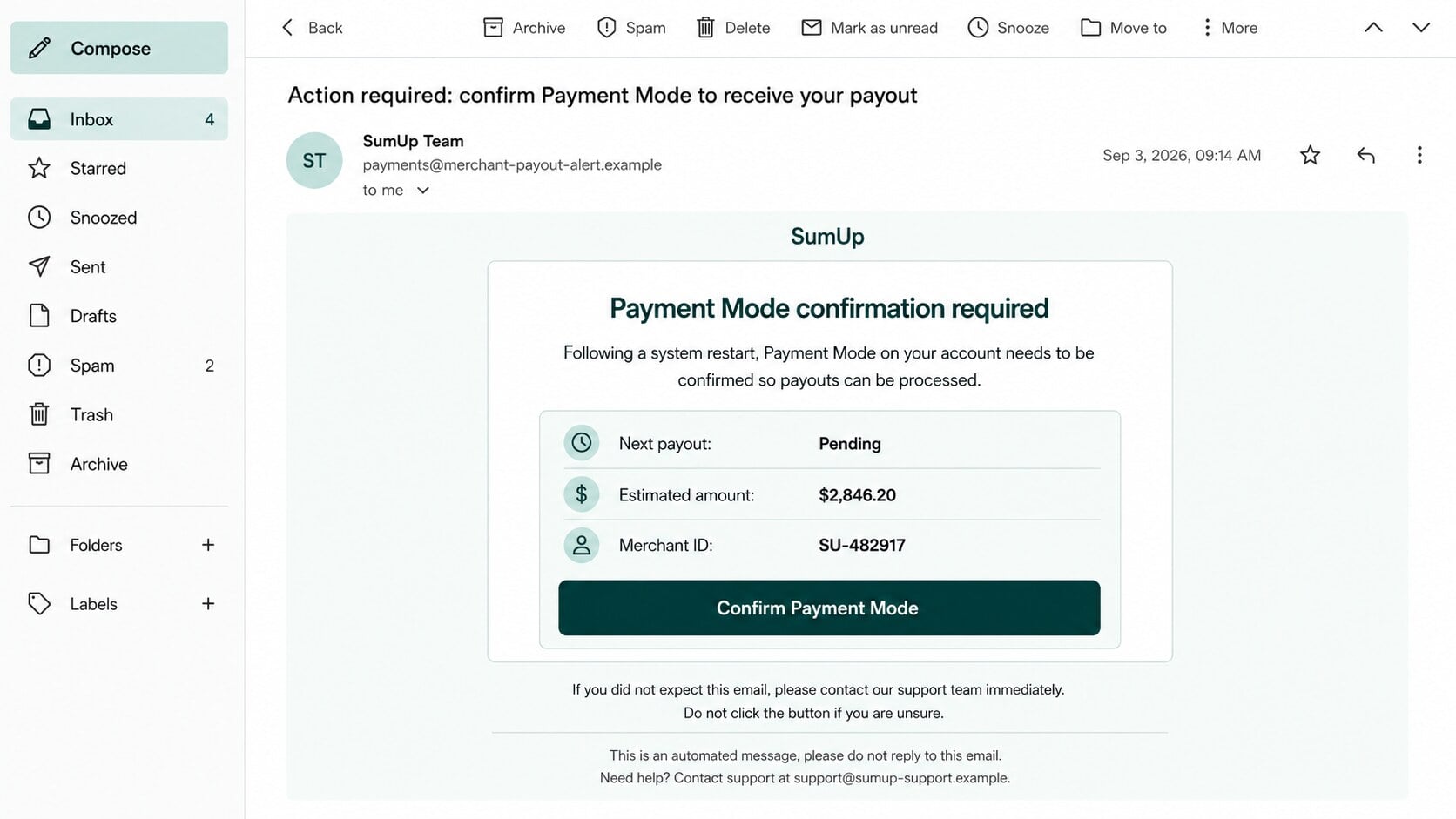
An email claiming to be from SumUp says a system restart has paused payouts until the merchant confirms a mysterious setting called Payment Mode.
For a business watching daily cash flow, even a short payout delay can create enough concern to make the requested action feel urgent.
Overview
The message borrows a real payment company’s identity
The SumUp Payment Mode email scam uses SumUp branding and describes a supposed account requirement following a “system restart.”
SumUp is a legitimate payment services provider. The fraudulent sender exploits that reputation, but the company is not connected to the phishing campaign.
A pending payout supplies immediate business pressure
The email says payouts may remain pending until Payment Mode is confirmed. That claim targets merchants who depend on regular settlement for wages, inventory, and bills.
A button and fallback link promise a quick solution. Both are designed to move the recipient away from SumUp’s authentic account environment.
The fake login targets merchant credentials
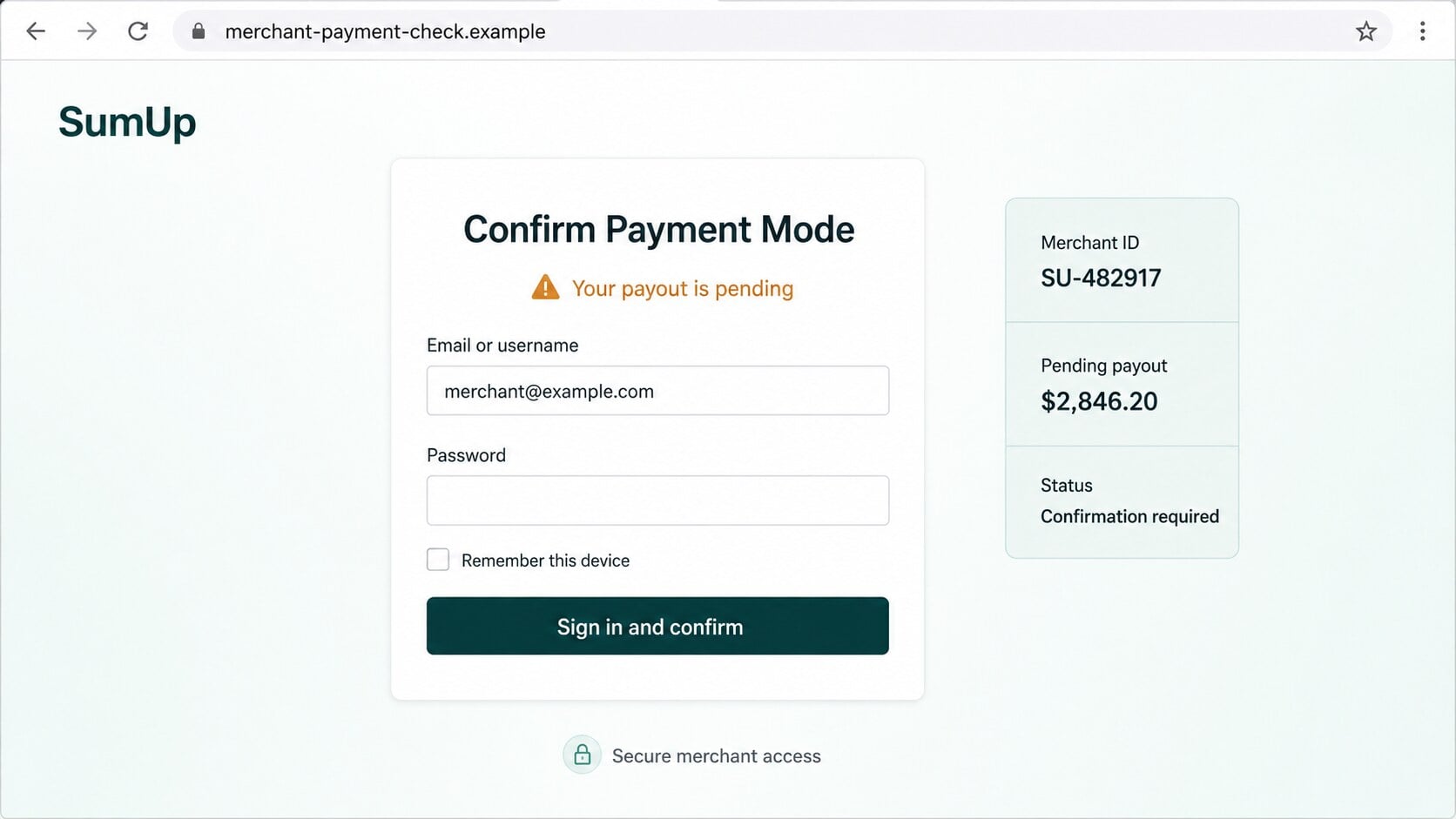
The destination presents a username and password form on a domain unrelated to SumUp. Information submitted there goes to the phishing operators.
Merchant access may expose transaction records, customer details, payout settings, linked bank information, refunds, invoices, and identity documents used during verification.
- The email invents a vague “Payment Mode” confirmation after a restart.
- It threatens delayed payouts without identifying any affected settlement.
- The button and visible fallback link lead away from SumUp.
- A generic “Dear client” greeting replaces the merchant’s account identity.
- The form requests credentials on an unrelated foreign commercial domain.
Why the Payout Story Feels Believable
Real merchants regularly receive settlement notices
Payment processors legitimately send updates about verification, disputes, refunds, chargebacks, reserves, banking details, and scheduled payouts. The subject therefore fits normal operations.
Small businesses often monitor several providers while serving customers. An alert may be opened between transactions, when careful domain inspection feels inconvenient.
Scammers rely on that rhythm. They do not need every recipient to use SumUp, only enough merchants for the brand and payout language to resonate.
Cash-flow anxiety shortens the verification process
A delayed settlement can affect rent, suppliers, taxes, or payroll. The possibility of withheld revenue naturally receives more attention than a generic security announcement.
The email does not claim money vanished. It suggests the funds are merely waiting for one confirmation, making the proposed fix feel proportionate and harmless.
That emotional balance is useful to attackers. Concern motivates the click, while the promise of a simple resolution prevents the recipient from escalating immediately.
“System restart” sounds technical but explains nothing
Large services perform maintenance, yet a restart would not ordinarily require every merchant to confirm an undefined payment setting through an emailed link.
The phrase avoids details that could be disproved. There is no incident number, maintenance window, affected product, payout identifier, status page, or account-specific explanation.
Technical-sounding causes deserve technical evidence. A vague restart should never override an unexpected domain and unsolicited password prompt.
A fallback link mimics responsible email design
Legitimate transactional emails often provide a visible address when a button fails. Phishing messages copy this pattern to appear transparent.
The displayed text may still hide another destination, contain look-alike spelling, or point directly to attacker infrastructure. Visibility does not make it safe.
Instead of copying either link, merchants should open the official application or use a bookmark saved before the warning arrived.
How the Scam Works
Step 1: Merchant contact details are gathered
Criminals can find business email addresses on websites, social profiles, invoices, directories, breach datasets, marketplace listings, and public company records.
They may target addresses suggesting financial responsibility, including owner, accounts, payments, billing, finance, and support. Broad campaigns also reach ordinary personal inboxes.
The email does not prove the sender knows the recipient uses SumUp. Familiarity with the brand may result from coincidence rather than account-level targeting.
More focused attackers can identify accepted payment methods from checkout pages, counter photographs, reviews, job descriptions, or previously stolen business messages.
Step 2: The lure connects a technical event to frozen money
The story says a restart changed something called Payment Mode. Until the merchant confirms it, payouts may supposedly remain pending.
This sequence sounds plausible because software events sometimes affect settings. However, the email never defines the option or explains why credentials must be re-entered.
The threat is carefully limited. “May remain pending” avoids a measurable promise while still encouraging the owner to act before the next settlement.
A generic support sentence at the end adds polish, but it offers no case number or independently verifiable contact for the claimed account issue.
Step 3: The button opens a site outside the real payment service
Following “Confirm Payment Mode” transfers the browser to a domain that does not belong to SumUp. The attacker controls the content and form displayed there.
A phishing page may copy brand colors, fonts, login labels, legal text, and security symbols. These elements are publicly visible and easy to reproduce.
The browser address remains the strongest clue. The registered domain should match the official service or a documented authentication provider used by it.
HTTPS cannot establish that relationship. It encrypts the connection to the current site, including a fraudulent one, while the victim submits information.
Step 4: The counterfeit portal captures login details
The form requests a username and password under the pretense of confirming the merchant setting. The submitted data is stored or forwarded to criminals.
Nothing on that page needs to communicate with SumUp. A loading animation or progress message can simulate validation without performing a legitimate account action.
Some kits ask twice, claiming the first password was incorrect. This increases confidence that the captured value is current and accurately typed.
The visitor may then be redirected to the genuine homepage. That abrupt return can be mistaken for successful completion rather than evidence of phishing.
Step 5: Attackers attempt to enter the merchant account
Speed matters because the fraudulent page may be reported quickly. Criminals test credentials while the victim still believes the payout confirmation is processing.
If multifactor authentication is enabled, they may trigger approval prompts, request one-time codes, or place a follow-up call pretending to be payment support.
Unexpected authentication requests should be denied. A person who supplies the code can defeat the extra protection even after noticing the original email was unusual.
Reused credentials may also be tried against the merchant’s email, ecommerce platform, bookkeeping software, bank portal, cloud storage, and social accounts.
Step 6: Financial settings and business data are examined
Available controls depend on the account, permissions, and security requirements. Criminals look for payout destinations, linked cards, refunds, transaction exports, and identity records.
They may change contact details or create new trusted devices to reduce alerts. A compromised mailbox can help them confirm resets and hide notifications.
Transaction history gives insight into revenue and customer patterns. That information can support targeted invoice fraud, refund abuse, or impersonation of the merchant.
Even when payout changes require additional verification, exposed data remains useful for social engineering against staff, customers, banks, and official support.
Step 7: The attack expands through follow-up impersonation
A caller may claim the confirmation failed and request a code. Another email may demand identity documents, card information, or a small “release” payment.
Criminals can use stolen business details to make these contacts specific. References to real transactions or account data make later demands harder to dismiss.
If money is taken, recovery scammers may promise guaranteed retrieval for an upfront fee. They often target victims whose details circulate between criminal groups.
The initial email is best understood as credential collection, not a complete description of everything the attackers may attempt afterward.
What Criminals Could Do with Merchant Access
Attempt payout or profile changes
An intruder may try to alter bank destinations, contact details, business information, or authorized devices. Strong verification can block some changes but not every form of abuse.
Merchants should not assume that visible payouts are the only risk. Access may expose documents and data that make a separate bank impersonation more convincing.
Official support should review the account history and explain which controls were touched during the suspected compromise window.
Exploit refunds and customer relationships
Depending on permissions, criminals may attempt unauthorized refunds or contact customers with false payment requests. They can imitate the merchant using familiar transaction context.
Customers who trust the business may click quickly. A warning from the merchant can prevent a compromised account from producing a second wave of victims.
Review unusual refunds, disputes, exports, and messaging activity. Do not limit the audit to successful payout transfers.
Reuse credentials across the business stack
Small companies sometimes share passwords among payment, email, website, and accounting systems. That convenience turns one captured credential into several opportunities.
Unique passwords and individual staff accounts make containment more precise. Administrators can revoke one identity without disrupting every employee.
After phishing, inventory the systems linked to the affected address. Password-reset relationships can create exposure even when credentials were not reused.
Brand, Merchant Account, Domain, and Payout Checks
Open the official SumUp account separately
Do not use the email’s button or fallback address. Launch the installed application or type the known official site into a fresh browser window.
Inspect payout status, notifications, and required actions there. A legitimate account restriction should be visible within the authenticated service.
If no Payment Mode task exists, preserve the suspicious email and report it. Do not return to the linked page for additional testing.
Compare the complete sender and destination domains
Expand sender information, including Reply-To and return-path details. A familiar display name has no security value when the underlying address belongs elsewhere.
Preview the button and read the registered domain carefully. Unrelated country-code or commercial domains cannot become SumUp portals through copied logos.
Look-alike spellings may insert extra words, replace characters, or use misleading subdomains. The important ownership appears immediately before the final domain suffix.
Ask official support about the named setting
Contact SumUp through the application or independently located help center. Ask whether “Payment Mode” requires confirmation after maintenance and whether payouts are actually paused.
Provide the email subject, sender address, and approximate delivery time without sending your password or authentication codes.
A legitimate support agent can inspect the account. They should not ask you to install remote-control software or transfer money for verification.
Reconcile payouts against bank deposits
Compare expected settlements, transaction batches, refunds, and bank credits. Identify the last known legitimate payout before the suspicious interaction.
Look for changes to bank accounts, business profiles, authorized users, devices, API connections, or notification addresses around the same time.
Contact the bank promptly if any destination changed or expected funds are missing. Faster reporting improves the chance of pausing a fraudulent movement.
Warning Signs in the Fake SumUp Payment Mode Email
- The greeting says “Dear client” instead of naming the merchant.
- An unexplained system restart supposedly requires account confirmation.
- “Payment Mode” is capitalized but never defined.
- No payout amount, batch, date, or merchant identifier is supplied.
- The message uses possible delay to create financial urgency.
- The login page sits on a domain unrelated to SumUp.
- A visible fallback link creates false transparency.
- The sender encourages action before independent account inspection.
Good branding can be copied in minutes. Account-specific facts and independently confirmed destinations are more reliable than appearance.
When a payment notice creates pressure, pause precisely because money is involved. Open the merchant account independently and confirm the settlement there.
What to Do if You Have Fallen Victim to This Scam
- Leave the phishing site and deny any new login approval. Do not call numbers, follow links, or install software offered by the suspicious sender.
- Change the SumUp password through the official application or website. Use a fresh credential that is not shared with email, banking, or ecommerce services.
- Enable or reset multifactor authentication. Revoke unfamiliar sessions, devices, users, applications, recovery methods, and any authorization you did not initiate.
- Contact official SumUp support and report possible account takeover. Ask them to review payout details, profile changes, refunds, exports, and recent authentication activity.
- Call the linked bank if settlements changed or funds disappeared. Request protective monitoring and attempt to stop or recall any unauthorized transfer.
- Change reused passwords across business systems. Secure the associated email account because it can approve resets and conceal payment notifications.
- Scan affected devices with Malwarebytes if a file downloaded or ran. Use AdGuard to limit deceptive advertising and malicious redirect chains during future browsing.
- Preserve emails, headers, page addresses, screenshots, support references, and transaction records. Notify employees and customers if their information or trust may be abused.
Is Your Device Infected? Run a Free Malware Scan
Slow performance, constant pop-ups, or strange behavior? These are classic signs of a malware infection. The fastest way to find out is to scan your device with Malwarebytes Free — one of the most trusted malware removal tools available.
The free version detects and removes the most common threats, including:
- Adware — the cause of those annoying pop-ups
- Browser hijackers — unwanted redirects and changed homepages
- Trojans and spyware — hidden programs stealing your data
- Potentially unwanted programs (PUPs) — software you never asked for
👉 Select your device below — Windows, Mac, or Android — then follow the simple steps to download Malwarebytes, scan your system, and remove any threats it finds. The scan usually takes 5 to 20 minutes.
Run a Malware Scan with Malwarebytes for Windows
Malwarebytes is one of the most popular and trusted anti-malware tools for Windows — and it’s completely free for removing infections. It catches threats that many antivirus programs miss, including adware, browser hijackers, and trojans. Follow the steps below to scan and clean your PC in just a few minutes.
Download Malwarebytes
Click the button below to download the latest version of Malwarebytes for Windows from the official source. The free version is all you need — it will scan your computer and remove adware, browser hijackers, and other malicious software at no cost.
Download MalwarebytesOfficial installer for Windows 11 and 10. Your download starts right away.Want real-time protection? See Malwarebytes Premium Malwarebytes Free for WindowsScans and removes malware at no cost
-
Install Malwarebytes
When the download finishes, open your Downloads folder and double-click the MBSetup file. If Windows shows a User Account Control pop-up, click “Yes” to allow the installation.

Follow the On-Screen Prompts to Install Malwarebytes
The setup wizard will walk you through a few quick screens:
-
Choose where you’re installing the program — “Personal Computer” or “Work Computer” — then click Next.

-
Malwarebytes will now install on your device. This usually takes under a minute.

-
When installation is complete, the “Welcome to Malwarebytes” screen will open automatically.

-
On the final screen, click Open Malwarebytes to launch the program.

-
Enable “Scan for Rootkits”
Before scanning, turn on rootkit detection so Malwarebytes can find even the most hidden threats. Click the Settings gear icon on the left side of the screen.

In the settings menu, find “Scan for rootkits” and click the toggle so it turns blue.

Done? Click “Dashboard” in the left pane to return to the main screen.
Start the Scan
Click the blue Scan button. Malwarebytes will automatically update its virus database and start checking your computer for malware.

-
Wait for the Scan to Finish
The scan checks your entire system for browser hijackers and other malicious programs, so it can take 5 to 20 minutes depending on your computer. Feel free to do something else — just check back occasionally to see the progress.

-
Quarantine the Detected Threats
When the scan is done, you’ll see a list of everything Malwarebytes found — malware, adware, and potentially unwanted programs. Click the “Quarantine” button to remove all of them at once.

Malwarebytes will now remove the malicious files and registry entries and move them safely into quarantine.

-
Restart Your Computer
Some threats can only be fully removed after a reboot. If Malwarebytes asks you to restart, click Yes. Once you’re logged back in, Malwarebytes has finished removing the threats it found.

That’s it — your Windows PC is now clean of trojans, adware, and other malware, and should be back to running smoothly.
If you are still having problems with your computer after completing these instructions, then please follow one of the steps:
- Run a computer scan with ESET Online Scanner
- Ask for help in our Windows Malware Removal Help & Support forum.
Run a Malware Scan with Malwarebytes for Mac
Malwarebytes for Mac is a free on-demand scanner that removes the malware other security software tends to miss — adware, browser hijackers, and unwanted programs included. Cleaning an infected Mac with Malwarebytes has always been completely free, and it’s our go-to recommendation. Follow the steps below to scan and clean your Mac in just a few minutes.
-
Download Malwarebytes for Mac
Click the button below to download the latest version of Malwarebytes for Mac.
Download MalwarebytesOfficial installer for macOS. Your download starts right away.Want real-time protection? See Malwarebytes PremiumMalwarebytes Free for MacScans and removes malware at no cost -
Open the Malwarebytes setup file
When the download finishes, open your Downloads folder and double-click the setup file to begin the installation.

-
Follow the On-Screen Prompts to Install Malwarebytes
The Malwarebytes for Mac Installer will guide you through a few quick screens. Click “Continue” and keep following the prompts until the installation completes.



When the installation is complete, Malwarebytes opens to the Welcome to Malwarebytes screen. Click “Get started“.
-
Select “Personal Computer” or “Work Computer”
Malwarebytes will ask what type of computer you’re installing it on. Click either Personal Computer or Work Computer, whichever applies.

-
Start the Scan
Click the “Scan” button. Malwarebytes will automatically update its detection database and begin checking your Mac for malware.

-
Wait for the Scan to Finish
Malwarebytes will scan your Mac for adware, browser hijackers, and other malicious programs. This can take a few minutes, so feel free to do something else — just check back occasionally to see the progress.

-
Quarantine the Detected Threats
When the scan is done, you’ll see a list of everything Malwarebytes found. Click the “Quarantine” button to remove all the threats at once.

-
Restart Your Mac
Malwarebytes will now remove all the malicious files it found. Some threats can only be fully removed after a reboot — if Malwarebytes asks you to restart, allow it. Once you’re logged back in, your Mac is clean.

That’s it — your Mac is now free of adware, rogue browser extensions, and other potentially harmful software.
If you are still experiencing problems while trying to remove a malicious program from your computer, please ask for help in our Mac Malware Removal Help & Support forum.
Run a Malware Scan with Malwarebytes for Android
Malwarebytes for Android automatically detects and removes dangerous threats like malware and ransomware so you don’t have to worry about your most-used device being compromised. Aggressive detection of adware and potentially unwanted programs keeps your Android phone or tablet running smooth.
-
Download Malwarebytes for Android.
You can download Malwarebytes for Android by clicking the link below.
Get Malwarebytes for AndroidOpens Google Play in a new tab.Want real-time protection? See Malwarebytes Premium for AndroidMalwarebytes for AndroidScans your phone and removes malware at no cost -
Install Malwarebytes for Android on your phone.
In the Google Play Store, tap “Install” to install Malwarebytes for Android on your device.

When the installation process has finished, tap “Open” to begin using Malwarebytes for Android. You can also open Malwarebytes by tapping on its icon in your phone menu or home screen.

-
Follow the on-screen prompts to complete the setup process
When Malwarebytes will open, you will see the Malwarebytes Setup Wizard which will guide you through a series of permissions and other setup options.
This is the first of two screens that explain the difference between the Premium and Free versions. Swipe this screen to continue.
Tap on “Got it” to proceed to the next step.
Malwarebytes for Android will now ask for a set of permissions that are required to scan your device and protect it from malware. Tap on “Give permission” to continue.
Tap on “Allow” to permit Malwarebytes to access the files on your phone.
-
Update database and run a scan with Malwarebytes for Android
You will now be prompted to update the Malwarebytes database and run a full system scan.

Click on “Update database” to update the Malwarebytes for Android definitions to the latest version, then click on “Run full scan” to perform a system scan.

-
Wait for the Malwarebytes scan to complete.
Malwarebytes will now start scanning your phone for adware and other malicious apps. This process can take a few minutes, so we suggest you do something else and periodically check on the status of the scan to see when it is finished.

-
Click on “Remove Selected”.
When the scan has been completed, you will be presented with a screen showing the malware infections that Malwarebytes for Android has detected. To remove the malicious apps that Malwarebytes has found, tap on the “Remove Selected” button.

-
Restart your phone.
Malwarebytes for Android will now remove all the malicious apps that it has found. To complete the malware removal process, Malwarebytes may ask you to restart your device.
That’s it — your Android phone is now clean — no more malicious apps, adware, or browser redirects.
If you are still having problems with your phone after completing these instructions, then please follow one of the steps:
- Restore your phone to factory settings by going to Settings > General management > Reset > Factory data reset.
- Ask for help in our Mobile Malware Removal Help & Support forum.
Stay Protected: Block Ads and Malicious Sites
Now that your device is clean, keep it that way. Most infections start with a malicious ad or a fake download button — so blocking them at the source is your best defense.
We recommend AdGuard, which blocks malicious ads, phishing pages, and dangerous redirects before they can reach you.
👉 Download AdGuard and browse safely
How Merchants Can Prevent Payment Account Phishing
Create a payout-alert routine
Staff should open the payment application independently, check the settlement record, and escalate unexplained holds through one documented support route.
A consistent routine removes the phishing email from the decision. Urgency no longer determines where employees sign in.
Protect finance roles with stronger controls
Use individual accounts, minimum necessary permissions, unique passwords, and strong multifactor authentication. Avoid sharing one owner login across the team.
Require separate approval for sensitive profile or payout changes. One captured credential should not be sufficient to redirect business revenue.
Monitor the entire payment ecosystem
Watch the merchant dashboard, bank deposits, email security, ecommerce administration, refunds, and customer communications for related anomalies.
Phishing rarely respects system boundaries. Early comparison across services can reveal misuse before the attacker completes a financial action.
Frequently Asked Questions
Is the SumUp Payment Mode confirmation email genuine?
The analyzed message is a phishing attempt. It sends merchants to an unrelated website that collects usernames and passwords.
SumUp is a real company whose name is being impersonated. Check genuine payout issues only inside the official service.
What is Payment Mode in this email?
The message uses the term without a meaningful account-specific explanation. It functions as a technical-sounding reason to demand a new login.
Ask official support whether any setting needs attention rather than accepting the email’s wording as proof.
Are my payouts truly on hold?
The email cannot establish that. Review settlement status through the official app and compare expected deposits with the linked bank account.
A real hold should have an account notification, identifiable transaction context, and support explanation outside the suspicious message.
What if I entered my password but multifactor authentication blocked login?
Change the password immediately because the secret is exposed. Deny all unexpected prompts and review registered devices, sessions, and authentication methods.
Contact official support so they can inspect failed attempts and protect sensitive account changes.
Can a click alone steal money?
Merely opening the page does not normally authorize a payout. Risk rises if credentials, codes, card details, documents, or permissions were supplied.
Still inspect downloads and account activity. The destination can change, and some campaigns combine phishing with malicious files.
Should I contact the bank before confirming a loss?
Contact it promptly when payout details changed, money is missing, or account data exposed a bank relationship. Early notice creates more recovery options.
Use the bank’s established number, not information supplied by an email, caller, or page connected to the incident.
The Bottom Line
The SumUp Payment Mode email scam turns merchant cash-flow anxiety into a credential request. A vague restart and pending payout do not verify the sender.
Inspect settlements through the official SumUp service and bank records. Do not authenticate through links delivered by an unexpected payment warning.
If credentials were exposed, secure the merchant account, email, and financial connections together. Coordinated action is the best defense against follow-up payout or impersonation fraud.

Join the discussion
0 commentsShare your experience or ask a question about this article.
Discussion
Start the conversation
Have a question or something useful to share? Add the first comment.