

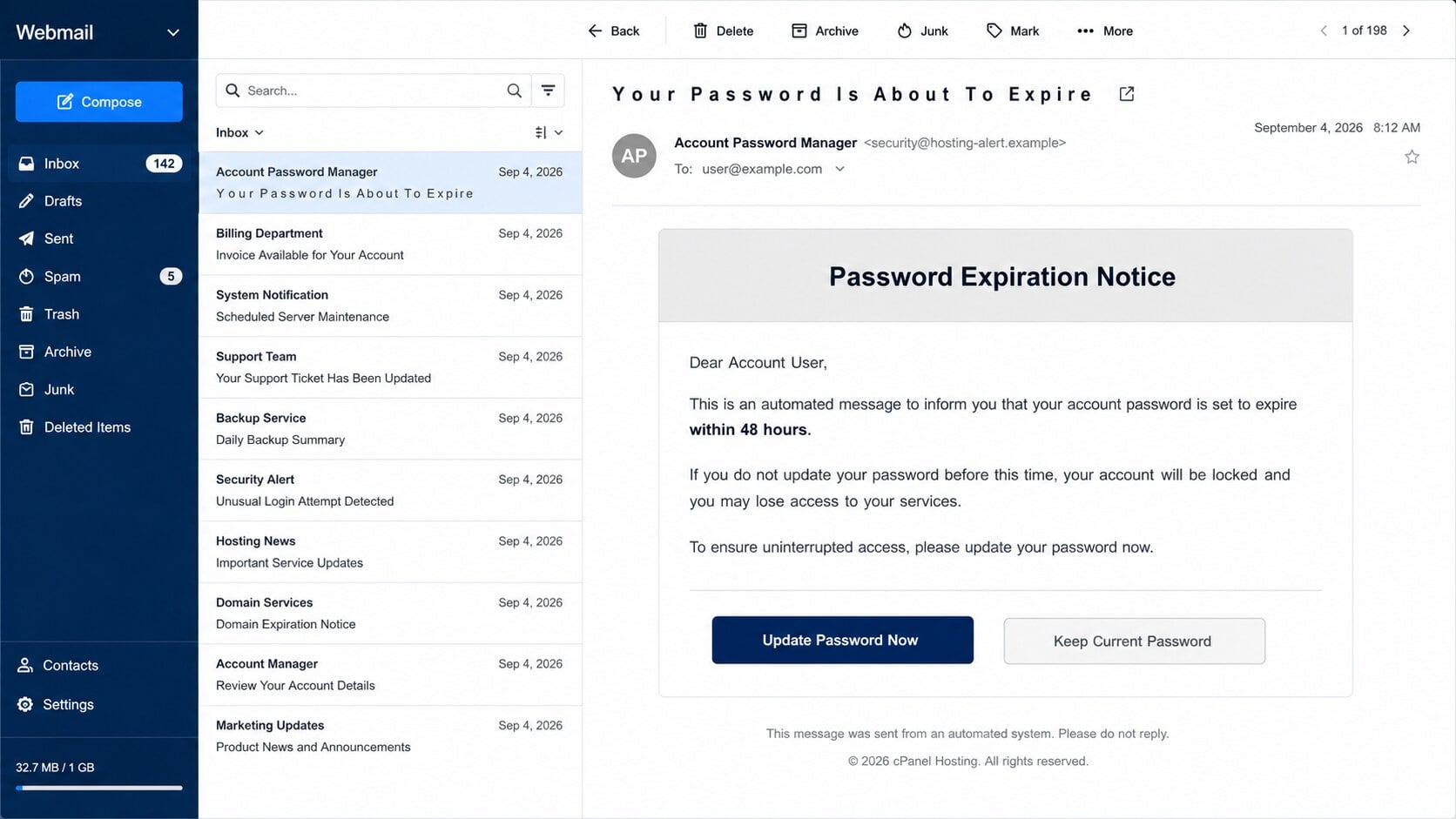
The subject’s letters are oddly spaced, yet the warning underneath sounds serious: update a cPanel password within 48 hours or lose access.
For someone responsible for a website, database, and company email, the threatened lockout can turn an imperfect message into an urgent task.
Overview
The alert impersonates hosting security administration
The cPanel Password Expiration Notice claims the recipient’s hosting credentials are scheduled to expire within 48 hours.
It warns that failing to update them will trigger an automatic lockout affecting website files, databases, email accounts, and other hosted services.
The message calls itself an automated system notification, but it does not identify the actual hosting company, server hostname, support ticket, or policy.
Every offered choice can lead to the same trap
The email may show “Update Password Now,” “Keep Current Password,” and a documentation link about password strength.
Multiple choices create the impression of a genuine management notice. In a phishing email, several buttons can point to the same fraudulent destination.
The linked page may imitate cPanel or adapt itself to resemble the victim’s webmail provider.
Hosting credentials provide unusually powerful access
A stolen control-panel login can expose website files, databases, DNS settings, backups, email accounts, and administrative tools.
Attackers may inject malicious code, add users, redirect visitors, read stored data, or create mailboxes that support further fraud.
- The subject uses spaced lettering that may help evade simple spam filters.
- The sender is a generic “Account Password Manager.”
- The email imposes a 48-hour deadline without citing a real hosting policy.
- Several different buttons may share one hidden destination.
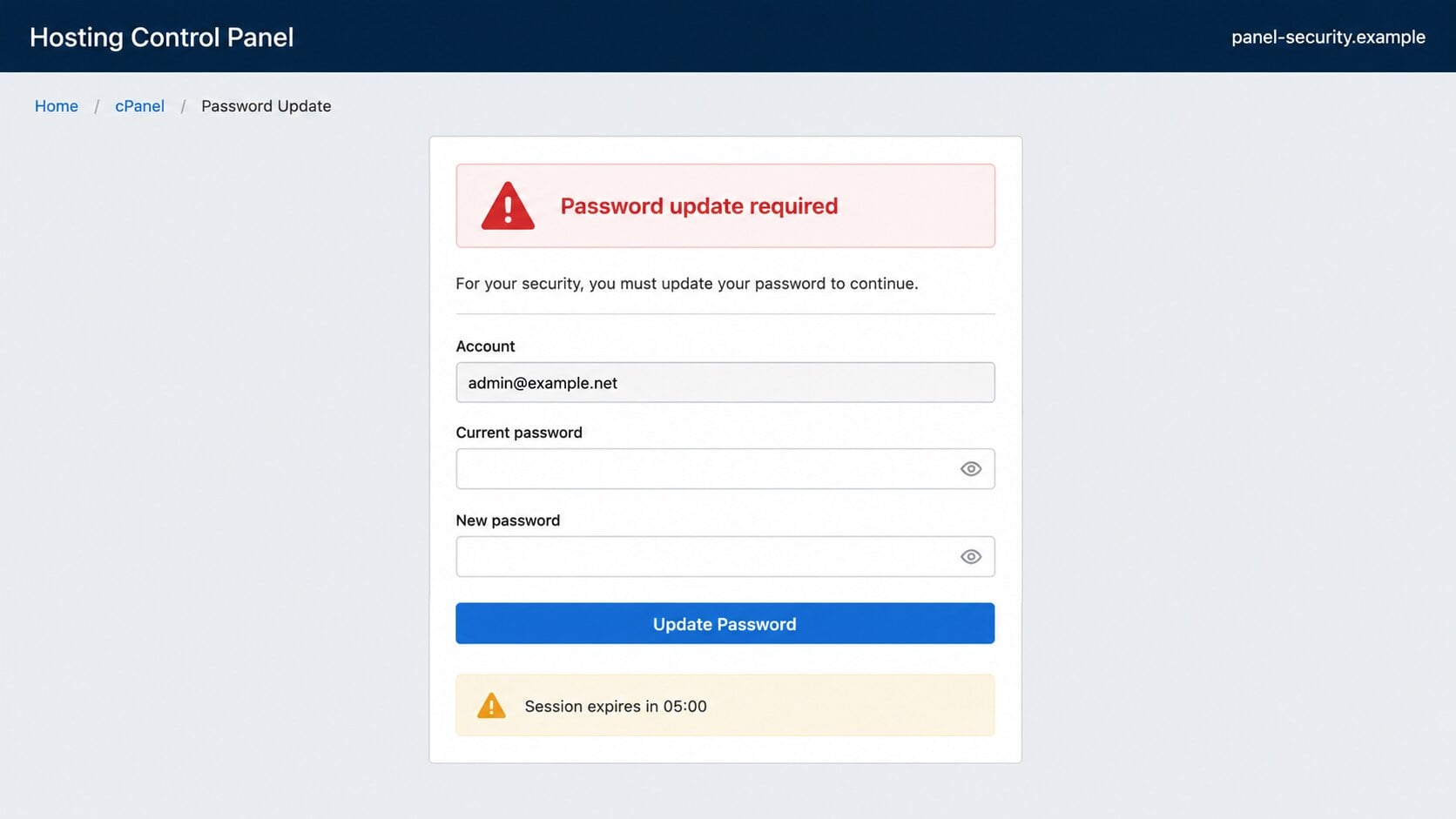
- The page requests credentials outside the known hosting provider’s domain.
Why Website Owners Are Valuable Targets
One control panel can govern several systems
Shared-hosting dashboards commonly provide access to files, databases, domains, certificates, backups, scheduled tasks, and mail administration.
That concentration makes a control-panel password more valuable than a login used for one narrow service.
The exact permissions depend on the hosting plan, but compromise can affect every site and mailbox inside the account.
Website access creates a delivery platform for more attacks
Criminals can modify pages to redirect visitors, insert skimming code, distribute malware, or publish convincing phishing forms beneath a trusted domain.
They may leave the public site mostly unchanged while adding hidden directories. That reduces the chance of immediate discovery.
A previously reputable domain can help malicious pages bypass suspicion and some automated filters.
Email administration enables convincing impersonation
Hosting accounts often control domain-based mailboxes. An attacker may create a new address or reset an existing user’s password.
Messages sent from the organization’s own domain carry more credibility with customers and suppliers.
Forwarders can also copy sensitive correspondence without interrupting normal delivery to the legitimate mailbox.
How the cPanel Password Expiration Scam Works
Step 1: Criminals identify addresses associated with domains
Public registration data, contact pages, breach collections, guessed administrator names, and harvested business lists can reveal likely hosting users.
The attackers do not need to know whether the recipient truly uses cPanel. Many small businesses do, making the brand a useful general lure.
Messages are sent broadly to addresses such as admin, info, webmaster, billing, and support.
Step 2: Character spacing helps the subject avoid detection
The words may appear as “Y o u r P a s s w o r d” with spaces between letters.
This visual obfuscation can interfere with filters searching for common phishing phrases while remaining readable to a person.
Odd spacing is not proof by itself, but it is an important clue when combined with urgency and an external login link.
Step 3: The notice threatens a broad service lockout
The body names website files, databases, and email so the recipient imagines several business functions failing at once.
A 48-hour window pushes the administrator to act before checking the hosting provider’s policy.
The warning may mention data integrity or mandatory password requirements. Those phrases sound official without providing verifiable evidence.
Step 4: Multiple buttons disguise a single destination
“Update,” “keep current,” and “view documentation” appear to represent different decisions.
Attackers can assign all three to one credential-harvesting page. The number of options does not make the email interactive with the real account.
Hover over each link. Identical or unrelated destinations reveal that the choices are only visual theater.
Step 5: A counterfeit page collects current credentials
The landing page may display a hosting-control-panel design, the recipient’s domain, and a password-update form.
Requesting both current and new passwords gives attackers two candidates. Either may work on other services if the victim reuses credentials.
Some kits instead show an adaptive webmail form because email access is easier to monetize than full hosting administration.
Step 6: Attackers enter the real dashboard and establish persistence
After a successful login, they may add administrator accounts, API tokens, SSH keys, database users, scheduled tasks, or email forwarders.
Changing the password alone may not remove those alternate access paths.
They can download backups or configuration files containing database credentials and application secrets.
Step 7: The compromised hosting account supports new crimes
Website visitors may be redirected to fake stores, browser alerts, investment fraud, or additional phishing pages.
Customer data can support impersonation and payment redirection. Domain email may be used to approach suppliers with believable invoice changes.
The attacker may also demand payment to restore altered files, although not every compromise follows that path.
Password Expiration Is a Policy, Not an Email Button
Some organizations require periodic password changes. Others avoid routine expiration unless compromise is suspected, because predictable changes can encourage weaker passwords.
The relevant fact is the provider’s actual policy inside the authenticated account, not a deadline announced by an unsolicited sender.
Administrators should reach the dashboard through a saved bookmark, hosting-customer portal, or documented single-sign-on route.
If an expiration is genuine, support can confirm it without asking the user to reveal an existing password by email.
Provider, Domain, Account, and Hosting Checks
The message should identify the actual provider
cPanel supplies software used by hosting companies. The hosting provider usually controls the customer relationship, domain, billing, and support process.
A generic sender claiming to be cPanel may not know which company operates the account.
The login hostname should already be familiar
Compare the link with the control-panel address in the hosting agreement, welcome email, password manager, or saved bookmark.
A lookalike domain, unrelated host, URL shortener, or cloud-storage page should never receive administrator credentials.
The account details must match reality
Check whether the named username, primary domain, server, and expiration policy appear inside the legitimate dashboard.
A random domain inserted into the message may come from the recipient’s email address, not from access to the hosting account.
The hosting environment needs a complete audit after exposure
Review users, tokens, SSH keys, files, databases, DNS, cron jobs, email forwarders, backups, redirects, certificates, and access logs.
Compare files against a known-clean backup. Look for new archives, unfamiliar PHP files, changed timestamps, and injected scripts.
Signs the Hosting Account May Already Be Compromised
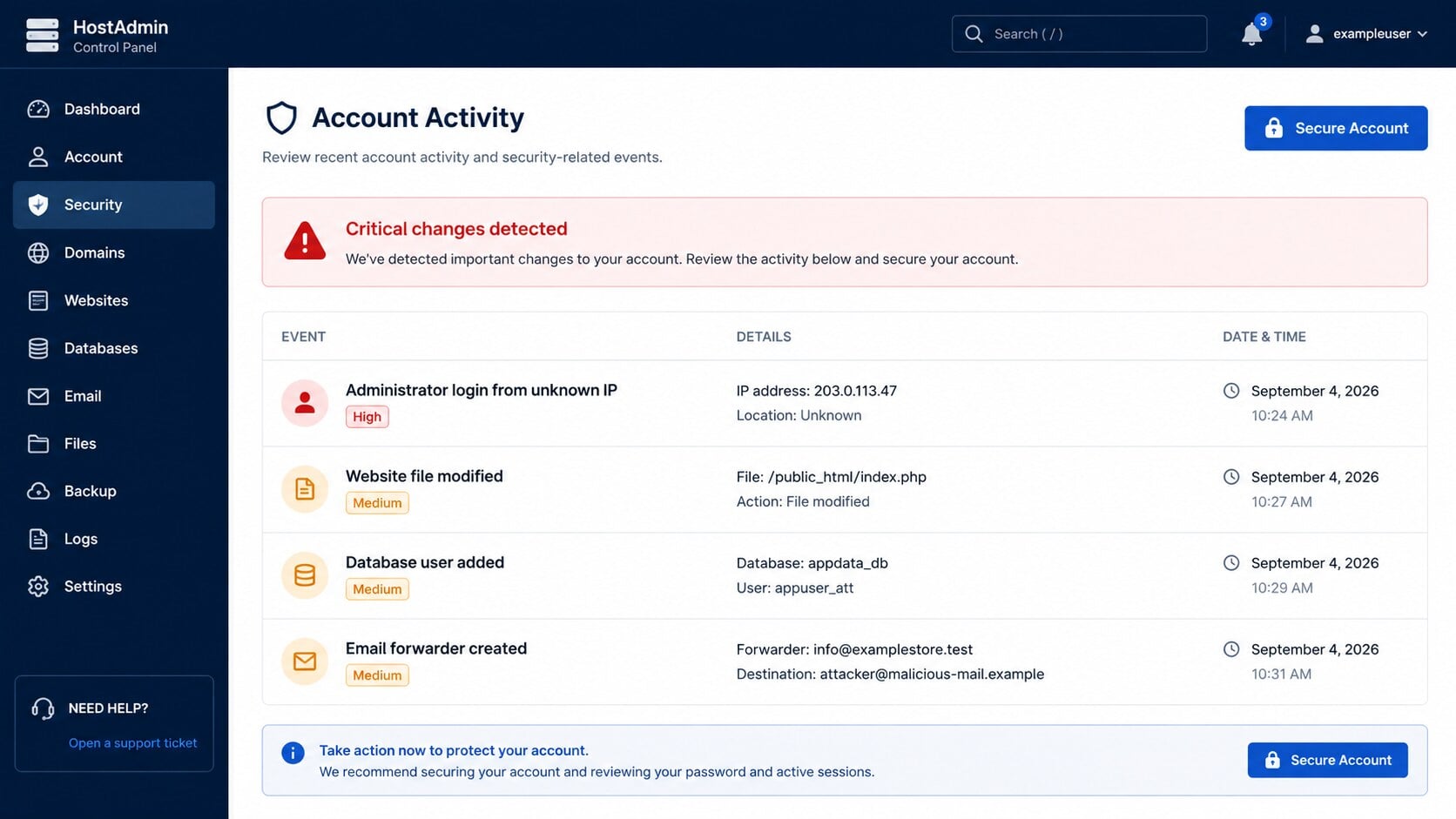
A successful login from an unfamiliar address is important, but attackers often hide their access behind proxies or previously trusted sessions.
Unexpected technical changes can be stronger evidence. Examine activity across the full account rather than waiting for the website to fail.
- New control-panel, FTP, database, or email users appear.
- Files change without a deployment or administrator action.
- Visitors report redirects, pop-ups, or unfamiliar checkout pages.
- DNS records point to services the organization does not use.
- Scheduled tasks run unknown scripts or remote downloads.
- Mail forwarders send copies to outside addresses.
- Backups disappear or new archives appear in public directories.
- Search results show spam pages beneath the legitimate domain.
Capture logs before cleaning when possible. Preserved evidence helps determine the entry point, affected data, and required notifications.
What Attackers May Change Inside a Hosting Account
Files can be altered without breaking the homepage
A criminal may add a hidden PHP loader, redirect rule, spam directory, or payment skimmer while leaving visible pages unchanged.
File timestamps can offer clues, but attackers may modify them. Compare cryptographic hashes with a known-clean release whenever possible.
Review configuration files carefully because they often contain database credentials and application keys.
Database access can create persistent application users
Direct database access may allow an intruder to add a CMS administrator even after the hosting password changes.
Unexpected users, altered email addresses, injected scripts, and unfamiliar scheduled content require investigation.
Reset database credentials after containment and update every application configuration that used the old values.
DNS changes can redirect traffic outside the server
An attacker with domain controls may point the website or mail records toward infrastructure they operate.
Restoring files will not fix a malicious DNS record. Compare current records with documented values at the registrar and hosting provider.
Check nameservers, web records, mail exchangers, verification records, and unauthorized certificate activity.
Mail features can support long-term surveillance
New forwarders and filters may copy invoices, password resets, and customer conversations to an external mailbox.
A hidden mailbox can also send spam beneath the organization’s domain without altering existing user accounts.
Review outbound volume, login history, forwarding destinations, autoresponders, and authentication records for every domain mailbox.
Backups must be tested before they are trusted
An available archive may already contain the malicious change, especially when the compromise remained unnoticed for weeks.
Choose a restore point based on evidence, not simply the newest date.
Keep an offline copy of logs and affected files before restoration so investigators can determine what happened.
After recovery, scan the restored site externally and confirm that search engines no longer discover injected pages.
Service logs should tell one coherent story
Align control-panel, web, database, FTP, SSH, mail, DNS, and application events on a single timeline.
The first unauthorized action may reveal whether the stolen credential was used directly or whether another vulnerability was involved.
Look for gaps caused by deleted logs, changed time zones, or retention limits.
A complete timeline prevents the team from restoring one component while leaving another access path untouched.
Document every credential rotated and every artifact removed so later responders can verify that containment was comprehensive.
Continue heightened monitoring after restoration because delayed access attempts can reveal credentials, tokens, or devices missed during the first response.
What to Do if You Have Fallen Victim to This Scam
Treat submitted hosting credentials as an administrative compromise. Use a clean device and a trusted connection when beginning recovery.
- Contact the hosting provider immediately. Use the customer portal or a previously verified number, and request account containment plus preserved access logs.
- Reset every relevant credential. Change control-panel, customer-portal, FTP, SFTP, SSH, database, CMS, and domain-registrar passwords with unique replacements.
- Revoke persistence. Remove unknown users, tokens, sessions, SSH keys, app passwords, mail forwarders, cron jobs, and recovery contacts.
- Protect domain registration and DNS. Confirm nameservers, transfer lock, registrant details, DNS records, and multifactor settings at the registrar.
- Inspect website files and databases. Compare them with known-clean backups, isolate suspicious additions, and search for injected administrators or payment scripts.
- Review domain email. Reset affected mailboxes, inspect forwarding and filters, and warn contacts about messages sent during the exposure window.
- Scan administrator devices. Run Malwarebytes if files were downloaded or credentials may have been captured locally. AdGuard can block known phishing pages and malicious ads.
- Restore carefully. Use a backup from before the first suspicious event, then patch the CMS, plugins, themes, and server software before reopening access.
- Assess notification duties. If customer or employee data was exposed, consult the organization’s legal, privacy, payment, and regulatory contacts.
- Monitor after recovery. Watch logs, DNS, file integrity, outbound mail, search results, and payment activity for renewed access.
Is Your Device Infected? Run a Free Malware Scan
Slow performance, constant pop-ups, or strange behavior? These are classic signs of a malware infection. The fastest way to find out is to scan your device with Malwarebytes Free — one of the most trusted malware removal tools available.
The free version detects and removes the most common threats, including:
- Adware — the cause of those annoying pop-ups
- Browser hijackers — unwanted redirects and changed homepages
- Trojans and spyware — hidden programs stealing your data
- Potentially unwanted programs (PUPs) — software you never asked for
👉 Select your device below — Windows, Mac, or Android — then follow the simple steps to download Malwarebytes, scan your system, and remove any threats it finds. The scan usually takes 5 to 20 minutes.
Run a Malware Scan with Malwarebytes for Windows
Malwarebytes is one of the most popular and trusted anti-malware tools for Windows — and it’s completely free for removing infections. It catches threats that many antivirus programs miss, including adware, browser hijackers, and trojans. Follow the steps below to scan and clean your PC in just a few minutes.
Download Malwarebytes
Click the button below to download the latest version of Malwarebytes for Windows from the official source. The free version is all you need — it will scan your computer and remove adware, browser hijackers, and other malicious software at no cost.
Download MalwarebytesOfficial installer for Windows 11 and 10. Your download starts right away.Want real-time protection? See Malwarebytes Premium Malwarebytes Free for WindowsScans and removes malware at no cost
-
Install Malwarebytes
When the download finishes, open your Downloads folder and double-click the MBSetup file. If Windows shows a User Account Control pop-up, click “Yes” to allow the installation.

Follow the On-Screen Prompts to Install Malwarebytes
The setup wizard will walk you through a few quick screens:
-
Choose where you’re installing the program — “Personal Computer” or “Work Computer” — then click Next.

-
Malwarebytes will now install on your device. This usually takes under a minute.

-
When installation is complete, the “Welcome to Malwarebytes” screen will open automatically.

-
On the final screen, click Open Malwarebytes to launch the program.

-
Enable “Scan for Rootkits”
Before scanning, turn on rootkit detection so Malwarebytes can find even the most hidden threats. Click the Settings gear icon on the left side of the screen.

In the settings menu, find “Scan for rootkits” and click the toggle so it turns blue.

Done? Click “Dashboard” in the left pane to return to the main screen.
Start the Scan
Click the blue Scan button. Malwarebytes will automatically update its virus database and start checking your computer for malware.

-
Wait for the Scan to Finish
The scan checks your entire system for browser hijackers and other malicious programs, so it can take 5 to 20 minutes depending on your computer. Feel free to do something else — just check back occasionally to see the progress.

-
Quarantine the Detected Threats
When the scan is done, you’ll see a list of everything Malwarebytes found — malware, adware, and potentially unwanted programs. Click the “Quarantine” button to remove all of them at once.

Malwarebytes will now remove the malicious files and registry entries and move them safely into quarantine.

-
Restart Your Computer
Some threats can only be fully removed after a reboot. If Malwarebytes asks you to restart, click Yes. Once you’re logged back in, Malwarebytes has finished removing the threats it found.

That’s it — your Windows PC is now clean of trojans, adware, and other malware, and should be back to running smoothly.
If you are still having problems with your computer after completing these instructions, then please follow one of the steps:
- Run a computer scan with ESET Online Scanner
- Ask for help in our Windows Malware Removal Help & Support forum.
Run a Malware Scan with Malwarebytes for Mac
Malwarebytes for Mac is a free on-demand scanner that removes the malware other security software tends to miss — adware, browser hijackers, and unwanted programs included. Cleaning an infected Mac with Malwarebytes has always been completely free, and it’s our go-to recommendation. Follow the steps below to scan and clean your Mac in just a few minutes.
-
Download Malwarebytes for Mac
Click the button below to download the latest version of Malwarebytes for Mac.
Download MalwarebytesOfficial installer for macOS. Your download starts right away.Want real-time protection? See Malwarebytes PremiumMalwarebytes Free for MacScans and removes malware at no cost -
Open the Malwarebytes setup file
When the download finishes, open your Downloads folder and double-click the setup file to begin the installation.

-
Follow the On-Screen Prompts to Install Malwarebytes
The Malwarebytes for Mac Installer will guide you through a few quick screens. Click “Continue” and keep following the prompts until the installation completes.



When the installation is complete, Malwarebytes opens to the Welcome to Malwarebytes screen. Click “Get started“.
-
Select “Personal Computer” or “Work Computer”
Malwarebytes will ask what type of computer you’re installing it on. Click either Personal Computer or Work Computer, whichever applies.

-
Start the Scan
Click the “Scan” button. Malwarebytes will automatically update its detection database and begin checking your Mac for malware.

-
Wait for the Scan to Finish
Malwarebytes will scan your Mac for adware, browser hijackers, and other malicious programs. This can take a few minutes, so feel free to do something else — just check back occasionally to see the progress.

-
Quarantine the Detected Threats
When the scan is done, you’ll see a list of everything Malwarebytes found. Click the “Quarantine” button to remove all the threats at once.

-
Restart Your Mac
Malwarebytes will now remove all the malicious files it found. Some threats can only be fully removed after a reboot — if Malwarebytes asks you to restart, allow it. Once you’re logged back in, your Mac is clean.

That’s it — your Mac is now free of adware, rogue browser extensions, and other potentially harmful software.
If you are still experiencing problems while trying to remove a malicious program from your computer, please ask for help in our Mac Malware Removal Help & Support forum.
Run a Malware Scan with Malwarebytes for Android
Malwarebytes for Android automatically detects and removes dangerous threats like malware and ransomware so you don’t have to worry about your most-used device being compromised. Aggressive detection of adware and potentially unwanted programs keeps your Android phone or tablet running smooth.
-
Download Malwarebytes for Android.
You can download Malwarebytes for Android by clicking the link below.
Get Malwarebytes for AndroidOpens Google Play in a new tab.Want real-time protection? See Malwarebytes Premium for AndroidMalwarebytes for AndroidScans your phone and removes malware at no cost -
Install Malwarebytes for Android on your phone.
In the Google Play Store, tap “Install” to install Malwarebytes for Android on your device.

When the installation process has finished, tap “Open” to begin using Malwarebytes for Android. You can also open Malwarebytes by tapping on its icon in your phone menu or home screen.

-
Follow the on-screen prompts to complete the setup process
When Malwarebytes will open, you will see the Malwarebytes Setup Wizard which will guide you through a series of permissions and other setup options.
This is the first of two screens that explain the difference between the Premium and Free versions. Swipe this screen to continue.
Tap on “Got it” to proceed to the next step.
Malwarebytes for Android will now ask for a set of permissions that are required to scan your device and protect it from malware. Tap on “Give permission” to continue.
Tap on “Allow” to permit Malwarebytes to access the files on your phone.
-
Update database and run a scan with Malwarebytes for Android
You will now be prompted to update the Malwarebytes database and run a full system scan.

Click on “Update database” to update the Malwarebytes for Android definitions to the latest version, then click on “Run full scan” to perform a system scan.

-
Wait for the Malwarebytes scan to complete.
Malwarebytes will now start scanning your phone for adware and other malicious apps. This process can take a few minutes, so we suggest you do something else and periodically check on the status of the scan to see when it is finished.

-
Click on “Remove Selected”.
When the scan has been completed, you will be presented with a screen showing the malware infections that Malwarebytes for Android has detected. To remove the malicious apps that Malwarebytes has found, tap on the “Remove Selected” button.

-
Restart your phone.
Malwarebytes for Android will now remove all the malicious apps that it has found. To complete the malware removal process, Malwarebytes may ask you to restart your device.
That’s it — your Android phone is now clean — no more malicious apps, adware, or browser redirects.
If you are still having problems with your phone after completing these instructions, then please follow one of the steps:
- Restore your phone to factory settings by going to Settings > General management > Reset > Factory data reset.
- Ask for help in our Mobile Malware Removal Help & Support forum.
Stay Protected: Block Ads and Malicious Sites
Now that your device is clean, keep it that way. Most infections start with a malicious ad or a fake download button — so blocking them at the source is your best defense.
We recommend AdGuard, which blocks malicious ads, phishing pages, and dangerous redirects before they can reach you.
👉 Download AdGuard and browse safely
If you only read the email, the hosting account was not changed by that act. Delete the message after reporting it to the provider.
Never pay an unknown “security specialist” introduced through the incident. Recovery should be coordinated with accountable hosting and security professionals.
Frequently Asked Questions
Is the cPanel password expiration notice genuine?
The campaign described here is phishing. Check expiration policies and account notices through the hosting provider’s known customer portal.
Does cPanel email users directly about every password?
Hosting arrangements vary, but the provider administering the account is the correct verification point. Do not trust a generic sender merely using the cPanel name.
Why are the subject letters spaced apart?
Character spacing can make common phishing phrases harder for simple filters to match while leaving them readable to recipients.
What can attackers do with a hosting login?
Depending on permissions, they may reach sites, files, databases, mailboxes, DNS tools, backups, certificates, and account-management features.
Is changing the cPanel password enough?
No. Revoke sessions and inspect users, tokens, keys, files, databases, scheduled tasks, mail forwarding, DNS, and recovery information.
Should I restore the website immediately?
Contain access and preserve evidence first. Restore from a verified clean point, patch the environment, rotate secrets, and monitor before normal operation resumes.
The Bottom Line
The cPanel Password Expiration scam uses a short deadline and the fear of a hosting lockout to capture highly privileged credentials.
Reach the provider independently. If a password was entered, secure the entire hosting environment, not just the login page that the email imitated.

Join the discussion
0 commentsShare your experience or ask a question about this article.
Discussion
Start the conversation
Have a question or something useful to share? Add the first comment.