

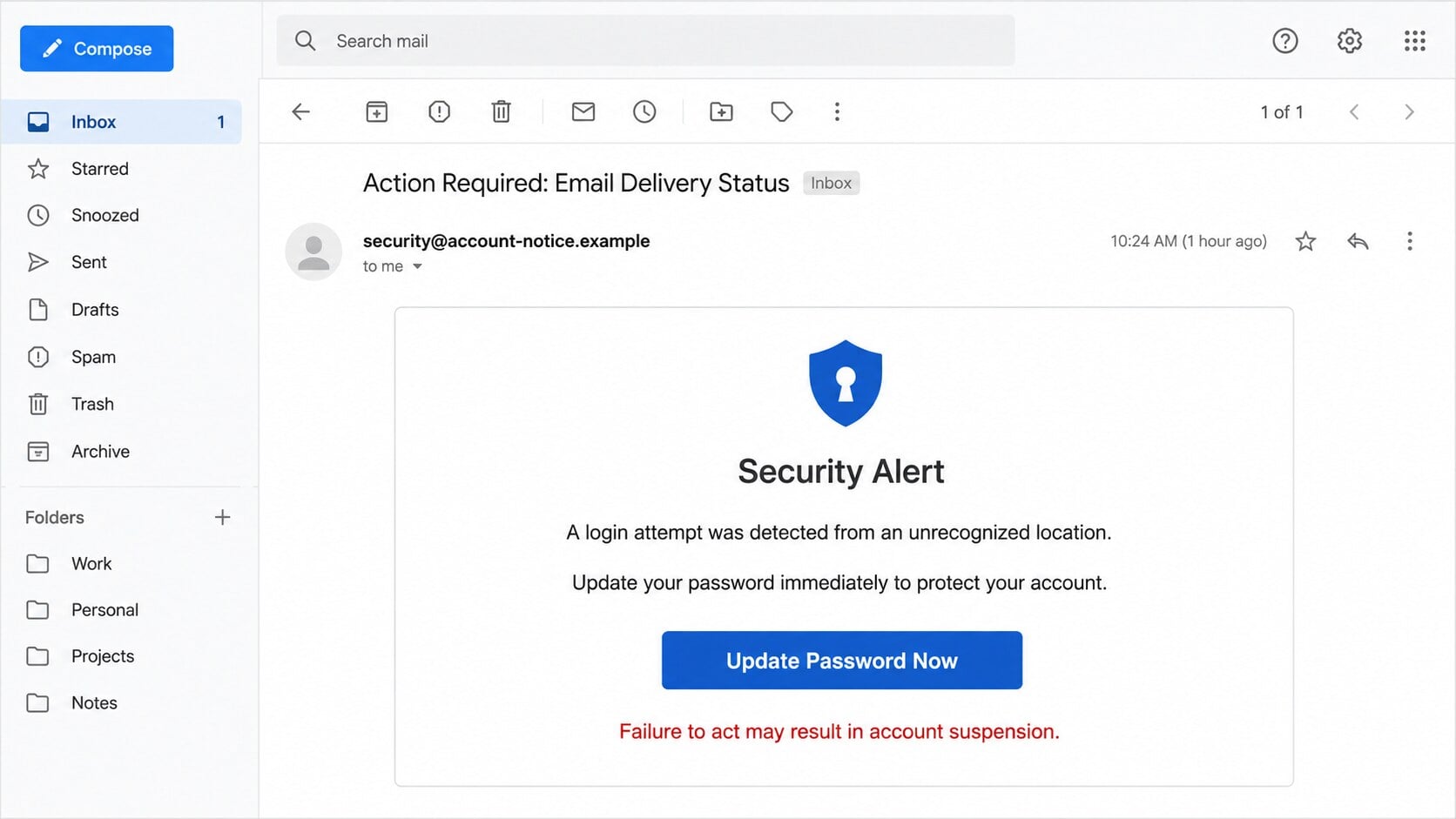
A security email says somebody tried to enter your account from an unfamiliar location, and suspension may follow unless the password is updated immediately.
The warning resembles the alerts real providers send. That resemblance creates a difficult choice between ignoring danger and trusting the button.
Overview
The message copies a genuine account-safety scenario
The Unrecognized Location Login scam reports a suspicious sign-in involving the recipient’s email account.
It recommends an immediate password change and warns that inaction may produce an account suspension.
Real services do issue security notifications, which gives this particular story more credibility than an invented prize or refund.
The button does not lead to the genuine provider
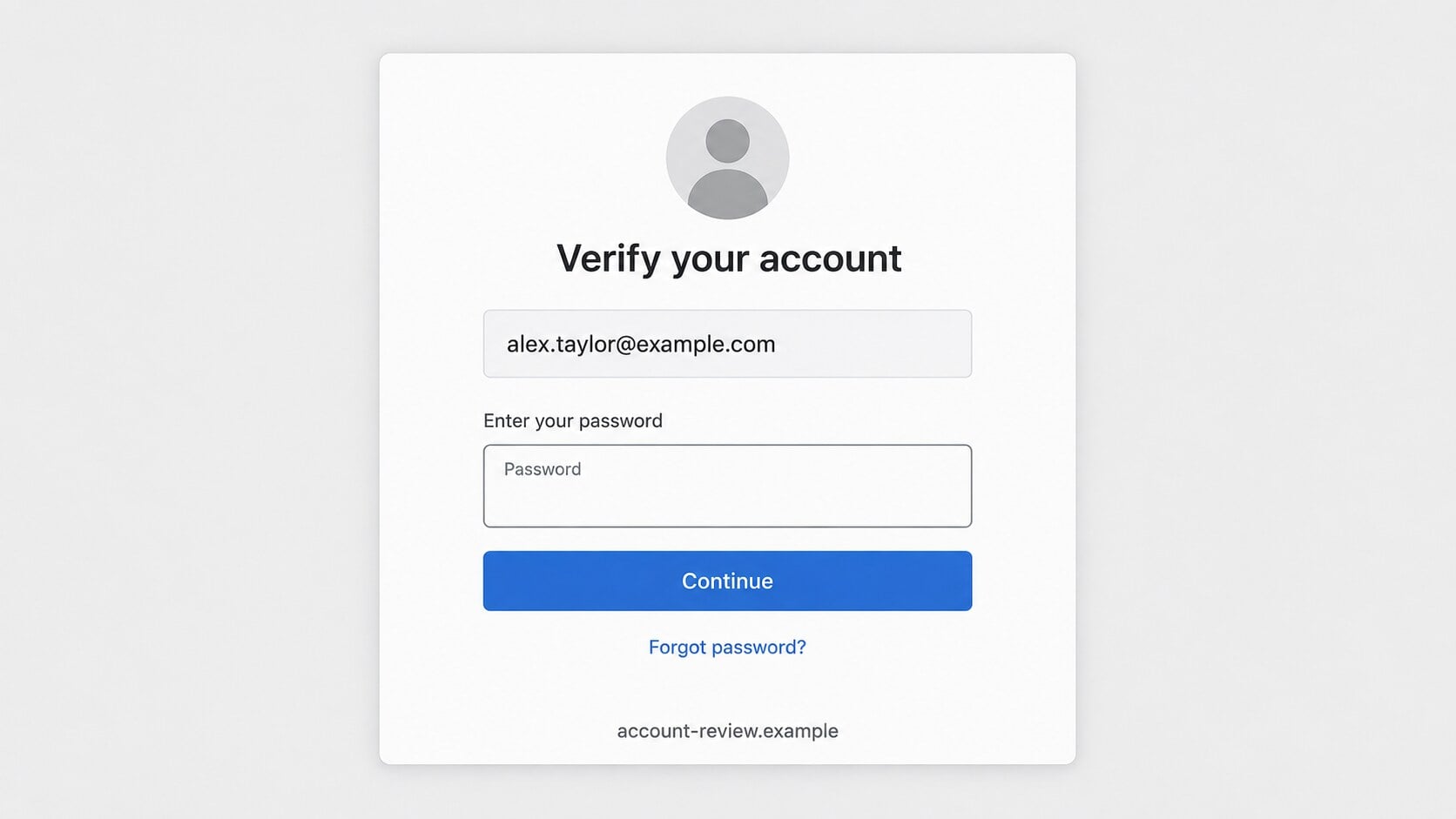
The reviewed link opened a phishing host designed to recognize the user’s email domain and display a matching login experience.
In one example, the address was already filled and the visitor saw only a password field.
Anything submitted through that page went to the site’s operator, not the legitimate mail service.
The safest response avoids the email completely
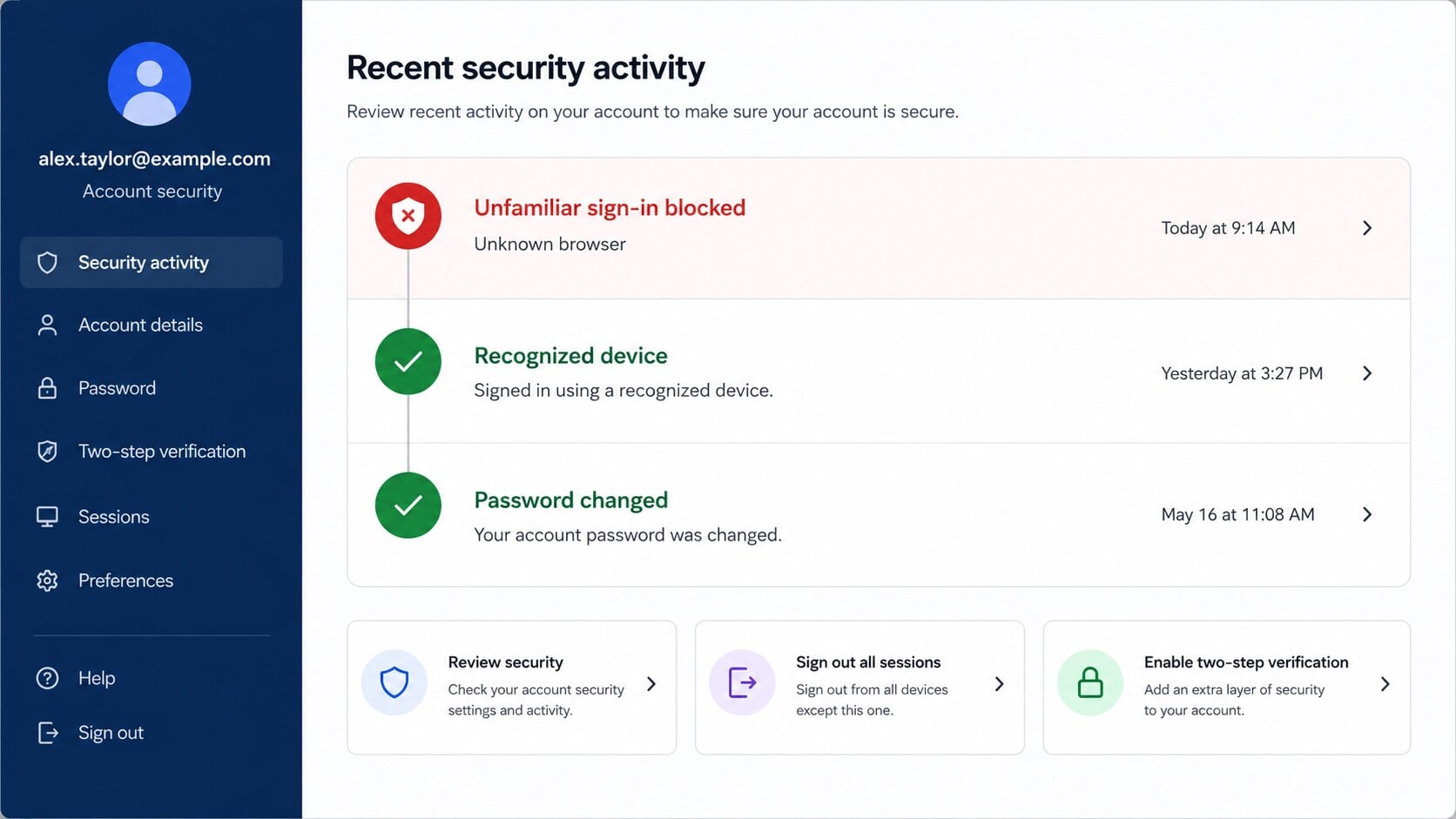
A real security event should appear in the account’s recent-activity area when the user signs in independently.
Open the provider from a trusted bookmark or typed address, then review sessions, devices, and alerts there.
If the event exists, secure the account inside that authenticated session rather than through the message.
- The email declares itself a “trusted source.”
- No reliable device, browser, time, or location evidence is supplied.
- The button goes to an unrelated hostname.
- The destination copies provider styling dynamically.
- Account suspension is used to accelerate the password entry.
Real Security Alerts and Phishing Alerts Can Look Similar
Genuine providers may warn about unfamiliar activity
An unexpected device, browser, recovery change, or sign-in pattern can trigger a legitimate notification.
The alert should also exist inside the provider’s security dashboard, where the account owner can review it safely.
That independent record is more reliable than any button in an email.
A phishing message needs the reader to use its path
The criminal’s page has value only if the victim reaches it and enters credentials.
Consequently, the letter emphasizes immediate action, an embedded button, and possible suspension.
Typing the provider’s address separately breaks that controlled path and removes the phisher from the interaction.
Missing context keeps the template reusable
A real alert often identifies approximate time, device, browser, application, or region.
This scam stays vague, mentioning only an unrecognized location.
The same wording can target different providers and countries without contradicting any specific account history.
How the Unrecognized Location Login Scam Works
Step 1: Email addresses become both targets and personalization data
Attackers collect addresses through breaches, scraped profiles, public websites, infected devices, and previous campaigns.
The address identifies the recipient and often reveals the provider after the @ symbol.
That information helps the landing page choose a convincing visual template later.
Step 2: A false sign-in event creates uncertainty
The letter claims somebody attempted access from an unknown location.
It does not prove the event with a usable timestamp, device record, browser, or authenticated security-log entry.
The victim is left wondering whether the message lacks detail for privacy reasons.
Step 3: Suspension pressure makes delay feel unsafe
The recipient is told to update the password immediately or risk losing account access.
This reverses sensible security behavior. Careful verification is presented as the dangerous choice.
A legitimate provider’s independently opened account settings remain available even when an emailed link is ignored.
Step 4: The button carries the address to a rotating host
The destination may receive the email as readable text, encoded data, or a URL parameter.
It can then display the same address on the page, creating the impression of a known account relationship.
The phishing hostname remains the critical clue, even when the form looks professionally built.
Step 5: Provider detection selects a familiar login
The page can map common email domains to copied branding, colors, and sign-in language.
Users of different services may therefore see different screens after clicking the same campaign.
Visual adaptation is a script, not proof that the site communicated with the real provider.
Step 6: Password submission completes the theft
The entered secret is transmitted to infrastructure controlled by the attacker.
The visitor may then be redirected to a real homepage or shown a harmless error.
That exit can make the incident resemble an expired session instead of a successful credential capture.
Step 7: The attacker tries to establish durable access
After signing in, criminals may add forwarding, new recovery details, application passwords, authentication methods, or connected apps.
They can also steal session information or prompt the victim to approve multi-factor requests.
Those changes may survive a simple password reset unless each one is reviewed and removed.
Why a Prefilled Email Address Proves Almost Nothing
Recipients sometimes trust a page because it greets them accurately.
The address is not secret from the person who sent the email. It can travel inside the link without any account access.
Names, company logos, and provider-specific artwork can be selected using equally simple lookup rules.
The browser’s hostname remains the independent evidence. Personalization should never override a domain mismatch.
Sender, Event, URL, and Account Checks
The sender should belong to the provider being claimed
Expand the complete From, Return-Path, and Reply-To information when available.
A display label such as “Security Alert” can be written by anyone.
Even a plausible visible sender deserves confirmation through the account’s own alert history.
The event should appear in recent security activity
Open the provider directly and review logins, devices, applications, and security changes.
Compare the time and device with your own activity, including VPN use or travel that may explain a different location.
If no matching event exists, report the email as phishing.
The password page must use the provider’s true hostname
Read the registered domain carefully rather than searching the URL for a familiar brand word.
Lookalike spelling, unexpected country endings, free hosting, and long random labels are common warning signs.
A padlock shows encryption to that host, not that the host is trustworthy.
The account requires more than a password check after exposure
Inspect active sessions, recovery channels, forwarding, filters, delegates, app grants, and multi-factor methods.
Remove anything unrecognized and record relevant timestamps first.
For workplace accounts, administrators should correlate identity, mail, endpoint, and cloud audit logs.
What Attackers Seek After Capturing the Password
The inbox becomes a password-reset hub
Many services send recovery links to email.
Control of the mailbox lets criminals request resets, use the links, and remove notifications before the victim notices.
Accounts sharing the stolen password are exposed even without email recovery.
Stored correspondence reveals identity details
Messages may contain addresses, invoices, travel plans, identification documents, health information, and private conversations.
These details support impersonation and make future fraud more personal.
Attackers may search by terms such as invoice, tax, password, contract, statement, or verification.
Trusted contacts receive believable requests
A criminal can write from the real mailbox and refer to previous conversations.
Requests for money, documents, codes, or urgent assistance then appear to come from someone the recipient knows.
Conversation hijacking is especially dangerous in supplier and customer threads.
Silent rules can conceal continuing access
Forwarding copies incoming mail to another address.
Filters can hide security notifications, move replies, or delete evidence automatically.
Checking those settings is as important as changing the exposed password.
Red Flags in the Unrecognized-Location Warning
- The message insists it comes from a trusted source.
- The alleged location is not actually shown.
- No device, browser, application, or reliable timestamp is provided.
- The email threatens suspension for waiting.
- The password-change button leaves the provider’s domain.
- The landing page preloads the recipient’s address.
- The form imitates branding based on the email provider.
- The page asks for an existing password instead of opening account settings.
Any genuine concern can be investigated without the message’s link.
If the account dashboard shows no corresponding event, the email’s central claim has failed the most useful test.
Location Alerts Are Useful but Imperfect Signals
A different location does not always mean an intruder
Mobile networks, corporate gateways, privacy relays, and VPN services can make a familiar device appear elsewhere.
Providers often estimate location from an internet address rather than a precise physical position.
Review the device, browser, time, and activity together before deciding what happened.
A familiar location does not guarantee safety
An attacker may use infrastructure near the victim, a residential proxy, or a stolen session from the existing device.
The city label is only one part of the evidence.
Unrecognized changes, tokens, forwarding, and recovery methods may reveal compromise when geography looks normal.
Travel and shared networks create false alarms
Hotels, airports, offices, and cellular providers route traffic in ways that can surprise account owners.
A real alert may therefore be legitimate even when the displayed region seems wrong.
Use the authenticated activity page to mark events as recognized or secure the account.
The phishing email avoids testable details
The campaign described here mentions an unrecognized location but does not identify it.
That omission prevents the recipient from comparing the claim with travel, devices, or normal network behavior.
The button becomes the only offered route to an answer, which is exactly what the attacker needs.
How to Make Sign-In Alerts Safer
Bookmark the provider’s security dashboard
A saved route lets users investigate warnings without searching, guessing domains, or using message links.
Organizations can distribute the approved address through internal documentation and onboarding.
Use phishing-resistant authentication
Passkeys and hardware security keys bind authentication more closely to the genuine website.
They offer stronger protection against copied login pages than a reusable password alone.
Protect recovery channels separately
Recovery email, telephone access, and backup codes can become alternative takeover paths.
Keep them current, private, and protected by credentials different from the primary mailbox password.
Review activity before an emergency
Learning where sessions, devices, app permissions, and forwarding appear makes later incident response faster.
A brief monthly review can also catch quiet changes that produced no visible warning.
- Keep the security-page bookmark current.
- Enable passkeys or strong multi-factor authentication.
- Store backup codes offline.
- Remove devices and apps no longer used.
- Test the organization’s phishing-reporting process.
Security habits work best when practiced before an alarming message arrives. Familiar account controls reduce the temptation to follow an urgent shortcut.
Households and teams should agree that unexpected login alerts are checked independently, even when the message appears polished.
That simple rule protects against both obvious imitations and provider-aware phishing pages designed for a particular recipient.
What to Do if You Have Fallen Victim to This Scam
Move quickly if a password was entered, but use the provider’s genuine website and a device you trust for every recovery action.
- Close the counterfeit login. Record the address and preserve the email with headers before reporting it.
- Open the provider separately. Check recent security activity to determine whether a real suspicious sign-in also occurred.
- Create a new password. Make it unique, strong, and unrelated to the value submitted on the fake page.
- Sign out every session. Remove unfamiliar devices, tokens, application passwords, and newly approved authentication methods.
- Restore account settings. Correct recovery addresses, telephone numbers, forwarding, filters, delegates, and connected applications.
- Protect reused accounts. Change the same or similar password everywhere else, beginning with banking and primary identity services.
- Review mailbox activity. Inspect sent, deleted, archived, and forwarding history for messages or resets you did not initiate.
- Check the device when necessary. Malwarebytes can scan anything downloaded or installed. AdGuard can block many known phishing and malicious advertising pages.
- Notify affected people. Warn contacts if the account sent strange links, files, payment requests, or security messages.
- Escalate confirmed misuse. Contact the provider, employer, financial institution, and appropriate fraud authority according to the data or money exposed.
Is Your Device Infected? Run a Free Malware Scan
Slow performance, constant pop-ups, or strange behavior? These are classic signs of a malware infection. The fastest way to find out is to scan your device with Malwarebytes Free — one of the most trusted malware removal tools available.
The free version detects and removes the most common threats, including:
- Adware — the cause of those annoying pop-ups
- Browser hijackers — unwanted redirects and changed homepages
- Trojans and spyware — hidden programs stealing your data
- Potentially unwanted programs (PUPs) — software you never asked for
👉 Select your device below — Windows, Mac, or Android — then follow the simple steps to download Malwarebytes, scan your system, and remove any threats it finds. The scan usually takes 5 to 20 minutes.
Run a Malware Scan with Malwarebytes for Windows
Malwarebytes is one of the most popular and trusted anti-malware tools for Windows — and it’s completely free for removing infections. It catches threats that many antivirus programs miss, including adware, browser hijackers, and trojans. Follow the steps below to scan and clean your PC in just a few minutes.
Download Malwarebytes
Click the button below to download the latest version of Malwarebytes for Windows from the official source. The free version is all you need — it will scan your computer and remove adware, browser hijackers, and other malicious software at no cost.
Download MalwarebytesOfficial installer for Windows 11 and 10. Your download starts right away.Want real-time protection? See Malwarebytes Premium Malwarebytes Free for WindowsScans and removes malware at no cost
-
Install Malwarebytes
When the download finishes, open your Downloads folder and double-click the MBSetup file. If Windows shows a User Account Control pop-up, click “Yes” to allow the installation.

Follow the On-Screen Prompts to Install Malwarebytes
The setup wizard will walk you through a few quick screens:
-
Choose where you’re installing the program — “Personal Computer” or “Work Computer” — then click Next.

-
Malwarebytes will now install on your device. This usually takes under a minute.

-
When installation is complete, the “Welcome to Malwarebytes” screen will open automatically.

-
On the final screen, click Open Malwarebytes to launch the program.

-
Enable “Scan for Rootkits”
Before scanning, turn on rootkit detection so Malwarebytes can find even the most hidden threats. Click the Settings gear icon on the left side of the screen.

In the settings menu, find “Scan for rootkits” and click the toggle so it turns blue.

Done? Click “Dashboard” in the left pane to return to the main screen.
Start the Scan
Click the blue Scan button. Malwarebytes will automatically update its virus database and start checking your computer for malware.

-
Wait for the Scan to Finish
The scan checks your entire system for browser hijackers and other malicious programs, so it can take 5 to 20 minutes depending on your computer. Feel free to do something else — just check back occasionally to see the progress.

-
Quarantine the Detected Threats
When the scan is done, you’ll see a list of everything Malwarebytes found — malware, adware, and potentially unwanted programs. Click the “Quarantine” button to remove all of them at once.

Malwarebytes will now remove the malicious files and registry entries and move them safely into quarantine.

-
Restart Your Computer
Some threats can only be fully removed after a reboot. If Malwarebytes asks you to restart, click Yes. Once you’re logged back in, Malwarebytes has finished removing the threats it found.

That’s it — your Windows PC is now clean of trojans, adware, and other malware, and should be back to running smoothly.
If you are still having problems with your computer after completing these instructions, then please follow one of the steps:
- Run a computer scan with ESET Online Scanner
- Ask for help in our Windows Malware Removal Help & Support forum.
Run a Malware Scan with Malwarebytes for Mac
Malwarebytes for Mac is a free on-demand scanner that removes the malware other security software tends to miss — adware, browser hijackers, and unwanted programs included. Cleaning an infected Mac with Malwarebytes has always been completely free, and it’s our go-to recommendation. Follow the steps below to scan and clean your Mac in just a few minutes.
-
Download Malwarebytes for Mac
Click the button below to download the latest version of Malwarebytes for Mac.
Download MalwarebytesOfficial installer for macOS. Your download starts right away.Want real-time protection? See Malwarebytes PremiumMalwarebytes Free for MacScans and removes malware at no cost -
Open the Malwarebytes setup file
When the download finishes, open your Downloads folder and double-click the setup file to begin the installation.

-
Follow the On-Screen Prompts to Install Malwarebytes
The Malwarebytes for Mac Installer will guide you through a few quick screens. Click “Continue” and keep following the prompts until the installation completes.



When the installation is complete, Malwarebytes opens to the Welcome to Malwarebytes screen. Click “Get started“.
-
Select “Personal Computer” or “Work Computer”
Malwarebytes will ask what type of computer you’re installing it on. Click either Personal Computer or Work Computer, whichever applies.

-
Start the Scan
Click the “Scan” button. Malwarebytes will automatically update its detection database and begin checking your Mac for malware.

-
Wait for the Scan to Finish
Malwarebytes will scan your Mac for adware, browser hijackers, and other malicious programs. This can take a few minutes, so feel free to do something else — just check back occasionally to see the progress.

-
Quarantine the Detected Threats
When the scan is done, you’ll see a list of everything Malwarebytes found. Click the “Quarantine” button to remove all the threats at once.

-
Restart Your Mac
Malwarebytes will now remove all the malicious files it found. Some threats can only be fully removed after a reboot — if Malwarebytes asks you to restart, allow it. Once you’re logged back in, your Mac is clean.

That’s it — your Mac is now free of adware, rogue browser extensions, and other potentially harmful software.
If you are still experiencing problems while trying to remove a malicious program from your computer, please ask for help in our Mac Malware Removal Help & Support forum.
Run a Malware Scan with Malwarebytes for Android
Malwarebytes for Android automatically detects and removes dangerous threats like malware and ransomware so you don’t have to worry about your most-used device being compromised. Aggressive detection of adware and potentially unwanted programs keeps your Android phone or tablet running smooth.
-
Download Malwarebytes for Android.
You can download Malwarebytes for Android by clicking the link below.
Get Malwarebytes for AndroidOpens Google Play in a new tab.Want real-time protection? See Malwarebytes Premium for AndroidMalwarebytes for AndroidScans your phone and removes malware at no cost -
Install Malwarebytes for Android on your phone.
In the Google Play Store, tap “Install” to install Malwarebytes for Android on your device.

When the installation process has finished, tap “Open” to begin using Malwarebytes for Android. You can also open Malwarebytes by tapping on its icon in your phone menu or home screen.

-
Follow the on-screen prompts to complete the setup process
When Malwarebytes will open, you will see the Malwarebytes Setup Wizard which will guide you through a series of permissions and other setup options.
This is the first of two screens that explain the difference between the Premium and Free versions. Swipe this screen to continue.
Tap on “Got it” to proceed to the next step.
Malwarebytes for Android will now ask for a set of permissions that are required to scan your device and protect it from malware. Tap on “Give permission” to continue.
Tap on “Allow” to permit Malwarebytes to access the files on your phone.
-
Update database and run a scan with Malwarebytes for Android
You will now be prompted to update the Malwarebytes database and run a full system scan.

Click on “Update database” to update the Malwarebytes for Android definitions to the latest version, then click on “Run full scan” to perform a system scan.

-
Wait for the Malwarebytes scan to complete.
Malwarebytes will now start scanning your phone for adware and other malicious apps. This process can take a few minutes, so we suggest you do something else and periodically check on the status of the scan to see when it is finished.

-
Click on “Remove Selected”.
When the scan has been completed, you will be presented with a screen showing the malware infections that Malwarebytes for Android has detected. To remove the malicious apps that Malwarebytes has found, tap on the “Remove Selected” button.

-
Restart your phone.
Malwarebytes for Android will now remove all the malicious apps that it has found. To complete the malware removal process, Malwarebytes may ask you to restart your device.
That’s it — your Android phone is now clean — no more malicious apps, adware, or browser redirects.
If you are still having problems with your phone after completing these instructions, then please follow one of the steps:
- Restore your phone to factory settings by going to Settings > General management > Reset > Factory data reset.
- Ask for help in our Mobile Malware Removal Help & Support forum.
Stay Protected: Block Ads and Malicious Sites
Now that your device is clean, keep it that way. Most infections start with a malicious ad or a fake download button — so blocking them at the source is your best defense.
We recommend AdGuard, which blocks malicious ads, phishing pages, and dangerous redirects before they can reach you.
👉 Download AdGuard and browse safely
If the email was only read, use the provider’s reporting control and delete it. No password reset is required solely because the letter arrived.
Never accept unexpected multi-factor prompts during recovery. An attacker may be attempting a simultaneous login with the captured password.
Frequently Asked Questions
Could the unrecognized login alert be genuine?
A real event is possible, but this campaign’s emailed link is phishing. Check the provider’s security dashboard independently.
Why was my address already displayed?
The sender placed it in the link. A prefilled username does not prove successful account access.
Should I change my password if the form showed an error?
Yes, if anything was submitted. The error may appear only to collect another attempt or hide the theft.
Can multi-factor authentication protect me?
It can block many logins, but do not approve unexpected prompts. Replace the password and inspect registered methods.
What if the recent activity page shows a real unfamiliar device?
Use the provider’s controls to secure the account, terminate sessions, and follow its recovery guidance immediately.
Does opening the security email infect the device?
Normally no. Infection risk depends on opening files, installing software, exploiting an unpatched browser, or granting harmful permissions.
The Bottom Line
The Unrecognized Location Login scam copies a believable security alert, then steers the recipient toward a provider-aware password collector.
Investigate every warning from inside the real account. If credentials were exposed, reset access, remove persistence, and check what the intruder could reach through the mailbox.

Join the discussion
0 commentsShare your experience or ask a question about this article.
Discussion
Start the conversation
Have a question or something useful to share? Add the first comment.