

Foot pain can make a quiet evening feel endless, which helps explain why a simple electrical mat can look unusually convincing in a fast-moving advertisement.
At first glance, the offer appears straightforward. A closer reading reveals several details worth understanding before anyone places an order.
Overview
What the Ornexis EMS Foot Massager actually is
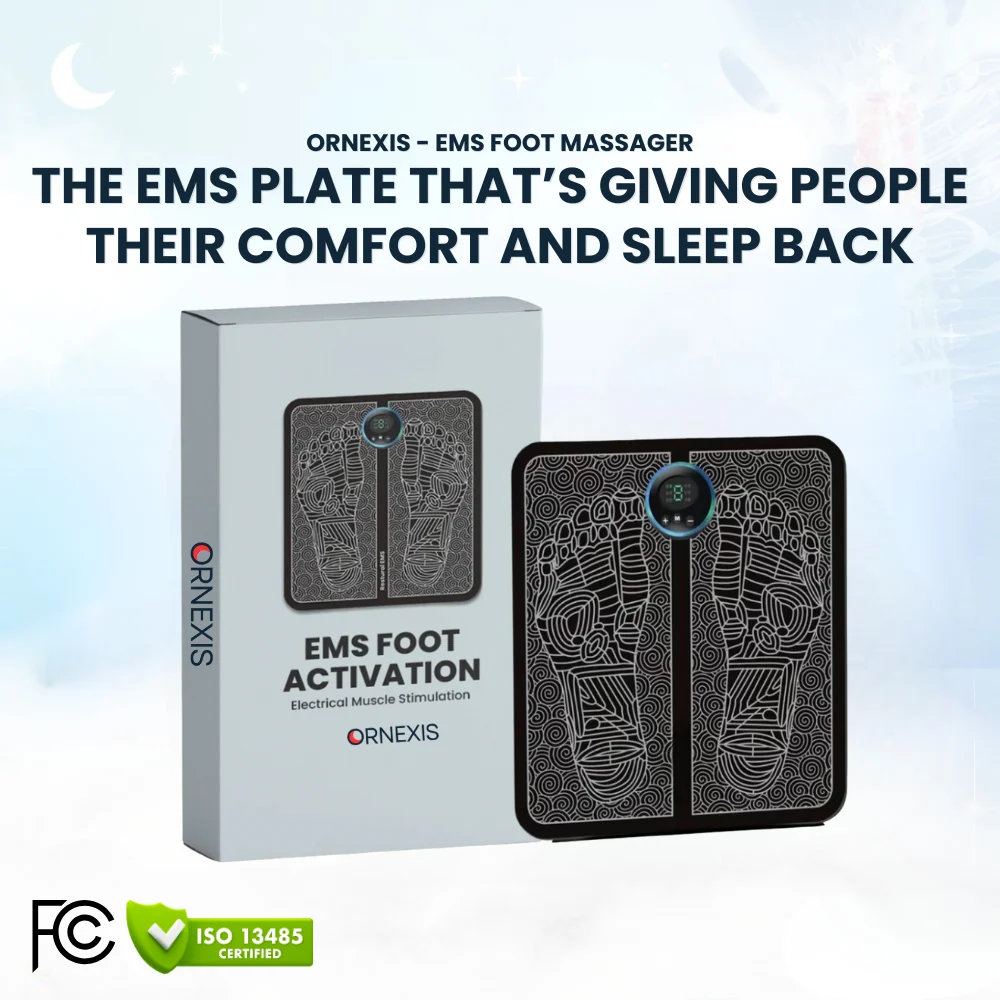
The Ornexis EMS Foot Massager is an electrical muscle stimulation mat with a detachable controller. Bare feet rest on conductive zones while selectable pulses activate muscles.
EMS technology itself is real. Similar devices are used for rehabilitation, muscle conditioning, and temporary symptom management, depending on their design and professional supervision.
That does not make every advertised benefit proven. A consumer mat should be judged by its exact specifications, labeling, safety information, and evidence.
Why the sales presentation deserves scrutiny
The product page connects the mat with calming nerves, supporting circulation, soothing uncomfortable feet, and helping users relax throughout the night.
It also displays an “only 3 items available” message, a sale promising up to 70% off, and a claimed 4.6 rating beside Trustpilot styling.
These elements create a powerful emotional package. Relief appears immediate, scarcity seems urgent, and social proof makes hesitation feel unnecessary.
- A physical EMS mat appears to be offered for sale.
- The health language reaches beyond ordinary massage comfort.
- The storefront does not present product-specific clinical trials prominently.
- The advertised trial conflicts with important return restrictions.
- No automatic refill plan was established during this review.
Our evidence-based assessment
This investigation did not establish that Ornexis takes payments without shipping a product. It also found no basis for calling every EMS device fraudulent.
The concern is the gap between the broad wellness story and the limited proof available for this particular mat.
Buyers should also notice that a “risk-free” test becomes difficult when the refund policy says returned merchandise cannot show signs of use.
How the Ornexis EMS Foot Massager Offer Works
Step 1: The advertisement starts with a painful, familiar problem
The likely customer is not casually browsing gadgets. They may have burning, tingling, cold, restless, swollen, or aching feet that interrupt sleep.
Those symptoms can have many causes. The advertising compresses that uncertainty into a simple message: the feet need electrical stimulation at home.
That framing is persuasive because it turns an unresolved health concern into an approachable product decision.
Instead of scheduling an examination, comparing diagnoses, or discussing contraindications, the viewer can supposedly begin correcting the issue within minutes.
Step 2: Medical language gives the mat extra authority
The page says EMS pulses can calm nerves and support circulation. Those phrases sound clinical, even when the exact outcome has not been demonstrated for Ornexis.
A separate sales page uses the heading “New RLS Medication,” although the item shown is an electrical mat rather than a prescription treatment.
Restless legs syndrome is a recognized medical condition. Calling a retail stimulator “medication” can blur the line between symptom comfort and established treatment.
The page discusses multiple programs and a short daily routine, which makes the offer feel measured and protocol-driven.
Yet consumers are not shown a published study matching the exact device, settings, participants, endpoints, and claimed results.
Step 3: Urgency and ratings reduce careful comparison
Scarcity language says only three units remain. A flash-sale banner offers up to 70% off and free gifts.
Neither message proves deception by itself. The problem is that urgency encourages a purchase before the buyer studies safety instructions or refund conditions.
A Trustpilot-style badge and customer quotation appear near the purchase controls. On-site displays should not be treated like independently audited medical evidence.
Testimonials can describe personal experiences, but they cannot establish that a device treats neuropathy, circulation disease, or restless legs syndrome.
Symptoms naturally fluctuate. Placebo effects, rest, medication changes, footwear, and unrelated treatment can also influence a personal result.
Step 4: The 100-day promise meets an unused-return rule
The button area describes a 100-day risk-free test. That wording reasonably suggests customers may use the device and decide whether it helps.
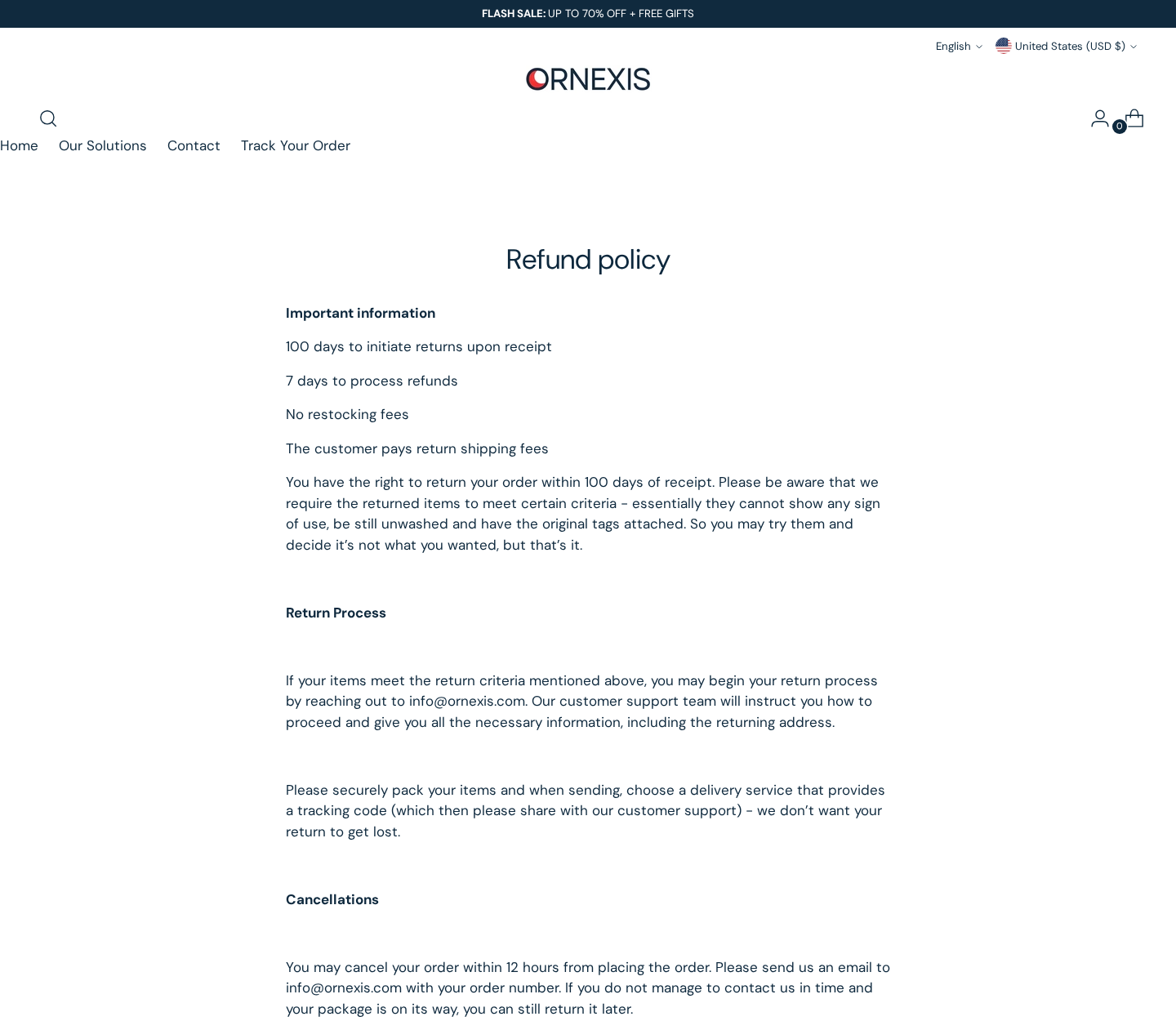
The refund policy tells a different story. It says returned items cannot show any sign of use and must remain unwashed with original tags.
For an electrical foot mat, meaningful evaluation normally requires opening, connecting, and standing on the product.
A customer therefore needs written clarification before ordering. Ask whether normal testing is permitted and exactly what condition passes inspection.
Save the answer. If support later rejects a return, that written representation may help during a card dispute.
Step 5: Cancellation and shipping rules narrow the exit
Ornexis says cancellation requests must arrive within 12 hours. After that, a customer may need to wait for delivery and request a return.
The buyer pays return shipping. The policy also says refused or unclaimed parcels may have $20 deducted.
Those costs matter when an item is inexpensive, bulky, or returned internationally. The displayed business address may not be the actual return destination.
Customers should never mail a return to an address copied from the footer without obtaining authorization and tracking instructions.
The policy asks buyers to contact support first. Record the request date so the 100-day period cannot quietly expire.
Step 6: The medical risk remains with the customer
The page contains a warning about pacemakers and implanted defibrillators, advising use only with a cardiologist’s approval.
That warning is important, but it does not cover every situation requiring caution. Electrical stimulators may cause irritation, discomfort, burns, or interference with implanted devices.
The FDA has received reports involving shocks, pain, burns, bruising, skin irritation, and pacemaker interference from some unregulated EMS products.
That statement is general and does not prove Ornexis caused those events. It explains why model-specific labeling and regulatory information matter.
Persistent numbness, one-sided swelling, sudden color changes, wounds, or severe pain should be medically assessed instead of masked by repeated stimulation.
What the Device May and May Not Do
Temporary stimulation is not a diagnosis
Electrical pulses can produce muscle contractions and unusual sensory effects. Some users may interpret that activity as relaxation or temporary relief.
Those sensations do not identify why the feet hurt. Diabetes, nerve compression, vascular problems, medication effects, injury, and footwear can produce overlapping symptoms.
A device that feels active can still be irrelevant to the underlying cause.
“Supports circulation” needs context
Muscle contraction can influence local blood flow during use. That limited mechanism should not be expanded into a promise to correct vascular disease.
Consumers should look for measured outcomes, comparison groups, treatment duration, adverse-event reporting, and researchers independent from the seller.
Generic explanations about EMS are not substitutes for evidence on the exact Ornexis model.
Comfort claims differ from treatment claims
Saying a mat feels soothing is a subjective comfort claim. Saying it addresses nerve dysfunction or restless legs carries a much heavier evidentiary burden.
The safest interpretation is narrow: it is a stimulation device that may feel pleasant to some users and uncomfortable to others.
It should not delay professional care or replace prescribed treatment without a clinician’s guidance.
Red Flags to Check Before Buying Ornexis
The doctor names on the page are inconsistent
One portion of the sales page attributes commentary to “Dr. James Wilson,” while nearby image text refers to “Dr. Alan Reid.”
This mismatch does not prove either identity was stolen or fabricated. It shows the presentation was not carefully reconciled.
A credible medical endorsement should include a full name, relevant specialty, professional location, and a way to verify the endorsement independently.
Stock portraits and short quotations cannot answer whether a clinician evaluated this exact mat or approved the language surrounding it.
When identity details conflict, treat the endorsement as unverified until the seller supplies verifiable credentials and written involvement.
The product lacks a clear technical identity
Electrical devices should be easier to identify than a generic wellness accessory.
A proper manual normally states the model, input voltage, pulse characteristics, intended use, operating limits, contraindications, cleaning method, and responsible manufacturer.
Those details help a consumer distinguish a specific evaluated device from visually similar massagers sold under changing names.
Ask for the exact model number before ordering. Search that identifier, not only the Ornexis brand, when checking safety notices or regulatory records.
If support responds only with promotional claims, the buyer still lacks the information needed to make an informed electrical-device decision.
The discount cannot validate value
“Up to 70% off” sounds substantial, yet it does not reveal the product’s ordinary selling history.
A percentage is meaningful only when the reference price was genuinely charged for a reasonable period.
Compare the controller design, pad pattern, accessories, specifications, and warranty with other EMS mats rather than comparing brand names alone.
Visually similar hardware does not prove identical origin or quality. It does show why specifications matter more than a dramatic crossed-out figure.
Free gifts can also obscure value. A buyer may be paying for a bundle that includes accessories they never intended to purchase.
The checkout deserves its own inspection
Product pages change frequently. The final checkout is where the exact quantity, shipping fee, tax, add-ons, and total become binding.
Confirm that no protection plan, priority handling, extra controller, or duplicate unit entered the basket automatically.
Take a full screenshot before payment. It should include the merchant domain, product count, total, and any checkbox or renewal language.
Do not complete payment after being redirected to a lookalike domain with different contact information or policies.
A secure padlock only encrypts the connection. It does not verify medical claims, company responsiveness, or product effectiveness.
How to Evaluate the Mat Safely
Read the manual before applying stimulation
Do not begin at a high intensity simply because a demonstration makes stronger pulses look more effective.
Start only if the labeling covers your circumstances and no contraindication applies. Keep the controller dry and inspect the cable or contacts.
Use the mat exactly where directed. Improvised placement elsewhere on the body may create risks not addressed by the foot-use instructions.
Never apply electrical stimulation over broken, infected, numb, or irritated skin without qualified medical guidance.
Measure outcomes instead of chasing sensation
A tingling feeling proves electrical output, not therapeutic success.
Before testing, note the symptom, intensity, duration, timing, activity level, and other treatment that could affect it.
Reassess after a consistent period without changing several variables at once.
If improvement disappears immediately after each session, describe it as temporary comfort rather than correction of the underlying condition.
Know when a home gadget is the wrong response
New weakness, loss of balance, a hot swollen calf, an infected wound, or rapidly worsening numbness needs professional assessment.
People with diabetes may have reduced sensation and may not notice irritation or excessive stimulation promptly.
Anyone with an implanted electronic device should follow their specialist’s instructions, not a testimonial or social-media comment.
Pregnancy, epilepsy, recent surgery, circulation disorders, and unexplained symptoms also justify asking a clinician before electrical stimulation.
Company, Address, and Fulfillment Checks
The legal name appears in the policy
The refund page identifies Aspire Commerce LLC as the legal entity connected with the store.
That name should also appear consistently on receipts, shipping documents, payment descriptors, and dispute correspondence.
If the card statement shows another merchant, ask Ornexis to explain the relationship in writing.
The Wyoming address does not identify a factory
The policy lists 30 N Gould Street, Suite R, Sheridan, Wyoming 82801.
An administrative address can receive mail or support registrations without manufacturing, testing, stocking, or shipping products from that location.
The page does not establish that the listed address is an Ornexis factory or product laboratory. Buyers should not make that assumption.
Contact details exist, but should be tested before purchase
The store publishes info@ornexis.com and +1 307-269-6242, with stated weekday support hours.
This review did not place a call or submit a private support request. Publication of contact information is not proof of responsive service.
Ask where returns go, whether testing is allowed, and which organization will appear on the payment statement.
Manufacturing and regulatory details remain incomplete
The reviewed pages did not prominently identify the device manufacturer, exact model number, factory, or model-specific clearance record.
That does not prove the device is illegal or unsafe. It leaves important questions unanswered for a product using electrical current on the body.
Request the manual, contraindications, electrode specifications, certifications, warranty terms, and manufacturer identity before committing.
What to Do if Your Ornexis Order Has a Problem
- Stop using the mat if it hurts. Disconnect it after burning, sharp pain, skin changes, dizziness, or unexpected muscle reactions. Seek medical advice for persistent symptoms.
- Preserve every sales representation. Save the product page, 100-day promise, order confirmation, policy, packaging, manual, tracking history, and photographs showing the item’s condition.
- Contact support in writing. State the order number, delivery date, requested remedy, and relevant policy language. Ask for a return authorization and exact destination.
- Do not ship blindly. Use tracked delivery only after receiving instructions. Photograph the packed device, accessories, label, and tracking receipt before surrendering the parcel.
- Challenge an inconsistent refusal. If a documented trial promise conflicts with an unused-only rule, send both screenshots and request a written explanation.
- Ask your card issuer about options. Describe the transaction accurately. Provide dates, correspondence, promised conditions, delivery evidence, and any refusal instead of simply alleging fraud.
- Review your account for unfamiliar activity. No Ornexis subscription was confirmed here, but monitoring remains sensible after any disputed online purchase.
- Secure the device used for ordering. Run Malwarebytes if the funnel triggered suspicious downloads or redirects. Use AdGuard to reduce deceptive advertising and malicious landing pages.
Is Your Device Infected? Run a Free Malware Scan
Slow performance, constant pop-ups, or strange behavior? These are classic signs of a malware infection. The fastest way to find out is to scan your device with Malwarebytes Free — one of the most trusted malware removal tools available.
The free version detects and removes the most common threats, including:
- Adware — the cause of those annoying pop-ups
- Browser hijackers — unwanted redirects and changed homepages
- Trojans and spyware — hidden programs stealing your data
- Potentially unwanted programs (PUPs) — software you never asked for
👉 Select your device below — Windows, Mac, or Android — then follow the simple steps to download Malwarebytes, scan your system, and remove any threats it finds. The scan usually takes 5 to 20 minutes.
Run a Malware Scan with Malwarebytes for Windows
Malwarebytes is one of the most popular and trusted anti-malware tools for Windows — and it’s completely free for removing infections. It catches threats that many antivirus programs miss, including adware, browser hijackers, and trojans. Follow the steps below to scan and clean your PC in just a few minutes.
Download Malwarebytes
Click the button below to download the latest version of Malwarebytes for Windows from the official source. The free version is all you need — it will scan your computer and remove adware, browser hijackers, and other malicious software at no cost.
Download MalwarebytesOfficial installer for Windows 11 and 10. Your download starts right away.Want real-time protection? See Malwarebytes Premium Malwarebytes Free for WindowsScans and removes malware at no cost
-
Install Malwarebytes
When the download finishes, open your Downloads folder and double-click the MBSetup file. If Windows shows a User Account Control pop-up, click “Yes” to allow the installation.

Follow the On-Screen Prompts to Install Malwarebytes
The setup wizard will walk you through a few quick screens:
-
Choose where you’re installing the program — “Personal Computer” or “Work Computer” — then click Next.

-
Malwarebytes will now install on your device. This usually takes under a minute.

-
When installation is complete, the “Welcome to Malwarebytes” screen will open automatically.

-
On the final screen, click Open Malwarebytes to launch the program.

-
Enable “Scan for Rootkits”
Before scanning, turn on rootkit detection so Malwarebytes can find even the most hidden threats. Click the Settings gear icon on the left side of the screen.

In the settings menu, find “Scan for rootkits” and click the toggle so it turns blue.

Done? Click “Dashboard” in the left pane to return to the main screen.
Start the Scan
Click the blue Scan button. Malwarebytes will automatically update its virus database and start checking your computer for malware.

-
Wait for the Scan to Finish
The scan checks your entire system for browser hijackers and other malicious programs, so it can take 5 to 20 minutes depending on your computer. Feel free to do something else — just check back occasionally to see the progress.

-
Quarantine the Detected Threats
When the scan is done, you’ll see a list of everything Malwarebytes found — malware, adware, and potentially unwanted programs. Click the “Quarantine” button to remove all of them at once.

Malwarebytes will now remove the malicious files and registry entries and move them safely into quarantine.

-
Restart Your Computer
Some threats can only be fully removed after a reboot. If Malwarebytes asks you to restart, click Yes. Once you’re logged back in, Malwarebytes has finished removing the threats it found.

That’s it — your Windows PC is now clean of trojans, adware, and other malware, and should be back to running smoothly.
If you are still having problems with your computer after completing these instructions, then please follow one of the steps:
- Run a computer scan with ESET Online Scanner
- Ask for help in our Windows Malware Removal Help & Support forum.
Run a Malware Scan with Malwarebytes for Mac
Malwarebytes for Mac is a free on-demand scanner that removes the malware other security software tends to miss — adware, browser hijackers, and unwanted programs included. Cleaning an infected Mac with Malwarebytes has always been completely free, and it’s our go-to recommendation. Follow the steps below to scan and clean your Mac in just a few minutes.
-
Download Malwarebytes for Mac
Click the button below to download the latest version of Malwarebytes for Mac.
Download MalwarebytesOfficial installer for macOS. Your download starts right away.Want real-time protection? See Malwarebytes PremiumMalwarebytes Free for MacScans and removes malware at no cost -
Open the Malwarebytes setup file
When the download finishes, open your Downloads folder and double-click the setup file to begin the installation.

-
Follow the On-Screen Prompts to Install Malwarebytes
The Malwarebytes for Mac Installer will guide you through a few quick screens. Click “Continue” and keep following the prompts until the installation completes.



When the installation is complete, Malwarebytes opens to the Welcome to Malwarebytes screen. Click “Get started“.
-
Select “Personal Computer” or “Work Computer”
Malwarebytes will ask what type of computer you’re installing it on. Click either Personal Computer or Work Computer, whichever applies.

-
Start the Scan
Click the “Scan” button. Malwarebytes will automatically update its detection database and begin checking your Mac for malware.

-
Wait for the Scan to Finish
Malwarebytes will scan your Mac for adware, browser hijackers, and other malicious programs. This can take a few minutes, so feel free to do something else — just check back occasionally to see the progress.

-
Quarantine the Detected Threats
When the scan is done, you’ll see a list of everything Malwarebytes found. Click the “Quarantine” button to remove all the threats at once.

-
Restart Your Mac
Malwarebytes will now remove all the malicious files it found. Some threats can only be fully removed after a reboot — if Malwarebytes asks you to restart, allow it. Once you’re logged back in, your Mac is clean.

That’s it — your Mac is now free of adware, rogue browser extensions, and other potentially harmful software.
If you are still experiencing problems while trying to remove a malicious program from your computer, please ask for help in our Mac Malware Removal Help & Support forum.
Run a Malware Scan with Malwarebytes for Android
Malwarebytes for Android automatically detects and removes dangerous threats like malware and ransomware so you don’t have to worry about your most-used device being compromised. Aggressive detection of adware and potentially unwanted programs keeps your Android phone or tablet running smooth.
-
Download Malwarebytes for Android.
You can download Malwarebytes for Android by clicking the link below.
Get Malwarebytes for AndroidOpens Google Play in a new tab.Want real-time protection? See Malwarebytes Premium for AndroidMalwarebytes for AndroidScans your phone and removes malware at no cost -
Install Malwarebytes for Android on your phone.
In the Google Play Store, tap “Install” to install Malwarebytes for Android on your device.

When the installation process has finished, tap “Open” to begin using Malwarebytes for Android. You can also open Malwarebytes by tapping on its icon in your phone menu or home screen.

-
Follow the on-screen prompts to complete the setup process
When Malwarebytes will open, you will see the Malwarebytes Setup Wizard which will guide you through a series of permissions and other setup options.
This is the first of two screens that explain the difference between the Premium and Free versions. Swipe this screen to continue.
Tap on “Got it” to proceed to the next step.
Malwarebytes for Android will now ask for a set of permissions that are required to scan your device and protect it from malware. Tap on “Give permission” to continue.
Tap on “Allow” to permit Malwarebytes to access the files on your phone.
-
Update database and run a scan with Malwarebytes for Android
You will now be prompted to update the Malwarebytes database and run a full system scan.

Click on “Update database” to update the Malwarebytes for Android definitions to the latest version, then click on “Run full scan” to perform a system scan.

-
Wait for the Malwarebytes scan to complete.
Malwarebytes will now start scanning your phone for adware and other malicious apps. This process can take a few minutes, so we suggest you do something else and periodically check on the status of the scan to see when it is finished.

-
Click on “Remove Selected”.
When the scan has been completed, you will be presented with a screen showing the malware infections that Malwarebytes for Android has detected. To remove the malicious apps that Malwarebytes has found, tap on the “Remove Selected” button.

-
Restart your phone.
Malwarebytes for Android will now remove all the malicious apps that it has found. To complete the malware removal process, Malwarebytes may ask you to restart your device.
That’s it — your Android phone is now clean — no more malicious apps, adware, or browser redirects.
If you are still having problems with your phone after completing these instructions, then please follow one of the steps:
- Restore your phone to factory settings by going to Settings > General management > Reset > Factory data reset.
- Ask for help in our Mobile Malware Removal Help & Support forum.
Stay Protected: Block Ads and Malicious Sites
Now that your device is clean, keep it that way. Most infections start with a malicious ad or a fake download button — so blocking them at the source is your best defense.
We recommend AdGuard, which blocks malicious ads, phishing pages, and dangerous redirects before they can reach you.
👉 Download AdGuard and browse safely
Frequently Asked Questions
Is the Ornexis EMS Foot Massager a scam?
A real device appears to be offered. The stronger concerns involve broad health claims, urgency tactics, limited model-specific evidence, and a restrictive return condition.
Does EMS technology really work?
EMS can stimulate muscles and has legitimate clinical uses. Results depend on the device, condition, settings, supervision, and outcome being measured.
Can Ornexis treat neuropathy or restless legs syndrome?
The reviewed storefront did not provide persuasive product-specific clinical evidence proving treatment of those conditions. Ask a qualified clinician about persistent symptoms.
Is the 100-day trial truly risk-free?
Not in the ordinary meaning of unrestricted testing. The policy says merchandise cannot show use, and customers pay return shipping.
Does Ornexis enroll buyers in automatic refills?
No recurring plan was established during this review. Customers should still inspect the final checkout and confirmation for any optional service or continuing charge.
Should someone with a pacemaker use this mat?
The store itself advises cardiologist approval for pacemakers or implanted defibrillators. Do not experiment without individualized medical guidance.
The Bottom Line
The Ornexis EMS Foot Massager is best understood as a retail stimulation mat, not a proven answer for every nerve, circulation, or sleep complaint.
Its strongest red flag is the gap between a 100-day risk-free message and a policy requiring no sign of use. Get written clarification before buying.

Join the discussion
0 commentsShare your experience or ask a question about this article.
Discussion
Start the conversation
Have a question or something useful to share? Add the first comment.