

A pocket console filled with childhood favorites sounds almost impossible to resist, especially when the advertisement promises thousands of games already waiting.
RetroSnap Play packages nostalgia beautifully. The difficult questions begin when we examine the hardware, software rights, company addresses, and refund limits.
Overview
What RetroSnap Play was advertised to include
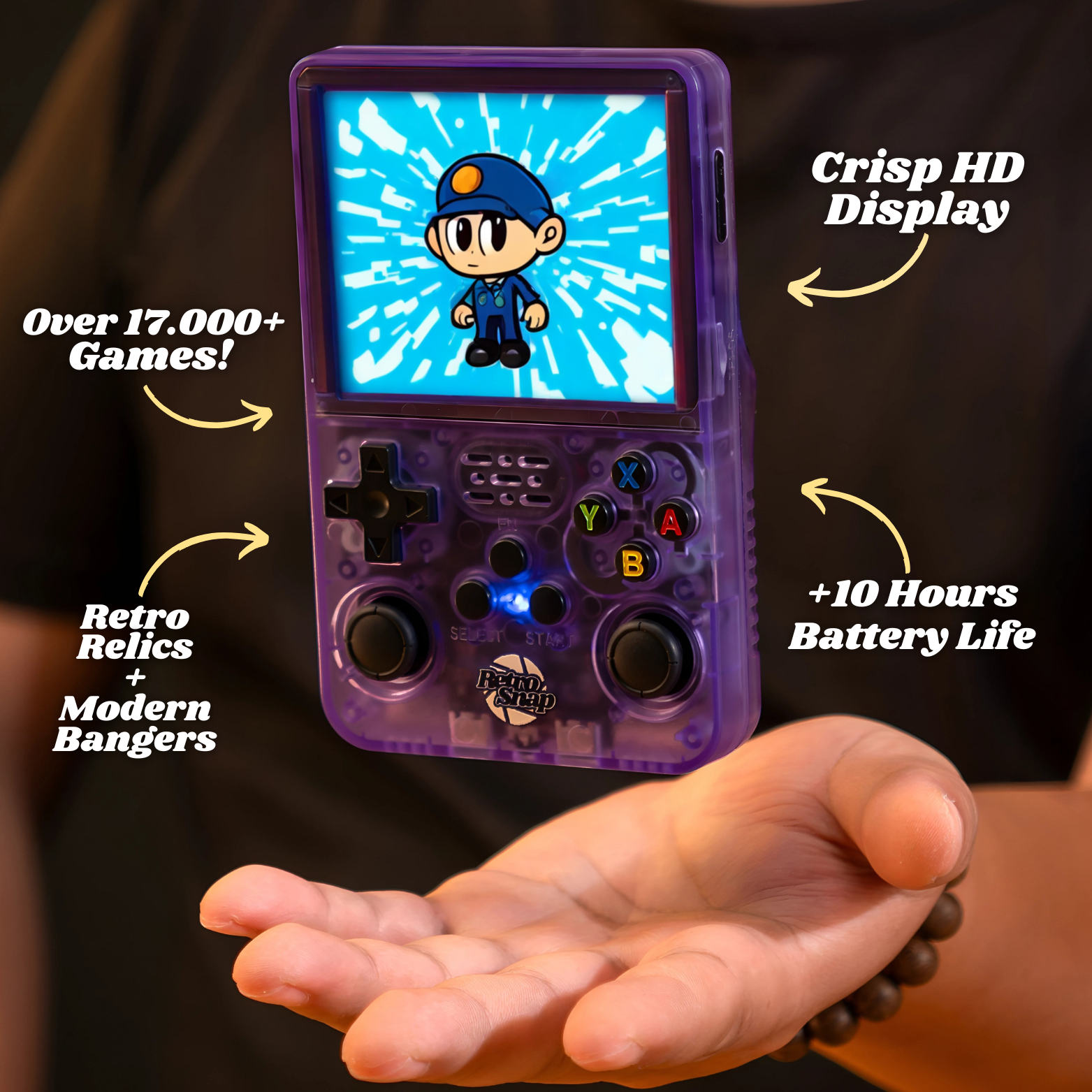
RetroSnap Play is a compact handheld game console with dual analog sticks, a color display, controls, memory-card storage, and emulation software.
The archived offer promoted more than 17,000 games, approximately ten hours of battery life, a one-year warranty, and delivery within four to nine days.
Prices observed in earlier storefront material were around $69.90 for 64GB and $74.97 for 128GB.
Why the console looks familiar
The shell, control layout, interface style, and specifications resemble widely sold R36S-style Linux handhelds available through many marketplace merchants.
That resemblance does not prove every internal component is identical. Storage quality, screen, battery, memory card, firmware, and support can differ between suppliers.
It does mean shoppers should compare the device itself rather than assuming the RetroSnap branding represents exclusive hardware.
- A physical retro handheld appears to have been sold.
- The product resembles common generic console hardware.
- The exact Play page is no longer active.
- The refund policy sharply limits non-defect returns.
- Business-address information contains serious inconsistencies.
- Preloaded game licensing remains unclear.
Our overall assessment
RetroSnap Play should not be described as imaginary hardware. The more defensible concern is a potentially expensive rebrand paired with unclear software licensing and difficult remedies.
Customer experiences are sharply divided. Positive ratings exist, while many complaints allege faults, slow delivery, lost saves, missing replies, or rejected refunds.
The safest buyer assumes nothing about game rights, performance, or returns until the seller answers specific questions in writing.
How the RetroSnap Play Offer Works
Step 1: Nostalgia replaces a technical comparison
The advertisement does not begin with processor speed, firmware support, memory-card quality, or emulator compatibility.
It begins with the feeling of rediscovering games from childhood in one convenient device.
Nostalgia shortens the buyer’s checklist. Thousands of titles sound more important than which titles run correctly or whether their inclusion is authorized.
The console is photographed like a premium discovery rather than a device category already sold across international marketplaces.
Step 2: An enormous game count becomes the main value
“Over 17,000 games” sounds like decades of entertainment for less than the price of one modern release.
The number does not explain duplicates, regional versions, untranslated files, broken titles, or games that the hardware cannot emulate smoothly.
Libraries on generic handheld cards often include many variations of the same title. Raw file count is not the same as a curated collection.
A buyer should request a searchable game list and the seller’s basis for distributing copyrighted software.
Step 3: Storage upgrades appear to improve the console
The 64GB and 128GB options imply that more storage produces a more capable package.
Capacity may determine library size, but memory-card quality has a major effect on reliability.
Low-quality cards can corrupt, lose save files, fail to boot, or become unreadable after limited use.
Ask for the card manufacturer, backup instructions, replacement procedure, and whether the operating system can be restored independently.
Step 4: Social proof makes the storefront feel established
Earlier product pages displayed large review totals, favorable customer stories, and references to media recognition.
On-site review modules are controlled by the merchant. Consumers should compare them with independent feedback tied to the exact domain.
The Trustpilot profile for theretrosnap.com currently contains substantial praise and a large minority of one-star reviews.
That split is more informative than either side alone. It suggests fulfillment succeeds for many buyers while serious problems remain common enough to investigate.
Step 5: Delivery transfers into third-party tracking
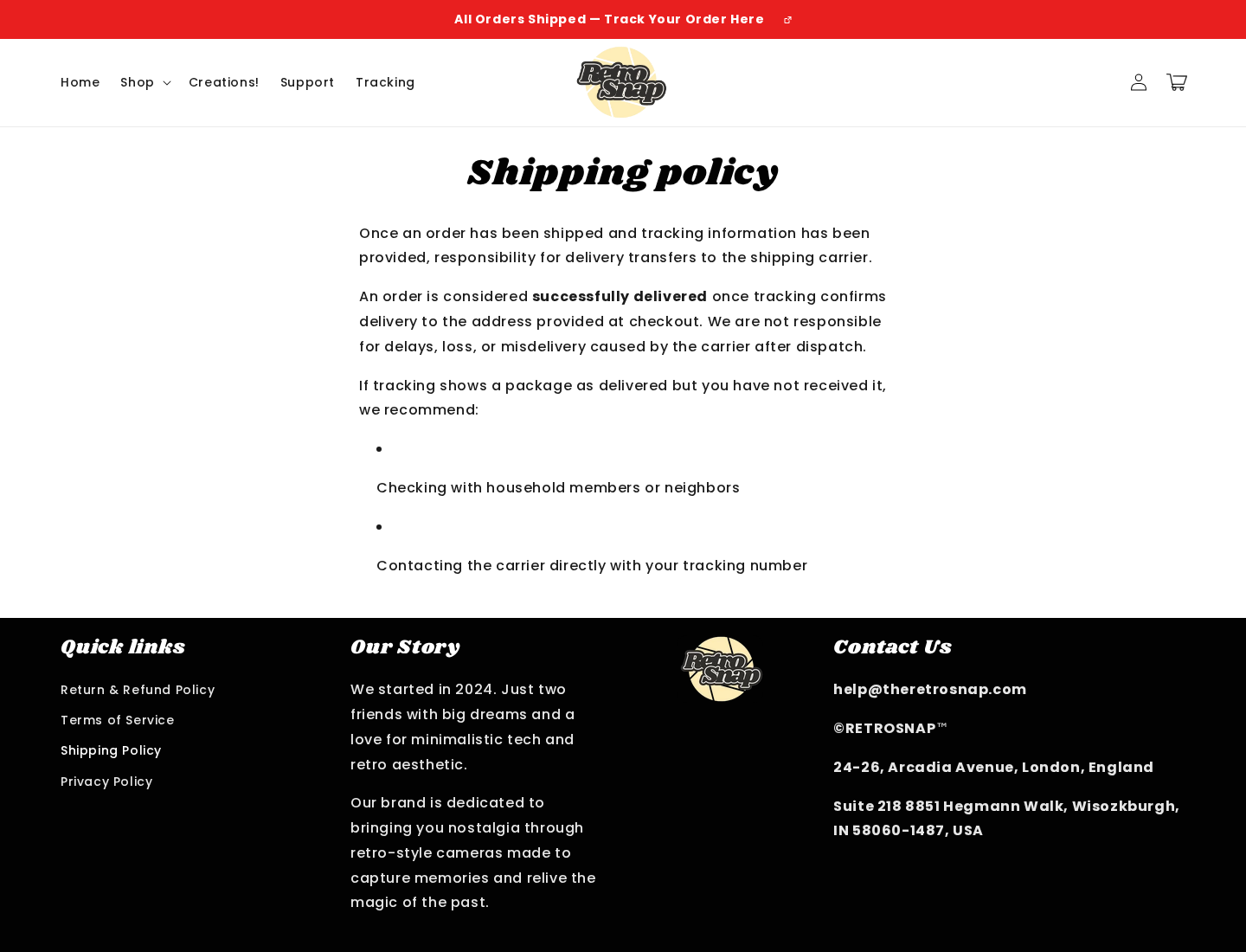
RetroSnap’s shipping policy states that responsibility moves to the carrier after dispatch and after tracking marks a parcel delivered.
That position can create friction when a package stalls, reaches the wrong address, or receives a disputed delivery scan.
Consumer rights vary by country and may not disappear because a website assigns responsibility in its policy.
Monitor tracking from the first update. Report unexplained gaps to both the merchant and payment provider before dispute deadlines approach.
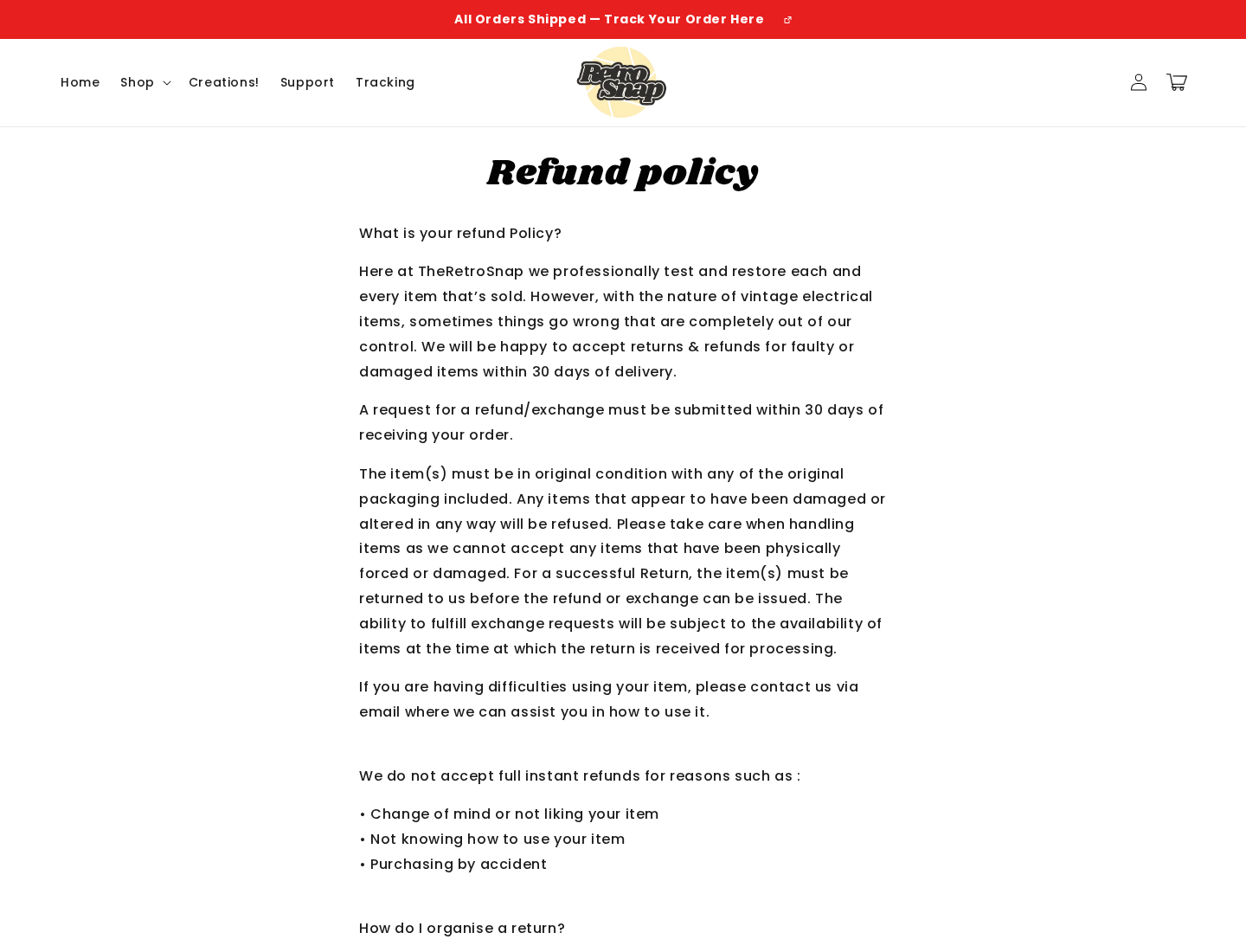
Step 6: Refund language narrows after the sale
The current policy focuses refunds on faulty or damaged items reported within 30 days.
It says changing your mind, disliking the product, accidental purchase, or not knowing how to use it does not produce an instant refund.
Customers generally pay return shipping and must obtain an approved address before sending anything.
That is far less flexible than many buyers expect after seeing a polished, low-risk social-media offer.
Is RetroSnap Play an R36S Rebrand?
The hardware resemblance is substantial
The vertical case, transparent color options, dual sticks below the main controls, button placement, and system presentation match the familiar R36S category.
Consumers and reviewers have also described received units as R36S-style handhelds.
We did not disassemble a purchased RetroSnap unit or trace its factory. Therefore, we cannot claim every component matches every marketplace R36S.
Rebranding is not automatically fraudulent
Retailers routinely purchase generic hardware, add packaging, provide support, and sell at a markup.
The markup may cover advertising, customer service, local payment processing, warranty replacements, and simplified setup.
The concern arises when branding creates the impression of unique engineering while important manufacturer and model details remain hidden.
Specifications matter more than the logo
Ask for the processor, memory, screen resolution, operating system, Wi-Fi capability, battery capacity, card brand, and supported charging specification.
Compare those details with established R36S listings and community documentation.
If support cannot provide a model number or recovery image, the premium becomes harder to justify.
The 17,000-Game Claim Has Two Separate Problems
Quantity says little about playability
Older systems may run well, while demanding consoles can stutter, crash, display graphical problems, or require game-specific settings.
Some files may be duplicates, demos, regional releases, hacks, or titles in another language.
Ask which platforms are fully supported and whether the advertised count includes variations of the same game.
Copyright ownership does not vanish with old games
A game being old does not automatically place it in the public domain.
Console emulation software can be lawful, but distributing commercial game files without permission can infringe copyright.
The legitimate status depends on each game, license, jurisdiction, and how the software was obtained.
The buyer needs a licensing explanation
RetroSnap’s current materials include legal language about lawful ownership and user responsibility.
That warning does not explain who installed the advertised library or which rights authorize its sale.
Before purchase, ask whether the card includes commercial ROMs, who licensed them, and whether the console remains useful without them.
Common Failure Reports and What They Mean
Memory cards are a predictable weak point
Complaints involving lost saves, boot failures, and disappearing games often point toward storage corruption.
That problem is common across inexpensive handhelds and is not unique proof against RetroSnap.
It makes immediate backup essential. A replacement card may require technical steps that the friendly advertisement never mentions.
Battery claims depend on workload
A ten-hour maximum may reflect low brightness, lighter systems, modest volume, and a healthy battery.
Demanding emulation, bright screens, speaker use, battery age, and temperature can reduce runtime.
Measure actual playtime under repeatable conditions before the return window closes.
Learning the interface can be difficult
Generic emulation front ends include hotkeys, emulator menus, shutdown procedures, file systems, and settings unfamiliar to casual buyers.
The refund policy specifically limits remedies based on not knowing how to use the product.
That makes the quality of instructions and support central to the purchase, not an optional extra.
The Storefront Has Changed Since the Original Promotion
The exact Play product page is no longer available
The historical product page was indexed and its promotional media remains accessible, but the direct Play URL now returns a missing-page response.
The current public catalog does not clearly present the same listing.
Products can be renamed or discontinued legitimately. The change makes old advertisements and copied checkout links especially risky.
The company’s origin story is inconsistent
Current footer language says RetroSnap began in 2024, while older storefront material referred to an earlier starting year.
A simple copy update could explain that conflict. It still weakens confidence in the brand history being used to establish trust.
Marketing biographies should remain consistent when they support claims of experience.
Lookalike domains can create confusion
Review platforms contain profiles for similar RetroSnap names and domains with very different ratings.
Do not combine them automatically. A complaint against retrosnap.com is not necessarily evidence about theretrosnap.com.
Match every review, policy, and support address to the exact domain that accepted your payment.
How to Buy a Retro Handheld More Safely
Decide whether you want convenience or hardware value
A branded package may appeal to someone who wants a ready-to-use gift and accessible support.
A technically comfortable buyer may prefer documented hardware from a marketplace at a lower price.
Neither choice is universally correct. The problem begins when the customer pays a premium without receiving the expected convenience or service.
Plan for a clean replacement memory card
Do not assume the included card will last. Back up lawful configuration files and personal saves as soon as the device operates correctly.
Use reputable storage and follow community instructions for the exact hardware revision.
Avoid downloading random “complete game packs.” They can violate copyright and expose the computer to malicious files.
Test every essential function promptly
Check all buttons, analog sticks, speaker, headphone output, screen, charging port, sleep behavior, battery, save function, and several supported systems.
Record faults on video. Include the device identifier and a continuous view showing the problem.
Do not spend the entire 30-day period customizing a unit that already has a hardware defect.
What a Useful Console Warranty Should Cover
Hardware and storage need separate answers
Ask whether the one-year warranty covers the screen, controls, charging port, battery, main board, and supplied memory card.
A seller may treat corrupted software differently from failed hardware. That distinction should be explained before a claim occurs.
Find out whether troubleshooting requires reinstalling firmware and whether doing so affects eligibility.
Replacement shipping can erase the convenience
Clarify who pays to return a defective console and who funds delivery of its replacement.
International postage can approach the value of generic handheld hardware, especially when tracking and insurance are required.
A promised replacement is less useful when the customer repeatedly pays cross-border shipping.
Software support needs a defined lifetime
Emulation systems can require configuration updates, fresh card images, and instructions after a reset.
Ask whether RetroSnap maintains downloadable firmware for the exact revision and how long those files will remain available.
A working recovery process matters more than a large game count when the included card fails.
Download recovery files only from a verified support location, then scan them before opening unfamiliar archives.
Company, Address, and Fulfillment Checks
The legal operator is not presented with enough clarity
The storefront uses the RetroSnap brand, but the reviewed footer does not clearly connect the offer to a conventional legal company identity.
A brand name alone can make formal disputes difficult, especially when the payment descriptor uses another entity.
Ask which registered company contracts with the customer and request its registration jurisdiction.
The listed addresses contain major inconsistencies
The footer lists an address on Arcadia Avenue in London and a second supposed US address on Hegmann Walk.
The US line includes “Wisozkburgh, IN 58060-1487,” combining a questionable city reference, Indiana abbreviation, and a ZIP code pattern associated elsewhere.
We could not validate that wording as a normal deliverable business location. The same address text also appears on another retail website.
Support depends heavily on written online contact
Customers should test the current support channel before placing a new order, especially because the original product page is inactive.
Ask for the legal company, current product URL, return country, warranty process, and replacement-card assistance.
Vague or copied answers should be treated as a warning. Save the entire conversation.
Fulfillment may be remote from the brand addresses
Delivery estimates and generic hardware characteristics are consistent with cross-border sourcing, although a parcel’s exact route can vary.
A fulfillment partner may ship a real console without operating the brand or manufacturing the device.
Record the sender, customs declaration, model label, and return instructions. Do not mail equipment to a footer address without authorization.
What to Do if Your RetroSnap Play Order Has a Problem
- Document the failure immediately. Film boot problems, bad controls, charging faults, lost saves, screen defects, or missing items with the device identifier visible.
- Back up personal data safely. Preserve lawful saves and configuration files before the memory card deteriorates further. Do not distribute copyrighted game files.
- Contact the exact merchant. Use the order confirmation’s domain and support channel. State the defect, delivery date, requested remedy, and 30-day deadline.
- Demand complete return instructions. Obtain authorization, destination country, address, tracking standard, postage responsibility, and expected processing time before shipping.
- Keep every purchasing claim. Save the game count, battery promise, delivery estimate, warranty, refund policy, invoice, tracking, and support messages.
- Escalate before deadlines expire. If support refuses a valid faulty-item remedy or stops responding, contact the payment provider with organized evidence.
- Secure connected computers. Scan computers used for unknown setup files with Malwarebytes. Let AdGuard block risky emulator advertisements and clone pages.
- Report cloned offers carefully. Notify the platform, domain host, and consumer authority when an unauthorized website copies RetroSnap branding or takes payment without fulfillment.
Is Your Device Infected? Run a Free Malware Scan
Slow performance, constant pop-ups, or strange behavior? These are classic signs of a malware infection. The fastest way to find out is to scan your device with Malwarebytes Free — one of the most trusted malware removal tools available.
The free version detects and removes the most common threats, including:
- Adware — the cause of those annoying pop-ups
- Browser hijackers — unwanted redirects and changed homepages
- Trojans and spyware — hidden programs stealing your data
- Potentially unwanted programs (PUPs) — software you never asked for
👉 Select your device below — Windows, Mac, or Android — then follow the simple steps to download Malwarebytes, scan your system, and remove any threats it finds. The scan usually takes 5 to 20 minutes.
Run a Malware Scan with Malwarebytes for Windows
Malwarebytes is one of the most popular and trusted anti-malware tools for Windows — and it’s completely free for removing infections. It catches threats that many antivirus programs miss, including adware, browser hijackers, and trojans. Follow the steps below to scan and clean your PC in just a few minutes.
Download Malwarebytes
Click the button below to download the latest version of Malwarebytes for Windows from the official source. The free version is all you need — it will scan your computer and remove adware, browser hijackers, and other malicious software at no cost.
Download MalwarebytesOfficial installer for Windows 11 and 10. Your download starts right away.Want real-time protection? See Malwarebytes Premium Malwarebytes Free for WindowsScans and removes malware at no cost
-
Install Malwarebytes
When the download finishes, open your Downloads folder and double-click the MBSetup file. If Windows shows a User Account Control pop-up, click “Yes” to allow the installation.

Follow the On-Screen Prompts to Install Malwarebytes
The setup wizard will walk you through a few quick screens:
-
Choose where you’re installing the program — “Personal Computer” or “Work Computer” — then click Next.

-
Malwarebytes will now install on your device. This usually takes under a minute.

-
When installation is complete, the “Welcome to Malwarebytes” screen will open automatically.

-
On the final screen, click Open Malwarebytes to launch the program.

-
Enable “Scan for Rootkits”
Before scanning, turn on rootkit detection so Malwarebytes can find even the most hidden threats. Click the Settings gear icon on the left side of the screen.

In the settings menu, find “Scan for rootkits” and click the toggle so it turns blue.

Done? Click “Dashboard” in the left pane to return to the main screen.
Start the Scan
Click the blue Scan button. Malwarebytes will automatically update its virus database and start checking your computer for malware.

-
Wait for the Scan to Finish
The scan checks your entire system for browser hijackers and other malicious programs, so it can take 5 to 20 minutes depending on your computer. Feel free to do something else — just check back occasionally to see the progress.

-
Quarantine the Detected Threats
When the scan is done, you’ll see a list of everything Malwarebytes found — malware, adware, and potentially unwanted programs. Click the “Quarantine” button to remove all of them at once.

Malwarebytes will now remove the malicious files and registry entries and move them safely into quarantine.

-
Restart Your Computer
Some threats can only be fully removed after a reboot. If Malwarebytes asks you to restart, click Yes. Once you’re logged back in, Malwarebytes has finished removing the threats it found.

That’s it — your Windows PC is now clean of trojans, adware, and other malware, and should be back to running smoothly.
If you are still having problems with your computer after completing these instructions, then please follow one of the steps:
- Run a computer scan with ESET Online Scanner
- Ask for help in our Windows Malware Removal Help & Support forum.
Run a Malware Scan with Malwarebytes for Mac
Malwarebytes for Mac is a free on-demand scanner that removes the malware other security software tends to miss — adware, browser hijackers, and unwanted programs included. Cleaning an infected Mac with Malwarebytes has always been completely free, and it’s our go-to recommendation. Follow the steps below to scan and clean your Mac in just a few minutes.
-
Download Malwarebytes for Mac
Click the button below to download the latest version of Malwarebytes for Mac.
Download MalwarebytesOfficial installer for macOS. Your download starts right away.Want real-time protection? See Malwarebytes PremiumMalwarebytes Free for MacScans and removes malware at no cost -
Open the Malwarebytes setup file
When the download finishes, open your Downloads folder and double-click the setup file to begin the installation.

-
Follow the On-Screen Prompts to Install Malwarebytes
The Malwarebytes for Mac Installer will guide you through a few quick screens. Click “Continue” and keep following the prompts until the installation completes.



When the installation is complete, Malwarebytes opens to the Welcome to Malwarebytes screen. Click “Get started“.
-
Select “Personal Computer” or “Work Computer”
Malwarebytes will ask what type of computer you’re installing it on. Click either Personal Computer or Work Computer, whichever applies.

-
Start the Scan
Click the “Scan” button. Malwarebytes will automatically update its detection database and begin checking your Mac for malware.

-
Wait for the Scan to Finish
Malwarebytes will scan your Mac for adware, browser hijackers, and other malicious programs. This can take a few minutes, so feel free to do something else — just check back occasionally to see the progress.

-
Quarantine the Detected Threats
When the scan is done, you’ll see a list of everything Malwarebytes found. Click the “Quarantine” button to remove all the threats at once.

-
Restart Your Mac
Malwarebytes will now remove all the malicious files it found. Some threats can only be fully removed after a reboot — if Malwarebytes asks you to restart, allow it. Once you’re logged back in, your Mac is clean.

That’s it — your Mac is now free of adware, rogue browser extensions, and other potentially harmful software.
If you are still experiencing problems while trying to remove a malicious program from your computer, please ask for help in our Mac Malware Removal Help & Support forum.
Run a Malware Scan with Malwarebytes for Android
Malwarebytes for Android automatically detects and removes dangerous threats like malware and ransomware so you don’t have to worry about your most-used device being compromised. Aggressive detection of adware and potentially unwanted programs keeps your Android phone or tablet running smooth.
-
Download Malwarebytes for Android.
You can download Malwarebytes for Android by clicking the link below.
Get Malwarebytes for AndroidOpens Google Play in a new tab.Want real-time protection? See Malwarebytes Premium for AndroidMalwarebytes for AndroidScans your phone and removes malware at no cost -
Install Malwarebytes for Android on your phone.
In the Google Play Store, tap “Install” to install Malwarebytes for Android on your device.

When the installation process has finished, tap “Open” to begin using Malwarebytes for Android. You can also open Malwarebytes by tapping on its icon in your phone menu or home screen.

-
Follow the on-screen prompts to complete the setup process
When Malwarebytes will open, you will see the Malwarebytes Setup Wizard which will guide you through a series of permissions and other setup options.
This is the first of two screens that explain the difference between the Premium and Free versions. Swipe this screen to continue.
Tap on “Got it” to proceed to the next step.
Malwarebytes for Android will now ask for a set of permissions that are required to scan your device and protect it from malware. Tap on “Give permission” to continue.
Tap on “Allow” to permit Malwarebytes to access the files on your phone.
-
Update database and run a scan with Malwarebytes for Android
You will now be prompted to update the Malwarebytes database and run a full system scan.

Click on “Update database” to update the Malwarebytes for Android definitions to the latest version, then click on “Run full scan” to perform a system scan.

-
Wait for the Malwarebytes scan to complete.
Malwarebytes will now start scanning your phone for adware and other malicious apps. This process can take a few minutes, so we suggest you do something else and periodically check on the status of the scan to see when it is finished.

-
Click on “Remove Selected”.
When the scan has been completed, you will be presented with a screen showing the malware infections that Malwarebytes for Android has detected. To remove the malicious apps that Malwarebytes has found, tap on the “Remove Selected” button.

-
Restart your phone.
Malwarebytes for Android will now remove all the malicious apps that it has found. To complete the malware removal process, Malwarebytes may ask you to restart your device.
That’s it — your Android phone is now clean — no more malicious apps, adware, or browser redirects.
If you are still having problems with your phone after completing these instructions, then please follow one of the steps:
- Restore your phone to factory settings by going to Settings > General management > Reset > Factory data reset.
- Ask for help in our Mobile Malware Removal Help & Support forum.
Stay Protected: Block Ads and Malicious Sites
Now that your device is clean, keep it that way. Most infections start with a malicious ad or a fake download button — so blocking them at the source is your best defense.
We recommend AdGuard, which blocks malicious ads, phishing pages, and dangerous redirects before they can reach you.
👉 Download AdGuard and browse safely
Frequently Asked Questions
Is RetroSnap Play a scam?
The console offer involved real hardware, but value, software licensing, address inconsistencies, refund limitations, and numerous complaints create meaningful purchasing risk.
Is RetroSnap Play the same as an R36S?
It closely resembles R36S-style hardware, but we did not verify every internal component. Compare exact specifications and model identifiers rather than appearance alone.
Are the 17,000 included games legal?
That depends on licensing for each file. Old commercial games remain protected, and the storefront does not clearly document rights for the promoted library.
Why is the RetroSnap Play page missing?
The direct historical URL is currently unavailable, and the product is not clearly listed in the public catalog. It may have been discontinued or renamed.
Can I return RetroSnap because I dislike it?
The current policy restricts change-of-mind remedies and focuses on faulty or damaged goods. Check the law applicable to your purchase because statutory rights may differ.
Does RetroSnap Play include a subscription?
We found no confirmed recurring refill or membership tied to the reviewed console. Inspect checkout carefully for optional protection or other continuing charges.
The Bottom Line
RetroSnap Play appears to package familiar generic handheld hardware in polished nostalgia-focused marketing, with an enormous game count doing much of the selling.
The decisive concerns are unclear ROM licensing, questionable address data, a missing current product page, storage reliability, and return rules that punish mistaken expectations.
Compare the hardware before paying a premium, demand written support details, and treat every preloaded commercial game as legally uncertain unless the seller documents its license.

Join the discussion
0 commentsShare your experience or ask a question about this article.
Discussion
Start the conversation
Have a question or something useful to share? Add the first comment.