

When aching fingers make a coffee cup feel heavy, a heated hand massager can seem less like a gadget and more like a small rescue.
Malvay presents Nuvra as a polished home solution. The important details sit beyond the comforting photographs and prominent discount.
Overview
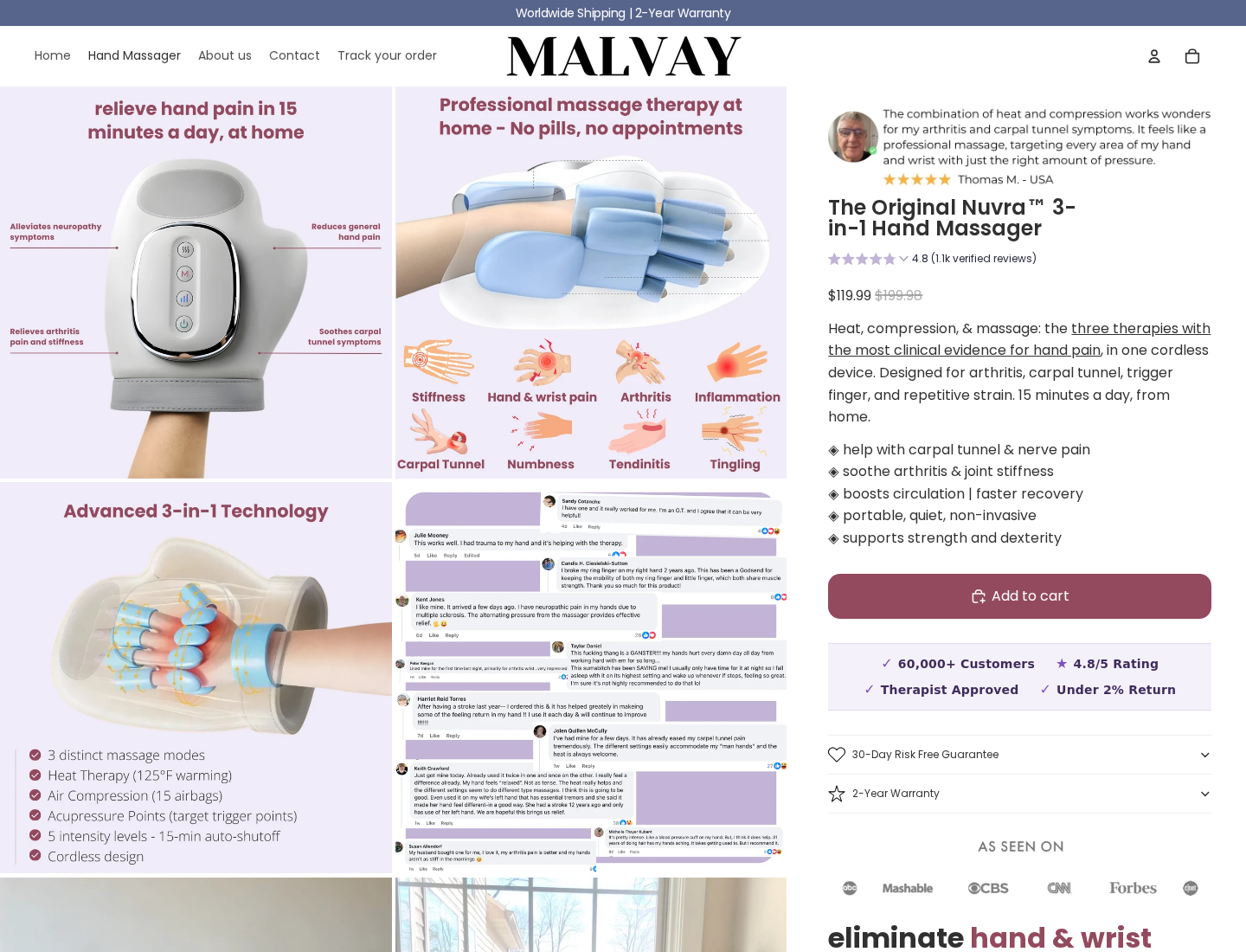
What the Malvay Nuvra Hand Massager is
Nuvra is a rechargeable hand enclosure that combines air compression, heat, and vibration or massage programs.
The user slides one hand inside, selects an intensity, and allows the chamber to squeeze and warm the fingers, palm, and wrist.
These functions are plausible comfort features. Heat and rhythmic pressure can feel soothing, especially after repetitive work or during ordinary stiffness.
How Malvay frames the product
The sales page connects Nuvra with arthritis, carpal tunnel symptoms, stiffness, swelling, circulation, and recovery from daily strain.
It displays a reduced price of $119.99 from $199.98, large customer totals, strong ratings, therapist language, and a 30-day guarantee.
Those signals make the device look established and clinically grounded. They do not independently prove that Nuvra treats a diagnosed medical condition.
- A real physical hand massager is offered through Malvay.
- Heat and compression may provide temporary comfort.
- Medical-sounding benefits are broader than the visible product evidence.
- Delivery estimates differ across sections of the website.
- Returns require authorization and inspection.
- No automatic refill subscription was found.
Our evidence-based conclusion
Nothing we reviewed proves Malvay is a payment-only website or that every Nuvra buyer receives a worthless device.
The risk lies in buying a subjective comfort product through an emotionally persuasive page, then discovering that fit, heat, pressure, or results differ from expectations.
The website’s incomplete corporate details and narrow cancellation period make careful documentation especially important.
How the Malvay Nuvra Offer Works
Step 1: The message begins with everyday hand limitations
The page speaks to people who struggle with gripping, typing, crafting, cooking, or sleeping comfortably because their hands feel sore or stiff.
That is effective marketing because hand discomfort is personal. A shopper can immediately picture the tasks they want back.
The product then appears as a gentle nightly ritual, not a complicated medical decision.
This emotional connection is not automatically deceptive. It becomes problematic when comfort imagery encourages assumptions the evidence does not support.
Step 2: Three familiar features become a treatment story
Compression, warming, and massage are presented as a coordinated 3-in-1 system. Multiple modes and intensity levels make the experience sound individualized.
The FAQ says the device can heat to approximately 125°F and contains a 2000mAh battery lasting around ten sessions.
Those specifications describe operation, not medical effectiveness. A warm squeezing chamber cannot diagnose whether pain comes from arthritis, nerve compression, injury, or circulation problems.
Different causes may require different care. Temporary relaxation should not be mistaken for correction of an underlying disorder.
Step 3: Authority cues make the claims feel settled
Large customer figures, favorable review scores, and therapist-oriented language surround the purchase area.
On-site testimonials may describe genuine experiences, but they are selected and displayed by the seller. They are not controlled clinical evidence.
Statements about an extremely low return rate also need context. The page does not show an independent audit, total eligible orders, or calculation method.
A buyer should separate three questions: Does it turn on, does it feel pleasant, and does it improve the specific condition being discussed?
Step 4: The discount anchors the buyer to a higher value
A crossed-out $199.98 price makes $119.99 look like an immediate saving. That comparison is meaningful only if the higher price reflects genuine selling history.
Shoppers should compare specifications rather than brand presentation alone. Chamber size, heating range, battery, controller layout, warranty, and replacement support determine practical value.
Similar-looking devices are not necessarily identical. However, a familiar shell is a reason to ask what uniquely supports Malvay’s premium.
Do not let a countdown, sale label, or customer total replace that comparison.
Step 5: Delivery and cancellation details narrow the decision window
The product FAQ describes one-to-two-business-day handling and delivery within approximately five to seven business days.
The shipping policy gives a longer domestic estimate of eight to twelve business days. That difference should be clarified before a time-sensitive purchase.
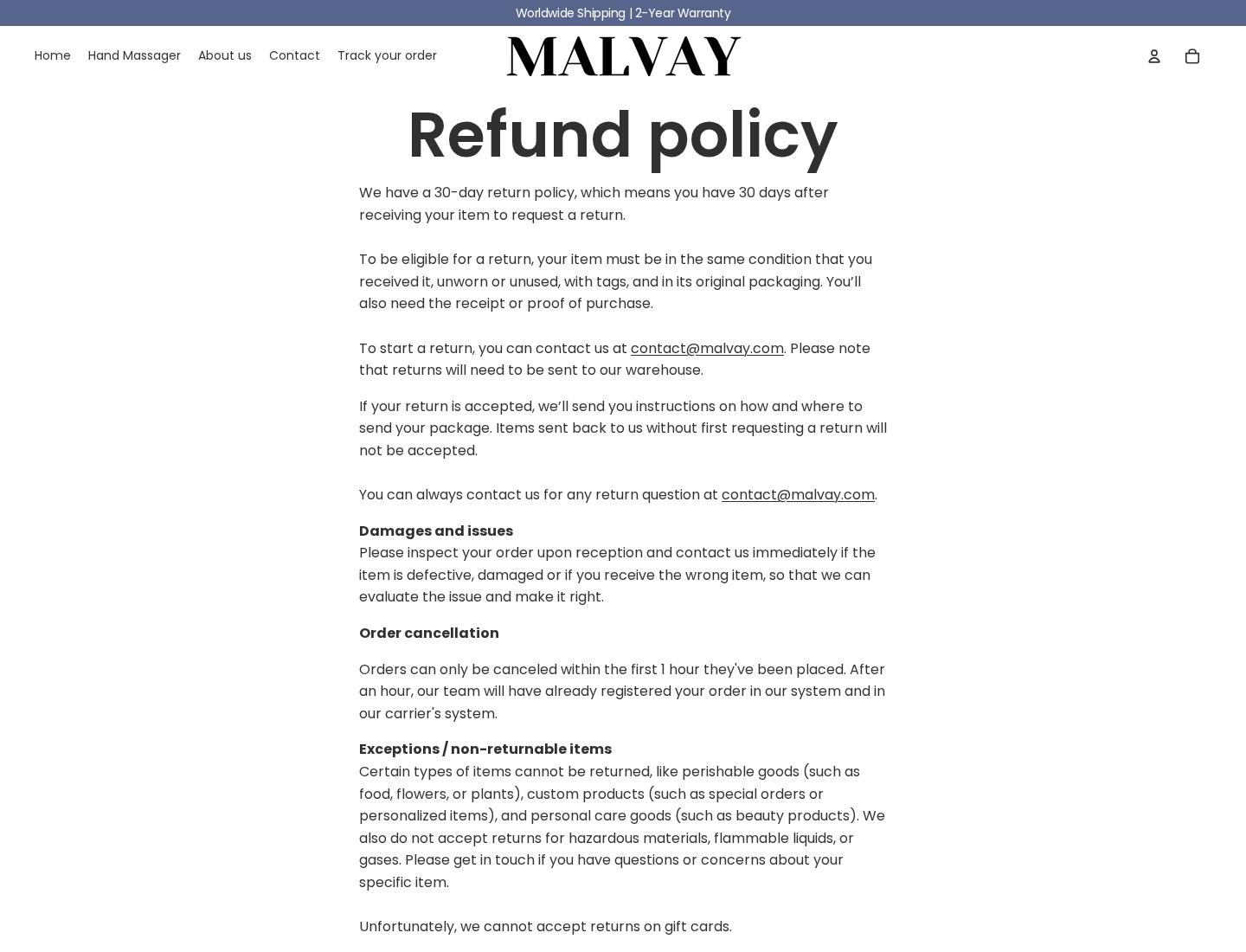
The refund page says cancellation is available only during the first hour. After that, the order may already be treated as processing.
A separate policy passage is awkwardly worded around cancellation after one hour. Save written confirmation if the timing affects your purchase.
Step 6: A return begins only after support approves it
Malvay states that customers have 30 days after receiving the product to request a return.
The device must remain in its original condition, with packaging and proof of purchase. The policy does not publish the return destination upfront.
Customers must contact support and wait for instructions. Refunds are issued only after the returned item arrives and passes inspection.
That process is common in online retail, but it means the headline guarantee is not an instant reversal.
What Nuvra May Feel Like Versus What It Can Prove
Heat can soothe without treating a disease
Warmth may temporarily ease the sensation of stiffness and make a massage session feel relaxing.
It does not establish that inflammation, nerve compression, cartilage changes, or another condition has improved.
High heat can also be uncomfortable. People with reduced sensation may not recognize excessive warmth quickly.
Test cautiously at the lowest setting and follow the manual. Stop if the skin becomes painful, unusually red, numb, or irritated.
Compression is highly dependent on fit
A chamber that feels supportive around one hand may pinch another. Swelling, finger shape, jewelry, and wrist size can change the experience.
Product photographs cannot show how pressure distributes across your hand. Ask for internal dimensions and fit guidance before ordering.
Remove rings and bracelets unless the manual explicitly says otherwise. Compression around jewelry can increase discomfort or trap swollen tissue.
People with circulation disorders, recent surgery, fractures, or severe swelling should obtain medical advice before applying pressure.
Massage sensations are not diagnostic evidence
Feeling pulsing, squeezing, or warmth confirms that the device operates. It does not identify the cause of pain.
Carpal tunnel syndrome, tendon irritation, arthritis, neuropathy, and neck-related nerve problems can produce overlapping complaints.
Persistent weakness, dropping objects, progressive numbness, color changes, or severe night pain deserves assessment instead of repeated home experimentation.
The Claims That Need a Closer Reading
“Root cause” language can overstate a comfort device
The storefront suggests a deeper response than temporary massage. That wording can encourage shoppers to see Nuvra as corrective treatment.
Without product-specific clinical trials, the safest interpretation remains narrower. Nuvra supplies heat and pressure that some users may find comforting.
Evidence for a general modality cannot automatically validate every benefit stated for a particular consumer device.
“No side effects” is too absolute
Any device that applies heat and compression can cause an unwanted reaction in some users.
Possible issues include discomfort, skin irritation, pressure marks, increased pain, overheating, or aggravation of a condition unsuitable for massage.
An absence of medication does not mean an absence of risk. Safe use depends on health status, settings, duration, fit, and accurate instructions.
Customer stories cannot establish typical results
A testimonial usually lacks medical confirmation, baseline measurement, control group, and follow-up.
Hand symptoms can fluctuate with workload, weather, sleep, medication, and rest. Improvement after using a device does not prove the device caused it.
Look for realistic descriptions of comfort, fit, noise, battery performance, and service. Be cautious with stories promising dramatic recovery.
How to Evaluate the Device Before the Return Window Closes
Inspect everything before the first session
Photograph the shipping carton, label, sealed package, device, charger, manual, and serial markings as soon as the parcel arrives.
Check for crushed housing, exposed wires, unusual odor, moisture, missing certifications, or a charger that does not match local electrical standards.
Contact support immediately about damage. Do not test a compromised heating device merely to see whether it still works.
Use a simple comfort log
Record the setting, session length, temperature sensation, symptom level, and any skin change.
Keep medication, workload, and other treatments in mind. Changing several variables together makes the result difficult to interpret.
A short note after each use is more reliable than remembering only the best or worst session.
Set a return decision date early
Do not wait until day 30 to decide. Shipping and support exchanges consume time, while the policy requires authorization before the parcel is sent.
Choose a date at least a week earlier. If the device is unsuitable, request return instructions in writing on that date.
Ask whether ordinary testing affects eligibility and whether the customer pays return postage. Keep the response with the order record.
Billing, Warranty, and Support Details
The observed offer appears to be a one-time purchase
We did not find an automatic refill program connected with the Nuvra hand massager during this review.
That distinction matters because rechargeable devices do not require consumable monthly shipments. Still, inspect the checkout for accessories or protection plans.
The final screen should show one device, agreed shipping, tax, and no recurring charge language.
The two-year warranty needs practical detail
The product page promotes a two-year warranty, but customers should ask what failures it covers and who pays shipping.
Clarify whether a replacement is new or refurbished, whether batteries are included, and whether proof of troubleshooting is required.
A warranty has value only when the responsible company remains reachable and provides a workable claim process.
Card documentation protects both sides
Use a payment method with a clear dispute process. Avoid bank transfer, cryptocurrency, gift cards, or another irreversible method.
Save the checkout page, confirmation, delivery promise, warranty language, and support correspondence.
If the merchant descriptor differs from Malvay, ask for an explanation before forgetting the unfamiliar name.
Who Should Pause Before Using a Heated Hand Massager
Reduced sensation changes the risk
People who cannot reliably feel heat or pressure may not notice an uncomfortable setting before skin irritation develops.
Neuropathy can occur with diabetes, medication, nerve injury, and other conditions. A clinician can advise whether heated compression is appropriate.
Never fall asleep with the device running or extend a session beyond the manual’s limit.
Inflammation and injury require the right diagnosis
A newly injured, visibly swollen, hot, or severely painful hand may not benefit from immediate heat and squeezing.
Fractures, infections, clots, tendon injuries, and inflammatory flares require different responses.
When symptoms followed trauma or appeared suddenly, obtain guidance before treating them as routine stiffness.
Implants and medical history deserve discussion
Ask a qualified professional about use after hand surgery or around implanted hardware.
Also discuss vascular disease, fragile skin, bleeding disorders, significant swelling, and any condition affected by heat or pressure.
A retailer’s general answer cannot replace advice based on your history and the exact device settings.
Company, Address, and Fulfillment Checks
The legal business identity is incomplete
The policies identify the store primarily as Malvay. We did not find a clearly presented legal company name on the reviewed contact information.
That omission does not prove misconduct. It makes independent checks, formal complaints, and cross-border dispute handling more difficult.
The entity charging the card should match the business named on the receipt and terms. Ask support to identify it before purchase.
A full operating address is not prominently provided
The reviewed pages did not clearly display a headquarters or return address. Malvay says the return destination follows approval.
A hidden return location can affect cost and timing, especially if the parcel must travel internationally.
Request the destination country and estimated tracked postage before relying on the 30-day guarantee.
Email is the principal visible support route
The policies direct customers to contact@malvay.com. We did not find a prominently displayed customer-service telephone number during the review.
Email creates a useful written record, but response time matters when cancellation lasts only one hour.
Send requests from the address used for the order. Include the order number, requested remedy, photographs, and a clear response deadline.
Fulfillment timing is described inconsistently
The FAQ and shipping policy provide different delivery ranges. That may reflect handling versus total transit, but the pages do not explain the difference clearly.
Ask which estimate applies to your location and where the item ships from.
A fulfillment center can dispatch a real product without being the manufacturer or headquarters. The package label should not be mistaken for corporate identity.
What to Do if Your Malvay Nuvra Order Has a Problem
- Stop using an unsafe device. Disconnect it immediately after overheating, burning odor, swelling, numbness, unusual pain, or visible electrical damage.
- Document the condition. Photograph the massager, packaging, charger, label, defect, error lights, and any visible skin reaction before requesting help.
- Contact Malvay promptly. Email the order number, delivery date, problem, requested remedy, and evidence before the 30-day period expires.
- Ask for return authorization. Obtain the exact address, tracking requirement, condition standard, postage responsibility, and any inspection deduction in writing.
- Preserve every promise. Save screenshots showing price, guarantee, shipping estimate, warranty, and the representations that influenced the purchase.
- Escalate unresolved billing. If the merchant does not provide an agreed remedy, contact the card issuer within its dispute deadline and submit organized evidence.
- Check the browsing device. Run a Malwarebytes scan after any unexpected file download. Enable AdGuard to filter future deceptive banners and redirect chains.
- Seek appropriate care. Report worsening weakness, persistent numbness, severe swelling, or burns to a qualified medical professional instead of continuing treatment.
Is Your Device Infected? Run a Free Malware Scan
Slow performance, constant pop-ups, or strange behavior? These are classic signs of a malware infection. The fastest way to find out is to scan your device with Malwarebytes Free — one of the most trusted malware removal tools available.
The free version detects and removes the most common threats, including:
- Adware — the cause of those annoying pop-ups
- Browser hijackers — unwanted redirects and changed homepages
- Trojans and spyware — hidden programs stealing your data
- Potentially unwanted programs (PUPs) — software you never asked for
👉 Select your device below — Windows, Mac, or Android — then follow the simple steps to download Malwarebytes, scan your system, and remove any threats it finds. The scan usually takes 5 to 20 minutes.
Run a Malware Scan with Malwarebytes for Windows
Malwarebytes is one of the most popular and trusted anti-malware tools for Windows — and it’s completely free for removing infections. It catches threats that many antivirus programs miss, including adware, browser hijackers, and trojans. Follow the steps below to scan and clean your PC in just a few minutes.
Download Malwarebytes
Click the button below to download the latest version of Malwarebytes for Windows from the official source. The free version is all you need — it will scan your computer and remove adware, browser hijackers, and other malicious software at no cost.
Download MalwarebytesOfficial installer for Windows 11 and 10. Your download starts right away.Want real-time protection? See Malwarebytes Premium Malwarebytes Free for WindowsScans and removes malware at no cost
-
Install Malwarebytes
When the download finishes, open your Downloads folder and double-click the MBSetup file. If Windows shows a User Account Control pop-up, click “Yes” to allow the installation.

Follow the On-Screen Prompts to Install Malwarebytes
The setup wizard will walk you through a few quick screens:
-
Choose where you’re installing the program — “Personal Computer” or “Work Computer” — then click Next.

-
Malwarebytes will now install on your device. This usually takes under a minute.

-
When installation is complete, the “Welcome to Malwarebytes” screen will open automatically.

-
On the final screen, click Open Malwarebytes to launch the program.

-
Enable “Scan for Rootkits”
Before scanning, turn on rootkit detection so Malwarebytes can find even the most hidden threats. Click the Settings gear icon on the left side of the screen.

In the settings menu, find “Scan for rootkits” and click the toggle so it turns blue.

Done? Click “Dashboard” in the left pane to return to the main screen.
Start the Scan
Click the blue Scan button. Malwarebytes will automatically update its virus database and start checking your computer for malware.

-
Wait for the Scan to Finish
The scan checks your entire system for browser hijackers and other malicious programs, so it can take 5 to 20 minutes depending on your computer. Feel free to do something else — just check back occasionally to see the progress.

-
Quarantine the Detected Threats
When the scan is done, you’ll see a list of everything Malwarebytes found — malware, adware, and potentially unwanted programs. Click the “Quarantine” button to remove all of them at once.

Malwarebytes will now remove the malicious files and registry entries and move them safely into quarantine.

-
Restart Your Computer
Some threats can only be fully removed after a reboot. If Malwarebytes asks you to restart, click Yes. Once you’re logged back in, Malwarebytes has finished removing the threats it found.

That’s it — your Windows PC is now clean of trojans, adware, and other malware, and should be back to running smoothly.
If you are still having problems with your computer after completing these instructions, then please follow one of the steps:
- Run a computer scan with ESET Online Scanner
- Ask for help in our Windows Malware Removal Help & Support forum.
Run a Malware Scan with Malwarebytes for Mac
Malwarebytes for Mac is a free on-demand scanner that removes the malware other security software tends to miss — adware, browser hijackers, and unwanted programs included. Cleaning an infected Mac with Malwarebytes has always been completely free, and it’s our go-to recommendation. Follow the steps below to scan and clean your Mac in just a few minutes.
-
Download Malwarebytes for Mac
Click the button below to download the latest version of Malwarebytes for Mac.
Download MalwarebytesOfficial installer for macOS. Your download starts right away.Want real-time protection? See Malwarebytes PremiumMalwarebytes Free for MacScans and removes malware at no cost -
Open the Malwarebytes setup file
When the download finishes, open your Downloads folder and double-click the setup file to begin the installation.

-
Follow the On-Screen Prompts to Install Malwarebytes
The Malwarebytes for Mac Installer will guide you through a few quick screens. Click “Continue” and keep following the prompts until the installation completes.



When the installation is complete, Malwarebytes opens to the Welcome to Malwarebytes screen. Click “Get started“.
-
Select “Personal Computer” or “Work Computer”
Malwarebytes will ask what type of computer you’re installing it on. Click either Personal Computer or Work Computer, whichever applies.

-
Start the Scan
Click the “Scan” button. Malwarebytes will automatically update its detection database and begin checking your Mac for malware.

-
Wait for the Scan to Finish
Malwarebytes will scan your Mac for adware, browser hijackers, and other malicious programs. This can take a few minutes, so feel free to do something else — just check back occasionally to see the progress.

-
Quarantine the Detected Threats
When the scan is done, you’ll see a list of everything Malwarebytes found. Click the “Quarantine” button to remove all the threats at once.

-
Restart Your Mac
Malwarebytes will now remove all the malicious files it found. Some threats can only be fully removed after a reboot — if Malwarebytes asks you to restart, allow it. Once you’re logged back in, your Mac is clean.

That’s it — your Mac is now free of adware, rogue browser extensions, and other potentially harmful software.
If you are still experiencing problems while trying to remove a malicious program from your computer, please ask for help in our Mac Malware Removal Help & Support forum.
Run a Malware Scan with Malwarebytes for Android
Malwarebytes for Android automatically detects and removes dangerous threats like malware and ransomware so you don’t have to worry about your most-used device being compromised. Aggressive detection of adware and potentially unwanted programs keeps your Android phone or tablet running smooth.
-
Download Malwarebytes for Android.
You can download Malwarebytes for Android by clicking the link below.
Get Malwarebytes for AndroidOpens Google Play in a new tab.Want real-time protection? See Malwarebytes Premium for AndroidMalwarebytes for AndroidScans your phone and removes malware at no cost -
Install Malwarebytes for Android on your phone.
In the Google Play Store, tap “Install” to install Malwarebytes for Android on your device.

When the installation process has finished, tap “Open” to begin using Malwarebytes for Android. You can also open Malwarebytes by tapping on its icon in your phone menu or home screen.

-
Follow the on-screen prompts to complete the setup process
When Malwarebytes will open, you will see the Malwarebytes Setup Wizard which will guide you through a series of permissions and other setup options.
This is the first of two screens that explain the difference between the Premium and Free versions. Swipe this screen to continue.
Tap on “Got it” to proceed to the next step.
Malwarebytes for Android will now ask for a set of permissions that are required to scan your device and protect it from malware. Tap on “Give permission” to continue.
Tap on “Allow” to permit Malwarebytes to access the files on your phone.
-
Update database and run a scan with Malwarebytes for Android
You will now be prompted to update the Malwarebytes database and run a full system scan.

Click on “Update database” to update the Malwarebytes for Android definitions to the latest version, then click on “Run full scan” to perform a system scan.

-
Wait for the Malwarebytes scan to complete.
Malwarebytes will now start scanning your phone for adware and other malicious apps. This process can take a few minutes, so we suggest you do something else and periodically check on the status of the scan to see when it is finished.

-
Click on “Remove Selected”.
When the scan has been completed, you will be presented with a screen showing the malware infections that Malwarebytes for Android has detected. To remove the malicious apps that Malwarebytes has found, tap on the “Remove Selected” button.

-
Restart your phone.
Malwarebytes for Android will now remove all the malicious apps that it has found. To complete the malware removal process, Malwarebytes may ask you to restart your device.
That’s it — your Android phone is now clean — no more malicious apps, adware, or browser redirects.
If you are still having problems with your phone after completing these instructions, then please follow one of the steps:
- Restore your phone to factory settings by going to Settings > General management > Reset > Factory data reset.
- Ask for help in our Mobile Malware Removal Help & Support forum.
Stay Protected: Block Ads and Malicious Sites
Now that your device is clean, keep it that way. Most infections start with a malicious ad or a fake download button — so blocking them at the source is your best defense.
We recommend AdGuard, which blocks malicious ads, phishing pages, and dangerous redirects before they can reach you.
👉 Download AdGuard and browse safely
Frequently Asked Questions
Is the Malvay Nuvra Hand Massager a scam?
We found a real storefront and physical device offer, not proof of a payment-only scam. Concerns involve broad claims, incomplete business details, and return practicalities.
Can Nuvra treat arthritis or carpal tunnel syndrome?
Heat and compression may feel soothing, but that does not establish treatment of arthritis or nerve compression. Obtain medical advice for persistent or worsening symptoms.
How hot does the Nuvra massager become?
Malvay’s FAQ states approximately 125°F. Individual sensation varies, so begin cautiously and stop if heat becomes painful or creates lasting redness.
Does Malvay enroll buyers in automatic refills?
No automatic refill subscription was identified for this device. Confirm the final checkout contains only the chosen product and no optional recurring protection service.
How long is the Malvay return window?
The refund policy states 30 days after receipt. Customers must request approval and meet condition requirements before sending the product.
Why do Malvay’s delivery estimates differ?
The FAQ and shipping page describe different time ranges. Ask support which estimate includes handling and which applies to your destination before ordering.
The Bottom Line
The Malvay Nuvra Hand Massager is a genuine consumer device whose heat and compression may provide comfort. That differs from proving treatment of a medical condition.
The biggest purchasing risks are subjective fit, ambitious health language, incomplete company details, a one-hour cancellation limit, and a return address disclosed only after approval.
Buy only after documenting the checkout and written return answers. Use the device cautiously, and never let a soothing session delay care for serious hand symptoms.

Join the discussion
0 commentsShare your experience or ask a question about this article.
Discussion
Start the conversation
Have a question or something useful to share? Add the first comment.