

Finding the right pillow is frustrating because comfort cannot be measured from a photograph. A beautifully shaped cushion can still feel completely wrong after one night.
Mellow makes the CloudAlign pillow look unusually certain, pairing pain-relief language with huge review counts, a deep sale, and a lifetime protection message.
Overview
What the Mellow CloudAlign Pillow is
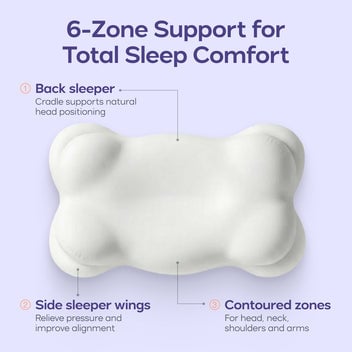
CloudAlign is a contoured pillow with a high side, a low side, six support zones, side-sleeper wings, and space intended for the shoulders and arms.
The product page says its shape supports alignment across side, back, and stomach sleeping positions.
During our review, a single pillow was shown at $49.99 against a $100 comparison price. A two-pillow bundle appeared at $89.
This is a real retail product, not a fabricated tech-support invoice or nonexistent prize. The relevant questions involve claims, comfort, returns, and paid protection.
The marketing makes subjective comfort sound predictable
The sales page promises less neck and shoulder pressure, deeper sleep, improved circulation, no flattening, and chiropractor-approved support.
It also calls CloudAlign the number-one best-selling ergonomic pillow of 2025 and displays very large customer and review totals.
Pillow comfort depends on body size, mattress firmness, shoulder width, sleeping position, temperature, and personal preference.
- The dual-height design offers two loft choices.
- The contoured shape may suit some sleepers.
- Medical-sounding outcomes are not guaranteed.
- Opened returns have conditions and deductions.
- The “lifetime” plan costs an additional $20.
Why the purchase needs more than a comfort promise
Mellow advertises a 30-day risk-free trial. The refund policy does accept some lightly used returns if the pillow remains in like-new condition.
However, a $15 processing fee applies per order, return shipping is deducted, and original packaging is required.
The lifetime protection plan is not included automatically. It is a paid service contract covering one qualifying manufacturing-defect replacement.
Those terms do not make CloudAlign fraudulent. They make the advertised safety net less generous than a casual reader may assume.
How the Mellow CloudAlign Pillow Offer Works
Step 1: Pain and poor sleep create the opening
The page addresses people who wake with neck pain, shoulder pressure, stiffness, tossing, or repeated position changes.
Those problems can make almost any structured pillow seem worth trying, particularly after conventional pillows have flattened or felt too tall.
The page presents CloudAlign as an engineered answer rather than another subjective bedding choice.
That confidence is emotionally effective, but neck pain can come from the mattress, posture, injury, arthritis, nerve problems, or other causes.
Step 2: A technical shape turns preference into a system
CloudAlign’s high and low edges are marketed as SwitchFit technology, while six zones are mapped to the head, neck, shoulders, arms, and sleeping positions.
The design is tangible and may be useful. Naming the geometry does not prove it will align every body correctly.
A broad-shouldered side sleeper may need more loft than a smaller back sleeper. A soft mattress also lets the torso sink further.
The only reliable fit test is sleeping on the pillow while observing comfort, numbness, headaches, and morning stiffness.
Step 3: Authority cues make the outcome feel established
The page says the pillow was designed with chiropractor input and uses phrases such as “trusted by chiropractors” and “chiropractor-approved comfort.”
Those statements do not identify a product-specific randomized trial showing CloudAlign treats a diagnosed neck condition.
A professional endorsement, even when genuine, remains different from evidence that every purchaser will experience relief.
The site also displays media logos and large customer totals, which can make the product seem broadly validated before independent comparison.
Step 4: The discount and countdown encourage immediate buying
A $49.99 selling price appears beside a $100 reference amount, creating a roughly 50% discount impression.
Seasonal banners may add another code, free-shipping threshold, and visible countdown.
Shoppers should verify whether the code actually stacks, which price appears in the cart, and whether shipping raises the final amount.
Mellow’s shipping policy lists $11.99 standard delivery for orders below $100 and free standard shipping at $100 or more.
Comparison prices are useful only when the higher amount reflects a genuine price used for meaningful sales.

Step 5: The 30-day trial includes financial friction
The return period begins on delivery and requires the item to remain clean, undamaged, unstained, and free from visible wear.
Original packaging must be retained. Unapproved returns are not accepted, and an approved label must be used within seven days.
Opened or lightly used products can receive a refund or store credit if they still meet the like-new condition.
The $15 processing fee applies per order, and return shipping is deducted from the final refund or credit.
A real sleep trial therefore carries costs. Keep the packaging away from moisture, pets, odors, and accidental damage.
Step 6: “Lifetime” protection is a separate paid contract
The warranty page advertises “Mellow lasts a lifetime,” but the detailed plan costs $20 for each covered item.
It provides one replacement for a qualifying manufacturing defect while the original buyer owns the registered product.
Registration must occur within 30 days of delivery, with photographs of the item and its original packaging.
The customer must keep that packaging, pay a $15 approved-claim fee, and pay inbound return shipping.
Once a replacement ships, coverage ends for that item. Normal flattening, comfort preference, stains, washing damage, pets, odors, accidents, and misuse are excluded.
What the Pillow Can and Cannot Establish
A contoured pillow can change neck position
Pillow height and shape affect how the head rests relative to the shoulders and spine.
A contour may feel supportive when its dimensions match the sleeper. The same contour may push another person’s neck too far upward or downward.
Dual-height edges offer some flexibility, but they do not provide unlimited adjustment.
Pain relief is personal and medically complicated
Morning discomfort sometimes improves after changing bedding. That personal result does not identify a universal treatment mechanism.
Persistent weakness, tingling, trauma-related pain, fever, severe headache, or pain radiating into an arm warrants professional assessment.
A pillow should not delay care for symptoms suggesting nerve involvement or another underlying condition.
Cooling language should be interpreted narrowly
A breathable or cool-touch cover may initially feel cooler and may release heat better than some fabrics.
Foam can still retain warmth, and room temperature, bedding, body heat, humidity, and pillowcases influence the experience.
No pillow can guarantee an ideal temperature throughout every night for every sleeper.
Shape retention is not permanent rigidity
The page says CloudAlign will not flatten because its materials retain shape after frequent washing.
All soft materials change with use, load, moisture, cleaning, and time. The protection plan itself distinguishes normal softening from qualifying breakdown.
That exclusion is a useful reminder that “will not flatten” should not be read as a literal lifetime performance guarantee.
Red Flags and Questions Before Ordering
The “number one” claim lacks a visible benchmark
CloudAlign is described as the number-one best-selling ergonomic pillow of 2025 and as a leading pillow on TikTok.
A ranking needs a defined market, sales dataset, measured period, eligible competitors, and independent organization.
Without those details, the statement works as promotional positioning rather than a verifiable industry award.
Popularity also cannot determine whether the loft fits an individual neck and mattress.
A bestseller may satisfy many customers while remaining uncomfortable for a substantial minority.
Large review totals need provenance
Different parts of the store display large counts for happy sleepers, customers, and product reviews.
Those totals may reflect different products, channels, imported platforms, or historical periods.
Before treating a number as CloudAlign-specific, check the label immediately beside it and the review platform’s verification method.
Read critical and moderate reviews, not only the first five-star examples shown near the purchase button.
Useful complaints mention body size, sleep position, mattress type, heat, odor, dimensions, and return handling.
“Risk-free” omits unavoidable costs
The 30-day trial can still leave a buyer paying the $15 processing fee and deducted return postage.
Original outbound shipping may also affect the economics, depending on the order and resolution.
A customer who paid $49.99 may recover considerably less after those deductions.
Ask support for a sample calculation before purchasing if the ability to return is decisive.
The wording “risk-free” should be understood as conditional eligibility, not guaranteed recovery of every expense.
Promotional clocks and codes may distort comparison
The store uses event banners, percentage offers, and a countdown that suggests the sale will soon end.
Seasonal pricing is common. It should not pressure a shopper into buying before measuring their current pillow.
Record the price in the cart after entering the code, because a banner and product card may describe different discounts.
Compare complete totals across sellers, including delivery, pillowcase, protection, and potential return costs.
How to Test CloudAlign During the Return Window
Measure the pillow before sleeping on it
Photograph the pillow beside a ruler after it expands and settles according to the instructions.
Record high-side and low-side loft without compressing the foam.
Those measurements help explain fit and document any serious height loss claimed later.
Also photograph seams, zipper, cover, labels, and packaging before normal use.
Change only one sleep variable
Keep the same mattress and normal bedtime routine while evaluating the new pillow.
Changing mattress toppers, medications, exercise, and bedding simultaneously makes the result harder to interpret.
Use brief notes for sleep position, awakenings, temperature, morning stiffness, headache, and arm symptoms.
A week of consistent observations is more informative than judging one unusually good or bad night.
Use both heights thoughtfully
Try the lower and higher edges on separate nights rather than flipping repeatedly during one restless hour.
Side sleepers generally need enough height to fill the shoulder-to-neck gap without bending the head upward.
Back sleepers often require less loft, while stomach sleepers may need very low support to avoid rotation.
These are general principles, not personalized medical instructions.
Keep the product returnable
Use a clean protective pillowcase and avoid food, pets, cosmetics, moisture, smoke, and fragranced sprays.
Do not discard the compression bag, sleeve, box, inserts, labels, or accessories.
If the fit is clearly wrong, begin the portal request instead of waiting until day 29.
Ask how the pillow must be repacked because compressed bedding may not fit its original packaging easily.
Evaluate the add-on separately
The $20 protection plan should be compared with the pillow’s expected lifespan and replacement cost.
One approved claim still requires a $15 fee and inbound shipping, so the eventual recovery is not free.
Coverage ends after the single replacement, and normal comfort changes do not qualify.
For some buyers, reserving that money toward a future pillow may be simpler than maintaining registration and packaging for years.
Others may value protection against a documented seam, zipper, or severe foam defect.
The correct choice depends on the written coverage, not the emotional force of the word “lifetime.”
Save the protection-plan receipt separately because the ordinary pillow invoice may not prove that optional coverage was purchased.
Check whether replacement shipping outside the contiguous United States is excluded before relying on the plan.
Company, Address, and Fulfillment Checks
Mellow LLC is named on the storefront
The website footer identifies Mellow LLC, and the protection plan names the same entity as administrator and obligor.
That consistency is stronger than a storefront with no legal identity. Buyers should still compare the receipt and card statement.
If another descriptor appears, ask customer support to confirm its relationship with Mellow in writing.
The policy identifies Delaware but not a public return address
The protection plan describes Mellow LLC as a Delaware company.
The return policy directs customers through an online portal instead of publishing a universal destination suitable for unsolicited parcels.
That is common in distributed fulfillment. It means customers must secure authorization before sending anything.
Support is primarily email and form based
The site provides support@mellowsleep.com and says contact-form messages receive replies within 24 to 48 hours.
This investigation did not submit private details or test response speed. Keep complete written copies of every request.
Start early because inspection can occur after transit, and refunds may take up to ten business days after receipt.

Fulfillment terms affect the practical cost
Mellow says orders may arrive from different facilities and lists several possible carriers.
Returned-to-sender parcels are refunded minus original shipping once received, while reshipment can require another fee.
For damage, customers should report within the stated timeframe and provide packaging plus product photographs.
What to Do if Your Mellow CloudAlign Order Has a Problem
- Keep every piece of packaging. The return policy and protection plan both make original packaging important. Store it clean and dry throughout the evaluation period.
- Record the delivery date. The 30-day return window begins when the parcel arrives, while an approved label must be used within seven days.
- Test carefully. Use a clean pillowcase, prevent stains and odors, and stop if pain or neurological symptoms become worse.
- Open the return through the portal. Obtain approval, confirm deductions, and ask whether the resolution will be money or store credit before shipping.
- Register paid protection promptly. If you purchased the $20 plan, complete registration within 30 days and retain confirmation plus required photographs.
- Separate preference from defect. Firmness and loft dissatisfaction are generally not manufacturing defects. Describe measurable seam, zipper, fabric, or foam failures accurately.
- Escalate unresolved billing precisely. Give the card issuer the order total, advertised terms, deduction details, support timeline, and tracking instead of making unsupported allegations.
- Inspect suspicious ad redirects. Malwarebytes can check unwanted downloads, while AdGuard can reduce intrusive marketing overlays and risky advertising destinations.
Is Your Device Infected? Run a Free Malware Scan
Slow performance, constant pop-ups, or strange behavior? These are classic signs of a malware infection. The fastest way to find out is to scan your device with Malwarebytes Free — one of the most trusted malware removal tools available.
The free version detects and removes the most common threats, including:
- Adware — the cause of those annoying pop-ups
- Browser hijackers — unwanted redirects and changed homepages
- Trojans and spyware — hidden programs stealing your data
- Potentially unwanted programs (PUPs) — software you never asked for
👉 Select your device below — Windows, Mac, or Android — then follow the simple steps to download Malwarebytes, scan your system, and remove any threats it finds. The scan usually takes 5 to 20 minutes.
Run a Malware Scan with Malwarebytes for Windows
Malwarebytes is one of the most popular and trusted anti-malware tools for Windows — and it’s completely free for removing infections. It catches threats that many antivirus programs miss, including adware, browser hijackers, and trojans. Follow the steps below to scan and clean your PC in just a few minutes.
Download Malwarebytes
Click the button below to download the latest version of Malwarebytes for Windows from the official source. The free version is all you need — it will scan your computer and remove adware, browser hijackers, and other malicious software at no cost.
Download MalwarebytesOfficial installer for Windows 11 and 10. Your download starts right away.Want real-time protection? See Malwarebytes Premium Malwarebytes Free for WindowsScans and removes malware at no cost
-
Install Malwarebytes
When the download finishes, open your Downloads folder and double-click the MBSetup file. If Windows shows a User Account Control pop-up, click “Yes” to allow the installation.

Follow the On-Screen Prompts to Install Malwarebytes
The setup wizard will walk you through a few quick screens:
-
Choose where you’re installing the program — “Personal Computer” or “Work Computer” — then click Next.

-
Malwarebytes will now install on your device. This usually takes under a minute.

-
When installation is complete, the “Welcome to Malwarebytes” screen will open automatically.

-
On the final screen, click Open Malwarebytes to launch the program.

-
Enable “Scan for Rootkits”
Before scanning, turn on rootkit detection so Malwarebytes can find even the most hidden threats. Click the Settings gear icon on the left side of the screen.

In the settings menu, find “Scan for rootkits” and click the toggle so it turns blue.

Done? Click “Dashboard” in the left pane to return to the main screen.
Start the Scan
Click the blue Scan button. Malwarebytes will automatically update its virus database and start checking your computer for malware.

-
Wait for the Scan to Finish
The scan checks your entire system for browser hijackers and other malicious programs, so it can take 5 to 20 minutes depending on your computer. Feel free to do something else — just check back occasionally to see the progress.

-
Quarantine the Detected Threats
When the scan is done, you’ll see a list of everything Malwarebytes found — malware, adware, and potentially unwanted programs. Click the “Quarantine” button to remove all of them at once.

Malwarebytes will now remove the malicious files and registry entries and move them safely into quarantine.

-
Restart Your Computer
Some threats can only be fully removed after a reboot. If Malwarebytes asks you to restart, click Yes. Once you’re logged back in, Malwarebytes has finished removing the threats it found.

That’s it — your Windows PC is now clean of trojans, adware, and other malware, and should be back to running smoothly.
If you are still having problems with your computer after completing these instructions, then please follow one of the steps:
- Run a computer scan with ESET Online Scanner
- Ask for help in our Windows Malware Removal Help & Support forum.
Run a Malware Scan with Malwarebytes for Mac
Malwarebytes for Mac is a free on-demand scanner that removes the malware other security software tends to miss — adware, browser hijackers, and unwanted programs included. Cleaning an infected Mac with Malwarebytes has always been completely free, and it’s our go-to recommendation. Follow the steps below to scan and clean your Mac in just a few minutes.
-
Download Malwarebytes for Mac
Click the button below to download the latest version of Malwarebytes for Mac.
Download MalwarebytesOfficial installer for macOS. Your download starts right away.Want real-time protection? See Malwarebytes PremiumMalwarebytes Free for MacScans and removes malware at no cost -
Open the Malwarebytes setup file
When the download finishes, open your Downloads folder and double-click the setup file to begin the installation.

-
Follow the On-Screen Prompts to Install Malwarebytes
The Malwarebytes for Mac Installer will guide you through a few quick screens. Click “Continue” and keep following the prompts until the installation completes.



When the installation is complete, Malwarebytes opens to the Welcome to Malwarebytes screen. Click “Get started“.
-
Select “Personal Computer” or “Work Computer”
Malwarebytes will ask what type of computer you’re installing it on. Click either Personal Computer or Work Computer, whichever applies.

-
Start the Scan
Click the “Scan” button. Malwarebytes will automatically update its detection database and begin checking your Mac for malware.

-
Wait for the Scan to Finish
Malwarebytes will scan your Mac for adware, browser hijackers, and other malicious programs. This can take a few minutes, so feel free to do something else — just check back occasionally to see the progress.

-
Quarantine the Detected Threats
When the scan is done, you’ll see a list of everything Malwarebytes found. Click the “Quarantine” button to remove all the threats at once.

-
Restart Your Mac
Malwarebytes will now remove all the malicious files it found. Some threats can only be fully removed after a reboot — if Malwarebytes asks you to restart, allow it. Once you’re logged back in, your Mac is clean.

That’s it — your Mac is now free of adware, rogue browser extensions, and other potentially harmful software.
If you are still experiencing problems while trying to remove a malicious program from your computer, please ask for help in our Mac Malware Removal Help & Support forum.
Run a Malware Scan with Malwarebytes for Android
Malwarebytes for Android automatically detects and removes dangerous threats like malware and ransomware so you don’t have to worry about your most-used device being compromised. Aggressive detection of adware and potentially unwanted programs keeps your Android phone or tablet running smooth.
-
Download Malwarebytes for Android.
You can download Malwarebytes for Android by clicking the link below.
Get Malwarebytes for AndroidOpens Google Play in a new tab.Want real-time protection? See Malwarebytes Premium for AndroidMalwarebytes for AndroidScans your phone and removes malware at no cost -
Install Malwarebytes for Android on your phone.
In the Google Play Store, tap “Install” to install Malwarebytes for Android on your device.

When the installation process has finished, tap “Open” to begin using Malwarebytes for Android. You can also open Malwarebytes by tapping on its icon in your phone menu or home screen.

-
Follow the on-screen prompts to complete the setup process
When Malwarebytes will open, you will see the Malwarebytes Setup Wizard which will guide you through a series of permissions and other setup options.
This is the first of two screens that explain the difference between the Premium and Free versions. Swipe this screen to continue.
Tap on “Got it” to proceed to the next step.
Malwarebytes for Android will now ask for a set of permissions that are required to scan your device and protect it from malware. Tap on “Give permission” to continue.
Tap on “Allow” to permit Malwarebytes to access the files on your phone.
-
Update database and run a scan with Malwarebytes for Android
You will now be prompted to update the Malwarebytes database and run a full system scan.

Click on “Update database” to update the Malwarebytes for Android definitions to the latest version, then click on “Run full scan” to perform a system scan.

-
Wait for the Malwarebytes scan to complete.
Malwarebytes will now start scanning your phone for adware and other malicious apps. This process can take a few minutes, so we suggest you do something else and periodically check on the status of the scan to see when it is finished.

-
Click on “Remove Selected”.
When the scan has been completed, you will be presented with a screen showing the malware infections that Malwarebytes for Android has detected. To remove the malicious apps that Malwarebytes has found, tap on the “Remove Selected” button.

-
Restart your phone.
Malwarebytes for Android will now remove all the malicious apps that it has found. To complete the malware removal process, Malwarebytes may ask you to restart your device.
That’s it — your Android phone is now clean — no more malicious apps, adware, or browser redirects.
If you are still having problems with your phone after completing these instructions, then please follow one of the steps:
- Restore your phone to factory settings by going to Settings > General management > Reset > Factory data reset.
- Ask for help in our Mobile Malware Removal Help & Support forum.
Stay Protected: Block Ads and Malicious Sites
Now that your device is clean, keep it that way. Most infections start with a malicious ad or a fake download button — so blocking them at the source is your best defense.
We recommend AdGuard, which blocks malicious ads, phishing pages, and dangerous redirects before they can reach you.
👉 Download AdGuard and browse safely
Frequently Asked Questions
Is the Mellow CloudAlign Pillow a scam?
No evidence reviewed establishes a nonexistent product scheme. It is a real pillow with aggressive claims and return costs that buyers should understand.
Is the CloudAlign pillow guaranteed to stop neck pain?
No. Shape and loft may help some sleepers, but the page cannot guarantee comfort or treat every cause of neck pain.
Can an opened CloudAlign pillow be returned?
The policy allows opened or lightly used items if they remain like new, although refunds may include processing and shipping deductions.
Is the lifetime warranty free?
No. The displayed lifetime protection plan costs $20 per item and covers one qualifying defect replacement under detailed conditions.
What costs apply to a return?
The policy lists a $15 return and processing fee per order, plus return shipping deducted from the refund or store credit.
Does Mellow enroll buyers in recurring deliveries?
No automatic pillow subscription was established in this review. Check the cart for optional protection, shipping insurance, bundles, and other add-ons.
The Bottom Line
The Mellow CloudAlign Pillow is a genuine contoured bedding product, but no design can promise comfort, alignment, or pain relief for every body.
Budget for return deductions, preserve the packaging, and recognize that lifetime protection is a paid one-replacement contract with important exclusions.

Join the discussion
0 commentsShare your experience or ask a question about this article.
Discussion
Start the conversation
Have a question or something useful to share? Add the first comment.