

A folding drone with three cameras, obstacle avoidance, and 8K video for less than dinner sounds like the perfect first step into aerial photography.
Lanus advertisements made that possibility look immediate, using dramatic flight footage and beginner-friendly language to turn curiosity into a hurried purchase.
Overview
What shoppers were shown
Social advertisements promoted a product named Lanus Triple Camera 8K Drone 2024 as an advanced aircraft suitable for beginners and experienced pilots.
The promotion claimed three lenses, long battery life, obstacle avoidance, simple controls, app support, and a five-year replacement promise.
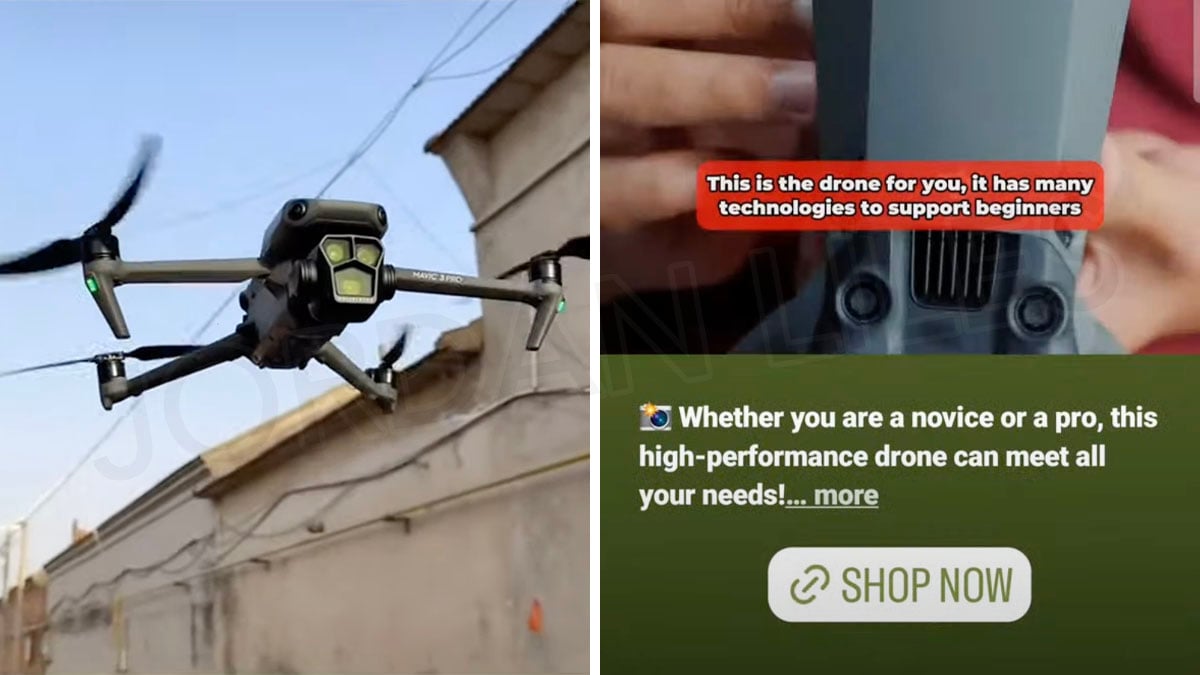
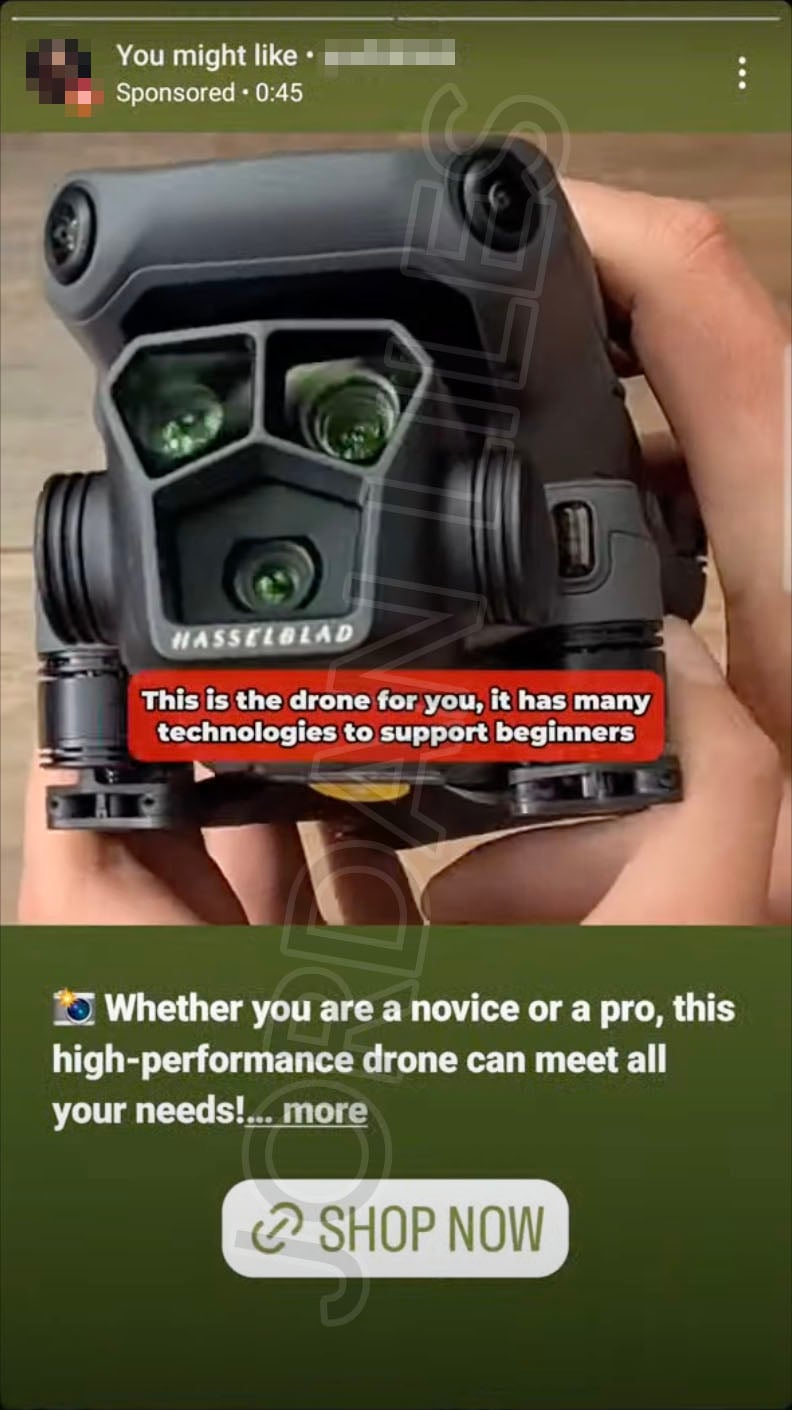
Footage prominently displayed a premium DJI-style drone, creating expectations far beyond the price shown on the linked store.
That visual comparison mattered because most viewers judge an unfamiliar drone by the machine flying in the advertisement.
What the sales pages offered
The campaign mentioned fly-cam.lanusa.us while clicks reportedly led to fly-cam.aquatus.store, another storefront using nearly identical copy.
Both pages framed $69.99 as a 55% discount from $179.99, encouraging shoppers to treat the price as a temporary bargain.
Descriptions claimed next-level imaging and different focal lengths, language suggesting sophisticated camera hardware.
The same wording did not establish sensor size, genuine recording resolution, stabilization quality, transmission range, or certified flight time.
What comparison shopping revealed
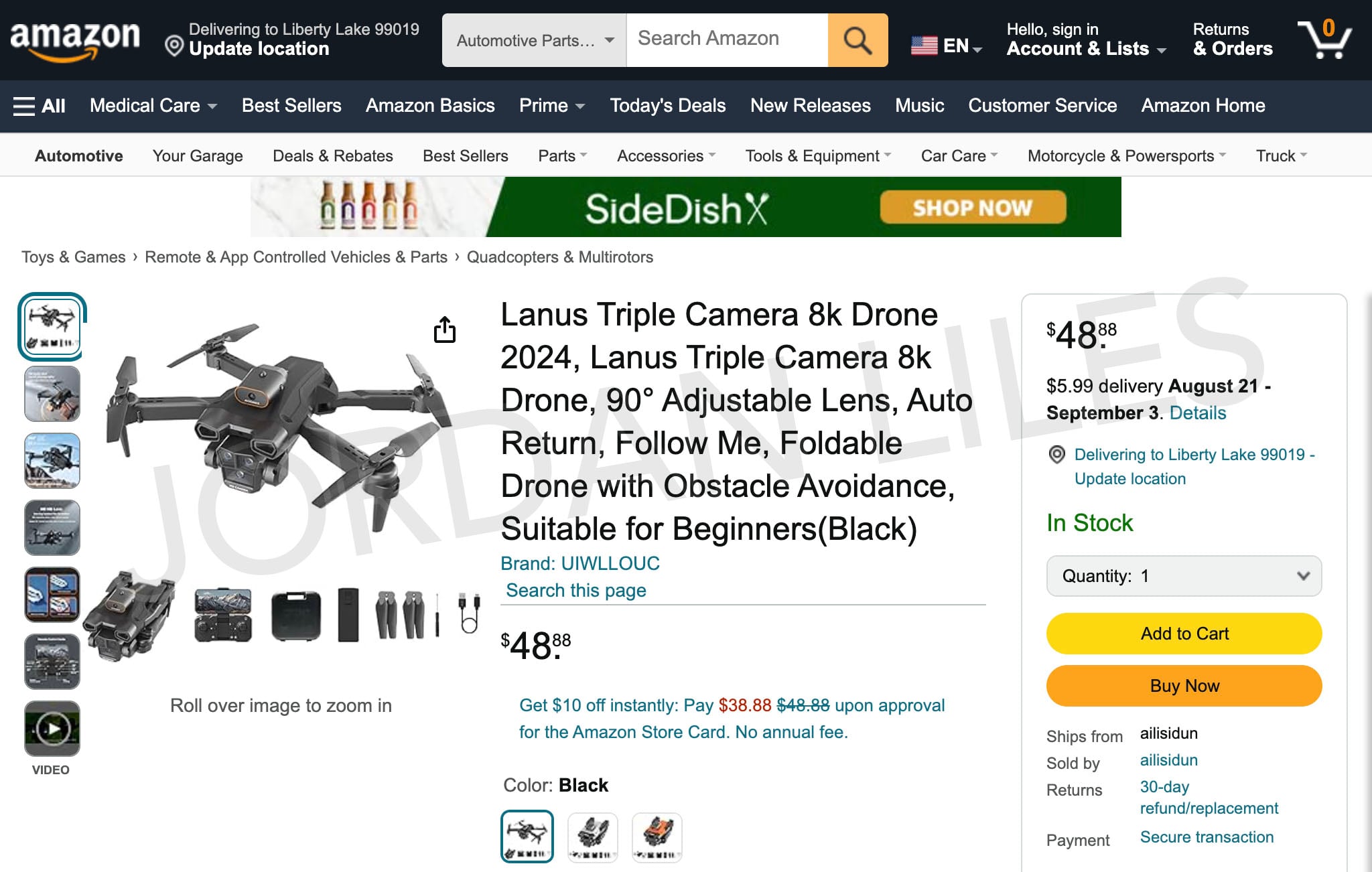
A marketplace listing used the Lanus name for a far cheaper H12-style miniature drone sold under an obscure brand.
Visually similar H12 products appeared through wholesale and discount marketplaces at prices well below the advertised retail amount.
The main red flags are:
- Premium drone footage appears to represent a cheaper, unrelated aircraft.
- “8K” is emphasized without meaningful sensor, bitrate, or sample-file evidence.
- The advertised domain and destination domain do not consistently match.
- Large savings are calculated against an unverified reference price.
- Company information points toward several names, countries, and contacts.
- Near-identical drones appear under unrelated seller and brand labels.
- Guarantee language sounds stronger than the practical return pathway.
The Product in the Video Is the Promise
Drone buyers cannot inspect motor power, gimbal movement, camera sensors, batteries, or controller range through a social advertisement.
They naturally use flight footage as a substitute for hands-on testing.
When that footage shows a premium model, it communicates stability, image quality, speed, and obstacle sensing without stating each claim directly.
A tiny budget quadcopter may still fly, record basic video, and entertain a beginner.
That does not make it equivalent to the aircraft shown moving smoothly through professional footage.
The problem is not merely cosmetic. Weight, radio hardware, navigation systems, batteries, cameras, and stabilization determine how a drone behaves outdoors.
A lightweight toy can drift in wind, lose connection, produce shaky footage, and have limited usable range.
Software labels cannot create missing mechanical or optical hardware.
If an advertisement depends on another manufacturer’s aircraft to demonstrate performance, the buyer cannot evaluate the item actually arriving.
How the Lanus Triple Camera 8K Drone Scam Works
Step 1: Dramatic footage establishes premium expectations
The advertisement opens with smooth aerial movement or close views of an expensive folding drone.
Brand markings may be partially visible, blurred, or ignored while the narration praises a different product name.
Fast editing prevents viewers from comparing the featured aircraft with images later shown on the order page.
Step 2: Beginner language lowers technical caution
The script promises simple controls and technologies designed to support novice pilots.
That framing reassures shoppers who cannot independently assess gimbals, GPS modes, sensor placement, or radio specifications.
Instead of providing test data, the promotion treats inexperience as a reason to trust the claim.
Step 3: Feature labels create an advanced specification sheet
Terms such as 8K, triple camera, obstacle avoidance, optical flow, and auto return sound impressive when arranged together.
These labels can describe very different implementations, ranging from useful systems to decorative lenses and software interpolation.
Without raw samples and exact components, shoppers cannot know what any individual badge delivers.
Step 4: A steep discount makes comparison feel unnecessary
The storefront crosses out $179.99 and offers the drone for $69.99, presenting a claimed 55% reduction.
A countdown or limited-stock message may imply that careful research will cause the opportunity to disappear.
Meanwhile, similar H12-style drones can appear elsewhere at much lower prices under assorted names.
Step 5: The store shifts domains and business identities
An ad that names one web address may deliver the shopper to another domain carrying the same product template.
This separation complicates reputation searches because complaints against one address may not appear beside the current storefront.
Multiple company names and geographic references can further obscure who accepts responsibility for the sale.
Step 6: A cheaper drone arrives, if fulfillment succeeds
Customers may receive a small folding quadcopter that resembles catalog images but cannot reproduce the professional flight demonstration.
The package can include basic accessories and still fail the reasonable expectation created before checkout.
At that point, the dispute becomes a product-quality argument rather than the obvious non-delivery many buyers expected to recognize.
Step 7: Returns become expensive or impractical
Support may require photographs, videos, serial information, repeated troubleshooting, or international return postage.
Shipping a low-value drone abroad can cost enough that the customer abandons the refund attempt.
A generous warranty headline means little when the return address, deadline, and reimbursement procedure remain difficult.
Understanding the “8K” Camera Claim
Resolution labels describe pixel dimensions, but they do not reveal lens quality, sensor size, compression, frame rate, dynamic range, or stabilization.
A tiny sensor can output a large file containing little useful detail.
Some inexpensive cameras enlarge lower-resolution footage through interpolation, creating more pixels without capturing more scene information.
Sharp promotional stills may come from another camera entirely and cannot prove video performance.
Ask for downloadable original clips recorded by the exact retail model, not a streaming montage altered by social compression.
Inspect metadata, frame size, bitrate, movement, low-light behavior, and whether the horizon remains stable.
A genuine mechanical gimbal visibly moves to counter the aircraft’s motion.
Electronic stabilization can help, but it needs sufficient sensor data and processing headroom.
Decorative circles on a drone shell may resemble extra lenses while containing no image sensor.
Count working camera feeds inside the controller application rather than accepting the phrase “triple camera.”
Price Comparisons Expose the Rebranding Pattern
A marketplace listing documented a Lanus-labeled drone around $48.88, while comparable H12 models appeared across other marketplaces for less.
Prices change constantly, but the broad gap shows why the crossed-out retail figure deserves skepticism.
Generic electronics commonly move from factories through exporters, catalog suppliers, marketplace sellers, and direct-response storefronts.
Each layer can apply a new logo, product story, discount, and claimed reference value.
Rebranding is not automatically fraudulent. Many legitimate retailers sell private-label goods.
Deception begins when marketing uses a superior product’s footage, invents technical performance, or hides material return conditions.
Reverse-image searches can reveal identical shells sold under several unrelated names.
Search the controller model, battery code, application name, and phrases copied from the specification list.
Compare what remains consistent across listings. Those repeated details are more useful than a temporary brand name.
A seller claiming unique innovation should explain what it designed differently from the catalog version.
Battery Life, Range, and Obstacle Avoidance
A promised sixty-minute battery should specify whether that figure represents one battery, several batteries, ideal hovering, or total package time.
Small drone batteries usually lose endurance through wind, recording, rapid maneuvers, cold weather, and aging.
Range claims depend on radio power, interference, antennas, regulatory limits, and whether video transmission remains usable.
A controller connection advertised across a long distance may fail much sooner in a crowded neighborhood.
Obstacle avoidance can mean sophisticated multidirectional sensing or a basic forward module that reacts only under limited conditions.
Even premium systems do not make a drone crash-proof.
An auto-return label should explain whether the model uses GPS coordinates or merely attempts a preset movement.
Without GPS, “return” functions on cheap drones may not navigate to the original launch point.
Beginners should test any aircraft in a wide, legal, obstruction-free area before trusting automated features.
Safety Risks Hidden by the Bargain
A drone is not merely a camera toy. Spinning propellers, lithium batteries, radio links, and falling weight create genuine hazards.
Unknown battery cells or poorly matched chargers can overheat, swell, leak, or ignite during charging and storage.
Buyers should stop using any battery that becomes unusually hot, develops a sweet chemical odor, changes shape, or shows damaged wiring.
Charging should occur on a nonflammable surface under observation, using equipment supplied or specifically approved for the exact battery.
Propeller guards help during early practice but cannot protect every person, animal, window, or fragile object.
A lightweight model can still cut skin or damage eyes when control is lost indoors.
Weak radio connections introduce another danger because the aircraft may drift instead of responding predictably.
Test fail-safe behavior at very short distance before flying near any boundary.
Do not assume an obstacle sensor recognizes thin wires, reflective glass, dark branches, water, or rapidly approaching surfaces.
Camera applications from unknown publishers can request location, storage, microphone, network, and photo permissions beyond reasonable operation.
Install only from an official app marketplace, confirm the named developer, and reject permissions unrelated to piloting or recording.
A product lacking a traceable manufacturer may also lack dependable firmware updates and vulnerability reporting.
Safety documentation should identify battery specifications, charging limits, replacement parts, radio compliance, and responsible importer.
If those basics are missing, the low price does not compensate for the uncertainty.
Return the device rather than experimenting with damaged batteries, unstable flight, or software downloaded from an unverified link.
Children require close adult supervision because excitement can outrun judgment around propellers, roads, power lines, and nearby property.
Indoor testing should begin without propellers whenever the manual permits calibration that way.
Outdoors, keep the aircraft visible and land immediately when controls become inconsistent.
Cheap equipment does not reduce the operator’s responsibility for injury, privacy, or restricted airspace.
A seller advertising beginners should provide unusually clear safety instructions, not merely exciting footage and a purchase button.
Company, Address, and Fulfillment Checks
The domain trail does not stay simple
The advertisement referenced lanusa.us, while reported clicks reached an aquatus.store subdomain carrying similar sales material.
Such routing makes it harder to connect the ad, merchant, policy, and future support request.
Save every address in the chain, including redirects that briefly appear.
Names and locations require reconciliation
Historical registration records pointed toward Vietnam, while an about page named a Chinese trading company and a different managing director.
Those details may be incomplete or outdated, so they should not be treated as proven identities.
They do show that buyers need a clearer contractual seller before sending payment.
A warehouse is not necessarily the merchant
The parcel’s return label may identify a logistics center that stores and forwards products for numerous online stores.
Warehouse staff usually cannot resolve advertising claims, warranty disputes, or unauthorized charges.
Confirm the legal seller and approved return destination in writing before mailing anything.
Support should answer technical questions
Ask for the exact sensor resolution, gimbal type, battery capacity, GPS capability, controller range, replacement terms, and local return location.
A credible specialist should answer directly with model-specific documentation.
Replies consisting of discount codes or vague reassurance do not resolve the central discrepancies.
How to Shop for a Beginner Drone Safely
Buy from a retailer with a tested return process, established customer service, and a product listing tied to one identifiable model.
Read independent reviews that include raw flight footage, controller behavior, battery measurements, and crash recovery.
Check whether spare propellers, batteries, chargers, and replacement arms remain available after the first sale.
A cheap drone becomes disposable when one proprietary part cannot be replaced.
Confirm local registration, operating, and airspace requirements before flying outdoors.
Rules can depend on aircraft weight, location, purpose, and national aviation authority.
Choose realistic priorities. A stable 1080p camera from a traceable manufacturer may outperform a dubious 8K label.
Practice close to the ground, avoid people and roads, and never trust untested return functions near obstacles.
What to Do if You Have Fallen Victim to This Scam
- Photograph the evidence. Record the parcel, shipping label, retail box, drone, controller, accessories, model codes, and every screen in the advertisement.
- Compare delivered and promised features. Test only in a safe setting, then document missing cameras, false resolution, absent GPS, or severely shorter endurance.
- Demand return instructions. Ask the merchant to confirm the authorized address, deadline, tracking requirement, and responsibility for postage.
- Avoid mailing blindly. A fulfillment address on the package may reject returns or fail to connect the parcel with your order.
- Escalate through payment protection. Give the bank a concise bait-and-switch timeline and attach the clearest advertisement-to-product comparison.
- Watch for follow-up billing. Check statements for added warranties, accessories, memberships, or repeated charges not knowingly selected.
- Clean up digital exposure. Run Malwarebytes if the controller application came from an unofficial download or requested unusual permissions.
- Filter hostile promotions. AdGuard may suppress known scam advertisements and redirect chains, though careful seller verification remains essential.
- Report the campaign. Notify the advertising platform, consumer-protection agency, and any brand whose premium footage was misused.
Is Your Device Infected? Run a Free Malware Scan
Slow performance, constant pop-ups, or strange behavior? These are classic signs of a malware infection. The fastest way to find out is to scan your device with Malwarebytes Free — one of the most trusted malware removal tools available.
The free version detects and removes the most common threats, including:
- Adware — the cause of those annoying pop-ups
- Browser hijackers — unwanted redirects and changed homepages
- Trojans and spyware — hidden programs stealing your data
- Potentially unwanted programs (PUPs) — software you never asked for
👉 Select your device below — Windows, Mac, or Android — then follow the simple steps to download Malwarebytes, scan your system, and remove any threats it finds. The scan usually takes 5 to 20 minutes.
Run a Malware Scan with Malwarebytes for Windows
Malwarebytes is one of the most popular and trusted anti-malware tools for Windows — and it’s completely free for removing infections. It catches threats that many antivirus programs miss, including adware, browser hijackers, and trojans. Follow the steps below to scan and clean your PC in just a few minutes.
Download Malwarebytes
Click the button below to download the latest version of Malwarebytes for Windows from the official source. The free version is all you need — it will scan your computer and remove adware, browser hijackers, and other malicious software at no cost.
Download MalwarebytesOfficial installer for Windows 11 and 10. Your download starts right away.Want real-time protection? See Malwarebytes Premium Malwarebytes Free for WindowsScans and removes malware at no cost
-
Install Malwarebytes
When the download finishes, open your Downloads folder and double-click the MBSetup file. If Windows shows a User Account Control pop-up, click “Yes” to allow the installation.

Follow the On-Screen Prompts to Install Malwarebytes
The setup wizard will walk you through a few quick screens:
-
Choose where you’re installing the program — “Personal Computer” or “Work Computer” — then click Next.

-
Malwarebytes will now install on your device. This usually takes under a minute.

-
When installation is complete, the “Welcome to Malwarebytes” screen will open automatically.

-
On the final screen, click Open Malwarebytes to launch the program.

-
Enable “Scan for Rootkits”
Before scanning, turn on rootkit detection so Malwarebytes can find even the most hidden threats. Click the Settings gear icon on the left side of the screen.

In the settings menu, find “Scan for rootkits” and click the toggle so it turns blue.

Done? Click “Dashboard” in the left pane to return to the main screen.
Start the Scan
Click the blue Scan button. Malwarebytes will automatically update its virus database and start checking your computer for malware.

-
Wait for the Scan to Finish
The scan checks your entire system for browser hijackers and other malicious programs, so it can take 5 to 20 minutes depending on your computer. Feel free to do something else — just check back occasionally to see the progress.

-
Quarantine the Detected Threats
When the scan is done, you’ll see a list of everything Malwarebytes found — malware, adware, and potentially unwanted programs. Click the “Quarantine” button to remove all of them at once.

Malwarebytes will now remove the malicious files and registry entries and move them safely into quarantine.

-
Restart Your Computer
Some threats can only be fully removed after a reboot. If Malwarebytes asks you to restart, click Yes. Once you’re logged back in, Malwarebytes has finished removing the threats it found.

That’s it — your Windows PC is now clean of trojans, adware, and other malware, and should be back to running smoothly.
If you are still having problems with your computer after completing these instructions, then please follow one of the steps:
- Run a computer scan with ESET Online Scanner
- Ask for help in our Windows Malware Removal Help & Support forum.
Run a Malware Scan with Malwarebytes for Mac
Malwarebytes for Mac is a free on-demand scanner that removes the malware other security software tends to miss — adware, browser hijackers, and unwanted programs included. Cleaning an infected Mac with Malwarebytes has always been completely free, and it’s our go-to recommendation. Follow the steps below to scan and clean your Mac in just a few minutes.
-
Download Malwarebytes for Mac
Click the button below to download the latest version of Malwarebytes for Mac.
Download MalwarebytesOfficial installer for macOS. Your download starts right away.Want real-time protection? See Malwarebytes PremiumMalwarebytes Free for MacScans and removes malware at no cost -
Open the Malwarebytes setup file
When the download finishes, open your Downloads folder and double-click the setup file to begin the installation.

-
Follow the On-Screen Prompts to Install Malwarebytes
The Malwarebytes for Mac Installer will guide you through a few quick screens. Click “Continue” and keep following the prompts until the installation completes.



When the installation is complete, Malwarebytes opens to the Welcome to Malwarebytes screen. Click “Get started“.
-
Select “Personal Computer” or “Work Computer”
Malwarebytes will ask what type of computer you’re installing it on. Click either Personal Computer or Work Computer, whichever applies.

-
Start the Scan
Click the “Scan” button. Malwarebytes will automatically update its detection database and begin checking your Mac for malware.

-
Wait for the Scan to Finish
Malwarebytes will scan your Mac for adware, browser hijackers, and other malicious programs. This can take a few minutes, so feel free to do something else — just check back occasionally to see the progress.

-
Quarantine the Detected Threats
When the scan is done, you’ll see a list of everything Malwarebytes found. Click the “Quarantine” button to remove all the threats at once.

-
Restart Your Mac
Malwarebytes will now remove all the malicious files it found. Some threats can only be fully removed after a reboot — if Malwarebytes asks you to restart, allow it. Once you’re logged back in, your Mac is clean.

That’s it — your Mac is now free of adware, rogue browser extensions, and other potentially harmful software.
If you are still experiencing problems while trying to remove a malicious program from your computer, please ask for help in our Mac Malware Removal Help & Support forum.
Run a Malware Scan with Malwarebytes for Android
Malwarebytes for Android automatically detects and removes dangerous threats like malware and ransomware so you don’t have to worry about your most-used device being compromised. Aggressive detection of adware and potentially unwanted programs keeps your Android phone or tablet running smooth.
-
Download Malwarebytes for Android.
You can download Malwarebytes for Android by clicking the link below.
Get Malwarebytes for AndroidOpens Google Play in a new tab.Want real-time protection? See Malwarebytes Premium for AndroidMalwarebytes for AndroidScans your phone and removes malware at no cost -
Install Malwarebytes for Android on your phone.
In the Google Play Store, tap “Install” to install Malwarebytes for Android on your device.

When the installation process has finished, tap “Open” to begin using Malwarebytes for Android. You can also open Malwarebytes by tapping on its icon in your phone menu or home screen.

-
Follow the on-screen prompts to complete the setup process
When Malwarebytes will open, you will see the Malwarebytes Setup Wizard which will guide you through a series of permissions and other setup options.
This is the first of two screens that explain the difference between the Premium and Free versions. Swipe this screen to continue.
Tap on “Got it” to proceed to the next step.
Malwarebytes for Android will now ask for a set of permissions that are required to scan your device and protect it from malware. Tap on “Give permission” to continue.
Tap on “Allow” to permit Malwarebytes to access the files on your phone.
-
Update database and run a scan with Malwarebytes for Android
You will now be prompted to update the Malwarebytes database and run a full system scan.

Click on “Update database” to update the Malwarebytes for Android definitions to the latest version, then click on “Run full scan” to perform a system scan.

-
Wait for the Malwarebytes scan to complete.
Malwarebytes will now start scanning your phone for adware and other malicious apps. This process can take a few minutes, so we suggest you do something else and periodically check on the status of the scan to see when it is finished.

-
Click on “Remove Selected”.
When the scan has been completed, you will be presented with a screen showing the malware infections that Malwarebytes for Android has detected. To remove the malicious apps that Malwarebytes has found, tap on the “Remove Selected” button.

-
Restart your phone.
Malwarebytes for Android will now remove all the malicious apps that it has found. To complete the malware removal process, Malwarebytes may ask you to restart your device.
That’s it — your Android phone is now clean — no more malicious apps, adware, or browser redirects.
If you are still having problems with your phone after completing these instructions, then please follow one of the steps:
- Restore your phone to factory settings by going to Settings > General management > Reset > Factory data reset.
- Ask for help in our Mobile Malware Removal Help & Support forum.
Stay Protected: Block Ads and Malicious Sites
Now that your device is clean, keep it that way. Most infections start with a malicious ad or a fake download button — so blocking them at the source is your best defense.
We recommend AdGuard, which blocks malicious ads, phishing pages, and dangerous redirects before they can reach you.
👉 Download AdGuard and browse safely
Frequently Asked Questions
Is the Lanus Triple Camera 8K Drone a real item?
A physical low-cost drone may arrive. The concern is that its identity and capabilities differ materially from the premium aircraft shown in advertising.
Does the drone really record 8K video?
The label alone cannot prove native 8K capture. Buyers need original files, sensor specifications, frame rates, bitrates, and independent tests from the exact model.
Why did the advertisement show a DJI drone?
Premium footage creates expectations of smooth flight and professional imaging.
Using it for an unrelated budget product is a powerful bait-and-switch signal.
Is $69.99 a genuine 55% discount?
That percentage depends on the crossed-out $179.99 reference price being a real, established selling price.
Cheaper comparable listings make the claimed bargain questionable.
Can a five-year warranty be trusted?
Only when an identifiable company, clear exclusions, reachable service, and a workable return location support it.
A headline cannot enforce itself.
What if my drone looks different from the advertisement?
Stop using it if safety is uncertain, preserve both versions, request a documented remedy, and contact the payment provider before dispute deadlines expire.
The Bottom Line
The Lanus campaign used premium visuals and impressive feature labels to sell a much cheaper class of folding drone.
A toy aircraft may still provide entertainment, but it should never be purchased under expectations borrowed from another manufacturer’s professional equipment.

Join the discussion
0 commentsShare your experience or ask a question about this article.
Discussion
Start the conversation
Have a question or something useful to share? Add the first comment.