

A receipt says your Webroot security subscription has renewed for nearly $500. You do not remember buying it, the charge feels urgent, and a large support number promises an immediate cancellation.
The Webroot renewal scam depends on that first flash of alarm. The invoice may be entirely invented, but calling the number can turn a harmless email into remote access, stolen information, or a costly fake refund.
Overview
What the fake renewal notice says
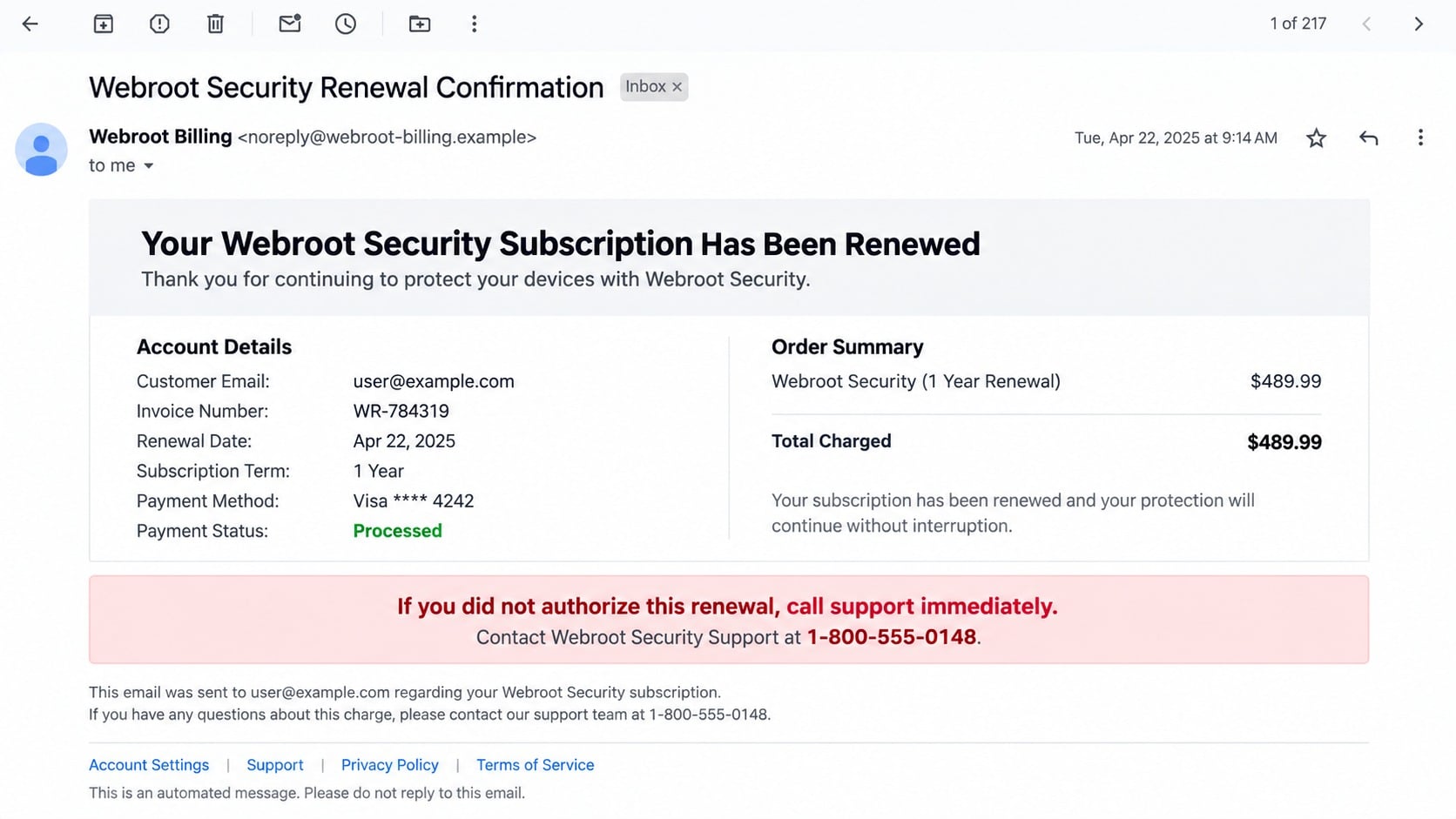
The message claims a Webroot product, antivirus plan, device protection package, or technical support membership has renewed automatically. It often lists an invoice number, one-year term, payment status, and a charge large enough to demand attention.
A phone number is positioned as the only way to cancel. The sender may warn that the request must be made within a few hours, that replies are not monitored, or that the charge becomes final once the renewal window closes.
What the scammers want
The email can be a callback lure. Its purpose is to make recipients call a fraudulent support center, where an operator can request personal details, payment information, remote computer access, or a transfer made during a supposed refund.
Other versions include a phishing link, malicious attachment, or browser pop-up. The exact route changes, but the invented renewal gives the contact a believable reason to begin and gives the scammer an urgent financial problem to “solve.”
Signs the invoice deserves suspicion
Do not call or click while you are still reacting to the amount. Compare the notice with your real records if you see:
- A renewal for a product you never bought or an account you cannot identify.
- A sender address unrelated to Webroot’s official domain.
- A generic greeting instead of information tied to your genuine subscription.
- An inflated total and a very short cancellation deadline.
- A phone number repeated more prominently than account details.
- Instructions to install a support tool or allow remote control.
- A request to return a refund through gift cards, cryptocurrency, cash, or a transfer.
A Fake Invoice and a Real Auto-Renewal Are Not the Same Thing
Some genuine software subscriptions renew automatically. That fact gives this scam a believable foundation, but it does not validate an unexpected email or the support number printed inside it.
A legitimate renewal should match an account, purchase record, payment method, and subscription you recognize. You should be able to verify it by opening the installed product or navigating independently to the provider’s official account page.
Do not decide solely from the amount shown in your inbox. Check the relevant bank or card account directly. Many fake invoices describe a charge that was never attempted, because the real objective is the return phone call.
If a matching transaction exists, use the payment provider’s official dispute process and Webroot’s verified support channels. A real charge and a scam message can also occur near the same time, so independent account verification remains essential.
How the Webroot Renewal Scam Works
Step 1: A fabricated invoice lands in the inbox
The message is formatted as a receipt, renewal confirmation, order summary, or billing reminder. Security-product language is useful because it implies the sender already protects your computer and has a reason to discuss system access.
The invoice may use the Webroot name as plain text, copy colors from legitimate materials, or include a familiar payment-card brand. Those visual elements can be copied and do not establish where the message came from.
Step 2: The amount and deadline create a quick reaction
The total is often much higher than an ordinary consumer expects to pay for antivirus protection. A message that claims $349.99, $489.99, or another substantial amount is more likely to produce an immediate call than a small charge.
The notice may say the payment is processed even when no transaction exists. A short cancellation window discourages the recipient from checking their account, finding the official website, or asking someone else to review the email.
Step 3: The recipient contacts the number or link in the notice
Calling the displayed number connects to someone who answers like a billing or cancellation specialist. The operator may ask for the invoice number and repeat details from the email to make the call feel connected to a real internal system.
A linked page can serve the same purpose. It may ask for account credentials, payment details, or a case number before offering a cancellation. The site address, not its visual design, is the first detail to verify.
Step 4: The fake agent introduces remote support
The operator claims that cancellation requires a secure form, account check, or refund tool. The victim is directed to download remote-access software or enter a session code that lets the caller view and control the computer.
Remote-support programs are legitimate when you initiate contact with a trusted provider. Under a scammer’s direction, the same access can expose files, browser sessions, email, saved passwords, and any financial account opened during the call.
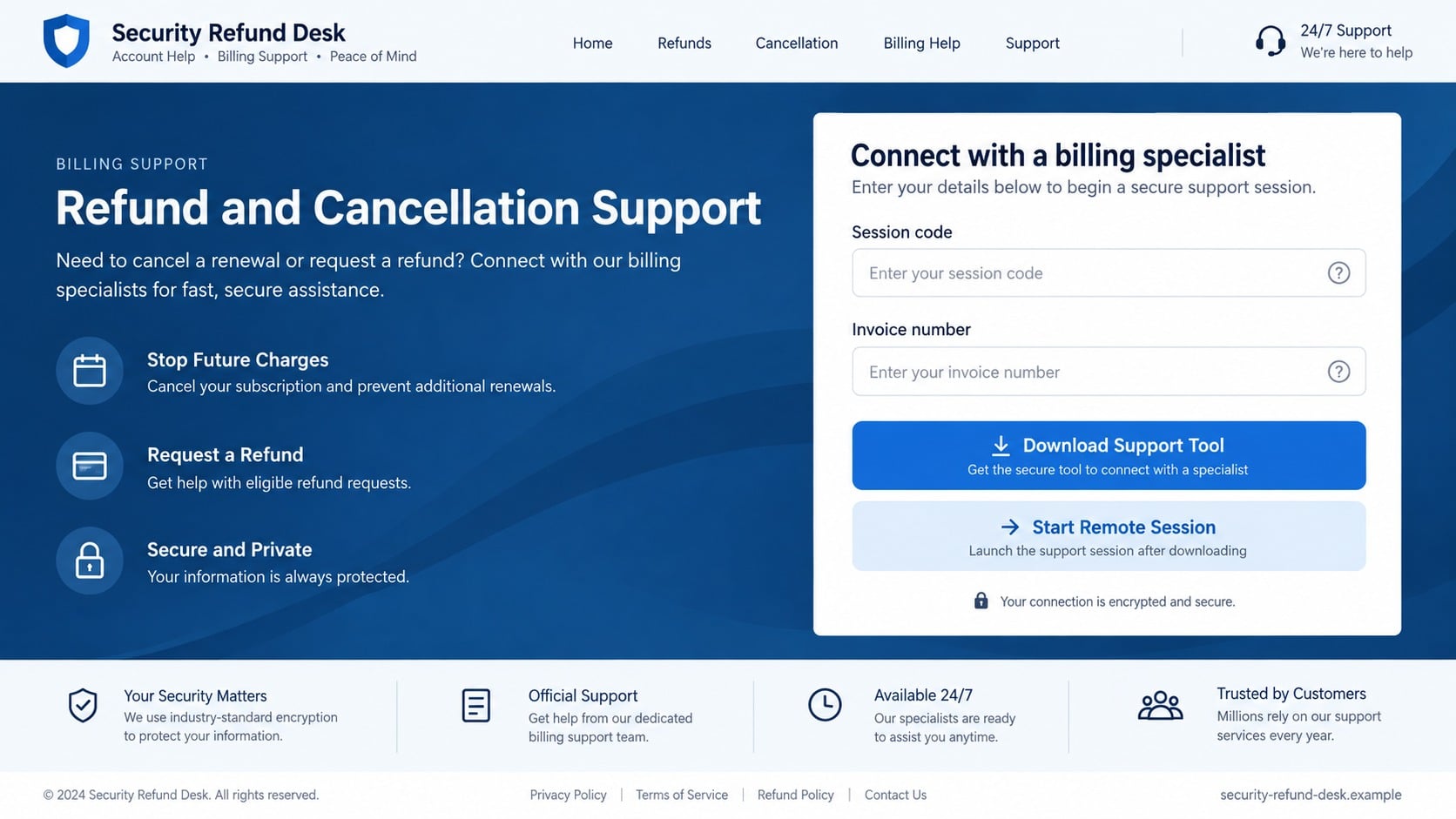
Step 5: A cancellation becomes a fake refund problem
The caller may show a form and ask the victim to enter a refund amount. Through remote access, screen manipulation, or misleading account displays, the operator creates the appearance that too much money was returned.
The victim is then pressured to send back the supposed excess. Payment may be requested through gift cards, cash, cryptocurrency, a wire transfer, or another method that is difficult to reverse. No legitimate refund requires concealing a transfer from a bank.
Step 6: Account theft or persistent access may continue
While the victim watches the refund story, the operator may search files, install additional software, capture credentials, or persuade the victim to sign in to online banking. Screen blanking and distraction can hide activity.
Ending the call does not necessarily remove installed tools or newly created accounts. Recovery must address the device, passwords, financial activity, and any remote software that was configured for unattended access.
Common Variations of the Webroot Renewal Scam
A plain-text email may contain no branding at all. It relies on a formal subject line, a total, and a phone number. Simplicity can make it pass mail filters and resemble an automated receipt.
A PDF or image attachment may hold the invoice. Because the phone number appears inside the attachment, the message body contains fewer suspicious terms. Opening a basic PDF is not the same as calling its number, but unexpected attachments still deserve caution.
A browser pop-up can claim that Webroot has expired or that the computer is infected. The page may play an alarm, prevent easy closing, or display a support number. A website cannot perform a complete malware diagnosis merely because you visited it.
A phishing form may ask for Webroot credentials, email login, card data, or personal details. Another variation uses a real invoice feature from a payment service, but inserts fraudulent instructions into the description. A message being delivered by a known platform does not make the request honest.
Company, Address, and Fulfillment Checks
Confirm the subscription through a trusted route
Open Webroot from its installed application or type the official address yourself. Check the keycode, subscription status, renewal date, and account email. Do not sign in through a button from the unexpected notice.
Webroot provides an official renewal path for customers. A renewal that cannot be located through an independently reached account should not be treated as proven.
Compare the sender and reply addresses
Expand the full email headers or sender details. A display name can say Webroot Billing while the underlying address belongs to a free mailbox or an unrelated domain. Also check whether the reply address differs from the visible sender.
Do not assume a typo proves fraud or perfect spelling proves legitimacy. Address verification is strongest when combined with account and payment checks.
Verify the contact information independently
Ignore the phone number in the invoice. Use Webroot’s official contact page or information inside the installed product. Search results and sponsored advertisements can also be misleading, so confirm the domain before calling.
A support agent should not demand remote access merely to tell you whether a subscription exists. Never share a password, multifactor code, or complete payment credential during an unsolicited support interaction.
Check whether anything was actually fulfilled
A real software purchase should connect to a license, account, product activation, and payment record. A random invoice number alone does not represent a delivered service.
Look for the transaction directly in your bank or card account, not through a screenshot or page opened by the caller. If there is no matching charge, there is nothing to refund and no reason to provide financial access.
How to Inspect the Message Without Calling the Scammer
Start with the basic claim. Do you use Webroot, and does anyone else in the household manage the subscription? Search your own email history for a genuine purchase receipt and compare account details without replying to the new message.
Hover over links without clicking to see their destination. On a mobile device, long-press cautiously only if it reveals a preview without opening. An unrelated domain, URL shortener, or raw IP address should end the investigation.
Check your actual payment accounts. A pending or posted charge should include merchant information that can be discussed with the card issuer. Do not accept a number printed in the suspicious email as the merchant’s dispute line.
Forward suspicious messages as attachments when reporting them so technical headers remain available. After preserving what you need, mark the email as phishing and delete it. Do not unsubscribe from a message you never requested, since the link may confirm that your address is active.
What to Do if You Have Fallen Victim to This Scam
- Cut off the active support session. Turn off Wi-Fi or unplug the network cable if someone is controlling the computer. Do not negotiate or follow instructions to reconnect. Use another trusted device for the next steps.
- Contact your bank or card issuer. Use the number on the card or official website. Explain any transfer, card disclosure, online-banking access, or fake refund. Ask about stopping pending payments, replacing cards, and adding protections to the account.
- Remove remote-support software and unknown accounts. Uninstall tools introduced during the call, disable unattended access, and inspect startup programs and user accounts. If you cannot determine what changed, seek professional help or consider reinstalling the system from trusted media.
- Run complete security scans. Update the installed security product and scan all files. A second-opinion scan with Malwarebytes can help identify malware, potentially unwanted programs, and persistence left after a fake support session.
- Change credentials from a clean device. Protect email, banking, password manager, shopping, and social accounts. Use unique passwords, revoke other sessions, and enable multifactor authentication. Change any password you typed while the remote operator could see the screen.
- Harden the browser after cleanup. Remove unfamiliar extensions, clear permissions, and review saved passwords. AdGuard can reduce exposure to malicious advertising and deceptive pop-ups, though it cannot undo remote access or financial transfers.
- Preserve and report evidence. Keep the invoice, sender details, phone number, remote session information, receipts, and transaction records. Report the email to your mail provider and the incident to the appropriate fraud authority, such as ReportFraud.ftc.gov in the US.
- Watch for a second approach. Scammers may pose as Webroot, a bank investigator, police, or a recovery firm. Do not pay an advance fee or grant new remote access to someone who contacts you about recovering the money.
Frequently Asked Questions
Does Webroot use automatic renewal?
Some genuine subscriptions can renew automatically depending on how they were purchased and configured. Verify through your official account and payment records instead of trusting an unexpected invoice.
What if the email shows the last four digits of my card?
That detail can come from breached, purchased, or previously shared data. It makes a lure more convincing but does not prove the sender processed a charge or represents Webroot.
Can I safely call the number just to ask?
Do not use the number in a suspicious message. Calling exposes you to persuasion and confirms that the address reached a responsive person. Contact Webroot through its official page instead.
Is the invoice safe because it is a PDF?
A PDF format does not validate its contents. The attachment may simply display a fraudulent callback number, and unexpected files can carry additional risk. Verify the subscription without opening attachments when possible.
What if no charge appears on my bank account?
That strongly suggests the invoice may be only a lure. Do not call for a refund that does not exist. Report the message as phishing and continue monitoring the relevant account.
Can remote-support software be legitimate?
Yes, but it should be used only when you initiate contact with a trusted organization and understand the session. An unexpected caller or invoice should never decide who controls your computer.
The Bottom Line
The Webroot renewal scam uses a frightening invoice to start a fraudulent support conversation. The fake charge may never touch your account, but calling, installing a tool, or sharing banking access can create a real loss.
Verify subscriptions and charges through independently reached accounts. If remote access occurred, treat the incident as both a device compromise and an account-security problem, then preserve evidence and act quickly.

Join the discussion
0 commentsShare your experience or ask a question about this article.
Discussion
Start the conversation
Have a question or something useful to share? Add the first comment.