Gordon Ramsay HexClad Giveaway Exposed: Fake or Real? Full Investigation
Written by: Lapain Epuran
Published on:
A cookware giveaway can feel plausible when the celebrity in the video genuinely promotes the brand and the requested shipping fee seems almost trivial.
That believable foundation made the Gordon Ramsay HexClad offer especially dangerous, because the false promotion borrowed several pieces of reality before changing the deal.
Overview
The real relationship scammers exploited
Gordon Ramsay has publicly appeared in legitimate HexClad marketing, so seeing his image beside the cookware does not initially look unusual.
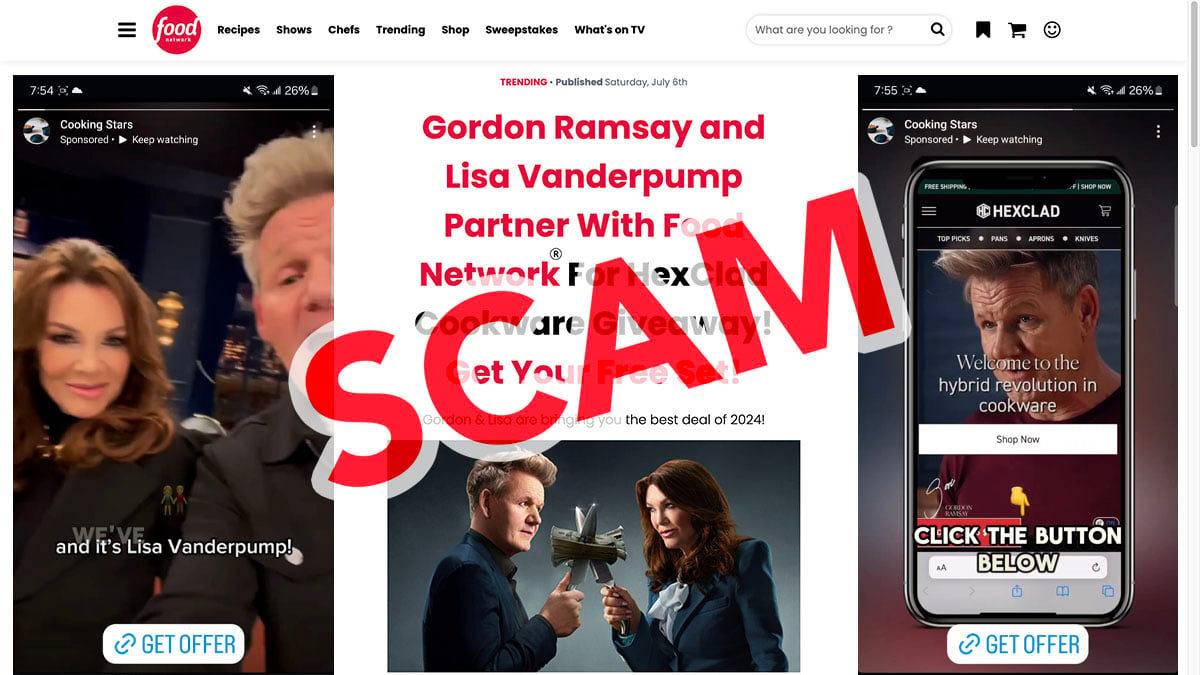
Scammers used that authentic association as cover for an unauthorized giveaway presented through Facebook and Instagram advertisements.
The campaign also inserted Lisa Vanderpump and connected the supposed promotion with a television program, creating another layer of recognizable context.
Vanderpump’s appearance in the deceptive offer did not establish participation in an official HexClad promotion.
The deal shown to social-media users
The videos claimed viewers could receive a premium cookware set without paying the normal retail price.
According to the pitch, recipients only needed to cover a $9.96 shipping charge before daily supplies disappeared.
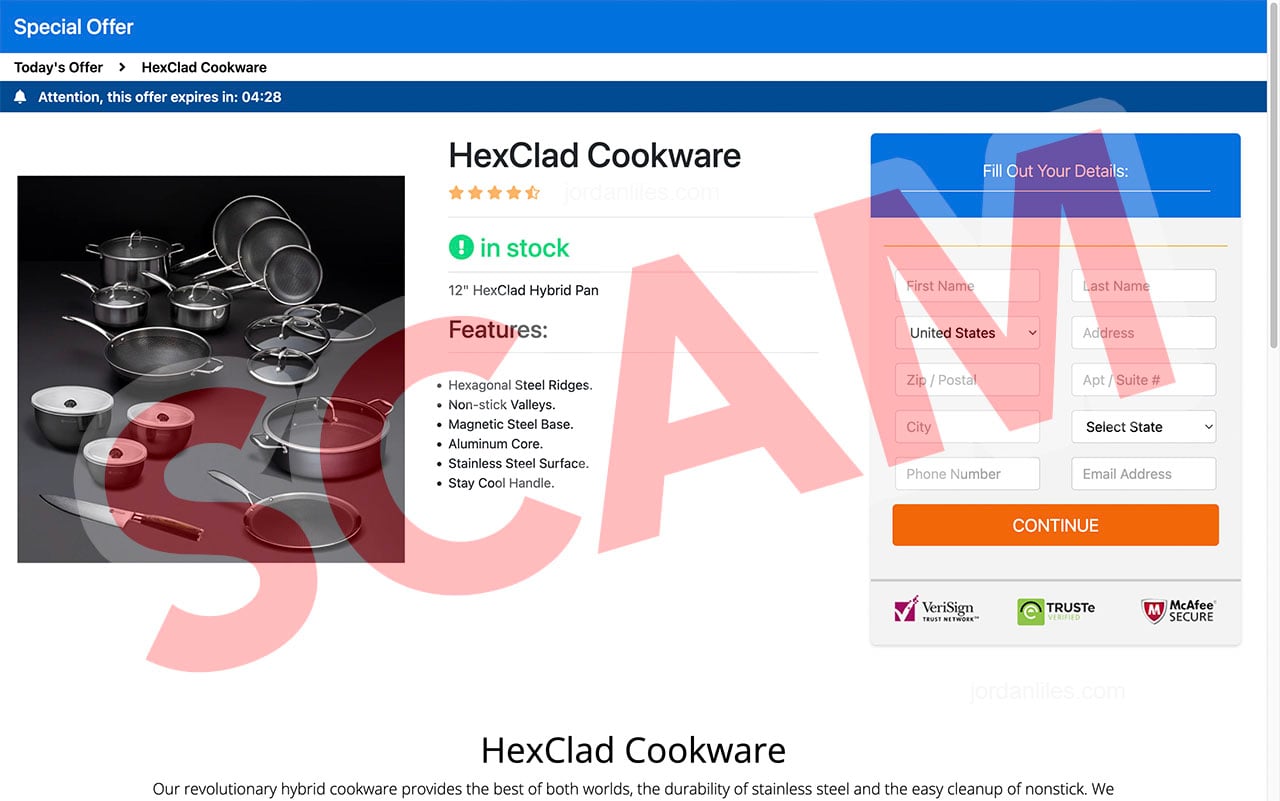
Clicks led to a page imitating Food Network, followed by another screen styled like a HexClad product page.
Neither lookalike was hosted on the genuine domain of the media outlet or cookware company.
The hidden cost behind “free” cookware
The final pages used domains such as surpriserush.com and luckyvee.com rather than an official brand address.
Buried terms reportedly enrolled customers into a $141 membership charged again every thirty days.
Warning signs visible across the funnel included:
Artificial voices making celebrities announce a promotion they did not authorize.
A newly created social page with almost no established audience.
A copied Food Network design hosted on an unrelated web domain.
A free-set promise requiring card details for a small shipping payment.
Redirects through several unrelated websites before checkout.
Recurring membership language separated from the main cookware claim.
A monthly fee wildly disproportionate to the visible shipping charge.
Why This Particular Impersonation Feels Real
Weak scams invent every detail. Stronger scams begin with facts the audience already recognizes.
Ramsay’s genuine connection with HexClad lowers suspicion before the viewer asks whether this exact giveaway appears on official channels.
The television framing supplies a reason for Lisa Vanderpump to appear, even though celebrity collaboration alone proves nothing.
A familiar cooking-network design then turns promotional copy into something resembling independent editorial coverage.
Finally, the small shipping charge matches a common giveaway convention.
Each piece sounds possible in isolation, allowing the larger deception to survive several quick mental checks.
The safest response is to verify the exact promotion, not merely the people and products appearing inside it.
Search the official HexClad website and verified celebrity accounts through a separate browser tab.
A genuine nationwide giveaway should publish consistent rules, eligibility, sponsor identity, dates, privacy terms, and a no-purchase entry method when legally required.
How the Gordon Ramsay HexClad Giveaway Scam Works
Step 1: A tiny Facebook page buys broad visibility
A page named Cooking Stars reportedly ran paid advertisements shortly after its creation and while holding only a handful of followers.
Advertising placement allowed the page to reach far more users than its organic history would justify.
Many viewers noticed the celebrity footage and skipped the page-transparency clues.
Step 2: Synthetic speech announces the free set
The videos combined familiar footage with AI-generated vocals made to resemble Gordon Ramsay and Lisa Vanderpump.
The script described a joint celebration and urged viewers to claim cookware before the offer expired.
Hearing two recognizable voices created the impression that several independent parties approved the promotion.
Step 3: A fake Food Network story supplies editorial trust
The advertisement directed visitors to mediservv.com, where a page copied the appearance of Food Network.
A headline claimed the celebrities partnered with the channel for the giveaway and included a free-set message.
The page design was borrowed, but the address bar never belonged to FoodNetwork.com.
Step 4: Another imitation page resembles the cookware brand
Links changed the presentation to a product page using HexClad imagery, feature lists, stock indicators, review stars, and familiar security badges.
The web address still did not become HexClad’s official domain.
This second disguise reduced the chance that a shopper would question why a media page requested payment information.
Step 5: The $9.96 shipping request captures card details
A modest fee feels reasonable beside expensive cookware, particularly after the word “free” has anchored the viewer’s expectations.
The form collects contact and payment information under the impression that the card funds delivery.
That low visible amount distracts attention from the contractual language placed elsewhere.
Step 6: Redirects lead to the actual billing terms
The final transaction reportedly ran through websites including surpriserush.com or luckyvee.com, both separate from the advertised companies.
Every redirect adds another organization name and makes the eventual card descriptor harder to predict.
Consumers may believe they remain inside one official giveaway despite passing through several unrelated operators.
Step 7: A $141 membership repeats every month
Fine print described a one-time $141 enrollment and recurring $141 charges every thirty days for a vaguely defined meal-planning membership.
That service had no natural connection with receiving a complimentary cookware set.
If unnoticed for one year, twelve monthly charges would total $1,692, excluding any initial shipping or enrollment amount.
The Subscription Trap Hidden Behind the Shipping Fee
Subscription traps depend on a sharp difference between the visible reason for payment and the legal wording authorizing later charges.
Here, the consumer thinks about delivering cookware while the merchant treats the card entry as membership enrollment.
The recurring service reportedly involved healthy meal plans, not HexClad products, Food Network access, or the television show mentioned earlier.
That disconnect is a major warning because the subscription would not be the product a typical viewer intended to purchase.
Fine print does not automatically cure a misleading overall presentation.
The size, placement, timing, and clarity of a disclosure all affect whether a person can give informed consent.
A monthly fee exceeding the visible shipping charge more than fourteen times deserves prominent explanation beside the payment button.
Consumers should never assume that a small initial authorization limits future billing.
Card-on-file terms can permit repeated debits until the customer follows a particular cancellation procedure.
That is why screenshots of the checkout and terms are essential before challenging later charges.
How to Verify a Celebrity Giveaway
Do not click the advertisement again while researching because retargeting and rotating redirects can produce different pages.
Type the brand’s official domain manually or use a trusted bookmark.
Check the promotion section, newsroom, verified social accounts, and published contest rules.
Search the exact giveaway wording in quotation marks alongside the celebrity and brand.
Legitimate rules normally identify the sponsor, administrator, entry period, geographic eligibility, prize value, winner selection, and odds.
A purchase requirement or shipping payment should never be accepted solely because a social video says it is standard.
Inspect page transparency for creation date, name changes, administrator locations, and whether comments have been disabled or removed.
Open the destination’s main homepage instead of remaining on the promotional path.
A one-page domain with no coherent business, navigation, or customer history is not equivalent to an established brand.
Most importantly, confirm every domain after each redirect.
Brand Names, AI Voices, and Copied Websites
Celebrity deepfakes do not always look perfect, but a viewer watching silently may rely on captions and miss unnatural audio.
Someone listening without close attention may recognize the voice style and overlook imperfect mouth movement.
Scammers design for partial attention because social feeds encourage rapid decisions.
Copied websites create a similar shortcut. Colors, fonts, menus, and logos trigger recognition before the domain receives scrutiny.
Lookalike pages may include working links to genuine sites, making the fake center panel feel integrated with the real brand.
A lock icon only means the browser connection uses encryption.
It does not authenticate the merchant as Food Network, HexClad, or any featured celebrity.
Payment badges can also be copied as ordinary images and should not be treated as independent certification.
Trust must come from domain ownership, official confirmation, transparent rules, and consistent merchant information.
Why Recurring Charges Can Continue After Card Replacement
Many consumers assume replacing a card automatically ends every subscription connected with the old number.
That is not always true because payment networks can provide participating merchants with updated account credentials.
These updater services help legitimate subscriptions continue when a card expires, but they can surprise victims trying to stop deceptive billing.
When requesting replacement, explain that the old credentials were entered into a misleading recurring-payment offer.
Ask the issuer how it will handle merchant updates, stored payment tokens, pending authorizations, and charges already submitted.
A new card number should be paired with a direct cancellation notice whenever the merchant can be identified safely.
Keep the notice concise and never provide extra identity documents unless the bank confirms they are necessary.
Review statements for several months because descriptors can change slightly between the initial payment and later membership debits.
Search by amount and date rather than scanning only for the word HexClad.
The biller may use a wellness, meal-plan, rewards, or generic service name unrelated to cookware.
Set transaction alerts for card-not-present activity and recurring charges while the dispute remains open.
Read every bank response carefully because provisional credit can be reversed if the merchant submits contested terms.
Reply before the deadline with screenshots showing how the $9.96 shipping story dominated the payment decision.
Strong evidence explains not only what the fine print said, but how the overall funnel concealed its importance.
Organized records give an investigator a clearer path through the multiple domains and merchant names.
Do not close the dispute merely because a caller promises that future billing has stopped.
Wait for written confirmation and verify the account after the next expected renewal date.
If the merchant sends a partial refund, ask whether accepting it changes rights concerning the remaining disputed charges.
Fraud departments see many subscription cases, so a precise timeline is more useful than a long emotional explanation.
Lead with the advertised shipping purpose, the hidden membership amount, and the domains involved.
Company, Address, and Fulfillment Checks
Follow the money across every domain
The path reportedly touched mediaservv.com, surpriserush.com, and luckyvee.com before the card charge was complete.
Write down which site displayed the offer, gathered data, processed payment, and supplied cancellation terms.
Unexplained role changes are more revealing than the copied brand logos.
Demand a named membership provider
A $141 monthly service should have a legal operator, physical mailing address, support department, and detailed description of benefits.
Vague meal-plan wording does not explain why a cookware entrant would knowingly enroll.
Absence of a clear provider makes enforcement and cancellation far harder.
Verify phone numbers outside the landing page
Historical terms displayed (855) 937-2967, but campaigns can change numbers or reuse them across unrelated offers.
Search any current number independently and ask the representative to identify the legal company before sharing personal details.
Never grant remote computer access to someone handling a supposed cookware refund.
Distinguish a prize administrator from a fulfillment center
A warehouse could ship generic goods without sponsoring the contest or controlling the membership charge.
Return labels, mailbox addresses, and third-party logistics facilities do not prove brand involvement.
Require written instructions from the actual merchant before sending products or documents anywhere.
What an Official Giveaway Should Provide
Clear rules should appear before entry, not after the consumer submits payment details.
The sponsor’s legal name and address should match information published on established official channels.
Prize quantity, approximate retail value, entry deadline, eligibility, and winner-notification method should be specific.
If a promotion has alternate entry options, they should be usable rather than hidden behind complicated mail requirements.
Privacy language should explain how entry data is stored, shared, and used for marketing.
No unrelated subscription should quietly appear because a visitor paid a shipping fee.
The card statement descriptor should be disclosed before authorization.
Customer support should confirm the exact contest and locate an entry without requesting remote access, gift cards, cryptocurrency, or additional fees.
Any missing element deserves investigation before the form is completed.
What to Do if You Have Fallen Victim to This Scam
Call the card issuer immediately. Explain that a fake giveaway disguised recurring membership billing as a small cookware shipping payment.
Replace the exposed card. Ask whether a new number also blocks merchant account updater services from passing credentials to the biller.
Dispute every unauthorized amount separately. Identify the $9.96 entry charge, any $141 enrollment, and each later monthly debit.
Cancel using several channels. Send written notice, use any formal cancellation portal, and document the time and representative for telephone requests.
Preserve the fine print. Store images of the social ad, copied news page, final form, terms, transaction receipt, and card descriptor.
Protect submitted identity data. Expect targeted messages using the name, telephone number, address, and email entered during checkout.
Inspect your browser. Malwarebytes can check for harmful extensions or downloads if the redirect chain triggered unexpected files.
Limit malicious advertising. AdGuard helps block many hostile ad routes, but official-domain verification remains the stronger defense.
Alert affected organizations. Report the impersonation to Meta, HexClad, Food Network, and the FTC with the saved URLs.
Is Your Device Infected? Run a Free Malware Scan
Slow performance, constant pop-ups, or strange behavior? These are classic signs of a malware infection. The fastest way to find out is to scan your device with Malwarebytes Anti-Malware Free — one of the most trusted malware removal tools available.
The free version detects and removes the most common threats, including:
Adware — the cause of those annoying pop-ups
Browser hijackers — unwanted redirects and changed homepages
Trojans and spyware — hidden programs stealing your data
Potentially unwanted programs (PUPs) — software you never asked for
👉 Select your device below — Windows, Mac, or Android — then follow the simple steps to download Malwarebytes, scan your system, and remove any threats it finds. The whole process takes about 5 minutes.
Malwarebytes for WindowsMalwarebytes for MacMalwarebytes for Android
Run a Malware Scan with Malwarebytes for Windows
Malwarebytes is one of the most popular and trusted anti-malware tools for Windows — and it’s completely free for removing infections. It catches threats that many antivirus programs miss, including adware, browser hijackers, and trojans. Follow the steps below to scan and clean your PC in just a few minutes.
Download Malwarebytes
Click the button below to download the latest version of Malwarebytes for Windows from the official source. The free version is all you need — it will scan your computer and remove adware, browser hijackers, and other malicious software at no cost.
(The link opens in a new page where your download will start)
Install Malwarebytes
When the download finishes, open your Downloads folder and double-click the MBSetup file. If Windows shows a User Account Control pop-up, click “Yes” to allow the installation.
Follow the On-Screen Prompts to Install Malwarebytes
The setup wizard will walk you through a few quick screens:
Choose where you’re installing the program — “Personal Computer” or “Work Computer” — then click Next.
Malwarebytes will now install on your device. This usually takes under a minute.
When installation is complete, the “Welcome to Malwarebytes” screen will open automatically.
On the final screen, click Open Malwarebytes to launch the program.
Enable “Scan for Rootkits”
Before scanning, turn on rootkit detection so Malwarebytes can find even the most hidden threats. Click the Settings gear icon on the left side of the screen.
In the settings menu, find “Scan for rootkits” and click the toggle so it turns blue.
Done? Click “Dashboard” in the left pane to return to the main screen.
Start the Scan
Click the blue Scan button. Malwarebytes will automatically update its virus database and start checking your computer for malware.
Wait for the Scan to Finish
The scan checks your entire system for browser hijackers and other malicious programs, so it can take several minutes. Feel free to do something else — just check back occasionally to see the progress.
Quarantine the Detected Threats
When the scan is done, you’ll see a list of everything Malwarebytes found — malware, adware, and potentially unwanted programs. Click the “Quarantine” button to remove all of them at once.
Malwarebytes will now remove the malicious files and registry entries and move them safely into quarantine.
Restart Your Computer
Some threats can only be fully removed after a reboot. If Malwarebytes asks you to restart, click Yes. Once you’re logged back in, your PC is clean and you can continue with the next steps in this guide.
When the scan finishes, click Quarantine to remove everything Malwarebytes found. That’s it — your Windows PC is now clean of trojans, adware, and other malware, and should be back to running smoothly.
If your current antivirus allowed this malicious program on your computer, you may want to consider purchasing Malwarebytes Premium to protect against these types of threats in the future. If you are still having problems with your computer after completing these instructions, then please follow one of the steps:
Malwarebytes for Mac is a free on-demand scanner that removes the malware other security software tends to miss — adware, browser hijackers, and unwanted programs included. Cleaning an infected Mac with Malwarebytes has always been completely free, and it’s our go-to recommendation. Follow the steps below to scan and clean your Mac in just a few minutes.
Download Malwarebytes for Mac
Click the button below to download the latest version of Malwarebytes for Mac.
When the download finishes, open your Downloads folder and double-click the setup file to begin the installation.
Follow the On-Screen Prompts to Install Malwarebytes
The Malwarebytes for Mac Installer will guide you through a few quick screens. Click “Continue” and keep following the prompts until the installation completes.
When the installation is complete, Malwarebytes opens to the Welcome to Malwarebytes screen. Click “Get started“.
Select “Personal Computer” or “Work Computer”
Malwarebytes will ask what type of computer you’re installing it on. Click either Personal Computer or Work Computer, whichever applies.
Start the Scan
Click the “Scan” button. Malwarebytes will automatically update its detection database and begin checking your Mac for malware.
Wait for the Scan to Finish
Malwarebytes will scan your Mac for adware, browser hijackers, and other malicious programs. This can take a few minutes, so feel free to do something else — just check back occasionally to see the progress.
Quarantine the Detected Threats
When the scan is done, you’ll see a list of everything Malwarebytes found. Click the “Quarantine” button to remove all the threats at once.
Restart Your Mac
Malwarebytes will now remove all the malicious files it found. Some threats can only be fully removed after a reboot — if Malwarebytes asks you to restart, allow it. Once you’re logged back in, your Mac is clean.
Once the scan is done, remove every threat it detected. Your Mac is now free of adware, rogue browser extensions, and other potentially harmful software.
If your current antivirus allowed a malicious program on your computer, you might want to consider purchasing the full-featured version of Malwarebytes Anti-Malware to protect against these types of threats in the future. If you are still experiencing problems while trying to remove a malicious program from your computer, please ask for help in our Mac Malware Removal Help & Support forum.
Run a Malware Scan with Malwarebytes for Android
Malwarebytes for Android automatically detects and removes dangerous threats like malware and ransomware so you don’t have to worry about your most-used device being compromised. Aggressive detection of adware and potentially unwanted programs keeps your Android phone or tablet running smooth.
Download Malwarebytes for Android.
You can download Malwarebytes for Android by clicking the link below.
In the Google Play Store, tap “Install” to install Malwarebytes for Android on your device.
When the installation process has finished, tap “Open” to begin using Malwarebytes for Android. You can also open Malwarebytes by tapping on its icon in your phone menu or home screen.
Follow the on-screen prompts to complete the setup process
When Malwarebytes will open, you will see the Malwarebytes Setup Wizard which will guide you through a series of permissions and other setup options. This is the first of two screens that explain the difference between the Premium and Free versions. Swipe this screen to continue. Tap on “Got it” to proceed to the next step. Malwarebytes for Android will now ask for a set of permissions that are required to scan your device and protect it from malware. Tap on “Give permission” to continue. Tap on “Allow” to permit Malwarebytes to access the files on your phone.
Update database and run a scan with Malwarebytes for Android
You will now be prompted to update the Malwarebytes database and run a full system scan.
Click on “Update database” to update the Malwarebytes for Android definitions to the latest version, then click on “Run full scan” to perform a system scan.
Wait for the Malwarebytes scan to complete.
Malwarebytes will now start scanning your phone for adware and other malicious apps. This process can take a few minutes, so we suggest you do something else and periodically check on the status of the scan to see when it is finished.
Click on “Remove Selected”.
When the scan has been completed, you will be presented with a screen showing the malware infections that Malwarebytes for Android has detected. To remove the malicious apps that Malwarebytes has found, tap on the “Remove Selected” button.
Restart your phone.
Malwarebytes for Android will now remove all the malicious apps that it has found. To complete the malware removal process, Malwarebytes may ask you to restart your device.
After the scan, tap Remove Selected to delete all detected threats. Your Android phone is now clean — no more malicious apps, adware, or browser redirects.
If your current antivirus allowed a malicious app on your phone, you may want to consider purchasing the full-featured version of Malwarebytes to protect against these types of threats in the future. If you are still having problems with your phone after completing these instructions, then please follow one of the steps:
Restore your phone to factory settings by going to Settings > General management > Reset > Factory data reset.
Now that your device is clean, keep it that way. Most infections start with a malicious ad or a fake download button — so blocking them at the source is your best defense.
We recommend AdGuard, which blocks malicious ads, phishing pages, and dangerous redirects before they can reach you.
Yes, he has a legitimate public relationship with the cookware brand.
That real endorsement does not authenticate every social advertisement using his image.
Did Lisa Vanderpump promote this giveaway?
No reliable confirmation supports the promotion shown in the documented advertisements.
Her likeness and synthetic-sounding speech were used to strengthen the false collaboration story.
Was Food Network giving away free HexClad sets?
The examined page copied Food Network styling but operated on an unrelated domain.
A visual imitation should not be confused with an official network promotion.
What was the real recurring charge?
The documented terms described $141 at enrollment and another $141 every thirty days for a meal-planning membership.
Will paying $9.96 deliver cookware?
The shipping story was the visible lure, while the hidden membership created the major financial danger.
Consumers should not expect an official HexClad prize from these imitation pages.
How can I confirm a future HexClad offer?
Navigate independently to the brand’s official website and verified social accounts, then locate complete rules matching the exact promotion.
The Bottom Line
This campaign weaponized a real celebrity endorsement to sell a fake giveaway, then concealed $141 recurring billing behind a $9.96 shipping story.
The safest rule is simple: a recognizable face and copied website never replace an official domain, complete contest rules, and transparent payment terms.
10 Rules to Avoid Online Scams
Here are 10 practical safety rules to help you avoid malware, online shopping scams, crypto scams, and other online fraud. Each tip includes a quick “if you already got hit” action.
Stop and verify before you click, log in, download, or pay.
Most scams win by creating urgency. Verify using a trusted method: type the website address yourself, use the official app, or call a known number (not the one in the message).
If you already clicked: close the page, do not enter passwords, and run a malware scan.
Keep your operating system, browser, and apps updated.
Updates patch security holes used by malware and malicious ads. Turn on automatic updates where possible.
If you saw a scary “update now” pop-up: close it and update only through your device settings or the official app store.
Use layered protection: antivirus plus an ad blocker.
Antivirus helps block malware. An ad blocker reduces scam redirects, phishing pages, and malvertising.
If your browser is acting weird: remove unknown extensions, reset the browser, then run a full scan.
Install apps, software, and extensions only from official sources.
Avoid cracked software, “keygens,” and random downloads. During installs, choose Custom/Advanced and decline bundled offers you do not recognize.
If you already installed something suspicious: uninstall it, restart, and scan again.
Treat links and attachments as untrusted by default.
Phishing often impersonates delivery services, banks, and popular brands. If it is unexpected, do not open attachments or log in through the message.
If you entered credentials: change the password immediately and enable 2FA.
Shop safely: research the store, then pay with protection.
Be cautious with brand-new stores, “closing sale” stories, and prices that make no sense. Prefer credit cards or PayPal for dispute options. Avoid wire transfers, gift cards, and crypto payments.
If you already paid: contact your card issuer or PayPal quickly to dispute the transaction.
Crypto rule: never pay a “fee” to withdraw or recover money.
Common patterns include fake profits, then “tax,” “gas,” or “verification” fees. Another is a “recovery agent” who demands upfront crypto.
If you already sent crypto: stop paying, save evidence (wallet addresses, TXIDs, chats), and report the scam to the platform used.
Secure your accounts with unique passwords and 2FA (start with email).
Use a password manager and unique passwords for every account. Enable 2FA using an authenticator app when possible.
If you suspect an account takeover: change passwords, sign out of all devices, and review recent logins and recovery settings.
Back up important files and keep one backup offline.
Backups protect you from ransomware and device failure. Keep at least one backup on an external drive that is not always connected.
If you suspect infection: do not connect backup drives until the system is clean.
If you think you are a victim: stop losses, document evidence, and escalate fast.
Move quickly. Speed matters for disputes, account recovery, and limiting damage.
Stop payments and contact: do not send more money or respond to the scammer.
Call your bank or card issuer: block transactions, replace the card if needed, and start a dispute or chargeback.
Secure your email first: change the email password, enable 2FA, and remove unfamiliar recovery options.
Secure other accounts: change passwords, enable 2FA, and log out of all sessions.
Scan your device: remove suspicious apps or extensions, then run a full malware scan.
Save evidence: screenshots, emails, order pages, tracking pages, wallet addresses, TXIDs, and chat logs.
Report it: to the payment provider, marketplace, social platform, exchange, or wallet service involved.
These rules are intentionally simple. Most online losses happen when decisions are rushed. Slow down, verify independently, and use payment methods and account controls that give you recourse.
Hello! I'm Lapain Epuran, your go-to source for detailed and honest product reviews. From tech gadgets to miracle cures, I provide insights to help you make informed choices. Join me as we discover what's truly worth your time and money.