A domain warning arriving during a busy morning can feel impossible to ignore. One missed renewal could disrupt email, orders, and an entire company website.
The notice looks routine at first glance, but several details deserve attention before anyone follows its urgent instructions.
Overview
A Renewal Notice That Targets More Than a Domain
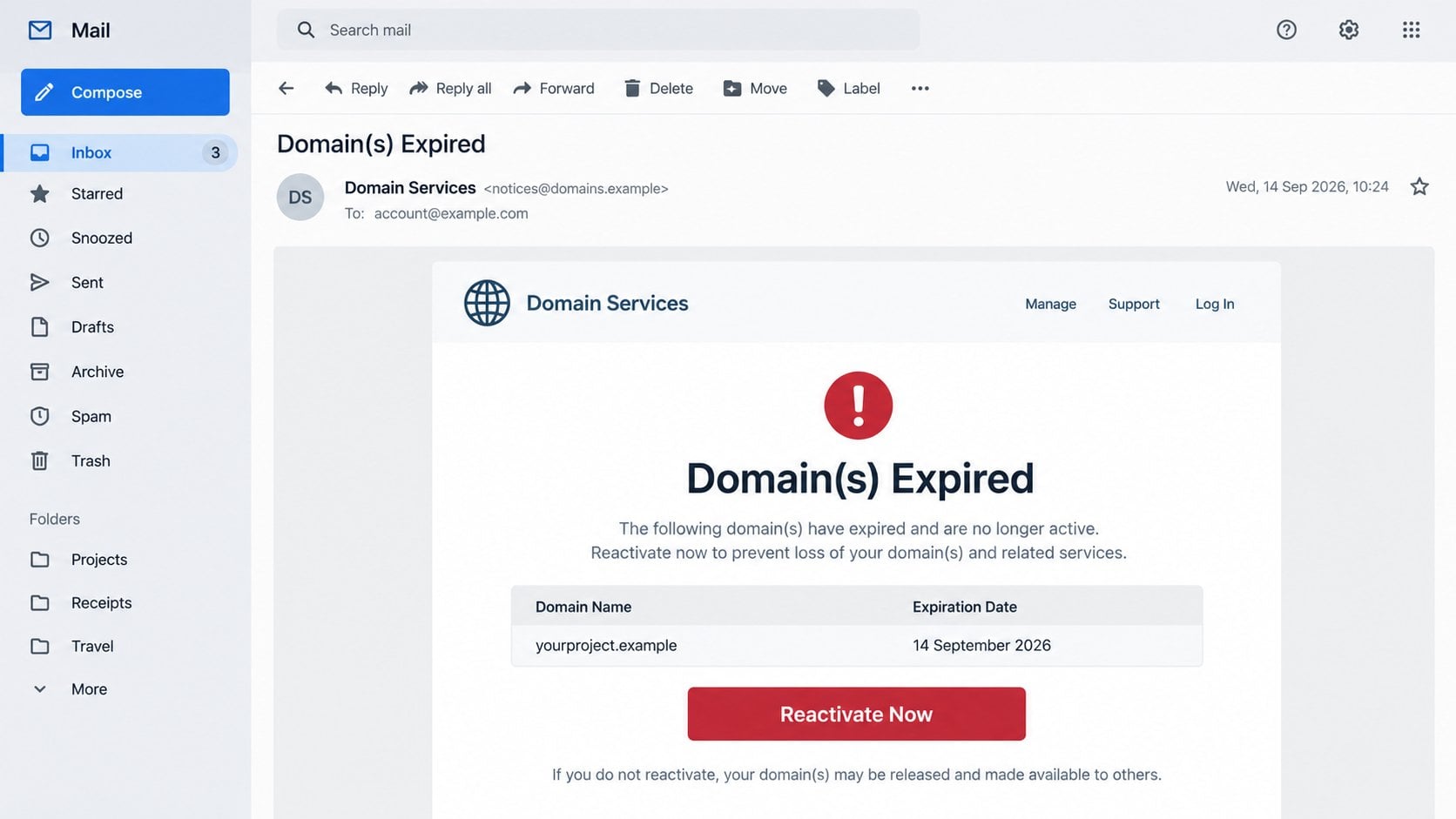
The Domain(s) Expired email scam claims a website address expired several days earlier and must be reactivated immediately.
The message often names the recipient’s domain and displays a recent expiration date. Those personalized details can make the warning feel credible.
Its strongest pressure comes from the business consequences people already understand. A lost domain can interrupt websites, email delivery, and customer trust.
The email exploits that concern without proving who sent it. A prominent “Reactivate Now” button becomes the only path offered for resolving the problem.
There is no actual renewal transaction behind that button. The campaign uses domain management language to steer recipients toward a counterfeit sign-in page.
The Fake Reactivation Page Collects Email Passwords
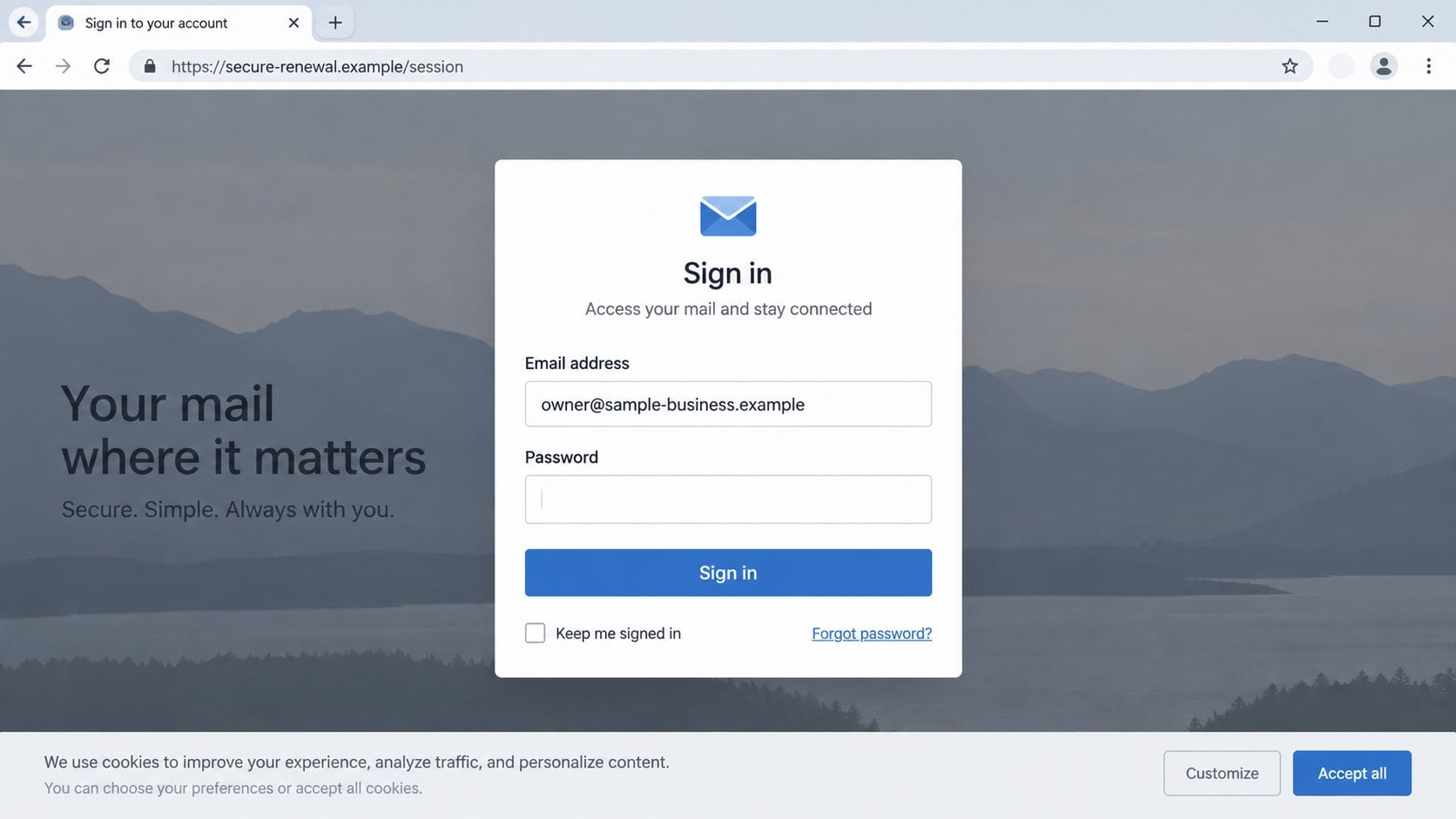
Clicking the button opens an unrelated website rather than the account area of a genuine registrar or hosting company.
The page may study the submitted email address and imitate the corresponding provider. Gmail users can receive Google-like artwork, while others see different branding.
This tailoring is performed by a phishing kit. It does not indicate that the page communicates with the real mail provider.
The form typically preloads the email address and asks for a password. That shortened process creates the illusion of an existing authenticated session.
Any password entered can be sent to the criminals immediately. The promised domain control panel never appears because renewal was never the real objective.
Why a Stolen Mailbox Is So Valuable
A business inbox can reveal registrar receipts, hosting credentials, payment conversations, customer contacts, and password-reset messages for connected services.
Criminals may use that access to change genuine domain settings later. They can also impersonate the owner in messages to staff, vendors, or customers.
The landing page adapts to the victim’s email provider.
The form requests a mailbox password, not a registrar login.
Compromised email can unlock many additional accounts.
Receiving or reading the message does not automatically compromise a device. The immediate risk begins when someone follows the link and shares information.
A legitimate registrar may send expiration reminders, so the subject alone cannot settle the question. The sender, destination, and account record must agree.
How the Domain Expired Email Scam Works
Step 1: Criminals Match Email Addresses With Domain Records
Public websites, business directories, breached databases, and marketing lists can connect a company domain with a working email address.
Scammers do not need access to the registrar. They only need enough public information to make a generic warning appear specific.
Some domains also expose administrative clues through certificates, archived pages, or contact records. Automated tools can gather these details at scale.
The result is a message that names something the recipient truly owns. That accurate detail often distracts from every inaccurate claim surrounding it.
Step 2: A False Deadline Creates Operational Panic
The email states that the domain already expired, yet supposedly remains recoverable for a short period. This framing combines fear with a convenient rescue.
It may warn that services will stop or the address will become available to others. Those outcomes are serious enough to trigger hurried decisions.
Real expiration processes vary by registrar and extension. Grace periods, redemption fees, and suspension timing cannot be verified from an unsolicited message.
The displayed date can be invented, copied from old data, or selected because it looks plausible. A date inside an email is not registry evidence.
Step 3: The Message Imitates a Registrar Without Naming One Clearly
Many versions use broad labels such as “Domain Services,” “Webmail Administrator,” or “Hosting Support.” Generic names help the same template target many providers.
A globe icon, clean invoice table, and formal footer supply visual authority. None of those elements require access to a legitimate company system.
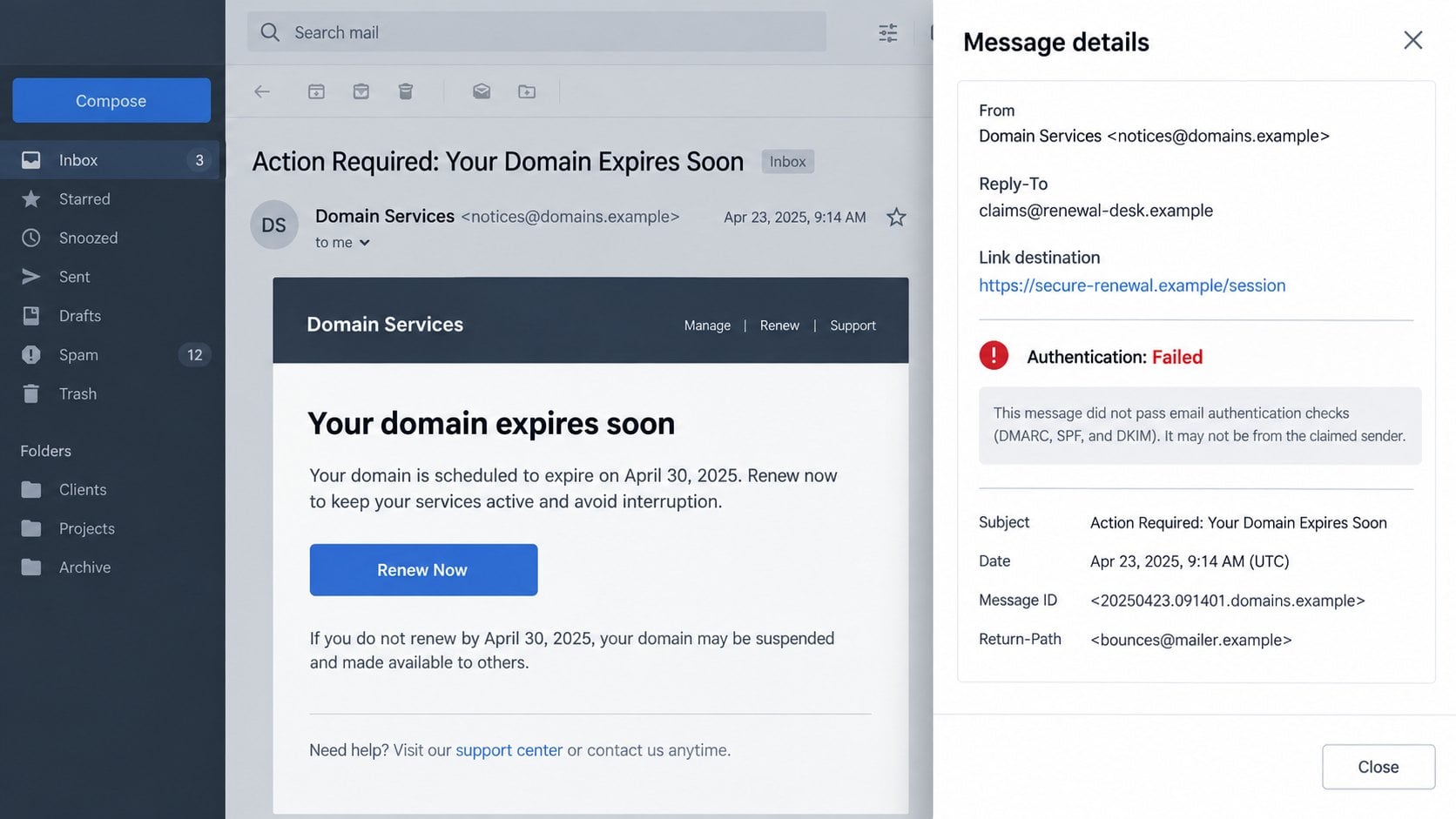
The visible sender name may sound official while the underlying address belongs to a disposable domain. The Reply-To field can point somewhere else again.
That fractured identity matters. Authentic renewal notices normally connect the provider, sender domain, account portal, invoice, and support contact consistently.
Step 4: The Reactivation Button Conceals a Different Destination
The button label describes renewal, but the underlying link leads away from the registrar. Redirect services may hide the final address until the browser loads it.
Tracking parameters can include the recipient’s email address. The phishing page then uses that value to prefill fields and choose matching artwork.
An HTTPS padlock does not make the destination legitimate. It only encrypts the connection between the visitor and whoever controls that website.
The registered domain in the address bar remains the crucial clue. Familiar words placed before or after an unrelated domain do not change its ownership.
Step 5: A Provider-Themed Form Requests the Mailbox Password
The counterfeit page may place a sign-in window over a copied cookie notice or familiar background. That layered design resembles modern authentication flows.
The email field can already contain the victim’s address. Only the password appears missing, which reduces hesitation and makes the page feel personalized.
A registrar does not need the secret used for Gmail, Outlook, or another mailbox. Domain renewal occurs inside the registrar’s own authenticated account.
Some kits reject the first password and request another attempt. This tactic captures typing mistakes and possible alternate passwords before showing an error.
Step 6: Mailbox Access Expands Into Business Fraud
Captured credentials are often tested quickly. Without strong multifactor protection, the attacker may enter the inbox before the victim notices anything unusual.
The criminal can search for the true registrar, hosting provider, invoices, and account-reset messages. That research turns a generic phish into a targeted intrusion.
Forwarding rules may quietly copy future mail. Filters can hide security alerts, renewal confirmations, or replies from people the attacker contacts.
The compromised account can also request payment changes from vendors. Messages sent inside genuine threads are far more persuasive than an unfamiliar first contact.
How to Verify a Domain Expiration Notice Safely
Check the Registrar Account Directly
Open a trusted bookmark or type the registrar’s known address yourself. Do not reach the account through the warning button.
Locate the domain inside the dashboard and read its current status, expiration date, renewal setting, and payment history.
If the domain is missing, confirm which registrar manages it using established company records. Avoid random “lookup” pages promoted by the suspicious email.
A real expiration problem should appear inside the account. If the dashboard shows an active domain, the email’s central claim has failed.
Compare the Full Sender and Reply Path
Expand the message details rather than trusting the display name. Read the From address, Reply-To address, Return-Path, and authentication results.
Different domains are not automatically malicious because vendors use delivery partners. However, the relationship should be explainable and supported by prior legitimate mail.
Search for older verified renewal receipts. Consistent sender patterns, customer numbers, and portal links provide a stronger baseline than a copied logo.
An unexpected failure of SPF, DKIM, or DMARC adds concern. Those checks are useful evidence, although attackers can authenticate mail from domains they own.
Inspect the Link Without Loading It
Hover over the button on a desktop system and read the preview. On mobile, use a safe preview method without opening the destination.
Focus on the registered domain, not attractive words inside a subdomain or folder. Attackers often place brand terms where hurried readers expect reassurance.
Short links and multiple redirects prevent meaningful inspection. When the endpoint remains hidden, abandon the link and use the official portal instead.
Confirm With the Provider Through Known Contact Details
Call support using a number saved in your account, previous invoice, or the provider’s independently opened website. Never use details supplied only by the alert.
Ask for the exact domain status and recent account activity. A support representative can verify renewal without requesting your mailbox password.
In a company, contact whoever owns domain administration before making changes. Marketing, IT, finance, and external agencies may share parts of the workflow.
That short internal check can also expose duplicate billing attempts. Legitimate providers should welcome verification rather than punish a customer for pausing.
What to Do If You Fell Victim to the Domain Expired Scam
Do not assume the worst, but act promptly. The correct response depends on whether you only clicked, entered credentials, downloaded something, or sent payment.
Close the page and save useful evidence.
Record the email subject, sender, destination, time, and any information submitted. Preserve the original message with its complete headers.
For workplace accounts, report it through the approved security channel. Do not circulate a live malicious link among coworkers.
Change the exposed email password from a trusted route.
Open the real provider independently and create a long, unique password. Do this from a device you believe is clean.
Replace reused copies on other services, beginning with the registrar, hosting account, financial services, and cloud storage.
Terminate sessions and remove unauthorized access.
Review recent logins, active devices, connected applications, application passwords, and recovery methods. Revoke anything unfamiliar.
Use the provider’s option to sign out everywhere. Changing a password may not invalidate every existing session token.
Examine mailbox forwarding and filters.
Look for rules that copy messages, delete warnings, move registrar mail, or hide replies. Remove changes you did not create.
Check delegates and automatic forwarding addresses as well. Attackers use these settings to maintain visibility after a password reset.
Protect the real domain-management account.
Sign in through the registrar’s official portal and inspect contacts, nameservers, transfer locks, payment methods, and recent changes.
Enable multifactor authentication and registry lock options where available. Contact the registrar urgently if any ownership or DNS detail changed.
Scan after downloads or unexpected installations.
Password phishing does not always install malware, but related campaigns can deliver files. Run a full Malwarebytes scan if anything was opened or installed.
AdGuard can block many known phishing and advertising destinations. Keep its protection current, while continuing to verify important account notices independently.
Monitor business and financial activity.
Watch sent mail, password-reset notices, DNS changes, invoices, and unusual vendor requests. Warn affected contacts if the mailbox sent unauthorized messages.
If money or identity documents were shared, contact the bank and appropriate fraud-reporting service immediately. Preserve case numbers and correspondence.
Is Your Device Infected? Run a Free Malware Scan
Slow performance, constant pop-ups, or strange behavior? These are classic signs of a malware infection. The fastest way to find out is to scan your device with Malwarebytes Anti-Malware Free — one of the most trusted malware removal tools available.
The free version detects and removes the most common threats, including:
Adware — the cause of those annoying pop-ups
Browser hijackers — unwanted redirects and changed homepages
Trojans and spyware — hidden programs stealing your data
Potentially unwanted programs (PUPs) — software you never asked for
👉 Select your device below — Windows, Mac, or Android — then follow the simple steps to download Malwarebytes, scan your system, and remove any threats it finds. The whole process takes about 5 minutes.
Malwarebytes for WindowsMalwarebytes for MacMalwarebytes for Android
Run a Malware Scan with Malwarebytes for Windows
Malwarebytes is one of the most popular and trusted anti-malware tools for Windows — and it’s completely free for removing infections. It catches threats that many antivirus programs miss, including adware, browser hijackers, and trojans. Follow the steps below to scan and clean your PC in just a few minutes.
Download Malwarebytes
Click the button below to download the latest version of Malwarebytes for Windows from the official source. The free version is all you need — it will scan your computer and remove adware, browser hijackers, and other malicious software at no cost.
(The link opens in a new page where your download will start)
Install Malwarebytes
When the download finishes, open your Downloads folder and double-click the MBSetup file. If Windows shows a User Account Control pop-up, click “Yes” to allow the installation.
Follow the On-Screen Prompts to Install Malwarebytes
The setup wizard will walk you through a few quick screens:
Choose where you’re installing the program — “Personal Computer” or “Work Computer” — then click Next.
Malwarebytes will now install on your device. This usually takes under a minute.
When installation is complete, the “Welcome to Malwarebytes” screen will open automatically.
On the final screen, click Open Malwarebytes to launch the program.
Enable “Scan for Rootkits”
Before scanning, turn on rootkit detection so Malwarebytes can find even the most hidden threats. Click the Settings gear icon on the left side of the screen.
In the settings menu, find “Scan for rootkits” and click the toggle so it turns blue.
Done? Click “Dashboard” in the left pane to return to the main screen.
Start the Scan
Click the blue Scan button. Malwarebytes will automatically update its virus database and start checking your computer for malware.
Wait for the Scan to Finish
The scan checks your entire system for browser hijackers and other malicious programs, so it can take several minutes. Feel free to do something else — just check back occasionally to see the progress.
Quarantine the Detected Threats
When the scan is done, you’ll see a list of everything Malwarebytes found — malware, adware, and potentially unwanted programs. Click the “Quarantine” button to remove all of them at once.
Malwarebytes will now remove the malicious files and registry entries and move them safely into quarantine.
Restart Your Computer
Some threats can only be fully removed after a reboot. If Malwarebytes asks you to restart, click Yes. Once you’re logged back in, your PC is clean and you can continue with the next steps in this guide.
When the scan finishes, click Quarantine to remove everything Malwarebytes found. That’s it — your Windows PC is now clean of trojans, adware, and other malware, and should be back to running smoothly.
If your current antivirus allowed this malicious program on your computer, you may want to consider purchasing Malwarebytes Premium to protect against these types of threats in the future. If you are still having problems with your computer after completing these instructions, then please follow one of the steps:
Malwarebytes for Mac is a free on-demand scanner that removes the malware other security software tends to miss — adware, browser hijackers, and unwanted programs included. Cleaning an infected Mac with Malwarebytes has always been completely free, and it’s our go-to recommendation. Follow the steps below to scan and clean your Mac in just a few minutes.
Download Malwarebytes for Mac
Click the button below to download the latest version of Malwarebytes for Mac.
When the download finishes, open your Downloads folder and double-click the setup file to begin the installation.
Follow the On-Screen Prompts to Install Malwarebytes
The Malwarebytes for Mac Installer will guide you through a few quick screens. Click “Continue” and keep following the prompts until the installation completes.
When the installation is complete, Malwarebytes opens to the Welcome to Malwarebytes screen. Click “Get started“.
Select “Personal Computer” or “Work Computer”
Malwarebytes will ask what type of computer you’re installing it on. Click either Personal Computer or Work Computer, whichever applies.
Start the Scan
Click the “Scan” button. Malwarebytes will automatically update its detection database and begin checking your Mac for malware.
Wait for the Scan to Finish
Malwarebytes will scan your Mac for adware, browser hijackers, and other malicious programs. This can take a few minutes, so feel free to do something else — just check back occasionally to see the progress.
Quarantine the Detected Threats
When the scan is done, you’ll see a list of everything Malwarebytes found. Click the “Quarantine” button to remove all the threats at once.
Restart Your Mac
Malwarebytes will now remove all the malicious files it found. Some threats can only be fully removed after a reboot — if Malwarebytes asks you to restart, allow it. Once you’re logged back in, your Mac is clean.
Once the scan is done, remove every threat it detected. Your Mac is now free of adware, rogue browser extensions, and other potentially harmful software.
If your current antivirus allowed a malicious program on your computer, you might want to consider purchasing the full-featured version of Malwarebytes Anti-Malware to protect against these types of threats in the future. If you are still experiencing problems while trying to remove a malicious program from your computer, please ask for help in our Mac Malware Removal Help & Support forum.
Run a Malware Scan with Malwarebytes for Android
Malwarebytes for Android automatically detects and removes dangerous threats like malware and ransomware so you don’t have to worry about your most-used device being compromised. Aggressive detection of adware and potentially unwanted programs keeps your Android phone or tablet running smooth.
Download Malwarebytes for Android.
You can download Malwarebytes for Android by clicking the link below.
In the Google Play Store, tap “Install” to install Malwarebytes for Android on your device.
When the installation process has finished, tap “Open” to begin using Malwarebytes for Android. You can also open Malwarebytes by tapping on its icon in your phone menu or home screen.
Follow the on-screen prompts to complete the setup process
When Malwarebytes will open, you will see the Malwarebytes Setup Wizard which will guide you through a series of permissions and other setup options. This is the first of two screens that explain the difference between the Premium and Free versions. Swipe this screen to continue. Tap on “Got it” to proceed to the next step. Malwarebytes for Android will now ask for a set of permissions that are required to scan your device and protect it from malware. Tap on “Give permission” to continue. Tap on “Allow” to permit Malwarebytes to access the files on your phone.
Update database and run a scan with Malwarebytes for Android
You will now be prompted to update the Malwarebytes database and run a full system scan.
Click on “Update database” to update the Malwarebytes for Android definitions to the latest version, then click on “Run full scan” to perform a system scan.
Wait for the Malwarebytes scan to complete.
Malwarebytes will now start scanning your phone for adware and other malicious apps. This process can take a few minutes, so we suggest you do something else and periodically check on the status of the scan to see when it is finished.
Click on “Remove Selected”.
When the scan has been completed, you will be presented with a screen showing the malware infections that Malwarebytes for Android has detected. To remove the malicious apps that Malwarebytes has found, tap on the “Remove Selected” button.
Restart your phone.
Malwarebytes for Android will now remove all the malicious apps that it has found. To complete the malware removal process, Malwarebytes may ask you to restart your device.
After the scan, tap Remove Selected to delete all detected threats. Your Android phone is now clean — no more malicious apps, adware, or browser redirects.
If your current antivirus allowed a malicious app on your phone, you may want to consider purchasing the full-featured version of Malwarebytes to protect against these types of threats in the future. If you are still having problems with your phone after completing these instructions, then please follow one of the steps:
Restore your phone to factory settings by going to Settings > General management > Reset > Factory data reset.
Now that your device is clean, keep it that way. Most infections start with a malicious ad or a fake download button — so blocking them at the source is your best defense.
We recommend AdGuard, which blocks malicious ads, phishing pages, and dangerous redirects before they can reach you.
The warning often avoids naming the actual registrar. A provider should identify itself clearly, especially when requesting account action or payment.
The message may call a domain expired while the website and email still work normally. Service continuity is not proof, but it merits direct checking.
Urgency appears without account context. There may be no customer number, renewal term, payment method, invoice, or recognizable support route.
The button leads to a sign-in page for email rather than domain management. That mismatch reveals the objective more clearly than the visual design.
The form requests a mailbox password on an unrelated host. No legitimate registrar needs to collect another provider’s authentication secret.
Generic greetings are common because the campaign targets lists. Domain personalization can be automated and should not be mistaken for a verified relationship.
Grammar may be polished, since templates and writing tools remove obvious mistakes. Technical consistency matters more than spelling quality.
The safest rule is simple: renewal actions begin inside the known registrar account, never from a surprise email button.
Why Businesses Are Attractive Targets
Domains connect public identity with internal systems. A single name may support a website, employee mail, customer portals, and software integrations.
Small organizations often divide responsibility informally. Several people may assume someone else handles registration, billing, or hosting.
That uncertainty helps the scam. A recipient may click first because locating the true owner feels slower than following the offered solution.
Renewals also involve recurring payments. Fraudulent notices blend naturally with genuine invoices and automatic-billing reminders.
Compromised mailboxes provide criminals with the real renewal schedule. Future attacks can reference accurate vendors, dates, and amounts.
Organizations should maintain a domain inventory that records registrar, owner, renewal date, billing method, nameservers, and emergency contact.
Renewal alerts should route to more than one responsible person. Shared visibility reduces dependence on a single inbox or employee.
Administrative accounts deserve phishing-resistant multifactor protection. Passkeys and hardware security keys offer stronger defense than reusable codes.
Registrar transfer locks and change alerts add another layer. They cannot protect a mailbox, but they can slow unauthorized domain movement.
Clear procedures turn panic into routine verification. Staff should know exactly where to check before responding to any domain warning.
Frequently Asked Questions
Can a legitimate registrar send an expiration email?
Yes. Verify it by opening the registrar independently and matching the dashboard status, sender history, account details, and renewal record.
Does an active website prove the message is fake?
No. Some expired domains continue working during grace periods. Check the authoritative registrar account instead of relying on current website availability.
Why does the fake page already know my email address?
The link can carry that address as a parameter. Prefilling a field is simple automation and does not establish a trusted session.
Is the HTTPS padlock enough to trust a renewal page?
No. HTTPS encrypts traffic but does not confirm that the site belongs to your registrar. Always examine the registered domain.
What if I clicked but entered no information?
Close the page, check downloads and browser permissions, report the email, and monitor the account. Credential resets are mainly needed after submission.
Could criminals actually steal the domain afterward?
Yes. A hijacked mailbox may help reset registrar access or approve transfers. Review domain settings quickly if email credentials were exposed.
The Bottom Line
The Domain(s) Expired scam uses a believable operational emergency to direct recipients toward an unrelated page that captures email passwords.
Ignore the message button, open the registrar yourself, and verify every status change there. Genuine renewal never requires surrendering a mailbox password elsewhere.
10 Rules to Avoid Online Scams
Here are 10 practical safety rules to help you avoid malware, online shopping scams, crypto scams, and other online fraud. Each tip includes a quick “if you already got hit” action.
Stop and verify before you click, log in, download, or pay.
Most scams win by creating urgency. Verify using a trusted method: type the website address yourself, use the official app, or call a known number (not the one in the message).
If you already clicked: close the page, do not enter passwords, and run a malware scan.
Keep your operating system, browser, and apps updated.
Updates patch security holes used by malware and malicious ads. Turn on automatic updates where possible.
If you saw a scary “update now” pop-up: close it and update only through your device settings or the official app store.
Use layered protection: antivirus plus an ad blocker.
Antivirus helps block malware. An ad blocker reduces scam redirects, phishing pages, and malvertising.
If your browser is acting weird: remove unknown extensions, reset the browser, then run a full scan.
Install apps, software, and extensions only from official sources.
Avoid cracked software, “keygens,” and random downloads. During installs, choose Custom/Advanced and decline bundled offers you do not recognize.
If you already installed something suspicious: uninstall it, restart, and scan again.
Treat links and attachments as untrusted by default.
Phishing often impersonates delivery services, banks, and popular brands. If it is unexpected, do not open attachments or log in through the message.
If you entered credentials: change the password immediately and enable 2FA.
Shop safely: research the store, then pay with protection.
Be cautious with brand-new stores, “closing sale” stories, and prices that make no sense. Prefer credit cards or PayPal for dispute options. Avoid wire transfers, gift cards, and crypto payments.
If you already paid: contact your card issuer or PayPal quickly to dispute the transaction.
Crypto rule: never pay a “fee” to withdraw or recover money.
Common patterns include fake profits, then “tax,” “gas,” or “verification” fees. Another is a “recovery agent” who demands upfront crypto.
If you already sent crypto: stop paying, save evidence (wallet addresses, TXIDs, chats), and report the scam to the platform used.
Secure your accounts with unique passwords and 2FA (start with email).
Use a password manager and unique passwords for every account. Enable 2FA using an authenticator app when possible.
If you suspect an account takeover: change passwords, sign out of all devices, and review recent logins and recovery settings.
Back up important files and keep one backup offline.
Backups protect you from ransomware and device failure. Keep at least one backup on an external drive that is not always connected.
If you suspect infection: do not connect backup drives until the system is clean.
If you think you are a victim: stop losses, document evidence, and escalate fast.
Move quickly. Speed matters for disputes, account recovery, and limiting damage.
Stop payments and contact: do not send more money or respond to the scammer.
Call your bank or card issuer: block transactions, replace the card if needed, and start a dispute or chargeback.
Secure your email first: change the email password, enable 2FA, and remove unfamiliar recovery options.
Secure other accounts: change passwords, enable 2FA, and log out of all sessions.
Scan your device: remove suspicious apps or extensions, then run a full malware scan.
Save evidence: screenshots, emails, order pages, tracking pages, wallet addresses, TXIDs, and chat logs.
Report it: to the payment provider, marketplace, social platform, exchange, or wallet service involved.
These rules are intentionally simple. Most online losses happen when decisions are rushed. Slow down, verify independently, and use payment methods and account controls that give you recourse.
Hello! I'm Lapain Epuran, your go-to source for detailed and honest product reviews. From tech gadgets to miracle cures, I provide insights to help you make informed choices. Join me as we discover what's truly worth your time and money.