

A familiar folder suddenly looks different, and a new text file is waiting among your documents. Then the desktop changes, leaving you wondering what happened overnight.
If Calipso ransomware has appeared on your computer, take a breath. The next decisions matter, and you do not have to follow the note’s instructions.
Overview
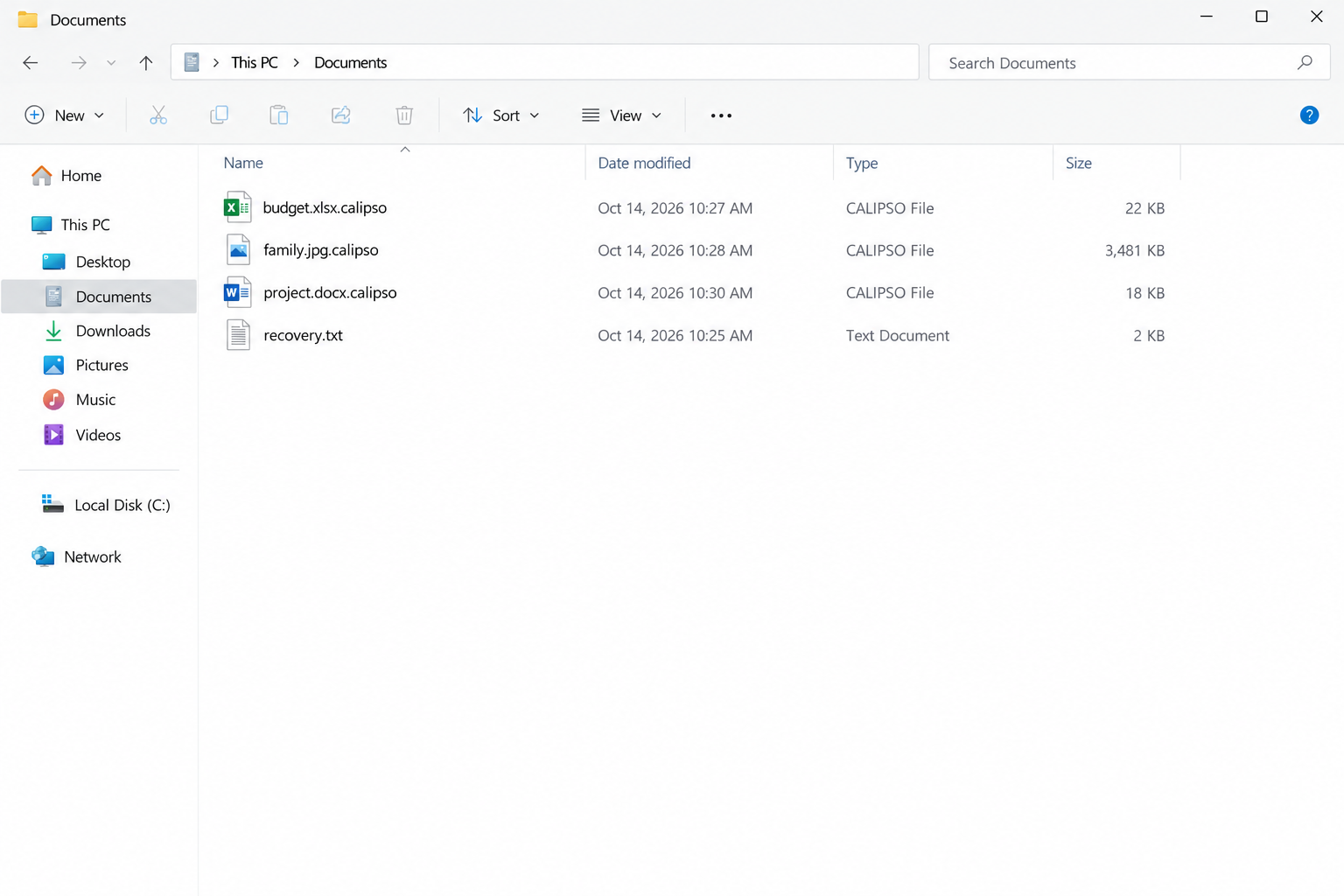
Recognizing the .calipso files
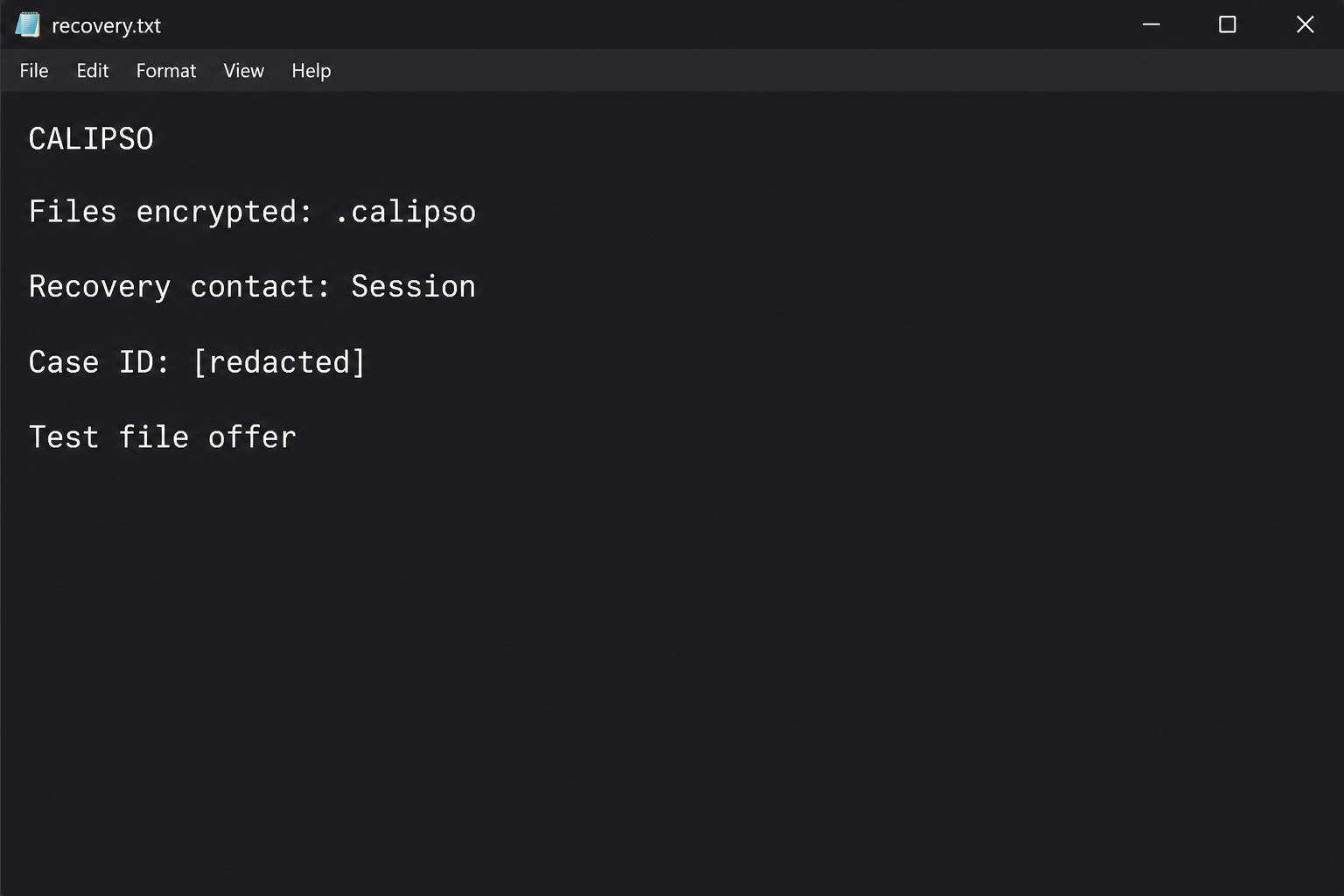
Calipso is a file-encrypting ransomware threat. The documented specimen adds .calipso to affected filenames, leaves recovery.txt, and changes the desktop wallpaper.
Those clues describe the reported sample, not proof that every similar-looking incident has identical capabilities. Preserve your own note and filenames for identification.
A file such as holiday.jpg.calipso still represents your original photograph, but the added suffix is not the reason it will not open.
Encryption changes the contents. Removing the suffix merely changes the label on the locked file.
- New .calipso endings across formerly usable files.
- A recovery.txt note directing contact through Session.
- A changed wallpaper reinforcing the ransom demand.
- A sharp distinction between removing malware and recovering documents.
What the contact demand means
The note routes victims to Session and offers a small-file decryption demonstration. Session is a legitimate messenger; the extortion comes from the people abusing it.
A private chat does not become a recovery service because it has a case number. You would still be dealing with an unaccountable attacker.
Do not install anything from a link in the note simply to start a conversation. Keep an unaffected device separate from the incident.
What recovery can realistically promise
As of October 6, 2026, we have not located a verified public decryptor specifically supporting Calipso. That finding can change as research develops.
It does not mean every lost file is beyond recovery. An offline backup, earlier cloud version, or another intact copy may still be available.
The sensible starting point is containment and preservation. Payment is not a substitute for those tasks, and malware removal is not decryption.
Why the Calipso Note Should Not Run Your Recovery
The person reading recovery.txt is already under pressure. The note tries to make an unfamiliar criminal contact feel like the one person with a practical answer.
That is why an organized response helps. Write down what you can observe before accepting explanations about keys, deadlines, or supposedly dangerous security software.
The illustrations here simplify the visible clues. Their example filenames and redacted identifiers are not captures from your computer or a newly executed malware test.
How Calipso Ransomware Works
Step 1: An intrusion allows a malicious program to run
The visible note is not the beginning of the incident. Something first gave malicious code a way to execute with access to your data.
The initial route for the documented specimen has not been established here. Do not assume the last email you opened must be responsible.
Investigators should review recent downloads, security alerts, account activity, and remote access. Build a timeline instead of treating a familiar ransomware name as an explanation.
Step 2: Usable data becomes encrypted data
Encryption prevents ordinary applications from reading affected contents. Documents can remain visible in their folders while becoming unusable when opened.
Scope matters. Record which directories and storage locations are affected without reconnecting backup drives to test whether they are safe.
Do not claim every file on every connected computer is locked merely because a wallpaper says so. Check the actual impact with your responder.
Step 3: The extension and note reveal the damage
The .calipso suffix makes the disruption easy to recognize. The recovery.txt file supplies the attacker’s proposed next action.
Neither item is a repair instruction you should trust. Both are useful evidence about how the attacker wants the incident to proceed.
Preserve the original versions. Editing the note, deleting identifiers, or renaming the files may complicate identification later.
Step 4: A Session conversation becomes the proposed solution
The attacker shifts attention away from your system and toward a conversation it controls. A case identifier creates the appearance of an orderly support process.
There is no independent complaint desk behind that process. If the contact stops responding, the case number does not give you enforceable rights.
Do not share sensitive files as a demonstration. A document sent for testing can reveal information that was not previously in the attacker’s possession.
Step 5: A test offer and deadline encourage payment
Restoring one small file would demonstrate only a limited result. It would not prove that every database, large archive, or damaged document can be restored.
It would also say nothing about the safety of a tool sent afterward. A successful demonstration cannot establish the trustworthiness of its sender.
A deadline adds pressure, not technical proof. Your response should be guided by evidence preservation and recovery options rather than the criminal’s timetable.
Three Decisions to Avoid While You Are Frightened
Do not let a changed wallpaper justify deleting everything
A dramatic screen can make a clean start feel attractive. Wiping immediately, however, may remove the very evidence needed to assess the incident.
Agree on what to preserve first. A home photo collection and a business server require different levels of investigation.
Do not confuse an antivirus result with restored files
A scanner may remove a malicious program while your documents remain encrypted. That is not proof the scanner failed at its actual task.
Keep separate checklists for cleanup and data restoration. Combining them creates unrealistic expectations and can lead you toward fake decryptor advertisements.
Do not reconnect the only good backup
Before plugging in an external drive, ask whether the affected system is ready for it. Being able to start Windows is not sufficient assurance.
Use another clean environment to inspect backups where possible. Protect the copy that could replace the files you lost.
What to Do If Calipso Has Encrypted Your Files
Stop using the affected machine for routine work. Disconnect its network connections and attached storage, then seek help if encryption appears to continue.
Save recovery.txt, a few example filenames, and the discovery time. At work, ask IT about forensic preservation before starting cleanup.
List the files you most need. Check whether relatives, colleagues, sent messages, or offline backups contain intact copies.
Arrange malware removal with trusted tools such as Malwarebytes. Follow the separate removal and recovery instructions below instead of treating either as a guaranteed fix.
Report the extortion and keep any payment correspondence. If you paid already, contact the payment provider rather than sending another fee to a supposed recovery agent.
Remove Calipso and Related Malware
Contain the incident before running cleanup tools
Disconnect the affected computer from Wi-Fi and wired networks. Unplug external storage and leave backup drives disconnected while you assess what happened.
Pause synchronization from a clean device where possible. Otherwise, encrypted versions may replace usable cloud copies while you are trying to rescue them.
At work, contact your IT or incident-response team immediately. A ransomware screen on one computer may be the visible part of a larger intrusion.
Keep the ransom note, filenames, discovery time, and any security alerts. A specialist may need disk or memory evidence before cleanup changes the machine.
If you cannot isolate a computer and encryption is visibly continuing, seek immediate assistance about shutting it down. Powering off can lose volatile evidence.
Do not repeatedly restart, reinstall, or experiment with utilities. Those actions can overwrite recovery evidence without addressing the underlying access problem.
Use trusted scanners on an isolated personal computer
For a home computer, arrange cleanup after preserving the evidence you need. Obtain security tools through their official websites using an unaffected system.
Malwarebytes can scan for malicious programs and related unwanted software. It is an infection-removal tool, not a way to decrypt already encrypted documents.
Install a current copy, update its detection data when safely possible, and run the available comprehensive scan. Review detections before applying the recommended quarantine actions.
Keep the scan report. It can help distinguish the ransomware payload from another infection, a suspicious installer, or a remote-access program.
Windows Security also provides scan options. Microsoft Defender Offline restarts into an offline scanning environment, so save your work before starting it.
Follow Microsoft’s ransomware protection guidance rather than instructions in the criminal’s note. A note telling you to disable protection is not trustworthy advice.
If Windows will not start or the scanners cannot operate, stop improvising. Use reputable technical assistance instead of downloading a supposed one-click emergency decryptor.
Do not upload the executable to unfamiliar recovery websites or run it elsewhere for testing. A second execution can create another incident.
Verify the environment before restoring anything
A completed scan is useful, but it cannot establish that every account, remote session, or networked computer is safe.
Check for unauthorized remote-access software, suspicious accounts, changed security settings, and unknown scheduled tasks. Business environments require coordinated investigation beyond this home-computer checklist.
Change exposed passwords from a clean device. Prioritize email, cloud storage, administrator access, and any account whose credentials were saved on the affected system.
Enable multifactor authentication where supported and revoke suspicious sessions. Simply changing the password may leave an existing signed-in session active.
A trusted reinstall may be appropriate when system integrity remains uncertain. Preserve recoverable data first, and reinstall from authentic installation media.
AdGuard can help reduce exposure to malicious advertising during future browsing. It neither cleans an infected system nor reverses file encryption.
Keep backup media offline until cleanup and access checks are complete. Reconnecting your only good copy too early can turn a recovery opportunity into another loss.
Recover Files After a Calipso Infection
Make a recovery copy, not another damaged original
Keep an untouched copy of the encrypted data whenever practical. Include the ransom note and retain the original directory structure.
Use a separate destination for recovery experiments. Never let a utility overwrite your only encrypted copy or replace an intact backup.
Before sharing samples, consider their sensitivity. Choose an ordinary, nonconfidential file and ask the service about handling rules if business or personal information is involved.
The note’s name, complete filename suffix, and contact details can help identify a variant. An extension alone is not enough to establish decryption compatibility.
For example, two infections can use the same suffix while generating different keys. A familiar family name can also hide a newer, unsupported version.
Record the exact error or result from each attempt. Keep a simple checklist so another helper does not repeat risky tests on the same files.
Check recognized decryption projects
Visit the No More Ransom decryption catalog from a clean browser. Look for the actual variant and read the tool’s requirements carefully.
A tool for a related family does not automatically unlock your files. Some decryptors support only older versions, certain keys, or specific encryption mistakes.
Download through the catalog’s trusted vendor link, not a sponsored search result or an unsolicited message offering guaranteed recovery.
Test only a duplicate sample first. Successful decryption should produce a usable document or image, not merely remove the added extension.
If the utility reports an unsupported file or key, stop. Changing the filename to resemble a supported variant does not change its encrypted contents.
When no compatible tool is available, preserve your encrypted archive. Researchers sometimes release new tools later, but future recovery cannot be promised.
Look for copies that existed before encryption
Check disconnected drives, backup software, cloud version history, another computer, and files previously sent to trusted contacts. You may have more copies than you remember.
Cloud synchronization is not automatically a backup. Confirm that an earlier usable version survives and that the account itself has not been compromised.
Restore into a cleaned environment. Open a selection of documents, photos, and project files before assuming the recovered collection is complete.
Compare important dates and contents. An older spreadsheet might open perfectly while still missing the transactions you needed to recover.
Windows Previous Versions or existing snapshots may offer additional copies. Availability depends on prior configuration and whether those snapshots survived the incident.
Do not create new restore points expecting them to contain yesterday’s files. Recovery depends on copies that already existed before the damage.
Deleted-file recovery utilities are a different category. They may locate unencrypted originals in some circumstances, but they do not mathematically decrypt overwritten data.
If you want a specialist to investigate that possibility, minimize writes to the affected storage. Continued installations can overwrite remnants that might otherwise be recoverable.
Evaluate recovery offers without surrendering control
Be wary of anyone who contacts you first, claims exclusive access to a secret decryptor, or requests an advance payment in cryptocurrency.
Ask a recovery provider what method it intends to use, what evidence supports success, and whether it would negotiate with the attacker.
Get the scope, fee, privacy terms, and limitations in writing. A legitimate assessment should distinguish a possibility from a demonstrated recovery result.
Do not provide remote administrator access to an unknown helper. Recovery desperation can make a second scam feel like the only remaining option.
If you already paid, retain receipts, transaction references, wallet addresses, and correspondence. Contact the payment provider promptly and report the extortion.
Recovery is sometimes partial. Prioritize irreplaceable files, verify them individually, and keep your evidence archive until the investigation and restoration decisions are settled.
Frequently Asked Questions
Will deleting .calipso make the files work again?
No. The filename suffix identifies the damage; it does not contain a key. Test recovery tools on copies and leave original filenames intact.
Is recovery.txt itself the ransomware?
A plain text note is generally an instruction artifact, not the program that performed encryption. Keeping it does not justify running attached executables or suggested downloads.
Does the use of Session make the demand legitimate?
No. A legitimate messaging application can carry criminal messages. Its presence does not authenticate the sender or provide a recovery guarantee.
Can Calipso files be decrypted for free?
No verified variant-specific public decryptor was located during this review. Recheck trusted catalogs, and investigate intact backups without assuming a future tool will appear.
Does a free test prove payment will recover everything?
It proves, at most, that the tested sample was restored. Large files, corrupted data, missing keys, and the attacker’s later behavior remain separate uncertainties.
Should I obey the warning against antivirus software?
No. Preserve evidence with appropriate help, then remove the infection. A criminal’s warning is not a reason to leave active malware on your system.
The Bottom Line
Calipso ransomware leaves recognizable clues, but the recovery.txt demand is not a dependable recovery plan. Protect surviving copies before doing anything irreversible.
Isolate the computer, preserve evidence, arrange cleanup, and restore only into a trusted environment. Keep encrypted originals if no compatible recovery method is available yet.








