

A purchase order arrives with a company signature and an Excel attachment. For someone handling suppliers or sales, it looks like another task awaiting review.
The HUS Ltd order-confirmation email deserves a closer look before that spreadsheet becomes part of your working day, especially if the order is unexpected.
Overview
A real steel company is being impersonated
This malicious order-confirmation campaign uses the name of HUS Ltd to persuade recipients to open an Excel attachment presented as business paperwork.
The genuine HUS Ltd website identifies a steel manufacturing and trading company based in Plovdiv, Bulgaria.
That legitimate business presence does not authenticate the email. A company signature, employee name, and public address can be copied into an unrelated message.
The warning concerns the impersonation and attached file. It is not evidence that the real company’s employees sent malware or that its website was compromised.
The purchase order leads toward a spreadsheet security boundary
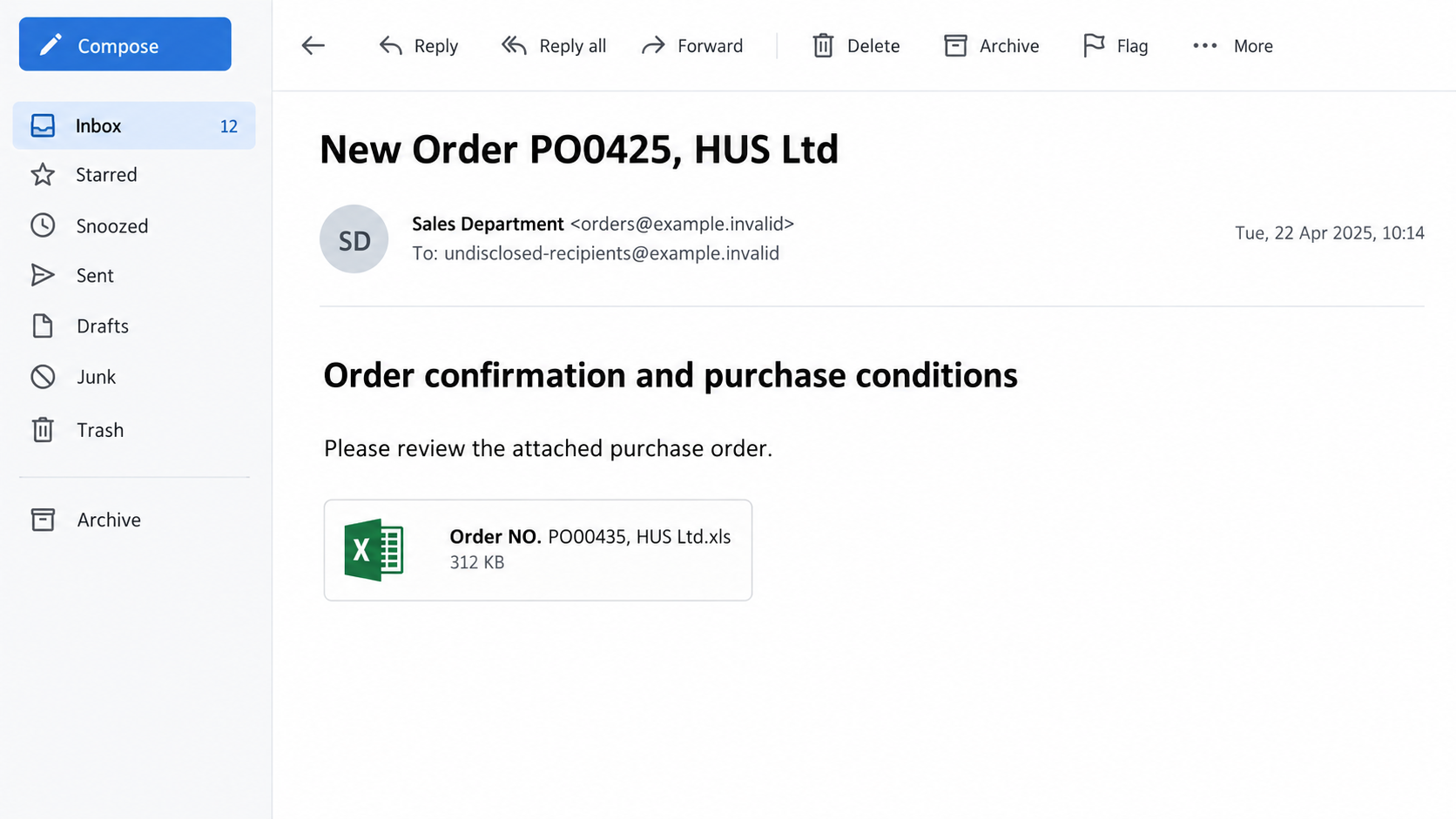
The reported subject references PO0425. Its attachment is named Order NO. PO00435, HUS Ltd.xls, and the message discusses order confirmation and purchase conditions.
The reported workbook presents little useful content while encouraging the recipient to leave Protected View. That makes the requested security change particularly important.
- An unfamiliar order creates a business reason to open the attachment.
- A copied company identity supplies apparent legitimacy.
- The spreadsheet format feels normal for commercial records.
- An editing prompt shifts attention from verification to making the file work.
The payload is unknown, and the buttons matter
The available campaign report does not identify the final malware payload. We have not executed the attachment, so claims about a specific infection would be unsupported.
Also, Enable Editing and Enable Content are not interchangeable. Leaving Protected View does not automatically enable active content in Office.
The lead illustration uses fictional sender details and represents the attachment lure. It is not the original workbook, and it contains no executable content.
Why This Looks Like Ordinary Supplier Correspondence
Purchase orders are repetitive by design. They contain reference numbers, short instructions, attachments, and signatures that recipients often process quickly.
A busy employee may judge the message by whether it resembles that workflow rather than whether the underlying order can be verified.
Detailed signatures add another distraction. A street address, job title, and company website create an impression of completeness without authenticating the sender.
Looking up the company may confirm that it exists. That answers a narrower question than whether this particular file came from it.
The difference matters for anyone investigating suspicious supplier messages. Finding a real business does not resolve the provenance of an unsolicited attachment.
Start with your own commercial records: did someone request this order, expect these conditions, or ask this contact to send a spreadsheet?
If the answer is uncertain, the next step is verification, not changing Office settings until the file displays something useful.
How the HUS Ltd Order Confirmation Email Scam Works
Step 1: The message supplies a ready-made business context
Instead of asking you to install unfamiliar software outright, the email presents a document that appears relevant to an ordinary commercial transaction.
Order references make the message feel specific. Yet a reference is only meaningful when it matches a record held by your organization or verified counterparty.
Do not assume a colleague must have arranged it simply because the company name sounds plausible. Ask the person responsible for the relevant purchase or sale.
If no one recognizes the transaction, preserve the notice for reporting. You do not need to open its attachment to justify that decision.
Step 2: The signature lends the file someone else’s credibility
A business signature encourages readers to picture an accountable professional behind the email. That can make a technical warning seem like an inconvenience rather than useful protection.
However, public contact information is easy to reuse. It cannot establish which account sent the message or whether the attached file was authorized.
Even a familiar conversation should be checked if its request changes unexpectedly. Compromised correspondence and copied signatures are different possibilities requiring evidence, not assumptions.
For this case, the available evidence supports impersonation. It does not identify the method used to obtain the signature or prove a breach at HUS.
Step 3: The attachment moves the interaction into Excel
The recipient is encouraged to treat the workbook as the place where the real transaction details will become clear.
This can reverse the safe order of checks. Instead of confirming the transaction before opening the file, you open the file to discover the transaction.
Excel workbooks can contain more than visible cells. Their risk depends on content, application behavior, security controls, and what the user authorizes.
The .xls extension identifies an older Excel format; it is not a certificate of safety. Renaming a file or seeing a spreadsheet icon changes nothing.
Do not upload private business attachments to a public analysis service without permission. Your security team may have a controlled way to inspect them.
Step 4: A viewing problem becomes a request to reduce protection
When expected content does not appear, readers naturally look for a way to fix the display. A prominent editing control can seem like the next sensible step.
Protected View is a safety boundary, not an error message that a document sender is entitled to override.
If an unsolicited order requires you to trust content before explaining itself, stop. The lack of useful visible information is not a reason to grant additional permissions.
Do not follow instructions to disable protections globally, add an unknown trusted location, or run an unrelated command to reveal commercial paperwork.
A legitimate counterpart can confirm the order and provide an approved alternative through your normal business process.
Step 5: Further execution depends on the file and environment
Some malicious Office documents rely on active content or vulnerable application behavior. Not every attachment executes merely because it is downloaded or viewed.
Microsoft distinguishes leaving Protected View from enabling active content. Current Office defenses may also block internet-origin macros, depending on the product and configuration.
That is why a response needs exact details: which file opened, which warnings appeared, and which controls you selected.
There is no identified payload to name in this campaign’s available record. Do not assume ransomware, a password stealer, or remote access without further evidence.
Nevertheless, unexpected execution or permission changes warrant assessment. Lack of a confirmed malware name is not a reason to continue experimenting with the workbook.
Enable Editing Is Not the Same as Enable Content
Leaving Protected View changes how Office treats the document
Protected View restricts how an untrusted document is handled. Selecting Enable Editing takes the document out of that protective viewing mode.
That action is meaningful, but it should not be described as universally equivalent to running macros. The distinction affects both prevention and incident reporting.
Microsoft’s trusted-document documentation states that active content is not automatically enabled when a user exits Protected View.
If you remember clicking only Enable Editing, tell support exactly that. Do not change your account of events to match an alarming explanation you read online.
Active-content prompts and blocked macros are separate decisions
A workbook may present additional warnings about content that Office has disabled. Those warnings deserve their own assessment, not automatic approval.
Microsoft also documents how internet-origin macros are blocked in supported Office configurations.
Do not search for a bypass to satisfy an unknown sender. A security control preventing the file from working may be doing exactly what it should.
Your organization’s settings can differ from another person’s computer. Advice based on a different Office version may not explain what happened on yours.
A blank workbook is not a diagnosis
An empty-looking sheet does not prove infection, nor does it prove the attachment is harmless. It only describes what the application displayed.
Similarly, an application crash does not identify a particular malware family. Security assessment needs the file and relevant system evidence.
The safe practical decision is to stop handling an unexpected workbook and let an authorized person investigate it without lowering protections.
What to Do If You Opened the Attachment
-
Stop interacting with the workbook. Do not reopen it, approve more prompts, or try suggested display fixes from the sender.
Write down what you remember seeing and clicking. Include whether the file stayed in Protected View or whether you enabled editing, content, or another permission.
-
Notify workplace IT if this is a business device. Provide the message and attachment using the approved incident-reporting process.
Avoid forwarding the file to coworkers for an informal second opinion. That could expose more people while adding little reliable evidence.
If you suspect active compromise, stop sensitive work and follow your organization’s isolation procedure. Let responders decide how to preserve logs and system state.
-
Preserve the original message safely. Headers, arrival time, attachment name, and the recipient account can help investigators connect related deliveries.
Do not post the workbook publicly or send confidential business material to an unknown scanning service. Ask the security team how to transfer it.
-
Have a personal device checked if risky content ran. Use trusted security software and install operating-system and Office updates through their normal channels.
Malwarebytes can assist with detecting malicious or unwanted software. No single scan can establish every action a file may have taken before detection.
Seek qualified help if warnings persist, unfamiliar programs appear, or you cannot explain recent account activity. Avoid cleanup tools offered by the suspicious email.
-
Secure accounts if there is evidence of exposure. Use a clean device when malware execution is suspected, especially for email and financial services.
Replace compromised credentials and examine suspicious account activity with the provider or administrator. Merely receiving the attachment does not mean every password must have been stolen.
-
Review browser changes only if the incident included browsing. Remove unexpected extensions or notification permissions granted during any related visit.
AdGuard may help with malicious advertising exposure on the web. It is not a tool for neutralizing an Excel workbook or restoring a compromised machine.
-
Confirm the commercial situation independently. Ask the genuine business contact whether an actual order or delivery needs attention.
Use an existing vendor record or the company’s independently opened website. Do not accuse the named employee based only on a copied signature.
-
Close the incident with a clear internal record. Record the assessment, affected systems, cleanup, and any account changes your responders directed.
If the file was blocked before execution, document that outcome too. Accurate reporting helps avoid both unnecessary alarm and missed follow-up work.
A Safer Purchase-Order Workflow
Purchasing and sales teams need to exchange documents. A useful defense should make unexpected orders easier to verify, not make ordinary work impossible.
Maintain a trusted vendor directory separately from incoming messages. That gives employees a contact route the suspicious sender did not supply.
Assign someone to keep that directory current when staff or suppliers change. An outdated contact list can send employees back to unverified email signatures.
Require unfamiliar order references to be matched with an internal owner. A busy shared inbox should not turn uncertainty into permission to open every attachment.
When a sender asks for a different file-handling process, confirm the change outside the email thread. This is especially important for security-setting exceptions.
Agree on approved document formats and transfer channels where practical. A transaction can often continue without asking staff to enable unknown active content.
Keep software supported and updated, but do not treat updates as permission to trust arbitrary attachments. Technical defenses and business verification address different risks.
Encourage fast reporting of mistakes. Someone who clicked a warning should be able to explain it immediately without first trying to fix the situation alone.
The strongest lesson from this lure is about workflow: the desire to finish an ordinary task should not determine whether an unfamiliar file receives trust.
Frequently Asked Questions
Is HUS Ltd a fake company?
No. Its official site describes a real steel business. This warning concerns a malicious message using its identity, not the legitimacy of the company itself.
Is the attachment a confirmed ransomware installer?
The available record does not identify its final payload. Calling it a specific ransomware family would go beyond the evidence.
Does clicking Enable Editing automatically run macros?
No. Office distinguishes leaving Protected View from enabling active content. Report the exact prompts you approved so the incident can be assessed correctly.
What if I downloaded the spreadsheet but never opened it?
Do not open it now. Report and handle the file through your security process; downloading alone does not establish that its content executed.
Can I trust the message because the address is real?
A real address can be copied. Verify the particular order and sender through established business records rather than treating signature details as authentication.
Should I request another copy from the same sender?
First confirm the transaction through an independently verified contact. Asking the unverified sender for another file may simply restart the same exposure.
The Bottom Line
The HUS Ltd order-confirmation scam hides a risky attachment inside an ordinary supplier workflow. A real company name cannot make an unexpected workbook trustworthy.
Verify the transaction before handling the file, keep Office protections intact, and report any interaction accurately. Unknown payload details should prompt careful assessment, not invented certainty.








