

An email says your company must confirm its tax details for electronic invoicing. The sender looks administrative, and an attached form appears to make the task straightforward.
The WKO e-invoice email scam borrows the language of business compliance. Before asking a colleague to complete the form, check where the request actually came from.
Overview
A business-data check falsely presented as WKO correspondence
WKO, Austria’s Economic Chamber organization, is a legitimate institution. The messages discussed here impersonate it rather than describe wrongdoing by the chamber.
Its official warning identifies numerous fraudulent emails about annual business-data updates, electronic invoices, tax-data checks, and related administrative topics.
In the e-invoice version, the message claims that a 2026 change requires confirmation of stored tax information. The instruction arrives as an apparently routine compliance task.
WKO says these emails aren’t from the chamber. The supposed authority behind the form is fabricated, regardless of how familiar the business terminology sounds.
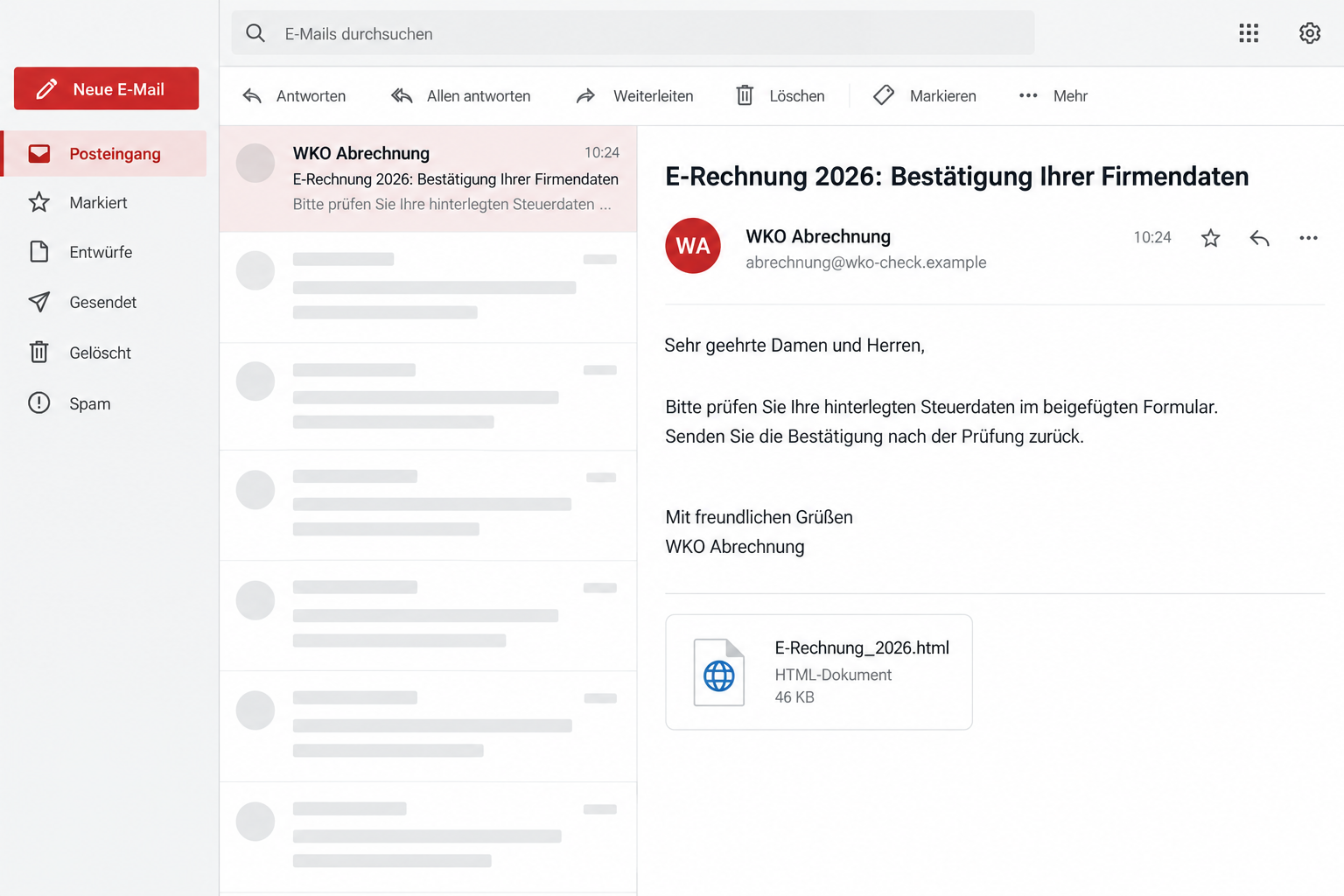
An HTML attachment supplies the supposed paperwork
The recipient is asked to check information in an attached document and return confirmation. Reported attachments use HTML filenames associated with the claimed e-invoice requirement.
Some messages display WKO-style administrative names and addresses ending in wko.com. Those sender strings shouldn’t be confused with independently verified WKO correspondence.
The illustration shows a fictional email and attachment tile. It isn’t an authentic chamber document, and its contact address is nonfunctional.
This case establishes phishing and a false data request. The warning doesn’t establish that the attachment installs malware or that a particular payment was collected.
The checks to make before treating it as an assigned task
- The request arrives unexpectedly and invokes a regulatory or administrative change.
- The sender name claims a WKO role without independent confirmation.
- The supposed compliance document is an HTML attachment.
- You are told to confirm or return company information through the supplied material.
- A deadline or warning about business continuity discourages verification.
Don’t open the form to discover whether you must comply. Ask the genuine chamber or your established adviser about the request first.
Keep real reporting duties separate from the impostor email. Rejecting a false form doesn’t settle whether your company has a genuine accounting obligation.
Why the E-Invoice Story Fits a Busy Business Inbox
Administrative change notices often arrive among invoices, tax questions, and supplier requests. An employee may already be looking for messages that require a quick answer.
Electronic invoicing sounds like a credible subject for that environment. The scam uses the topic to make a new data request feel expected.
It also gives the recipient a practical worry: incorrect records might prevent a system change from working properly. The email offers its own form as the fix.
That can move the decision from “Is this genuine?” to “Who in the office should complete it?” Once forwarded, the request gains internal momentum.
A colleague may assume the first recipient already checked the sender. An internal instruction can therefore make an external impersonation more convincing.
Be clear when forwarding suspicious correspondence for review. Don’t send it with a task instruction that implies the attachment is approved.
A familiar date or compliance phrase doesn’t establish a genuine obligation. Verify the actual requirement through the institution or adviser you normally use.
If you run the business alone, check with your usual chamber contact or adviser. You don’t need to open the attachment to explain the request.
How the WKO E-Invoice Email Scam Works
Step 1: The message borrows an administrative identity
The email presents the sender as a chamber billing, administration, or official-looking unit. Its signature can include enough detail to resemble ordinary institutional correspondence.
The displayed role gives the request authority before anyone examines the attachment. The recipient may believe the form is connected to an existing business registration.
A display name isn’t confirmation of that role. Nor does an institutional-looking signature prove that the message came from the organization it names.
Use contact information obtained independently to check. A number supplied inside the disputed signature isn’t an independent source simply because it appears professionally formatted.
Step 2: A claimed system change creates a reason to supply data
The e-invoice variant says stored tax details need a one-time check. It presents the request as preparation for correct handling within an updated system.
A reported version sets a November 30 deadline. Other variants use different topics or dates, so recognizing one subject line won’t catch every message.
The deadline belongs to the fraudulent email’s story. Don’t add it to your company’s compliance calendar before verifying that the requirement exists.
Ask what rule or genuine process requires the information and where that process can be found through official channels.
If the real institution can’t confirm the particular request, don’t continue with the attachment just because the broader topic sounds plausible.
Step 3: The attached HTML form makes the request easy to act on
The supplied document is presented as the convenient place to review or confirm the company’s details. That avoids sending the reader to an independently chosen account.
An HTML file can open in a browser and display a form. Seeing a browser window doesn’t turn a locally opened attachment into a trusted official portal.
The file’s businesslike name isn’t a safety check. The extension and the unverified source matter even when the beginning of the filename sounds familiar.
Don’t enter real company information into it to see what happens. Testing with genuine records can provide the very information the impostor wants.
You also don’t need to pass the attachment around to decide whether the email is authentic. Report the subject and request through your approved review process.
Step 4: Confirmation sends information into the impostor’s process
The recipient is asked to confirm details and return the form. That action places an unverified contact in the middle of the company’s information workflow.
The consequences depend on what was supplied. Contact information, tax records, credentials, and payment details each require a different response.
Don’t assume that every recipient experienced account theft. Establish the exposure from the submitted material and any subsequent activity.
However, a response can make another approach easier to believe. Someone repeating your business details still needs independent verification before receiving further information.
Reading the Sender and Attachment Without Trusting Either
Look at the actual sender address, not only the display name. In this campaign, WKO reports messages showing billing or administration addresses under wko.com.
The chamber’s official web presence uses wko.at. A similar-looking address in an email is not a substitute for starting from that verified service.
A displayed email address can also be spoofed. The reported sender string doesn’t establish who owns or operated the domain behind it.
That is why the requested action matters alongside the address. Here, the chamber explicitly rejects the messages and tells recipients not to engage with the attachments.
Check filenames carefully, but don’t make the file’s appearance your only test. Different versions can rename the document while retaining the same false instruction.
HTML isn’t proof of malware by itself. The confirmed problem is using an unverified attachment to collect information under an institution’s borrowed identity.
If additional downloads or execution prompts appear, stop. Those would create a separate software-security concern that needs assessment, not experimentation.
On a work computer, let the security team handle suspicious attachments using its established process. Don’t upload confidential company records to random scanning websites.
Checking a Real Requirement Without Missing Actual Work
Return to WKO’s official website or the contact your company already uses. Describe the email’s exact claim and attachment type.
Ask whether the institution sent that particular notice. A broad question about electronic invoices may only confirm that the subject is real, not that the email is.
Your accountant or established tax adviser can help distinguish a genuine obligation from the impostor’s instructions. Use their existing contact, not a referral inside the email.
If a legitimate task remains, complete it through its verified process. Don’t recycle the false form because it seems to ask similar questions.
Keep a short internal record of the verification result. That helps another employee avoid reopening the same message after it appears in a shared inbox.
For an attachment already circulated, warn recipients without sending another live copy. Tell them what not to open and where to report any action taken.
Don’t ignore all chamber correspondence after one scam. The useful habit is confirming the request and route, not abandoning legitimate business communications.
What to Do if You Have Fallen Victim to This Scam
-
Stop interacting with the false request. Don’t reopen the attachment, send a corrected version, or provide more information to satisfy the supposed deadline.
Tell the appropriate colleague or adviser that the instruction was unverified. Prevent someone else from treating your earlier forwarding message as approval.
-
Establish exactly what was shared. List the records, contact details, passwords, or financial information supplied. Preserve the sent response and the original email.
Receiving the message alone is not the same as opening the form or submitting data. Describe the actual action when seeking help.
-
Contact the genuine chamber and your business advisers. Use existing or independently obtained details. Report the impersonation and ask whether any actual record needs attention.
Keep the fraudulent deadline out of your decision. A request for another confirmation from the original sender doesn’t resolve the incident.
-
Secure exposed accounts. If any password was entered, replace it through the genuine service on a trusted device. Review available sessions and unfamiliar changes.
Protect other accounts using the same password. Tell the relevant administrator if business email, accounting software, or government-service access was involved.
-
Involve the bank if financial information or approvals were supplied. Explain what you entered and any payment you authorized. Ask what containment is appropriate.
Check unfamiliar transfers or changes in payment instructions. Don’t approve another operation from an incoming caller who claims to correct the first one.
-
Investigate the device when software exposure occurred. If the attachment triggered a download, installation, or execution, stop sensitive activity and follow your IT team’s instructions.
Malwarebytes can help investigate malicious software on a personal or appropriately managed device. The campaign warning alone doesn’t prove that malware ran.
For later browsing, AdGuard can add filtering against some risky web destinations. It doesn’t authenticate an attachment or verify a compliance duty.
-
Preserve evidence and report actual fraud. Keep the sender, subject, filename, dates, submitted information, and relevant account activity. Remove confidential details from public warnings.
If information was misused or money was lost, report it to the appropriate authorities. A paid recovery offer from an unknown contact deserves no privileged access.
A Practical Rule for Shared Business Inboxes
Assign responsibility for unexpected compliance requests. A message shouldn’t become everyone’s task while remaining nobody’s verification responsibility.
Have the first reviewer note whether the organization and request were confirmed. This prevents a familiar sender name from being mistaken for completed checking.
If the email reached a shared accounting address, check whether anyone else answered it. One stopped response doesn’t cancel a colleague’s submission.
Separate reporting a suspicious attachment from completing a form. Employees need an easy way to ask for help without opening the document themselves.
Keep approved institutional contacts in a place staff can find. Details inside a new email shouldn’t silently replace an established contact record.
If an employee already responded, ask for the sent material promptly. Blame and embarrassment can delay the information needed to protect accounts.
Discuss the actual exposure rather than assuming everything was breached. A company name and email address call for different measures than an accounting-system password.
When a real deadline approaches, verification becomes more important, not less. An impostor can borrow the pressure of work the business is already trying to finish.
Frequently Asked Questions
Is WKO responsible for these fraudulent forms?
No. WKO is the institution being impersonated and has warned that these messages aren’t from it. The false request should not be attributed to the chamber.
Does this mean every e-invoice requirement is fake?
No. The warning concerns specific impersonation emails. Check genuine accounting obligations through official information or your established adviser, separately from the attachment.
Why is an HTML form attached to the email a warning sign?
In this campaign, it supplies the false data-confirmation route. Don’t open or complete the unverified document simply because its filename sounds administrative.
Does the wko.com sender string prove who sent it?
No. WKO reports those displayed addresses in fraudulent messages, but an email string can be spoofed. Verify the actual request through the real institution.
Has this attachment been confirmed to install malware?
The cited warning establishes phishing, not an identified malware payload. Investigate any actual download or execution separately without assuming every opened file produced an infection.
What if a colleague already returned company details?
Preserve the response and identify the information sent. Protect exposed accounts, involve the bank where relevant, and contact the genuine chamber through trusted details.
The Bottom Line
Don’t complete the WKO e-invoice form supplied by an unverified email. The chamber has confirmed that these data-check messages are fraudulent.
Verify any real obligation through WKO or your established adviser. If information was already sent, secure the affected records and accounts instead of answering the impostor again.








