

A friendly stranger writes as though you helped close an important deal. Now there’s a generous thank-you waiting, complete with delivery arrangements.
It’s an unusual message to find among everyday emails. The little details about the promised card deserve more attention than its impressive balance.
Overview
A financial gift with no recognizable agreement
The Business Agreement Finalized email scam offers an unexpected reward on a supposedly funded debit card. The message substitutes an attractive balance for verifiable business records.
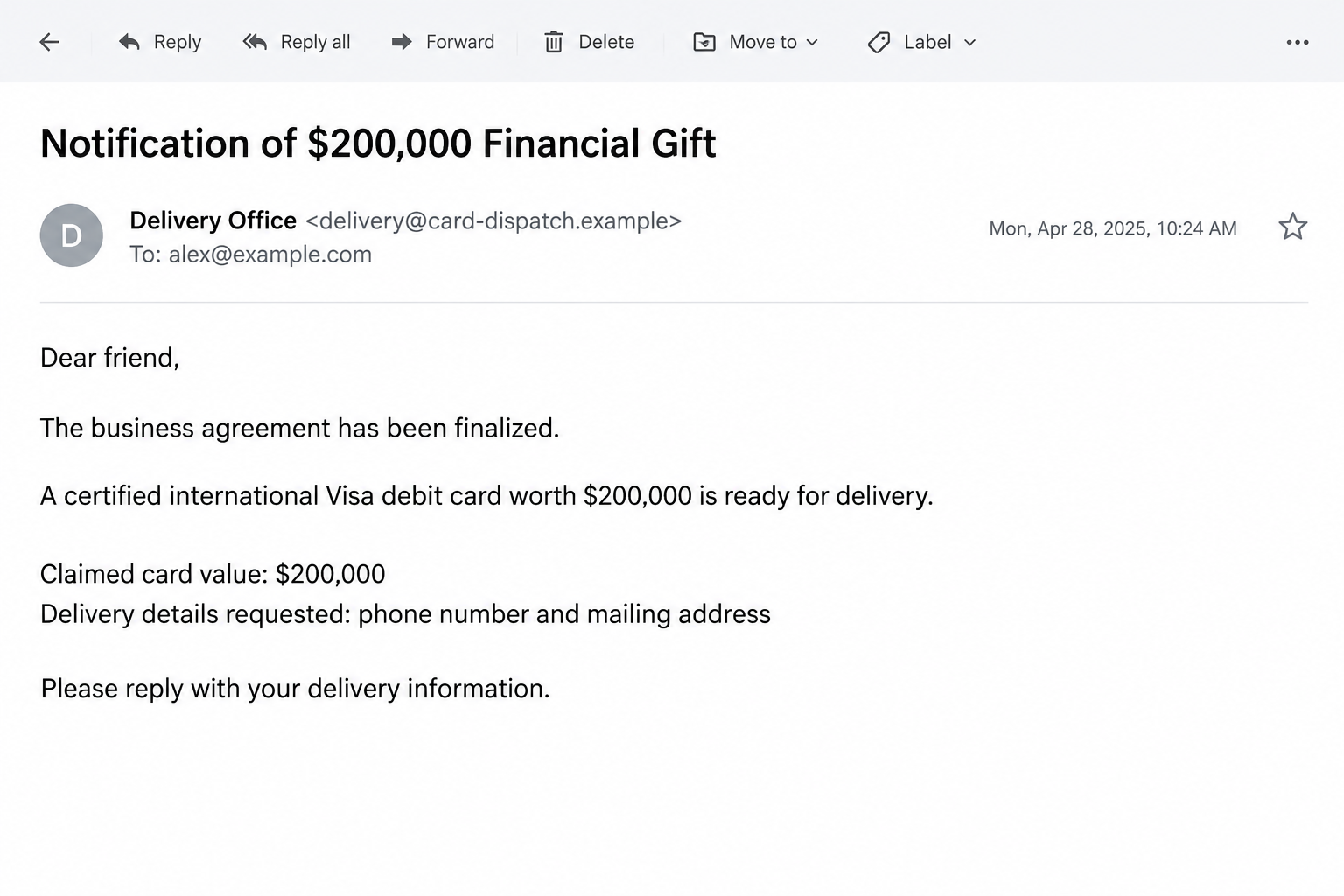
The published sample uses the name Everest Metu, mentions a London partner, and promises $200,000 on a Visa-branded card.
These are claims made by the sender. A bank name or payment-network name inside an email does not establish that either organization issued a reward.
The first request looks smaller than the promised prize
Initially, the recipient is asked for a phone number and mailing address. Delivery sounds like a reasonable explanation for collecting those details.
That low-friction request opens a channel for further persuasion. The familiar advance-fee pattern introduces release charges only after the recipient has begun expecting money.
There is no verified entitlement behind this offer. Don’t reply with delivery information, and don’t pay to obtain the advertised card.
Details that matter more than the card description
- You should recognize any genuine agreement that supposedly earned you a substantial payment.
- A list of card features doesn’t demonstrate that funds exist.
- Unsolicited delivery arrangements can collect information for later calls.
- A fee to unlock an unexpected reward is a reason to stop, not complete another form.
The sample’s described balance is the bait, not evidence of an account in your name. Treat it as an unsupported financial promise.
The email illustration uses fictional contact details. It depicts the opening request without supplying a real person to contact or a card number to use.
Why the Debit Card Story Feels More Tangible Than a Promise
A vague offer of wealth is easy to dismiss. A card sounds like an object someone could put in an envelope and deliver to your home.
Ordinary card features help create that impression. An expiry date, daily withdrawal limit, and issuer label resemble details you already associate with real banking.
But those are descriptions, not independent confirmation. Anyone writing an email can add a number, a color, or an account label.
Even a photograph wouldn’t settle the issue. A picture of plastic doesn’t show who controls an account, whether a balance exists, or whether you own it.
The supposed sender’s familiarity does additional work. A warm greeting encourages the reader to wonder whether they’ve forgotten a previous exchange.
You don’t need to solve that mystery by replying. If you genuinely participated in a transaction, you should already have a way to contact the parties.
Check existing correspondence, contracts, and known contacts. An unexpected email should not become the only source of information about the deal it claims to describe.
A legitimate business payment also has a purpose you can explain without repeating the sender’s story. What did you supply, authorize, win, or agree to?
If the only answer is that a stranger feels grateful, don’t provide personal information to help the stranger finish the arrangement.
How the Business Agreement Finalized Email Scam Works
Step 1: Introduce a completed deal and a personal reward
The opening places the difficult work in the past. The agreement is supposedly finished, the money is available, and the sender merely needs to arrange delivery.
That framing removes questions a real transaction would require. There’s no meaningful explanation of your role, contractual terms, or why this payment belongs to you.
The recipient is invited to focus on receiving the benefit instead of establishing its origin. It’s a subtle but important change in the conversation.
Don’t fill in missing history on the sender’s behalf. A financial offer should make sense before you contribute information or effort.
Step 2: Make the reward look administratively complete
The card description gives the offer a finished appearance. It seems less like a negotiation and more like a package waiting for its final address label.
Readers may interpret specificity as proof because inventing unnecessary details feels wasteful. For a scammer, those details are inexpensive reassurance.
A listed number cannot establish that a real issuer recognizes you as the cardholder. Nor does an impressive balance demonstrate available funds.
Don’t try the number on a shopping site or public card-checking tool. That wouldn’t authenticate the offer and could create another exposure.
Step 3: Collect enough information to continue off email
A delivery request creates a reason to ask for contact information before mentioning money. Saying yes can feel harmless because you aren’t paying yet.
A phone number allows a follow-up caller to discuss the same promise. An address lets the sender make later paperwork appear more personal.
These details alone do not give someone automatic access to your bank account. The concern is what they enable the stranger to ask for next.
For example, a caller may repeat your address to appear informed. Remember that information you supplied is not independent evidence of the caller’s authority.
Step 4: Turn delivery into a payment obstacle
Advance-fee schemes commonly introduce a charge for release, handling, insurance, or another invented obstacle. The exact wording can vary.
Now the large supposed reward makes a smaller payment seem reasonable. The reader compares the cost with imagined winnings instead of asking whether the obligation exists.
A genuine financial institution should be contacted independently before any unexpected card arrangement is accepted. Don’t rely on an agent or certificate supplied by the claimant.
If the explanation keeps changing, stop. You don’t need to establish which invented fee sounds least plausible before deciding not to send money.
Step 5: Use earlier commitments to keep the exchange moving
After a person has shared information or paid, walking away feels harder. They may want to finish the process so the earlier effort wasn’t wasted.
That feeling can make a new obstacle seem temporary. Another signature, document, or transfer is presented as the final task.
No previous payment makes the next request more legitimate. Evaluate it from the beginning: who owes you money, and where is the independent proof?
If that proof is absent, continuing only creates more opportunities for loss. Stop contact even if the sender claims your previous payment will otherwise be forfeited.
Checking the Claimed Sender and Card Issuer
A name in a signature is not verified identity
The name used in the message shouldn’t be treated as a confirmed operator’s legal identity. Names can be invented, borrowed, or reused.
Likewise, finding a real person with the same name doesn’t establish a connection. Avoid contacting unrelated people or publishing accusations against them.
Keep the actual email address, headers, and correspondence instead. Those records are more useful for a report than a speculative search for a matching photograph.
Visa branding doesn’t mean Visa sent the offer
Visa is a payment network, not proof that the person contacting you has authority over an account. Card issuance involves a genuine financial institution.
Locate any named issuer through its established website. Ask about the claimed communication without providing information to an unverified intermediary.
A sender who insists that only their personal agent can confirm the arrangement is preventing independent verification, not offering special customer service.
Don’t mistake paperwork for an independent source
A certificate, courier slip, or letter is only as trustworthy as its origin. A document supplied by the claimant doesn’t independently corroborate the claimant.
If several supposed departments use the same conversation to request fees, separate their labels from their identities. Different signatures don’t necessarily mean different organizations.
A later fee request fits the familiar advance-fee pattern. Its exact wording can differ, so preserve your own correspondence rather than expecting an identical script.
When the Sender Starts Calling You Personally
A call can make an email offer feel more substantial. Hearing a confident voice may suggest that a real office is finally handling the delivery.
Don’t mistake confidence for verification. Ask yourself whether the caller has supplied anything that couldn’t have come from the original conversation.
A caller who knows your address because you emailed it isn’t demonstrating access to official banking records. They’re repeating information already available to the conversation.
Leave the call without agreeing to a payment time. You can verify a genuine institution after hanging up, using a number you find separately.
Watch for instructions to keep the gift secret from your bank. That prevents the very institution handling your money from assessing the proposed transaction.
Don’t describe a payment falsely because the caller supplies a convenient explanation. Tell your bank what was promised and why you were asked to transfer funds.
If someone sends an online banking link during the call, don’t open it while following their directions. Open your own app only after ending the conversation.
Be especially careful with screen sharing. A stranger observing your account can learn balances, account details, and other information even before attempting to control the device.
You can stop an uncomfortable call without proving the entire story false. Independent verification should never require remaining on the line with the claimant.
What to Do if You Have Fallen Victim to This Scam
End the delivery conversation. Don’t send another address form, identity photo, or confirmation call. Block follow-up accounts after preserving relevant evidence.
You don’t owe the sender an explanation. Arguing can reveal more personal information and gives them another opportunity to change the story.
List what you disclosed. Separate contact details from passwords, identification documents, account numbers, and payments. That list determines the precautions you actually need.
Sharing a postal address isn’t the same event as sharing a banking login. Avoid panic, but take each additional disclosure seriously.
Contact the payment provider if you sent a fee. Find its contact details on your own statement, card, or established app.
Describe the promised reward, the request that induced payment, and the recipient information. Ask whether a recall, dispute, or other recovery process is available.
Keep gift cards, transfer receipts, and transaction references if applicable. Don’t send another fee to persuade the original sender to issue a refund.
Secure compromised accounts through trusted routes. If you provided login information during the exchange, replace the affected password and review remaining sessions.
Use a clean device if a suspect program was installed. Change reused credentials separately, and enable stronger authentication where the account supports it.
Get identity-specific help when needed. If you sent identification documents or sensitive government numbers, contact the relevant issuer or your country’s identity-fraud service.
For US readers, IdentityTheft.gov offers a recovery starting point. Other countries have different processes, so use the authority relevant to your documents.
Inspect unexpected files rather than opening them again. Keep filenames and messages for your report. Don’t execute an alleged activation program to see what happens.
Run Malwarebytes if you opened risky downloads or installed software. AdGuard may reduce harmful advertising exposure, but it cannot validate a promised card or recover fees.
File a report with a concise timeline. Include the original approach, claimed reward, personal information requested, payment destination, and dates of any transfers.
A report is useful even when the sender disappears. Your email provider’s phishing-report feature can also help it identify related messages.
Warn anyone who might receive a follow-up. Tell household members not to pay a courier or bank representative because someone claims your card is waiting.
If you used a work address or business account, notify the appropriate colleague privately so an invented delivery doesn’t become a workplace payment request.
Is Your Device Infected? Run a Free Malware Scan
Slow performance, constant pop-ups, or strange behavior? These are classic signs of a malware infection. The fastest way to find out is to scan your device with Malwarebytes Free — one of the most trusted malware removal tools available.
The free version detects and removes the most common threats, including:
- Adware — the cause of those annoying pop-ups
- Browser hijackers — unwanted redirects and changed homepages
- Trojans and spyware — hidden programs stealing your data
- Potentially unwanted programs (PUPs) — software you never asked for
👉 Select your device below — Windows, Mac, or Android — then follow the simple steps to download Malwarebytes, scan your system, and remove any threats it finds. The scan usually takes 5 to 20 minutes.
Run a Malware Scan with Malwarebytes for Windows
Malwarebytes is one of the most popular and trusted anti-malware tools for Windows — and it’s completely free for removing infections. It catches threats that many antivirus programs miss, including adware, browser hijackers, and trojans. Follow the steps below to scan and clean your PC in just a few minutes.
Download Malwarebytes
Click the button below to download the latest version of Malwarebytes for Windows from the official source. The free version is all you need — it will scan your computer and remove adware, browser hijackers, and other malicious software at no cost.
Download MalwarebytesOfficial installer for Windows 11 and 10. Your download starts right away.Want real-time protection? See Malwarebytes Premium Malwarebytes Free for WindowsScans and removes malware at no cost
-
Install Malwarebytes
When the download finishes, open your Downloads folder and double-click the MBSetup file. If Windows shows a User Account Control pop-up, click “Yes” to allow the installation.

Follow the On-Screen Prompts to Install Malwarebytes
The setup wizard will walk you through a few quick screens:
-
Choose where you’re installing the program — “Personal Computer” or “Work Computer” — then click Next.

-
Malwarebytes will now install on your device. This usually takes under a minute.

-
When installation is complete, the “Welcome to Malwarebytes” screen will open automatically.

-
On the final screen, click Open Malwarebytes to launch the program.

-
Enable “Scan for Rootkits”
Before scanning, turn on rootkit detection so Malwarebytes can find even the most hidden threats. Click the Settings gear icon on the left side of the screen.

In the settings menu, find “Scan for rootkits” and click the toggle so it turns blue.

Done? Click “Dashboard” in the left pane to return to the main screen.
Start the Scan
Click the blue Scan button. Malwarebytes will automatically update its virus database and start checking your computer for malware.

-
Wait for the Scan to Finish
The scan checks your entire system for browser hijackers and other malicious programs, so it can take 5 to 20 minutes depending on your computer. Feel free to do something else — just check back occasionally to see the progress.

-
Quarantine the Detected Threats
When the scan is done, you’ll see a list of everything Malwarebytes found — malware, adware, and potentially unwanted programs. Click the “Quarantine” button to remove all of them at once.

Malwarebytes will now remove the malicious files and registry entries and move them safely into quarantine.

-
Restart Your Computer
Some threats can only be fully removed after a reboot. If Malwarebytes asks you to restart, click Yes. Once you’re logged back in, Malwarebytes has finished removing the threats it found.

That’s it — your Windows PC is now clean of trojans, adware, and other malware, and should be back to running smoothly.
If you are still having problems with your computer after completing these instructions, then please follow one of the steps:
- Run a computer scan with ESET Online Scanner
- Ask for help in our Windows Malware Removal Help & Support forum.
Run a Malware Scan with Malwarebytes for Mac
Malwarebytes for Mac is a free on-demand scanner that removes the malware other security software tends to miss — adware, browser hijackers, and unwanted programs included. Cleaning an infected Mac with Malwarebytes has always been completely free, and it’s our go-to recommendation. Follow the steps below to scan and clean your Mac in just a few minutes.
-
Download Malwarebytes for Mac
Click the button below to download the latest version of Malwarebytes for Mac.
Download MalwarebytesOfficial installer for macOS. Your download starts right away.Want real-time protection? See Malwarebytes PremiumMalwarebytes Free for MacScans and removes malware at no cost -
Open the Malwarebytes setup file
When the download finishes, open your Downloads folder and double-click the setup file to begin the installation.

-
Follow the On-Screen Prompts to Install Malwarebytes
The Malwarebytes for Mac Installer will guide you through a few quick screens. Click “Continue” and keep following the prompts until the installation completes.



When the installation is complete, Malwarebytes opens to the Welcome to Malwarebytes screen. Click “Get started“.
-
Select “Personal Computer” or “Work Computer”
Malwarebytes will ask what type of computer you’re installing it on. Click either Personal Computer or Work Computer, whichever applies.

-
Start the Scan
Click the “Scan” button. Malwarebytes will automatically update its detection database and begin checking your Mac for malware.

-
Wait for the Scan to Finish
Malwarebytes will scan your Mac for adware, browser hijackers, and other malicious programs. This can take a few minutes, so feel free to do something else — just check back occasionally to see the progress.

-
Quarantine the Detected Threats
When the scan is done, you’ll see a list of everything Malwarebytes found. Click the “Quarantine” button to remove all the threats at once.

-
Restart Your Mac
Malwarebytes will now remove all the malicious files it found. Some threats can only be fully removed after a reboot — if Malwarebytes asks you to restart, allow it. Once you’re logged back in, your Mac is clean.

That’s it — your Mac is now free of adware, rogue browser extensions, and other potentially harmful software.
If you are still experiencing problems while trying to remove a malicious program from your computer, please ask for help in our Mac Malware Removal Help & Support forum.
Run a Malware Scan with Malwarebytes for Android
Malwarebytes for Android automatically detects and removes dangerous threats like malware and ransomware so you don’t have to worry about your most-used device being compromised. Aggressive detection of adware and potentially unwanted programs keeps your Android phone or tablet running smooth.
-
Download Malwarebytes for Android.
You can download Malwarebytes for Android by clicking the link below.
Get Malwarebytes for AndroidOpens Google Play in a new tab.Want real-time protection? See Malwarebytes Premium for AndroidMalwarebytes for AndroidScans your phone and removes malware at no cost -
Install Malwarebytes for Android on your phone.
In the Google Play Store, tap “Install” to install Malwarebytes for Android on your device.

When the installation process has finished, tap “Open” to begin using Malwarebytes for Android. You can also open Malwarebytes by tapping on its icon in your phone menu or home screen.

-
Follow the on-screen prompts to complete the setup process
When Malwarebytes will open, you will see the Malwarebytes Setup Wizard which will guide you through a series of permissions and other setup options.
This is the first of two screens that explain the difference between the Premium and Free versions. Swipe this screen to continue.
Tap on “Got it” to proceed to the next step.
Malwarebytes for Android will now ask for a set of permissions that are required to scan your device and protect it from malware. Tap on “Give permission” to continue.
Tap on “Allow” to permit Malwarebytes to access the files on your phone.
-
Update database and run a scan with Malwarebytes for Android
You will now be prompted to update the Malwarebytes database and run a full system scan.

Click on “Update database” to update the Malwarebytes for Android definitions to the latest version, then click on “Run full scan” to perform a system scan.

-
Wait for the Malwarebytes scan to complete.
Malwarebytes will now start scanning your phone for adware and other malicious apps. This process can take a few minutes, so we suggest you do something else and periodically check on the status of the scan to see when it is finished.

-
Click on “Remove Selected”.
When the scan has been completed, you will be presented with a screen showing the malware infections that Malwarebytes for Android has detected. To remove the malicious apps that Malwarebytes has found, tap on the “Remove Selected” button.

-
Restart your phone.
Malwarebytes for Android will now remove all the malicious apps that it has found. To complete the malware removal process, Malwarebytes may ask you to restart your device.
That’s it — your Android phone is now clean — no more malicious apps, adware, or browser redirects.
If you are still having problems with your phone after completing these instructions, then please follow one of the steps:
- Restore your phone to factory settings by going to Settings > General management > Reset > Factory data reset.
- Ask for help in our Mobile Malware Removal Help & Support forum.
Stay Protected: Block Ads and Malicious Sites
Now that your device is clean, keep it that way. Most infections start with a malicious ad or a fake download button — so blocking them at the source is your best defense.
We recommend AdGuard, which blocks malicious ads, phishing pages, and dangerous redirects before they can reach you.
👉 Download AdGuard and browse safely
If Someone Offers to Recover the Promised Money
A person who already paid may receive another message offering refunds or access to supposedly frozen funds. Treat that as a fresh claim, not reassurance.
The new sender may know the earlier amount, address, or transaction story. Knowledge of the incident doesn’t establish authority to investigate or repay it.
Don’t purchase a recovery certificate, legal clearance, or wallet verification service from an unsolicited contact. A new charge cannot make an unsupported balance real.
Keep recovery efforts with organizations you independently identify. Ask your bank what it can do, and obtain any case reference through the bank’s actual channel.
It can feel embarrassing to explain why the offer sounded plausible. You can simply describe the sequence and provide records. You don’t have to defend your judgment.
The important change is ending the private negotiation. Once the conversation moves to your bank or an appropriate reporting service, the claimant stops controlling the entire story.
If someone promises confidentiality, ask who benefits from keeping the situation secret. Speaking to a trusted person can interrupt pressure that feels overwhelming when handled alone.
Frequently Asked Questions
Is the Business Agreement Finalized reward real?
This unsolicited offer provides no verified entitlement or funded account. Don’t send information or money to claim the advertised reward.
Can a card number prove that the balance exists?
No. A number printed in an email doesn’t establish ownership, available funds, or a relationship with the claimed issuer.
Is Visa responsible for the message?
The payment-network name is used inside the pitch. That is not evidence that Visa authorized the approach or guarantees the sender’s claims.
What if I only gave my phone number and address?
Expect more convincing follow-up approaches, but don’t assume account theft has already occurred. Stop contact and avoid disclosing codes, financial information, or identity documents.
Should I pay a small delivery charge to check?
No. A test payment would expose real money without independently verifying the offer. Confirm genuine obligations through contacts you already trust.
Will scanning my device recover an advance fee?
No. Scanning addresses possible malicious software. Payment recovery belongs with the relevant bank or payment service, and results depend on the circumstances.
The Bottom Line
Don’t claim the Business Agreement Finalized card or pay its release costs. Specific-looking banking details don’t establish an actual reward.
If you already engaged, stop supplying information. Document your disclosures and contact the institution handling any payment before responding to another promise.

Join the discussion
0 commentsShare your experience or ask a question about this article.
Discussion
Start the conversation
Have a question or something useful to share? Add the first comment.