

You search Google Play for Chrome, recognize the familiar colorful icon, and reach for Install. It feels like one of the simplest decisions on your phone.
But two listings can look remarkably alike while coming from entirely different publishers. One small line beneath the name can change what you are about to install.
Overview
A browser name attached to an unrelated publisher
A reported Google Play listing used Chrome’s identity while naming Hizbartech as its developer. The legitimate Android browser is published by Google LLC.
The October incident involved an existing listing associated with Ball Bounce. Its package identifier, com.ballbounce.Hizbartech, did not match the official Chrome package.
That difference is more useful than trying to judge whether an icon looks authentic. Images and product names can be copied; they do not establish who published an app.
What the reported behavior actually shows
The listing appeared in a sponsored position, and users described opening a chat-style application rather than the expected browser. That is a misleading identity, not a browser update.
Malicious functionality has not been independently established for this specific app. Do not turn that uncertainty into a claim that banking passwords were definitely stolen.
Its displayed download total also needs care. Installations accumulated under an earlier name are not necessarily installations by people deceived by the later Chrome branding.
What to do with a suspicious Chrome listing
- Use the official Google LLC listing, not an app selected by icon or search position alone.
- Remove the unrelated Hizbartech app if it is installed, including an older Ball Bounce installation from that developer.
- Check permissions and account exposure according to what you actually allowed or entered.
- Run Play Protect and report the deceptive listing through Google Play’s normal reporting controls.
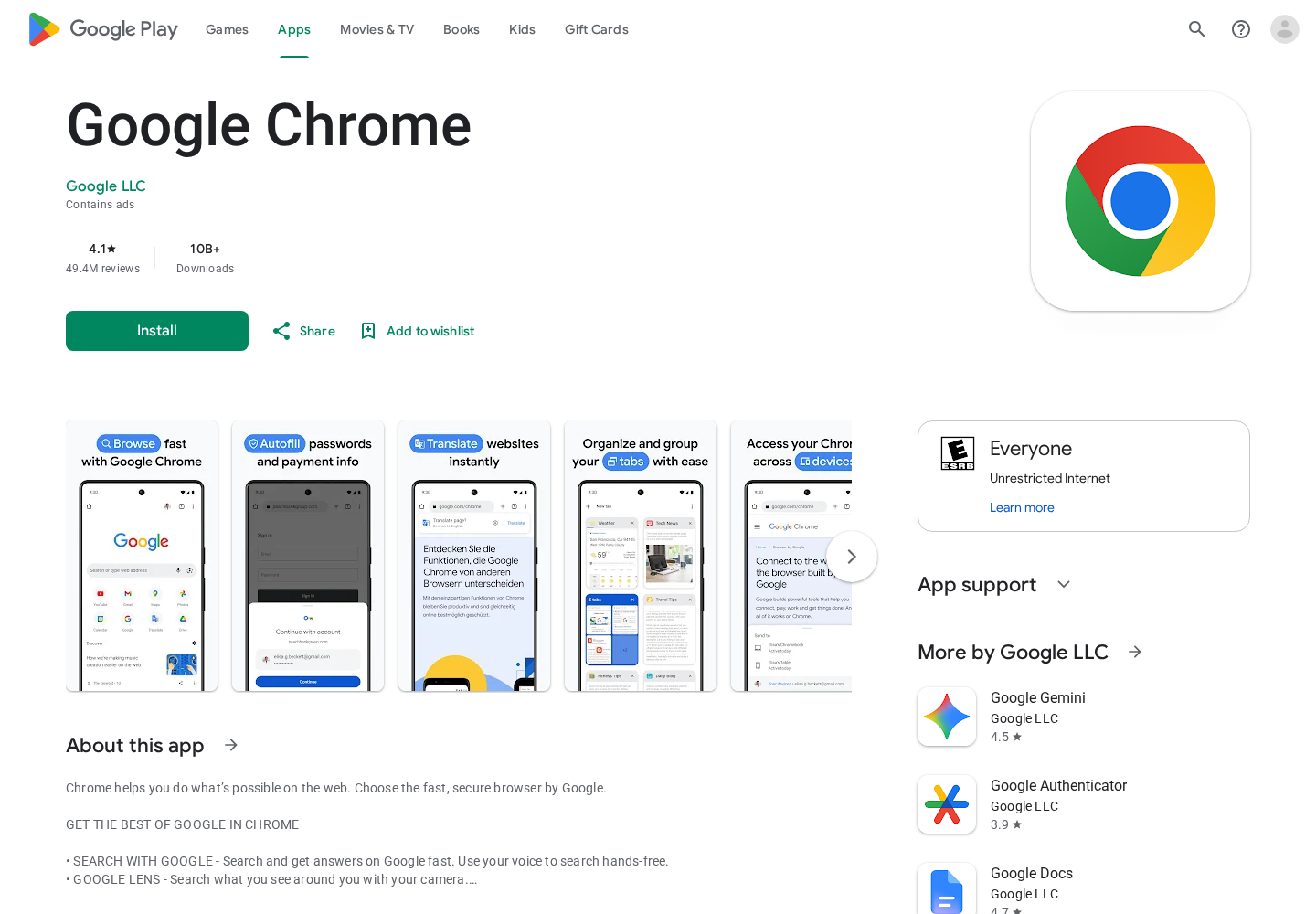
The screenshot above shows the genuine listing for comparison. It is not a screenshot of the impersonator, and Google Chrome itself is not the scam.
Why an Official Store Result Can Still Mislead You
People use app stores partly to avoid the uncertainty of random download sites. A familiar listing inside that store therefore benefits from an extra layer of trust.
Paid placement adds another shortcut. The first result is easy to tap, particularly when you are setting up a phone or helping someone install essential apps.
But sponsored describes placement, not authorship. It does not mean the developer is Google or that the advertisement has become an official browser recommendation.
A large installation count can create a similar impression. It tells you something about a listing’s history, but not necessarily why people installed each version.
That distinction becomes important when a listing changes purpose. A game and a browser can have very different expectations around browsing activity, account access, and privacy.
Even an app that appears harmless should not get to borrow another publisher’s identity. You deserve to know whose software you are putting on your device.
How the Fake Chrome App Scam Works
Step 1: A familiar search creates the opportunity
The reported discovery began with a routine Chrome search. Instead of asking people to trust an unfamiliar product, the listing met them where they already expected Google.
That makes the deception different from a cold message offering a new browser. The user has already decided what they want; the impersonator only needs to intercept the selection.
Someone installing several apps may barely pause at this screen. A recognizable logo, the right name, and an Install button can feel like enough information.
The useful pause is before installation, on the publisher line. It takes less effort to verify the developer there than to work backward after granting permissions.
Step 2: Copied branding makes the wrong listing look familiar
The reported listing borrowed Chrome’s presentation while naming Hizbartech underneath. That combination should stop the installation, even if the rest of the page looks convincing.
A publisher does not become Google by reproducing Google’s browser icon. Nor does using the words Google Chrome establish a legitimate partnership.
Developer details also help when names are abbreviated or translated. Open the listing rather than relying on a compact search card that hides important information.
On the genuine listing, Google LLC appears as the publisher. Follow that identity through the store’s developer page, not through contact information offered by the questionable app.
Step 3: The old listing’s history supplies apparent popularity
Reports connected the impersonator to Ball Bounce and a displayed count exceeding 100,000 downloads. The unchanged package name helped expose the earlier identity.
A package identifier is Android’s technical label for an application. It is not the friendly name you see under an icon, and it can remain after that name changes.
Here, the identifier contains ballbounce rather than Chrome’s official com.android.chrome. That is a helpful case-specific clue, not a universal rule that every package must mirror its display name.
Most importantly, the installation counter cannot tell us how many people saw the copied browser presentation. Avoid treating it as a confirmed victim count.
Step 4: Installation delivers something other than the expected browser
Users described a chat interface with avatars and automated-looking responses. Those accounts explain why someone expecting a browser would immediately question what they had installed.
You do not need to keep exploring an app to prove that its branding was misleading. Stop using it, record the listing details, and remove it.
Do not sign in simply because the app says an account is required to activate Chrome. A familiar name on the previous screen does not authenticate a new prompt.
The risk from any information already entered depends on the screen and permissions involved. A copied listing alone does not establish the app’s complete technical capabilities.
The Real Chrome App Versus the Impersonator
Start with Google’s actual publisher identity
The official Chrome Android listing identifies Google LLC and uses com.android.chrome. Use that as your reference rather than another search advertisement.
Google also publishes separate development channels, such as Beta and Dev. Those are different from an unrelated developer copying the normal Chrome identity.
Do not assume every additional Chrome-labeled icon is malicious, either. A work profile, manufacturer feature, or legitimate testing channel can produce an explanation worth checking.
The combination matters: exact publisher, listing destination, expected purpose, and what your phone says is installed. An icon by itself settles none of those questions.
Check the installed app without launching it again
Open Android Settings and find Apps. Select the questionable entry to view its permissions and, where available, its app-store details.
Menu names vary by device. If two entries look identical, compare their store information instead of removing one at random and assuming the remaining copy is genuine.
A missing store page is not a clean bill of health. The reported Hizbartech package URL no longer returned an available listing during this check.
That observation does not prove the same status in every region or confirm all copies are gone from devices. Installed software and store availability are separate things.
Do not confuse removal with a security analysis
Reporting says Google removed the listing after concerns surfaced. That is useful context, but not a published technical finding that establishes credential theft or a particular malware family.
Likewise, an app opening as a chatbot does not establish where its servers are, who operates them, or what data it transmits.
The reason to remove it is straightforward: you wanted Google’s browser and received an unrelated app. There is no reason to keep using it while waiting for further findings.
Work Out What Was Actually Exposed
Start with the simplest question: did you install it? Merely seeing a sponsored result is not the same as putting the application on your phone.
If you installed but never opened it, remove it and scan. There is no reason to assume every password on the device has automatically been disclosed.
If you opened it, review what happened next. Did you type a password, grant contacts access, select photos, approve a subscription, or follow a separate download link?
Those details change the response. A password typed directly into an untrusted form needs account protection; an unexplained payment needs billing attention.
Permission access is also specific. A permission request is not proof the request was granted, and permission to use one feature does not automatically mean unrestricted device control.
Take particular care if you enabled accessibility access, device administration, notification access, or an unfamiliar VPN. Seek trusted help if those settings prevent removal.
If none of those settings changed, concentrate on the app and any information you supplied. There is no benefit in treating hypothetical permissions as confirmed access.
For a work-managed phone, tell your IT team what you installed before changing management settings. They may need the listing identifier and your approximate installation time.
Remember the earlier name when checking a family member’s phone
Someone who installed a game months ago may not connect it with today’s browser warning. Ask about both Ball Bounce and the unfamiliar Chrome entry.
Look at the publisher rather than uninstalling every bouncing-ball game. The earlier title is useful only when it connects to the reported Hizbartech listing.
If you help a relative, explain the mismatch without blaming them. Their mistake may have been trusting a familiar name inside a familiar store.
Show them the Google LLC publisher line on the genuine listing. That gives them a practical check to repeat next time, rather than a vague warning about dangerous apps.
What to Do If You Installed the Fake Chrome App
-
Stop interacting and save the identifying details. Record the displayed app name, developer, store link, and any unexpected screen. Do not enter information to investigate further.
Keep a screenshot of a charge or permission request if one occurred. Do not share private account information in a public app review.
-
Uninstall the unrelated application. Use Android’s App info screen rather than trusting an uninstall link supplied inside the app.
If you have Ball Bounce from Hizbartech, treat that earlier identity as part of this check. Verify the developer before deleting an unrelated game with a similar name.
-
Run Google Play Protect. Open Play Store, tap your profile, choose Play Protect, and start a scan. Keep its normal protection enabled.
Google’s Play Protect instructions explain its checks and warnings. A clean result is reassuring, but cannot retrieve information already submitted elsewhere.
-
Secure any account you actually exposed. If you typed a password into the questionable app or its linked page, change it through the real service.
Review active sessions, recovery details, and recent activity. Replace reused passwords on other accounts and enable an appropriate second authentication factor.
If the app merely displayed a sign-in button you never used, do not describe that as a confirmed password theft.
-
Check permissions and remaining unwanted behavior. Review access granted during installation. If redirects or intrusive ads continue, inspect other recently installed applications too.
The Android section of our adware removal guide includes Malwarebytes checks. Choose the Android instructions rather than Windows utilities.
AdGuard can reduce certain unwanted ads and web destinations. It does not certify Play Store listings or remove an installed impersonator by itself.
-
Review any payment separately. Check Google Play purchase history and subscriptions if you approved a payment or trial. Cancel an unwanted renewal through the relevant payment service.
Report a genuinely unauthorized charge promptly. There is no evidence here that every installation creates a subscription, so look for an actual transaction rather than assuming one exists.
-
Report the impersonation and reinstall safely. Use the listing’s normal reporting option if available, or Google Play Help if it is gone.
Install Chrome from Google LLC once the unrelated app is removed. Update Android and your genuine browser through normal settings, not a replacement link in an advertisement.
Frequently Asked Questions
Is Google Chrome itself unsafe because of this incident?
No. The warning concerns an unrelated app borrowing Chrome’s identity. The genuine Android browser is published by Google LLC, and its official package is com.android.chrome.
Who published the reported fake Chrome app?
The reported listing named Hizbartech and used com.ballbounce.Hizbartech. Earlier reporting associated that listing with Ball Bounce, which helps explain why its download count needs context.
Were more than 100,000 people tricked into installing it?
That has not been established. The displayed total may include installations under the listing’s earlier identity. It should not be presented as a confirmed count of deceived users.
Was the Hizbartech app proven to steal passwords?
No independent technical confirmation of password-stealing functionality is available here. Its misleading Chrome identity is a separate, sufficient reason to remove it and review any information you entered.
Should I reset my phone after seeing the listing?
No. Seeing a listing does not require a factory reset. Start with whether you installed anything, then remove the impostor, scan, and address any specific account exposure.
Can a sponsored Google Play result be trusted automatically?
No. Sponsored placement does not establish that Google published the app. Open the listing, confirm the developer, and use the known official destination for an essential application.
The Bottom Line
Do not install or keep the Hizbartech app posing as Google Chrome. Use Google’s own listing, and check the publisher before trusting a familiar icon.
If it is already installed, remove it, run Play Protect, and secure any account you actually entered into an untrusted screen. Respond to the exposure, not imagined capabilities.

Join the discussion
0 commentsShare your experience or ask a question about this article.
Community experiences
Did this happen to you?
Your experience could help someone recognize the same scam. Submit a private report for our team to review.
I experienced this tooReports are reviewed before publication. Sharing publicly is always your choice.
Discussion
Start the conversation
Have a question or something useful to share? Add the first comment.