

You only wanted a copy of a repository. A tool called GitHub Archive Downloader promises to make the job easier, with a familiar name attached.
Before running an installer for that simple task, it helps to know where the download is taking you.
Overview
A useful-sounding downloader becomes the entry point
The fake GitHub Archive Downloader scam promotes a supposed utility for saving repository content. The reported download journey redirects users toward a malicious application.
Associated addresses include prog-git-app.github[.]io and denonavr3312[.]com. The first borrows the credibility of GitHub’s hosting; the second belongs to the reported external download path.
GitHub is a legitimate development platform. A person publishing a page or repository there does not thereby become an official GitHub software publisher.
There is no need to install this supposed utility to obtain an ordinary repository archive. GitHub provides a built-in ZIP download for that purpose.
The evidence supports a malware warning, not invented capabilities
The reported application is flagged as malicious by security vendors. Its exact purpose and complete behavior were not established in the available case material.
- The advertised function is repository archiving.
- The reported journey leaves the initial hosting context for another download site.
- A malicious application is delivered rather than a trustworthy archive utility.
- No sample was executed for this guide, and no specific malware family is confirmed.
Do not turn possible malware harms into a feature list. Password theft, remote control and file encryption are different behaviors requiring evidence, not interchangeable names for every suspicious installer.
The response should nevertheless take execution seriously. An unknown payload is a reason to investigate a potentially exposed device, not reassurance that it did nothing.
The original download page is no longer available
An original capture of the reported GitHub Pages address now displays a 404. That means the old page was unavailable during the check, not that earlier downloads were safe.
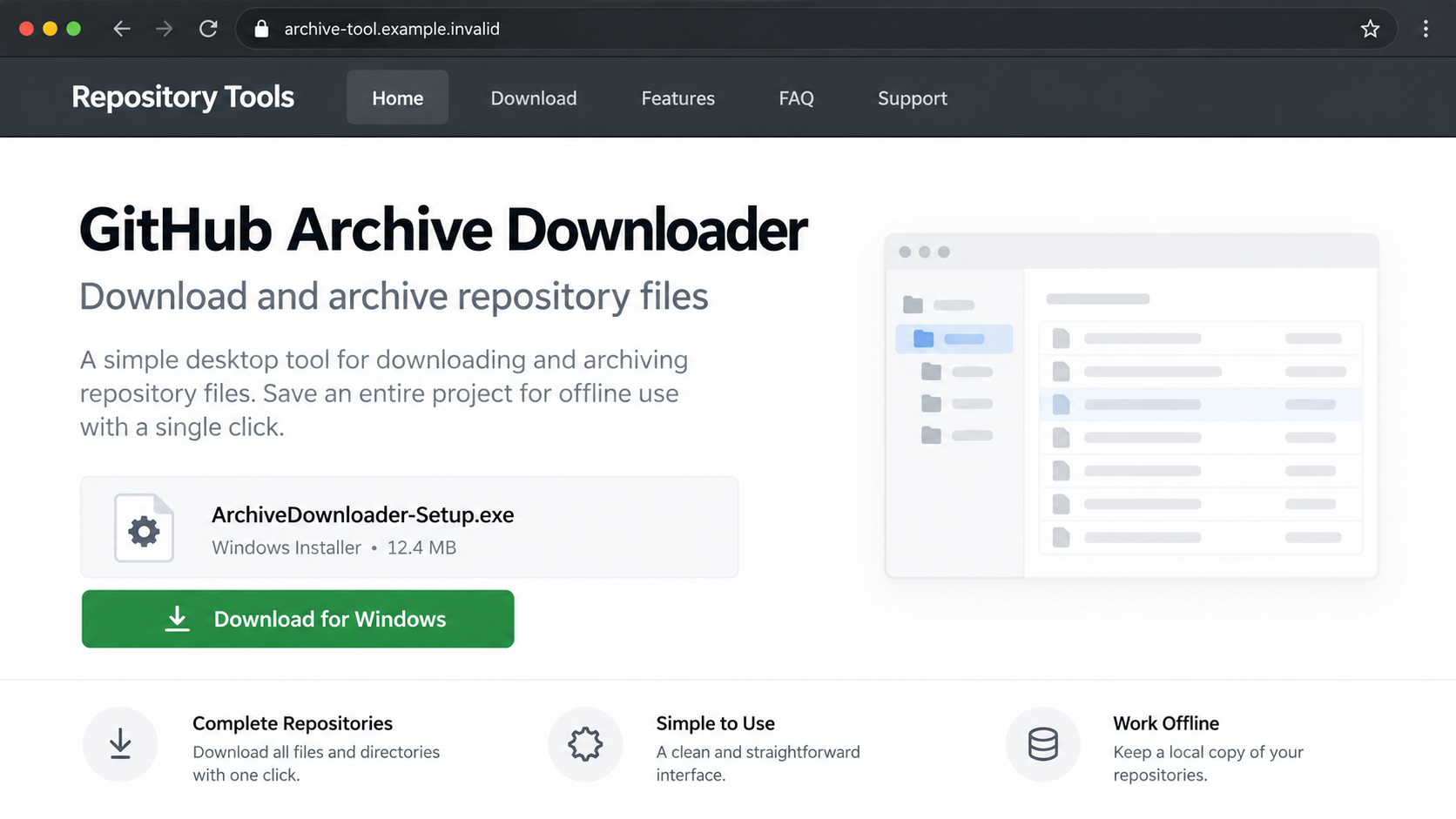
The lead image is a newly created, nonfunctional illustration. Its installer filename, size and interface are explanatory details, not recovered identifiers from the malicious application.
This guide separates downloading a file, running it and allowing additional permissions. Merely seeing the page does not prove that software executed.
If you already ran the installer, stop treating the matter as a broken archive download. Device containment and protection of exposed accounts take priority.
GitHub Hosting Does Not Mean GitHub Approval
Developers use GitHub to share source code, documentation and releases. Other users can create projects too, including misleading ones.
A project can look polished while offering software you should not run. A familiar platform address says something about hosting, not the honesty of every uploaded file.
GitHub Pages also allows users to publish websites. A github.io address can therefore host someone else’s project page rather than an official product announcement.
Look for the actual publisher and a consistent link from the developer’s independently established site. Do not stop at the platform name.
A repository’s age, stars, forks or README can provide context, but none is a malware-free certificate. Popularity signals and friendly documentation can be manipulated.
Nor is visible source code a guarantee about a prebuilt executable. The file offered for download may not correspond to the code you glanced through.
GitHub’s active-malware policy prohibits using the platform to support unlawful attacks. That policy is not a promise that abusive content never appears.
Responsible security research can also contain malware-related code. Context matters: a research repository is different from a deceptive consumer installer masquerading as a routine utility.
How the Fake GitHub Archive Downloader Scam Works
Step 1: Offer Convenience for a Task You Already Want to Complete
The advertised function sounds ordinary: download and archive repository content. It targets a real task rather than an obviously implausible prize or security emergency.
A person unfamiliar with GitHub may not know that a repository already has an archive option. A separate utility can therefore look necessary.
More experienced users may accept it as a time-saving helper. Either way, the desire to finish the original task creates a reason to overlook the installer.
Ask what the extra program actually contributes. If you only need a snapshot of public files, an unrelated executable adds permissions and risk to a simpler operation.
This does not mean every third-party Git client or archive tool is fraudulent. The warning concerns this reported fake downloader and its malicious delivery path.
Useful software should still have a verifiable publisher, clear purpose and expected distribution channel. A familiar project word in its name supplies none of those by itself.
Step 2: Let a Familiar Hosting Domain Carry the Trust
The reported promotion uses prog-git-app.github[.]io. A reader may recognize GitHub and assume the rest of the journey is controlled or endorsed by it.
That assumption is the mistake. User-hosted pages can use familiar platform infrastructure while remaining the responsibility of an unrelated publisher.
Check the account or organization behind a tool. A generic name echoing the platform is not enough to establish a connection.
For a known project, use links from its established repository or official website. Be cautious of a separate download page introduced by an unsolicited recommendation.
If the page has disappeared, do not hunt for mirrors just to complete the installation. A mirror can preserve the same harmful file or introduce another one.
Recover your original objective instead: obtain the repository safely, or ask its legitimate maintainer which release package is intended for users.
Step 3: Move the Download to a Different Site
The documented journey redirects toward denonavr3312[.]com and a malicious application. That departure matters even if the initial page looked like a normal development project.
Once another host supplies the file, the GitHub-related name cannot authenticate it. Review the publisher and final destination rather than remembering only where you started.
A download prompt may appear before you have decided whether you trust the new site. Cancel it rather than treating the arrival of a file as a recommendation.
Renaming an executable to sound like an archive helper does not change what running it can do. The filename is a label, not an independent verification result.
No exact installer filename is provided here as a reliable indicator for every version. Campaigns can replace files and names while keeping a similar pitch.
Likewise, a currently unavailable domain does not help identify everything previously delivered. Keep the original download record if a security professional needs to inspect it.
Step 4: Get the User to Execute the Downloaded Application
Saving a file and running a program are separate events. Execution is when an installer may begin making changes under the permissions it receives.
A user might also accept a permission prompt because installers commonly ask for one. Familiarity does not make an unknown publisher’s request appropriate.
Do not disable security software, bypass warnings or add exclusions to make this downloader work. Those actions would remove barriers without establishing that the file is safe.
If the program exits without producing an archive, that failure does not show nothing happened. Unwanted activity may be independent of the visible interface.
At the same time, this guide cannot tell you that a specific credential was stolen or a backdoor installed. Those conclusions require device and account evidence.
What matters now is whether the file ran, when it ran and which permissions were accepted. Record that sequence before attempting cleanup.
How to Download a Repository Without This Installer
Use GitHub’s built-in archive route
For a normal repository snapshot, navigate to the genuine repository, open the Code menu and choose Download ZIP. GitHub describes this in its official download instructions.
That gives you a copy of repository files without installing an unrelated downloader first. It does not declare the repository contents safe to execute.
Inspect what you obtained before running scripts, build tasks or applications. A legitimate archive format can hold unsafe content, just as a legitimate hosting platform can.
Distinguish source archives from application releases
Source code is not always a ready-to-use program. A project’s releases may include installers or binaries provided by its maintainer.
Confirm that you are on the intended repository and reading the real project’s installation guidance. Do not download a replacement utility from an unrelated page.
When the publisher provides signatures or checksums, use its official verification instructions. A hash copied from the same untrusted download page cannot independently establish trust.
Avoid turning troubleshooting into security bypass
If Windows or your browser blocks a file, investigate the reason before proceeding. An instruction to switch protection off is not normal proof of a false positive.
Ask the legitimate maintainer about the specific warning through an established project channel. Do not let an anonymous helper send another installer privately.
For workplace projects, involve your administrator before installing unfamiliar tooling. A tool used on a development machine may gain access to valuable sessions and project credentials.
A Developer Workstation Needs an Account Review Too
An archive utility may be tried on a machine used for software work. That environment can hold credentials with consequences beyond the local files.
List which development services were signed in around the installation time. Include package registries, cloud consoles and deployment tools when they were actually present.
Do not assume every secret on the computer was stolen. Use the list to guide a proportionate review of logs, sessions and token activity.
For a team project, tell the responsible maintainer or security contact before rotating shared deployment credentials. Uncoordinated changes can interrupt legitimate work without completing containment.
Check unexpected repository changes and release uploads through the genuine platform. Preserve suspicious activity records before removing access that an investigator may need to understand.
If an exposed token had broad scope, replacing only the local application misses the remote permission. Revoke the token through the service that issued it.
After cleanup, verify the original developer tool through its actual publisher. Do not restore a convenient installer from the same download folder without assessing its provenance.
What to Do if You Have Fallen Victim to This Scam
Stop the installer and preserve the timeline. Note the download source, time and whether the program actually ran. Do not rerun it to reproduce a symptom.
If it was only saved, keep it unopened and use your security product to assess or quarantine it. Do not send the file casually to colleagues.
Contain a device that may be actively compromised. If you executed the program or see suspicious activity, disconnect networking and stop sensitive work.
Contact workplace IT before uninstalling or restarting if evidence preservation matters. Tell them which privileges were granted and what happened on screen.
Use the established malware-removal process. Obtain Malwarebytes through a trusted official route, update its detection data when safe and run the recommended scan.
Review findings and quarantine instructions. Do not delete arbitrary Windows files because their names look unfamiliar, or assume uninstalling the visible downloader removes every delivered component.
The removal component below contains our existing affiliate-linked guidance. It is a cleanup aid, not evidence identifying the payload used in your particular download.
Protect accounts from a separate trusted device. If execution occurred, assess credentials, sessions and secrets available on that machine with your security team.
For a developer workstation, consider GitHub sessions, personal access tokens, SSH keys and cloud credentials. Rotate or revoke the items actually exposed, without publishing them in an incident report.
Changing an account password does not necessarily invalidate every token. Check the provider’s specific controls and record any unfamiliar activity before revoking access.
Review persistence and the need for rebuilding. If detections return, unexplained activity continues or sensitive access cannot be trusted, arrange professional assessment or a clean operating-system installation.
Back up necessary personal documents carefully. Do not copy the suspect installer, unknown extensions or executable tools straight into the rebuilt environment.
A clean scan is useful evidence, not a guarantee that no information left the device before cleanup. Continue the account investigation independently.
Report the deceptive project and reduce repeat exposure. Provide GitHub with the relevant account, page or repository through its official abuse-reporting route.
Remove unwanted browser permissions if they were granted. AdGuard can help limit deceptive advertisements, but it cannot make a malicious program safe after execution.
If financial or personal information was misused, report that specific outcome to the affected provider. Avoid paid helpers promising a guaranteed recovery from an unknown payload.
Is Your Device Infected? Run a Free Malware Scan
Slow performance, constant pop-ups, or strange behavior? These are classic signs of a malware infection. The fastest way to find out is to scan your device with Malwarebytes Free — one of the most trusted malware removal tools available.
The free version detects and removes the most common threats, including:
- Adware — the cause of those annoying pop-ups
- Browser hijackers — unwanted redirects and changed homepages
- Trojans and spyware — hidden programs stealing your data
- Potentially unwanted programs (PUPs) — software you never asked for
👉 Select your device below — Windows, Mac, or Android — then follow the simple steps to download Malwarebytes, scan your system, and remove any threats it finds. The scan usually takes 5 to 20 minutes.
Run a Malware Scan with Malwarebytes for Windows
Malwarebytes is one of the most popular and trusted anti-malware tools for Windows — and it’s completely free for removing infections. It catches threats that many antivirus programs miss, including adware, browser hijackers, and trojans. Follow the steps below to scan and clean your PC in just a few minutes.
Download Malwarebytes
Click the button below to download the latest version of Malwarebytes for Windows from the official source. The free version is all you need — it will scan your computer and remove adware, browser hijackers, and other malicious software at no cost.
Download MalwarebytesOfficial installer for Windows 11 and 10. Your download starts right away.Want real-time protection? See Malwarebytes Premium Malwarebytes Free for WindowsScans and removes malware at no cost
-
Install Malwarebytes
When the download finishes, open your Downloads folder and double-click the MBSetup file. If Windows shows a User Account Control pop-up, click “Yes” to allow the installation.

Follow the On-Screen Prompts to Install Malwarebytes
The setup wizard will walk you through a few quick screens:
-
Choose where you’re installing the program — “Personal Computer” or “Work Computer” — then click Next.

-
Malwarebytes will now install on your device. This usually takes under a minute.

-
When installation is complete, the “Welcome to Malwarebytes” screen will open automatically.

-
On the final screen, click Open Malwarebytes to launch the program.

-
Enable “Scan for Rootkits”
Before scanning, turn on rootkit detection so Malwarebytes can find even the most hidden threats. Click the Settings gear icon on the left side of the screen.

In the settings menu, find “Scan for rootkits” and click the toggle so it turns blue.

Done? Click “Dashboard” in the left pane to return to the main screen.
Start the Scan
Click the blue Scan button. Malwarebytes will automatically update its virus database and start checking your computer for malware.

-
Wait for the Scan to Finish
The scan checks your entire system for browser hijackers and other malicious programs, so it can take 5 to 20 minutes depending on your computer. Feel free to do something else — just check back occasionally to see the progress.

-
Quarantine the Detected Threats
When the scan is done, you’ll see a list of everything Malwarebytes found — malware, adware, and potentially unwanted programs. Click the “Quarantine” button to remove all of them at once.

Malwarebytes will now remove the malicious files and registry entries and move them safely into quarantine.

-
Restart Your Computer
Some threats can only be fully removed after a reboot. If Malwarebytes asks you to restart, click Yes. Once you’re logged back in, Malwarebytes has finished removing the threats it found.

That’s it — your Windows PC is now clean of trojans, adware, and other malware, and should be back to running smoothly.
If you are still having problems with your computer after completing these instructions, then please follow one of the steps:
- Run a computer scan with ESET Online Scanner
- Ask for help in our Windows Malware Removal Help & Support forum.
Run a Malware Scan with Malwarebytes for Mac
Malwarebytes for Mac is a free on-demand scanner that removes the malware other security software tends to miss — adware, browser hijackers, and unwanted programs included. Cleaning an infected Mac with Malwarebytes has always been completely free, and it’s our go-to recommendation. Follow the steps below to scan and clean your Mac in just a few minutes.
-
Download Malwarebytes for Mac
Click the button below to download the latest version of Malwarebytes for Mac.
Download MalwarebytesOfficial installer for macOS. Your download starts right away.Want real-time protection? See Malwarebytes PremiumMalwarebytes Free for MacScans and removes malware at no cost -
Open the Malwarebytes setup file
When the download finishes, open your Downloads folder and double-click the setup file to begin the installation.

-
Follow the On-Screen Prompts to Install Malwarebytes
The Malwarebytes for Mac Installer will guide you through a few quick screens. Click “Continue” and keep following the prompts until the installation completes.



When the installation is complete, Malwarebytes opens to the Welcome to Malwarebytes screen. Click “Get started“.
-
Select “Personal Computer” or “Work Computer”
Malwarebytes will ask what type of computer you’re installing it on. Click either Personal Computer or Work Computer, whichever applies.

-
Start the Scan
Click the “Scan” button. Malwarebytes will automatically update its detection database and begin checking your Mac for malware.

-
Wait for the Scan to Finish
Malwarebytes will scan your Mac for adware, browser hijackers, and other malicious programs. This can take a few minutes, so feel free to do something else — just check back occasionally to see the progress.

-
Quarantine the Detected Threats
When the scan is done, you’ll see a list of everything Malwarebytes found. Click the “Quarantine” button to remove all the threats at once.

-
Restart Your Mac
Malwarebytes will now remove all the malicious files it found. Some threats can only be fully removed after a reboot — if Malwarebytes asks you to restart, allow it. Once you’re logged back in, your Mac is clean.

That’s it — your Mac is now free of adware, rogue browser extensions, and other potentially harmful software.
If you are still experiencing problems while trying to remove a malicious program from your computer, please ask for help in our Mac Malware Removal Help & Support forum.
Run a Malware Scan with Malwarebytes for Android
Malwarebytes for Android automatically detects and removes dangerous threats like malware and ransomware so you don’t have to worry about your most-used device being compromised. Aggressive detection of adware and potentially unwanted programs keeps your Android phone or tablet running smooth.
-
Download Malwarebytes for Android.
You can download Malwarebytes for Android by clicking the link below.
Get Malwarebytes for AndroidOpens Google Play in a new tab.Want real-time protection? See Malwarebytes Premium for AndroidMalwarebytes for AndroidScans your phone and removes malware at no cost -
Install Malwarebytes for Android on your phone.
In the Google Play Store, tap “Install” to install Malwarebytes for Android on your device.

When the installation process has finished, tap “Open” to begin using Malwarebytes for Android. You can also open Malwarebytes by tapping on its icon in your phone menu or home screen.

-
Follow the on-screen prompts to complete the setup process
When Malwarebytes will open, you will see the Malwarebytes Setup Wizard which will guide you through a series of permissions and other setup options.
This is the first of two screens that explain the difference between the Premium and Free versions. Swipe this screen to continue.
Tap on “Got it” to proceed to the next step.
Malwarebytes for Android will now ask for a set of permissions that are required to scan your device and protect it from malware. Tap on “Give permission” to continue.
Tap on “Allow” to permit Malwarebytes to access the files on your phone.
-
Update database and run a scan with Malwarebytes for Android
You will now be prompted to update the Malwarebytes database and run a full system scan.

Click on “Update database” to update the Malwarebytes for Android definitions to the latest version, then click on “Run full scan” to perform a system scan.

-
Wait for the Malwarebytes scan to complete.
Malwarebytes will now start scanning your phone for adware and other malicious apps. This process can take a few minutes, so we suggest you do something else and periodically check on the status of the scan to see when it is finished.

-
Click on “Remove Selected”.
When the scan has been completed, you will be presented with a screen showing the malware infections that Malwarebytes for Android has detected. To remove the malicious apps that Malwarebytes has found, tap on the “Remove Selected” button.

-
Restart your phone.
Malwarebytes for Android will now remove all the malicious apps that it has found. To complete the malware removal process, Malwarebytes may ask you to restart your device.
That’s it — your Android phone is now clean — no more malicious apps, adware, or browser redirects.
If you are still having problems with your phone after completing these instructions, then please follow one of the steps:
- Restore your phone to factory settings by going to Settings > General management > Reset > Factory data reset.
- Ask for help in our Mobile Malware Removal Help & Support forum.
Stay Protected: Block Ads and Malicious Sites
Now that your device is clean, keep it that way. Most infections start with a malicious ad or a fake download button — so blocking them at the source is your best defense.
We recommend AdGuard, which blocks malicious ads, phishing pages, and dangerous redirects before they can reach you.
👉 Download AdGuard and browse safely
Frequently Asked Questions
Is GitHub Archive Downloader an official GitHub app?
The fake utility described here is not established as an official product. Its GitHub-related name and hosting context do not authenticate its publisher.
Do I need an installer to download repository files?
No, not for an ordinary repository snapshot. Use the genuine repository’s Code menu and Download ZIP option, then assess the downloaded contents before execution.
What do the associated domains tell us?
They identify the reported promotion and external download path. They do not prove GitHub operated the malicious application or identify every later version of the campaign.
Which malware does the fake downloader install?
A malicious application is reported, but its exact family and full capabilities remain unconfirmed here. Scan results and professional analysis are needed for a specific device.
Am I infected if I visited the page but installed nothing?
A visit alone does not establish execution. Check unexpected downloads and permissions, keep your browser current and investigate further if suspicious behavior appears.
Is uninstalling the archive downloader enough?
Not necessarily after execution, because a separate payload may have been delivered. Scan, assess account exposure and obtain help if the system cannot be trusted.
The Bottom Line
Do not install this fake GitHub Archive Downloader. Its reported delivery path leads away from a simple repository task toward a malicious application.
Use GitHub’s built-in download instead. If the suspect installer already ran, contain and scan the device, protect exposed accounts and seek a clean rebuild when necessary.

Join the discussion
0 commentsShare your experience or ask a question about this article.
Your progress
Did these steps help?
Let us know how the guide worked for you.
Describe what you see and the step you reached. Keep passwords and other private information out.
Discussion
Start the conversation
Have a question or something useful to share? Add the first comment.