

A final notice says your mailbox is closing. Suddenly, years of messages and the address everyone knows seem to be on a timer.
The button offers a quick way to keep access. Before pressing it, pause long enough to check who is actually asking.
Overview
A cPanel-style notice threatens the loss of email access
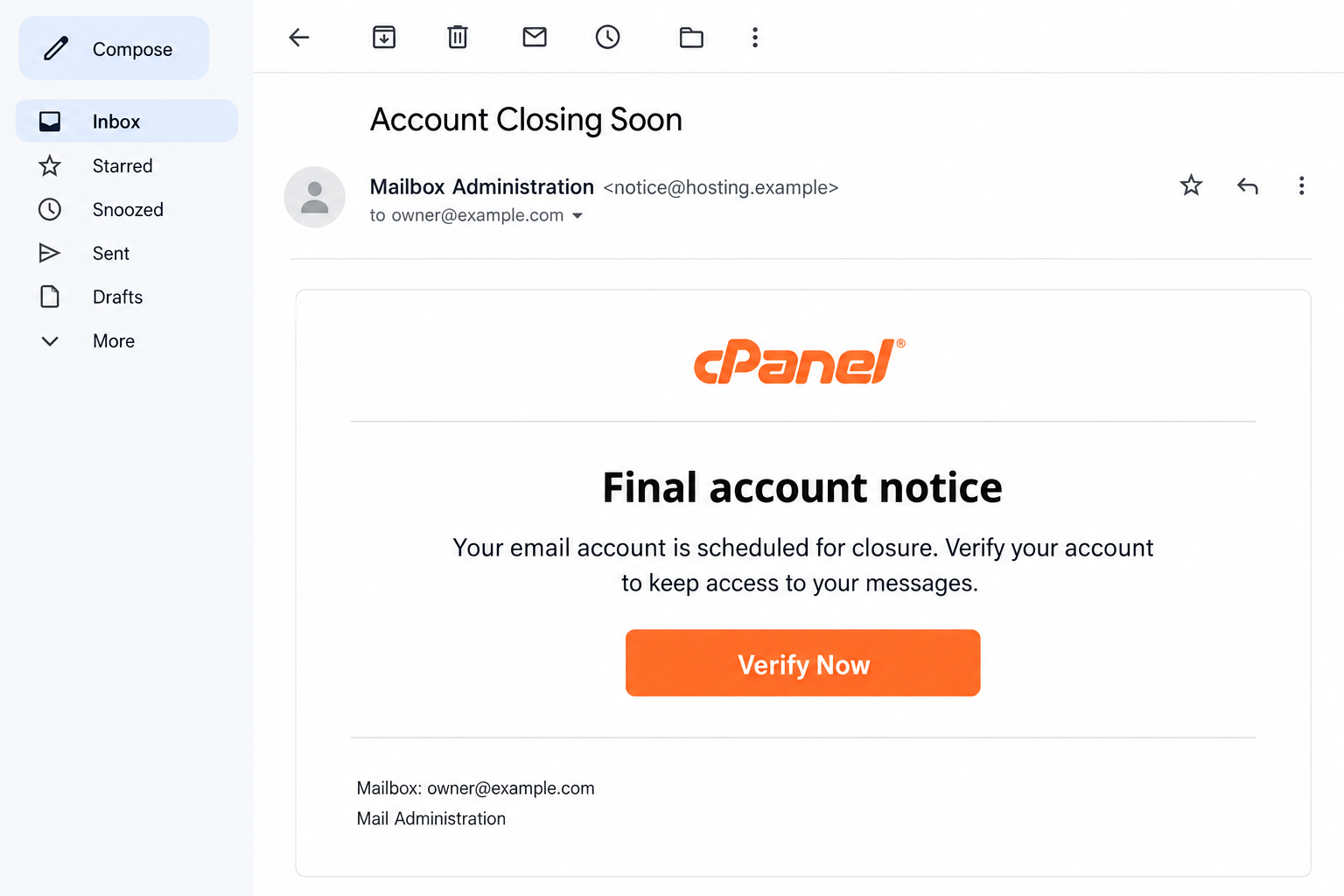
The Account Closing Soon email scam presents a final warning about mailbox closure. It borrows cPanel branding and urges the recipient to verify the account.
The message implies that failing to respond will cost you access to email and associated data. Its verification button appears to offer the obvious rescue.
The lead image is an illustrative message using fictional addresses. It shows the warning’s basic premise, not an original email delivered to a particular person.
The verification route leads away from the real provider
The reported campaign sends readers to an IPFS-hosted phishing page impersonating a Google sign-in. The promised account protection becomes a request for login credentials.
That combination matters. A cPanel-themed closure notice does not establish that an unrelated Google-looking form controls your mailbox or can prevent its deletion.
The exact original gateway address and content identifier are not available here. There is no reason to visit random IPFS pages trying to reproduce the attack.
The warning signs are about the journey, not one logo
- A destructive account change is announced through an unverified email.
- The message pressures you to use its own verification button.
- The sign-in destination does not match your established provider route.
- Familiar cPanel and Google branding is used in different parts of the approach.
- The claimed deadline is treated as authority instead of being checked with the actual service.
This is credential phishing, not evidence that cPanel, Google, or the IPFS network is shutting down accounts. Keep the accusation attached to the false warning and login page.
Who Really Manages Your Mailbox?
Custom-domain email can involve several companies. Your domain registrar, website host, control panel, and email provider may all have different names.
That complexity gives impersonators room to hide. A business owner might recognize cPanel without knowing whether the company’s mail still runs through the hosting account.
Start with a practical question: where do you normally manage this mailbox? It could be your hosting dashboard, an employer’s IT department, or a separate mail provider.
Use that established route to check the notice. The presence of an orange logo inside an email does not identify the organization responsible for your account.
Real services can suspend or close accounts for genuine reasons. Billing issues, administrator decisions, and documented service policies should be resolved with the actual provider.
This does not mean ignoring every closure warning. It means checking the warning without allowing the message to choose the place where you surrender your credentials.
How the Account Closing Soon Email Scam Works
Step 1: A final warning creates a problem you feel unable to ignore
The email presents closure as imminent rather than hypothetical. It puts the reader in a position where doing nothing appears to risk losing important records.
For a business address, that could mean missed inquiries, interrupted orders, and customers who cannot reach you. For a personal mailbox, it may mean losing account-recovery access.
The attack does not need to know which of those consequences worries you most. A general threat to email access lets each recipient supply their own worst-case scenario.
A specific date can make the warning seem more official. But a date printed in a message is not a scheduled action recorded by your real provider.
Dates in circulated examples may already have passed. Do not interpret an old sample as a fresh service deadline or assume a changed date makes a variant legitimate.
Check the actual account before allowing any countdown, final notice, or last reminder to decide how quickly you hand over a secret.
Step 2: The verification button disguises an outside destination
The call to action is framed as preservation. You are supposedly verifying ownership so the service can keep the mailbox open.
That framing reverses the reader’s instinct. Clicking feels like the protective action, while refusing to cooperate feels like allowing the threatened damage.
The visible words on a button do not tell you who receives the click. A link can say verify while opening infrastructure unrelated to your hosting provider.
In the reported case, the destination uses IPFS-hosted content. That hosting choice is part of the campaign’s delivery, not a sign of authority over email accounts.
If your organization uses a known sign-in or support portal, open it separately. Do not use the email’s link simply because it looks like the fastest route.
For an unfamiliar administrative notice, a short call to the established support contact is safer than attempting to solve the supposed emergency inside the message.
Step 3: A Google-style login borrows another layer of trust
The false destination imitates a familiar account interface. A recognizable sign-in design can make the jump from hosting notice to password request feel less suspicious.
But the appearance of a Google form does not show that Google is receiving the information. Page designs and logos can be copied onto unrelated sites.
Ask why this particular account needs that particular identity. If your mailbox is managed elsewhere, an unexplained provider change should make you stop.
Even when your organization legitimately uses Google, the destination still needs to be the expected Google or organization-managed identity route. Familiarity with the brand is not enough.
An email address already displayed on a page offers no authentication either. The sender may know the address because it is the very place they sent the lure.
Do not enter several possible passwords after a failed attempt. The form may be collecting each submission rather than checking any of them against a real account.
Step 4: Credentials replace the invented closure as the real problem
Once a password is submitted, the attacker can attempt access to the account it actually protects. The fake notice itself has no legitimate power to stop closure.
If the account opens, the criminal may gain access to stored messages, contacts, attachments, and incoming password resets. What happens next depends on the account and its protections.
A business mailbox could provide useful context for impersonation. A personal mailbox could become a route toward services that use email for password recovery.
These are reasons to respond promptly, not claims that every recipient lost an account. Receiving the warning and supplying working credentials are very different events.
A reassuring result on the false page does not prove safety. Nor does an error prove the information was rejected or forgotten.
The important question is what you disclosed and whether the real account shows unauthorized access. Resolve that through the provider, not through the supposed closure button.
What IPFS Does, and What It Cannot Prove
Content addressing is not an identity check
IPFS identifies content using cryptographic identifiers. A gateway can make that content accessible through an ordinary web browser without requiring the reader to run an IPFS node.
The identifier helps describe which content is being requested. It does not certify that a login page belongs to Google, cPanel, or your email host.
A copied sign-in page can still be copied content, however it is delivered. Technical-looking letters and numbers should not substitute for a trusted account-management route.
The IPFS documentation on web addressing explains gateway access. The technology has legitimate uses; the false account form is the problem in this case.
A gateway is not necessarily the phishing operator
The company providing a public gateway may not be the person who created the content. Avoid treating the hosting layer as proof of who authored the lure.
For the same reason, a browser’s encrypted connection does not authenticate the organization pictured on the page. It can securely deliver a dishonest form.
When reporting, preserve the full suspicious address privately if you already have it. A bare gateway hostname may not identify the specific harmful content.
Do not paste tokenized work links or personal information into public comments. Give the relevant details to your provider or security team through its normal reporting route.
What to Do if You Have Fallen Victim to This Scam
Check the alleged closure through the real administrator. Use your hosting bookmark, mail app, or established IT contact, not the notice’s button or reply address.
Ask whether any suspension, billing issue, or closure actually exists. If one does, resolve it in that legitimate channel without returning to the false form.
Replace any password submitted to the phishing page. Change it on the genuine account from a trusted device. Use the provider’s recovery process if access has been lost.
If you tried passwords for several services, treat each one as exposed. Secure the accounts those passwords actually belong to, not just the brand pictured in the email.
Remove unfamiliar account access. Review devices, active sessions, connected applications, app passwords, and recovery options. Sign out or revoke access you do not recognize.
For Google accounts, follow its official compromise-response instructions. A workplace administrator may need to perform actions unavailable in an individual user’s settings.
Inspect mail handling and recent activity. Look for unexpected forwarding, filters, delegates, sent messages, and password-reset notices. Report unusual changes before deleting useful evidence.
Tell business contacts if your account sent a fraudulent request. Use a verified channel so a warning does not become another confusing message from a compromised inbox.
Reinforce the real sign-in process. Enable supported multifactor authentication or passkeys, and remove methods an intruder added. Do not approve a surprise prompt to complete verification.
Review any other accounts using the same password. Prioritize services connected to money, sensitive files, or recovery through the affected mailbox.
Address risky downloads or installations if they happened. Use Malwarebytes from a trusted source and get IT help for a managed computer.
AdGuard may block some harmful web content, but it cannot retract a submitted password. Device scanning and account recovery solve different parts of the problem.
Report the false warning. Preserve its headers and link, mark it as phishing, and let your organization know if other staff may have received it.
You do not need to reopen the login form to collect more evidence. A forwarded report to the approved security channel is more useful than further experimentation.
Is Your Device Infected? Run a Free Malware Scan
Slow performance, constant pop-ups, or strange behavior? These are classic signs of a malware infection. The fastest way to find out is to scan your device with Malwarebytes Free — one of the most trusted malware removal tools available.
The free version detects and removes the most common threats, including:
- Adware — the cause of those annoying pop-ups
- Browser hijackers — unwanted redirects and changed homepages
- Trojans and spyware — hidden programs stealing your data
- Potentially unwanted programs (PUPs) — software you never asked for
👉 Select your device below — Windows, Mac, or Android — then follow the simple steps to download Malwarebytes, scan your system, and remove any threats it finds. The scan usually takes 5 to 20 minutes.
Run a Malware Scan with Malwarebytes for Windows
Malwarebytes is one of the most popular and trusted anti-malware tools for Windows — and it’s completely free for removing infections. It catches threats that many antivirus programs miss, including adware, browser hijackers, and trojans. Follow the steps below to scan and clean your PC in just a few minutes.
Download Malwarebytes
Click the button below to download the latest version of Malwarebytes for Windows from the official source. The free version is all you need — it will scan your computer and remove adware, browser hijackers, and other malicious software at no cost.
Download MalwarebytesOfficial installer for Windows 11 and 10. Your download starts right away.Want real-time protection? See Malwarebytes Premium Malwarebytes Free for WindowsScans and removes malware at no cost
-
Install Malwarebytes
When the download finishes, open your Downloads folder and double-click the MBSetup file. If Windows shows a User Account Control pop-up, click “Yes” to allow the installation.

Follow the On-Screen Prompts to Install Malwarebytes
The setup wizard will walk you through a few quick screens:
-
Choose where you’re installing the program — “Personal Computer” or “Work Computer” — then click Next.

-
Malwarebytes will now install on your device. This usually takes under a minute.

-
When installation is complete, the “Welcome to Malwarebytes” screen will open automatically.

-
On the final screen, click Open Malwarebytes to launch the program.

-
Enable “Scan for Rootkits”
Before scanning, turn on rootkit detection so Malwarebytes can find even the most hidden threats. Click the Settings gear icon on the left side of the screen.

In the settings menu, find “Scan for rootkits” and click the toggle so it turns blue.

Done? Click “Dashboard” in the left pane to return to the main screen.
Start the Scan
Click the blue Scan button. Malwarebytes will automatically update its virus database and start checking your computer for malware.

-
Wait for the Scan to Finish
The scan checks your entire system for browser hijackers and other malicious programs, so it can take 5 to 20 minutes depending on your computer. Feel free to do something else — just check back occasionally to see the progress.

-
Quarantine the Detected Threats
When the scan is done, you’ll see a list of everything Malwarebytes found — malware, adware, and potentially unwanted programs. Click the “Quarantine” button to remove all of them at once.

Malwarebytes will now remove the malicious files and registry entries and move them safely into quarantine.

-
Restart Your Computer
Some threats can only be fully removed after a reboot. If Malwarebytes asks you to restart, click Yes. Once you’re logged back in, Malwarebytes has finished removing the threats it found.

That’s it — your Windows PC is now clean of trojans, adware, and other malware, and should be back to running smoothly.
If you are still having problems with your computer after completing these instructions, then please follow one of the steps:
- Run a computer scan with ESET Online Scanner
- Ask for help in our Windows Malware Removal Help & Support forum.
Run a Malware Scan with Malwarebytes for Mac
Malwarebytes for Mac is a free on-demand scanner that removes the malware other security software tends to miss — adware, browser hijackers, and unwanted programs included. Cleaning an infected Mac with Malwarebytes has always been completely free, and it’s our go-to recommendation. Follow the steps below to scan and clean your Mac in just a few minutes.
-
Download Malwarebytes for Mac
Click the button below to download the latest version of Malwarebytes for Mac.
Download MalwarebytesOfficial installer for macOS. Your download starts right away.Want real-time protection? See Malwarebytes PremiumMalwarebytes Free for MacScans and removes malware at no cost -
Open the Malwarebytes setup file
When the download finishes, open your Downloads folder and double-click the setup file to begin the installation.

-
Follow the On-Screen Prompts to Install Malwarebytes
The Malwarebytes for Mac Installer will guide you through a few quick screens. Click “Continue” and keep following the prompts until the installation completes.



When the installation is complete, Malwarebytes opens to the Welcome to Malwarebytes screen. Click “Get started“.
-
Select “Personal Computer” or “Work Computer”
Malwarebytes will ask what type of computer you’re installing it on. Click either Personal Computer or Work Computer, whichever applies.

-
Start the Scan
Click the “Scan” button. Malwarebytes will automatically update its detection database and begin checking your Mac for malware.

-
Wait for the Scan to Finish
Malwarebytes will scan your Mac for adware, browser hijackers, and other malicious programs. This can take a few minutes, so feel free to do something else — just check back occasionally to see the progress.

-
Quarantine the Detected Threats
When the scan is done, you’ll see a list of everything Malwarebytes found. Click the “Quarantine” button to remove all the threats at once.

-
Restart Your Mac
Malwarebytes will now remove all the malicious files it found. Some threats can only be fully removed after a reboot — if Malwarebytes asks you to restart, allow it. Once you’re logged back in, your Mac is clean.

That’s it — your Mac is now free of adware, rogue browser extensions, and other potentially harmful software.
If you are still experiencing problems while trying to remove a malicious program from your computer, please ask for help in our Mac Malware Removal Help & Support forum.
Run a Malware Scan with Malwarebytes for Android
Malwarebytes for Android automatically detects and removes dangerous threats like malware and ransomware so you don’t have to worry about your most-used device being compromised. Aggressive detection of adware and potentially unwanted programs keeps your Android phone or tablet running smooth.
-
Download Malwarebytes for Android.
You can download Malwarebytes for Android by clicking the link below.
Get Malwarebytes for AndroidOpens Google Play in a new tab.Want real-time protection? See Malwarebytes Premium for AndroidMalwarebytes for AndroidScans your phone and removes malware at no cost -
Install Malwarebytes for Android on your phone.
In the Google Play Store, tap “Install” to install Malwarebytes for Android on your device.

When the installation process has finished, tap “Open” to begin using Malwarebytes for Android. You can also open Malwarebytes by tapping on its icon in your phone menu or home screen.

-
Follow the on-screen prompts to complete the setup process
When Malwarebytes will open, you will see the Malwarebytes Setup Wizard which will guide you through a series of permissions and other setup options.
This is the first of two screens that explain the difference between the Premium and Free versions. Swipe this screen to continue.
Tap on “Got it” to proceed to the next step.
Malwarebytes for Android will now ask for a set of permissions that are required to scan your device and protect it from malware. Tap on “Give permission” to continue.
Tap on “Allow” to permit Malwarebytes to access the files on your phone.
-
Update database and run a scan with Malwarebytes for Android
You will now be prompted to update the Malwarebytes database and run a full system scan.

Click on “Update database” to update the Malwarebytes for Android definitions to the latest version, then click on “Run full scan” to perform a system scan.

-
Wait for the Malwarebytes scan to complete.
Malwarebytes will now start scanning your phone for adware and other malicious apps. This process can take a few minutes, so we suggest you do something else and periodically check on the status of the scan to see when it is finished.

-
Click on “Remove Selected”.
When the scan has been completed, you will be presented with a screen showing the malware infections that Malwarebytes for Android has detected. To remove the malicious apps that Malwarebytes has found, tap on the “Remove Selected” button.

-
Restart your phone.
Malwarebytes for Android will now remove all the malicious apps that it has found. To complete the malware removal process, Malwarebytes may ask you to restart your device.
That’s it — your Android phone is now clean — no more malicious apps, adware, or browser redirects.
If you are still having problems with your phone after completing these instructions, then please follow one of the steps:
- Restore your phone to factory settings by going to Settings > General management > Reset > Factory data reset.
- Ask for help in our Mobile Malware Removal Help & Support forum.
Stay Protected: Block Ads and Malicious Sites
Now that your device is clean, keep it that way. Most infections start with a malicious ad or a fake download button — so blocking them at the source is your best defense.
We recommend AdGuard, which blocks malicious ads, phishing pages, and dangerous redirects before they can reach you.
👉 Download AdGuard and browse safely
Make the Next Account Warning Easier to Check
Keep a bookmark for the service that really manages your mail. When an urgent message arrives, that familiar route removes the need to evaluate an unfamiliar login page.
Business owners should also know who handles renewals and billing. A shared record of the correct provider and support channel prevents confusion when branding changes.
Where several administrators are involved, clarify which account controls what. A Google password, a hosting password, and a domain-registration password may protect entirely separate systems.
This matters after a phishing attempt too. Changing a hosting login will not secure a Google account if the password you actually disclosed belonged to Google.
Give the responder the account name and service involved, without sending the password itself. That lets them target recovery correctly instead of guessing from the email’s logo.
If an employee receives an account warning, make it normal to ask IT before acting. The person should not have to guess whether a hosting logo is relevant.
For a family account, agree on the same simple approach: check the app or saved provider address, then discuss the warning. Do not let the email supply every answer.
The goal is not to memorize every phishing hostname. Campaigns move, but the safe route to your own account can remain consistent.
Frequently Asked Questions
Will my account close if I ignore this email?
The false message does not control your mailbox. Check actual account status with your real provider, because legitimate billing or administrative issues must still be addressed separately.
Does cPanel branding make the notice genuine?
No. A logo is easy to copy. Confirm which company manages your email and whether that company has recorded an actual closure or suspension.
Is every IPFS link a phishing link?
No. IPFS is a legitimate content-distribution technology. In this campaign, it is reportedly used to deliver a false login page, which is the deceptive conduct.
Why does a cPanel warning open a Google login?
The campaign borrows recognizable branding at different stages. That unexplained shift deserves scrutiny, even if your organization genuinely uses Google for some services.
What if I clicked but entered no information?
Close the page and check the real account independently. A visit alone is not proof of account takeover, though downloads, permissions, and software execution require additional attention.
Should I delete my mailbox to prevent the scam?
No. Do not make destructive account changes because of a false warning. Secure exposed access and let the legitimate provider confirm what, if anything, needs changing.
The Bottom Line
Do not verify through the Account Closing Soon email. Its threat redirects attention from the real provider to a credential-stealing form.
Check any genuine closure concern through your established service. If you entered a password, replace it and review account access before returning to normal email use.

Join the discussion
0 commentsShare your experience or ask a question about this article.
Discussion
Start the conversation
Have a question or something useful to share? Add the first comment.