

A quotation request arrives with samples to review. Two PDFs and a short video sound like a normal place to start.
Before you open them, there’s one small detail worth checking. It changes how you should handle the entire message.
Overview
A routine business inquiry with a familiar sharing service
The Sample Files for Your Review email scam approaches recipients as potential business contacts. A message headed “Quotation Request” asks them to retrieve samples through WeTransfer.
That setup fits the way many sales conversations begin. A buyer needs an estimate, and the supplier needs drawings, specifications, photographs, or a demonstration first.
The request also gives recipients something to do after downloading: confirm receipt. That small courtesy makes the exchange feel like the beginning of an ordinary working relationship.
The samples lead to a mailbox-password request
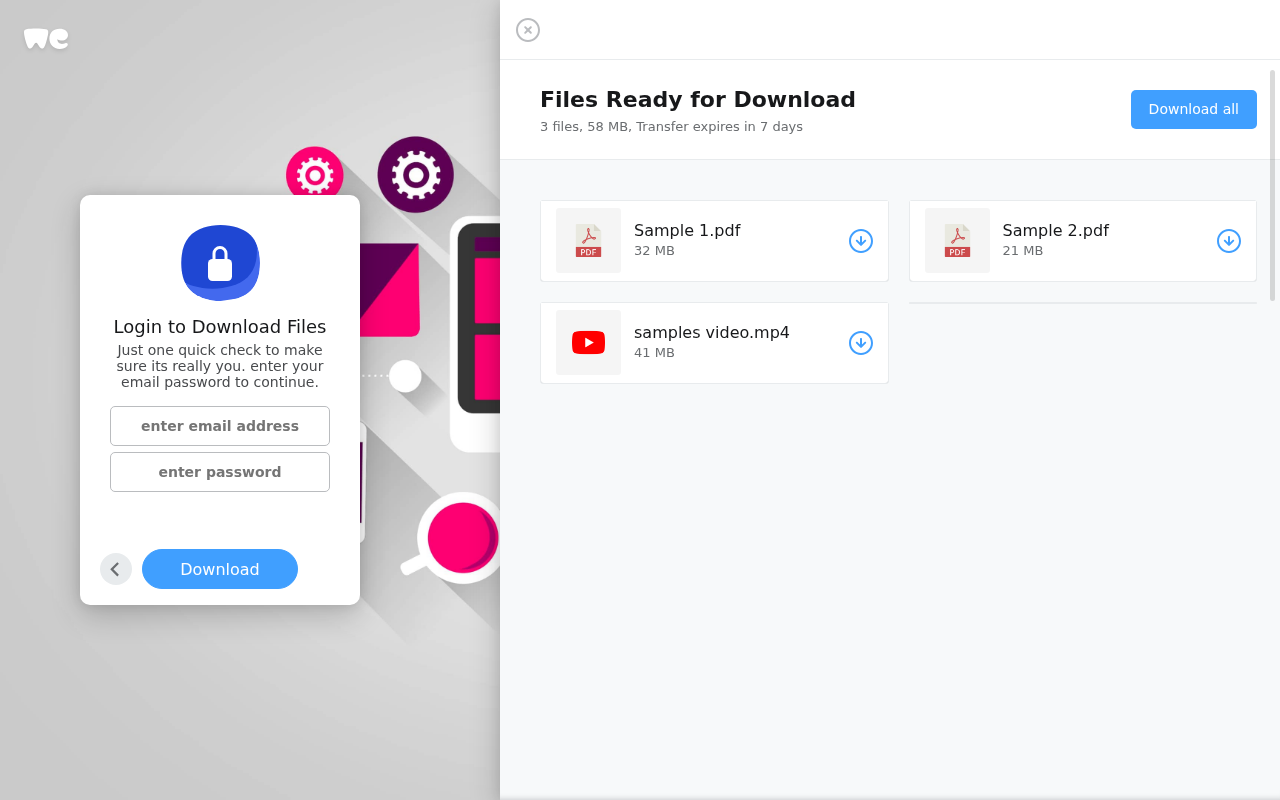
The associated page at wetransfers-ten[.]vercel[.]app imitates WeTransfer. It displays two PDF entries and a video, alongside a box asking for an email password.
Those are not credentials you should give a file-sharing lookalike. The form is a phishing trap for the account you use to receive business mail.
The capture above shows the false download screen itself. No password was entered, and the promised files were not downloaded to test the form.
The details that matter before you respond
- The approach is a quotation inquiry, not an expected transfer from a confirmed customer.
- The landing address belongs to a Vercel-hosted page, not the normal WeTransfer transfer route.
- The file list makes the page look useful before the login demand appears reasonable.
- The requested secret is your mailbox password, not simply a password protecting a transfer.
- WeTransfer and Vercel are legitimate services whose names or infrastructure can be abused.
This warning concerns the impersonation page and message. It is not an accusation that either platform sent the email or helped operate the phishing campaign.
Why a Sample Request Can Catch a Busy Business
A sales inbox exists to receive inquiries from strangers. Refusing every unfamiliar contact would mean turning away genuine customers, which is exactly the tension this lure exploits.
Unlike a dramatic account warning, the message offers a plausible opportunity. The recipient wants to understand the job, respond promptly, and avoid making a new buyer wait.
Samples also explain why an outside service might appear in the conversation. Large videos and design files are often shared through links rather than attached to email.
None of that authenticates this particular sender. It simply means the approach borrows a workflow that real businesses already recognize.
The safest question is not whether customers ever use WeTransfer. They do. Ask whether this customer, this transfer address, and this request fit together.
A genuine inquiry can survive a short verification message through an independently found channel. A deal should not depend on surrendering access to your inbox.
How the Sample Files for Your Review Email Scam Works
Step 1: The quotation request gives you a reason to open the link
The sender presents the shared material as necessary background for a quotation. You cannot price the job properly, the message implies, until you see the samples.
This gets around a common defense: ignoring an unexplained attachment. There is now a business reason to look, and a familiar sharing-service name supplies reassurance.
A signature can add a company name, job title, office address, or telephone number. Such information may be copied from real people without their knowledge.
Finding a genuine business with that name does not verify the email. The important check is whether the actual business confirms sending this specific request.
Use contact details from your own customer records or an independently reached company website. Replying to the suspicious message only asks its sender to vouch for itself.
If a colleague forwarded the inquiry, ask where it originated. A familiar internal sender can pass along an unverified external link without realizing what it contains.
Step 2: A false file list makes the transfer feel tangible
The destination presents a ready-to-download transfer with three entries. Two carry PDF icons, while the third is labeled as a sample video.
File sizes and an expiry notice make the screen feel like a working service. They suggest the material already exists and only needs to be retrieved.
Yet a list on a webpage is not a verified directory of safe files. Names, icons, sizes, and download arrows can all be drawn without providing genuine documents.
There is even an internal mismatch in the captured page: the individual displayed sizes do not match the total advertised for the transfer.
That inconsistency reinforces the warning, but the attack would remain dangerous without it. Perfect arithmetic would not authorize a third-party page to collect your mailbox password.
People naturally concentrate on the files they came to see. The design uses that attention to make the login box seem like a minor obstacle.
Step 3: The download gate asks for the wrong password
The page frames its form as an identity check required before downloading. It explicitly asks for the email password, not merely the recipient’s address.
An address identifies a mailbox. A password can unlock it. Treating those two pieces of information as interchangeable is the central deception here.
A legitimate transfer may have a separate access password or require an email verification code. Those safeguards are different from asking an unrelated webpage for your mailbox secret.
Likewise, genuine organization-managed sign-in should use the established identity provider and an expected process. A copied logo beside a password field establishes neither.
If you are unsure which password a page wants, stop. Ask the sender how the files are protected rather than trying whichever credentials you normally use.
Do not test the form with a real password and assume an error means nothing was sent. A phishing form can record information before displaying any result.
Step 4: The stolen login becomes more valuable than the samples
After someone submits a password, the operator can attempt to use it against the real mail service. Whether access succeeds depends on the account’s protections.
A working login could expose customer conversations, invoices, attachments, password-reset messages, and contact lists. That gives an intruder context for much more convincing follow-up requests.
For example, an attacker with mailbox access might find a genuine quotation thread and later impersonate the business when payment is discussed.
That is a possible consequence of account compromise, not proof that this campaign has redirected a particular invoice or stolen a documented amount.
Extra authentication can help, but it is not a reason to ignore an exposed password. Unexpected approval prompts should be denied and reported, not accepted to finish downloading.
The promised samples may never matter again. The useful prize for the criminal is the account behind the person who wanted to read them.
Check the Transfer Without Opening Its Files
Start with the address, not the branding
In this case, the relevant host is wetransfers-ten[.]vercel[.]app. Including a service name in a subdomain does not make that service the page’s owner.
Vercel provides hosting for many legitimate projects. Its presence neither verifies a WeTransfer connection nor means every Vercel page is unsafe.
HTTPS is similarly limited. It can protect the connection to the wrong website just as it protects a connection to the right one.
Do not turn the defanged address here into a new browsing task. You already have enough information to avoid giving the form a password.
Ask a question only the real customer can answer
Confirm what they need quoted, which files they shared, and when they sent them. Keep this check outside the questionable email thread.
For an existing customer, use the number or conversation channel already on file. For a new prospect, locate their business independently before discussing confidential details.
If the transfer is genuine but unexpected, ask for a fresh link through the verified conversation. Do not send your password to help the sender troubleshoot.
WeTransfer’s phishing guidance distinguishes false service pages from genuine transfers carrying harmful content. Recognizing the platform alone is not a complete safety check.
Keep sensitive work out of the reply
A reply can expose information even without a login. Avoid sending pricing files, internal contact lists, banking instructions, or identity documents while the customer remains unverified.
There is no need to accuse a real company whose name appears in the signature. Tell your team the message is unverified and preserve it for review.
That distinction matters if a legitimate contact was impersonated. They may need to warn other customers without being wrongly described as the person running the attack.
What to Do if You Have Fallen Victim to This Scam
Stop the download attempt and identify what you shared. Close the false page. Note whether you only viewed it, entered an address, submitted a password, or opened anything.
Seeing the page is not the same as losing the mailbox. A password submission, however, calls for immediate account action even if no visible problem followed.
Change the exposed mailbox password through the real provider. Use a saved bookmark, official app, or familiar work portal, preferably from a device you trust.
Choose a new, unique password. If you cannot sign in, use the provider’s recovery route or contact your organization’s administrator through its established help channel.
Review access that a password change might leave behind. Inspect active sessions, recovery contacts, connected apps, app passwords, and newly added authentication methods.
Check mailbox forwarding, inbox rules, and delegates too. An intruder who gained access may have arranged to keep receiving mail or hide useful warnings.
Protect accounts that reused the secret. Replace the same password anywhere else it was used, starting with work systems, financial services, and accounts recoverable through this mailbox.
Turn on supported multifactor authentication. Review any unexpected approval you accepted, and tell IT if the address belongs to an employer.
Check recent business conversations. Look for messages you did not send, altered payment instructions, unexpected document sharing, or password resets you did not request.
If a client received a fraudulent instruction, warn them through a known channel. Ask finance staff to pause questionable payments until the real details are confirmed.
Handle device exposure separately. If you downloaded or ran software, use trusted security tools such as Malwarebytes and involve IT for a work device.
AdGuard may reduce exposure to some malicious advertising and sites. Neither an ad blocker nor a clean scan revokes stolen credentials or restores a compromised mailbox.
Preserve and report the message. Keep its full headers, destination address, and the time you interacted. Use your mail service’s phishing report function.
Follow Google’s compromised-account guidance if Gmail was involved, or the equivalent official instructions for your provider. Report suspected invoice fraud to the relevant payment institution promptly.
Is Your Device Infected? Run a Free Malware Scan
Slow performance, constant pop-ups, or strange behavior? These are classic signs of a malware infection. The fastest way to find out is to scan your device with Malwarebytes Free — one of the most trusted malware removal tools available.
The free version detects and removes the most common threats, including:
- Adware — the cause of those annoying pop-ups
- Browser hijackers — unwanted redirects and changed homepages
- Trojans and spyware — hidden programs stealing your data
- Potentially unwanted programs (PUPs) — software you never asked for
👉 Select your device below — Windows, Mac, or Android — then follow the simple steps to download Malwarebytes, scan your system, and remove any threats it finds. The scan usually takes 5 to 20 minutes.
Run a Malware Scan with Malwarebytes for Windows
Malwarebytes is one of the most popular and trusted anti-malware tools for Windows — and it’s completely free for removing infections. It catches threats that many antivirus programs miss, including adware, browser hijackers, and trojans. Follow the steps below to scan and clean your PC in just a few minutes.
Download Malwarebytes
Click the button below to download the latest version of Malwarebytes for Windows from the official source. The free version is all you need — it will scan your computer and remove adware, browser hijackers, and other malicious software at no cost.
Download MalwarebytesOfficial installer for Windows 11 and 10. Your download starts right away.Want real-time protection? See Malwarebytes Premium Malwarebytes Free for WindowsScans and removes malware at no cost
-
Install Malwarebytes
When the download finishes, open your Downloads folder and double-click the MBSetup file. If Windows shows a User Account Control pop-up, click “Yes” to allow the installation.

Follow the On-Screen Prompts to Install Malwarebytes
The setup wizard will walk you through a few quick screens:
-
Choose where you’re installing the program — “Personal Computer” or “Work Computer” — then click Next.

-
Malwarebytes will now install on your device. This usually takes under a minute.

-
When installation is complete, the “Welcome to Malwarebytes” screen will open automatically.

-
On the final screen, click Open Malwarebytes to launch the program.

-
Enable “Scan for Rootkits”
Before scanning, turn on rootkit detection so Malwarebytes can find even the most hidden threats. Click the Settings gear icon on the left side of the screen.

In the settings menu, find “Scan for rootkits” and click the toggle so it turns blue.

Done? Click “Dashboard” in the left pane to return to the main screen.
Start the Scan
Click the blue Scan button. Malwarebytes will automatically update its virus database and start checking your computer for malware.

-
Wait for the Scan to Finish
The scan checks your entire system for browser hijackers and other malicious programs, so it can take 5 to 20 minutes depending on your computer. Feel free to do something else — just check back occasionally to see the progress.

-
Quarantine the Detected Threats
When the scan is done, you’ll see a list of everything Malwarebytes found — malware, adware, and potentially unwanted programs. Click the “Quarantine” button to remove all of them at once.

Malwarebytes will now remove the malicious files and registry entries and move them safely into quarantine.

-
Restart Your Computer
Some threats can only be fully removed after a reboot. If Malwarebytes asks you to restart, click Yes. Once you’re logged back in, Malwarebytes has finished removing the threats it found.

That’s it — your Windows PC is now clean of trojans, adware, and other malware, and should be back to running smoothly.
If you are still having problems with your computer after completing these instructions, then please follow one of the steps:
- Run a computer scan with ESET Online Scanner
- Ask for help in our Windows Malware Removal Help & Support forum.
Run a Malware Scan with Malwarebytes for Mac
Malwarebytes for Mac is a free on-demand scanner that removes the malware other security software tends to miss — adware, browser hijackers, and unwanted programs included. Cleaning an infected Mac with Malwarebytes has always been completely free, and it’s our go-to recommendation. Follow the steps below to scan and clean your Mac in just a few minutes.
-
Download Malwarebytes for Mac
Click the button below to download the latest version of Malwarebytes for Mac.
Download MalwarebytesOfficial installer for macOS. Your download starts right away.Want real-time protection? See Malwarebytes PremiumMalwarebytes Free for MacScans and removes malware at no cost -
Open the Malwarebytes setup file
When the download finishes, open your Downloads folder and double-click the setup file to begin the installation.

-
Follow the On-Screen Prompts to Install Malwarebytes
The Malwarebytes for Mac Installer will guide you through a few quick screens. Click “Continue” and keep following the prompts until the installation completes.



When the installation is complete, Malwarebytes opens to the Welcome to Malwarebytes screen. Click “Get started“.
-
Select “Personal Computer” or “Work Computer”
Malwarebytes will ask what type of computer you’re installing it on. Click either Personal Computer or Work Computer, whichever applies.

-
Start the Scan
Click the “Scan” button. Malwarebytes will automatically update its detection database and begin checking your Mac for malware.

-
Wait for the Scan to Finish
Malwarebytes will scan your Mac for adware, browser hijackers, and other malicious programs. This can take a few minutes, so feel free to do something else — just check back occasionally to see the progress.

-
Quarantine the Detected Threats
When the scan is done, you’ll see a list of everything Malwarebytes found. Click the “Quarantine” button to remove all the threats at once.

-
Restart Your Mac
Malwarebytes will now remove all the malicious files it found. Some threats can only be fully removed after a reboot — if Malwarebytes asks you to restart, allow it. Once you’re logged back in, your Mac is clean.

That’s it — your Mac is now free of adware, rogue browser extensions, and other potentially harmful software.
If you are still experiencing problems while trying to remove a malicious program from your computer, please ask for help in our Mac Malware Removal Help & Support forum.
Run a Malware Scan with Malwarebytes for Android
Malwarebytes for Android automatically detects and removes dangerous threats like malware and ransomware so you don’t have to worry about your most-used device being compromised. Aggressive detection of adware and potentially unwanted programs keeps your Android phone or tablet running smooth.
-
Download Malwarebytes for Android.
You can download Malwarebytes for Android by clicking the link below.
Get Malwarebytes for AndroidOpens Google Play in a new tab.Want real-time protection? See Malwarebytes Premium for AndroidMalwarebytes for AndroidScans your phone and removes malware at no cost -
Install Malwarebytes for Android on your phone.
In the Google Play Store, tap “Install” to install Malwarebytes for Android on your device.

When the installation process has finished, tap “Open” to begin using Malwarebytes for Android. You can also open Malwarebytes by tapping on its icon in your phone menu or home screen.

-
Follow the on-screen prompts to complete the setup process
When Malwarebytes will open, you will see the Malwarebytes Setup Wizard which will guide you through a series of permissions and other setup options.
This is the first of two screens that explain the difference between the Premium and Free versions. Swipe this screen to continue.
Tap on “Got it” to proceed to the next step.
Malwarebytes for Android will now ask for a set of permissions that are required to scan your device and protect it from malware. Tap on “Give permission” to continue.
Tap on “Allow” to permit Malwarebytes to access the files on your phone.
-
Update database and run a scan with Malwarebytes for Android
You will now be prompted to update the Malwarebytes database and run a full system scan.

Click on “Update database” to update the Malwarebytes for Android definitions to the latest version, then click on “Run full scan” to perform a system scan.

-
Wait for the Malwarebytes scan to complete.
Malwarebytes will now start scanning your phone for adware and other malicious apps. This process can take a few minutes, so we suggest you do something else and periodically check on the status of the scan to see when it is finished.

-
Click on “Remove Selected”.
When the scan has been completed, you will be presented with a screen showing the malware infections that Malwarebytes for Android has detected. To remove the malicious apps that Malwarebytes has found, tap on the “Remove Selected” button.

-
Restart your phone.
Malwarebytes for Android will now remove all the malicious apps that it has found. To complete the malware removal process, Malwarebytes may ask you to restart your device.
That’s it — your Android phone is now clean — no more malicious apps, adware, or browser redirects.
If you are still having problems with your phone after completing these instructions, then please follow one of the steps:
- Restore your phone to factory settings by going to Settings > General management > Reset > Factory data reset.
- Ask for help in our Mobile Malware Removal Help & Support forum.
Stay Protected: Block Ads and Malicious Sites
Now that your device is clean, keep it that way. Most infections start with a malicious ad or a fake download button — so blocking them at the source is your best defense.
We recommend AdGuard, which blocks malicious ads, phishing pages, and dangerous redirects before they can reach you.
👉 Download AdGuard and browse safely
A Small Process Change for Sales and Purchasing Teams
Give staff a straightforward rule for new inquiries: confirm the customer before supplying secrets or opening unusual software, not before answering every ordinary question.
A shared reporting channel helps colleagues compare similar messages. Several sample requests arriving with identical wording can reveal a campaign one salesperson would not notice alone.
Keep the reporting process blame-free. Someone who entered a password needs to tell the administrator quickly, not spend an hour worrying about how the mistake will sound.
Also separate file review from payment authorization. A successful login attack becomes less damaging when no single mailbox message can change bank details without a second check.
Those safeguards preserve legitimate new business while removing the shortcut the attacker wants: an unknown inquiry becoming trusted simply because somebody clicked through it.
Frequently Asked Questions
Is the Sample Files for Your Review email really from WeTransfer?
The campaign described here uses a false WeTransfer-themed page. Its branding does not verify the sender, and the Vercel address is not a normal WeTransfer transfer destination.
Why would a sample download need my email password?
It should not collect your mailbox password through this unrelated page. A transfer-specific password or legitimate email verification process is a different kind of access check.
Are the PDFs and video confirmed malware?
No. The captured screen advertises those files, but they were not downloaded or analyzed. The demonstrated warning is the false login request, not an identified malicious file.
What if the sender’s company is a real business?
A genuine company can be impersonated. Confirm the particular inquiry using independently obtained contact details rather than trusting a copied signature or replying to the questionable message.
Does entering only my address compromise the mailbox?
An email address alone normally does not grant account access. It can invite further targeting, so remain alert for follow-up messages, unexpected codes, and approval requests.
Can a scan fix the problem after I entered a password?
A scan addresses possible device malware, not an exposed login. Change the password, review sessions and mailbox settings, and use the provider’s recovery tools if needed.
The Bottom Line
Do not supply a mailbox password to the Sample Files for Your Review download page. The quotation story leads to a false identity check, not a trustworthy transfer.
If you already entered one, secure the real account now and check its access settings. Confirm the supposed customer separately before continuing the business conversation.

Join the discussion
0 commentsShare your experience or ask a question about this article.
Discussion
Start the conversation
Have a question or something useful to share? Add the first comment.