


An email says a payment has cleared, with a remittance document ready to view. For an accounts team, that sounds like routine reconciliation.
Then the document takes an unexpected detour. Before following its instructions, look closely at what it wants your computer to do.
Overview
A settlement notice aimed at everyday finance work
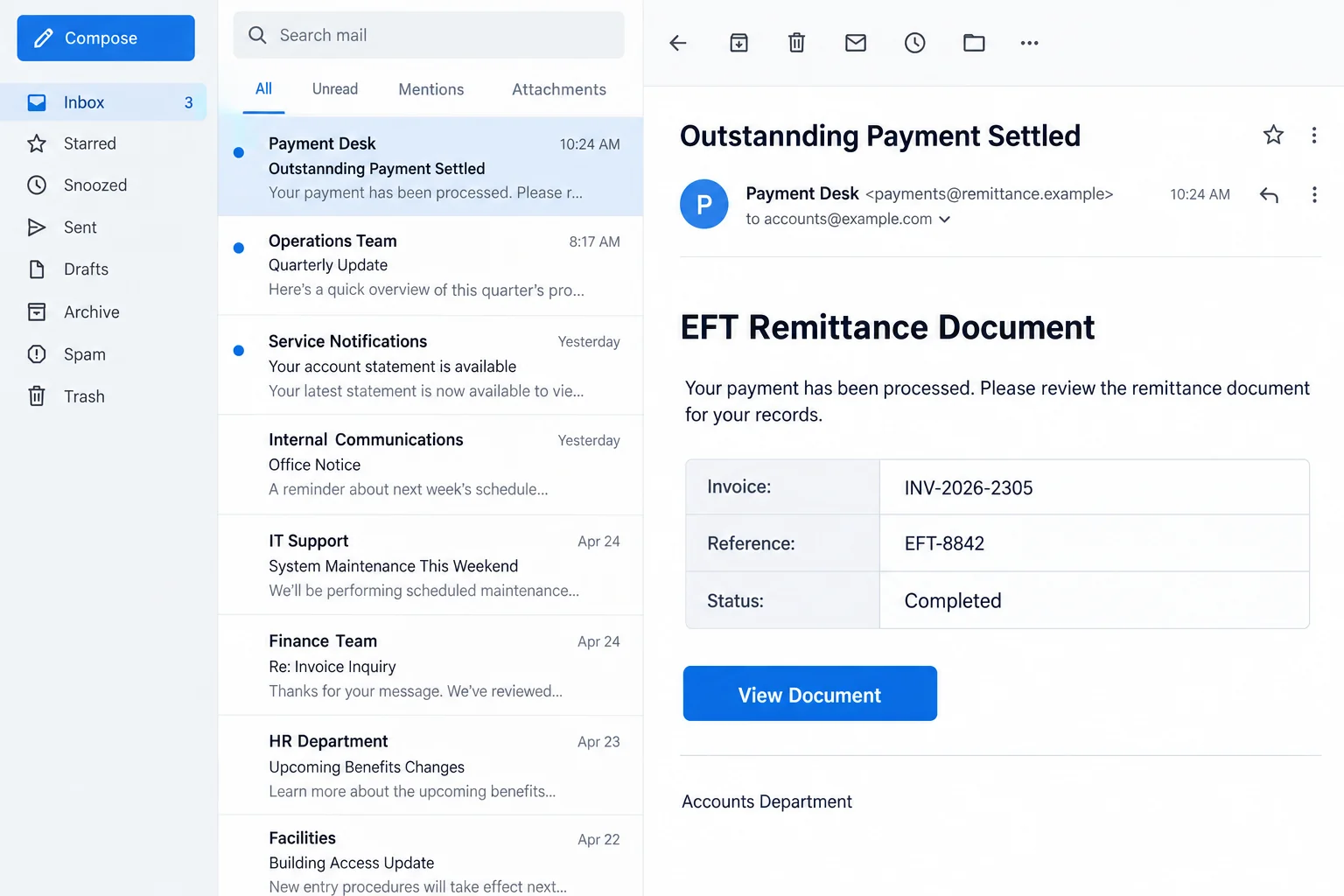
The EFT Remittance Document email virus campaign disguises malicious software delivery as a payment notification. The message invites recipients to view supporting paperwork for a settled payment.
A reported version borrows the RemitPay name and uses the subject “Outstannding Payment Settled.” It includes invoice and transfer references to resemble an accounts-receivable record.
The image above illustrates that kind of message with fictional contact details. It is not an original recipient’s email or evidence of a real payment.
The document becomes an alleged Adobe update
Instead of simply opening remittance information, the link leads to a page claiming Adobe Acrobat Reader needs updating. A download is presented as the way forward.
The reported file is Adobe Installer Latest Version 2.01.bat. Despite its reassuring name, a Windows batch file contains executable instructions, not a viewable payment document.
This is a malware-delivery lure. The specific malware family has not been established here, so claims about a particular stealer, ransomware strain, or confirmed theft would be speculation.
Where the risk changes
- Receiving the email does not mean a payment exists or malware has run.
- Following the document link exposes you to an untrusted update prompt.
- Saving a batch file is different from executing its instructions.
- Running it, approving elevation, or following additional commands can create a serious device incident.
- RemitPay and Adobe branding does not establish either company’s involvement in the attack.
The safe decision is to stop at the unexpected software requirement. Verify the payment separately and obtain any genuine Reader update through a trusted Adobe route.
What a Remittance Notice Actually Tells You
Remittance advice normally helps a business match money received to the invoices it covers. It can include invoice numbers, a payment date, deductions, or transfer references.
Those details are useful for bookkeeping, but an email displaying them does not prove that money reached the bank. The account record remains the financial check.
The campaign’s reported sample uses invoice reference INV-2026-2305 and payment reference EFT-8842. Such identifiers can look organized without corresponding to anything in your ledger.
Ask whether the named customer owes your business money, whether the invoice exists, and whether the amount and timing fit an actual outstanding balance.
Even a convincing match is not permission to install software from the message. Attackers sometimes obtain real invoice details or hijack existing conversations.
Finance staff should be able to verify incoming funds without changing the computer’s security posture. A document that suddenly requires an installer deserves a separate check.
How the EFT Remittance Document Malware Lure Works
Step 1: A completed payment creates a practical reason to click
The opening claim is welcome rather than frightening: an outstanding payment has supposedly been settled. The reader is encouraged to retrieve the details and finish the accounting task.
This can catch someone who has been chasing an overdue invoice. A message that appears to resolve a problem may receive less scrutiny than one demanding money.
The finance-themed wording gives the button a purpose. You are not being asked to install anything yet, only to inspect a document related to normal work.
A misspelled subject is a warning sign, but it is not the whole test. A corrected spelling would leave the later executable-file demand just as dangerous.
Likewise, the sending address needs context. A familiar display name or provider domain does not show that the claimed payment business authorized the message.
Check known customer records rather than using the email’s own reply address as your only source of reassurance.
Step 2: The document link introduces a false viewing problem
After the recipient selects the document button, the journey changes. A page presents an Adobe Acrobat Reader update as necessary to continue.
The explanation supplies an answer to an obstacle the page itself created. You wanted payment paperwork, and now the supposed solution is a software download.
Real PDF readers do receive updates. That familiar fact makes the story plausible, particularly if you have previously installed Reader to open business documents.
But a webpage does not become your software administrator because it mentions Adobe. You can close it and check the installed application independently.
Adobe’s Reader installation instructions direct users to its own download route. A surprise remittance page is not a substitute for that trusted source.
On a managed computer, the appropriate route may be your employer’s software portal or IT team. Do not bypass that process to speed up reconciliation.
Step 3: An installer label hides a runnable script
The advertised filename ends in .bat. On Windows, that extension identifies a batch script whose lines can be processed as commands when executed.
Words such as installer, Adobe, latest, and version describe what the sender wants you to believe. They do not establish a publisher or validate the file’s contents.
A document icon can be misleading too. Pay attention to the actual file type rather than assuming a familiar-looking icon means you received a PDF.
Windows may hide known filename extensions in some configurations. Viewing full extensions helps expose a script disguised with an impressive name or a misleading document reference.
If the file type remains unclear, leave it closed and ask your administrator. Do not rely on the visible name being complete.
There is no need to run the file to discover whether it is legitimate. The unexpected transition from payment record to batch-script installer is sufficient reason to stop.
Do not upload a business attachment to random online services for reassurance. It could contain confidential information, and an unknown verdict is not approval to execute it.
Step 4: The instructions persuade the recipient to authorize execution
The reported delivery instructions encourage running the file, accepting a User Account Control prompt, and allowing PowerShell activity to finish.
That is the important escalation. The recipient is no longer reading information; they are allowing software instructions to act on the computer.
A Windows permission prompt asks whether you authorize an action. It does not certify that the request is necessary, safe, or genuinely connected to Adobe.
PowerShell is a legitimate Windows tool used by administrators. Attackers can abuse legitimate tools, so seeing its name neither proves safety nor identifies a particular malware strain.
Once untrusted code runs, the consequences depend on what it does and which permissions it obtains. The lack of an obvious error does not settle that question.
For this campaign, an exact payload has not been independently analyzed here. Treat execution seriously without pretending that every affected machine has suffered the same outcome.
Separate the Fake Payment From the Device Incident
The bank record answers the payment question
Open your banking or payment service through its usual route. Compare the actual transaction with the invoice, payer, date, and amount already recorded by your business.
If no corresponding funds appear, ask the real customer through an existing contact channel. Do not accept a screenshot supplied by the suspicious sender as settlement proof.
A pending, scheduled, or initiated transfer may not be completed funds. Follow your normal accounting process rather than changing it to match the email’s wording.
Do not ship goods, issue a refund, or change an invoice’s status solely because the message says the transfer succeeded.
The computer needs a different investigation
If the file ran, checking the bank is not enough. Your organization needs to determine what executed, what it contacted, and which accounts were exposed.
Useful details include the approximate execution time, original filename, download location, security alerts, and whether an administrator prompt appeared.
You do not need to reproduce the event to give IT those details. Avoid running the script again, opening its links, or experimenting with additional permissions.
The Microsoft phishing guidance flags unexpected requests to install applications or change security settings. Those requests deserve scrutiny even when the surrounding email sounds routine.
Do not let a missing symptom reassure you
Malicious software does not always produce an obvious pop-up, slow computer, or ransom demand. Some activity is deliberately quiet.
On the other hand, simply receiving the email is not proof of infection. The response should follow what happened, not the most frightening possible outcome.
That distinction helps a responder prioritize. A deleted message, an unopened download, and an executed elevated script are three different situations.
What to Do if You Have Fallen Victim to This Scam
-
Stop following the update instructions. Close the payment page and do not approve further prompts. If the download is still untouched, leave it unopened.
Record the filename and where it came from. At work, ask IT how to preserve or remove it without circulating a live copy to colleagues.
-
If the script ran, separate the device from normal work. Disconnect its network connection where practical and promptly notify your IT or security team.
Use another trusted device or established phone contact to report the incident. Do not keep using the affected computer for banking while waiting for visible symptoms.
-
Give the responder a clear timeline. Explain when you opened the link, whether you executed the batch file, and whether you approved administrator access.
Include any antivirus alert or unexpected command window you remember. An honest timeline is more useful than guessing which malware family might be involved.
-
Check the system using trusted tools. On a personal device, use Malwarebytes obtained through a known legitimate route and follow appropriate detection and quarantine guidance.
An executed unknown script may need deeper investigation or a trusted reinstall. A clean scan alone cannot certify that all consequences have been reversed.
-
Secure accounts from a clean environment. Tell IT which work, banking, or password-management accounts were accessible while the untrusted program ran.
Follow its advice on password changes, session revocation, and recovery checks. Do not type replacement credentials into a computer that may still be monitored.
-
Verify the alleged payment independently. Compare your finance records with actual incoming funds. Contact the known payer if the invoice or settlement cannot be matched.
Escalate any real unauthorized transfer to the bank or payment provider immediately. The email’s reference number does not create a refund or recall guarantee.
-
Report the lure and reduce repeat exposure. Preserve the original email for IT or your mail provider’s phishing-report process, then remove it from normal workflow.
AdGuard can help reduce some malicious advertising and web exposure. Keep browser and operating-system protections enabled; never disable them to make a document open.
Windows Cleanup After the Fake Adobe Remittance Installer
Use this procedure after possible execution of the batch file, not merely receipt of the remittance email. The final malware family remains unspecified.
Step 1: Preserve the execution details and stop sensitive activity
Record whether the batch file ran, an administrator prompt was accepted, or PowerShell appeared. Do not repeat those actions to check your memory.
On a business computer, notify IT before cleanup. Keep banking verification on a separate trusted device and preserve the original payment message.
Step 2: Run Malwarebytes and quarantine confirmed threats
Use this procedure on a personal Windows PC after preserving the incident details. For a managed computer, let your security team decide when scanning should begin.
Malwarebytes can find and quarantine threats. Its free Custom Scan is separate from paid real-time protection and Threat Scan. Neither edition supplies ransomware decryption keys.
-
Download the Windows installer.
Open the official download page using the button below. Select Free Download there and save the Windows installer.
If the affected PC cannot browse safely, use a trusted computer and arrange an appropriate transfer without exposing clean backup media.
Malwarebytes for WindowsManual scanning and quarantine, with optional paid protection.
Opens the official free-scanner page. Choose its Windows download; paid protection is optional.
-
Open the setup file.
Open Downloads and double-click the MBSetup file. If Windows requests permission, check that the prompt identifies Malwarebytes before allowing the installation.

-
Complete setup without accepting unwanted extras.
Select Install, choose the appropriate Personal or Business device option, and continue. Business-managed computers should be handled through their administrator’s process.

Review any browser extension, trial, or subscription offers. Skip optional features you do not want, then select Open Malwarebytes when setup finishes.

-
Choose a supported scan.
Find the Scanner tile on the dashboard. For a free Custom Scan, open its three-dot menu, select Advanced Scan, and choose Custom Scan.
Expand the file-location selector and select the system drive and relevant locations. Review potentially unwanted program settings, then select Start Custom Scan.
A paid or eligible trial edition may also offer Threat Scan. Use the controls available in your edition; do not disable Windows protections to unlock another option.

-
Let the scan complete and inspect its findings.
Keep the computer powered on while scanning and wait for the results. A large Custom Scan can take longer than a scan limited to common locations.
Review each detection and its location. Leave confirmed threats selected and choose Quarantine. Save the report if a detection is unclear rather than adding it to exclusions.
The results illustration uses sample detections to show the Quarantine control. Those names are not identifiers for the malware discussed in this article.

-
Finish removal and handle a requested restart.
Follow the quarantine prompts. If a restart is requested, save your work and coordinate it with anyone preserving evidence before restarting.

Reopen the application afterward and review the result. Repeated detections, blocked removal, or signs of continuing access need further investigation, not an automatic clean-device conclusion.
The screen design can vary by installed release. Follow the named controls and the vendor’s current scan instructions if your version looks different.
Step 3: Seek another scan for unresolved Windows findings
HitmanPro provides an optional second opinion when a Windows infection or unresolved finding warrants another check. Run scanners sequentially, not at the same time.
Scanning is free. Removal needs an eligible one-time 30-day trial or a paid license. A computer that already used its trial may not qualify again.
-
Obtain HitmanPro from the established download route.
HitmanProOptional second-opinion Windows scanner.
Free scan. Removal requires an eligible trial or paid license.
-
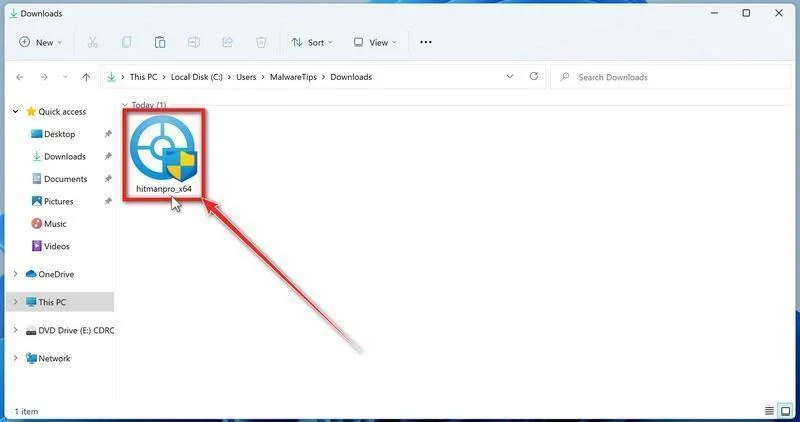
Launch the downloaded program.
Open Downloads and run the appropriate HitmanPro file for your system. Check the publisher in any Windows permission prompt before allowing it.
-
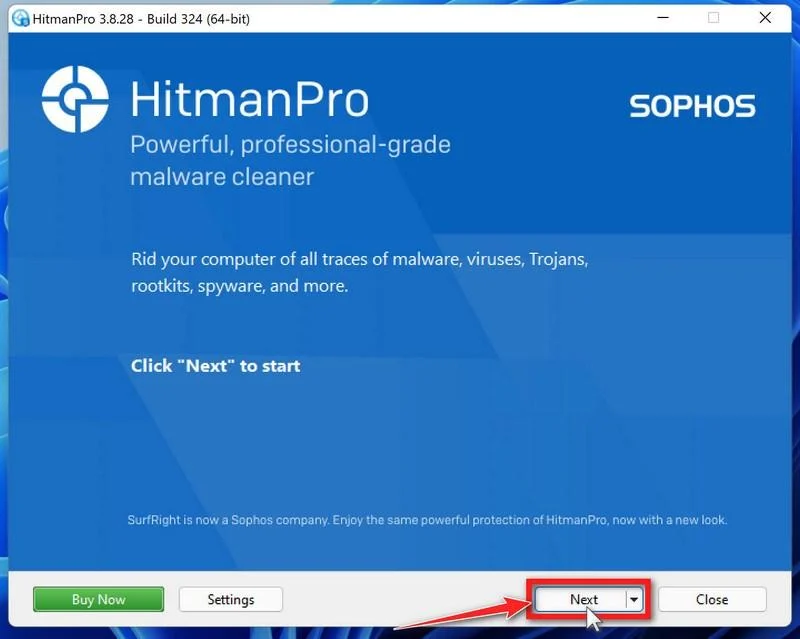
Start the scan.
Open HitmanPro, select Next, and follow its license and setup prompts. Its cloud checks require an internet connection; arrange controlled access if the PC was isolated.
-
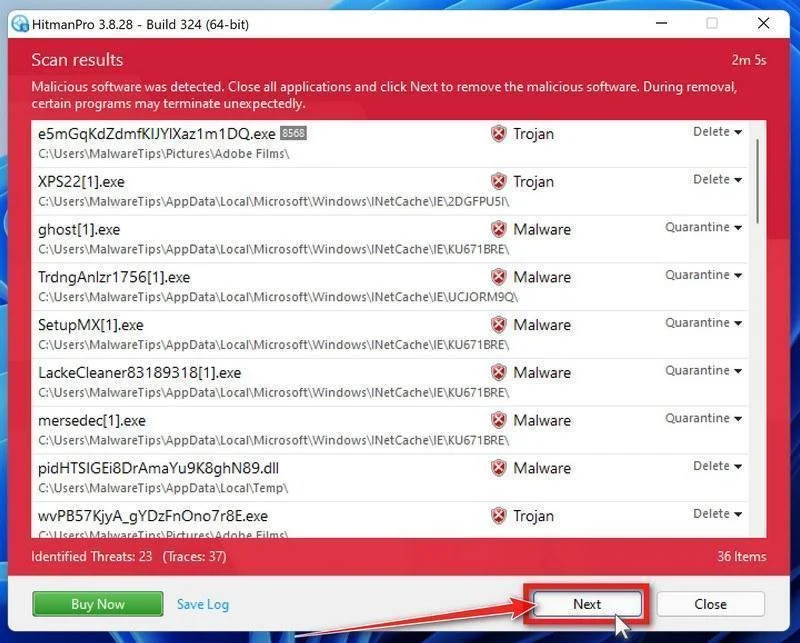
Review the results before removal.
Allow scanning to finish. Inspect the listed objects and proposed actions, then select Next for confirmed unwanted items. Save uncertain findings for qualified assistance.
-
Use an eligible license and complete cleanup.
If available, select Activate free license and follow the trial prompts. Otherwise, use an existing license or retain the report; do not assume purchase is mandatory.
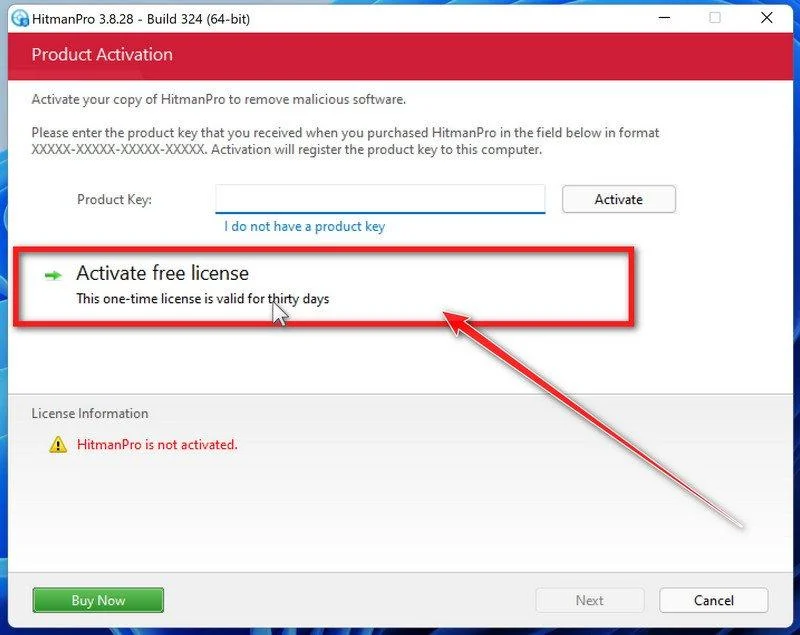
Finish the proposed cleanup and restart if requested. If problems persist, keep both scanners’ reports and seek help rather than repeatedly activating unfamiliar repair tools.
Step 4: Verify the device separately from the alleged payment
Retain reports and seek further investigation after recurring alerts or unexplained access. A supported reinstall may be needed if trust cannot be established.
Obtain genuine Reader software through Adobe or your administrator. Cleaning Windows does not authenticate the claimed EFT or reverse an unauthorized transaction.
How Accounts Teams Can Avoid the Same Detour
Create a simple boundary between reading payment information and changing software. An accounts employee should not need to make installation decisions inside a customer’s remittance journey.
If a genuine file cannot be opened, the next action is to ask IT or request another format through a verified contact. It is not to improvise.
Make that rule practical by providing an approved document viewer and a familiar way to report suspicious messages. A safe process must work during a busy payment run.
Managers should also avoid rewarding speed at the expense of verification. Staff need permission to pause a questionable settlement notice without feeling they are delaying revenue.
For shared finance mailboxes, tell colleagues when a lure has arrived. Otherwise, someone else may pick up the same unread message and repeat the attempted download.
A short warning can identify the actual trap: a payment email proposing a batch-script Adobe update. That is more useful than telling everyone that all remittance emails are malicious.
Frequently Asked Questions
Is the EFT Remittance Document email proof that I was paid?
No. Confirm funds through your existing bank or payment service and match them to your records. Invoice numbers inside an email are not settlement evidence.
Is Adobe Installer Latest Version 2.01.bat a PDF?
No. The .bat extension denotes a Windows batch script. A familiar product name does not turn executable commands into a payment document.
Which malware does this email install?
The payload is unspecified in the available case details. It would be misleading to identify a particular ransomware, banking trojan, or password stealer without analyzing the actual file.
Am I infected if I only downloaded the file?
Downloading and executing are different events. Do not open it. Tell IT what occurred, especially if you are unsure whether the browser or another application ran it.
Does approving a Windows prompt make the installer trustworthy?
No. The prompt requests permission for an action. It is not an endorsement of the website, the publisher claim, or the reason you were told to install.
Should I remove Adobe Acrobat Reader?
The legitimate Reader application is not the attack described here. Stop using the suspicious installer and update genuine software through Adobe or your organization’s approved process.
The Bottom Line
Do not run the batch file offered by this EFT Remittance Document email. Payment paperwork is being used to steer you into an untrusted software installation.
If you executed it, isolate the device and seek appropriate security help. Verify the money separately, and secure exposed accounts from a trusted environment.

Join the discussion
0 commentsShare your experience or ask a question about this article.
Discussion
Start the conversation
Have a question or something useful to share? Add the first comment.