


A new quote request lands in your inbox, with a shared document ready for review. It could be the next project your business has been waiting for.
The document button is only the beginning of the decision. Pay attention when reviewing a proposal starts to require a software installation.
Overview
The business opportunity is bait for an installer
The Contract Procurement email campaign poses as a project or quote inquiry. It tells recipients to review a shared document associated with the supposed business discussion.
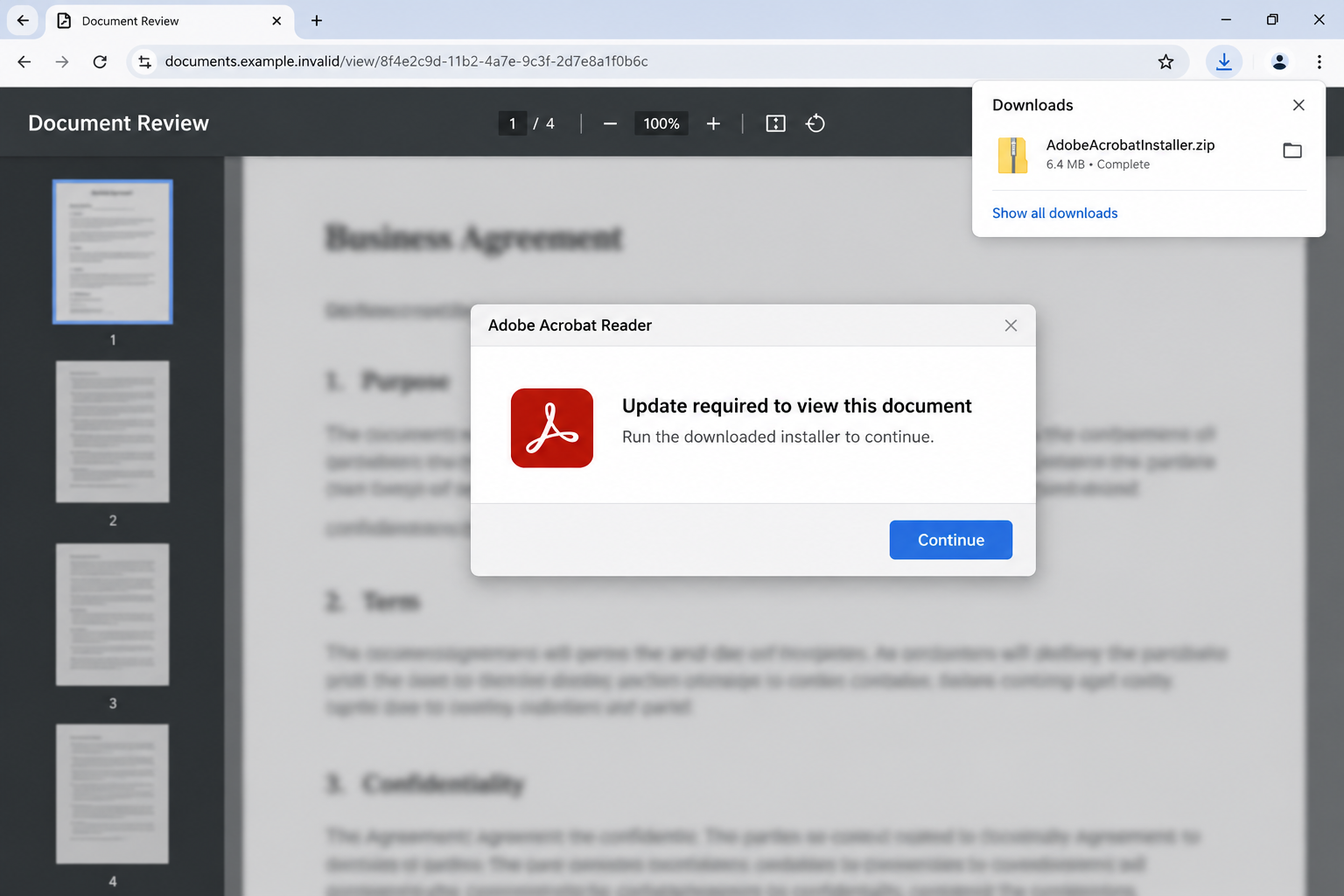
The reported route leads to an imitation Adobe document viewer. Instead of delivering a readable proposal, it downloads an archive and asks the user to run an update.
The archive is named AdobeAcrobatInstaller.zip. The documented payload installs an attacker-configured ScreenConnect remote-access component, not the Acrobat update the page promises.
Do not execute that download. This is a deceptive installation route that can grant an unauthorized person access to the computer.
Adobe and ScreenConnect are legitimate products being abused
A copied Adobe interface does not connect the page to Adobe. Likewise, a real remote-support application does not make its unauthorized installation legitimate.
ScreenConnect is used for genuine support and administration. In this attack, the concern is who controls the installed agent and whether access was knowingly authorized.
- A business inquiry supplies the reason to open a document.
- A blurred viewer creates a supposed technical obstacle.
- An automatic archive download is presented as the solution.
- Running the installer can enable attacker-controlled remote access.
An approved support agent on a company PC needs a different assessment from this email’s installer. Let the responsible administrator distinguish them.
Downloading the archive is different from running it
The key exposure is executing the installer, not simply noticing a ZIP file in Downloads. Preserve the distinction when describing what happened.
A page on palmerag.co.za was reported in this route. Its current homepage shows an agricultural business, not the historical viewer; that business is not accused of operating the attack.
The original malicious path was not reproduced here. An unavailable historical page does not change the danger of running an installer received through the deceptive document flow.
Why Procurement and Quote Requests Work as Lures
Businesses expect documents from people they have not met yet. That makes a first-contact proposal less obviously suspicious than an unrelated prize announcement.
The recipient also has a practical reason to be responsive. Missing a genuine inquiry could mean losing work, so reviewing the document feels worthwhile.
A form reference or e-signature subject can add administrative credibility. It suggests that the request belongs to a process already underway.
But a document reference does not verify the sender. The more important checks are whether the business exists, the request makes sense, and the file route matches the task.
Confirm the inquiry through independently obtained contact details if it might be genuine. Do not ask the document page to authenticate the conversation that brought you there.
You can request a normal, readable proposal through an established channel. A legitimate prospect should not need unexplained remote-control software installed on your computer.
Keep the opportunity and the installation decision separate. Being interested in a project does not mean accepting any technical requirement attached to its pitch.
How the Contract Procurement Email Scam Works
Step 1: A project inquiry creates a reason to review the file
The message describes a quote request or potential collaboration. Its document button offers the information needed to decide whether the project is relevant.
This is where ordinary business habits help the attacker. Opening shared plans, specifications, and forms can be a normal part of a workday.
Before following the link, examine whether the sender’s identity and request fit together. A polished message is not a substitute for a credible business relationship.
Where your company has a document-handling process, use it. Do not bypass a security check because the request appears to offer immediate revenue.
Step 2: The link opens a branded-looking viewer
The destination imitates an Acrobat-style document screen. A blurred proposal creates the impression that content exists but your current software cannot display it yet.
The blur is useful persuasion: you can almost see the information you want. Updating the software begins to look like a small step toward finishing the task.
A web page can display a fake update dialog. Its appearance does not mean your installed Acrobat application detected or requested anything.
Check where the message appears. Content inside a website is not the same as an update initiated through the application’s verified controls.
A padlock or familiar logo in a page can also be part of the design. Trust the browser’s actual address and the software publisher’s established route.
Step 3: The archive arrives as a supposed fix
The reported viewer downloads AdobeAcrobatInstaller.zip and urges the recipient to run it. The archive name makes the file sound like a natural solution to the display problem.
An unexpected automatic download is a reason to pause. A readable business proposal should not become permission to execute software from its document host.
Do not treat the ZIP extension as proof of safety. An archive can contain an executable installer, script, or other file with consequences when run.
If you only downloaded the archive, leave it unopened and arrange a security check. Keep the name and source for your report.
If you extracted it, record that too. Extraction and execution are different actions, and the distinction helps a responder assess the exposure.
Never launch it again to see what program appears. Repeating the dangerous action does not provide a safe diagnosis.
Step 4: Installation can establish unauthorized remote access
The documented installer deploys ScreenConnect configured for an attacker-controlled server. The victim expects a reader update, while the operator receives another kind of capability.
Remote-management access can permit activity on the machine even after the original webpage is closed. Closing the browser is not a complete removal procedure.
The specific actions taken afterward depend on the operator and permissions. Do not claim that every victim lost all passwords or received the same secondary payload.
Instead, treat an executed unauthorized agent as a meaningful compromise. Have its configuration and any subsequent activity assessed by trusted tools or responders.
A restart alone does not establish that access ended. Some remote agents are intended to remain available between sessions.
For a work machine, notify IT before trying to remove every support-looking application. An approved agent may coexist with an unauthorized one.
Step 5: The incident can outlast the original document request
Remote access can create opportunities to reach files, accounts, or further systems. The recovery needs to consider what was available while the agent was active.
A separate Huntress analysis of Adobe-themed remote-access attacks documented multiple rogue agents. It illustrates why removing one visible client may be insufficient.
That research is not proof that the same additional agents were installed in your Contract Procurement encounter. Your device records determine the actual extent.
Ask the responder to inspect unauthorized remote access and follow-on activity together. Do not limit the investigation to the archive’s name.
If credentials were exposed, resolve those through their providers from safe equipment. A device-side uninstall cannot cancel an account session elsewhere.
How to Tell a Genuine Acrobat Update From the Webpage’s Demand
Start the update from the application or official publisher
Adobe provides its own update procedure for Acrobat and Reader. Use the installed application’s update controls or instructions obtained from Adobe.
The official manual-update guidance describes the Help menu’s update check. It does not require running an archive from a stranger’s proposal page.
On managed business devices, your administrator may handle updates. Follow that process rather than giving a document website permission to install something separately.
Keep the file’s purpose visible
Make file extensions visible when assessing what downloaded. A reassuring icon or truncated filename can hide the distinction between the document you expected and an executable inside an archive.
Do not convert a blocked attachment into another format to get it through company controls. Ask IT to assess the original rather than finding a workaround.
A proposal should contain business information. An installer changes software on the computer. Those purposes should not be quietly exchanged.
If a sender insists that its proposal requires an installation, verify the requirement independently. Do not rely on the same sender’s reassurance that the installer is harmless.
Ask for another established delivery method where appropriate. You can evaluate the project without accepting an arbitrary software dependency.
Distinguish a compromised host from the person operating the scam
A malicious page can be hosted on a legitimate website that has been abused. The presence of a path on a business domain does not establish the business’s intent.
Report the specific page and download when known. Avoid accusing unrelated employees or calling the current business number to confront someone about the attack.
The strongest warning concerns the documented file flow and unauthorized access. It does not need an unsupported allegation about the domain owner’s involvement.
What to Do if You Have Fallen Victim to This Scam
Stop reviewing the document through that page. Close the imitation viewer and do not run its archive or extracted files. Reject any repeated update request.
If the file downloaded but was never executed, report that accurately. A prevented attempt should not be described as confirmed remote control.
Isolate a computer where the installer ran. Disconnect it from the internet to interrupt active remote access. Use trusted equipment for sensitive communications.
Tell your employer’s security team immediately if it is a work device. Avoid deleting relevant records before they advise how to preserve them.
Keep the inquiry and installation evidence. Save the email, sender details, destination, download name, execution time, and any security alert.
State whether you extracted the ZIP, opened an installer, or approved administrator access. Include what you actually observed rather than guessing about hidden behavior.
Assess and remove unauthorized access. Use updated Malwarebytes or organization-approved protection, and have a technician review ScreenConnect installations and their control destinations.
Preserve any legitimate company support agent. ConnectWise publishes a response checklist for malicious remote-access use.
Review accounts and files exposed during access. Change relevant passwords from a clean device and use provider session controls. Ask administrators about work credentials and shared resources.
Check whether unexpected account settings or messages appeared. Report specific unauthorized actions directly to the affected service rather than relying on removal alone.
Rebuild when the machine cannot be trusted. If the assessment finds persistence, secondary malware, or unresolved access, consider a clean Windows installation with appropriate help.
Restore necessary documents carefully and reinstall applications from verified publishers. Do not carry the suspicious archive into the new setup.
Report the lure and improve the document route. Use your email provider’s phishing control and the organization’s reporting process. Warn colleagues who received the same request.
AdGuard can reduce some deceptive advertising and redirects. It cannot authenticate a proposal or make this installer safe to run.
Is Your Device Infected? Run a Free Malware Scan
Slow performance, constant pop-ups, or strange behavior? These are classic signs of a malware infection. A quick way to check is to scan your device with Malwarebytes Free, one of the most trusted malware removal tools available. If you only visited a scam page and didn’t download or install anything, this scan is optional.
The free version detects and removes the most common threats, including:
- Adware — the cause of those annoying pop-ups
- Browser hijackers — unwanted redirects and changed homepages
- Trojans and spyware — hidden programs stealing your data
- Potentially unwanted programs (PUPs) — software you never asked for
👉 Select your device below — Windows, Mac, or Android — then follow the simple steps to download Malwarebytes, scan your system, and remove any threats it finds. The scan usually takes 5 to 20 minutes.
Run a Malware Scan with Malwarebytes for Windows
Malwarebytes is one of the most popular and trusted anti-malware tools for Windows — and it’s completely free for removing infections. It catches threats that many antivirus programs miss, including adware, browser hijackers, and trojans. Follow the steps below to scan your PC and remove what Malwarebytes finds.
Download Malwarebytes
Click the button below to download the latest version of Malwarebytes for Windows from the official source. The free version is all you need — it will scan your computer and remove adware, browser hijackers, and other malicious software at no cost.
Download MalwarebytesOfficial installer for Windows 11 and 10. Your download starts right away.Want real-time protection? See Malwarebytes Premium Malwarebytes Free for WindowsScans and removes malware at no cost
-
Install Malwarebytes
When the download finishes, open your Downloads folder and double-click the MBSetup file. If Windows shows a User Account Control pop-up, click “Yes” to allow the installation.

Follow the On-Screen Prompts to Install Malwarebytes
The setup wizard will walk you through a few quick screens:
-
Choose where you’re installing the program — “Personal Computer” or “Work Computer” — then click Next.

-
Malwarebytes will now install on your device. This usually takes under a minute.

-
When installation is complete, the “Welcome to Malwarebytes” screen will open automatically.

-
On the final screen, click Open Malwarebytes to launch the program.

-
Optional: Check for rootkits with a Custom Scan
You don’t need to change any settings for a normal scan. The standard Threat Scan in the next step is enough for most problems, so you can go straight to it.
If you also want to check for rootkits, use a Custom Scan. In current versions of Malwarebytes, rootkit scanning is only available there:
- On the Scanner tile, click the three-dot menu and select Advanced Scan.
- Choose Custom Scan. In its options, check Scan for rootkits.
- Select your system drive (usually C:\) as the location to scan, then start the scan. It takes longer than a Threat Scan.
- When it finishes, review and quarantine the results as described in the steps below.
Rootkit scanning isn’t available on Windows devices with ARM processors.
Start the Scan
Click the blue Scan button. Malwarebytes will automatically update its virus database and start checking your computer for malware.

-
Wait for the Scan to Finish
The scan checks your entire system for browser hijackers and other malicious programs, so it can take 5 to 20 minutes depending on your computer. Feel free to do something else — just check back occasionally to see the progress.

-
Quarantine the Detected Threats
When the scan is done, you’ll see a list of everything Malwarebytes found — malware, adware, and potentially unwanted programs. Click the “Quarantine” button to remove all of them at once.

Malwarebytes will now remove the malicious files and registry entries and move them safely into quarantine.

-
Restart Your Computer
Some threats can only be fully removed after a reboot. If Malwarebytes asks you to restart, click Yes. Once you’re logged back in, Malwarebytes has finished removing the threats it found.

When the scan is done, check whether the problems you noticed have stopped. If they continue, see the options below.
If you are still having problems with your computer after completing these instructions, then please follow one of the steps:
- Run a computer scan with ESET Online Scanner
- Ask for help in our Windows Malware Removal Help & Support forum.
Run a Malware Scan with Malwarebytes for Mac
Malwarebytes for Mac is a free on-demand scanner that removes the malware other security software tends to miss — adware, browser hijackers, and unwanted programs included. Cleaning an infected Mac with Malwarebytes has always been completely free, and it’s our go-to recommendation. Follow the steps below to scan your Mac and remove what Malwarebytes finds.
-
Download Malwarebytes for Mac
Click the button below to download the latest version of Malwarebytes for Mac.
Download MalwarebytesOfficial installer for macOS. Your download starts right away.Want real-time protection? See Malwarebytes PremiumMalwarebytes Free for MacScans and removes malware at no cost -
Open the Malwarebytes setup file
When the download finishes, open your Downloads folder and double-click the setup file to begin the installation.

-
Follow the On-Screen Prompts to Install Malwarebytes
The Malwarebytes for Mac Installer will guide you through a few quick screens. Click “Continue” and keep following the prompts until the installation completes.



When the installation is complete, Malwarebytes opens to the Welcome to Malwarebytes screen. Click “Get started“.
Malwarebytes needs Full Disk Access to check your whole Mac. When it asks, open System Settings > Privacy & Security > Full Disk Access, turn on Malwarebytes (it may be listed as Malwarebytes Protection), and confirm with your password or Touch ID. Then return to Malwarebytes. On macOS Monterey and earlier, this setting is in System Preferences > Security & Privacy > Privacy.
-
Select “Personal Computer” or “Work Computer”
Malwarebytes will ask what type of computer you’re installing it on. Click either Personal Computer or Work Computer, whichever applies.

-
Start the Scan
Click the “Scan” button. Malwarebytes will automatically update its detection database and begin checking your Mac for malware.

-
Wait for the Scan to Finish
Malwarebytes will scan your Mac for adware, browser hijackers, and other malicious programs. This can take a few minutes, so feel free to do something else — just check back occasionally to see the progress.

-
Quarantine the Detected Threats
When the scan is done, you’ll see a list of everything Malwarebytes found. Click the “Quarantine” button to remove all the threats at once.

-
Restart Your Mac
Malwarebytes will now remove all the malicious files it found. Some threats can only be fully removed after a reboot — if Malwarebytes asks you to restart, allow it. Once you’re logged back in, check whether the problems you noticed have stopped. If they come back, save the scan report and ask for help in our forum.

If the problems you noticed continue after the scan, see the options below.
If you are still experiencing problems while trying to remove a malicious program from your computer, please ask for help in our Mac Malware Removal Help & Support forum.
Run a Malware Scan with Malwarebytes for Android
Malwarebytes for Android scans your phone or tablet for malware, adware, and potentially unwanted apps. The free version scans only when you start a scan. Real-time protection, which checks apps automatically, is part of the paid Premium version.
-
Download Malwarebytes for Android.
You can download Malwarebytes for Android by clicking the link below.
Get Malwarebytes for AndroidOpens Google Play in a new tab.Want real-time protection? See Malwarebytes Premium for AndroidMalwarebytes for AndroidScans your phone and removes malware at no cost -
Install Malwarebytes for Android on your phone.
In the Google Play Store, tap “Install” to install Malwarebytes for Android on your device.

When the installation process has finished, tap “Open” to begin using Malwarebytes for Android. You can also open Malwarebytes by tapping on its icon in your phone menu or home screen.

-
Follow the on-screen prompts to complete the setup process
When Malwarebytes opens, it walks you through a short setup. Tap Get started and follow the prompts. If you see an offer for a trial or a paid plan, read it before you accept. You can skip it and keep using the free scanner.
Malwarebytes will ask for permission to access the files on your phone so it can scan them. Tap Allow, or turn on the permission in the Android screen that opens, then return to Malwarebytes.
-
Run a scan with Malwarebytes for Android
On the main screen, tap Scan now. In some versions, you open the menu, tap Scanner, and then tap Run a scan.
-
Wait for the Malwarebytes scan to complete.
Malwarebytes will now start scanning your phone for adware and other malicious apps. This process can take a few minutes, so we suggest you do something else and periodically check on the status of the scan to see when it is finished.

-
Remove the detected apps.
When the scan has been completed, you will see a list of the threats that Malwarebytes for Android has detected. Next to each detected item, tap the menu icon (three dots), then choose to uninstall the app or delete the file. Android then asks you to confirm. Tap OK or Uninstall to remove the app.
-
Restart your phone.
When the detected apps are removed, restart your phone if Malwarebytes asks you to. Then check whether the problems you noticed have stopped.
If the problems you noticed continue after the scan, see the options below.
If you are still having problems with your phone after completing these instructions, then please follow one of the steps:
- Ask for help in our Mobile Malware Removal Help & Support forum.
- Only as a last resort, reset your phone to factory settings. Read the warning below first.
- Back up your photos, videos, files, and messages, for example to your Google account or a computer.
- Make sure you know your Google account email and password. The phone asks for them after the reset. If you changed the password recently, Google recommends waiting 24 hours before you reset.
- On a Samsung phone, also make sure you know your Samsung account password.
- If you use an authenticator app for two-step verification, move your accounts to another device or save your backup codes first.
Stay Protected: Block Ads and Malicious Sites
No scan can prove a device is completely clean, so it helps to block threats before they reach you. Most infections start with a malicious ad or a fake download button — so blocking them at the source is your best defense.
We recommend AdGuard, which blocks malicious ads, phishing pages, and dangerous redirects before they can reach you.
👉 Download AdGuard and browse safely
What to Tell a Colleague Who Opened the Same Link
Start with a practical warning, not blame. Explain that the document page asks for an update but the reported download creates remote access.
Ask whether the colleague only opened the email, downloaded the archive, extracted it, or ran the installer. These distinctions determine the next action.
Do not ask them to reopen it while you watch. A conversation about the sequence is safer than recreating the attack on another computer.
If both of you used a shared workstation, report the relevant accounts and exposure period. The security team needs to know whose access was available.
Keep follow-up communications in the established company channel. An unexpected helper responding to the incident should not become another remote-support session.
If the original inquiry might concern a real customer, use the customer’s verified contact independently. A compromised conversation and a genuine business relationship can coexist.
Ask the team to confirm when the device is cleared for normal work. An installer disappearing from Downloads does not provide that clearance.
Frequently Asked Questions
Is the Contract Procurement email a genuine project request?
The campaign described here uses a business inquiry to lure recipients into an unauthorized installer. Do not follow its document-update route.
What is AdobeAcrobatInstaller.zip in this attack?
It is the reported archive used to deliver an attacker-configured ScreenConnect installer. Its Adobe-themed filename does not make it an official reader update.
Does downloading the ZIP mean remote access started?
Not necessarily. The documented installation requires running the relevant file. Preserve the download, extraction, and execution distinctions when reporting your encounter.
Is all ScreenConnect software malicious?
No. ScreenConnect is a legitimate support product. Unauthorized installation and attacker-controlled configuration are the issues in this campaign.
Should I uninstall my employer’s ScreenConnect agent?
Ask the responsible administrator first. They need to distinguish approved support access from any rogue agent added through the deceptive installation.
Will closing the fake document page end the compromise?
It prevents further webpage interaction, but an installed remote agent may continue operating. Isolate the device and obtain trusted removal and account review.
The Bottom Line
Do not run an update from this contract-document page. The deceptive archive can replace a routine proposal review with unauthorized remote access.
If the installer ran, disconnect the machine, notify trusted support, and assess both the agent and exposed accounts. Use Adobe’s verified update route afterward.

Join the discussion
0 commentsShare your experience or ask a question about this article.
Discussion
Start the conversation
Have a question or something useful to share? Add the first comment.