


The download calls itself a service you already recognize. Then Android shows what looks like a request to update a component you probably never think about.
It’s easy to keep going when each screen seems to explain the previous one. With OverlayPhantom, the moment to stop arrives before you open your bank.
Overview
A copied identity can get the first app onto your phone
Cyble researchers identified an Android banking Trojan they call OverlayPhantom. One installer imitated ID Austria, the Austrian digital identity app. A separate sample used TikTok branding.
Those were lookalikes, not the genuine apps. ID Austria lists its official store channels separately. Start from those channels rather than a link in a message or unfamiliar page.
This is also different from a text that merely asks you to renew a certificate on a website. Here, the crucial event is installation of Android software.
The second name looks like part of Android
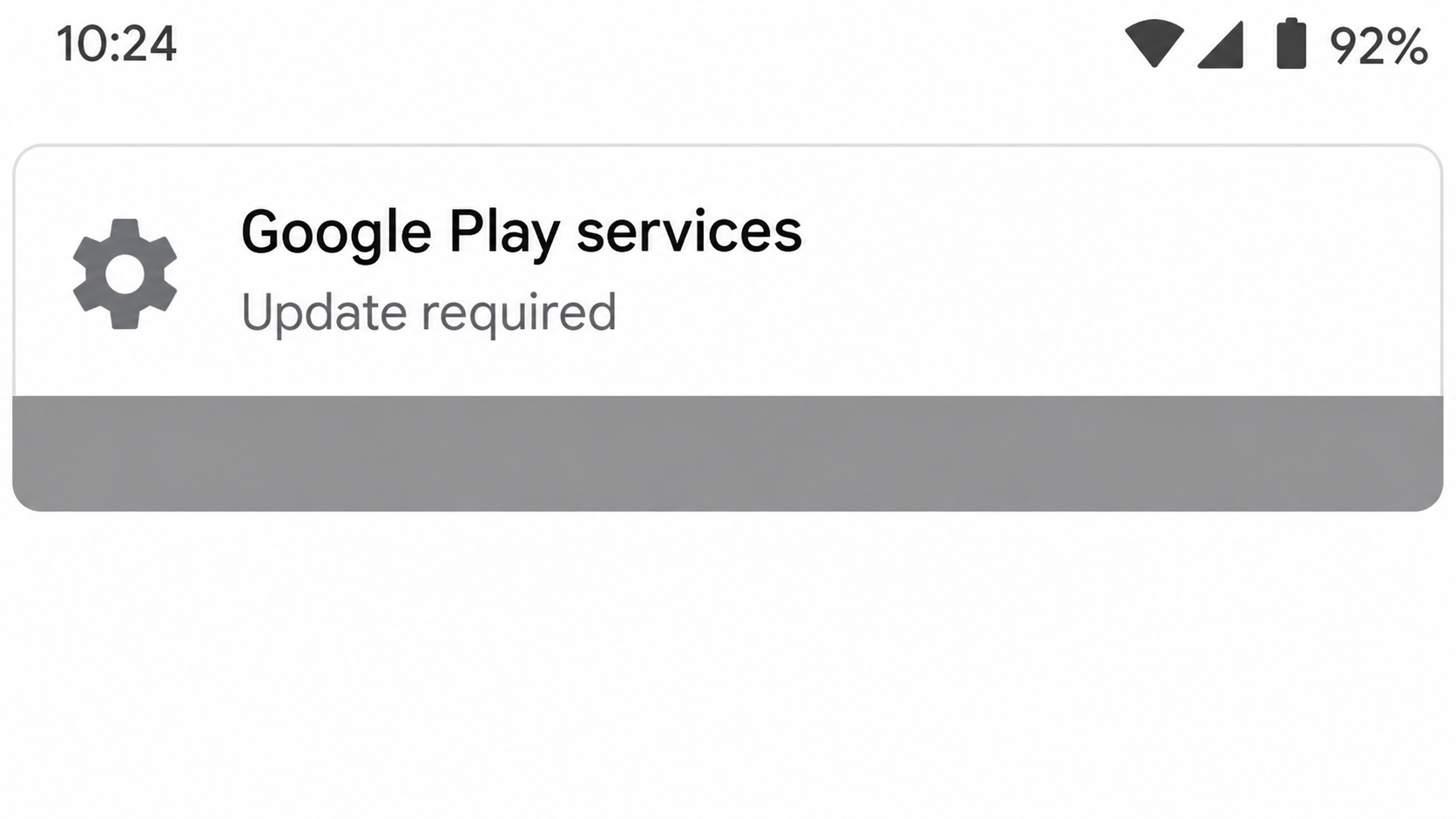
A reported lure used a fake Google Play services update. The installed malware could also present itself with that familiar name, making a simple glance at the app list unreliable.
The lead recreates the kind of update notice described in the report. It doesn’t show the genuine Google software or identify a particular installation by appearance alone.
The real Google Play services is an important Android component. Do not remove or disable it because the words on a suspect app happen to match.
The main risk starts when you trust the next screen
Researchers found fake screens for financial apps, plus ways for the malware to observe or interact with the phone. The target list was not a list of confirmed losses.
Three details change how you should respond:
- Merely reading the link does not install OverlayPhantom. A downloaded package should stay unopened.
- Running a copycat installer and granting Accessibility makes this a device incident.
- Entering financial or identity information afterward makes it an account incident as well.
You do not need to recreate the login screen to decide what to do. If you remember an outside download followed by unusual access requests, keep that sequence for support.
How the OverlayPhantom Fake Update Scam Works
Step 1: The lure starts with something familiar
An identity app sounds like a plausible place to begin a government task. A TikTok copy plays on a different expectation, but it still borrows trust from a familiar name.
Both examples show why the route to the app matters more than its icon. Verify the developer and start from the genuine service, not the page offering the package.
Check an identity-verification message from another device using the actual account. Opening the suspect installer won’t authenticate its request and may make the incident worse.
Step 2: An update turns into a request for control
Inside the lookalike app, the apparent update brings an Accessibility request into what otherwise looks like setup. Accessibility has legitimate uses, but it isn’t a routine permission for every installer.
An app with that access can interact with the interface on your behalf. That’s useful for assistive software you chose and risky when an unfamiliar package asks for it.
A trusted-looking name on the update screen doesn’t change who made the request. Stop if you cannot account for the app and its reason for needing control.
Step 3: A fake sign-in can cover a real app
The documented samples provided imitations of screens for a range of financial apps. That meant the owner could open the right banking app and still see the wrong form.
Think of an overlay as a sheet placed on top of the real screen. The view behind it may be legitimate even if the form taking your response is not.
If a bank suddenly asks for a full sign-in or extra verification after an unrelated install, don’t try it again to see whether the prompt reappears.
This is different from a fake bank page that exists only at a web address. Closing the browser or clearing its history doesn’t remove a separate installed app.
Step 4: Remote access turns later activity into part of the incident
Cyble reported capabilities beyond showing fake forms, including viewing the screen and interacting with the device. The impact depends on what ran, the permissions granted and what was used afterward.
That distinction is why a password changed on the same handset can be a poor first move. A trusted device gives you a separate channel to protect the account.
A bank can check what was actually authorized. Don’t rely on the amount or recipient the affected phone showed, especially if its screen and your account statement disagree.
Which financial records should you check first?
Start with your last recognized activity before the installer appeared. Use a trusted device to compare it with what your bank or exchange says happened later.
There may be two records for the same event, such as an approval prompt and a transfer in the statement. Tell support if those records do not agree.
Give the provider the time, amount and reference if money moved. Distinguish a pending item from one already settled; the options may differ once the payment is complete.
If there is a new device, payee or recovery address, ask whether the provider can remove it or lock changes. Don’t approve another request as part of that conversation.
Look beyond the first bank app you remember opening. If you used a business payment app or exchange during that window, contact its fraud team separately.
If nothing was transferred, preserve any unexpected approval notifications anyway. They may help a provider identify an attempted sign-in or enrollment you never finished.
What to Do if You Have Fallen Victim to This Scam
-
Stop payments on the handset before checking anything else. If you installed the app, switch on airplane mode, confirm Wi-Fi is off, and use another device to contact support.
On a work device, tell your administrator when you installed it and what access appeared. Wait for their directions before removing apps or restarting.
-
Tell your bank what happened, even if a transfer isn’t obvious. Use the phone number on your card or a known banking app on a clean device.
Ask the fraud team about recent payments, registered devices and authorization requests. Write down the case number for follow-up, and don’t make a test transfer.
-
Check the account behind the original lure. If you used your digital ID or signed an unexpected request, contact the real identity provider from its own site.
Tell support whether you entered a signature password or noticed a request you didn’t start. A new phone unlock code doesn’t undo a completed account approval.
-
Treat passwords, sessions and wallet details separately. Replace reused or exposed credentials from a device you trust. Review signed-in devices and revoke access you don’t recognize where available.
If you typed a wallet recovery phrase on the suspect device, consult the wallet maker through its verified channel. Making that same phrase private again isn’t possible.
-
Document the path without returning to the lure. Record the app name, time and permissions you remember. Keep existing transaction references, but never share a PIN or recovery phrase.
If you stopped at a download, leave the file unopened. For a personal device, remove it from Downloads unless a responder needs the evidence.
How to Remove OverlayPhantom From Android
Step 1: Identify the two installation stages carefully
Open Settings, then Apps, and display the full list. In Pixel’s recent-apps section, choose See all apps to show the rest of the installed entries.
Review the initial app you remember downloading and unfamiliar apps installed around the same time. Open their App info pages in Settings rather than launching either app.
Never disable an Android system service or legitimate accessibility tool on the strength of a label. Use install history, scan findings or qualified help to identify the malicious copy.
Step 2: Turn off the access you can tie to the fake app
Search Android Settings for Accessibility and open the installed services list. If the known malicious entry has access, select it and turn its service off.
Review any Display over other apps access explicitly granted to the suspicious installation. Some models call this Appear on top. Turn off only the matching app’s entry.
If the browser or file manager was allowed to install unknown apps for this download, find Install unknown apps in Settings and revoke that specific source’s permission.
Step 3: Remove the identified packages and verify the app list
Return to App info for the suspect software and choose Uninstall. Confirm and check the list again, because removing the first installer may not remove the other component.
If a fake screen keeps covering Settings, ask the manufacturer or an incident responder for help. Don’t sign back into a bank app to make the overlay reproduce itself.
Some devices show both the store entry and a reason Uninstall isn’t available. Record what you see instead of using Disable on every app with a similar name.
Before the first restart, confirm you have a way to contact the bank if the phone doesn’t return normally. Keep any banking incident reference on the other device.
On many phones, safe mode can suspend downloaded apps long enough to remove one. Follow the manufacturer’s steps for your model, then restart normally once the unwanted app is gone.
Step 4: Scan from the genuine store, not through the impersonator
When it’s safe to reconnect an unmanaged device, open the real Google Play Store. From your profile menu, select Play Protect and start its scan if the option is available.
For a second check, use the legitimate Malwarebytes listing. Check that Malwarebytes is the publisher before installing. Open it after Google Play finishes.
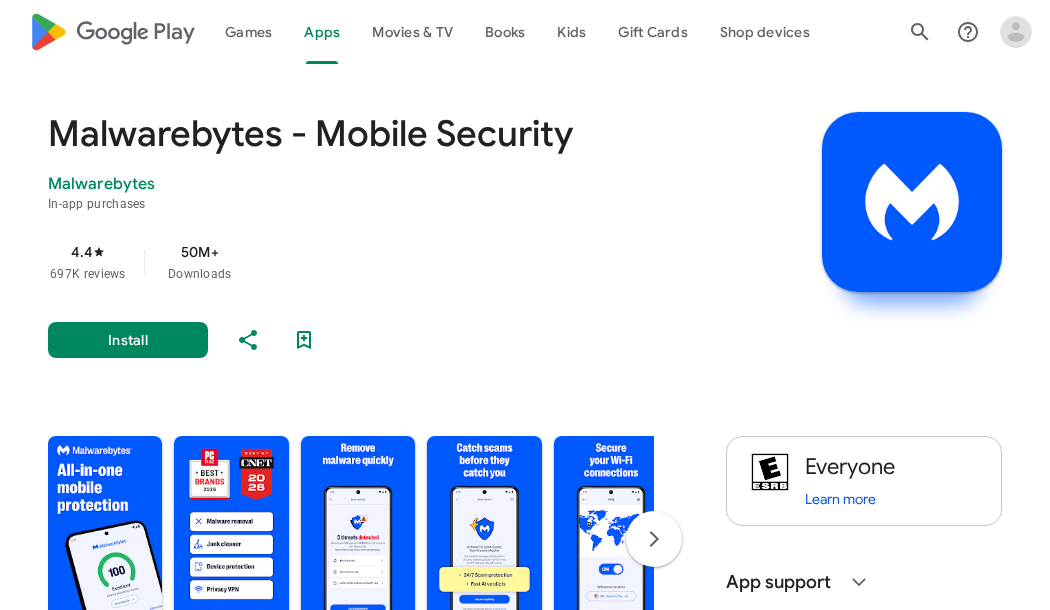
From the dashboard, look in Device for Scan now. Choose it in the verified scanner, not in a system-looking alert shown by the suspicious app.
Review the legitimate scanner’s request for file access only if you want it to inspect files along with apps. That does not require re-enabling access for the unknown installer.
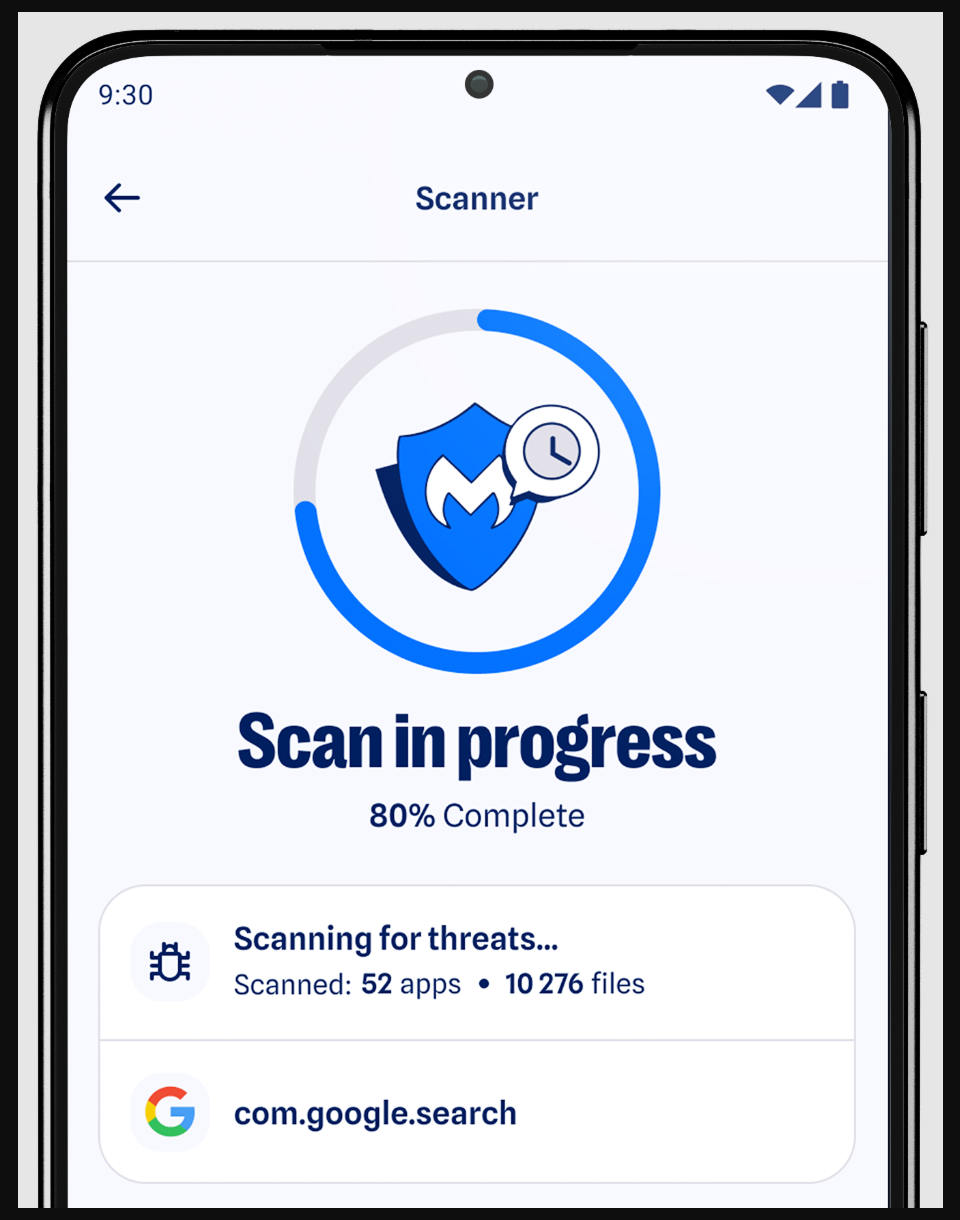
Wait for the scanner’s summary before deciding whether a detection remains. The publisher’s interface below shows progress, not a result from your phone.
Step 5: Handle detections and verify what changed
In the result list, open the menu beside a confirmed malicious app and choose Uninstall app. Accept Android’s confirmation, then go back to the scanner.
Recheck any finding that couldn’t be removed. Restart only when prompted and appropriate for your incident, then scan again. Do not allow-list a banking threat to silence the alert.
Malwarebytes’ Android scan instructions show the available actions. The optional premium Android plan may earn MalwareTips a commission and isn’t needed for the manual cleanup steps.
Step 6: Recover the phone without restoring the same risk
For repeated detections or signs of ongoing control, leave the handset offline. Use the MalwareTips mobile help forum or your manufacturer’s support from a separate device.
A confirmed compromise may warrant a reset, which erases local data. Before deciding, verify a clean backup, account recovery methods and any separate banking or digital ID setup requirements.
After repair, obtain your real financial and identity apps through verified listings. Confirm the provider recognizes only the devices and sessions you expect before moving sensitive activity back.
When re-enrolling the banking app, read each approval on the repaired device and compare it with the account you’re trying to add. Reject an enrollment you didn’t start.
Check later statements against the provider’s incident record. If an unexpected debit appears, report it under the same case so the provider can compare the events.
Frequently Asked Questions
Is Google Play services itself OverlayPhantom?
The reported malware borrowed that label. The actual system component is unrelated. Use more than the displayed name to identify a package before removing it.
Is the official ID Austria app safe to keep?
The case concerns an outside installer posing as ID Austria. Compare your download history with the channels ID Austria identifies. Get help if you cannot distinguish the two.
Does a fake screen mean my bank’s app was breached?
An overlay can display a counterfeit form above a legitimate app. That is different from a breach at the bank, but it can still expose information you type.
What if I refused the fake update?
Refusing reduces exposure to later stages, but check whether the original lookalike was already installed. An installed first-stage app deserves attention even if you didn’t finish setup.
Can I check my balance on the suspect phone?
Use the bank’s verified contact or another trusted device instead. Don’t hand an untrusted screen another login or use it to approve a payment.
Can an Android scan tell me what was stolen?
It can help locate malware still on the phone. It cannot report every piece of data previously copied. Review access and transactions with the relevant service separately.
The Bottom Line
Don’t take a system-looking update at face value after downloading an app from an unfamiliar page. Get ID Austria, TikTok and Android updates through their verified routes.
If you installed the impersonator, stop banking on that phone. Protect accounts elsewhere and check both the initial app and any separate component before trusting the handset again.

Join the discussion
0 commentsShare your experience or ask a question about this article.
Community experiences
Did this happen to you?
Your experience could help someone recognize the same scam. Submit a private report for our team to review.
I experienced this tooReports are reviewed before publication. Sharing publicly is always your choice.
Discussion
Start the conversation
Have a question or something useful to share? Add the first comment.