


A stuck app doesn’t usually make you think of malware. It’s the kind of problem most people try to fix by closing the app and getting on with their day.
With PromptSpy, that ordinary gesture is part of the story. To understand the warning, it helps to separate what the researchers tested from what they saw in the wild.
Overview
PromptSpy is a named Android sample, not an alert on every phone
ESET researchers analyzed several Android samples and named the more advanced group PromptSpy. They traced a possible distribution site, which was already offline during their investigation.
They had not seen the PromptSpy components in their own telemetry when they published. The samples showed what the software could do, not how many people installed it.
The lead depicts a generic update card in a recent-apps view. It isn’t a sample screenshot or a way to recognize an infection by layout.
The AI feature was about keeping the app active
In the sample, the malware misused Google’s Gemini service to help interpret the Android interface and keep its app in the recent-apps list. Gemini was not the installed malware.
That is more limited than headlines suggesting AI controlled the entire attack. The app still needed a route onto the phone and handled remote access through other components.
Using Gemini normally does not install PromptSpy. Neither does seeing an ordinary Android recent-apps card that cannot be dismissed on the first try.
Trouble uninstalling is meaningful only with other evidence
Prioritize the sequence you remember, not the word “AI”:
- An unexpected banking or update package arrived outside your usual source, and Android installed it.
- After the install, the app asked for Accessibility even though its stated purpose did not explain the request.
- You saw a credible detection or could not use normal controls to stop or remove the identified suspicious app.
Any of those details can help a responder. An isolated touch-screen issue is not enough to identify this malware, and you don’t need to reproduce it to ask for help.
How the Reported PromptSpy Installation Works
Step 1: An outside package supplies a plausible reason to install
The analyzed chain involved an initial package and a separate payload presented as an update. The app label or update message had no power to authenticate that second file.
Compare the request with how you normally obtain the app. If it claims to be a bank, check from the bank’s verified site or installed Google Play Store.
If you declined before installation, keep the file closed. Do not accept the update on a spare phone to see whether the name matches the report.
Step 2: A legitimate Android feature can be given to the wrong app
The malicious package asked Android for Accessibility. That’s normal for some assistive apps, but the package in this case used it to interact with the interface.
What matters is whether the app needs that access for a function you understand and chose. A claimed security update isn’t a reason to override that judgment.
If a stranger talks you through removing safeguards for a bank app, stop and use the bank’s own support. A real permissions dialog can carry an untrustworthy request.
Step 3: The app can resist routine attempts to close or remove it
ESET documented AI assistance with keeping the app active. It also reported that the software could interfere with attempts to use the ordinary removal controls.
The practical consequence is that a reader may tap what looks like the right button and get nowhere. Repeating the same tap is not a verification method.
Use the supported safe-mode path or get authorized help if that happens. It is more useful to document the symptom than to try random tools promoted with the malware’s name.
Step 4: Device control is a separate reason to secure accounts
The observed payload included remote viewing and control capabilities. It could gather certain information displayed on the device, including material associated with the lock screen.
Don’t assume every secret on the device was taken. Tell your responder which accounts and credentials you used while the app may have been running.
Change sensitive credentials on a separate device. Testing the replacements on the affected phone can expose them before cleanup is finished.
Why safe mode can help but isn’t a verdict
Android safe mode lets you temporarily work without many downloaded apps running. That can make it easier to reach a control that wasn’t responding under normal conditions.
If the problem goes away in safe mode, you have learned something useful about the device. You have not established that any particular malicious sample was responsible.
If the problem continues in safe mode, don’t treat that as a challenge to keep trying. Report what you observed and ask whether the issue is software, management or hardware.
On a work phone, call IT before using that restart. Changes to the app state may make it harder for the security team to see what was running.
Before any restart on an unmanaged phone, make sure you have an alternate way to contact your bank or technician. Keep important recovery details on a different trusted device.
Google notes that safe mode can remove some home-screen widgets. The shortcut arrangement afterward shouldn’t be your evidence of whether an app is still installed.
Once you’re back in normal mode, recheck Apps and the specific permission you reviewed. Don’t infer removal just because the card you saw earlier is gone from Recents.
What to Do if You Suspect PromptSpy Ran on Your Phone
-
Identify the point where you stopped. If no software installed, leave the file closed and contact the real service to see whether any update was due.
If you ran the copycat app or granted Accessibility, stop normal use of that handset. Disconnect Wi-Fi and mobile data while you seek help from another device.
-
Call the bank using a trusted number if you banked afterward. Explain what appeared on the phone before or during the sign-in. Ask about recent activity and linked devices.
Report authorizations that don’t match your instructions. Do not test the handset by entering a PIN, approving a transfer or making another payment.
-
Treat the screen lock as a distinct credential. Tell your technician if you entered it while the app was active, and avoid using the same code for other services.
Set a new screen lock when the device can be trusted again. On another device, replace exposed account passwords and revoke unfamiliar sessions as those services allow.
-
Write down the actions you observed. Record the visible app name, install time, any permissions you granted and whether the uninstall control responded.
Preserve the message or download evidence without reopening it. On a managed device, contact IT before a restart or cleanup that could change its evidence.
-
Don’t assume updates alone will remove the app. Record any scanner results or account alerts separately. If the phone keeps ignoring removal actions, seek support rather than trying harder.
How to Check and Remove PromptSpy on Android
Step 1: Start in Settings, not in the suspect app
On a personal phone, open Settings, then Apps, and show all installed entries. Find the application you actually added and any distinct update around the same date.
Open the matching app’s App info through Settings. Don’t launch either package to see whether the banking or update screen looks right.
Stop if you depend on an unfamiliar service for accessibility or device management. Identify it with the owner or specialist before touching its permissions.
Step 2: Revoke confirmed suspicious access and try normal uninstall
Search Android Settings for Accessibility and find the installed services. Switch off only the confirmed suspect entry if Android shows it as active.
If a browser or file manager was enabled to install this package, go to Install unknown apps in Settings. Open that source and turn off Allow from this source.
Open the unwanted application’s App info again, choose Uninstall, and confirm. Check the list afterward for both the original install and any separate package associated with it.
Step 3: Use safe mode if the ordinary controls won’t respond
For Pixel 6 and newer, press Power and Volume Up to open the power menu. Touch and hold Power off or Restart, then confirm safe mode.
Once Safe mode appears, retry removing the identified unwanted app from Settings. A normal restart exits safe mode afterward. Other Android phones may use another model-specific route.
If your phone still won’t let you remove the entry, stop and keep it offline. Never turn off legitimate employer controls or accessibility tools to force a result.
Step 4: Verify the phone through the genuine Play Store
After the known app is removed and a reconnect is safe, open Google Play Store itself. Go to your profile, select Play Protect, and use its scan control when offered.
If you want an additional check, choose Malwarebytes from its official Play listing. Look for its publisher, then choose Install and open the app after the store completes.
The Device section of its dashboard contains Scan now. Tap that in the verified app. Consider file access when prompted if you need the scanner to check downloads too.
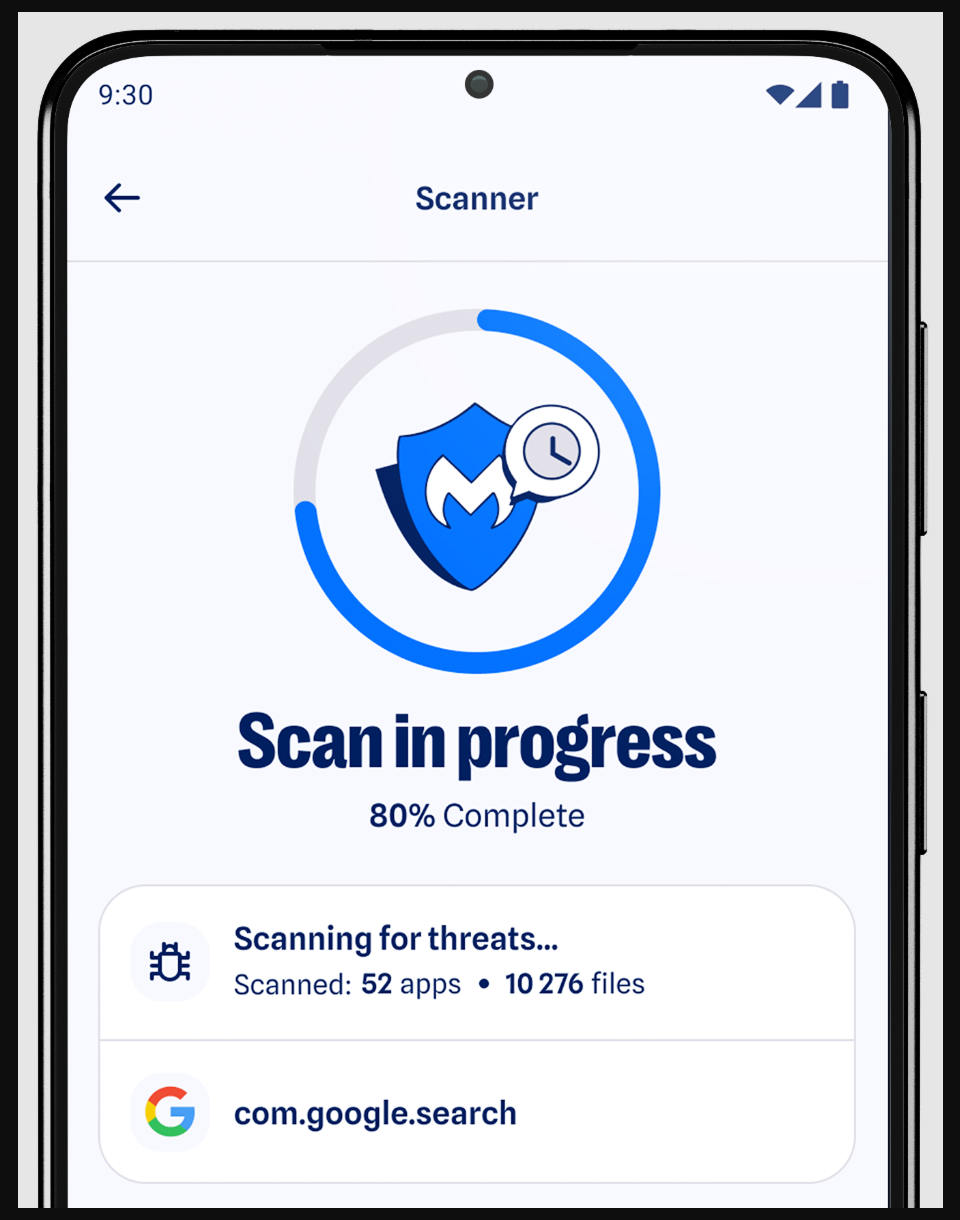
Don’t wait for a malicious package to show a warning before scanning. Genuine security software runs a check at your request, and the progress display is not a final report.
Read the progress screen until it completes. Keep the names of anything detected so you can recognize whether the same finding comes back.
Step 5: Resolve detections and retest after appropriate restart
The detection list has a menu beside each item. Choose Uninstall app for an identified harmful app and confirm Android’s prompt. Follow the result action for a flagged file.
If the app or Android requests a restart, proceed only when safe for the case. Run another scan afterward, and don’t put the suspect item on the allow list.
The optional Android Premium route may earn MalwareTips a commission. Manually removing the app and using Play Protect does not require a paid plan.
Step 6: Escalate if you cannot trust the controls
Ask your manufacturer or the MalwareTips mobile help forum about an app that comes back or cannot be removed. Post the symptom, not credentials or screenshots of private accounts.
If a specialist recommends resetting the phone, first verify clean backups and account recovery access. An erase removes local data and can’t reverse a past account compromise.
Once the phone is safe, set a new lock where needed and download only verified apps. Check sensitive accounts for unrecognized access before resuming normal transactions.
After changing the screen lock, review where else you used the old code. A banking PIN or work password may still need attention.
Ask a service provider which alerts came from the relevant phone, instead of dismissing everything as a false alarm. An unrelated sign-in deserves its own follow-up.
Keep each detection name with its scan date and phone model. That helps support distinguish a new finding from one already removed.
If an unfamiliar banking app is still installed after the reset or cleanup, don’t sign in. Verify its publisher through the bank’s own website before opening it again.
Don’t restore the fake update package from a cloud or file backup. Recover documents you know you need, but download replacement apps from independently verified listings.
If you cannot regain safe access to banking or work accounts, finish that recovery through the providers from another device. A device reset doesn’t reopen a locked account.
Frequently Asked Questions
Does using Google’s Gemini app give me PromptSpy?
No connection follows from using Gemini normally. The investigated Android malware abused the service as one part of its behavior; Gemini itself was not the malicious installer.
Did ESET confirm a widespread PromptSpy outbreak?
ESET analyzed submitted samples and identified a possible distribution route. It reported no detections in its own telemetry at publication, so the size of any real-world campaign was not established.
Is an app stuck in Recents proof of infection?
A stuck or pinned app can have innocent explanations. Investigate when it coincides with a questionable package, unexpected permission request or credible detection, not when it’s the only clue.
Does rejecting Accessibility mean nothing happened?
Rejecting it can prevent some reported behavior, but it doesn’t uninstall an already installed package. Check the app list and don’t use the package again.
Can turning off Gemini fix the phone?
The problem is the suspect software on Android and any exposure that occurred while it ran. Removing or turning off the genuine Gemini app doesn’t address either issue.
Why use a second device to change passwords?
You don’t want new passwords or verification requests displayed on a phone you still suspect of being controlled. Use a separate trusted device until the original one is cleared.
The Bottom Line
Don’t install an outside package merely because it looks like a banking update. Start from the verified service and leave the untrusted file unopened.
If a suspect app did run, stop using the phone for accounts. Address the installed software and its permissions, and use authorized help if ordinary removal fails.

Join the discussion
0 commentsShare your experience or ask a question about this article.
Community experiences
Did this happen to you?
Your experience could help someone recognize the same scam. Submit a private report for our team to review.
I experienced this tooReports are reviewed before publication. Sharing publicly is always your choice.
Discussion
Start the conversation
Have a question or something useful to share? Add the first comment.